---
category: general
scraped_at: '2025-11-12T14:07:12.076589'
title: Set step
url: /docs/variables-set
---
# Set step
Set variables to specific values, using expressions, or the output of a prompt.
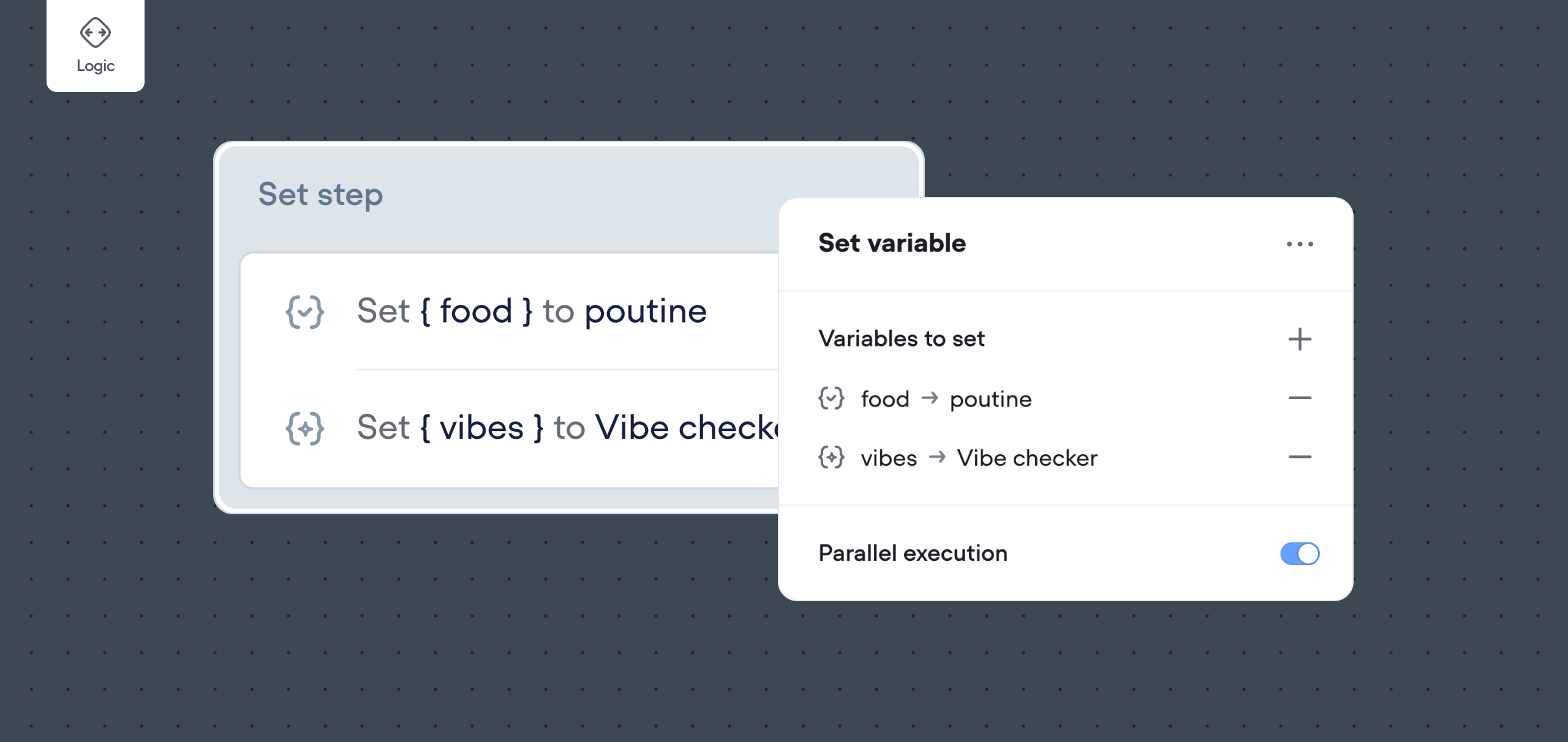
### How do I assign or set values of variables in my agent?
Throughout your agent, you may need to change variable values when a user reaches a specific point or takes a certain action. Sometimes, you’ll want to reset or modify these values based on particular circumstances.
When you need to manually change or set a variable’s value within your conversation, you’ll use the **Set step**. The **Set step** allows you to set and modify the value of variables in your agent’s flow.
### Setting and Changing Variable Values
The Set step enables you to change the value of a variable when it is activated. To get started, drag the **Set** step from the **Logic** section in your sidebar. Be sure to assign a label to your Set Step for easy identification.
> 💡
>
> **Tip**: You can add multiple variable settings within a single Set Step by using the **“Add Set”** button in the Set Step menu. Changes are applied sequentially from top to bottom.
#### Input Options: Value, Expression, and Prompt
With the updated Set Step, you have three distinct input options for setting variable values:
1. **Value**
2. **Expression**
3. **Prompt**
### Value Input
The **Value** input is ideal for straightforward variable assignments. You can directly set a variable without worrying about using quotes or understanding data types. Simply choose a variable in the variable dropdown, then enter the desired value directly into the **Value** field.
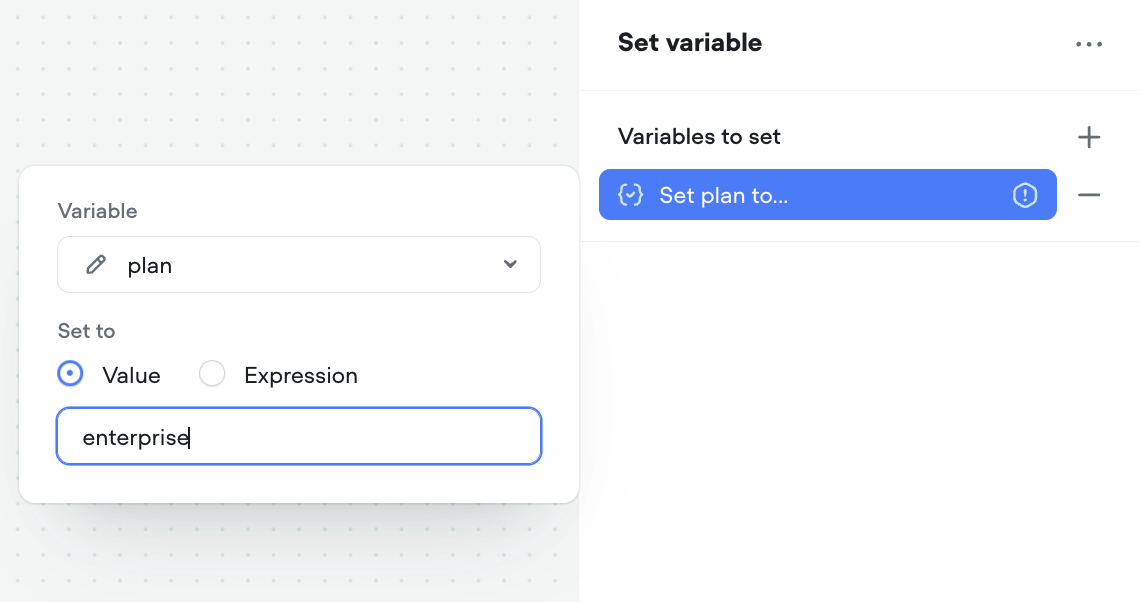
**Note**: The **Value** input is perfect for setting your variable to a specific text (string) value or a number. However, it does not support complex expressions or equations.
### Expression Input
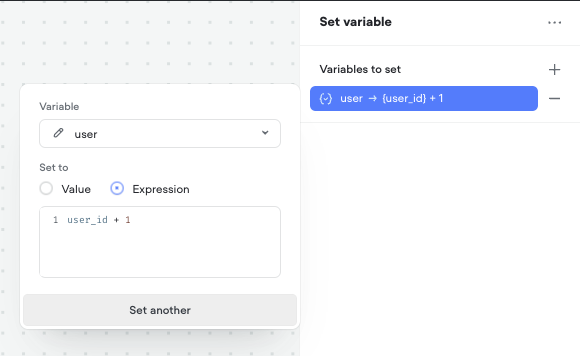
The **Expression** input allows for more advanced configurations using JavaScript expressions. You can create expressions to set variables dynamically based on various conditions or calculations. For example, you can increment or decrement variable values, or perform more complex operations.
**Note**: `undefined` is not a supported value. Variables set to `undefined` will transformed into `null`.
### Prompt Input
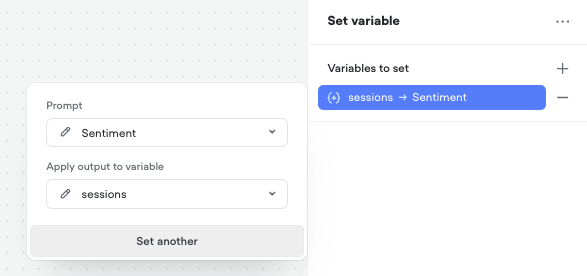
The **Prompt** input option allows you to generate a variable’s value dynamically using a prompt from your **Prompt CMS**. This feature leverages AI to generate responses, perform computations, or create content, and stores the result in the selected variable.
### Using Expressions — Adding and Subtracting
A common way to modify a variable is through incrementing or decrementing its value.
**Example**: A conversation designer might increment a score variable by **+2** each time a user scores a basketball goal. Conversely, they might decrement a points total by **-1** each time a user answers a question incorrectly.
To achieve this in the Set Step menu, select the **Expression** input option and write an expression to increment or decrement the variable value.
**Example**: To increase a variable by 5, select the variable and set the expression as:
JavaScript
```
{variable} = {variable} + 5
```
### Using Expressions — Complex Equations
The **Expression** input also enables the evaluation of complex equations by allowing the use of JavaScript expressions. This is ideal for situations where you need to perform advanced calculations or dynamic evaluations.
**Example**: To calculate the average of three scores and assign it to a variable average\_score, you can write:
JavaScript
```
{average_score} = ({score1} + {score2} + {score3}) / 3
```
> 💡
>
> **Tip**: You can monitor how your variables change in your conversation (based on Set Steps) by turning on **Debug Mode** in **Settings** after clicking **Run**. This feature is helpful for testing your conversation on Canvas.
Updated 5 months ago
---
[Condition step](/docs/logic)[End step](/docs/todo-end-step)
Ask AI
* [Table of Contents](#)
* + [How do I assign or set values of variables in my agent?](#how-do-i-assign-or-set-values-of-variables-in-my-agent)
+ [Setting and Changing Variable Values](#setting-and-changing-variable-values)
+ - [Input Options: Value, Expression, and Prompt](#input-options-value-expression-and-prompt)
+ [Value Input](#value-input)
+ [Expression Input](#expression-input)
+ [Prompt Input](#prompt-input)
+ [Using Expressions — Adding and Subtracting](#using-expressions--adding-and-subtracting)
+ [Using Expressions — Complex Equations](#using-expressions--complex-equations)
