---
category: general
scraped_at: '2025-11-12T14:07:02.308875'
title: Image step
url: /docs/images
---
# Image step
Send images and animated gifs to users.
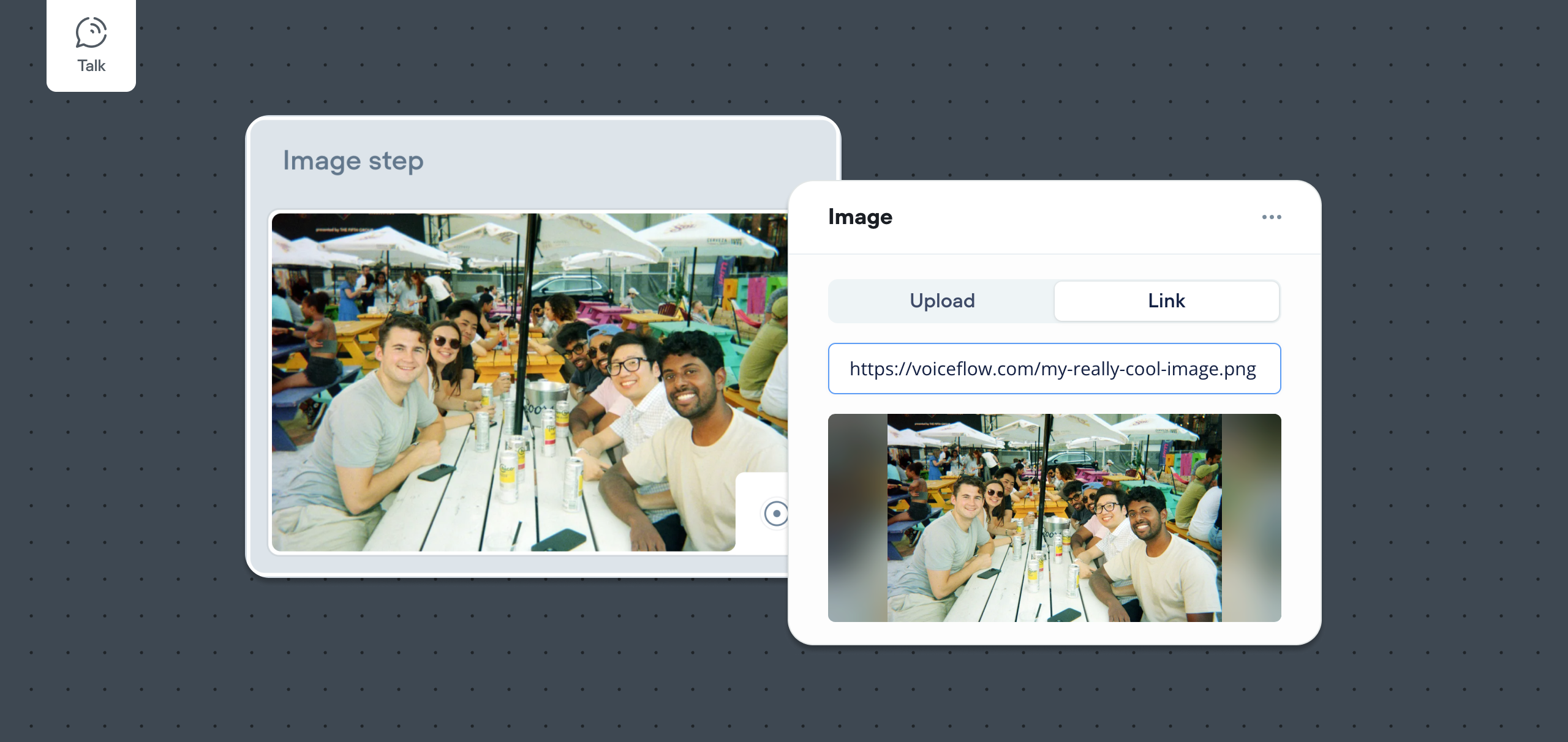
The Image step allows your agent to send an image or animated gif to the user. This can be useful when building eCommerce agents as you can send product images, or when building SaaS support agents as you can send screenshots of the steps the user should allow.
## Basic usage
To use the Image step, drag it onto the canvas and click on the step. You’ll see two options:
* Upload an image or GIF from your device
* Paste a link to an image from the web
Once uploaded or linked, the image will appear on the step. You can hover over the image on the canvas to see it at full size.
[](https://yz5du1veb1.ufs.sh/f/9fKud4NeF5NSPTit2SlF9by0OHwa4UL5XrKMoYGdeckgTqN3)
## Dynamic images
You can also use variables to load different images dynamically. This is useful for changing visuals based on the conversation - for example, showing a product preview or a user-generated image.
To use dynamic images, insert a variable (e.g. `{my_url}`) into the image link field. Here’s an example using a dynamic image link based on the `\{user_id}` variable:
[](https://yz5du1veb1.ufs.sh/f/9fKud4NeF5NSY3aUXBRLqS74rbVsgFnoXQRxeBvDfjhUtWTm)
Updated 5 months ago
---
[Prompt step](/docs/prompt-step)[Card step and Carousel step](/docs/cards-carousels)
Ask AI
* [Table of Contents](#)
* + [Basic usage](#basic-usage)
+ [Dynamic images](#dynamic-images)
