---
category: general
scraped_at: '2025-11-12T14:07:52.947519'
title: Using the Intent CMS
url: /docs/using-the-intent-cms
---
# Using the Intent CMS
## Accessing the Intent CMS
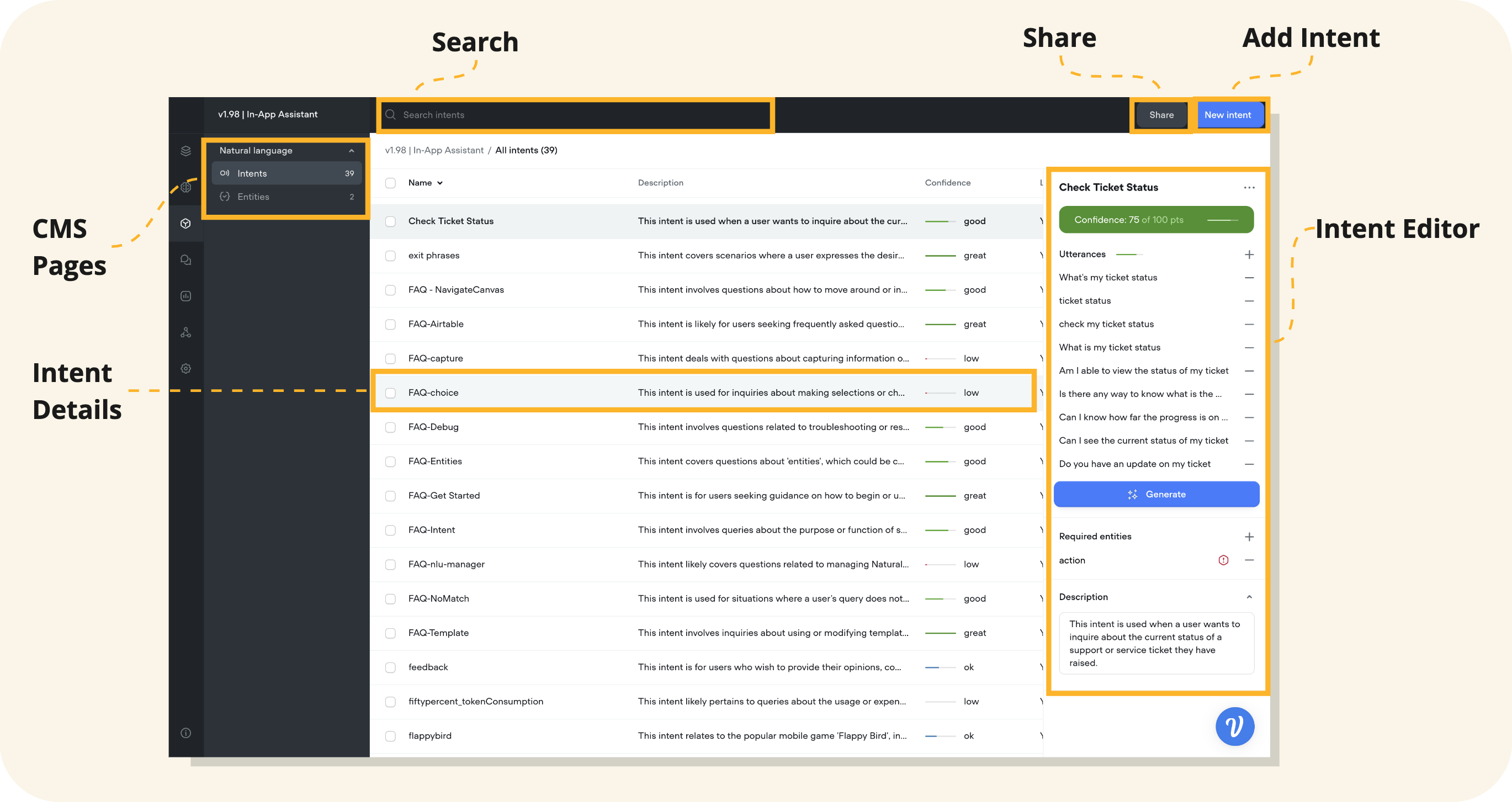
1. **Open Your Voiceflow Project**: Navigate to your project's dashboard.
2. **Go to the Intent CMS**: Click on the **"Intents"** tab or access it via the project menu.
## Creating a New Intent
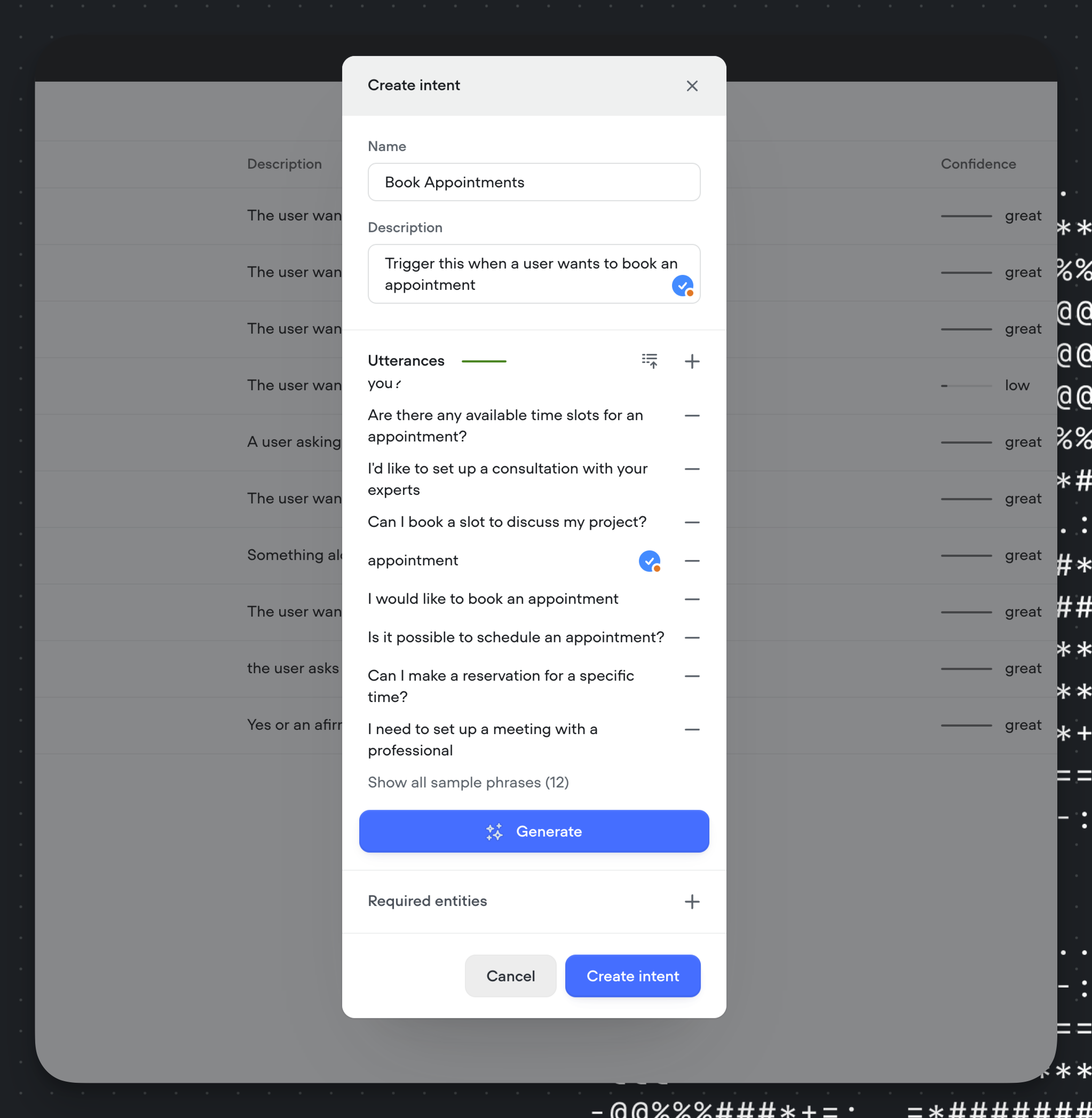
1. **Click on "New Intent"**: Located in the upper right area of the Intent CMS.
* *Note*: Intents and entities created in the Intent CMS are available globally within your assistant.
2. **Fill in Intent Details**:
* **Name**: Enter a descriptive name (e.g., `BookAppointment`).
* **Description**: Provide a clear explanation starting with "Trigger this intent when..." (e.g., "Trigger this intent when the user wants to schedule a new appointment.").
* **Utterances**: Add example phrases users might say (e.g., "I need to book an appointment," "Can I schedule a meeting?").
3. **Add Required Entities** (if applicable):
* **Click the "+" Icon** next to **Required Entities**.
* **Select or Create Entities** (e.g., `Date`, `Time`, `ServiceType`).
* **Enter Reprompt Text**: Provide messages to prompt the user if the entity is missing (e.g., "What date works best for you?").
4. **Save the Intent**:
* Click **"Create Intent"** to add it to your CMS.
## Editing an Intent
1. **Select the Intent**:
* Click on the intent you wish to edit from the intent list.
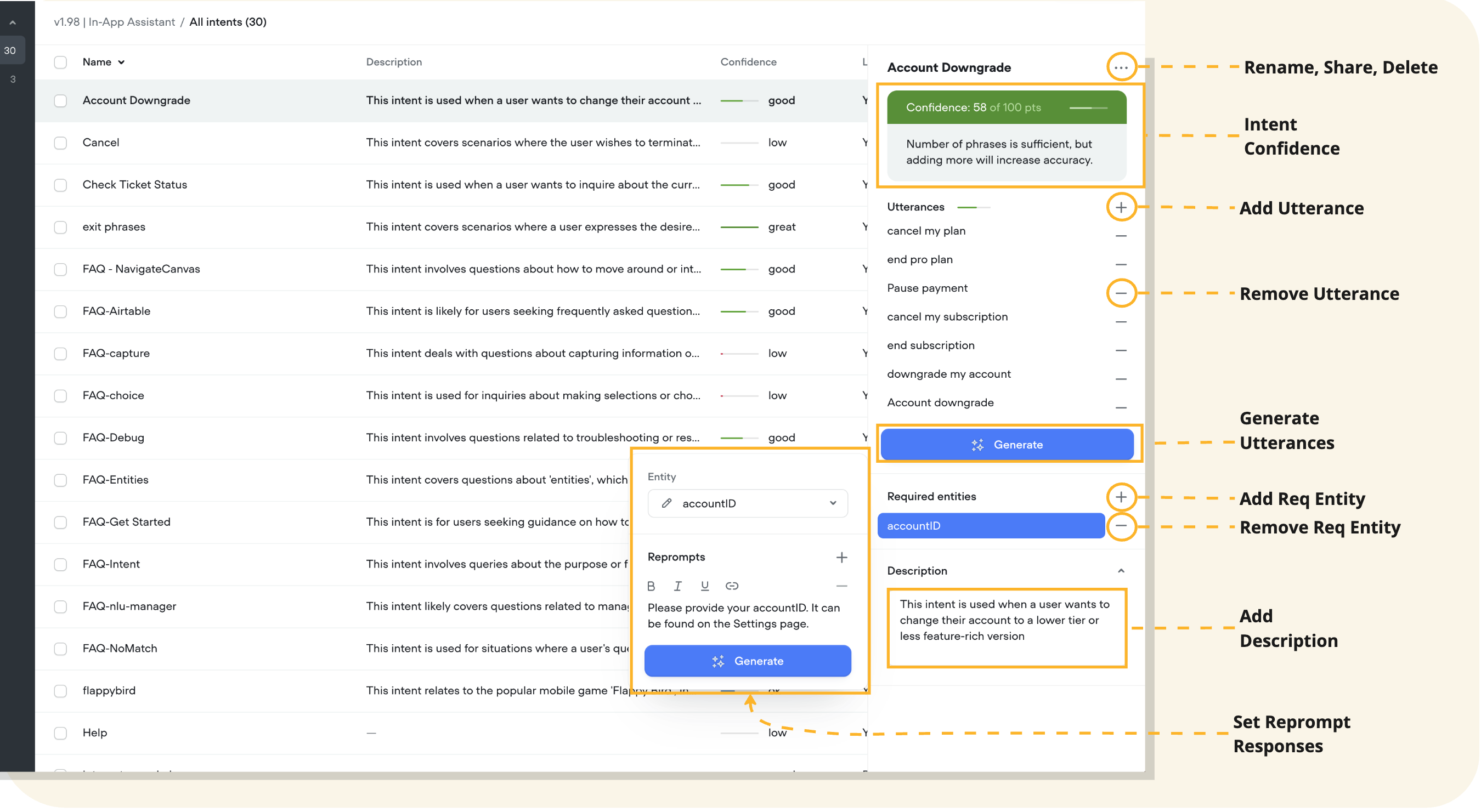
2. **Modify Details**:
* **Name**: Update the intent name if necessary.
* **Description**: Ensure it accurately reflects the intent's purpose.
* **Utterances**:
+ **Add Utterances**: Click the "+" icon to add more example phrases.
+ **Edit or Remove Utterances**: Click on an utterance to edit, or use the "-" icon to delete it.
+ **Generate Utterances**: Use the "Generate" feature to have an LLM create additional examples.
* **Required Entities**:
+ **Add or Remove Entities**: Click the "+" or "-" icons.
+ **Edit Reprompt Text**: Update the messages for prompting users.
## Deleting an Intent
* **Single Intent**:
1. Select the intent you want to delete.
2. Click the **"..."** (more options) button in the editor view.
3. Choose **"Delete"** from the dropdown menu.
4. Confirm the deletion when prompted.
* **Bulk Delete**:
1. Select multiple intents by checking the boxes next to their names.
2. Click the **"Delete"** button in the bulk action toolbar above the table.
3. Confirm the bulk deletion to remove all selected intents.
## Organizing Intents
* **Sorting**: Use the sorting options to organize intents by:
+ **Alphabetical Order**: A-Z or Z-A.
+ **Confidence Score**: High to low or low to high.
+ **Last Editor**: Group intents edited by specific team members.
+ **Updated Date**: Most recent to oldest.
* **Naming Conventions**:
+ Use consistent naming.
+ Make names descriptive and indicative of the user's goal.
* **Descriptions**:
+ Ensure descriptions are clear and start with "Trigger this intent when...".
+ Descriptions are used by [LLMs for intent classification](/docs/intent-classification-methods).
## Tips for Managing Intents
* **Keep Intents Focused**:
+ Each intent should represent a specific user goal or action.
* **Avoid Overlapping Intents**:
+ Ensure intents are distinct to prevent confusion during intent recognition.
* **Regularly Update Utterances**:
+ Incorporate real user inputs and feedback to improve accuracy.
* **Monitor Intent Performance**:
+ Use analytics to identify intents that may need refinement.
* **Use Representative Utterances**:
+ Include various phrasings, synonyms, and expressions users might use.
Updated 5 months ago
---
[Introduction to Intents](/docs/intents)[Previewing Intent Classification and Improvements](/docs/previewing-intent-classification-and-improvements)
Ask AI
* [Table of Contents](#)
* + [Accessing the Intent CMS](#accessing-the-intent-cms)
+ [Creating a New Intent](#creating-a-new-intent)
+ [Editing an Intent](#editing-an-intent)
+ [Deleting an Intent](#deleting-an-intent)
+ [Organizing Intents](#organizing-intents)
+ [Tips for Managing Intents](#tips-for-managing-intents)
