---
category: general
scraped_at: '2025-11-12T14:09:25.928445'
title: Evaluations
url: /docs/evaluations
---
# Evaluations
Evaluate the success of conversations based on sentiment, ratings, and more.
Evaluations are custom, automated checks that run against [transcripts](/docs/transcripts). They allow you to detect whether specific events, phrases, or intents occurred during a conversation, making it easier to measure quality, compliance, and outcomes from your agent's interactions at scale.
You might use evaluations to check if:
* The user expressed satisfaction or frustration during their conversation.
* The agent responded with a specific confirmation (e.g. “I’ve uploaded that for you”).
* The agent avoided restricted terms or phrases.
Evaluations run automatically on transcripts and surface their results directly in the transcript view.
> ℹ️
>
> ### Evaluations consume credits.
>
> Each evaluation consumes credits based on the number of transcripts processed, the length of each transcript and the model selected.
## Creating evaluations
Evaluations can be created from the Measure tab inside your project.
[](https://w17llroiln.ufs.sh/f/JH4JLc5mceYk5EtgwtkzMKCWVSIegrm60uA8OXNGnvF3Zysx)
Evaluations can return three types of metrics:
* **Binary**: provide a simple yes/no outcome—useful for checking whether a specific event occurred.
* **Text** : returns a freeform string, often used for summaries, labels, or more descriptive feedback.
* **Rating**: provides a numerical value between a given range.
Evaluations can be created either from scratch or by using a predefined template. Templates provide a quick starting point for common use cases and can be customized.
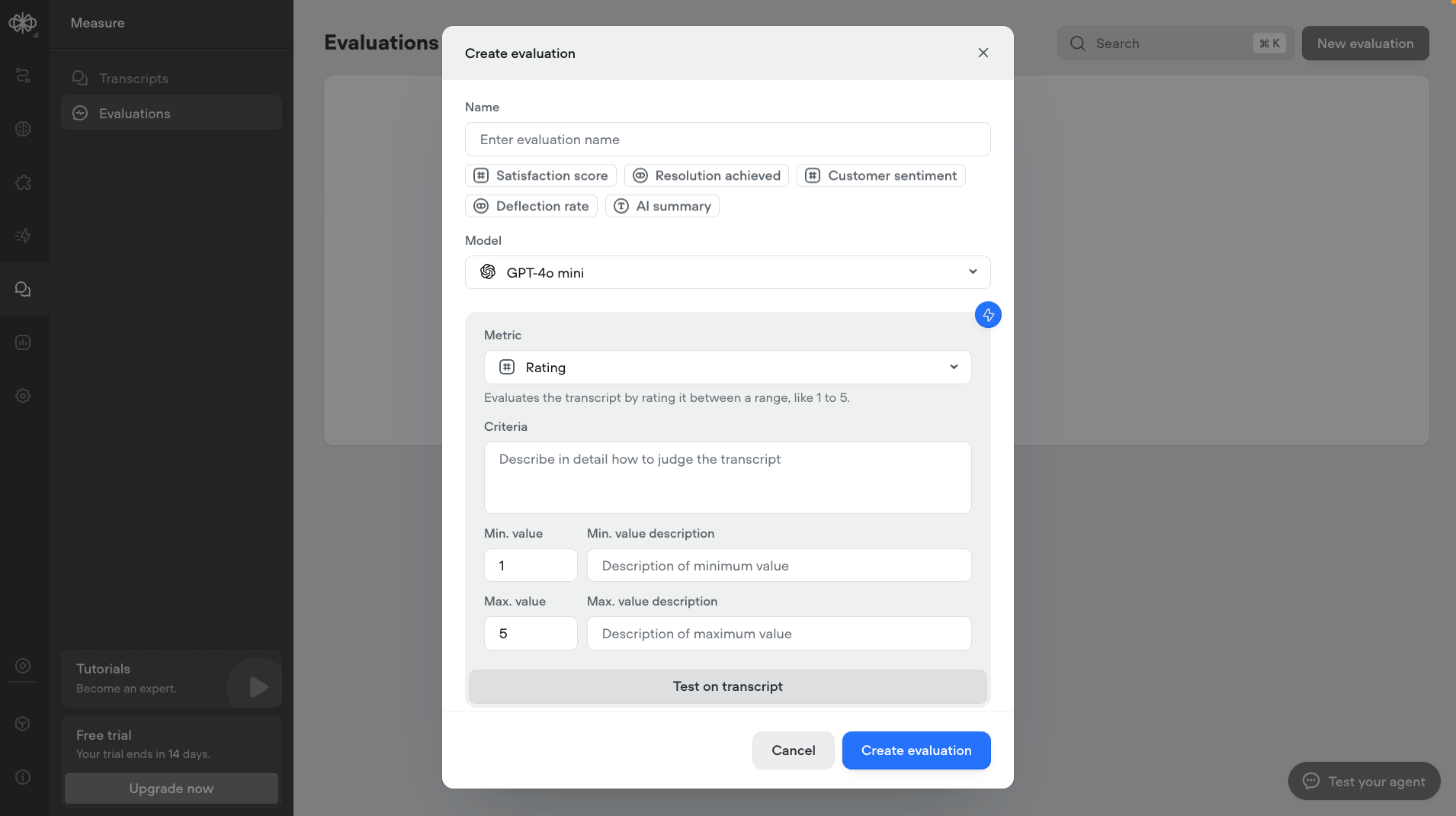
To save time, you can use the **⚡ icon** to automatically generate an evaluation based on a short description or instruction. This allows you to quickly create evaluation criteria without writing a detailed prompt from scratch.
To preview or test out an evaluation with your agent, you can click on **Test on transcript**.
## Enabling and disabling evaluations
Once an evaluation is created, it is **automatically** enabled by default. This means it will be run on all future transcripts that meet the evaluation's conditions. Note that evaluations **are not** retroactively run against previous transcripts.
If you want to *disable* an evaluation, simply click into the evaluation and toggle the **On/Off** switch. This stops the evaluation from running on new transcripts, while keeping existing results intact.
You can also identify the status of an evaluation at a glance:
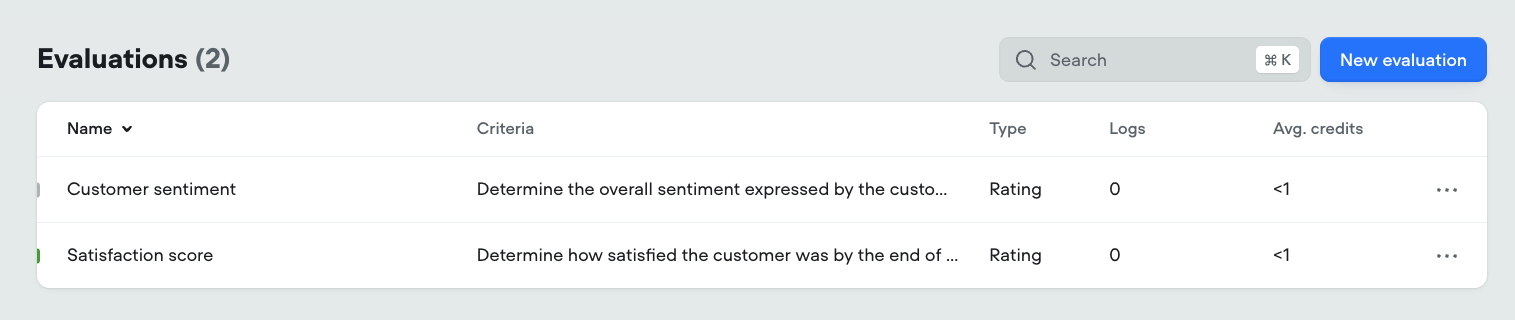
* **Enabled** evaluations are marked with a green bar on the left side of the row (e.g. *Satisfaction score*).
* **Disabled** evaluations display a grey bar instead (e.g. *Customer sentiment*).
This quick visual indicator makes it easy to scan and manage which evaluations are currently active in your project.
## Measuring evaluation performance
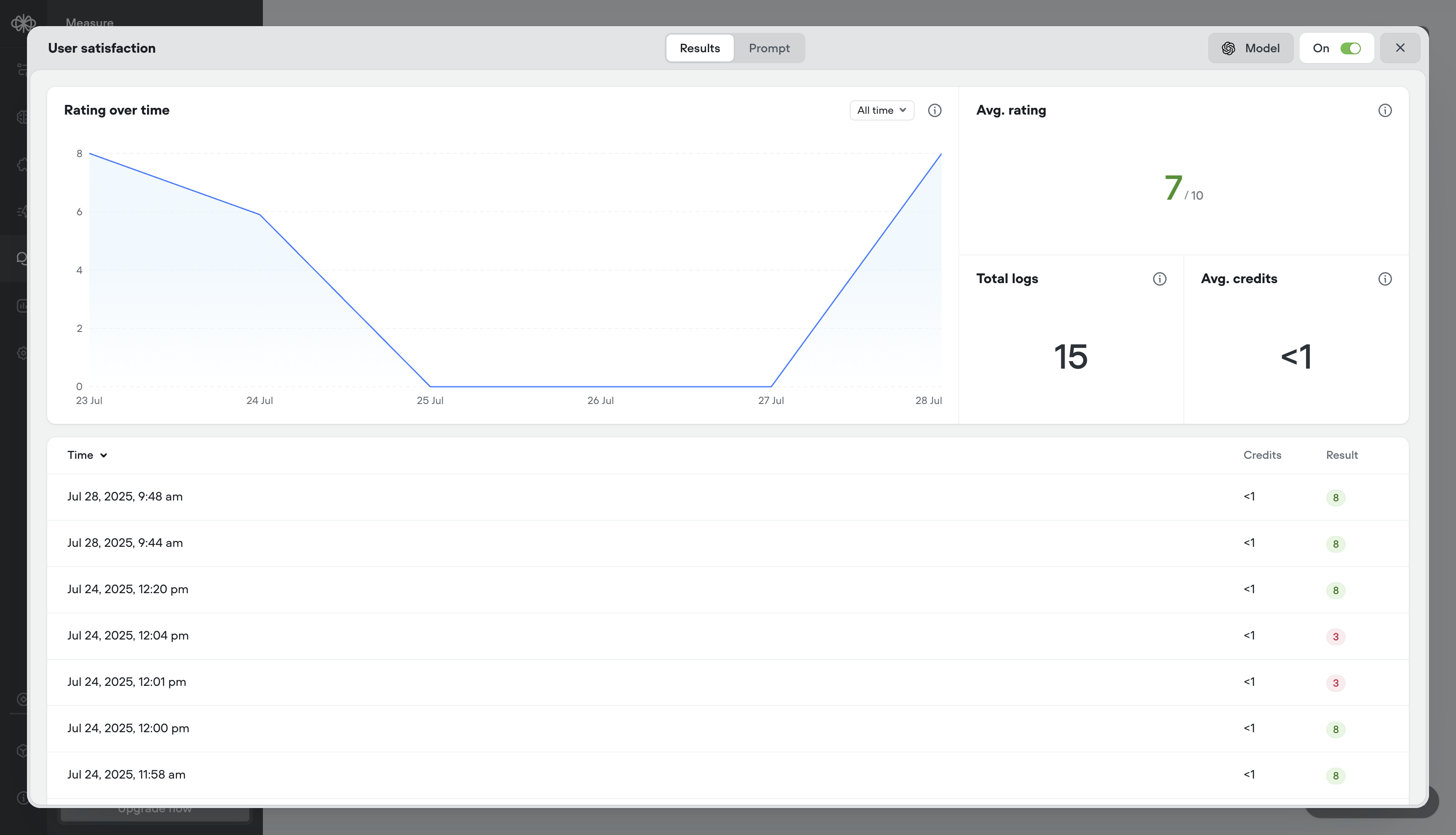
Reviewing evaluation performance helps you:
* **Validate metric accuracy** - Make sure the evaluation is scoring transcripts the way you intended.
* **Analyze credit consumption** - Keep a close eye on how your credits are consumed for each evaluation performed.
* **Understand model reasoning** - View the model’s reasoning to see how it interpreted the conversation and applied the evaluation metric.
* **Refine evaluation criteria** - Use actual outputs to improve your prompt, retry settings, or evaluation type.
## Batch run on transcripts
You can batch run evaluations on past transcripts to retroactively score past conversations. This is useful for backfilling metrics, testing new evaluations at scale, or comparing performance over time.
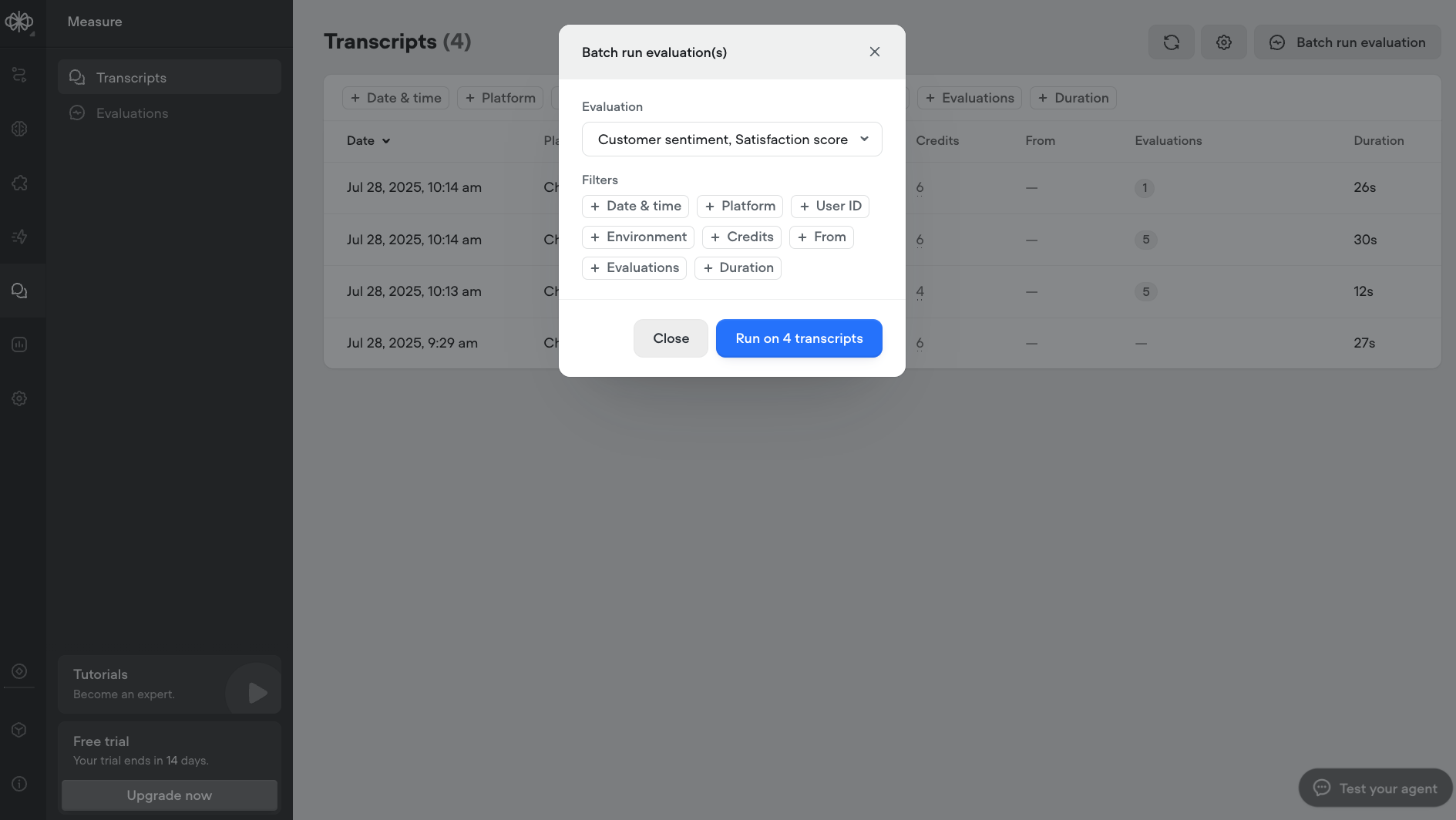
To batch run, select multiple transcripts in the transcript view, click Run Evaluation, and choose the evaluation(s) you want to apply. Results will appear once processing is complete.
Updated 4 months ago
---
[Transcripts](/docs/transcripts)[Workspaces](/docs/workspaces-agents)
Ask AI
* [Table of Contents](#)
* + [Creating evaluations](#creating-evaluations)
+ [Enabling and disabling evaluations](#enabling-and-disabling-evaluations)
+ [Measuring evaluation performance](#measuring-evaluation-performance)
+ [Batch run on transcripts](#batch-run-on-transcripts)
