---
category: general
scraped_at: '2025-11-12T14:06:41.779196'
title: Importing or exporting projects and functions
url: /docs/importing-exporting
---
# Importing or exporting projects and functions
These features allow for designers and teams to collaborate on assistants with their own separate versions of the assistant. This also allows for debuggers, testers, or support functions to work with a separate version of your assistant that they can import into their workspaces to debug or test, as well as letting you share your projects or functions with others or with the community online.
The projects or functions that you import and export works across different accounts and aren't linked to the project they came from.
# Importing projects
**How to import (.vf or .json) local Voiceflow files**
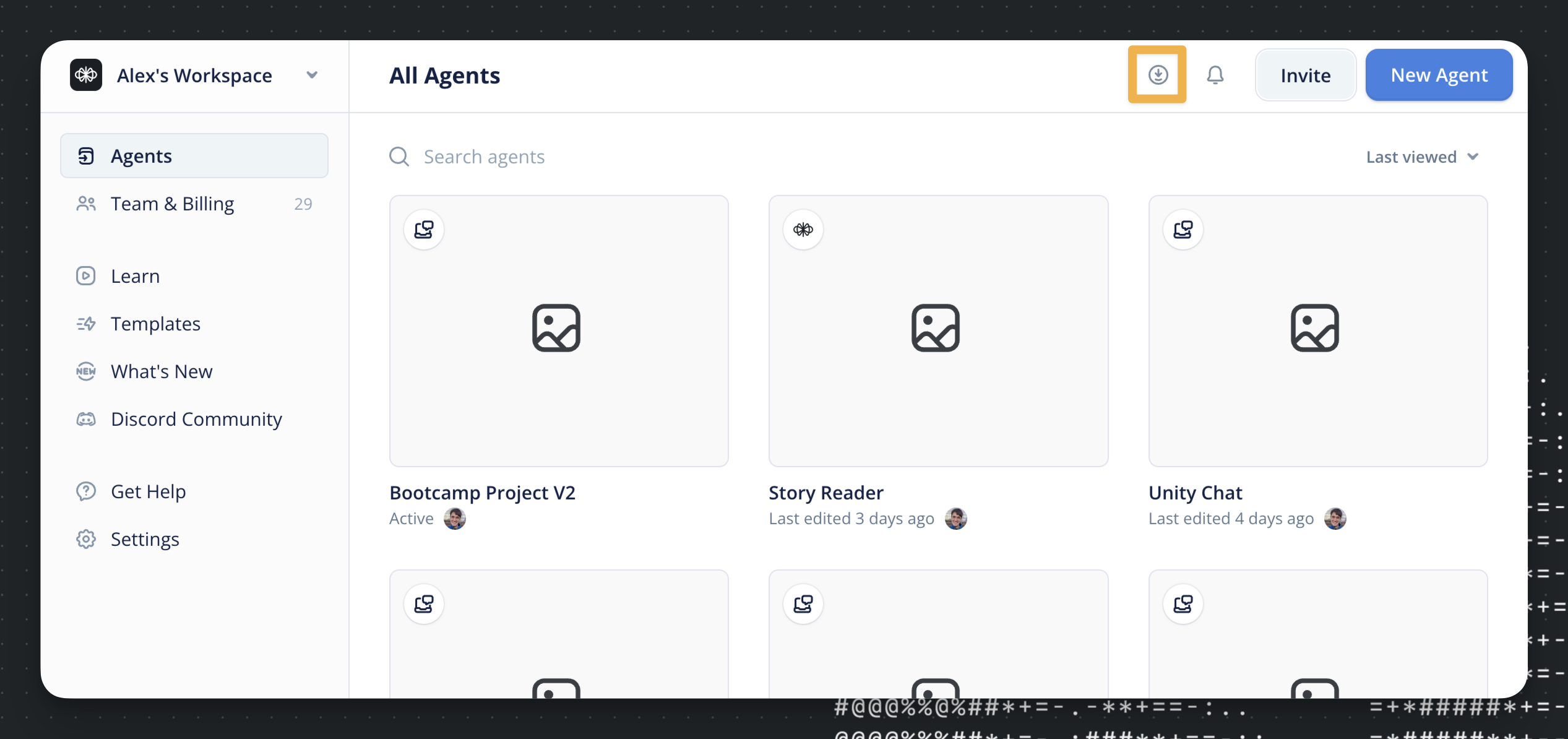
You can import Voiceflow files (.json) onto your workspace by navigating to your workspace Dashboard and selecting the “Import .vf file” icon in the top right.
Selecting this will bring up your computer's file navigation/upload menu. Ensure you only upload files with a **.vf** file extension in its file name, which is usually obtained from exporting an Assistant file (JSON) on the assistant-level sharing menu (more about exporting below).
# Exporting project
**How to export (.vf or .json) local Voiceflow files**
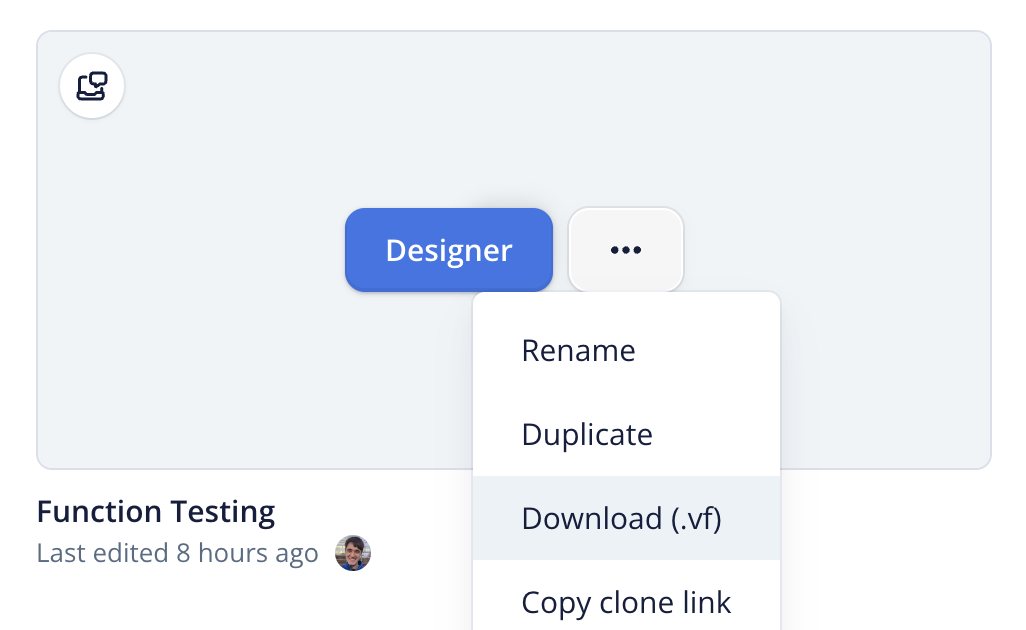
You can export Voiceflow files (.vf) onto your workspace by navigating to your workspace Dashboard and clicking the three dots and then to `Download (.vf)`.
You can also export from inside a project itself by clicking the Voiceflow logo in the top left.
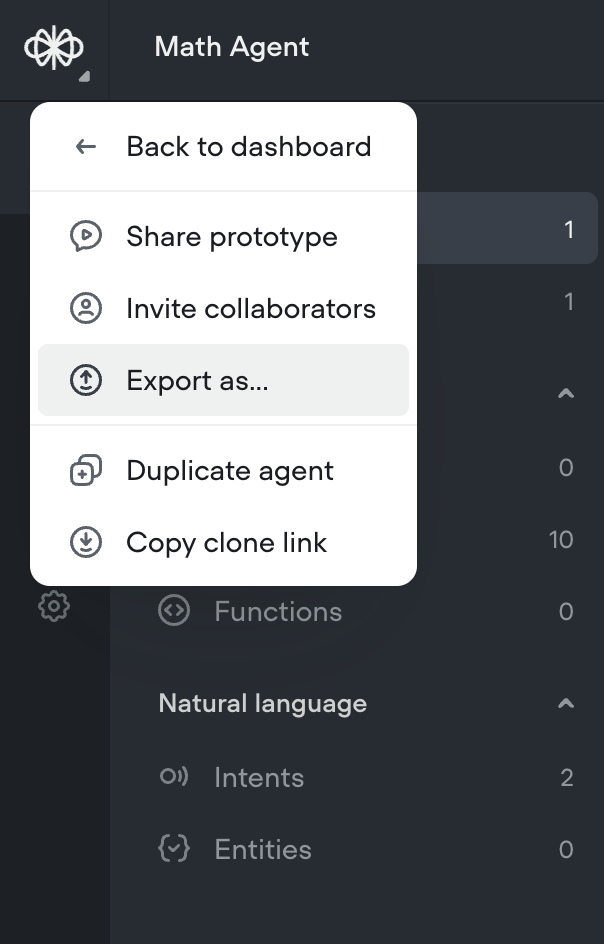
You can also export your project as:
* **PDF**: exporting your screens and design into a PDF file
* **Image (PNG)**: a snapshot of the current canvas screen in an image-file format
* **Dialogs (CSV)**: a .CSV file of the Agent dialogs.
# Importing functions
You can import [functions](https://developer.voiceflow.com/v2.0/docs/custom-functions) (.json) into your project from the top right of the functions tab in the CMS.

# Exporting Functions
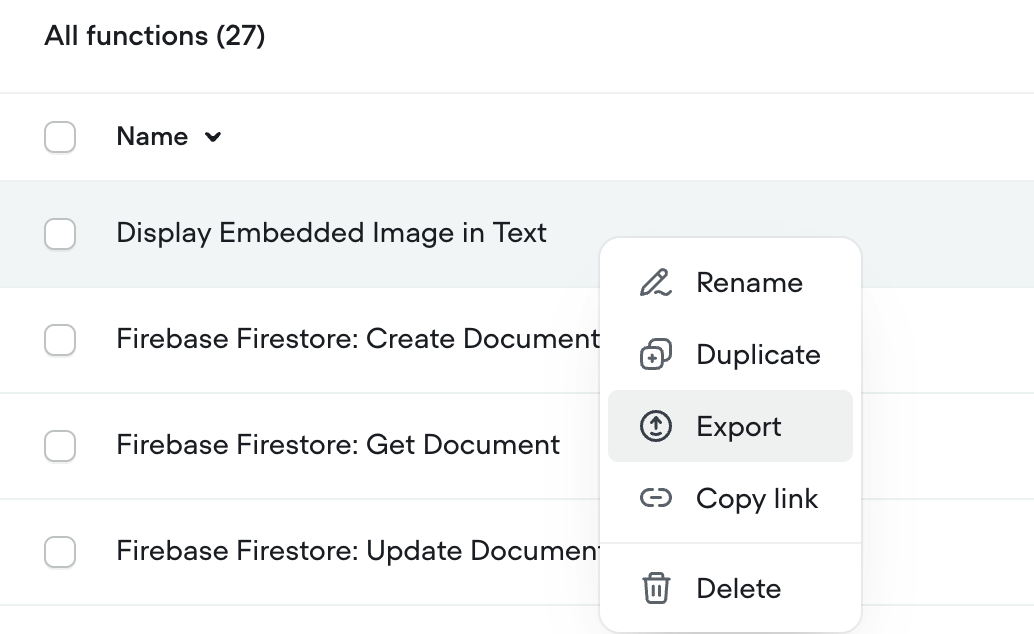
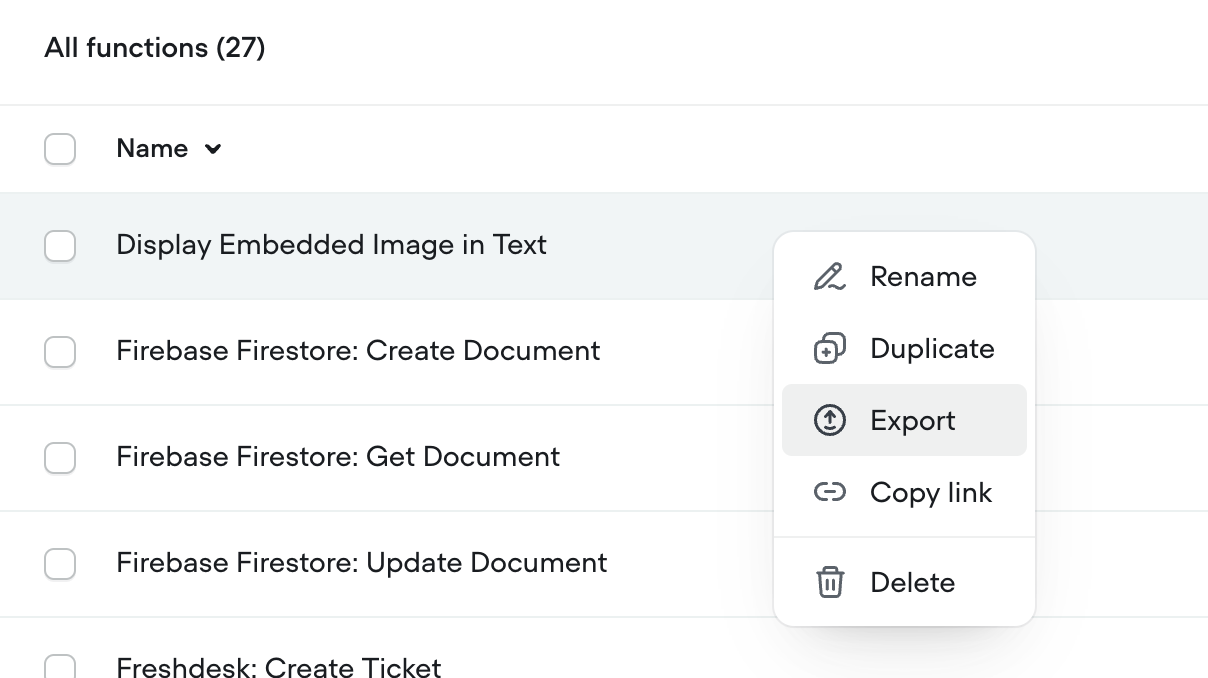
You can export [functions](https://developer.voiceflow.com/v2.0/docs/custom-functions) (.json) from your project by right-clicking on a function from the CMS.
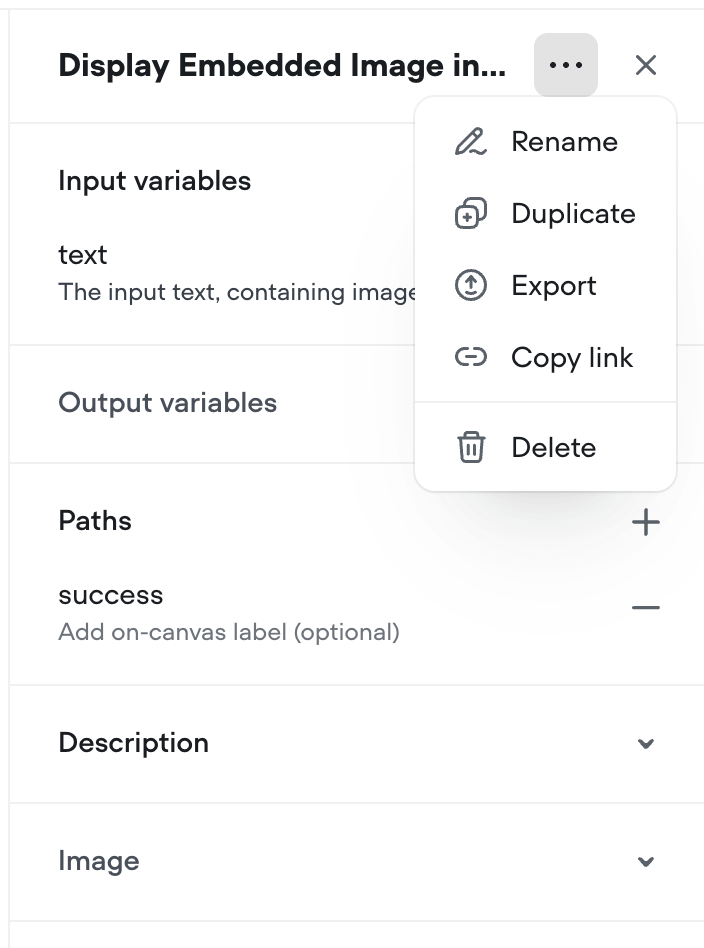
Or from the function editing view in the three dots in the top right.
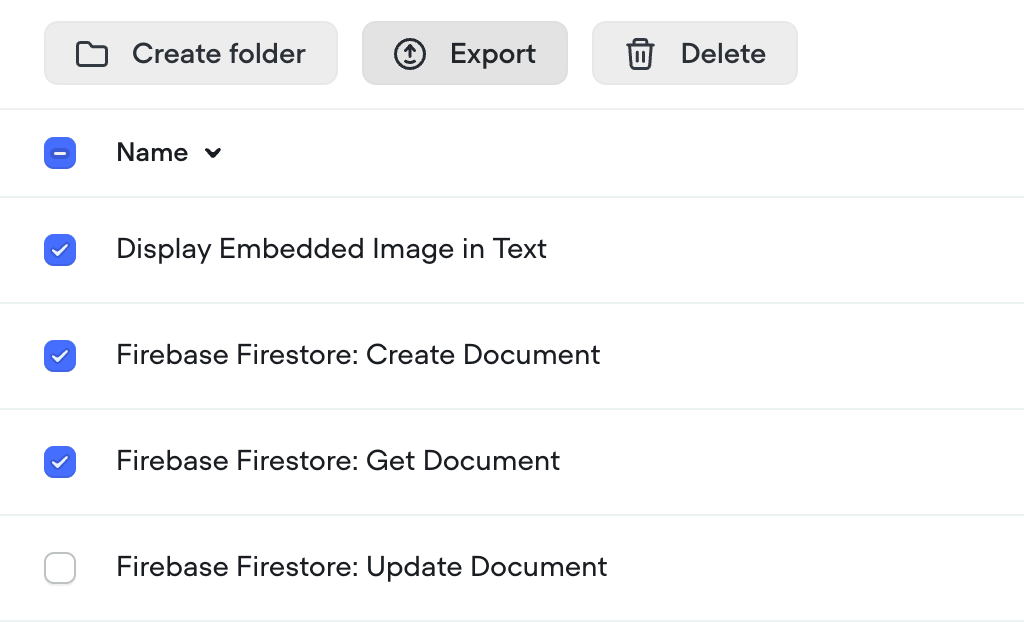
You can also export multiple functions at once from the main CMS view by checking the boxes to the left of the functions you want to export, which will export them all as one bulk file.
Updated 5 months ago
---
[Content Management System (CMS)](/docs/cms)[Collaboration features](/docs/teams)
Ask AI
* [Table of Contents](#)
* + [Importing projects](#importing-projects)
+ [Exporting project](#exporting-project)
+ [Importing functions](#importing-functions)
+ [Exporting Functions](#exporting-functions)
