


A
licenseD
qualityD
maintenanceA Model Context Protocol server that enables searching for similar images by text description, integrating Inspire's backend image search capabilities with LLM interfaces like Claude Desktop.
1
3
GPL 3.0


Ein Model Context Protocol (MCP)-Server für die Bildersuche und Informationsbeschaffung auf Pinterest.
Suchen Sie auf Pinterest nach Bildern anhand von Schlüsselwörtern
Detaillierte Informationen zu Pinterest-Bildern abrufen
Nahtlose Integration mit Cursor IDE über MCP
Unterstützung für den Headless-Browsermodus
Limitkontrolle für Suchergebnisse
Suchen und laden Sie Bilder von Pinterest herunter
Related MCP server: Cortex
Node.js (v18 oder höher)
Cursor-IDE für MCP-Integration
Der einfachste Weg, den Pinterest MCP-Server zu verwenden, ist über npx:
npx pinterest-mcp-serverSie können den Server mit Befehlszeilenoptionen konfigurieren:
# Specify download directory
npx pinterest-mcp-server --downloadDir /path/to/downloads

# Specify filename template
npx pinterest-mcp-server --filenameTemplate "pinterest_{id}"

# Specify both options
npx pinterest-mcp-server --downloadDir ./images --filenameTemplate "pinterest_{id}"So installieren Sie das Paket global und verwenden es direkt über die Befehlszeile:
npm install -g pinterest-mcp-serverNach der Installation können Sie den Server mit Folgendem ausführen:
pinterest-mcp-serverMit den gleichen Befehlszeilenoptionen wie die NPX-Version:
pinterest-mcp-server --downloadDir /path/to/downloads --filenameTemplate "pinterest_{id}"So installieren Sie mcp-pinterest für Claude Desktop automatisch über Smithery :
npx -y @smithery/cli install mcp-pinterest --client claudeKlonen Sie dieses Repository:
git clone https://github.com/terryso/mcp-pinterest.git pinterest-mcp-server
cd pinterest-mcp-server
Installieren Sie Abhängigkeiten:
npm installErstellen Sie den Server:
npm run buildFühren Sie den Server aus:
npm startÖffnen Sie die Cursor-IDE
Gehen Sie zu Einstellungen (⚙️) > Erweiterungen > MCP
Klicken Sie auf „Server hinzufügen“
Geben Sie die folgenden Details ein:
Name: Pinterest MCP
Typ: Befehl
Befehl: node
Argumente: ["/path/to/mcp-pinterest/dist/pinterest-mcp-server.js"]
或者直接编辑Cursor的MCP配置文件(通常位于~/.cursor/mcp.json ),添加以下内容:
"pinterest": {
  "command": "node",
  "args": ["/path/to/mcp-pinterest/dist/pinterest-mcp-server.js"]
}
Klicken Sie auf „Speichern“
Sie können Cursor auch so konfigurieren, dass die NPX-Version des Servers verwendet wird:
Öffnen Sie die Cursor-IDE
Gehen Sie zu Einstellungen (⚙️) > Erweiterungen > MCP
Klicken Sie auf „Server hinzufügen“
Geben Sie die folgenden Details ein:
Name: Pinterest MCP
Typ: Befehl
Befehl: npx
Argumente: ["pinterest-mcp-server"]
Klicken Sie auf „Speichern“
Für maximale Flexibilität können Sie den Server mit Umgebungsvariablen in Ihrer Cursor-MCP-Konfiguration konfigurieren:
"pinterest": {
  "command": "npx",
  "env": {
    "MCP_PINTEREST_DOWNLOAD_DIR": "/Users/xxx/Desktop/Images",
    "MCP_PINTEREST_FILENAME_TEMPLATE": "pin_{imageId}_{timestamp}.{fileExtension}",
    "MCP_PINTEREST_PROXY_SERVER": "http://127.0.0.1:7890"
  },
  "args": ["pinterest-mcp-server"]
}
Diese Konfiguration:
Verwendet npx zum Ausführen des Servers
Legt ein benutzerdefiniertes Download-Verzeichnis auf Ihrem Desktop fest
Verwendet eine benutzerdefinierte Dateinamenvorlage mit Bild-ID und Zeitstempel
Konfiguriert einen Proxyserver für Benutzer in Regionen, in denen Pinterest möglicherweise blockiert ist
Fügen Sie dies Ihrer Datei ~/.cursor/mcp.json hinzu oder richten Sie es über die Cursor-IDE-Schnittstelle ein.
Der Server stellt die folgenden MCP-Funktionen bereit:
pinterest_search : Suche nach Bildern auf Pinterest nach Stichworten
Parameter:
keyword : Suchbegriff (erforderlich)
limit : Anzahl der zurückzugebenden Bilder (Standard: 10)
headless : Ob der Headless-Browsermodus verwendet werden soll (Standard: true)
pinterest_get_image_info : Erhalten Sie detaillierte Informationen zu einem Pinterest-Bild
Parameter:
image_url : URL des Pinterest-Bildes (erforderlich)
pinterest_search_and_download : Bilder von Pinterest suchen und herunterladen
Parameter:
keyword : Suchbegriff (erforderlich)
limit : Anzahl der zurückzugebenden Bilder (Standard: 10)
headless : Ob der Headless-Browsermodus verwendet werden soll (Standard: true)
Nach der Konfiguration können Sie die Pinterest MCP-Funktionen direkt im KI-Chat von Cursor verwenden:
Search for robot images on PinterestDie KI verwendet den MCP-Server, um Pinterest zu durchsuchen und die Ergebnisse anzuzeigen.
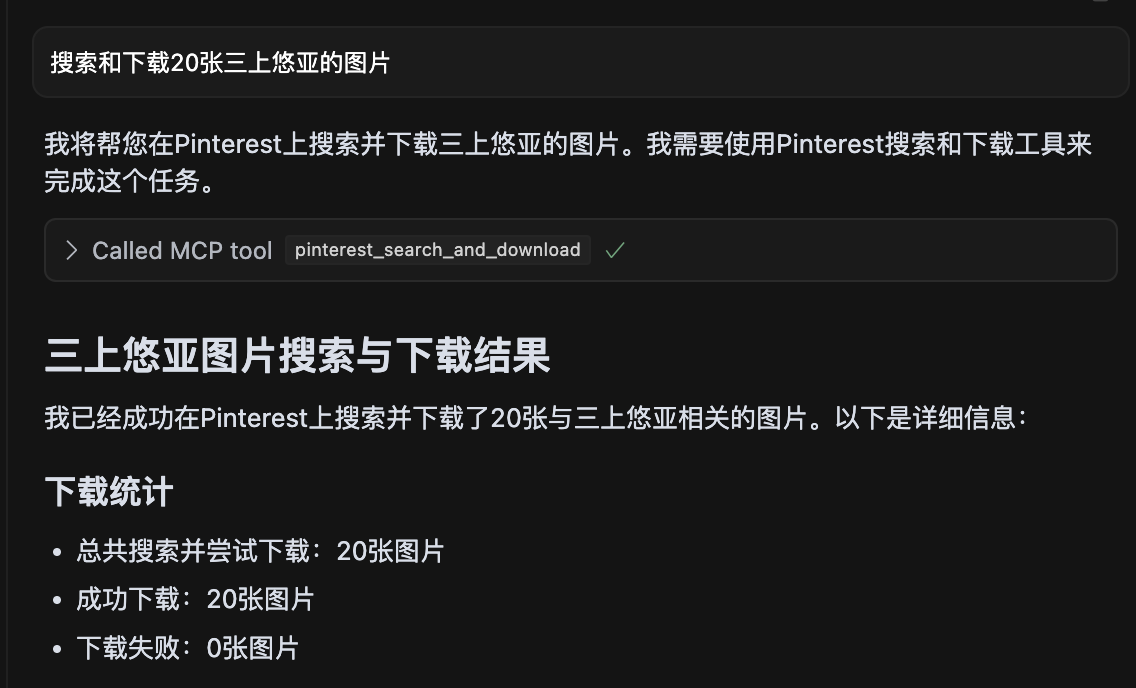
Screenshot, der eine Suche nach 20 Bildern von 三上悠亚 zeigt, wobei alle Bilder erfolgreich heruntergeladen wurden.
pinterest-mcp-server.ts : Hauptserverdatei
dist/pinterest-mcp-server.js : Erstellte JavaScript-Datei für die Produktion
package.json : Projektkonfiguration und Abhängigkeiten
So fügen Sie neue MCP-Funktionen hinzu:
Ändern Sie pinterest-mcp-server.ts
Registrieren neuer Funktionen mit dem MCP SDK
Implementieren der Funktionslogik
Neuaufbau mit npm run build
Wenn der Server nicht startet, prüfen Sie, ob der Port bereits verwendet wird
Stellen Sie sicher, dass alle Abhängigkeiten mit npm install korrekt installiert sind
Stellen Sie sicher, dass TypeScript mit einer tsconfig.json Datei richtig konfiguriert ist
Wenn beim Erstellen Fehler auftreten, versuchen Sie npm install -D typescript @types/node auszuführen.
Überprüfen Sie die Netzwerkkonnektivität für den Pinterest-Zugriff
Dieses Projekt ist unter der MIT-Lizenz lizenziert – Einzelheiten finden Sie in der Datei LICENSE .
Wenn Sie den Server über npx verwenden, können Sie ihn mit den folgenden Befehlszeilenoptionen konfigurieren:
--downloadDir : Gibt das Stammverzeichnis zum Herunterladen von Bildern an
npx pinterest-mcp-server --downloadDir /path/to/downloads--filenameTemplate : Gibt die Dateinamenvorlage für heruntergeladene Bilder an
npx pinterest-mcp-server --filenameTemplate "pin_{imageId}_{timestamp}"--port : Gibt den Port an, auf dem der Server lauschen soll (Standard: 3000)
npx pinterest-mcp-server --port 8080--proxyServer : Gibt den Proxyserver an, der für die Verbindung mit Pinterest verwendet werden soll
npx pinterest-mcp-server --proxyServer "http://127.0.0.1:7890"Sie können mehrere Optionen kombinieren:
npx pinterest-mcp-server --downloadDir ./images --filenameTemplate "pinterest_{id}" --port 8080 --proxyServer "http://127.0.0.1:7890"Der Server unterstützt außerdem die folgenden Umgebungsvariablen zur Konfiguration:
MCP_PINTEREST_DOWNLOAD_DIR : Gibt das Stammverzeichnis für den Download von Bildern an. Wenn nicht festgelegt, wird standardmäßig das Verzeichnis ../downloads relativ zum Serverskript verwendet.
MCP_PINTEREST_FILENAME_TEMPLATE : Gibt die Dateinamenvorlage für heruntergeladene Bilder an. Wenn nicht festgelegt, lautet der Standardwert pinterest_{imageId}.{fileExtension} .
MCP_PINTEREST_PROXY_SERVER : Gibt den Proxyserver an, der für die Verbindung mit Pinterest verwendet werden soll. Das Format sollte protocol://host:port sein, z. B. http://127.0.0.1:7890 oder socks5://127.0.0.1:1080 .
Diese Umgebungsvariablen können auf verschiedene Arten festgelegt werden:
Direkt in Ihrem Terminal (wie in den folgenden Beispielen gezeigt)
In Ihrer Cursor-MCP-Konfiguration über das Feld env (siehe Vollständiges Konfigurationsbeispiel )
In einer .env -Datei im Stammverzeichnis des Projekts
Über Befehlszeilenoptionen mit npx (wie im Abschnitt „Befehlszeilenoptionen “ gezeigt)
Verwenden von npx mit Befehlszeilenoptionen:
npx pinterest-mcp-server --downloadDir /path/to/your/download/directoryLegen Sie das Download-Verzeichnis mithilfe einer Umgebungsvariablen fest:
# Linux/macOS
export MCP_PINTEREST_DOWNLOAD_DIR=/path/to/your/download/directory
npx pinterest-mcp-server

# Windows (CMD)
set MCP_PINTEREST_DOWNLOAD_DIR=C:\path\to\your\download\directory
npx pinterest-mcp-server

# Windows (PowerShell)
$env:MCP_PINTEREST_DOWNLOAD_DIR="C:\path\to\your\download\directory"
npx pinterest-mcp-server
Wenn die Umgebungsvariable nicht festgelegt ist, verwendet der Server das Standard-Downloadverzeichnis (relativ zum Verzeichnis ../downloads des Serverskripts).
Verwenden von npx mit Befehlszeilenoptionen:
npx pinterest-mcp-server --filenameTemplate "pin_{imageId}_{timestamp}.{fileExtension}"Verwenden einer Umgebungsvariablen:
# Linux/macOS
export MCP_PINTEREST_FILENAME_TEMPLATE="pin_{imageId}_{timestamp}.{fileExtension}"
npx pinterest-mcp-server

# Windows (CMD)
set MCP_PINTEREST_FILENAME_TEMPLATE="pin_{imageId}_{timestamp}.{fileExtension}"
npx pinterest-mcp-server

# Windows (PowerShell)
$env:MCP_PINTEREST_FILENAME_TEMPLATE="pin_{imageId}_{timestamp}.{fileExtension}"
npx pinterest-mcp-server
Die Vorlage unterstützt die folgenden Variablen:
{imageId} : Die eindeutige ID des Pinterest-Bildes
{fileExtension} : Die Dateierweiterung (z. B. jpg, png)
{timestamp} : Aktueller UTC-Zeitstempel im Format JJJJMMTTHHMMSS
{index} : Die Indexnummer beim Herunterladen mehrerer Bilder (beginnt bei 1)
Beispielvorlagen:
pinterest_{imageId}.{fileExtension} (Standard)
pin_{timestamp}_{imageId}.{fileExtension}
pinterest_image_{index}_{imageId}.{fileExtension}
{timestamp}_pinterest.{fileExtension}
Wenn die Vorlage ungültig ist (z. B. nicht unterstützte Variablen enthält oder nicht übereinstimmende Klammern aufweist), protokolliert der Server eine Warnung und verwendet die Standardvorlage.
Wenn Sie für den Zugriff auf Pinterest einen Proxy verwenden müssen (insbesondere in Regionen, in denen Pinterest möglicherweise eingeschränkt ist), können Sie die Proxy-Konfiguration festlegen:
Verwenden von npx mit Befehlszeilenoptionen:
npx pinterest-mcp-server --proxyServer "http://127.0.0.1:7890"Verwenden einer Umgebungsvariablen:
# Linux/macOS
export MCP_PINTEREST_PROXY_SERVER="http://127.0.0.1:7890"
npx pinterest-mcp-server

# Windows (CMD)
set MCP_PINTEREST_PROXY_SERVER=http://127.0.0.1:7890
npx pinterest-mcp-server

# Windows (PowerShell)
$env:MCP_PINTEREST_PROXY_SERVER="http://127.0.0.1:7890"
npx pinterest-mcp-server
Unterstützte Proxy-Protokolle:
HTTP: http://host:port
HTTPS: https://host:port
SOCKS4: socks4://host:port
SOCKS5: socks5://host:port
Die Proxy-Konfiguration wirkt sich sowohl auf den für die Suche verwendeten Browser als auch auf den Bilddownloadvorgang aus.
Der Server prüft beim Start, ob das Download-Verzeichnis vorhanden und beschreibbar ist. Falls das Verzeichnis nicht vorhanden ist, wird versucht, es zu erstellen. Ist dies nicht möglich, wird der Server beendet.
Clients sollten beim Aufrufen von Download-bezogenen Tools keine Downloadpfade oder Dateinamenvorlagen über Parameter angeben, da alle Downloads die Umgebungsvariablenkonfiguration oder Standardeinstellungen des Servers verwenden.
Der Server bereinigt Dateinamen automatisch, indem er ungültige Zeichen (wie / , \ , : , * , ? , " , < , > , | ) durch Unterstriche ersetzt.
Der Server stellt die folgenden MCP-Tools bereit:
pinterest_search : Suche nach Pinterest-Bildern nach Stichwort
pinterest_get_image_info : Erhalten Sie detaillierte Informationen zu einem Pinterest-Bild
pinterest_search_and_download : Pinterest-Bilder suchen und herunterladen
Ausführliche Referenzen zu den Schnittstellenparametern finden Sie in den MCP-Tooldefinitionen.
Get Pinterest image information
| Name | Required | Description | Default |
|---|---|---|---|
| image_url | Yes | Image URL |
Does the description disclose side effects, auth requirements, rate limits, or destructive behavior?
No annotations provided, and the description lacks any behavioral details such as rate limits, authentication, or error handling. It does not even mention that it fetches metadata or requires an image URL.
Agents need to know what a tool does to the world before calling it. Descriptions should go beyond structured annotations to explain consequences.
Is the description appropriately sized, front-loaded, and free of redundancy?
The description is a single short sentence, but it is under-specified and lacks necessary detail. It is not a model of conciseness; it is minimal without being helpful.
Shorter descriptions cost fewer tokens and are easier for agents to parse. Every sentence should earn its place.
Given the tool's complexity, does the description cover enough for an agent to succeed on first attempt?
For a tool that presumably returns image information, the description fails to mention what that information includes, the output format, or any prerequisites. It is completely inadequate given the lack of output schema.
Complex tools with many parameters or behaviors need more documentation. Simple tools need less. This dimension scales expectations accordingly.
Does the description clarify parameter syntax, constraints, interactions, or defaults beyond what the schema provides?
Schema description coverage is 100%, with each parameter having a clear description. The tool description adds no extra meaning, but the baseline is adequate.
Input schemas describe structure but not intent. Descriptions should explain non-obvious parameter relationships and valid value ranges.
Does the description clearly state what the tool does and how it differs from similar tools?
Description states verb 'Get' and resource 'Pinterest image information', which is clear but vague. It distinguishes from siblings (health, search, similar pins) but does not specify what 'image information' includes.
Agents choose between tools based on descriptions. A clear purpose with a specific verb and resource helps agents select the right tool.
Does the description explain when to use this tool, when not to, or what alternatives exist?
No guidance on when to use this tool versus alternatives. The description provides no context for selection.
Agents often have multiple tools that could apply. Explicit usage guidance like "use X instead of Y when Z" prevents misuse.
Search for images on Pinterest by keyword
| Name | Required | Description | Default |
|---|---|---|---|
| keyword | Yes | Search keyword | |
| limit | No | Number of images to return (default: 10) | |
| headless | No | Whether to use headless browser mode (default: true) |
Does the description disclose side effects, auth requirements, rate limits, or destructive behavior?
No annotations are provided, so the description carries full burden. It does not disclose behavioral traits such as rate limits, authentication needs, or what headless mode implies (e.g., browser dependency). The return format (e.g., JSON structure) is unstated.
Agents need to know what a tool does to the world before calling it. Descriptions should go beyond structured annotations to explain consequences.
Is the description appropriately sized, front-loaded, and free of redundancy?
The description is a single, concise sentence with no redundancy. Every word is necessary. It is front-loaded with the core action.
Shorter descriptions cost fewer tokens and are easier for agents to parse. Every sentence should earn its place.
Given the tool's complexity, does the description cover enough for an agent to succeed on first attempt?
Given no output schema, the description should explain what the tool returns (e.g., pin objects, URLs). It does not. The description fails to provide enough context for an agent to use the tool effectively, especially compared to sibling tools that might have richer descriptions.
Complex tools with many parameters or behaviors need more documentation. Simple tools need less. This dimension scales expectations accordingly.
Does the description clarify parameter syntax, constraints, interactions, or defaults beyond what the schema provides?
Schema coverage is 100% with descriptions for all three parameters. The tool description adds no extra meaning beyond the schema, which already explains limit, keyword, and headless. Baseline 3 is appropriate.
Input schemas describe structure but not intent. Descriptions should explain non-obvious parameter relationships and valid value ranges.
Does the description clearly state what the tool does and how it differs from similar tools?
The description clearly states the verb 'search', resource 'images on Pinterest', and method 'by keyword'. It distinguishes from siblings like pinterest_search_and_download (which adds download). However, it could be more specific about return type (e.g., pin data vs URLs).
Agents choose between tools based on descriptions. A clear purpose with a specific verb and resource helps agents select the right tool.
Does the description explain when to use this tool, when not to, or what alternatives exist?
No guidance on when to use this tool vs siblings like pinterest_search_and_download or pinterest_get_similar_pins. No mention of prerequisites or context where this tool is preferred.
Agents often have multiple tools that could apply. Explicit usage guidance like "use X instead of Y when Z" prevents misuse.
Search for images on Pinterest by keyword and download them
| Name | Required | Description | Default |
|---|---|---|---|
| keyword | Yes | Search keyword | |
| limit | No | Number of images to return and download (default: 10) | |
| headless | No | Whether to use headless browser mode (default: true) |
Does the description disclose side effects, auth requirements, rate limits, or destructive behavior?
No annotations provided, so description must fully disclose behavior. It omits details like download location, file format, browser automation implications (headless parameter not mentioned), and potential side effects.
Agents need to know what a tool does to the world before calling it. Descriptions should go beyond structured annotations to explain consequences.
Is the description appropriately sized, front-loaded, and free of redundancy?
A single sentence with no wasted words, but it lacks front-loading of critical context. Appropriate length for the content provided.
Shorter descriptions cost fewer tokens and are easier for agents to parse. Every sentence should earn its place.
Given the tool's complexity, does the description cover enough for an agent to succeed on first attempt?
With 3 parameters and no output schema, the description fails to explain return behavior (e.g., saved files, temporary storage) or how 'download' works. Incomplete for proper tool invocation.
Complex tools with many parameters or behaviors need more documentation. Simple tools need less. This dimension scales expectations accordingly.
Does the description clarify parameter syntax, constraints, interactions, or defaults beyond what the schema provides?
Schema coverage is 100%, so baseline is 3. The description adds no additional meaning beyond what is already in the schema for parameters.
Input schemas describe structure but not intent. Descriptions should explain non-obvious parameter relationships and valid value ranges.
Does the description clearly state what the tool does and how it differs from similar tools?
The description clearly states the verb 'Search' and 'download', the resource 'images on Pinterest', and the method 'by keyword'. It distinguishes from sibling 'pinterest_search' by adding download functionality.
Agents choose between tools based on descriptions. A clear purpose with a specific verb and resource helps agents select the right tool.
Does the description explain when to use this tool, when not to, or what alternatives exist?
No guidance on when to use this tool versus alternatives like 'pinterest_search' or 'pinterest_get_image_info'. The agent is left to infer usage from the name alone.
Agents often have multiple tools that could apply. Explicit usage guidance like "use X instead of Y when Z" prevents misuse.
Recent tool additions, removals, and schema changes observed during successful MCP inspections.
pinterest_get_image_infopinterest_searchpinterest_search_and_downloadScored across 3 tools
Each tool has a distinct purpose: retrieving metadata, searching, and searching with download. The names and descriptions make it easy to distinguish between them.
All tools use the 'pinterest_' prefix and snake_case, but 'pinterest_search_and_download' combines two verbs while the others use a single verb, introducing slight inconsistency.
Three tools is a minimal but reasonable set for an image search and download service. It covers core functionality without being too sparse or excessive.
The set covers basic search and metadata retrieval, but lacks common Pinterest operations like board management, pinning, or user actions, leaving notable gaps for broader use.
Personal knowledge base MCP server with semantic search, auto-categorization, metadata extraction
MCP Server for an Agent Task Marketplace
MCP server for Drosophila neuroscience data from VirtualFlyBrain