Electron Terminal MCP Server
In an ideal world vendors would provide their own MCP integration for the terminal, but in the meantime this project provides a Model Context Protocol (MCP) server that allows clients to interact with a system terminal running within an Electron application. It enables executing commands, managing terminal sessions, and retrieving output programmatically.
The system consists of two main parts:
MCP Server (index.js): A Node.js script that listens for MCP requests via standard input/output (stdio). It uses the @modelcontextprotocol/sdk and acts as a bridge to the Electron backend. It automatically starts the Electron backend if it's not already running. It requires mcp-package.json to specify "type": "module".
Electron Backend (main.js): The main process for the Electron application. It runs an Express HTTP server (defaulting to port 3000) that the MCP server (index.js) communicates with for health checks and API calls. This backend manages the actual terminal processes using node-pty within hidden BrowserWindow instances loading terminal.html.
2. Screenshots
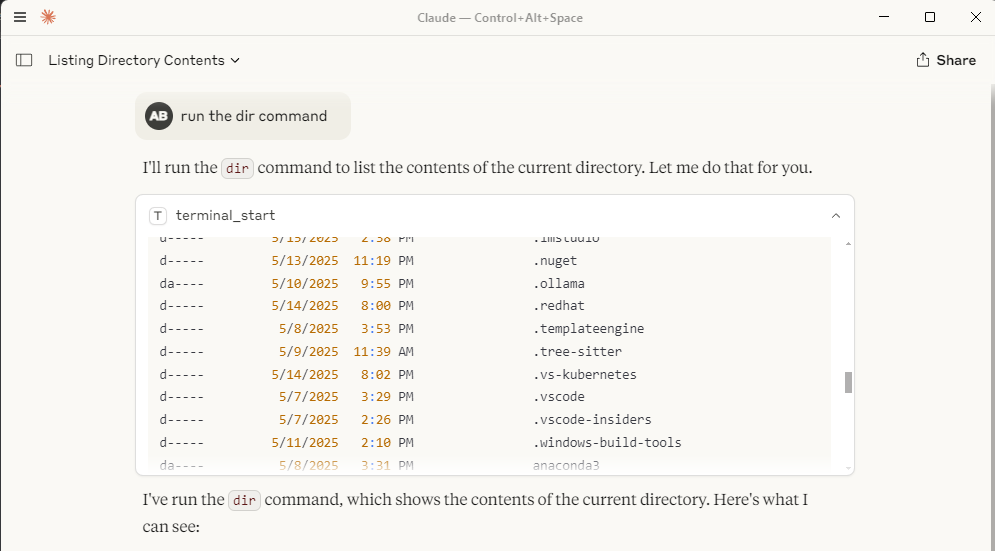
Here's how the terminal interaction looks within a client like Claude Desktop:
Claude Desktop Window with Terminal Output:
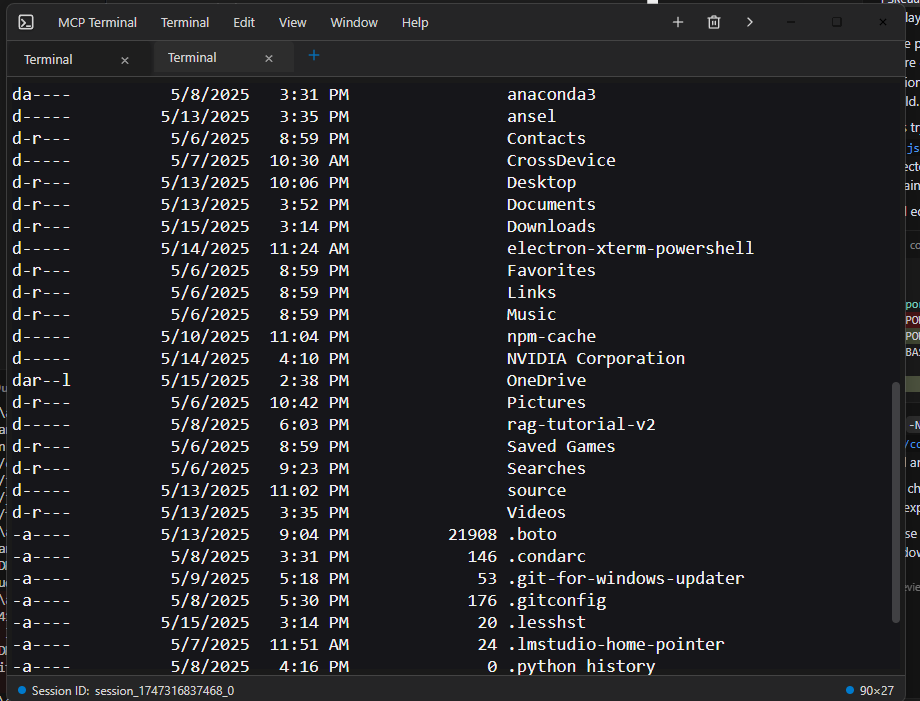
Individual Electron Terminal Window:
Related MCP server: MCP Terminal Server
3. Installation
Prerequisites: Ensure you have Node.js and npm installed.
Clone: Clone the repository if you haven't already.
git clone <your-repository-url>
cd command-terminal-electron # Or your repository directory name
Install Dependencies: Install Node modules for both the MCP server and the Electron app.
Rebuild Native Modules: Rebuild native modules (like node-pty) for Electron.
(See rebuild.js for details)
3. Usage
Start the MCP Server:
Run the index.js script using Node.js. This will listen for MCP commands on stdio and automatically attempt to start the Electron backend process (main.js) if it's not already running and listening on the expected HTTP port.
Note: The Electron process runs hidden in the background and automatically gets (re)started whenever its needed and will always be reused if possible.
Interacting via MCP:
Clients connect to the node index.js process via stdio and use the use_mcp_tool command. The server name is defined in index.js as "Electron Terminal".
Available Tools:
terminal_start: Creates a new terminal session and executes an initial command.
<use_mcp_tool>
  <server_name>Electron Terminal</server_name>
  <tool_name>terminal_start</tool_name>
  <arguments>
  {
    "command": "ls -l"
  }
  </arguments>
</use_mcp_tool>
terminal_execute: Executes a command in an existing session.
Input: { "command": "string", "sessionId": "string" }
Output: { "content": [...] } (Session ID is included in the text content)
<use_mcp_tool>
  <server_name>Electron Terminal</server_name>
  <tool_name>terminal_execute</tool_name>
  <arguments>
  {
    "sessionId": "session_id_from_start",
    "command": "pwd"
  }
  </arguments>
</use_mcp_tool>
terminal_get_output: Retrieves the accumulated output for a session.
<use_mcp_tool>
  <server_name>Electron Terminal</server_name>
  <tool_name>terminal_get_output</tool_name>
  <arguments>
  {
    "sessionId": "session_id_from_start"
  }
  </arguments>
</use_mcp_tool>
terminal_stop: Terminates a specific terminal session process.
<use_mcp_tool>
  <server_name>Electron Terminal</server_name>
  <tool_name>terminal_stop</tool_name>
  <arguments>
  {
    "sessionId": "session_id_from_start"
  }
  </arguments>
</use_mcp_tool>
terminal_get_sessions: Lists all currently active sessions managed by the Electron backend.
<use_mcp_tool>
  <server_name>Electron Terminal</server_name>
  <tool_name>terminal_get_sessions</tool_name>
  <arguments>
  {}
  </arguments>
</use_mcp_tool>
5. Synergy with Filesystem MCP Server
This Electron Terminal MCP server works very effectively in conjunction with the Filesystem MCP Server. You can use the Filesystem server to browse directories, read/write files, and then use this terminal server to execute commands within those directories or related to those files, providing a comprehensive remote development and interaction experience that works seamlessly together with for example the internet search function built into claude desktop.
6. Requirements
Node.js (v20 or later recommended, I use node 22)
npm
Operating System compatible with Electron (Windows, macOS, Linux)
7. Configuration
Claude Desktop MCP Server Configuration
Location
The claude_desktop_config.json file should be placed in your user's AppData directory:
This file is used by Claude Desktop to discover and configure external MCP servers.
Purpose and Structure
The configuration file defines MCP servers that Claude Desktop can launch and connect to. Each server entry specifies how to start the server process.
Example
{
  "mcpServers": {
    "command-terminal": {
      "command": "node",
      "args": [
        "C:\\Path\\to\\index.js"
      ]
    }
  }
}
Field Explanations
mcpServers:
Top-level object mapping server names to their configurations.
command-terminal:
Example server name. You can define multiple servers in this object.
command:
The executable used to launch the MCP server.
args:
Arguments passed to the command, such as the path to your server script.
8. License
This project is licensed under the MIT License. See the LICENSE file for details.
