godot-mcp-pilot
Exposes Godot engine operations as MCP tools, allowing AI assistants to manipulate Godot projects programmatically including scene creation/editing, script management, project execution, and asset inspection for game development workflows.
Click on "Install Server".
Wait a few minutes for the server to deploy. Once ready, it will show a "Started" state.
In the chat, type
@followed by the MCP server name and your instructions, e.g., "@godot-mcp-pilotcreate a 2D player character with sprite and collision"
That's it! The server will respond to your query, and you can continue using it as needed.
Here is a step-by-step guide with screenshots.
godot-mcp-pilot
Model Context Protocol server for Godot 4 — Give AI assistants (Claude, Cursor, Cline, etc.) direct control over your Godot projects.
godot-mcp-pilot exposes Godot engine operations as MCP tools, letting AI assistants launch the editor, run projects, create and edit scenes, write GDScript, and inspect assets — all through natural language. Works for both 2D and 3D games.
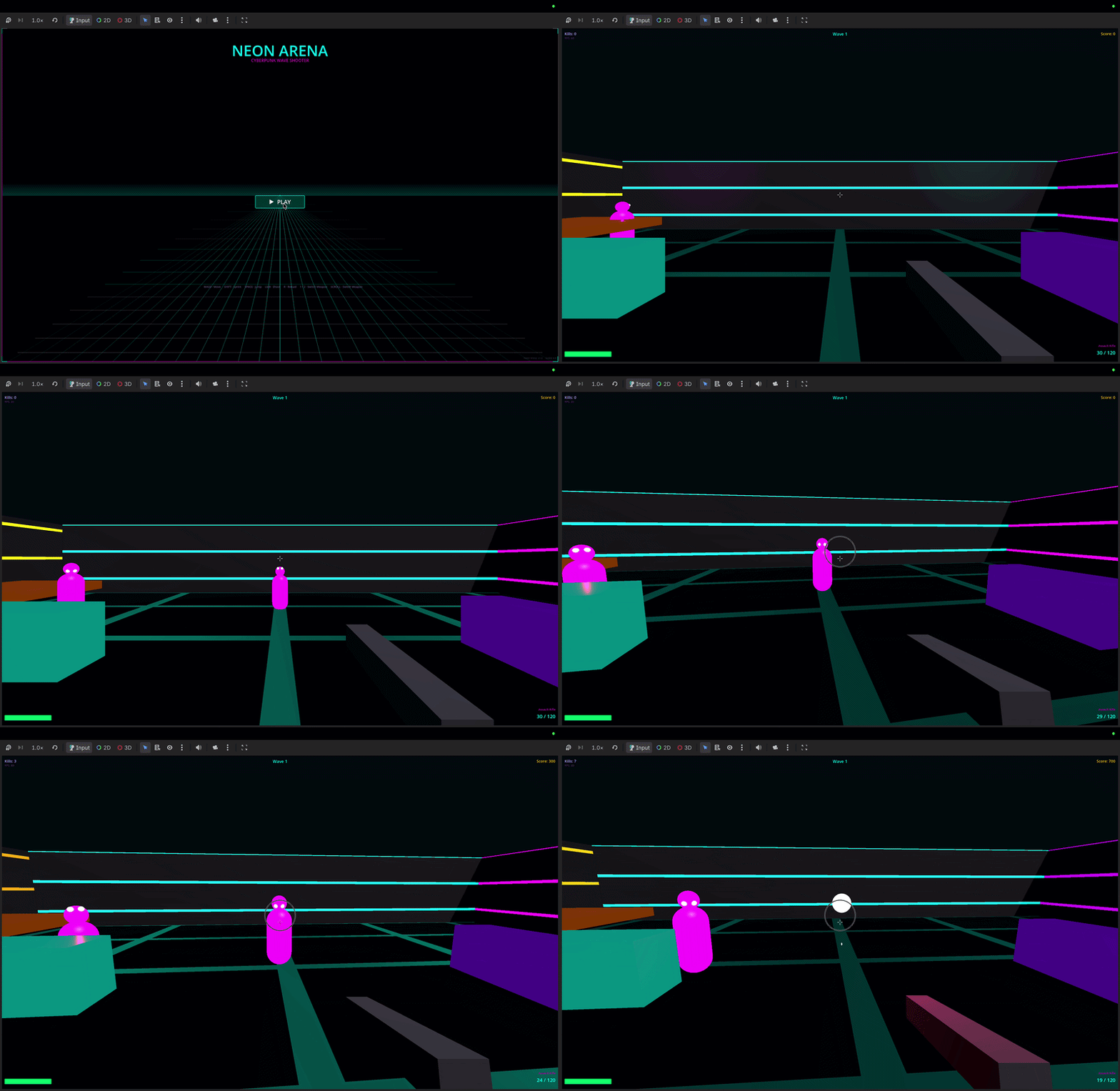
"Create a CharacterBody3D player scene with a Camera3D and collision"
"Run the project and show me any errors"
"Add a DirectionalLight3D to the scene"
"Create a 2D platformer with sprites and tilemaps"Quick Start
1. Install
npm install -g godot-mcp-pilotOr use without installing:
npx godot-mcp-pilot2. Run the setup wizard
npx godot-mcp-pilot setup
# or, if installed globally:
godot-mcp-pilot-setupThe wizard will:
Auto-detect your Godot binary (checks Applications, Downloads, PATH)
Ask which AI client you use
Write the config to the right place for that client
Related MCP server: Godot MCP Enhanced
Manual Setup
Claude Code (CLI / IDE extension)
Critical: Claude Code reads
.mcp.jsonfrom the directory where you launch it.
The file must be in your game project folder, not the godot-mcp-pilot folder.
# From inside your game project directory:
claude mcp add godot -- npx godot-mcp-pilotThis writes .mcp.json to your current directory. Then always launch Claude Code from that directory:
cd ~/games/my-platformer
claudeIf Godot isn't auto-detected (e.g. you never moved it out of ~/Downloads):
claude mcp add godot -e GODOT_PATH=/path/to/Godot.app/Contents/MacOS/Godot -- npx godot-mcp-pilotOr write .mcp.json manually in your game project root:
{
"mcpServers": {
"godot": {
"command": "npx",
"args": ["godot-mcp-pilot"],
"env": {
"GODOT_PATH": "/path/to/your/Godot"
}
}
}
}Claude Desktop
Claude Desktop uses a different config file — it does not read .mcp.json.
Edit ~/Library/Application Support/Claude/claude_desktop_config.json (macOS)
or %APPDATA%\Claude\claude_desktop_config.json (Windows):
{
"mcpServers": {
"godot": {
"command": "npx",
"args": ["godot-mcp-pilot"],
"env": {
"GODOT_PATH": "/path/to/your/Godot"
}
}
}
}Then quit and reopen Claude Desktop.
Cursor (.cursor/mcp.json)
{
"mcpServers": {
"godot": {
"command": "npx",
"args": ["godot-mcp-pilot"],
"env": {
"GODOT_PATH": "/path/to/your/Godot"
}
}
}
}Godot Path Detection
The server searches these locations automatically (in order):
OS | Paths checked |
macOS |
|
Linux |
|
Windows |
|
If auto-detection fails, set GODOT_PATH to the absolute path of your Godot executable.
2D and 3D Games
godot-mcp-pilot works equally well for 2D and 3D. Use the appropriate node types:
2D | 3D | |
Player |
|
|
Root |
|
|
Camera |
|
|
Mesh |
|
|
Collision |
|
|
Physics |
|
|
Light | — |
|
Example prompts:
"Create a 3D scene with a Node3D root, MeshInstance3D floor, and DirectionalLight3D"
"Add a CharacterBody3D with a CollisionShape3D using a CapsuleShape3D"
"Write a GDScript for 3D first-person movement"Features
Category | Tools |
System |
|
Editor / Run |
|
Scenes |
|
Nodes |
|
Scripts |
|
Project |
|
Assets |
|
UIDs |
|
Configuration
Environment Variable | Default | Description |
| auto-detected | Absolute path to the Godot executable |
|
| If |
|
| Print debug info to stderr |
Troubleshooting
"MCP server not connected" / tools not appearing
Claude Code: The .mcp.json must be in the directory where you run claude. Open a new terminal, cd into your game project, and run claude from there.
Claude Desktop: Make sure you edited the right file (claude_desktop_config.json, not .mcp.json) and fully quit and reopened the app.
Godot not found
Set GODOT_PATH explicitly in the config env block. On macOS, if you downloaded Godot but never moved it:
GODOT_PATH=/Users/yourname/Downloads/Godot.app/Contents/MacOS/GodotTo find where Godot is:
# macOS / Linux
find ~/Downloads ~/Applications /Applications -name "Godot" -type f 2>/dev/nullScene parse errors / malformed .tscn
If Godot refuses to load a scene edited by the MCP, check that instance= lines are unquoted:
# Correct
instance=ExtResource("1_abc")
# Wrong (Godot rejects this)
instance="ExtResource(\"1_abc\")"Run the project headless to see the exact error:
/path/to/Godot --path /path/to/project --headless --quit 2>&1MCP disconnects during a session
This is a known issue with some MCP host implementations. Workaround: close and reopen your AI client. The MCP server itself is stateless — reconnecting is safe.
Example Workflows
2D top-down shooter
"Create a 2D scene called Main.tscn"
"Add a CharacterBody2D called Player at the center"
"Create a movement + shooting script for the Player"
"Add an Area2D called Enemy that moves toward the player"
"Run the project and show errors"3D platformer
"Create a 3D scene with a StaticBody3D floor (MeshInstance3D box, scale 20x1x20)"
"Add a CharacterBody3D player with a CapsuleShape3D collision"
"Create a 3D character controller script with jump and gravity"
"Add a Camera3D as a child of the player with offset Vector3(0, 2, 5)"Read-Only Mode
READ_ONLY_MODE=true npx godot-mcp-pilotDisables all write tools. Useful for CI/CD or review workflows.
Development
git clone https://github.com/pushks18/godot-mcp-pilot
cd godot-mcp-pilot
npm install
npm run build
# Run the setup wizard
npm run setup
# Development mode (ts-node, no build step)
npm run devProject Structure
godot-mcp-pilot/
├── src/
│ ├── index.ts # Entry point
│ ├── server.ts # MCP server + tool routing
│ ├── config.ts # Godot path detection, env config
│ ├── godot-process.ts # Process management (spawn, capture)
│ ├── tools/
│ │ ├── system.ts # Version, project listing/info
│ │ ├── execution.ts # Launch editor, run/stop project
│ │ ├── scene.ts # Scene CRUD + node manipulation
│ │ ├── script.ts # GDScript read/write/analyze
│ │ ├── assets.ts # Asset listing/inspection
│ │ ├── project_settings.ts # Settings, autoloads, input maps
│ │ └── uid.ts # Godot 4 UID management
│ └── utils/
│ ├── path.ts # Path validation (prevents traversal)
│ ├── tscn.ts # .tscn parser and serializer
│ └── project_godot.ts # project.godot reader
└── scripts/
├── setup.js # Interactive setup wizard
└── godot_operations.gd # Bundled GDScript for runtime opsCompatibility
Godot 4.x (primary target — tested on 4.2, 4.3, 4.4)
Godot 3.x — basic tools work; scene format differences apply
MCP Protocol — 2024-11-05 spec
Node.js — 18+
Security
All file paths are validated to stay within the project directory (no path traversal)
launch_editorandrun_projectonly start processes with safe, predefined argsUse
READ_ONLY_MODE=truein untrusted environmentsThe server never executes arbitrary shell commands — only the Godot binary
License
MIT
Available Tools
44 toolsadd_autoloadB
Add or update an autoload (singleton) in the project settings. The script will be instantiated automatically when the project starts.
| Name | Required | Description | Default |
|---|---|---|---|
| projectPath | Yes | Absolute path to the project directory | |
| name | Yes | Autoload node name (valid identifier, e.g. "GameManager") | |
| scriptPath | Yes | Script or scene path (res:// or relative) | |
| enabled | No | Whether the autoload is active (default: true) |
TDQS
Does the description disclose side effects, auth requirements, rate limits, or destructive behavior?
With no annotations provided, the description carries full burden for behavioral disclosure. It mentions the autoload will be instantiated automatically when the project starts, which is useful context. However, it doesn't address critical behavioral aspects: whether this is a destructive/write operation (implied but not stated), permission requirements, error conditions, or what happens when updating an existing autoload versus adding a new one. For a mutation tool with zero annotation coverage, this is insufficient.
Agents need to know what a tool does to the world before calling it. Descriptions should go beyond structured annotations to explain consequences.
Is the description appropriately sized, front-loaded, and free of redundancy?
The description is perfectly concise - two sentences that directly state the tool's function and key behavioral characteristic. Every word earns its place with no redundancy or unnecessary elaboration. The information is front-loaded with the core purpose stated immediately.
Shorter descriptions cost fewer tokens and are easier for agents to parse. Every sentence should earn its place.
Given the tool's complexity, does the description cover enough for an agent to succeed on first attempt?
Given this is a mutation tool with no annotations and no output schema, the description should do more to compensate. While it states the purpose and one behavioral aspect (automatic instantiation), it lacks information about the operation's effects, error handling, or return values. For a tool that modifies project configuration, this leaves significant gaps in understanding how to use it effectively.
Complex tools with many parameters or behaviors need more documentation. Simple tools need less. This dimension scales expectations accordingly.
Does the description clarify parameter syntax, constraints, interactions, or defaults beyond what the schema provides?
Schema description coverage is 100%, so the schema already documents all four parameters thoroughly. The description adds no additional parameter semantics beyond what's in the schema - it doesn't explain relationships between parameters, provide examples, or clarify edge cases. With high schema coverage, the baseline score of 3 is appropriate as the description doesn't compensate but also doesn't detract.
Input schemas describe structure but not intent. Descriptions should explain non-obvious parameter relationships and valid value ranges.
Does the description clearly state what the tool does and how it differs from similar tools?
The description clearly states the action ('Add or update') and resource ('autoload (singleton) in the project settings'), with additional context about automatic instantiation. It distinguishes from siblings like 'list_autoloads' and 'remove_autoload' by focusing on creation/modification rather than querying or deletion. However, it doesn't explicitly differentiate from other project modification tools like 'set_project_setting'.
Agents choose between tools based on descriptions. A clear purpose with a specific verb and resource helps agents select the right tool.
Does the description explain when to use this tool, when not to, or what alternatives exist?
The description provides no guidance on when to use this tool versus alternatives. It doesn't mention prerequisites (e.g., needing an existing project), when to choose 'add' versus 'update', or when to use other project configuration tools like 'set_project_setting'. The sibling tool 'list_autoloads' could logically be used before this one, but this isn't indicated.
Agents often have multiple tools that could apply. Explicit usage guidance like "use X instead of Y when Z" prevents misuse.
add_input_actionB
Add a new input action to the project's Input Map (with no events bound). Use the Godot editor or set_project_setting to bind keys to it.
| Name | Required | Description | Default |
|---|---|---|---|
| projectPath | Yes | Absolute path to the project directory | |
| actionName | Yes | Action name (e.g. "jump", "attack", "ui_cancel") |
TDQS
Does the description disclose side effects, auth requirements, rate limits, or destructive behavior?
No annotations are provided, so the description carries full burden. It mentions the action is added 'with no events bound', which is useful behavioral context about the initial state. However, it lacks details on permissions needed, whether this is idempotent (e.g., if adding an existing action fails or updates), error conditions, or what happens to the project file. For a mutation tool with zero annotation coverage, this is insufficient.
Agents need to know what a tool does to the world before calling it. Descriptions should go beyond structured annotations to explain consequences.
Is the description appropriately sized, front-loaded, and free of redundancy?
The description is two sentences, front-loaded with the core purpose and followed by a usage note. It avoids redundancy and is appropriately sized, though the second sentence could be slightly more integrated into the main guidance.
Shorter descriptions cost fewer tokens and are easier for agents to parse. Every sentence should earn its place.
Given the tool's complexity, does the description cover enough for an agent to succeed on first attempt?
Given no annotations and no output schema, the description provides basic purpose and a hint about binding, but lacks completeness for a mutation tool. It doesn't cover error handling, return values, or side effects, leaving gaps in understanding how to use it effectively in an automated context.
Complex tools with many parameters or behaviors need more documentation. Simple tools need less. This dimension scales expectations accordingly.
Does the description clarify parameter syntax, constraints, interactions, or defaults beyond what the schema provides?
Schema description coverage is 100%, with both parameters ('projectPath' and 'actionName') well-documented in the schema. The description adds no additional parameter semantics beyond what the schema provides, such as format examples for 'actionName' or constraints on 'projectPath'. Baseline 3 is appropriate when the schema does the heavy lifting.
Input schemas describe structure but not intent. Descriptions should explain non-obvious parameter relationships and valid value ranges.
Does the description clearly state what the tool does and how it differs from similar tools?
The description clearly states the verb ('Add') and resource ('a new input action to the project's Input Map'), specifying it's created without events bound. It distinguishes from sibling 'remove_input_action' by being the creation counterpart, though doesn't explicitly differentiate from other 'add_' tools like 'add_node' or 'add_autoload'.
Agents choose between tools based on descriptions. A clear purpose with a specific verb and resource helps agents select the right tool.
Does the description explain when to use this tool, when not to, or what alternatives exist?
The description implies usage context by mentioning the need to bind keys via Godot editor or 'set_project_setting', suggesting this tool creates a placeholder action. However, it doesn't explicitly state when to use this vs. alternatives like directly configuring in the editor or using 'set_project_setting' for binding, nor does it mention prerequisites or exclusions.
Agents often have multiple tools that could apply. Explicit usage guidance like "use X instead of Y when Z" prevents misuse.
add_nodeC
Add a new node to an existing scene.
| Name | Required | Description | Default |
|---|---|---|---|
| projectPath | Yes | Absolute path to the project directory | |
| scenePath | Yes | Scene to modify | |
| nodeType | Yes | Godot node class (e.g. Sprite2D, CollisionShape2D, Camera2D) | |
| nodeName | Yes | Name for the new node | |
| parentNodePath | No | Path of parent node (default: . = root) | |
| properties | No | Optional node properties as key=GDScript-value pairs (e.g. {"position": "Vector2(100, 200)"}) |
TDQS
Does the description disclose side effects, auth requirements, rate limits, or destructive behavior?
With no annotations provided, the description carries the full burden of behavioral disclosure. While 'Add a new node' implies a write/mutation operation, it doesn't disclose important behavioral traits like whether this requires specific permissions, what happens on failure, whether the scene must be saved separately, or any rate limits. The description is minimal and lacks operational context.
Agents need to know what a tool does to the world before calling it. Descriptions should go beyond structured annotations to explain consequences.
Is the description appropriately sized, front-loaded, and free of redundancy?
The description is a single, efficient sentence that states the core purpose without any wasted words. It's appropriately sized and front-loaded with the essential information.
Shorter descriptions cost fewer tokens and are easier for agents to parse. Every sentence should earn its place.
Given the tool's complexity, does the description cover enough for an agent to succeed on first attempt?
For a mutation tool with 6 parameters, no annotations, and no output schema, the description is insufficiently complete. It doesn't explain what the tool returns, error conditions, or important behavioral aspects. Given the complexity and lack of structured metadata, the description should provide more operational context.
Complex tools with many parameters or behaviors need more documentation. Simple tools need less. This dimension scales expectations accordingly.
Does the description clarify parameter syntax, constraints, interactions, or defaults beyond what the schema provides?
Schema description coverage is 100%, so the schema already documents all 6 parameters thoroughly. The description adds no additional parameter semantics beyond what's in the schema. According to scoring rules, when schema coverage is high (>80%), the baseline is 3 even with no param info in the description.
Input schemas describe structure but not intent. Descriptions should explain non-obvious parameter relationships and valid value ranges.
Does the description clearly state what the tool does and how it differs from similar tools?
The description clearly states the action ('Add a new node') and target resource ('to an existing scene'), providing a specific verb+resource combination. However, it doesn't explicitly distinguish this tool from similar siblings like 'duplicate_node' or 'create_scene', which would require more differentiation for a perfect score.
Agents choose between tools based on descriptions. A clear purpose with a specific verb and resource helps agents select the right tool.
Does the description explain when to use this tool, when not to, or what alternatives exist?
The description provides no guidance on when to use this tool versus alternatives like 'duplicate_node' or 'create_scene', nor does it mention prerequisites or constraints. It simply states what the tool does without contextual usage information.
Agents often have multiple tools that could apply. Explicit usage guidance like "use X instead of Y when Z" prevents misuse.
add_script_functionA
Append a new function to a GDScript file. Fails if the function already exists.
| Name | Required | Description | Default |
|---|---|---|---|
| projectPath | Yes | Absolute path to the project directory | |
| scriptPath | Yes | Script path (res:// or relative to project) | |
| funcName | Yes | Function name (valid GDScript identifier) | |
| params | No | Parameter list string, e.g. "delta: float, speed := 5.0" (empty string for none) | |
| body | Yes | Function body (unindented — tabs will be added automatically). Use newlines between statements. | |
| returnType | No | Optional return type annotation, e.g. "void" or "bool" | |
| isStatic | No | Whether to declare the function as static (default: false) |
TDQS
Does the description disclose side effects, auth requirements, rate limits, or destructive behavior?
With no annotations provided, the description carries the full burden. It discloses the failure condition ('Fails if the function already exists'), which is valuable behavioral context. However, it doesn't mention permissions, side effects, error handling, or response format, leaving gaps for a mutation tool.
Agents need to know what a tool does to the world before calling it. Descriptions should go beyond structured annotations to explain consequences.
Is the description appropriately sized, front-loaded, and free of redundancy?
The description is a single, efficient sentence that front-loads the core action and constraint. Every word earns its place with no redundancy or unnecessary elaboration.
Shorter descriptions cost fewer tokens and are easier for agents to parse. Every sentence should earn its place.
Given the tool's complexity, does the description cover enough for an agent to succeed on first attempt?
For a mutation tool with no annotations and no output schema, the description is minimal but adequate. It covers the primary purpose and failure condition, but lacks details on permissions, side effects, or return values, which could be important for safe usage.
Complex tools with many parameters or behaviors need more documentation. Simple tools need less. This dimension scales expectations accordingly.
Does the description clarify parameter syntax, constraints, interactions, or defaults beyond what the schema provides?
Schema description coverage is 100%, so the schema already documents all 7 parameters thoroughly. The description adds no parameter-specific information beyond what's in the schema, meeting the baseline for high coverage.
Input schemas describe structure but not intent. Descriptions should explain non-obvious parameter relationships and valid value ranges.
Does the description clearly state what the tool does and how it differs from similar tools?
The description clearly states the specific action ('Append a new function'), target resource ('to a GDScript file'), and constraint ('Fails if the function already exists'). It distinguishes from siblings like 'modify_script' (general editing) and 'remove_script_function' (deletion) by focusing on function creation with uniqueness validation.
Agents choose between tools based on descriptions. A clear purpose with a specific verb and resource helps agents select the right tool.
Does the description explain when to use this tool, when not to, or what alternatives exist?
The description implies usage when adding a new function to a script, but doesn't explicitly state when to use this tool versus alternatives like 'modify_script' for general edits or 'create_script' for new files. No guidance on prerequisites or exclusions is provided.
Agents often have multiple tools that could apply. Explicit usage guidance like "use X instead of Y when Z" prevents misuse.
add_signalC
Add a signal declaration to a GDScript file. Inserted after existing signals.
| Name | Required | Description | Default |
|---|---|---|---|
| projectPath | Yes | Absolute path to the project directory | |
| scriptPath | Yes | Script path (res:// or relative to project) | |
| signalName | Yes | Signal name (valid GDScript identifier) | |
| params | No | Optional parameter list, e.g. "amount: int, source: Node" (omit for parameterless signal) |
TDQS
Does the description disclose side effects, auth requirements, rate limits, or destructive behavior?
With no annotations provided, the description carries full burden. It states the action is an insertion, but doesn't disclose behavioral traits such as whether it modifies files in-place, requires write permissions, handles errors (e.g., invalid paths or duplicate signals), or returns any confirmation. For a mutation tool, this lack of transparency is a significant gap.
Agents need to know what a tool does to the world before calling it. Descriptions should go beyond structured annotations to explain consequences.
Is the description appropriately sized, front-loaded, and free of redundancy?
The description is extremely concise with two sentences that are front-loaded and zero waste. Every word earns its place by specifying the action, target, and insertion rule efficiently, making it easy to parse quickly.
Shorter descriptions cost fewer tokens and are easier for agents to parse. Every sentence should earn its place.
Given the tool's complexity, does the description cover enough for an agent to succeed on first attempt?
Given complexity (a mutation tool with 4 parameters), no annotations, and no output schema, the description is incomplete. It lacks information on behavioral outcomes, error handling, or return values, which are critical for safe usage. While the schema covers parameters well, the overall context for invoking this tool is insufficient.
Complex tools with many parameters or behaviors need more documentation. Simple tools need less. This dimension scales expectations accordingly.
Does the description clarify parameter syntax, constraints, interactions, or defaults beyond what the schema provides?
Schema description coverage is 100%, so the schema already documents all parameters thoroughly. The description adds no additional meaning beyond what the schema provides (e.g., no examples of signal syntax or usage context). Baseline 3 is appropriate as the schema does the heavy lifting, but the description doesn't compensate with extra insights.
Input schemas describe structure but not intent. Descriptions should explain non-obvious parameter relationships and valid value ranges.
Does the description clearly state what the tool does and how it differs from similar tools?
The description clearly states the action ('Add a signal declaration') and target resource ('to a GDScript file'), with specific positioning ('Inserted after existing signals'). It distinguishes from siblings like 'add_variable' or 'add_script_function' by focusing on signals, though it doesn't explicitly contrast with them. The purpose is unambiguous but lacks explicit sibling differentiation.
Agents choose between tools based on descriptions. A clear purpose with a specific verb and resource helps agents select the right tool.
Does the description explain when to use this tool, when not to, or what alternatives exist?
No guidance is provided on when to use this tool versus alternatives. It doesn't mention prerequisites (e.g., file must exist), exclusions, or compare to similar tools like 'modify_script' or 'create_script'. The description implies usage for adding signals, but offers no contextual advice for selection among siblings.
Agents often have multiple tools that could apply. Explicit usage guidance like "use X instead of Y when Z" prevents misuse.
add_variableB
Add a top-level variable or property declaration to a GDScript file.
| Name | Required | Description | Default |
|---|---|---|---|
| projectPath | Yes | Absolute path to the project directory | |
| scriptPath | Yes | Script path (res:// or relative to project) | |
| varName | Yes | Variable name (valid GDScript identifier) | |
| type | No | Optional type hint, e.g. "float", "String", "Node2D" | |
| defaultVal | No | Optional default value expression, e.g. "300.0" or "Vector2.ZERO" | |
| exported | No | If true, adds @export annotation (makes variable visible in the editor) |
TDQS
Does the description disclose side effects, auth requirements, rate limits, or destructive behavior?
No annotations are provided, so the description carries the full burden. It states the tool adds a variable but doesn't disclose behavioral traits like whether it overwrites existing variables, requires specific permissions, handles errors, or modifies files in-place. For a mutation tool with zero annotation coverage, this is a significant gap in transparency.
Agents need to know what a tool does to the world before calling it. Descriptions should go beyond structured annotations to explain consequences.
Is the description appropriately sized, front-loaded, and free of redundancy?
The description is a single, clear sentence that directly states the tool's purpose without unnecessary words. It's front-loaded with the core action and resource, making it efficient and easy to parse.
Shorter descriptions cost fewer tokens and are easier for agents to parse. Every sentence should earn its place.
Given the tool's complexity, does the description cover enough for an agent to succeed on first attempt?
Given this is a mutation tool (adding variables) with no annotations and no output schema, the description is incomplete. It doesn't cover behavioral aspects like side effects, error handling, or return values, which are critical for safe and effective use. The schema handles parameters well, but the overall context lacks depth.
Complex tools with many parameters or behaviors need more documentation. Simple tools need less. This dimension scales expectations accordingly.
Does the description clarify parameter syntax, constraints, interactions, or defaults beyond what the schema provides?
Schema description coverage is 100%, so the schema already documents all 6 parameters thoroughly. The description doesn't add any meaning beyond what the schema provides (e.g., it doesn't explain interactions between parameters like how 'exported' affects 'type'). Baseline 3 is appropriate when the schema does the heavy lifting.
Input schemas describe structure but not intent. Descriptions should explain non-obvious parameter relationships and valid value ranges.
Does the description clearly state what the tool does and how it differs from similar tools?
The description clearly states the action ('Add'), the resource ('top-level variable or property declaration'), and the target ('to a GDScript file'). It specifically distinguishes this from sibling tools like add_script_function or add_signal by focusing on variable declarations rather than functions or signals.
Agents choose between tools based on descriptions. A clear purpose with a specific verb and resource helps agents select the right tool.
Does the description explain when to use this tool, when not to, or what alternatives exist?
The description implies usage for adding variables to GDScript files but doesn't explicitly state when to use this versus alternatives like modify_script (which might handle broader edits) or when not to use it (e.g., for non-GDScript files). It provides basic context but lacks explicit guidance on alternatives or exclusions.
Agents often have multiple tools that could apply. Explicit usage guidance like "use X instead of Y when Z" prevents misuse.
analyze_scriptB
Perform basic static analysis on a GDScript file — finds common errors and Godot 4 migration issues.
| Name | Required | Description | Default |
|---|---|---|---|
| projectPath | Yes | Absolute path to the project directory | |
| scriptPath | Yes | Script path (res:// or relative to project) |
TDQS
Does the description disclose side effects, auth requirements, rate limits, or destructive behavior?
No annotations are provided, so the description carries the full burden of behavioral disclosure. It mentions the tool 'finds common errors and Godot 4 migration issues,' which implies a read-only, diagnostic operation, but doesn't specify output format, error types, or limitations (e.g., whether it requires Godot 4). For a tool with zero annotation coverage, this is insufficient to inform the agent about expected behavior.
Agents need to know what a tool does to the world before calling it. Descriptions should go beyond structured annotations to explain consequences.
Is the description appropriately sized, front-loaded, and free of redundancy?
The description is a single, efficient sentence that front-loads the core purpose without unnecessary details. Every word contributes to understanding the tool's function, making it appropriately sized and well-structured for quick comprehension.
Shorter descriptions cost fewer tokens and are easier for agents to parse. Every sentence should earn its place.
Given the tool's complexity, does the description cover enough for an agent to succeed on first attempt?
Given the tool's moderate complexity (static analysis with 2 parameters), no annotations, and no output schema, the description is minimally adequate. It covers what the tool does but lacks details on output, error handling, or integration with sibling tools. This leaves gaps for the agent to infer behavior, making it incomplete for confident use.
Complex tools with many parameters or behaviors need more documentation. Simple tools need less. This dimension scales expectations accordingly.
Does the description clarify parameter syntax, constraints, interactions, or defaults beyond what the schema provides?
Schema description coverage is 100%, with both parameters ('projectPath' and 'scriptPath') well-documented in the schema. The description adds no additional parameter details beyond what the schema provides, such as path format examples or constraints. Since the schema does the heavy lifting, the baseline score of 3 is appropriate.
Input schemas describe structure but not intent. Descriptions should explain non-obvious parameter relationships and valid value ranges.
Does the description clearly state what the tool does and how it differs from similar tools?
The description clearly states the tool's purpose: 'Perform basic static analysis on a GDScript file — finds common errors and Godot 4 migration issues.' It specifies the action ('static analysis'), resource type ('GDScript file'), and scope ('common errors and Godot 4 migration issues'). However, it doesn't explicitly differentiate from sibling tools like 'modify_script' or 'read_script', which prevents a score of 5.
Agents choose between tools based on descriptions. A clear purpose with a specific verb and resource helps agents select the right tool.
Does the description explain when to use this tool, when not to, or what alternatives exist?
The description provides no guidance on when to use this tool versus alternatives. It doesn't mention prerequisites (e.g., whether the script must exist), compare to siblings like 'modify_script' for editing or 'run_gdscript' for execution, or specify scenarios where analysis is appropriate. This leaves the agent without context for tool selection.
Agents often have multiple tools that could apply. Explicit usage guidance like "use X instead of Y when Z" prevents misuse.
create_sceneB
Create a new .tscn scene file with a specified root node type.
| Name | Required | Description | Default |
|---|---|---|---|
| projectPath | Yes | Absolute path to the project directory | |
| scenePath | Yes | New scene path (e.g. scenes/Player.tscn or res://scenes/Player.tscn) | |
| rootNodeType | No | Root node type (e.g. Node2D, CharacterBody2D, Node3D) | Node |
TDQS
Does the description disclose side effects, auth requirements, rate limits, or destructive behavior?
No annotations are provided, so the description carries the full burden of behavioral disclosure. While 'Create' implies a write operation, it doesn't specify permissions required, whether the scene overwrites existing files, error handling for invalid paths or node types, or the response format. This is a significant gap for a creation tool with zero annotation coverage.
Agents need to know what a tool does to the world before calling it. Descriptions should go beyond structured annotations to explain consequences.
Is the description appropriately sized, front-loaded, and free of redundancy?
The description is a single, efficient sentence that front-loads the core purpose without unnecessary details. Every word earns its place, making it easy for an agent to parse quickly while avoiding under-specification or redundancy.
Shorter descriptions cost fewer tokens and are easier for agents to parse. Every sentence should earn its place.
Given the tool's complexity, does the description cover enough for an agent to succeed on first attempt?
Given the tool's complexity (creating a file with parameters) and lack of annotations or output schema, the description is incomplete. It doesn't address behavioral aspects like file overwriting, error cases, or return values, which are critical for safe and effective use. This leaves significant gaps for an agent to operate correctly.
Complex tools with many parameters or behaviors need more documentation. Simple tools need less. This dimension scales expectations accordingly.
Does the description clarify parameter syntax, constraints, interactions, or defaults beyond what the schema provides?
Schema description coverage is 100%, so the schema fully documents all three parameters (projectPath, scenePath, rootNodeType). The description adds no additional meaning beyond implying rootNodeType is customizable, which the schema already covers with its description and default value. Baseline 3 is appropriate when the schema does the heavy lifting.
Input schemas describe structure but not intent. Descriptions should explain non-obvious parameter relationships and valid value ranges.
Does the description clearly state what the tool does and how it differs from similar tools?
The description clearly states the specific action ('Create a new .tscn scene file') and the resource involved ('with a specified root node type'), distinguishing it from sibling tools like 'create_script' or 'instantiate_scene' which handle different resource types. It precisely communicates what the tool does without being vague or tautological.
Agents choose between tools based on descriptions. A clear purpose with a specific verb and resource helps agents select the right tool.
Does the description explain when to use this tool, when not to, or what alternatives exist?
The description provides no guidance on when to use this tool versus alternatives like 'instantiate_scene' (for creating instances) or 'create_script' (for code files). It lacks context about prerequisites, such as needing an existing project, or exclusions, leaving the agent to infer usage from the tool name alone.
Agents often have multiple tools that could apply. Explicit usage guidance like "use X instead of Y when Z" prevents misuse.
create_scriptB
Create a new GDScript file. Use the template param to pick a starter template: 'CharacterBody2D', 'CharacterBody3D', 'Singleton', or provide custom content.
| Name | Required | Description | Default |
|---|---|---|---|
| projectPath | Yes | Absolute path to the project directory | |
| scriptPath | Yes | New script path (e.g. scripts/Player.gd) | |
| template | No | Template name or full script content |
TDQS
Does the description disclose side effects, auth requirements, rate limits, or destructive behavior?
With no annotations provided, the description carries full burden but only covers basic creation behavior. It doesn't disclose critical traits like required permissions (e.g., write access), whether it overwrites existing files, error handling, or output format. The mention of 'custom content' hints at flexibility but lacks depth.
Agents need to know what a tool does to the world before calling it. Descriptions should go beyond structured annotations to explain consequences.
Is the description appropriately sized, front-loaded, and free of redundancy?
The description is front-loaded with the core purpose in the first sentence, followed by specific usage details in the second. Both sentences earn their place by providing essential information without redundancy or fluff.
Shorter descriptions cost fewer tokens and are easier for agents to parse. Every sentence should earn its place.
Given the tool's complexity, does the description cover enough for an agent to succeed on first attempt?
Given no annotations, no output schema, and a mutation tool (creation), the description is moderately complete. It covers the what and basic how but lacks details on behavioral implications (e.g., side effects, error cases) and return values, leaving gaps for an agent to operate safely.
Complex tools with many parameters or behaviors need more documentation. Simple tools need less. This dimension scales expectations accordingly.
Does the description clarify parameter syntax, constraints, interactions, or defaults beyond what the schema provides?
Schema description coverage is 100%, so the baseline is 3. The description adds minimal value by explaining the 'template' param with examples ('CharacterBody2D', etc.) and clarifying it can accept 'custom content', but doesn't elaborate on 'projectPath' or 'scriptPath' beyond what the schema provides.
Input schemas describe structure but not intent. Descriptions should explain non-obvious parameter relationships and valid value ranges.
Does the description clearly state what the tool does and how it differs from similar tools?
The description clearly states the tool's purpose: 'Create a new GDScript file' with a specific verb ('Create') and resource ('GDScript file'). It distinguishes from siblings like 'create_scene' (different resource) and 'modify_script' (different action), but doesn't explicitly contrast with 'add_script_function' or 'set_scene_script'.
Agents choose between tools based on descriptions. A clear purpose with a specific verb and resource helps agents select the right tool.
Does the description explain when to use this tool, when not to, or what alternatives exist?
The description provides implied usage guidance by mentioning the 'template param' with examples, suggesting when to use specific templates. However, it lacks explicit when-not-to-use scenarios or alternatives (e.g., vs. 'modify_script' for editing or 'add_script_function' for incremental changes).
Agents often have multiple tools that could apply. Explicit usage guidance like "use X instead of Y when Z" prevents misuse.
duplicate_nodeA
Duplicate a node (and its children) within the same scene, giving it a new name. The duplicate is placed under the same parent as the original.
| Name | Required | Description | Default |
|---|---|---|---|
| projectPath | Yes | Absolute path to the project directory | |
| scenePath | Yes | Scene file path | |
| nodePath | Yes | Path of the node to duplicate (e.g. Player) | |
| newName | Yes | Name for the duplicated node (e.g. Player2) |
TDQS
Does the description disclose side effects, auth requirements, rate limits, or destructive behavior?
With no annotations provided, the description carries the full burden of behavioral disclosure. It mentions the duplication includes children and placement under the same parent, but does not address permissions needed, whether this is a destructive operation, error conditions, or what happens if the new name conflicts with existing nodes.
Agents need to know what a tool does to the world before calling it. Descriptions should go beyond structured annotations to explain consequences.
Is the description appropriately sized, front-loaded, and free of redundancy?
The description is a single, well-structured sentence that efficiently conveys the core functionality without unnecessary words. It is front-loaded with the main action and includes essential details about children and placement.
Shorter descriptions cost fewer tokens and are easier for agents to parse. Every sentence should earn its place.
Given the tool's complexity, does the description cover enough for an agent to succeed on first attempt?
For a mutation tool with no annotations and no output schema, the description adequately covers the basic operation but lacks details on behavioral aspects like error handling, return values, or side effects. It is complete enough for simple use but leaves gaps for more complex scenarios.
Complex tools with many parameters or behaviors need more documentation. Simple tools need less. This dimension scales expectations accordingly.
Does the description clarify parameter syntax, constraints, interactions, or defaults beyond what the schema provides?
Schema description coverage is 100%, so the schema already documents all four parameters. The description adds minimal value by implying 'nodePath' identifies the original node and 'newName' is for the duplicate, but does not provide additional context beyond what the schema specifies.
Input schemas describe structure but not intent. Descriptions should explain non-obvious parameter relationships and valid value ranges.
Does the description clearly state what the tool does and how it differs from similar tools?
The description clearly states the action ('duplicate a node and its children'), specifies the resource ('node'), and distinguishes it from siblings like 'add_node' (which creates new nodes) or 'move_node' (which relocates nodes). It provides specific scope details about placement and naming.
Agents choose between tools based on descriptions. A clear purpose with a specific verb and resource helps agents select the right tool.
Does the description explain when to use this tool, when not to, or what alternatives exist?
The description implicitly indicates this is for duplicating existing nodes within a scene, suggesting usage when copying node structures. However, it does not explicitly state when NOT to use it or name alternatives like 'add_node' for creating new nodes from scratch.
Agents often have multiple tools that could apply. Explicit usage guidance like "use X instead of Y when Z" prevents misuse.
edit_nodeC
Modify properties of an existing node in a scene.
| Name | Required | Description | Default |
|---|---|---|---|
| projectPath | Yes | Absolute path to the project directory | |
| scenePath | Yes | Scene file path | |
| nodePath | Yes | Node path in scene (e.g. Player/Sprite2D or . for root) | |
| properties | Yes | Properties to set as key=GDScript-value pairs |
TDQS
Does the description disclose side effects, auth requirements, rate limits, or destructive behavior?
With no annotations provided, the description carries the full burden of behavioral disclosure. It states this is a modification tool but doesn't clarify if it's destructive, requires specific permissions, has side effects, or what happens on failure. For a mutation tool with zero annotation coverage, this is a significant gap in transparency.
Agents need to know what a tool does to the world before calling it. Descriptions should go beyond structured annotations to explain consequences.
Is the description appropriately sized, front-loaded, and free of redundancy?
The description is a single, efficient sentence that front-loads the core purpose without unnecessary words. Every part of the sentence ('Modify properties of an existing node in a scene') directly contributes to understanding the tool's function.
Shorter descriptions cost fewer tokens and are easier for agents to parse. Every sentence should earn its place.
Given the tool's complexity, does the description cover enough for an agent to succeed on first attempt?
For a mutation tool with no annotations and no output schema, the description is inadequate. It doesn't explain what 'modify' entails (e.g., overwriting, merging), potential impacts on the scene, error conditions, or return values. Given the complexity implied by the sibling tools list, more context is needed.
Complex tools with many parameters or behaviors need more documentation. Simple tools need less. This dimension scales expectations accordingly.
Does the description clarify parameter syntax, constraints, interactions, or defaults beyond what the schema provides?
Schema description coverage is 100%, so the schema fully documents all four parameters. The description adds no additional semantic context about parameters beyond implying they're used for modification. This meets the baseline of 3 when the schema does the heavy lifting.
Input schemas describe structure but not intent. Descriptions should explain non-obvious parameter relationships and valid value ranges.
Does the description clearly state what the tool does and how it differs from similar tools?
The description clearly states the action ('Modify properties') and resource ('an existing node in a scene'), making the purpose immediately understandable. However, it doesn't explicitly differentiate from sibling tools like 'move_node' or 'duplicate_node', which also modify nodes in different ways.
Agents choose between tools based on descriptions. A clear purpose with a specific verb and resource helps agents select the right tool.
Does the description explain when to use this tool, when not to, or what alternatives exist?
The description provides no guidance on when to use this tool versus alternatives like 'move_node', 'duplicate_node', or 'modify_script'. It doesn't mention prerequisites (e.g., the node must exist) or contextual constraints, leaving the agent to infer usage from the name alone.
Agents often have multiple tools that could apply. Explicit usage guidance like "use X instead of Y when Z" prevents misuse.
get_asset_infoB
Get detailed metadata about a specific asset: type, size, UID, and import settings.
| Name | Required | Description | Default |
|---|---|---|---|
| projectPath | Yes | Absolute path to the project directory | |
| assetPath | Yes | Asset path (res:// or relative to project) |
TDQS
Does the description disclose side effects, auth requirements, rate limits, or destructive behavior?
No annotations are provided, so the description carries the full burden of behavioral disclosure. It states the tool retrieves metadata (implying a read-only operation) but doesn't cover critical aspects like error handling (e.g., what happens if the asset doesn't exist), permissions, rate limits, or the return format. For a tool with no annotation coverage, this leaves significant gaps in understanding its behavior.
Agents need to know what a tool does to the world before calling it. Descriptions should go beyond structured annotations to explain consequences.
Is the description appropriately sized, front-loaded, and free of redundancy?
The description is a single, efficient sentence that front-loads the core purpose ('Get detailed metadata about a specific asset') and lists key metadata fields. There is zero waste or redundancy, making it easy to parse quickly.
Shorter descriptions cost fewer tokens and are easier for agents to parse. Every sentence should earn its place.
Given the tool's complexity, does the description cover enough for an agent to succeed on first attempt?
Given the tool's moderate complexity (2 required parameters, no output schema, no annotations), the description is minimally adequate. It covers what metadata is returned but lacks details on behavioral traits, error cases, or output structure. Without annotations or an output schema, it should do more to compensate, but the clear purpose and concise structure keep it from being inadequate.
Complex tools with many parameters or behaviors need more documentation. Simple tools need less. This dimension scales expectations accordingly.
Does the description clarify parameter syntax, constraints, interactions, or defaults beyond what the schema provides?
Schema description coverage is 100%, so the schema already documents both parameters ('projectPath' and 'assetPath') with clear descriptions. The description adds no additional parameter information beyond implying the asset is identified by a path. Baseline 3 is appropriate when the schema does the heavy lifting, though the description could have clarified path formats or examples.
Input schemas describe structure but not intent. Descriptions should explain non-obvious parameter relationships and valid value ranges.
Does the description clearly state what the tool does and how it differs from similar tools?
The description clearly states the tool's purpose with a specific verb ('Get') and resource ('detailed metadata about a specific asset'), and lists the metadata fields (type, size, UID, import settings). It distinguishes from siblings like 'list_assets' by focusing on a single asset's details rather than listing assets. However, it doesn't explicitly contrast with other metadata tools like 'get_project_info' or 'get_project_settings'.
Agents choose between tools based on descriptions. A clear purpose with a specific verb and resource helps agents select the right tool.
Does the description explain when to use this tool, when not to, or what alternatives exist?
The description provides no guidance on when to use this tool versus alternatives. It doesn't mention prerequisites (e.g., needing a valid project path), exclusions, or comparisons to siblings like 'list_assets' (for browsing) or 'get_uid' (for UID-only retrieval). Usage is implied by the name and description but not explicitly stated.
Agents often have multiple tools that could apply. Explicit usage guidance like "use X instead of Y when Z" prevents misuse.
get_debug_outputB
Get console output (stdout/stderr) from the running or last run project.
| Name | Required | Description | Default |
|---|---|---|---|
No parameters | |||
TDQS
Does the description disclose side effects, auth requirements, rate limits, or destructive behavior?
With no annotations provided, the description carries the full burden of behavioral disclosure. It states what the tool does but lacks details on permissions, rate limits, whether output is real-time or cached, or how it handles errors. For a tool interacting with project execution, this is a significant gap.
Agents need to know what a tool does to the world before calling it. Descriptions should go beyond structured annotations to explain consequences.
Is the description appropriately sized, front-loaded, and free of redundancy?
The description is a single, efficient sentence that front-loads the core purpose ('Get console output') and adds necessary context ('from the running or last run project'). There's no wasted verbiage, making it highly concise and well-structured.
Shorter descriptions cost fewer tokens and are easier for agents to parse. Every sentence should earn its place.
Given the tool's complexity, does the description cover enough for an agent to succeed on first attempt?
Given the complexity of interacting with project execution and the lack of annotations and output schema, the description is insufficient. It doesn't explain return values, error handling, or behavioral nuances, leaving the agent with incomplete information for reliable use.
Complex tools with many parameters or behaviors need more documentation. Simple tools need less. This dimension scales expectations accordingly.
Does the description clarify parameter syntax, constraints, interactions, or defaults beyond what the schema provides?
The tool has 0 parameters with 100% schema description coverage, so no parameter information is needed. The description doesn't add param details, but that's appropriate here, warranting a baseline score of 4 for adequate coverage.
Input schemas describe structure but not intent. Descriptions should explain non-obvious parameter relationships and valid value ranges.
Does the description clearly state what the tool does and how it differs from similar tools?
The description clearly states the action ('Get') and resource ('console output (stdout/stderr) from the running or last run project'), making the tool's purpose immediately understandable. It doesn't explicitly differentiate from siblings like 'run_project' or 'stop_project', but the focus on output retrieval is specific enough for a 4.
Agents choose between tools based on descriptions. A clear purpose with a specific verb and resource helps agents select the right tool.
Does the description explain when to use this tool, when not to, or what alternatives exist?
The description provides no guidance on when to use this tool versus alternatives. It doesn't mention prerequisites (e.g., whether a project must be running), exclusions, or related tools like 'run_project' for initiating execution. This lack of context leaves usage unclear.
Agents often have multiple tools that could apply. Explicit usage guidance like "use X instead of Y when Z" prevents misuse.
get_godot_versionA
Get the installed Godot engine version and platform information.
| Name | Required | Description | Default |
|---|---|---|---|
No parameters | |||
TDQS
Does the description disclose side effects, auth requirements, rate limits, or destructive behavior?
No annotations are provided, so the description carries the full burden of behavioral disclosure. It states the tool retrieves information, implying a read-only operation, but does not specify whether it requires specific permissions, how it handles errors, or what the return format looks like. This is a significant gap for a tool with zero annotation coverage.
Agents need to know what a tool does to the world before calling it. Descriptions should go beyond structured annotations to explain consequences.
Is the description appropriately sized, front-loaded, and free of redundancy?
The description is a single, efficient sentence that front-loads the core purpose ('Get the installed Godot engine version and platform information'). There is no wasted verbiage, making it highly concise and well-structured.
Shorter descriptions cost fewer tokens and are easier for agents to parse. Every sentence should earn its place.
Given the tool's complexity, does the description cover enough for an agent to succeed on first attempt?
Given the tool's simplicity (0 parameters, no output schema, no annotations), the description is adequate but incomplete. It explains what the tool does but lacks details on behavioral aspects like error handling or return format, which are important for a tool with no structured output schema.
Complex tools with many parameters or behaviors need more documentation. Simple tools need less. This dimension scales expectations accordingly.
Does the description clarify parameter syntax, constraints, interactions, or defaults beyond what the schema provides?
The tool has 0 parameters, and the schema description coverage is 100%. The description does not need to add parameter details, as there are none to document. It appropriately focuses on the tool's purpose without unnecessary parameter information.
Input schemas describe structure but not intent. Descriptions should explain non-obvious parameter relationships and valid value ranges.
Does the description clearly state what the tool does and how it differs from similar tools?
The description clearly states the specific action ('Get') and the resource ('installed Godot engine version and platform information'), making the purpose explicit. It distinguishes itself from siblings like 'get_project_info' or 'get_debug_output' by focusing on engine-level details rather than project-specific data.
Agents choose between tools based on descriptions. A clear purpose with a specific verb and resource helps agents select the right tool.
Does the description explain when to use this tool, when not to, or what alternatives exist?
The description implies usage for retrieving Godot engine details, but does not explicitly state when to use this tool versus alternatives like 'get_project_info' or 'get_debug_output'. No exclusions or prerequisites are mentioned, leaving the context somewhat open-ended.
Agents often have multiple tools that could apply. Explicit usage guidance like "use X instead of Y when Z" prevents misuse.
get_main_sceneB
Get the project's configured main (startup) scene path.
| Name | Required | Description | Default |
|---|---|---|---|
| projectPath | Yes | Absolute path to the project directory |
TDQS
Does the description disclose side effects, auth requirements, rate limits, or destructive behavior?
With no annotations provided, the description carries full burden for behavioral disclosure. While 'Get' implies a read-only operation, it doesn't specify whether this requires specific project access, what happens with invalid paths, or what format the path returns. For a tool with zero annotation coverage, this leaves significant behavioral questions unanswered.
Agents need to know what a tool does to the world before calling it. Descriptions should go beyond structured annotations to explain consequences.
Is the description appropriately sized, front-loaded, and free of redundancy?
The description is a single, efficient sentence that immediately conveys the core functionality. Every word serves a purpose with no redundancy or unnecessary elaboration, making it optimally concise while still being informative.
Shorter descriptions cost fewer tokens and are easier for agents to parse. Every sentence should earn its place.
Given the tool's complexity, does the description cover enough for an agent to succeed on first attempt?
For a simple read operation with 100% schema coverage but no annotations or output schema, the description is minimally adequate. It explains what the tool does but lacks context about when to use it, what the return value represents, or how it fits within the broader tool ecosystem.
Complex tools with many parameters or behaviors need more documentation. Simple tools need less. This dimension scales expectations accordingly.
Does the description clarify parameter syntax, constraints, interactions, or defaults beyond what the schema provides?
Schema description coverage is 100% with the single parameter 'projectPath' well-documented in the schema. The description doesn't add any parameter-specific information beyond what's already in the schema, but with complete schema coverage, the baseline score of 3 is appropriate.
Input schemas describe structure but not intent. Descriptions should explain non-obvious parameter relationships and valid value ranges.
Does the description clearly state what the tool does and how it differs from similar tools?
The description clearly states the action ('Get') and resource ('project's configured main (startup) scene path'), making the purpose immediately understandable. It distinguishes this as retrieving configuration rather than modifying it, though it doesn't explicitly differentiate from similar sibling tools like 'get_project_settings' or 'get_project_info'.
Agents choose between tools based on descriptions. A clear purpose with a specific verb and resource helps agents select the right tool.
Does the description explain when to use this tool, when not to, or what alternatives exist?
The description provides no guidance on when to use this tool versus alternatives like 'get_project_settings' or 'list_project_scenes'. It doesn't mention prerequisites, typical use cases, or when other tools might be more appropriate for related information needs.
Agents often have multiple tools that could apply. Explicit usage guidance like "use X instead of Y when Z" prevents misuse.
get_project_infoB
Get metadata about a Godot project: name, version, scene/script/asset counts.
| Name | Required | Description | Default |
|---|---|---|---|
| projectPath | Yes | Absolute path to the project directory |
TDQS
Does the description disclose side effects, auth requirements, rate limits, or destructive behavior?
No annotations are provided, so the description carries the full burden. It states the tool retrieves metadata, implying a read-only operation, but doesn't disclose behavioral traits like whether it requires specific permissions, handles missing projects, returns structured data, or has any side effects. The description is minimal and lacks operational context.
Agents need to know what a tool does to the world before calling it. Descriptions should go beyond structured annotations to explain consequences.
Is the description appropriately sized, front-loaded, and free of redundancy?
The description is a single, efficient sentence that front-loads the purpose ('Get metadata about a Godot project') and lists specific data points. Every word contributes to understanding the tool's function without waste, making it appropriately sized for its complexity.
Shorter descriptions cost fewer tokens and are easier for agents to parse. Every sentence should earn its place.
Given the tool's complexity, does the description cover enough for an agent to succeed on first attempt?
Given no annotations and no output schema, the description is incomplete for a tool that retrieves metadata. It specifies what data is returned but not the format, structure, or potential errors. However, it's adequate for a simple read operation with a single parameter, though more context on behavior would improve completeness.
Complex tools with many parameters or behaviors need more documentation. Simple tools need less. This dimension scales expectations accordingly.
Does the description clarify parameter syntax, constraints, interactions, or defaults beyond what the schema provides?
The input schema has 100% description coverage, with the single parameter 'projectPath' documented as an absolute path. The description adds no additional parameter details beyond what the schema provides, such as format examples or constraints. Baseline 3 is appropriate since the schema does the heavy lifting.
Input schemas describe structure but not intent. Descriptions should explain non-obvious parameter relationships and valid value ranges.
Does the description clearly state what the tool does and how it differs from similar tools?
The description clearly states the verb 'Get' and the resource 'metadata about a Godot project', specifying what information is retrieved (name, version, scene/script/asset counts). It distinguishes from siblings like get_godot_version (version only) or list_project_scenes (scenes only) by covering multiple project aspects.
Agents choose between tools based on descriptions. A clear purpose with a specific verb and resource helps agents select the right tool.
Does the description explain when to use this tool, when not to, or what alternatives exist?
No explicit guidance on when to use this tool versus alternatives is provided. It doesn't mention prerequisites, such as requiring an existing project, or compare to siblings like get_project_settings (settings vs. metadata) or list_projects (listing vs. detailed info). Usage is implied but not articulated.
Agents often have multiple tools that could apply. Explicit usage guidance like "use X instead of Y when Z" prevents misuse.
get_project_settingsA
Read the project.godot configuration. Optionally filter to a specific section (e.g. "application", "display", "input", "autoload", "rendering").
| Name | Required | Description | Default |
|---|---|---|---|
| projectPath | Yes | Absolute path to the project directory | |
| section | No | Optional section name to read (e.g. "application", "display"). Omit for all. |
TDQS
Does the description disclose side effects, auth requirements, rate limits, or destructive behavior?
With no annotations provided, the description carries full burden but only states it's a read operation. It doesn't disclose behavioral aspects like what happens if the project path is invalid, whether it returns structured data or raw text, error conditions, or performance characteristics. The description is minimal beyond stating the basic operation.
Agents need to know what a tool does to the world before calling it. Descriptions should go beyond structured annotations to explain consequences.
Is the description appropriately sized, front-loaded, and free of redundancy?
The description is perfectly concise with two sentences that each earn their place. The first sentence states the core purpose, the second explains the optional filtering capability with helpful examples. No wasted words or redundant information.
Shorter descriptions cost fewer tokens and are easier for agents to parse. Every sentence should earn its place.
Given the tool's complexity, does the description cover enough for an agent to succeed on first attempt?
For a read-only tool with 2 parameters and 100% schema coverage, the description is adequate but minimal. Without annotations or output schema, it should ideally provide more context about return format, error handling, or typical use cases. The description meets minimum requirements but leaves gaps in behavioral understanding.
Complex tools with many parameters or behaviors need more documentation. Simple tools need less. This dimension scales expectations accordingly.
Does the description clarify parameter syntax, constraints, interactions, or defaults beyond what the schema provides?
Schema description coverage is 100%, so the schema already fully documents both parameters. The description adds marginal value by providing concrete examples of section values ('application', 'display', 'input', etc.), but doesn't explain parameter interactions or provide additional semantic context beyond what's in the schema.
Input schemas describe structure but not intent. Descriptions should explain non-obvious parameter relationships and valid value ranges.
Does the description clearly state what the tool does and how it differs from similar tools?
The description clearly states the verb ('Read') and resource ('project.godot configuration'), specifying the exact file being accessed. It distinguishes from sibling tools like 'get_project_info' by focusing on configuration settings rather than general project metadata.
Agents choose between tools based on descriptions. A clear purpose with a specific verb and resource helps agents select the right tool.
Does the description explain when to use this tool, when not to, or what alternatives exist?
The description provides clear context for when to use the optional section parameter, listing example sections like 'application' and 'display'. However, it doesn't explicitly state when NOT to use this tool versus alternatives like 'get_project_info' or 'set_project_setting'.
Agents often have multiple tools that could apply. Explicit usage guidance like "use X instead of Y when Z" prevents misuse.
get_uidB
Get the Godot 4 unique ID (uid://) for a resource file.
| Name | Required | Description | Default |
|---|---|---|---|
| projectPath | Yes | Absolute path to the project directory | |
| filePath | Yes | File path (res:// or relative to project) |
TDQS
Does the description disclose side effects, auth requirements, rate limits, or destructive behavior?
No annotations are provided, so the description carries the full burden. It states the action ('Get') but does not disclose behavioral traits such as error handling (e.g., for invalid paths), output format details, or whether it requires specific permissions. This is a significant gap for a tool with no annotation coverage.
Agents need to know what a tool does to the world before calling it. Descriptions should go beyond structured annotations to explain consequences.
Is the description appropriately sized, front-loaded, and free of redundancy?
The description is a single, efficient sentence that front-loads the core purpose without unnecessary details. Every word earns its place, making it highly concise and well-structured.
Shorter descriptions cost fewer tokens and are easier for agents to parse. Every sentence should earn its place.
Given the tool's complexity, does the description cover enough for an agent to succeed on first attempt?
Given the tool's low complexity (2 parameters, no output schema, no annotations), the description is minimally adequate but incomplete. It lacks behavioral context and usage guidelines, which are needed for full understanding, though the schema covers parameters well.
Complex tools with many parameters or behaviors need more documentation. Simple tools need less. This dimension scales expectations accordingly.
Does the description clarify parameter syntax, constraints, interactions, or defaults beyond what the schema provides?
Schema description coverage is 100%, so the schema fully documents both parameters ('projectPath' and 'filePath'). The description adds no additional meaning beyond the schema, such as examples or constraints, resulting in a baseline score of 3.
Input schemas describe structure but not intent. Descriptions should explain non-obvious parameter relationships and valid value ranges.
Does the description clearly state what the tool does and how it differs from similar tools?
The description clearly states the verb ('Get') and resource ('Godot 4 unique ID (uid://) for a resource file'), making the purpose specific and unambiguous. It distinguishes from siblings like 'get_asset_info' or 'get_project_info' by focusing on UID retrieval for files.
Agents choose between tools based on descriptions. A clear purpose with a specific verb and resource helps agents select the right tool.
Does the description explain when to use this tool, when not to, or what alternatives exist?
No guidance is provided on when to use this tool versus alternatives. It does not mention prerequisites (e.g., needing a valid Godot project) or compare to siblings like 'get_asset_info' for broader file metadata, leaving usage context implied but unspecified.
Agents often have multiple tools that could apply. Explicit usage guidance like "use X instead of Y when Z" prevents misuse.
instantiate_sceneB
Instantiate a packed scene (sub-scene) as a child node inside another scene. Adds the ext_resource entry automatically.
| Name | Required | Description | Default |
|---|---|---|---|
| projectPath | Yes | Absolute path to the project directory | |
| scenePath | Yes | Scene to add the instance into | |
| subScenePath | Yes | Packed scene to instantiate (e.g. res://enemies/Slime.tscn) | |
| parentNodePath | No | Parent node path (default: . = root of the scene) | |
| nodeName | No | Name for the instance node (defaults to scene filename without extension) |
TDQS
Does the description disclose side effects, auth requirements, rate limits, or destructive behavior?
With no annotations, the description carries full burden. It mentions adding an ext_resource entry automatically, which is useful behavioral context. However, it doesn't cover critical aspects like whether this is a destructive operation, permission requirements, error handling, or what happens if the scene already exists.
Agents need to know what a tool does to the world before calling it. Descriptions should go beyond structured annotations to explain consequences.
Is the description appropriately sized, front-loaded, and free of redundancy?
The description is a single, efficient sentence that front-loads the core action and includes a key behavioral detail (ext_resource entry). Every word earns its place with zero waste.
Shorter descriptions cost fewer tokens and are easier for agents to parse. Every sentence should earn its place.
Given the tool's complexity, does the description cover enough for an agent to succeed on first attempt?
For a tool with 5 parameters, no annotations, and no output schema, the description is minimal but covers the basic operation. It lacks details on return values, error conditions, and behavioral nuances, leaving gaps given the complexity.
Complex tools with many parameters or behaviors need more documentation. Simple tools need less. This dimension scales expectations accordingly.
Does the description clarify parameter syntax, constraints, interactions, or defaults beyond what the schema provides?
Schema description coverage is 100%, so the schema fully documents all 5 parameters. The description adds no additional parameter semantics beyond what's in the schema, such as format examples or constraints. Baseline 3 is appropriate when schema does the heavy lifting.
Input schemas describe structure but not intent. Descriptions should explain non-obvious parameter relationships and valid value ranges.
Does the description clearly state what the tool does and how it differs from similar tools?
The description clearly states the verb ('instantiate') and resource ('packed scene'), specifying it adds the instance as a child node and automatically creates an ext_resource entry. It distinguishes from siblings like 'add_node' by focusing on packed scenes, though it doesn't explicitly contrast with all similar tools.
Agents choose between tools based on descriptions. A clear purpose with a specific verb and resource helps agents select the right tool.
Does the description explain when to use this tool, when not to, or what alternatives exist?
No explicit guidance on when to use this tool versus alternatives like 'add_node' or 'duplicate_node' is provided. The description implies usage for adding packed scenes but lacks context about prerequisites, alternatives, or exclusions.
Agents often have multiple tools that could apply. Explicit usage guidance like "use X instead of Y when Z" prevents misuse.
launch_editorA
Open the Godot editor for a project. Non-blocking — returns immediately.
| Name | Required | Description | Default |
|---|---|---|---|
| projectPath | Yes | Absolute path to the project directory |
TDQS
Does the description disclose side effects, auth requirements, rate limits, or destructive behavior?
No annotations are provided, so the description carries the full burden. It adds valuable behavioral context: 'Non-blocking — returns immediately' indicates it launches the editor asynchronously without waiting for completion. This is crucial for understanding tool behavior beyond basic functionality.
Agents need to know what a tool does to the world before calling it. Descriptions should go beyond structured annotations to explain consequences.
Is the description appropriately sized, front-loaded, and free of redundancy?
The description is extremely concise with two sentences: one stating the purpose and another adding behavioral context. Every word earns its place, and it is front-loaded with the core action, making it efficient and easy to parse.
Shorter descriptions cost fewer tokens and are easier for agents to parse. Every sentence should earn its place.
Given the tool's complexity, does the description cover enough for an agent to succeed on first attempt?
Given the tool's moderate complexity (launching an editor), no annotations, and no output schema, the description is fairly complete. It covers purpose and key behavioral trait (non-blocking). However, it lacks details on error handling or what 'returns immediately' entails (e.g., process ID or success confirmation), leaving minor gaps.
Complex tools with many parameters or behaviors need more documentation. Simple tools need less. This dimension scales expectations accordingly.
Does the description clarify parameter syntax, constraints, interactions, or defaults beyond what the schema provides?
Schema description coverage is 100%, with the parameter 'projectPath' well-documented in the schema as 'Absolute path to the project directory'. The description does not add further semantic details beyond what the schema provides, so it meets the baseline for high coverage.
Input schemas describe structure but not intent. Descriptions should explain non-obvious parameter relationships and valid value ranges.
Does the description clearly state what the tool does and how it differs from similar tools?
The description clearly states the verb 'Open' and the resource 'Godot editor for a project', specifying the exact action. It distinguishes from siblings like 'run_project' (which executes the project) or 'get_project_info' (which retrieves information), making it unambiguous.
Agents choose between tools based on descriptions. A clear purpose with a specific verb and resource helps agents select the right tool.
Does the description explain when to use this tool, when not to, or what alternatives exist?
The description implies usage by stating 'Open the Godot editor for a project', suggesting it's for launching the editor interface. However, it does not explicitly state when to use this versus alternatives like 'run_project' (for executing without editor) or 'edit_node' (for specific edits), leaving some ambiguity in context.
Agents often have multiple tools that could apply. Explicit usage guidance like "use X instead of Y when Z" prevents misuse.
list_assetsB
List all asset files in a project (textures, audio, meshes, fonts, shaders, etc.). Optionally filter by type.
| Name | Required | Description | Default |
|---|---|---|---|
| projectPath | Yes | Absolute path to the project directory | |
| assetType | No | Filter by asset type. Omit to list all assets. |
TDQS
Does the description disclose side effects, auth requirements, rate limits, or destructive behavior?
No annotations are provided, so the description carries full burden. It mentions the tool lists assets with optional filtering, but doesn't disclose behavioral traits like whether it's read-only (implied by 'list'), pagination, rate limits, permissions needed, or what the output format looks like (e.g., list of file paths vs. metadata). This is a significant gap for a tool with no annotations.
Agents need to know what a tool does to the world before calling it. Descriptions should go beyond structured annotations to explain consequences.
Is the description appropriately sized, front-loaded, and free of redundancy?
The description is a single, efficient sentence that front-loads the core purpose ('List all asset files in a project') and adds a useful detail ('Optionally filter by type'). There is no wasted verbiage or redundancy.
Shorter descriptions cost fewer tokens and are easier for agents to parse. Every sentence should earn its place.
Given the tool's complexity, does the description cover enough for an agent to succeed on first attempt?
Given no annotations and no output schema, the description is incomplete for a tool that likely returns a list of assets. It covers the basic purpose and parameters but lacks details on output format, error handling, or behavioral constraints. This is adequate for a simple list tool but has clear gaps in transparency.
Complex tools with many parameters or behaviors need more documentation. Simple tools need less. This dimension scales expectations accordingly.
Does the description clarify parameter syntax, constraints, interactions, or defaults beyond what the schema provides?
Schema description coverage is 100%, with clear descriptions for both parameters (projectPath as absolute path, assetType as filter with enum). The description adds minimal value beyond the schema by mentioning 'Optionally filter by type,' which aligns with the schema's optional assetType parameter. Baseline 3 is appropriate since the schema does the heavy lifting.
Input schemas describe structure but not intent. Descriptions should explain non-obvious parameter relationships and valid value ranges.
Does the description clearly state what the tool does and how it differs from similar tools?
The description clearly states the verb ('List') and resource ('asset files in a project'), with examples of asset types (textures, audio, meshes, etc.). It distinguishes from siblings like list_projects or list_project_scenes by focusing on assets, but doesn't explicitly differentiate from get_asset_info (which likely retrieves details about a specific asset).
Agents choose between tools based on descriptions. A clear purpose with a specific verb and resource helps agents select the right tool.
Does the description explain when to use this tool, when not to, or what alternatives exist?
The description implies usage for listing assets with optional filtering by type, but doesn't specify when to use this versus alternatives like get_asset_info (for detailed info on a single asset) or other list_* tools. No explicit exclusions or prerequisites are mentioned.
Agents often have multiple tools that could apply. Explicit usage guidance like "use X instead of Y when Z" prevents misuse.
list_autoloadsB
List all autoload (singleton) entries configured in the project.
| Name | Required | Description | Default |
|---|---|---|---|
| projectPath | Yes | Absolute path to the project directory |
TDQS
Does the description disclose side effects, auth requirements, rate limits, or destructive behavior?
No annotations are provided, so the description carries full burden for behavioral disclosure. It states it's a list operation, implying read-only behavior, but doesn't specify output format, pagination, error conditions, or performance characteristics. For a tool with zero annotation coverage, this leaves significant gaps in understanding how it behaves beyond basic purpose.
Agents need to know what a tool does to the world before calling it. Descriptions should go beyond structured annotations to explain consequences.
Is the description appropriately sized, front-loaded, and free of redundancy?
The description is a single, efficient sentence that directly states the tool's purpose without unnecessary words. It's front-loaded with the core action and resource, making it immediately scannable. Every word earns its place, achieving ideal conciseness for this type of tool.
Shorter descriptions cost fewer tokens and are easier for agents to parse. Every sentence should earn its place.
Given the tool's complexity, does the description cover enough for an agent to succeed on first attempt?
Given the tool's low complexity (single parameter, read operation) and 100% schema coverage, the description is minimally adequate. However, without annotations or output schema, it should ideally provide more behavioral context about what the list returns and how it behaves. The description meets basic requirements but could be more complete for optimal agent understanding.
Complex tools with many parameters or behaviors need more documentation. Simple tools need less. This dimension scales expectations accordingly.
Does the description clarify parameter syntax, constraints, interactions, or defaults beyond what the schema provides?
Schema description coverage is 100%, with the single parameter 'projectPath' well-documented in the schema. The description doesn't add any parameter-specific information beyond what the schema provides. According to scoring rules, when schema coverage is high (>80%), the baseline is 3 even without param info in the description, which applies here.
Input schemas describe structure but not intent. Descriptions should explain non-obvious parameter relationships and valid value ranges.
Does the description clearly state what the tool does and how it differs from similar tools?
The description clearly states the action ('List') and resource ('autoload (singleton) entries configured in the project'), making the purpose immediately understandable. It doesn't explicitly differentiate from siblings like 'list_assets' or 'list_project_scenes', but the specificity of 'autoload (singleton) entries' provides inherent distinction. This is clear but lacks explicit sibling comparison.
Agents choose between tools based on descriptions. A clear purpose with a specific verb and resource helps agents select the right tool.
Does the description explain when to use this tool, when not to, or what alternatives exist?
The description provides no guidance on when to use this tool versus alternatives. It doesn't mention prerequisites, timing, or compare to siblings like 'remove_autoload' or 'add_autoload'. Without any usage context, the agent must infer based on the name alone, which is insufficient for optimal tool selection.
Agents often have multiple tools that could apply. Explicit usage guidance like "use X instead of Y when Z" prevents misuse.
list_input_actionsB
List all custom input actions defined in the project (Project > Project Settings > Input Map).
| Name | Required | Description | Default |
|---|---|---|---|
| projectPath | Yes | Absolute path to the project directory |
TDQS
Does the description disclose side effects, auth requirements, rate limits, or destructive behavior?
No annotations are provided, so the description carries full burden. It implies a read-only operation by using 'List', but doesn't disclose behavioral traits such as permissions needed, whether it returns structured data or raw text, potential errors (e.g., invalid project path), or performance considerations. The description is minimal and lacks transparency beyond the basic action.
Agents need to know what a tool does to the world before calling it. Descriptions should go beyond structured annotations to explain consequences.
Is the description appropriately sized, front-loaded, and free of redundancy?
The description is a single, efficient sentence that front-loads the core action ('List all custom input actions') and adds necessary context ('defined in the project') without waste. The parenthetical UI path is concise and relevant for human understanding, though not critical for the agent.
Shorter descriptions cost fewer tokens and are easier for agents to parse. Every sentence should earn its place.
Given the tool's complexity, does the description cover enough for an agent to succeed on first attempt?
Given the tool's low complexity (single parameter, no output schema, no annotations), the description is minimally adequate. It states what the tool does but lacks completeness in behavioral details (e.g., output format, error handling) and usage context. With no annotations or output schema, the description should do more to compensate, but it meets the bare minimum for a simple list operation.
Complex tools with many parameters or behaviors need more documentation. Simple tools need less. This dimension scales expectations accordingly.
Does the description clarify parameter syntax, constraints, interactions, or defaults beyond what the schema provides?
The input schema has 100% description coverage, with 'projectPath' clearly documented. The description adds no parameter-specific information beyond what the schema provides, such as format examples or constraints. According to the rules, with high schema coverage (>80%), the baseline is 3 even without param info in the description.
Input schemas describe structure but not intent. Descriptions should explain non-obvious parameter relationships and valid value ranges.
Does the description clearly state what the tool does and how it differs from similar tools?
The description clearly states the verb ('List') and resource ('all custom input actions'), and specifies the location context ('defined in the project'). It distinguishes from siblings like 'list_assets' or 'list_project_scenes' by focusing on input actions. However, it doesn't explicitly differentiate from 'get_project_settings' which might include similar data, keeping it at 4 rather than 5.
Agents choose between tools based on descriptions. A clear purpose with a specific verb and resource helps agents select the right tool.
Does the description explain when to use this tool, when not to, or what alternatives exist?
The description provides no guidance on when to use this tool versus alternatives. It doesn't mention prerequisites (e.g., project must be loaded), exclusions, or compare to siblings like 'get_project_settings' that might retrieve related information. The UI path hint ('Project > Project Settings > Input Map') is contextual but not a usage guideline for the agent.
Agents often have multiple tools that could apply. Explicit usage guidance like "use X instead of Y when Z" prevents misuse.
list_projectsC
Find Godot projects (project.godot files) under a directory.
| Name | Required | Description | Default |
|---|---|---|---|
| directory | Yes | Root directory to search | |
| recursive | No | Search subdirectories (default: false) |
TDQS
Does the description disclose side effects, auth requirements, rate limits, or destructive behavior?
With no annotations provided, the description carries full burden for behavioral disclosure. It states the tool finds project files but doesn't describe what 'find' entails (e.g., returns a list, handles errors, has performance considerations). It mentions searching under a directory but doesn't clarify if it's read-only, requires permissions, or has rate limits. This leaves significant gaps for a tool with mutation potential in file systems.
Agents need to know what a tool does to the world before calling it. Descriptions should go beyond structured annotations to explain consequences.
Is the description appropriately sized, front-loaded, and free of redundancy?
The description is a single, efficient sentence that front-loads the core purpose without unnecessary words. Every part ('Find Godot projects', 'project.godot files', 'under a directory') contributes directly to understanding, and there's no redundancy or fluff.
Shorter descriptions cost fewer tokens and are easier for agents to parse. Every sentence should earn its place.
Given the tool's complexity, does the description cover enough for an agent to succeed on first attempt?
Given no annotations and no output schema, the description is incomplete for a tool that interacts with file systems. It doesn't explain return values (e.g., list format, error handling), behavioral traits like safety or performance, or how it differs from siblings. For a 2-parameter tool with full schema coverage but missing context, this is inadequate.
Complex tools with many parameters or behaviors need more documentation. Simple tools need less. This dimension scales expectations accordingly.
Does the description clarify parameter syntax, constraints, interactions, or defaults beyond what the schema provides?
Schema description coverage is 100%, so the schema already fully documents both parameters ('directory' and 'recursive'). The description adds no additional meaning beyond what's in the schema—it doesn't explain parameter interactions, format expectations, or edge cases. The baseline of 3 is appropriate since the schema does the heavy lifting.
Input schemas describe structure but not intent. Descriptions should explain non-obvious parameter relationships and valid value ranges.
Does the description clearly state what the tool does and how it differs from similar tools?
The description clearly states the action ('Find') and resource ('Godot projects (project.godot files)') with specific scope ('under a directory'), making the purpose immediately understandable. However, it doesn't explicitly differentiate from sibling tools like 'list_project_scenes' or 'list_project_scripts', which also list project-related items, so it doesn't reach the highest clarity level.
Agents choose between tools based on descriptions. A clear purpose with a specific verb and resource helps agents select the right tool.
Does the description explain when to use this tool, when not to, or what alternatives exist?
The description provides no guidance on when to use this tool versus alternatives. It doesn't mention sibling tools like 'list_project_scenes' or 'list_project_scripts', nor does it specify prerequisites or contexts where this tool is preferred. The only implied usage is finding project files, but no explicit when/when-not instructions are given.
Agents often have multiple tools that could apply. Explicit usage guidance like "use X instead of Y when Z" prevents misuse.
list_project_scenesC
List all .tscn scene files in a project.
| Name | Required | Description | Default |
|---|---|---|---|
| projectPath | Yes | Absolute path to the project directory |
TDQS
Does the description disclose side effects, auth requirements, rate limits, or destructive behavior?
No annotations are provided, so the description carries the full burden of behavioral disclosure. It states the action ('List') but doesn't describe what 'List' entails—e.g., whether it returns file paths, metadata, or a structured list, or if there are limitations like recursion depth or file size constraints. This leaves key behavioral traits unspecified.
Agents need to know what a tool does to the world before calling it. Descriptions should go beyond structured annotations to explain consequences.
Is the description appropriately sized, front-loaded, and free of redundancy?
The description is a single, efficient sentence that directly states the tool's purpose without unnecessary words. It is front-loaded and wastes no space, making it easy for an agent to parse quickly.
Shorter descriptions cost fewer tokens and are easier for agents to parse. Every sentence should earn its place.
Given the tool's complexity, does the description cover enough for an agent to succeed on first attempt?
Given the lack of annotations and output schema, the description is incomplete. It doesn't explain what the tool returns (e.g., a list of file paths or structured data), potential errors, or behavioral details like pagination. For a tool with no structured output, more context is needed to guide the agent effectively.
Complex tools with many parameters or behaviors need more documentation. Simple tools need less. This dimension scales expectations accordingly.
Does the description clarify parameter syntax, constraints, interactions, or defaults beyond what the schema provides?
The input schema has 100% description coverage, with 'projectPath' clearly documented as an absolute path. The description adds no additional meaning beyond this, as it doesn't elaborate on parameter usage or constraints. With high schema coverage, the baseline score of 3 is appropriate.
Input schemas describe structure but not intent. Descriptions should explain non-obvious parameter relationships and valid value ranges.
Does the description clearly state what the tool does and how it differs from similar tools?
The description clearly states the verb 'List' and the resource '.tscn scene files in a project', making the purpose specific and understandable. It distinguishes from siblings like 'list_assets' or 'list_project_scripts' by focusing on scene files, though it doesn't explicitly contrast them.
Agents choose between tools based on descriptions. A clear purpose with a specific verb and resource helps agents select the right tool.
Does the description explain when to use this tool, when not to, or what alternatives exist?
The description provides no guidance on when to use this tool versus alternatives like 'list_assets' or 'list_project_scripts'. It lacks context about prerequisites, such as needing a valid project path, or exclusions, leaving the agent to infer usage from the name alone.
Agents often have multiple tools that could apply. Explicit usage guidance like "use X instead of Y when Z" prevents misuse.
list_project_scriptsB
List all GDScript (.gd) files in a project.
| Name | Required | Description | Default |
|---|---|---|---|
| projectPath | Yes | Absolute path to the project directory |
TDQS
Does the description disclose side effects, auth requirements, rate limits, or destructive behavior?
With no annotations provided, the description carries the full burden of behavioral disclosure. It states the action but does not reveal any behavioral traits such as whether it requires specific permissions, how it handles errors, or what the output format looks like (e.g., list structure, pagination).
Agents need to know what a tool does to the world before calling it. Descriptions should go beyond structured annotations to explain consequences.
Is the description appropriately sized, front-loaded, and free of redundancy?
The description is a single, efficient sentence that is front-loaded with the core purpose. There is no wasted language, making it highly concise and well-structured.
Shorter descriptions cost fewer tokens and are easier for agents to parse. Every sentence should earn its place.
Given the tool's complexity, does the description cover enough for an agent to succeed on first attempt?
Given the lack of annotations and output schema, the description is incomplete. It does not address behavioral aspects like error handling or output format, which are crucial for a tool that lists files. More context is needed to fully guide an AI agent.
Complex tools with many parameters or behaviors need more documentation. Simple tools need less. This dimension scales expectations accordingly.
Does the description clarify parameter syntax, constraints, interactions, or defaults beyond what the schema provides?
The input schema has 100% description coverage, clearly documenting the single parameter 'projectPath'. The description adds no additional meaning beyond what the schema provides, so the baseline score of 3 is appropriate as the schema does the heavy lifting.
Input schemas describe structure but not intent. Descriptions should explain non-obvious parameter relationships and valid value ranges.
Does the description clearly state what the tool does and how it differs from similar tools?
The description clearly states the specific action ('List all') and resource ('GDScript (.gd) files in a project'), distinguishing it from sibling tools like list_assets or list_project_scenes by specifying the file type and scope.
Agents choose between tools based on descriptions. A clear purpose with a specific verb and resource helps agents select the right tool.
Does the description explain when to use this tool, when not to, or what alternatives exist?
The description provides no guidance on when to use this tool versus alternatives such as list_assets (which might include other file types) or list_script_functions (which lists functions within scripts). It lacks explicit context or exclusions.
Agents often have multiple tools that could apply. Explicit usage guidance like "use X instead of Y when Z" prevents misuse.
list_script_functionsA
Parse a GDScript file and return all functions, signals, and top-level variables with their names, parameters, return types, and line numbers.
| Name | Required | Description | Default |
|---|---|---|---|
| projectPath | Yes | Absolute path to the project directory | |
| scriptPath | Yes | Script path (res:// or relative to project) |
TDQS
Does the description disclose side effects, auth requirements, rate limits, or destructive behavior?
No annotations are provided, so the description carries the full burden of behavioral disclosure. It describes the parsing action and output format, but lacks details on error handling (e.g., invalid paths or malformed scripts), performance considerations, or whether the operation is read-only (implied but not stated). For a tool with zero annotation coverage, this is a significant gap in transparency.
Agents need to know what a tool does to the world before calling it. Descriptions should go beyond structured annotations to explain consequences.
Is the description appropriately sized, front-loaded, and free of redundancy?
The description is a single, dense sentence that efficiently conveys the tool's purpose, action, and output without unnecessary words. It is front-loaded with the core functionality and avoids redundancy, making it highly concise and well-structured for quick comprehension.
Shorter descriptions cost fewer tokens and are easier for agents to parse. Every sentence should earn its place.
Given the tool's complexity, does the description cover enough for an agent to succeed on first attempt?
Given the tool's complexity (parsing and metadata extraction), lack of annotations, and no output schema, the description is moderately complete. It specifies the output format but omits behavioral aspects like error handling or performance. For a tool with 2 parameters and 100% schema coverage, it meets minimum viability but could better address gaps from missing structured data.
Complex tools with many parameters or behaviors need more documentation. Simple tools need less. This dimension scales expectations accordingly.
Does the description clarify parameter syntax, constraints, interactions, or defaults beyond what the schema provides?
Schema description coverage is 100%, with both parameters ('projectPath' and 'scriptPath') well-documented in the schema. The description does not add any parameter-specific details beyond what the schema provides, such as format examples or constraints. With high schema coverage, the baseline score of 3 is appropriate as the description doesn't enhance parameter understanding.
Input schemas describe structure but not intent. Descriptions should explain non-obvious parameter relationships and valid value ranges.
Does the description clearly state what the tool does and how it differs from similar tools?
The description clearly states the specific action ('Parse a GDScript file') and the resource ('functions, signals, and top-level variables'), with detailed output elements (names, parameters, return types, line numbers). It distinguishes from siblings like 'analyze_script' or 'read_script' by focusing on structural extraction rather than general analysis or raw content reading.
Agents choose between tools based on descriptions. A clear purpose with a specific verb and resource helps agents select the right tool.
Does the description explain when to use this tool, when not to, or what alternatives exist?
The description implies usage for extracting structured metadata from GDScript files, but does not explicitly state when to use this tool versus alternatives like 'analyze_script' (which might provide different insights) or 'read_script' (which returns raw content). No exclusions or prerequisites are mentioned, leaving some ambiguity in tool selection.
Agents often have multiple tools that could apply. Explicit usage guidance like "use X instead of Y when Z" prevents misuse.
load_spriteC
Load a texture resource into a Sprite2D (or TextureRect) node.
| Name | Required | Description | Default |
|---|---|---|---|
| projectPath | Yes | Absolute path to the project directory | |
| scenePath | Yes | Scene file path | |
| nodePath | Yes | Path to the Sprite2D node | |
| texturePath | Yes | Texture path (res://assets/player.png) |
TDQS
Does the description disclose side effects, auth requirements, rate limits, or destructive behavior?
With no annotations provided, the description carries full burden but lacks behavioral details. It states the action but doesn't disclose whether this is a read/write operation, permission requirements, error conditions, or effects on the scene (e.g., if it modifies the node immediately or requires saving). This is inadequate for a mutation tool with zero annotation coverage.
Agents need to know what a tool does to the world before calling it. Descriptions should go beyond structured annotations to explain consequences.
Is the description appropriately sized, front-loaded, and free of redundancy?
The description is a single, efficient sentence that front-loads the core action without unnecessary words. Every part earns its place by specifying the resource and target node types.
Shorter descriptions cost fewer tokens and are easier for agents to parse. Every sentence should earn its place.
Given the tool's complexity, does the description cover enough for an agent to succeed on first attempt?
For a tool with 4 parameters, no annotations, and no output schema, the description is incomplete. It doesn't explain the mutation behavior, return values, or error handling, leaving significant gaps for an AI agent to understand tool invocation and outcomes.
Complex tools with many parameters or behaviors need more documentation. Simple tools need less. This dimension scales expectations accordingly.
Does the description clarify parameter syntax, constraints, interactions, or defaults beyond what the schema provides?
Schema description coverage is 100%, so the schema fully documents all four parameters. The description adds no additional parameter semantics beyond implying texture loading, which the schema already covers with 'texturePath'. Baseline 3 is appropriate as the schema handles parameter documentation.
Input schemas describe structure but not intent. Descriptions should explain non-obvious parameter relationships and valid value ranges.
Does the description clearly state what the tool does and how it differs from similar tools?
The description clearly states the action ('Load a texture resource') and target ('into a Sprite2D (or TextureRect) node'), providing specific verb+resource. However, it doesn't explicitly differentiate from sibling tools like 'edit_node' or 'update_project_uids' that might also modify nodes, though the focus on texture loading is reasonably distinct.
Agents choose between tools based on descriptions. A clear purpose with a specific verb and resource helps agents select the right tool.
Does the description explain when to use this tool, when not to, or what alternatives exist?
No guidance is provided on when to use this tool versus alternatives. The description doesn't mention prerequisites (e.g., existing node/scene), exclusions, or related tools for similar operations, leaving usage context unclear.
Agents often have multiple tools that could apply. Explicit usage guidance like "use X instead of Y when Z" prevents misuse.
modify_scriptC
Overwrite a GDScript file with new content.
| Name | Required | Description | Default |
|---|---|---|---|
| projectPath | Yes | Absolute path to the project directory | |
| scriptPath | Yes | Script path (res:// or relative to project) | |
| newContent | Yes | Full new content of the script |
TDQS
Does the description disclose side effects, auth requirements, rate limits, or destructive behavior?
No annotations are provided, so the description carries full burden. It states 'Overwrite' implying a destructive mutation, but lacks details on permissions needed, error handling (e.g., if file doesn't exist), side effects (e.g., breaks references), or response format. This is inadequate for a mutation tool with zero annotation coverage.
Agents need to know what a tool does to the world before calling it. Descriptions should go beyond structured annotations to explain consequences.
Is the description appropriately sized, front-loaded, and free of redundancy?
The description is a single, direct sentence with zero waste—'Overwrite a GDScript file with new content.' It is front-loaded and efficiently conveys the core action without unnecessary details, making it highly concise and well-structured.
Shorter descriptions cost fewer tokens and are easier for agents to parse. Every sentence should earn its place.
Given the tool's complexity, does the description cover enough for an agent to succeed on first attempt?
Given this is a mutation tool with no annotations and no output schema, the description is incomplete. It lacks behavioral context (e.g., safety, errors), usage guidelines, and output details, which are critical for an agent to invoke it correctly. The high schema coverage doesn't compensate for these gaps.
Complex tools with many parameters or behaviors need more documentation. Simple tools need less. This dimension scales expectations accordingly.
Does the description clarify parameter syntax, constraints, interactions, or defaults beyond what the schema provides?
Schema description coverage is 100%, so parameters are well-documented in the schema. The description adds no additional meaning beyond implying 'newContent' replaces existing content, which is already clear from 'Overwrite'. Baseline 3 is appropriate as the schema handles parameter semantics effectively.
Input schemas describe structure but not intent. Descriptions should explain non-obvious parameter relationships and valid value ranges.
Does the description clearly state what the tool does and how it differs from similar tools?
The description clearly states the action ('Overwrite') and resource ('a GDScript file'), specifying the operation involves replacing content. It distinguishes from siblings like 'create_script' (new file) and 'read_script' (read-only), but could be more explicit about the 'overwrite' vs 'edit' distinction compared to tools like 'edit_node'.
Agents choose between tools based on descriptions. A clear purpose with a specific verb and resource helps agents select the right tool.
Does the description explain when to use this tool, when not to, or what alternatives exist?
No guidance is provided on when to use this tool versus alternatives. It does not mention prerequisites (e.g., the script must exist), exclusions (e.g., not for non-GDScript files), or direct comparisons to siblings like 'create_script' for new files or 'edit_node' for node modifications, leaving usage context unclear.
Agents often have multiple tools that could apply. Explicit usage guidance like "use X instead of Y when Z" prevents misuse.
move_nodeA
Move (re-parent) a node to a different parent within the same scene. All descendant parent paths are updated automatically.
| Name | Required | Description | Default |
|---|---|---|---|
| projectPath | Yes | Absolute path to the project directory | |
| scenePath | Yes | Scene file path | |
| nodePath | Yes | Current node path (e.g. Player/Sprite2D) | |
| newParentPath | Yes | Path of the new parent node (use . for scene root) |
TDQS
Does the description disclose side effects, auth requirements, rate limits, or destructive behavior?
No annotations are provided, so the description carries the full burden. It discloses that descendant parent paths are updated automatically, which is useful behavioral context beyond basic mutation. However, it lacks details on permissions, error conditions, or what happens if the move fails, leaving room for improvement in transparency.
Agents need to know what a tool does to the world before calling it. Descriptions should go beyond structured annotations to explain consequences.
Is the description appropriately sized, front-loaded, and free of redundancy?
The description is appropriately sized and front-loaded, consisting of two concise sentences that directly convey the tool's purpose and key behavior. Every sentence earns its place with no wasted words, making it efficient and easy to understand.
Shorter descriptions cost fewer tokens and are easier for agents to parse. Every sentence should earn its place.
Given the tool's complexity, does the description cover enough for an agent to succeed on first attempt?
Given the tool's moderate complexity (mutation with 4 parameters) and no annotations or output schema, the description is somewhat complete but has gaps. It covers the basic operation and a behavioral trait, but lacks details on return values, error handling, or integration with sibling tools, making it adequate but not fully comprehensive.
Complex tools with many parameters or behaviors need more documentation. Simple tools need less. This dimension scales expectations accordingly.
Does the description clarify parameter syntax, constraints, interactions, or defaults beyond what the schema provides?
Schema description coverage is 100%, so the schema already documents all four parameters thoroughly. The description does not add any meaning beyond what the schema provides (e.g., it doesn't explain parameter interactions or provide examples), resulting in a baseline score of 3 as the schema does the heavy lifting.
Input schemas describe structure but not intent. Descriptions should explain non-obvious parameter relationships and valid value ranges.
Does the description clearly state what the tool does and how it differs from similar tools?
The description clearly states the specific action ('move/re-parent'), resource ('a node'), and scope ('within the same scene'), distinguishing it from siblings like 'add_node', 'duplicate_node', or 'remove_node' which perform different operations. It precisely defines what the tool does without being vague or tautological.
Agents choose between tools based on descriptions. A clear purpose with a specific verb and resource helps agents select the right tool.
Does the description explain when to use this tool, when not to, or what alternatives exist?
The description implies usage by specifying 'within the same scene', which provides some context, but does not explicitly state when to use this tool versus alternatives (e.g., 'duplicate_node' for copying or 'add_node' for creating new nodes). No exclusions or prerequisites are mentioned, leaving gaps in guidance.
Agents often have multiple tools that could apply. Explicit usage guidance like "use X instead of Y when Z" prevents misuse.
read_sceneB
Read a scene file — returns raw .tscn text and a structured node list.
| Name | Required | Description | Default |
|---|---|---|---|
| projectPath | Yes | Absolute path to the project directory | |
| scenePath | Yes | Scene path (res:// or relative to project) |
TDQS
Does the description disclose side effects, auth requirements, rate limits, or destructive behavior?
No annotations are provided, so the description carries the full burden. It mentions the return types (raw .tscn text and structured node list), which adds some behavioral context, but fails to disclose critical aspects like whether this is a read-only operation, potential performance impacts, error conditions, or how the structured node list is formatted.
Agents need to know what a tool does to the world before calling it. Descriptions should go beyond structured annotations to explain consequences.
Is the description appropriately sized, front-loaded, and free of redundancy?
The description is a single, efficient sentence that front-loads the core action ('Read a scene file') and immediately specifies the return values. Every word earns its place with no redundancy or unnecessary elaboration.
Shorter descriptions cost fewer tokens and are easier for agents to parse. Every sentence should earn its place.
Given the tool's complexity, does the description cover enough for an agent to succeed on first attempt?
Given the tool's moderate complexity (reading scene files with structured output), no annotations, and no output schema, the description is partially complete. It specifies the return types but lacks details on output format, error handling, or usage context, leaving gaps for an AI agent to infer behavior.
Complex tools with many parameters or behaviors need more documentation. Simple tools need less. This dimension scales expectations accordingly.
Does the description clarify parameter syntax, constraints, interactions, or defaults beyond what the schema provides?
The schema description coverage is 100%, with both parameters well-documented in the input schema. The description adds no additional meaning about the parameters beyond what the schema provides, such as examples or constraints, so it meets the baseline of 3 for high schema coverage.
Input schemas describe structure but not intent. Descriptions should explain non-obvious parameter relationships and valid value ranges.
Does the description clearly state what the tool does and how it differs from similar tools?
The description clearly states the verb 'Read' and the resource 'a scene file', specifying it returns both raw .tscn text and a structured node list. This distinguishes it from siblings like 'get_asset_info' or 'list_project_scenes' by focusing on detailed scene content extraction rather than metadata or listing.
Agents choose between tools based on descriptions. A clear purpose with a specific verb and resource helps agents select the right tool.
Does the description explain when to use this tool, when not to, or what alternatives exist?
The description provides no guidance on when to use this tool versus alternatives. For example, it doesn't mention when to choose 'read_scene' over 'get_asset_info' for scene details or 'list_project_scenes' for overviews, nor does it specify prerequisites or exclusions.
Agents often have multiple tools that could apply. Explicit usage guidance like "use X instead of Y when Z" prevents misuse.
read_scriptB
Read the source code of a GDScript file.
| Name | Required | Description | Default |
|---|---|---|---|
| projectPath | Yes | Absolute path to the project directory | |
| scriptPath | Yes | Script path (res:// or relative to project) |
TDQS
Does the description disclose side effects, auth requirements, rate limits, or destructive behavior?
No annotations are provided, so the description carries the full burden of behavioral disclosure. It states the tool reads source code but doesn't describe what 'read' entails (e.g., returns raw text, handles errors, requires file existence, or has permissions constraints). For a tool with zero annotation coverage, this leaves significant gaps in understanding its behavior.
Agents need to know what a tool does to the world before calling it. Descriptions should go beyond structured annotations to explain consequences.
Is the description appropriately sized, front-loaded, and free of redundancy?
The description is a single, efficient sentence that front-loads the core purpose ('Read the source code of a GDScript file') with zero wasted words. It is appropriately sized for a simple tool and gets straight to the point without unnecessary elaboration.
Shorter descriptions cost fewer tokens and are easier for agents to parse. Every sentence should earn its place.
Given the tool's complexity, does the description cover enough for an agent to succeed on first attempt?
Given the tool's low complexity (2 parameters, no output schema, no annotations), the description is minimally complete but lacks depth. It covers the basic purpose but misses behavioral details (e.g., error handling, return format) that would be helpful without annotations. It's adequate for a read operation but could better address what 'reading' entails in practice.
Complex tools with many parameters or behaviors need more documentation. Simple tools need less. This dimension scales expectations accordingly.
Does the description clarify parameter syntax, constraints, interactions, or defaults beyond what the schema provides?
The input schema has 100% description coverage, clearly documenting both parameters ('projectPath' and 'scriptPath'). The description adds no additional meaning beyond what the schema provides, such as explaining path formats or interactions. With high schema coverage, a baseline score of 3 is appropriate as the schema does the heavy lifting.
Input schemas describe structure but not intent. Descriptions should explain non-obvious parameter relationships and valid value ranges.
Does the description clearly state what the tool does and how it differs from similar tools?
The description clearly states the specific action ('Read') and target resource ('source code of a GDScript file'), distinguishing it from siblings like 'analyze_script' (which likely analyzes rather than reads) and 'modify_script' (which changes rather than reads). It precisely communicates what the tool does without ambiguity.
Agents choose between tools based on descriptions. A clear purpose with a specific verb and resource helps agents select the right tool.
Does the description explain when to use this tool, when not to, or what alternatives exist?
The description provides no guidance on when to use this tool versus alternatives. It doesn't mention siblings like 'list_project_scripts' (for listing scripts) or 'get_asset_info' (for metadata), nor does it specify prerequisites or contexts for reading a script. Usage is implied but not explicitly defined.
Agents often have multiple tools that could apply. Explicit usage guidance like "use X instead of Y when Z" prevents misuse.
remove_autoloadC
Remove an autoload singleton from the project settings.
| Name | Required | Description | Default |
|---|---|---|---|
| projectPath | Yes | Absolute path to the project directory | |
| name | Yes | Name of the autoload to remove |
TDQS
Does the description disclose side effects, auth requirements, rate limits, or destructive behavior?
With no annotations provided, the description carries the full burden of behavioral disclosure. It states the tool performs a removal operation, implying mutation, but lacks details on permissions, reversibility, effects on project settings, or error handling. This is a significant gap for a mutation tool without annotation coverage.
Agents need to know what a tool does to the world before calling it. Descriptions should go beyond structured annotations to explain consequences.
Is the description appropriately sized, front-loaded, and free of redundancy?
The description is a single, efficient sentence with zero waste. It front-loads the key action and resource, making it easy to parse quickly without unnecessary elaboration.
Shorter descriptions cost fewer tokens and are easier for agents to parse. Every sentence should earn its place.
Given the tool's complexity, does the description cover enough for an agent to succeed on first attempt?
Given the tool's mutation nature, lack of annotations, and no output schema, the description is incomplete. It doesn't address behavioral aspects like side effects, success indicators, or error conditions, which are critical for safe agent operation in a project settings context.
Complex tools with many parameters or behaviors need more documentation. Simple tools need less. This dimension scales expectations accordingly.
Does the description clarify parameter syntax, constraints, interactions, or defaults beyond what the schema provides?
Schema description coverage is 100%, so the schema fully documents the two parameters ('projectPath' and 'name'). The description adds no additional meaning beyond what the schema provides, such as format examples or constraints, meeting the baseline for high schema coverage.
Input schemas describe structure but not intent. Descriptions should explain non-obvious parameter relationships and valid value ranges.
Does the description clearly state what the tool does and how it differs from similar tools?
The description clearly states the action ('Remove') and resource ('an autoload singleton from the project settings'), making the purpose immediately understandable. It distinguishes itself from siblings like 'add_autoload' by specifying removal rather than addition, though it doesn't explicitly contrast with other removal tools like 'remove_input_action' or 'remove_node'.
Agents choose between tools based on descriptions. A clear purpose with a specific verb and resource helps agents select the right tool.
Does the description explain when to use this tool, when not to, or what alternatives exist?
No guidance is provided on when to use this tool versus alternatives. It doesn't mention prerequisites (e.g., that the autoload must exist), exclusions, or related tools like 'list_autoloads' for verification, leaving the agent to infer usage from the name alone.
Agents often have multiple tools that could apply. Explicit usage guidance like "use X instead of Y when Z" prevents misuse.
remove_input_actionC
Remove an input action from the project's Input Map.
| Name | Required | Description | Default |
|---|---|---|---|
| projectPath | Yes | Absolute path to the project directory | |
| actionName | Yes | Action name to remove |
TDQS
Does the description disclose side effects, auth requirements, rate limits, or destructive behavior?
With no annotations provided, the description carries full burden but offers minimal behavioral insight. It states the tool removes an input action, implying a destructive mutation, but doesn't disclose effects (e.g., whether removal is permanent, if it affects project functionality, or what happens on success/failure). This is inadequate for a mutation tool with zero annotation coverage.
Agents need to know what a tool does to the world before calling it. Descriptions should go beyond structured annotations to explain consequences.
Is the description appropriately sized, front-loaded, and free of redundancy?
The description is a single, direct sentence with zero wasted words. It front-loads the core action ('Remove') and resource, making it highly efficient and easy to parse. Every word earns its place by conveying essential purpose.
Shorter descriptions cost fewer tokens and are easier for agents to parse. Every sentence should earn its place.
Given the tool's complexity, does the description cover enough for an agent to succeed on first attempt?
Given this is a destructive mutation tool with no annotations and no output schema, the description is incomplete. It doesn't explain what the Input Map is, potential side effects, error conditions, or return values. For a tool that modifies project state, more context is needed to use it safely and effectively.
Complex tools with many parameters or behaviors need more documentation. Simple tools need less. This dimension scales expectations accordingly.
Does the description clarify parameter syntax, constraints, interactions, or defaults beyond what the schema provides?
Schema description coverage is 100%, so parameters are fully documented in the schema. The description adds no additional meaning beyond implying 'actionName' refers to an input action in the Input Map, which is already clear from the schema. This meets the baseline for high schema coverage but doesn't enhance understanding.
Input schemas describe structure but not intent. Descriptions should explain non-obvious parameter relationships and valid value ranges.
Does the description clearly state what the tool does and how it differs from similar tools?
The description clearly states the action ('Remove') and the resource ('an input action from the project's Input Map'), making the purpose immediately understandable. It distinguishes from siblings like 'add_input_action' by specifying removal rather than addition, though it doesn't explicitly contrast with other removal tools like 'remove_autoload' or 'remove_node'.
Agents choose between tools based on descriptions. A clear purpose with a specific verb and resource helps agents select the right tool.
Does the description explain when to use this tool, when not to, or what alternatives exist?
No guidance is provided on when to use this tool versus alternatives. While the description implies it's for removing input actions, it doesn't mention prerequisites (e.g., the action must exist), exclusions, or when to choose other tools like 'list_input_actions' to check first. This leaves the agent without context for decision-making.
Agents often have multiple tools that could apply. Explicit usage guidance like "use X instead of Y when Z" prevents misuse.
remove_nodeB
Remove a node (and all its children) from a scene.
| Name | Required | Description | Default |
|---|---|---|---|
| projectPath | Yes | Absolute path to the project directory | |
| scenePath | Yes | Scene file path | |
| nodePath | Yes | Node path to remove (e.g. Player/OldSprite) |
TDQS
Does the description disclose side effects, auth requirements, rate limits, or destructive behavior?
With no annotations provided, the description carries full burden for behavioral disclosure. While it mentions the cascading effect ('and all its children'), it doesn't address critical aspects like whether this operation is reversible, requires specific permissions, affects scene integrity, or provides confirmation feedback. For a destructive tool with zero annotation coverage, this leaves significant behavioral gaps.
Agents need to know what a tool does to the world before calling it. Descriptions should go beyond structured annotations to explain consequences.
Is the description appropriately sized, front-loaded, and free of redundancy?
The description is a single, efficient sentence with zero wasted words. It's front-loaded with the core action and includes essential scope information ('and all its children') without unnecessary elaboration. Every element earns its place.
Shorter descriptions cost fewer tokens and are easier for agents to parse. Every sentence should earn its place.
Given the tool's complexity, does the description cover enough for an agent to succeed on first attempt?
For a destructive mutation tool with no annotations and no output schema, the description is inadequate. It doesn't explain what happens after removal (e.g., scene state changes, return values, error conditions), nor does it provide safety warnings or usage prerequisites. The agent lacks sufficient context to use this tool responsibly.
Complex tools with many parameters or behaviors need more documentation. Simple tools need less. This dimension scales expectations accordingly.
Does the description clarify parameter syntax, constraints, interactions, or defaults beyond what the schema provides?
Schema description coverage is 100%, so the schema fully documents all three parameters. The description doesn't add any parameter-specific information beyond what's in the schema (e.g., format examples for nodePath are already in schema). This meets the baseline expectation when schema does the heavy lifting.
Input schemas describe structure but not intent. Descriptions should explain non-obvious parameter relationships and valid value ranges.
Does the description clearly state what the tool does and how it differs from similar tools?
The description clearly states the specific action ('Remove'), target resource ('a node'), and scope ('and all its children') from a specific context ('from a scene'). It distinguishes itself from sibling tools like 'move_node' or 'duplicate_node' by specifying destructive removal with cascading effects.
Agents choose between tools based on descriptions. A clear purpose with a specific verb and resource helps agents select the right tool.
Does the description explain when to use this tool, when not to, or what alternatives exist?
The description provides no guidance on when to use this tool versus alternatives like 'move_node' for relocation or 'edit_node' for modification. It doesn't mention prerequisites (e.g., whether the scene must be loaded) or warn about irreversible consequences, leaving the agent with insufficient context for decision-making.
Agents often have multiple tools that could apply. Explicit usage guidance like "use X instead of Y when Z" prevents misuse.
remove_script_functionC
Remove a function and its entire body from a GDScript file.
| Name | Required | Description | Default |
|---|---|---|---|
| projectPath | Yes | Absolute path to the project directory | |
| scriptPath | Yes | Script path (res:// or relative to project) | |
| funcName | Yes | Name of the function to remove |
TDQS
Does the description disclose side effects, auth requirements, rate limits, or destructive behavior?
With no annotations provided, the description carries the full burden of behavioral disclosure. It states the tool performs a removal operation, implying mutation, but doesn't clarify if this is destructive (e.g., irreversible), requires specific permissions, or has side effects like breaking references. This leaves significant gaps for a mutation tool.
Agents need to know what a tool does to the world before calling it. Descriptions should go beyond structured annotations to explain consequences.
Is the description appropriately sized, front-loaded, and free of redundancy?
The description is a single, clear sentence that efficiently conveys the core action without unnecessary details. It's front-loaded and wastes no words, making it highly concise and well-structured.
Shorter descriptions cost fewer tokens and are easier for agents to parse. Every sentence should earn its place.
Given the tool's complexity, does the description cover enough for an agent to succeed on first attempt?
For a mutation tool with no annotations and no output schema, the description is incomplete. It doesn't address behavioral aspects like safety, reversibility, or error handling, nor does it explain what happens after removal (e.g., success confirmation or side effects). Given the complexity, more context is needed.
Complex tools with many parameters or behaviors need more documentation. Simple tools need less. This dimension scales expectations accordingly.
Does the description clarify parameter syntax, constraints, interactions, or defaults beyond what the schema provides?
Schema description coverage is 100%, so the input schema fully documents the three parameters. The description adds no additional meaning beyond implying that 'funcName' is the function to remove, which is already covered by the schema. This meets the baseline for high schema coverage.
Input schemas describe structure but not intent. Descriptions should explain non-obvious parameter relationships and valid value ranges.
Does the description clearly state what the tool does and how it differs from similar tools?
The description clearly states the action ('Remove') and target ('a function and its entire body from a GDScript file'), making the purpose specific and understandable. However, it doesn't explicitly differentiate from sibling tools like 'modify_script' or 'remove_node', which could handle similar operations in different contexts.
Agents choose between tools based on descriptions. A clear purpose with a specific verb and resource helps agents select the right tool.
Does the description explain when to use this tool, when not to, or what alternatives exist?
The description provides no guidance on when to use this tool versus alternatives like 'modify_script' or 'remove_node', nor does it mention prerequisites such as needing the script to exist or the function to be present. It lacks context for decision-making.
Agents often have multiple tools that could apply. Explicit usage guidance like "use X instead of Y when Z" prevents misuse.
run_gdscriptA
Run a GDScript snippet headlessly inside a project and return the output. The script body is wrapped in a SceneTree subclass automatically — just write the statements to execute (e.g. print("hello")). Great for quick tests and calculations that need Godot's built-in types.
| Name | Required | Description | Default |
|---|---|---|---|
| projectPath | Yes | Absolute path to the project directory | |
| scriptBody | Yes | GDScript statements to execute (no func wrapper needed). They will run inside _init() of a SceneTree subclass. | |
| timeoutMs | No | Maximum run time in milliseconds (default: 30000) |
TDQS
Does the description disclose side effects, auth requirements, rate limits, or destructive behavior?
With no annotations provided, the description carries the full burden of behavioral disclosure. It explains that execution happens 'headlessly' and that the script is 'wrapped in a SceneTree subclass automatically,' which adds important context about the execution environment. However, it doesn't mention potential side effects, error handling, or what happens when the timeout is reached.
Agents need to know what a tool does to the world before calling it. Descriptions should go beyond structured annotations to explain consequences.
Is the description appropriately sized, front-loaded, and free of redundancy?
The description is perfectly concise with two sentences that each earn their place. The first sentence states the core purpose, and the second provides usage context and examples. There's zero wasted language, and it's front-loaded with the essential information.
Shorter descriptions cost fewer tokens and are easier for agents to parse. Every sentence should earn its place.
Given the tool's complexity, does the description cover enough for an agent to succeed on first attempt?
For a tool with no annotations and no output schema, the description does an adequate job explaining what the tool does and how to use it. However, it doesn't describe the return format (what 'output' means), error conditions, or what happens when the script fails to execute, leaving some gaps in completeness.
Complex tools with many parameters or behaviors need more documentation. Simple tools need less. This dimension scales expectations accordingly.
Does the description clarify parameter syntax, constraints, interactions, or defaults beyond what the schema provides?
Schema description coverage is 100%, so the schema already documents all three parameters thoroughly. The description adds some value by explaining that 'scriptBody' contains 'statements to execute (no func wrapper needed)' and that they run 'inside _init() of a SceneTree subclass,' but this mostly reinforces what's in the schema rather than providing significant additional semantics.
Input schemas describe structure but not intent. Descriptions should explain non-obvious parameter relationships and valid value ranges.
Does the description clearly state what the tool does and how it differs from similar tools?
The description clearly states the specific action ('Run a GDScript snippet headlessly inside a project') and resource ('GDScript snippet'), distinguishing it from siblings like 'run_project' (which runs the full project) or 'analyze_script' (which analyzes without execution). It provides concrete examples of what the tool does.
Agents choose between tools based on descriptions. A clear purpose with a specific verb and resource helps agents select the right tool.
Does the description explain when to use this tool, when not to, or what alternatives exist?
The description explicitly states when to use this tool ('Great for quick tests and calculations that need Godot's built-in types'), providing clear context. However, it doesn't explicitly mention when NOT to use it or name specific alternatives among the many sibling tools.
Agents often have multiple tools that could apply. Explicit usage guidance like "use X instead of Y when Z" prevents misuse.
run_projectA
Run a Godot project in debug mode (background). Optionally run a specific scene. Use get_debug_output to retrieve console logs after starting.
| Name | Required | Description | Default |
|---|---|---|---|
| projectPath | Yes | Absolute path to the project directory | |
| scene | No | Optional scene file path (e.g. res://scenes/Main.tscn) |
TDQS
Does the description disclose side effects, auth requirements, rate limits, or destructive behavior?
No annotations are provided, so the description carries the full burden. It discloses key behavioral traits: the project runs in debug mode and background, and console logs require a separate tool ('get_debug_output'). However, it lacks details on permissions, error handling, or runtime effects, which are important for a tool that executes projects.
Agents need to know what a tool does to the world before calling it. Descriptions should go beyond structured annotations to explain consequences.
Is the description appropriately sized, front-loaded, and free of redundancy?
The description is front-loaded with the core purpose in the first sentence, followed by an optional feature and a related tool reference. Every sentence adds value without redundancy, making it efficient and well-structured.
Shorter descriptions cost fewer tokens and are easier for agents to parse. Every sentence should earn its place.
Given the tool's complexity, does the description cover enough for an agent to succeed on first attempt?
For a tool that runs projects with no annotations and no output schema, the description is adequate but incomplete. It covers the basic operation and log retrieval but lacks details on success/failure responses, runtime behavior, or integration with other tools like 'stop_project'.
Complex tools with many parameters or behaviors need more documentation. Simple tools need less. This dimension scales expectations accordingly.
Does the description clarify parameter syntax, constraints, interactions, or defaults beyond what the schema provides?
Schema description coverage is 100%, so the schema already documents both parameters. The description adds minimal value by mentioning the optional scene parameter but does not provide additional syntax or format details beyond what the schema specifies.
Input schemas describe structure but not intent. Descriptions should explain non-obvious parameter relationships and valid value ranges.
Does the description clearly state what the tool does and how it differs from similar tools?
The description clearly states the specific action ('run a Godot project in debug mode (background)') and resource ('Godot project'), distinguishing it from sibling tools like 'launch_editor' or 'run_gdscript'. It explicitly mentions the optional scene parameter, which adds specificity.
Agents choose between tools based on descriptions. A clear purpose with a specific verb and resource helps agents select the right tool.
Does the description explain when to use this tool, when not to, or what alternatives exist?
The description provides clear context for when to use this tool ('run a Godot project in debug mode') and references an alternative tool ('get_debug_output') for retrieving logs. However, it does not explicitly state when not to use it or compare it to other run-related tools like 'stop_project'.
Agents often have multiple tools that could apply. Explicit usage guidance like "use X instead of Y when Z" prevents misuse.
save_sceneC
Save a scene (re-writes it to disk, optionally to a new path).
| Name | Required | Description | Default |
|---|---|---|---|
| projectPath | Yes | Absolute path to the project directory | |
| scenePath | Yes | Source scene path | |
| newPath | No | Optional new path to save as (copies the scene) |
TDQS
Does the description disclose side effects, auth requirements, rate limits, or destructive behavior?
With no annotations provided, the description carries full burden but offers minimal behavioral insight. It mentions 're-writes it to disk' implying mutation and file system changes, but doesn't disclose permissions needed, whether it overwrites existing files, error handling, or what happens when 'newPath' is omitted. This leaves critical behavioral traits undocumented.
Agents need to know what a tool does to the world before calling it. Descriptions should go beyond structured annotations to explain consequences.
Is the description appropriately sized, front-loaded, and free of redundancy?
The description is extremely concise—a single sentence that efficiently conveys the core functionality and optional behavior. Every word earns its place with no redundancy or unnecessary elaboration.
Shorter descriptions cost fewer tokens and are easier for agents to parse. Every sentence should earn its place.
Given the tool's complexity, does the description cover enough for an agent to succeed on first attempt?
For a mutation tool with no annotations and no output schema, the description is insufficient. It doesn't explain what 'save' entails operationally, what gets returned, error scenarios, or how it differs from other scene manipulation tools. Given the complexity of file system operations, more context is needed.
Complex tools with many parameters or behaviors need more documentation. Simple tools need less. This dimension scales expectations accordingly.
Does the description clarify parameter syntax, constraints, interactions, or defaults beyond what the schema provides?
Schema description coverage is 100%, providing good parameter documentation. The description adds marginal value by clarifying that 'newPath' creates a copy and that the operation involves disk writing, but doesn't explain parameter interactions or constraints beyond what the schema already states.
Input schemas describe structure but not intent. Descriptions should explain non-obvious parameter relationships and valid value ranges.
Does the description clearly state what the tool does and how it differs from similar tools?
The description clearly states the action ('save a scene') and resource ('scene'), specifying it rewrites to disk and optionally to a new path. It distinguishes from siblings like 'create_scene' or 'read_scene' by focusing on saving existing scenes, but doesn't explicitly contrast with all similar tools like 'update_project_uids'.
Agents choose between tools based on descriptions. A clear purpose with a specific verb and resource helps agents select the right tool.
Does the description explain when to use this tool, when not to, or what alternatives exist?
The description provides no guidance on when to use this tool versus alternatives. It mentions optional new path functionality but doesn't specify prerequisites, error conditions, or when to choose this over other scene-related tools like 'duplicate_node' or 'instantiate_scene'.
Agents often have multiple tools that could apply. Explicit usage guidance like "use X instead of Y when Z" prevents misuse.
set_main_sceneC
Set the project's main (startup) scene.
| Name | Required | Description | Default |
|---|---|---|---|
| projectPath | Yes | Absolute path to the project directory | |
| scenePath | Yes | Scene path (res:// or relative to project) |
TDQS
Does the description disclose side effects, auth requirements, rate limits, or destructive behavior?
With no annotations provided, the description carries the full burden of behavioral disclosure. It states the tool sets the main scene, implying a write operation, but fails to mention potential side effects (e.g., project file modifications), permissions required, or error conditions (e.g., invalid scene paths). This leaves critical behavioral traits undocumented.
Agents need to know what a tool does to the world before calling it. Descriptions should go beyond structured annotations to explain consequences.
Is the description appropriately sized, front-loaded, and free of redundancy?
The description is a single, direct sentence that efficiently conveys the core purpose without unnecessary words. It is front-loaded with the key action and target, making it easy to parse quickly. There is no wasted verbiage or redundant information.
Shorter descriptions cost fewer tokens and are easier for agents to parse. Every sentence should earn its place.
Given the tool's complexity, does the description cover enough for an agent to succeed on first attempt?
Given the tool's complexity as a write operation with no annotations and no output schema, the description is insufficient. It lacks details on behavioral traits (e.g., what happens on success/failure), usage context, and return values, leaving the agent with incomplete information for safe and effective invocation.
Complex tools with many parameters or behaviors need more documentation. Simple tools need less. This dimension scales expectations accordingly.
Does the description clarify parameter syntax, constraints, interactions, or defaults beyond what the schema provides?
The input schema has 100% description coverage, with clear documentation for both parameters ('projectPath' and 'scenePath'). The description adds no additional semantic context beyond what the schema provides, such as path validation rules or examples. However, the baseline score of 3 is appropriate since the schema adequately covers parameter meanings.
Input schemas describe structure but not intent. Descriptions should explain non-obvious parameter relationships and valid value ranges.
Does the description clearly state what the tool does and how it differs from similar tools?
The description clearly states the action ('Set') and the target ('project's main (startup) scene'), making the purpose immediately understandable. It doesn't explicitly differentiate from sibling tools like 'get_main_scene' or 'set_project_setting', but the specificity of 'main (startup) scene' provides enough context to infer its unique role.
Agents choose between tools based on descriptions. A clear purpose with a specific verb and resource helps agents select the right tool.
Does the description explain when to use this tool, when not to, or what alternatives exist?
The description provides no guidance on when to use this tool versus alternatives like 'get_main_scene' (for retrieval) or 'set_project_setting' (for other project configurations). It also lacks information about prerequisites, such as whether the project must be open or the scene must exist, leaving usage context unclear.
Agents often have multiple tools that could apply. Explicit usage guidance like "use X instead of Y when Z" prevents misuse.
set_project_settingA
Write a setting to project.godot. The value must be a valid Godot config value string. For strings, wrap in double quotes: e.g. value='"res://scene.tscn"'. For booleans/numbers use: 'true', '42'. Creates the section if it doesn't exist.
| Name | Required | Description | Default |
|---|---|---|---|
| projectPath | Yes | Absolute path to the project directory | |
| section | Yes | Section name (e.g. "application", "display", "rendering") | |
| key | Yes | Setting key (e.g. "config/name", "window/size/viewport_width") | |
| value | Yes | Value string in Godot config format |
TDQS
Does the description disclose side effects, auth requirements, rate limits, or destructive behavior?
With no annotations provided, the description carries the full burden. It discloses key behavioral traits: it writes/mutates data ('Write a setting'), creates sections if missing, and specifies value formatting requirements. However, it doesn't mention permission requirements, error conditions, or what happens on success/failure.
Agents need to know what a tool does to the world before calling it. Descriptions should go beyond structured annotations to explain consequences.
Is the description appropriately sized, front-loaded, and free of redundancy?
Three sentences with zero waste. The first states the core purpose, the second specifies value formatting rules, and the third reveals important behavioral detail (creates sections). Every sentence earns its place and information is front-loaded appropriately.
Shorter descriptions cost fewer tokens and are easier for agents to parse. Every sentence should earn its place.
Given the tool's complexity, does the description cover enough for an agent to succeed on first attempt?
For a mutation tool with no annotations and no output schema, the description provides adequate but incomplete coverage. It explains the core operation and value formatting, but lacks information about return values, error handling, and permission requirements that would be helpful for an agent invoking this tool.
Complex tools with many parameters or behaviors need more documentation. Simple tools need less. This dimension scales expectations accordingly.
Does the description clarify parameter syntax, constraints, interactions, or defaults beyond what the schema provides?
Schema description coverage is 100%, so the schema already documents all four parameters thoroughly. The description adds value by explaining the 'value' parameter's formatting requirements with examples, but doesn't provide additional semantic context for the other parameters beyond what the schema offers.
Input schemas describe structure but not intent. Descriptions should explain non-obvious parameter relationships and valid value ranges.
Does the description clearly state what the tool does and how it differs from similar tools?
The description clearly states the specific action ('Write a setting to project.godot') and identifies the resource (Godot project configuration file). It distinguishes from sibling tools like 'get_project_settings' (read) and 'update_project_uids' (different operation) by focusing on writing configuration values.
Agents choose between tools based on descriptions. A clear purpose with a specific verb and resource helps agents select the right tool.
Does the description explain when to use this tool, when not to, or what alternatives exist?
The description provides clear context for when to use this tool (writing Godot config values with specific formatting requirements). It doesn't explicitly mention when NOT to use it or name alternatives, but the context is sufficiently clear given the sibling tools available.
Agents often have multiple tools that could apply. Explicit usage guidance like "use X instead of Y when Z" prevents misuse.
set_scene_scriptA
Attach a GDScript to a node in a scene, or detach the current script. Automatically adds the ext_resource entry to the .tscn file.
| Name | Required | Description | Default |
|---|---|---|---|
| projectPath | Yes | Absolute path to the project directory | |
| scenePath | Yes | Scene file path | |
| nodePath | Yes | Node path to attach the script to (e.g. . for root, or Player) | |
| scriptPath | No | Script path (res:// or relative). Omit to detach the current script. |
TDQS
Does the description disclose side effects, auth requirements, rate limits, or destructive behavior?
With no annotations provided, the description carries the full burden of behavioral disclosure. It mentions the tool modifies scene files ('.tscn') by adding ext_resource entries, indicating mutation, but lacks details on permissions, error handling, or side effects. It adequately describes the core behavior but misses advanced traits like rate limits or reversibility.
Agents need to know what a tool does to the world before calling it. Descriptions should go beyond structured annotations to explain consequences.
Is the description appropriately sized, front-loaded, and free of redundancy?
The description is front-loaded with the core purpose in the first sentence and adds a useful detail in the second. Both sentences earn their place by clarifying functionality and file impact, with zero waste or redundancy, making it highly efficient and well-structured.
Shorter descriptions cost fewer tokens and are easier for agents to parse. Every sentence should earn its place.
Given the tool's complexity, does the description cover enough for an agent to succeed on first attempt?
Given no annotations and no output schema, the description is moderately complete for a mutation tool. It covers the basic action and file modification but lacks details on return values, error cases, or prerequisites. For a tool with 4 parameters and mutation behavior, it should ideally include more about outcomes or constraints.
Complex tools with many parameters or behaviors need more documentation. Simple tools need less. This dimension scales expectations accordingly.
Does the description clarify parameter syntax, constraints, interactions, or defaults beyond what the schema provides?
Schema description coverage is 100%, so the schema already documents all parameters well. The description adds minimal value by implying 'scriptPath' is optional for detachment, but does not provide additional syntax or format details beyond what the schema specifies. This meets the baseline for high schema coverage.
Input schemas describe structure but not intent. Descriptions should explain non-obvious parameter relationships and valid value ranges.
Does the description clearly state what the tool does and how it differs from similar tools?
The description clearly states the specific action ('Attach a GDScript to a node in a scene, or detach the current script') and the resource involved ('node in a scene'), distinguishing it from siblings like 'add_script_function' or 'modify_script'. It explicitly mentions the dual functionality of attaching or detaching scripts, which is precise and actionable.
Agents choose between tools based on descriptions. A clear purpose with a specific verb and resource helps agents select the right tool.
Does the description explain when to use this tool, when not to, or what alternatives exist?
The description provides clear context for when to use this tool (to attach or detach scripts in Godot scenes) and implies usage by mentioning the automatic addition of ext_resource entries. However, it does not explicitly state when not to use it or name alternatives like 'modify_script' for script editing, leaving some guidance gaps.
Agents often have multiple tools that could apply. Explicit usage guidance like "use X instead of Y when Z" prevents misuse.
stop_projectA
Stop the currently running Godot project.
| Name | Required | Description | Default |
|---|---|---|---|
No parameters | |||
TDQS
Does the description disclose side effects, auth requirements, rate limits, or destructive behavior?
No annotations are provided, so the description carries the full burden of behavioral disclosure. It states the action ('stop') but does not describe what 'stop' entails (e.g., whether it gracefully shuts down, terminates processes, or affects project state), potential side effects, or any permissions needed. This is a significant gap for a mutation tool with zero annotation coverage.
Agents need to know what a tool does to the world before calling it. Descriptions should go beyond structured annotations to explain consequences.
Is the description appropriately sized, front-loaded, and free of redundancy?
The description is a single, front-loaded sentence that directly states the tool's purpose without any wasted words. It is appropriately sized for a simple tool with no parameters, making it easy to understand at a glance.
Shorter descriptions cost fewer tokens and are easier for agents to parse. Every sentence should earn its place.
Given the tool's complexity, does the description cover enough for an agent to succeed on first attempt?
Given the tool's complexity (a mutation with no parameters) and lack of annotations or output schema, the description is minimally adequate but incomplete. It states what the tool does but lacks details on behavior, effects, or return values, which are important for safe invocation. It meets basic requirements but leaves gaps in understanding the tool's full impact.
Complex tools with many parameters or behaviors need more documentation. Simple tools need less. This dimension scales expectations accordingly.
Does the description clarify parameter syntax, constraints, interactions, or defaults beyond what the schema provides?
The input schema has 0 parameters with 100% coverage, so no parameter documentation is needed. The description appropriately does not discuss parameters, and the baseline score for 0 parameters is 4, as it avoids unnecessary details while being complete for the schema.
Input schemas describe structure but not intent. Descriptions should explain non-obvious parameter relationships and valid value ranges.
Does the description clearly state what the tool does and how it differs from similar tools?
The description clearly states the specific action ('stop') and the target resource ('currently running Godot project'), distinguishing it from sibling tools like 'run_project' or 'launch_editor' that start or manage projects. It uses a precise verb+resource combination that leaves no ambiguity about its function.
Agents choose between tools based on descriptions. A clear purpose with a specific verb and resource helps agents select the right tool.
Does the description explain when to use this tool, when not to, or what alternatives exist?
The description implies usage by referencing 'currently running Godot project', suggesting it should be used when a project is active, but it does not explicitly state when to use it versus alternatives (e.g., 'run_project' for starting). No exclusions or prerequisites are mentioned, leaving some ambiguity about the context.
Agents often have multiple tools that could apply. Explicit usage guidance like "use X instead of Y when Z" prevents misuse.
update_project_uidsA
Re-import all project assets to refresh Godot 4 UIDs. Runs Godot headlessly. Use after adding or moving resource files.
| Name | Required | Description | Default |
|---|---|---|---|
| projectPath | Yes | Absolute path to the project directory |
TDQS
Does the description disclose side effects, auth requirements, rate limits, or destructive behavior?
No annotations are provided, so the description carries the full burden. It discloses that the tool 'Runs Godot headlessly,' which is a key behavioral trait not inferable from the schema. However, it lacks details on permissions, side effects (e.g., whether it modifies files or just refreshes metadata), or error handling, leaving gaps for a mutation tool.
Agents need to know what a tool does to the world before calling it. Descriptions should go beyond structured annotations to explain consequences.
Is the description appropriately sized, front-loaded, and free of redundancy?
The description is front-loaded with the core purpose in the first sentence, followed by a usage guideline. Both sentences earn their place by providing essential information without redundancy, making it highly efficient and well-structured.
Shorter descriptions cost fewer tokens and are easier for agents to parse. Every sentence should earn its place.
Given the tool's complexity, does the description cover enough for an agent to succeed on first attempt?
Given the tool's complexity (a mutation operation with no annotations and no output schema), the description is reasonably complete: it explains the purpose, usage context, and behavioral aspect (headless execution). However, it lacks details on output or error scenarios, slightly reducing completeness for a tool that modifies project state.
Complex tools with many parameters or behaviors need more documentation. Simple tools need less. This dimension scales expectations accordingly.
Does the description clarify parameter syntax, constraints, interactions, or defaults beyond what the schema provides?
Schema description coverage is 100%, so the schema already documents the 'projectPath' parameter fully. The description does not add any meaning beyond what the schema provides (e.g., no format examples or constraints), resulting in a baseline score of 3.
Input schemas describe structure but not intent. Descriptions should explain non-obvious parameter relationships and valid value ranges.
Does the description clearly state what the tool does and how it differs from similar tools?
The description clearly states the specific action ('Re-import all project assets to refresh Godot 4 UIDs') and the resource involved ('project assets'), distinguishing it from siblings like 'get_uid' (which retrieves UIDs) or 'list_assets' (which lists assets). It explicitly mentions running Godot headlessly, which further clarifies the mechanism.
Agents choose between tools based on descriptions. A clear purpose with a specific verb and resource helps agents select the right tool.
Does the description explain when to use this tool, when not to, or what alternatives exist?
The description provides explicit guidance on when to use this tool ('Use after adding or moving resource files'), which directly addresses the context for invoking it. It distinguishes from siblings by focusing on UID refresh rather than creation, listing, or editing operations.
Agents often have multiple tools that could apply. Explicit usage guidance like "use X instead of Y when Z" prevents misuse.
Tool Schema Changelog
Recent tool additions, removals, and schema changes observed during successful MCP inspections. Dates show when Glama detected each change.
44 tool updates
v1.0.0- First observed
add_autoload - First observed
add_input_action - First observed
add_node - First observed
add_script_function - First observed
add_signal - First observed
add_variable - First observed
analyze_script - First observed
create_scene - First observed
create_script - First observed
duplicate_node - First observed
edit_node - First observed
get_asset_info - First observed
get_debug_output - First observed
get_godot_version - First observed
get_main_scene - First observed
get_project_info - First observed
get_project_settings - First observed
get_uid - First observed
instantiate_scene - First observed
launch_editor - First observed
list_assets - First observed
list_autoloads - First observed
list_input_actions - First observed
list_project_scenes - First observed
list_project_scripts - First observed
list_projects - First observed
list_script_functions - First observed
load_sprite - First observed
modify_script - First observed
move_node - First observed
read_scene - First observed
read_script - First observed
remove_autoload - First observed
remove_input_action - First observed
remove_node - First observed
remove_script_function - First observed
run_gdscript - First observed
run_project - First observed
save_scene - First observed
set_main_scene - First observed
set_project_setting - First observed
set_scene_script - First observed
stop_project - First observed
update_project_uids
TDQS
Every tool has a clearly distinct purpose with no ambiguity. Tools are well-organized into categories like project management, scene editing, script manipulation, and asset handling, making it easy for an agent to select the correct tool for each task without confusion.
All tool names follow a consistent verb_noun pattern with snake_case throughout, such as 'add_autoload', 'create_scene', and 'get_project_info'. This predictability enhances readability and usability for agents.
With 44 tools, the count is borderline high for the Godot domain, which could feel heavy and overwhelming. While the tools cover many aspects comprehensively, the large number may increase complexity for agents in navigation and selection.
The tool set provides complete CRUD/lifecycle coverage for Godot project management, including project setup, scene and script editing, asset handling, and runtime operations. There are no obvious gaps, ensuring agents can handle all core workflows without dead ends.
Maintenance
Resources
Unclaimed servers have limited discoverability.
Looking for Admin?
If you are the server author, to access and configure the admin panel.
Related MCP Connectors
A comprehensive Model Context Protocol (MCP) server that enables AI assistants to control Unreal E…
Nifty's MCP server — exposes tasks, projects, messages, and files as tools for AI agents.
Hosted MCP server connecting claude.ai, ChatGPT and other AI apps to your own computer
An MCP server that gives your AI access to the source code and docs of all public github repos
Related MCP Servers
- AlicenseAqualityBmaintenanceAn MCP server that enables AI assistants to directly run, inspect, modify, and debug Godot game development projects through 110+ tools covering scenes, scripts, resources, runtime debugging, and asset management.33212MIT
- AlicenseAqualityDmaintenanceAn enhanced MCP server for interacting with the Godot game engine, enabling AI assistants to launch the editor, run projects, manage scenes and nodes, and handle scripts.16MIT
- AlicenseCqualityAmaintenanceAn MCP server providing AI assistants with 149 tools to fully control the Godot game engine, including runtime code execution, scene manipulation, physics, audio, networking, animation, and more.10089449MIT
- AlicenseAqualityBmaintenanceAn MCP server that gives AI assistants full control over the Godot game engine, enabling scene building, script writing, game running, and more through natural language.752482MIT
Latest Blog Posts
- Who's Calling? MCP Hosts Are an Identity Blind Spot (And the Spec Knows It)By Om-Shree-0709 on .mcpAgent IdentityOAuth 2.1
- Your AI Chatbot Just Exposed Your CEO's Salary to an InternBy Om-Shree-0709 on .Agent IdentityMCP SecurityOAuth Delegation
- Why MCP Servers Need Execution Sandboxing (And Why Your Current Stack Isn't Enough)By Om-Shree-0709 on .Agentic AiPrompt InjectionWebAssembly
MCP directory API
We provide all the information about MCP servers via our MCP API.
curl -X GET 'https://glama.ai/api/mcp/v1/servers/Pushks18/Godot-MCP-Pilot'
If you have feedback or need assistance with the MCP directory API, please join our Discord server