godot-mcp-pilot
Model Context Protocol-Server für Godot 4 — Geben Sie KI-Assistenten (Claude, Cursor, Cline usw.) die direkte Kontrolle über Ihre Godot-Projekte.


godot-mcp-pilot stellt Godot-Engine-Operationen als MCP-Tools bereit, sodass KI-Assistenten den Editor starten, Projekte ausführen, Szenen erstellen und bearbeiten, GDScript schreiben und Assets untersuchen können — alles durch natürliche Sprache. Funktioniert sowohl für 2D- als auch für 3D-Spiele.
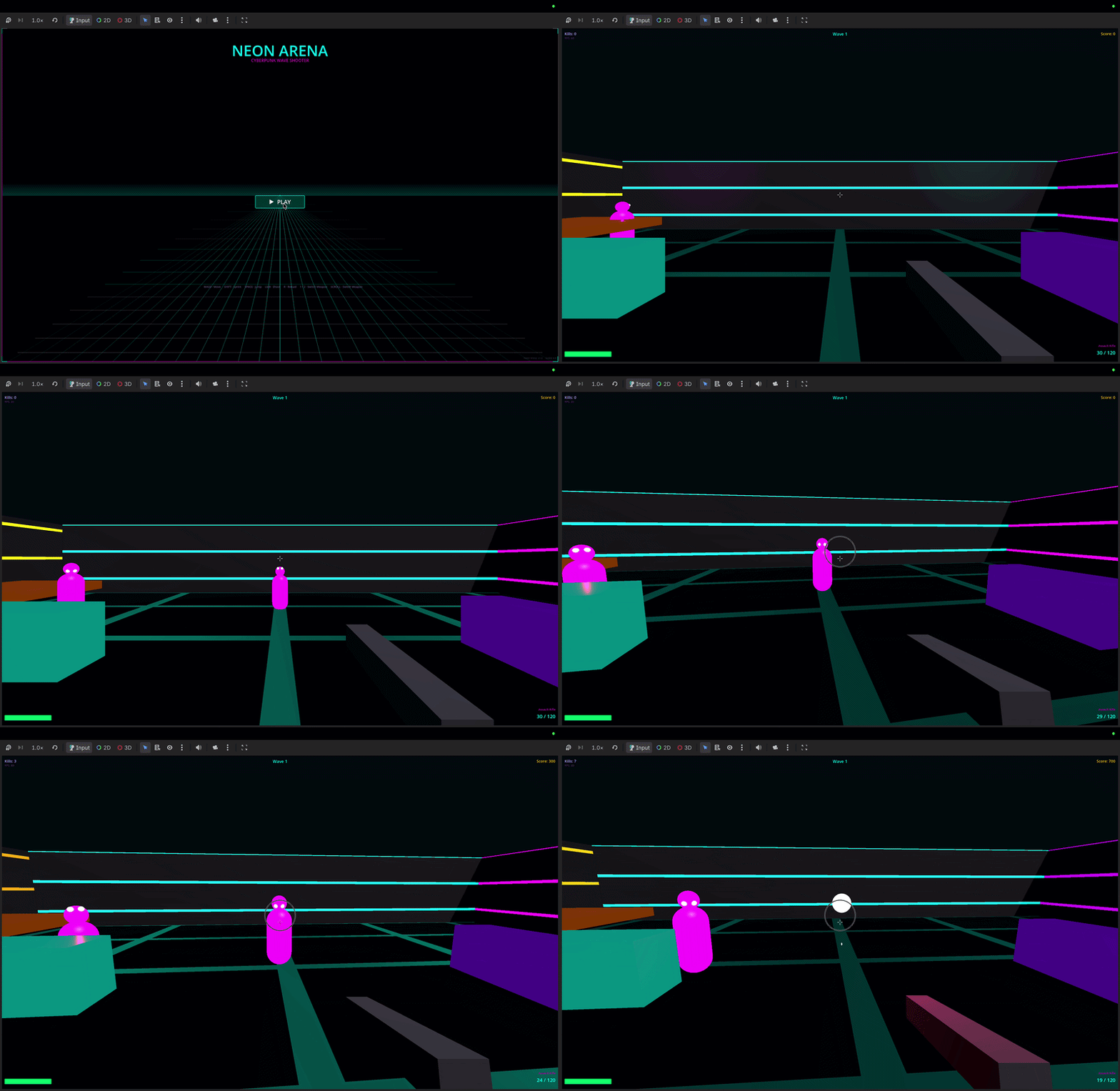
"Create a CharacterBody3D player scene with a Camera3D and collision"
"Run the project and show me any errors"
"Add a DirectionalLight3D to the scene"
"Create a 2D platformer with sprites and tilemaps"
Schnellstart
1. Installation
npm install -g godot-mcp-pilot
Oder ohne Installation verwenden:
2. Einrichtungsassistent ausführen
npx godot-mcp-pilot setup
# or, if installed globally:
godot-mcp-pilot-setup
Der Assistent wird:
Ihre Godot-Binärdatei automatisch erkennen (durchsucht Programme, Downloads, PATH)
Fragen, welchen KI-Client Sie verwenden
Die Konfiguration am richtigen Ort für diesen Client schreiben
Related MCP server: Godot MCP Enhanced
Manuelle Einrichtung
Claude Code (CLI / IDE-Erweiterung)
Wichtig: Claude Code liest .mcp.json aus dem Verzeichnis, in dem Sie es starten.
Die Datei muss sich in Ihrem Spielprojektordner befinden, nicht im godot-mcp-pilot-Ordner.
# From inside your game project directory:
claude mcp add godot -- npx godot-mcp-pilot
Dies schreibt .mcp.json in Ihr aktuelles Verzeichnis. Starten Sie Claude Code danach immer aus diesem Verzeichnis:
cd ~/games/my-platformer
claude
Falls Godot nicht automatisch erkannt wird (z. B. wenn Sie es nie aus ~/Downloads verschoben haben):
claude mcp add godot -e GODOT_PATH=/path/to/Godot.app/Contents/MacOS/Godot -- npx godot-mcp-pilot
Oder schreiben Sie .mcp.json manuell in Ihr Spielprojekt-Stammverzeichnis:
{
  "mcpServers": {
    "godot": {
      "command": "npx",
      "args": ["godot-mcp-pilot"],
      "env": {
        "GODOT_PATH": "/path/to/your/Godot"
      }
    }
  }
}
Claude Desktop
Claude Desktop verwendet eine andere Konfigurationsdatei — sie liest nicht .mcp.json.
Bearbeiten Sie ~/Library/Application Support/Claude/claude_desktop_config.json (macOS)
oder %APPDATA%\Claude\claude_desktop_config.json (Windows):
{
  "mcpServers": {
    "godot": {
      "command": "npx",
      "args": ["godot-mcp-pilot"],
      "env": {
        "GODOT_PATH": "/path/to/your/Godot"
      }
    }
  }
}
Anschließend Claude Desktop beenden und neu starten.
Cursor (.cursor/mcp.json)
{
  "mcpServers": {
    "godot": {
      "command": "npx",
      "args": ["godot-mcp-pilot"],
      "env": {
        "GODOT_PATH": "/path/to/your/Godot"
      }
    }
  }
}
Godot-Pfaderkennung
Der Server durchsucht diese Speicherorte automatisch (in dieser Reihenfolge):
Betriebssystem | Geprüfte Pfade |
macOS | /Applications/Godot.app, /Applications/Godot_4.app, versionsbehaftete Namen wie Godot_v4.3.app, ~/Applications/..., ~/Downloads/..., Homebrew
|
Linux | /usr/bin/godot, /usr/local/bin/godot, /snap/bin/godot, ~/.local/bin/godot
|
Windows | C:\Program Files\Godot\Godot.exe, %LOCALAPPDATA%\Godot\Godot.exe
|
Wenn die automatische Erkennung fehlschlägt, setzen Sie GODOT_PATH auf den absoluten Pfad Ihrer Godot-ausführbaren Datei.
2D- und 3D-Spiele
godot-mcp-pilot funktioniert gleichermaßen gut für 2D und 3D. Verwenden Sie die entsprechenden Knotentypen:
| 2D | 3D |
Spieler | CharacterBody2D
| CharacterBody3D
|
Wurzel | Node2D
| Node3D
|
Kamera | Camera2D
| Camera3D
|
Mesh | Sprite2D
| MeshInstance3D
|
Kollision | CollisionShape2D
| CollisionShape3D
|
Physik | RigidBody2D
| RigidBody3D
|
Licht | — | DirectionalLight3D, OmniLight3D
|
Beispiel-Prompts:
"Create a 3D scene with a Node3D root, MeshInstance3D floor, and DirectionalLight3D"
"Add a CharacterBody3D with a CollisionShape3D using a CapsuleShape3D"
"Write a GDScript for 3D first-person movement"
Funktionen
Kategorie | Tools |
System | get_godot_version, list_projects, get_project_info
|
Editor / Ausführen | launch_editor, run_project, stop_project, get_debug_output, run_gdscript
|
Szenen | list_project_scenes, read_scene, create_scene, save_scene
|
Knoten | add_node, edit_node, remove_node, duplicate_node, move_node, load_sprite, instantiate_scene
|
Skripte | list_project_scripts, read_script, create_script, modify_script, analyze_script, list_script_functions, add_script_function, remove_script_function, add_signal, add_variable
|
Projekt | get_project_settings, set_project_setting, get_main_scene, set_main_scene, list_autoloads, add_autoload, remove_autoload, list_input_actions, add_input_action, remove_input_action
|
Assets | list_assets, get_asset_info
|
UIDs | get_uid, update_project_uids
|
Konfiguration
Umgebungsvariable | Standardwert | Beschreibung |
GODOT_PATH
| automatisch erkannt | Absoluter Pfad zur Godot-ausführbaren Datei |
READ_ONLY_MODE
| false
| Wenn true, werden alle ändernden Tools deaktiviert (sicher für CI/Review) |
DEBUG
| false
| Debug-Informationen an stderr ausgeben |
Fehlerbehebung
"MCP server not connected" / Tools erscheinen nicht
Claude Code: Die .mcp.json muss sich in dem Verzeichnis befinden, in dem Sie claude ausführen. Öffnen Sie ein neues Terminal, wechseln Sie mit cd in Ihr Spielprojekt und führen Sie claude von dort aus.
Claude Desktop: Stellen Sie sicher, dass Sie die richtige Datei bearbeitet haben (claude_desktop_config.json, nicht .mcp.json) und die App vollständig beendet und neu gestartet haben.
Godot nicht gefunden
Setzen Sie GODOT_PATH explizit im env-Block der Konfiguration. Wenn Sie Godot unter macOS heruntergeladen, aber nie verschoben haben:
GODOT_PATH=/Users/yourname/Downloads/Godot.app/Contents/MacOS/Godot
So finden Sie heraus, wo sich Godot befindet:
# macOS / Linux
find ~/Downloads ~/Applications /Applications -name "Godot" -type f 2>/dev/null
Szenen-Parsing-Fehler / fehlerhafte .tscn
Wenn Godot sich weigert, eine vom MCP bearbeitete Szene zu laden, prüfen Sie, ob instance=-Zeilen nicht in Anführungszeichen stehen:
# Correct
instance=ExtResource("1_abc")

# Wrong (Godot rejects this)
instance="ExtResource(\"1_abc\")"
Führen Sie das Projekt im Headless-Modus aus, um den genauen Fehler zu sehen:
/path/to/Godot --path /path/to/project --headless --quit 2>&1
MCP trennt die Verbindung während einer Sitzung
Dies ist ein bekanntes Problem bei einigen MCP-Host-Implementierungen. Problemumgehung: Schließen Sie Ihren KI-Client und öffnen Sie ihn erneut. Der MCP-Server selbst ist zustandslos — eine erneute Verbindung ist sicher.
Beispiel-Workflows
2D Top-Down-Shooter
"Create a 2D scene called Main.tscn"
"Add a CharacterBody2D called Player at the center"
"Create a movement + shooting script for the Player"
"Add an Area2D called Enemy that moves toward the player"
"Run the project and show errors"
3D-Plattformer
"Create a 3D scene with a StaticBody3D floor (MeshInstance3D box, scale 20x1x20)"
"Add a CharacterBody3D player with a CapsuleShape3D collision"
"Create a 3D character controller script with jump and gravity"
"Add a Camera3D as a child of the player with offset Vector3(0, 2, 5)"
Schreibgeschützter Modus
READ_ONLY_MODE=true npx godot-mcp-pilot
Deaktiviert alle Schreib-Tools. Nützlich für CI/CD- oder Review-Workflows.
Entwicklung
git clone https://github.com/pushks18/godot-mcp-pilot
cd godot-mcp-pilot
npm install
npm run build

# Run the setup wizard
npm run setup

# Development mode (ts-node, no build step)
npm run dev
Projektstruktur
godot-mcp-pilot/
├── src/
│   ├── index.ts               # Entry point
│   ├── server.ts              # MCP server + tool routing
│   ├── config.ts              # Godot path detection, env config
│   ├── godot-process.ts       # Process management (spawn, capture)
│   ├── tools/
│   │   ├── system.ts          # Version, project listing/info
│   │   ├── execution.ts       # Launch editor, run/stop project
│   │   ├── scene.ts           # Scene CRUD + node manipulation
│   │   ├── script.ts          # GDScript read/write/analyze
│   │   ├── assets.ts          # Asset listing/inspection
│   │   ├── project_settings.ts # Settings, autoloads, input maps
│   │   └── uid.ts             # Godot 4 UID management
│   └── utils/
│       ├── path.ts            # Path validation (prevents traversal)
│       ├── tscn.ts            # .tscn parser and serializer
│       └── project_godot.ts   # project.godot reader
└── scripts/
    ├── setup.js               # Interactive setup wizard
    └── godot_operations.gd    # Bundled GDScript for runtime ops
Kompatibilität
Godot 4.x (Hauptziel — getestet mit 4.2, 4.3, 4.4)
Godot 3.x — grundlegende Tools funktionieren; Unterschiede im Szenenformat beachten
MCP-Protokoll — Spezifikation vom 05.11.2024
Node.js — 18+
Sicherheit
Alle Dateipfade werden validiert, um innerhalb des Projektverzeichnisses zu bleiben (kein Path Traversal)
launch_editor und run_project starten Prozesse nur mit sicheren, vordefinierten Argumenten
Verwenden Sie READ_ONLY_MODE=true in nicht vertrauenswürdigen Umgebungen
Der Server führt niemals beliebige Shell-Befehle aus — nur die Godot-Binärdatei
Lizenz
MIT


