godot-mcp-pilot
Godot 4용 모델 컨텍스트 프로토콜(MCP) 서버 — AI 어시스턴트(Claude, Cursor, Cline 등)가 Godot 프로젝트를 직접 제어할 수 있도록 합니다.


godot-mcp-pilot은 Godot 엔진 작업을 MCP 도구로 노출하여 AI 어시스턴트가 에디터 실행, 프로젝트 실행, 씬 생성 및 편집, GDScript 작성, 에셋 검사를 자연어로 수행할 수 있게 합니다. 2D 및 3D 게임 모두에서 작동합니다.
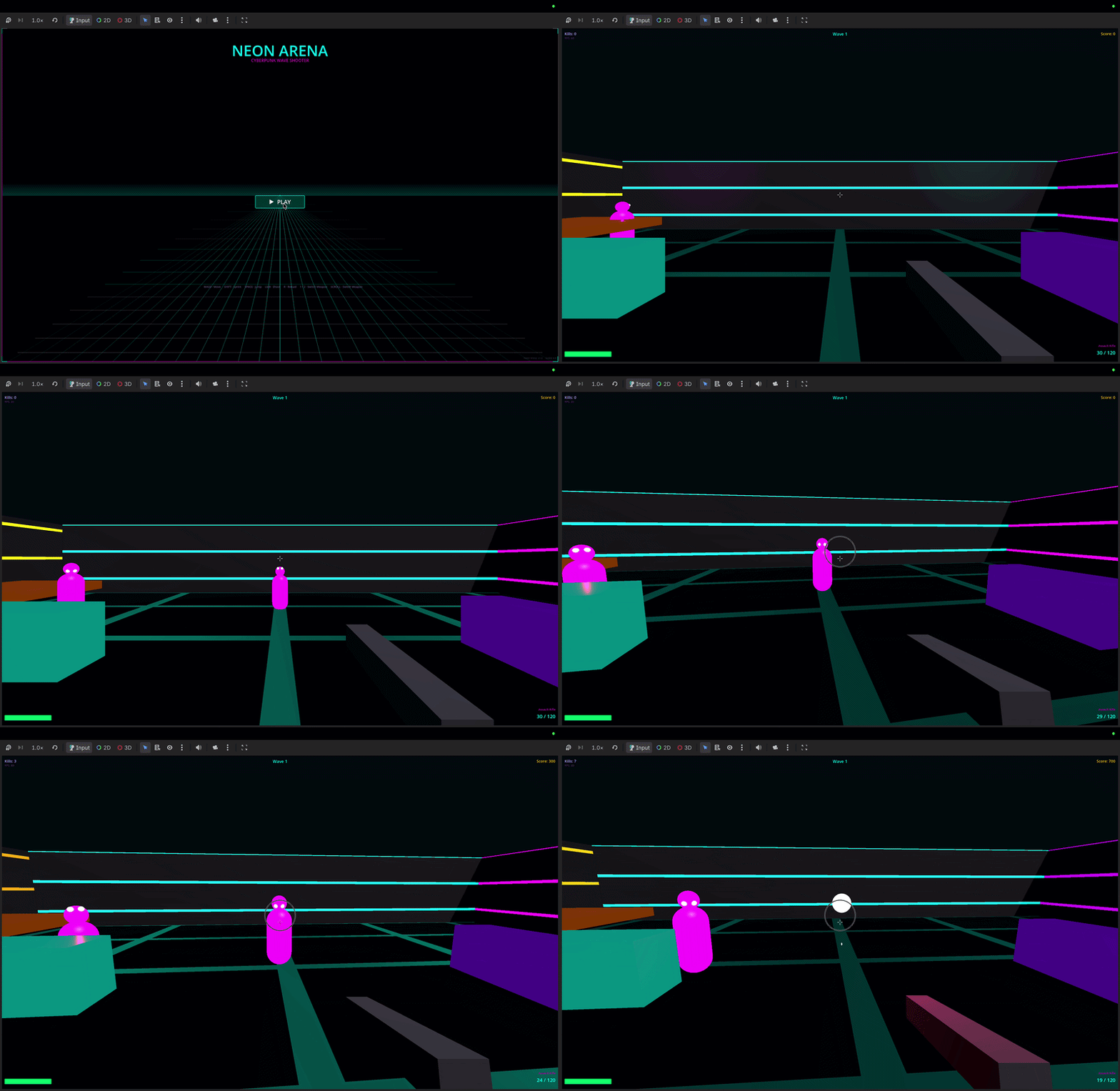
"Create a CharacterBody3D player scene with a Camera3D and collision"
"Run the project and show me any errors"
"Add a DirectionalLight3D to the scene"
"Create a 2D platformer with sprites and tilemaps"
빠른 시작
1. 설치
npm install -g godot-mcp-pilot
또는 설치 없이 사용:
2. 설정 마법사 실행
npx godot-mcp-pilot setup
# or, if installed globally:
godot-mcp-pilot-setup
마법사는 다음을 수행합니다:
Godot 바이너리 자동 감지 (Applications, Downloads, PATH 확인)
사용하는 AI 클라이언트 확인
해당 클라이언트에 맞는 올바른 위치에 설정 파일 작성
Related MCP server: Godot MCP Enhanced
수동 설정
Claude Code (CLI / IDE 확장 프로그램)
주의: Claude Code는 실행하는 디렉토리에서 .mcp.json을 읽습니다.
이 파일은 godot-mcp-pilot 폴더가 아닌 게임 프로젝트 폴더에 있어야 합니다.
# From inside your game project directory:
claude mcp add godot -- npx godot-mcp-pilot
이 명령은 현재 디렉토리에 .mcp.json을 작성합니다. 이후 항상 해당 디렉토리에서 Claude Code를 실행하세요:
cd ~/games/my-platformer
claude
Godot이 자동 감지되지 않는 경우 (예: ~/Downloads에서 이동하지 않은 경우):
claude mcp add godot -e GODOT_PATH=/path/to/Godot.app/Contents/MacOS/Godot -- npx godot-mcp-pilot
또는 게임 프로젝트 루트에 .mcp.json을 수동으로 작성하세요:
{
  "mcpServers": {
    "godot": {
      "command": "npx",
      "args": ["godot-mcp-pilot"],
      "env": {
        "GODOT_PATH": "/path/to/your/Godot"
      }
    }
  }
}
Claude Desktop
Claude Desktop은 다른 설정 파일을 사용하며 .mcp.json을 읽지 않습니다.
~/Library/Application Support/Claude/claude_desktop_config.json (macOS) 또는
%APPDATA%\Claude\claude_desktop_config.json (Windows)을 편집하세요:
{
  "mcpServers": {
    "godot": {
      "command": "npx",
      "args": ["godot-mcp-pilot"],
      "env": {
        "GODOT_PATH": "/path/to/your/Godot"
      }
    }
  }
}
그 후 Claude Desktop을 종료했다가 다시 실행하세요.
Cursor (.cursor/mcp.json)
{
  "mcpServers": {
    "godot": {
      "command": "npx",
      "args": ["godot-mcp-pilot"],
      "env": {
        "GODOT_PATH": "/path/to/your/Godot"
      }
    }
  }
}
Godot 경로 감지
서버는 다음 위치를 자동으로 검색합니다 (순서대로):
OS | 확인 경로 |
macOS | /Applications/Godot.app, /Applications/Godot_4.app, Godot_v4.3.app과 같은 버전 이름, ~/Applications/..., ~/Downloads/..., Homebrew
|
Linux | /usr/bin/godot, /usr/local/bin/godot, /snap/bin/godot, ~/.local/bin/godot
|
Windows | C:\Program Files\Godot\Godot.exe, %LOCALAPPDATA%\Godot\Godot.exe
|
자동 감지에 실패하면 GODOT_PATH를 Godot 실행 파일의 절대 경로로 설정하세요.
2D 및 3D 게임
godot-mcp-pilot은 2D와 3D 모두에서 동일하게 잘 작동합니다. 적절한 노드 유형을 사용하세요:
| 2D | 3D |
플레이어 | CharacterBody2D
| CharacterBody3D
|
루트 | Node2D
| Node3D
|
카메라 | Camera2D
| Camera3D
|
메시 | Sprite2D
| MeshInstance3D
|
충돌 | CollisionShape2D
| CollisionShape3D
|
물리 | RigidBody2D
| RigidBody3D
|
조명 | — | DirectionalLight3D, OmniLight3D
|
프롬프트 예시:
"Create a 3D scene with a Node3D root, MeshInstance3D floor, and DirectionalLight3D"
"Add a CharacterBody3D with a CollisionShape3D using a CapsuleShape3D"
"Write a GDScript for 3D first-person movement"
기능
카테고리 | 도구 |
시스템 | get_godot_version, list_projects, get_project_info
|
에디터 / 실행 | launch_editor, run_project, stop_project, get_debug_output, run_gdscript
|
씬 | list_project_scenes, read_scene, create_scene, save_scene
|
노드 | add_node, edit_node, remove_node, duplicate_node, move_node, load_sprite, instantiate_scene
|
스크립트 | list_project_scripts, read_script, create_script, modify_script, analyze_script, list_script_functions, add_script_function, remove_script_function, add_signal, add_variable
|
프로젝트 | get_project_settings, set_project_setting, get_main_scene, set_main_scene, list_autoloads, add_autoload, remove_autoload, list_input_actions, add_input_action, remove_input_action
|
에셋 | list_assets, get_asset_info
|
UID | get_uid, update_project_uids
|
설정
환경 변수 | 기본값 | 설명 |
GODOT_PATH
| 자동 감지 | Godot 실행 파일의 절대 경로 |
READ_ONLY_MODE
| false
| true일 경우 모든 수정 도구 비활성화 (CI/검토용으로 안전)
|
DEBUG
| false
| stderr로 디버그 정보 출력 |
문제 해결
"MCP server not connected" / 도구가 나타나지 않음
Claude Code: .mcp.json은 claude를 실행하는 디렉토리에 있어야 합니다. 새 터미널을 열고 게임 프로젝트로 cd한 다음 거기서 claude를 실행하세요.
Claude Desktop: 올바른 파일(claude_desktop_config.json, .mcp.json 아님)을 편집했는지 확인하고 앱을 완전히 종료 후 다시 실행하세요.
Godot을 찾을 수 없음
설정의 env 블록에서 GODOT_PATH를 명시적으로 설정하세요. macOS에서 Godot을 다운로드했지만 이동하지 않은 경우:
GODOT_PATH=/Users/yourname/Downloads/Godot.app/Contents/MacOS/Godot
Godot 위치를 찾는 방법:
# macOS / Linux
find ~/Downloads ~/Applications /Applications -name "Godot" -type f 2>/dev/null
씬 파싱 오류 / 잘못된 .tscn
Godot이 MCP로 편집된 씬을 로드하지 않는 경우, instance= 줄에 따옴표가 없는지 확인하세요:
# Correct
instance=ExtResource("1_abc")

# Wrong (Godot rejects this)
instance="ExtResource(\"1_abc\")"
프로젝트를 헤드리스 모드로 실행하여 정확한 오류를 확인하세요:
/path/to/Godot --path /path/to/project --headless --quit 2>&1
세션 중 MCP 연결 끊김
일부 MCP 호스트 구현에서 알려진 문제입니다. 해결 방법: AI 클라이언트를 닫았다가 다시 여세요. MCP 서버 자체는 상태를 저장하지 않으므로 다시 연결해도 안전합니다.
워크플로우 예시
2D 탑다운 슈팅 게임
"Create a 2D scene called Main.tscn"
"Add a CharacterBody2D called Player at the center"
"Create a movement + shooting script for the Player"
"Add an Area2D called Enemy that moves toward the player"
"Run the project and show errors"
3D 플랫포머 게임
"Create a 3D scene with a StaticBody3D floor (MeshInstance3D box, scale 20x1x20)"
"Add a CharacterBody3D player with a CapsuleShape3D collision"
"Create a 3D character controller script with jump and gravity"
"Add a Camera3D as a child of the player with offset Vector3(0, 2, 5)"
읽기 전용 모드
READ_ONLY_MODE=true npx godot-mcp-pilot
모든 쓰기 도구를 비활성화합니다. CI/CD 또는 검토 워크플로우에 유용합니다.
개발
git clone https://github.com/pushks18/godot-mcp-pilot
cd godot-mcp-pilot
npm install
npm run build

# Run the setup wizard
npm run setup

# Development mode (ts-node, no build step)
npm run dev
프로젝트 구조
godot-mcp-pilot/
├── src/
│   ├── index.ts               # Entry point
│   ├── server.ts              # MCP server + tool routing
│   ├── config.ts              # Godot path detection, env config
│   ├── godot-process.ts       # Process management (spawn, capture)
│   ├── tools/
│   │   ├── system.ts          # Version, project listing/info
│   │   ├── execution.ts       # Launch editor, run/stop project
│   │   ├── scene.ts           # Scene CRUD + node manipulation
│   │   ├── script.ts          # GDScript read/write/analyze
│   │   ├── assets.ts          # Asset listing/inspection
│   │   ├── project_settings.ts # Settings, autoloads, input maps
│   │   └── uid.ts             # Godot 4 UID management
│   └── utils/
│       ├── path.ts            # Path validation (prevents traversal)
│       ├── tscn.ts            # .tscn parser and serializer
│       └── project_godot.ts   # project.godot reader
└── scripts/
    ├── setup.js               # Interactive setup wizard
    └── godot_operations.gd    # Bundled GDScript for runtime ops
호환성
Godot 4.x (주요 타겟 — 4.2, 4.3, 4.4에서 테스트됨)
Godot 3.x — 기본 도구는 작동하지만 씬 형식 차이가 있음
MCP 프로토콜 — 2024-11-05 사양
Node.js — 18 이상
보안
모든 파일 경로는 프로젝트 디렉토리 내에 머물도록 검증됨 (경로 탐색 방지)
launch_editor 및 run_project는 안전하고 미리 정의된 인수로만 프로세스를 시작함
신뢰할 수 없는 환경에서는 READ_ONLY_MODE=true를 사용하세요
서버는 임의의 쉘 명령을 실행하지 않으며, 오직 Godot 바이너리만 실행함
라이선스
MIT


