Unity Editor MCP Server
MCP Unity Editor(게임 엔진)
지엑스피1
MCP Unity는 Unity Editor용 모델 컨텍스트 프로토콜(Model Context Protocol)을 구현하여 AI 어시스턴트가 Unity 프로젝트와 상호 작용할 수 있도록 지원합니다. 이 패키지는 Unity와 MCP 프로토콜을 구현하는 Node.js 서버를 연결하는 브리지 역할을 하며, Claude, Windsurf, Cursor와 같은 AI 에이전트가 Unity Editor 내에서 작업을 실행할 수 있도록 지원합니다.
특징
IDE 통합 - 패키지 캐시 액세스
MCP Unity는 Unity Library/PackedCache 폴더를 작업 공간에 추가하여 VSCode와 유사한 IDE(Visual Studio Code, Cursor, Windsurf)와의 자동 통합을 제공합니다. 이 기능은 다음과 같습니다.
Unity 패키지의 코드 인텔리전스를 개선합니다.
Unity 패키지에 대한 더 나은 자동 완성 및 유형 정보를 제공합니다.
AI 코딩 어시스턴트가 프로젝트의 종속성을 이해하도록 돕습니다.
MCP 서버 도구
다음 도구는 MCP를 통해 Unity 장면과 게임 객체를 조작하고 쿼리하는 데 사용할 수 있습니다.
execute_menu_item: Unity 메뉴 항목(MenuItem 속성으로 태그가 지정된 함수)을 실행합니다.예시 프롬프트: "새로운 빈 GameObject를 생성하려면 'GameObject/Create Empty' 메뉴 항목을 실행하세요."
select_gameobject: 경로 또는 인스턴스 ID를 기준으로 Unity 계층 구조에서 게임 객체를 선택합니다.예시 프롬프트: "내 장면에서 메인 카메라 객체를 선택하세요"
update_gameobject: GameObject의 핵심 속성(이름, 태그, 레이어, 활성/정적 상태)을 업데이트하거나 GameObject가 없으면 생성합니다.예시 프롬프트: "플레이어 객체의 태그를 '적'으로 설정하고 비활성화하세요"
update_component: GameObject의 구성 요소 필드를 업데이트하거나 해당 구성 요소가 포함되어 있지 않으면 GameObject에 추가합니다.예시 프롬프트: "Player 객체에 Rigidbody 구성 요소를 추가하고 질량을 5로 설정하세요"
add_package: Unity 패키지 관리자에 새 패키지를 설치합니다.예시 프롬프트: "내 프로젝트에 TextMeshPro 패키지를 추가하세요"
run_tests: Unity Test Runner를 사용하여 테스트를 실행합니다.예시 프롬프트: "내 프로젝트에서 모든 EditMode 테스트를 실행하세요"
send_console_log: Unity에 콘솔 로그를 보냅니다.예시 프롬프트: "Unity Editor에 콘솔 로그 보내기"
add_asset_to_scene: AssetDatabase에서 Unity 장면에 자산을 추가합니다.예시 프롬프트: "내 프로젝트의 Player 프리팹을 현재 장면에 추가하세요"
MCP 서버 리소스
unity://menu-items: Unity Editor에서 사용 가능한 모든 메뉴 항목 목록을 검색하여execute_menu_item도구를 용이하게 합니다.예시 프롬프트: "GameObject 생성과 관련된 사용 가능한 모든 메뉴 항목을 보여주세요"
unity://scenes-hierarchy: 현재 Unity 씬 계층 구조에 있는 모든 게임 객체 목록을 검색합니다.예시 프롬프트: "현재 장면 계층 구조를 보여주세요"
unity://gameobject/{id}: 직렬화된 속성 및 필드가 있는 모든 GameObject 구성 요소를 포함하여 씬 계층 구조의 인스턴스 ID 또는 개체 경로를 통해 특정 GameObject에 대한 자세한 정보를 검색합니다.예시 프롬프트: "플레이어 게임 객체에 대한 자세한 정보를 알려주세요"
unity://logs: Unity 콘솔에서 모든 로그 목록을 검색합니다.예시 프롬프트: "Unity 콘솔의 최근 오류 메시지를 보여주세요"
unity://packages: Unity 패키지 관리자에서 설치된 패키지와 사용 가능한 패키지에 대한 정보를 검색합니다.예시 프롬프트: "현재 내 Unity 프로젝트에 설치된 모든 패키지를 나열하세요"
unity://assets: Unity Asset Database에 있는 자산에 대한 정보를 검색합니다.예시 프롬프트: "내 프로젝트의 모든 텍스처 에셋을 찾으세요"
unity://tests/{testMode}: Unity Test Runner에서 테스트에 대한 정보를 검색합니다.예시 프롬프트: "Unity 프로젝트에서 사용 가능한 모든 테스트를 나열하세요"
Related MCP server: MCP For Unity
요구 사항
설치
이 MCP Unity 서버를 설치하는 과정은 여러 단계로 구성됩니다.
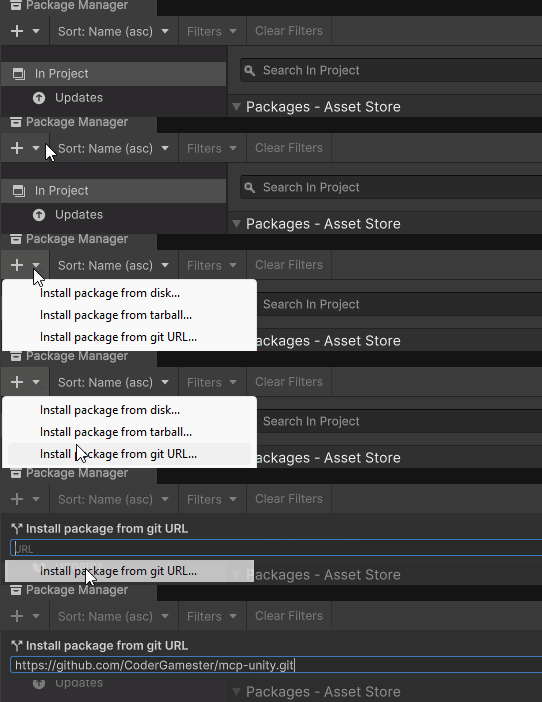
1단계: Unity 패키지 관리자를 통해 Unity MCP 서버 패키지 설치
Unity 패키지 관리자를 엽니다(창 > 패키지 관리자)
왼쪽 상단 모서리에 있는 "+" 버튼을 클릭하세요
"git URL에서 패키지 추가..."를 선택하세요.
입력:
https://github.com/CoderGamester/mcp-unity.git"추가"를 클릭하세요
2단계: Node.js 설치
MCP Unity 서버를 실행하려면 컴퓨터에 Node.js 18 이상이 설치되어 있어야 합니다.
Node.js 다운로드 페이지를 방문하세요
LTS 버전용 Windows Installer(.msi)를 다운로드하세요(권장)
설치 프로그램을 실행하고 설치 마법사를 따르세요
PowerShell을 열고 다음을 실행하여 설치를 확인하세요.
node --versionNode.js 다운로드 페이지를 방문하세요
LTS 버전용 macOS 설치 프로그램(.pkg)을 다운로드하세요(권장)
설치 프로그램을 실행하고 설치 마법사를 따르세요
또는 Homebrew가 설치되어 있다면 다음을 실행할 수 있습니다.
brew install node@18터미널을 열고 다음을 실행하여 설치를 확인하세요.
node --version
3단계: AI LLM 클라이언트 구성
Unity Editor를 엽니다
도구 > MCP Unity > 서버 창으로 이동합니다.
아래 이미지에 표시된 대로 AI LLM 클라이언트의 "구성" 버튼을 클릭하세요.
주어진 팝업으로 구성 설치를 확인하세요
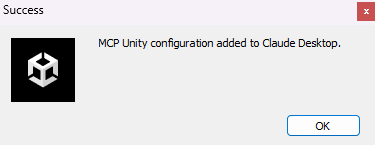
AI 클라이언트의 MCP 구성 파일(예: Claude Desktop의 claude_desktop_config.json)을 열고 다음 텍스트를 복사합니다.
ABSOLUTE/PATH/TOMCP Unity 설치 경로의 절대 경로로 바꾸거나 Unity Editor MCP 서버 창(도구 > MCP Unity > 서버 창)에서 텍스트를 복사하세요.
{
"mcpServers": {
"mcp-unity": {
"command": "node",
"args": [
"ABSOLUTE/PATH/TO/mcp-unity/Server~/build/index.js"
]
}
}
}Unity Editor MCP 서버 시작
Unity Editor를 엽니다
도구 > MCP Unity > 서버 창으로 이동합니다.
WebSocket 서버를 시작하려면 "서버 시작"을 클릭하세요.
Claude Desktop 또는 AI 코딩 IDE(예: Cursor IDE, Windsurf IDE 등)를 열고 Unity 도구 실행을 시작하세요.
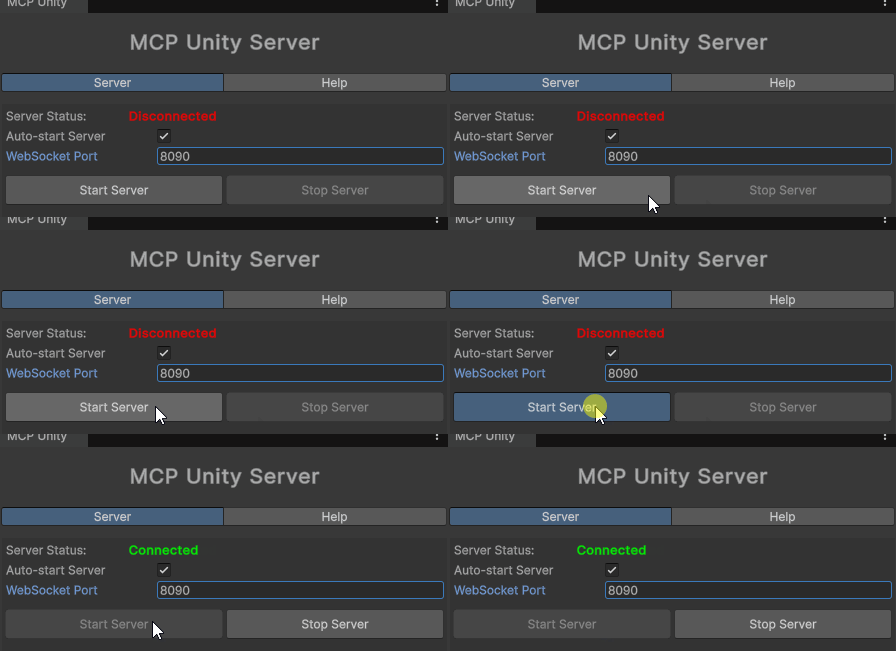
AI 클라이언트가 WebSocket 서버에 연결되면 창의 녹색 상자에 자동으로 표시됩니다.
선택 사항: WebSocket 포트 설정
기본적으로 WebSocket 서버는 포트 8090에서 실행됩니다. 이 포트는 두 가지 방법으로 변경할 수 있습니다.
Unity Editor를 엽니다
도구 > MCP Unity > 서버 창으로 이동합니다.
"WebSocket Port" 값을 원하는 포트 번호로 변경하세요.
Unity는 시스템 환경 변수 UNITY_PORT를 새 포트 번호로 설정합니다.
Node.js 서버를 다시 시작하세요
"서버 시작"을 다시 클릭하여 Unity Editor 웹 소켓을 Node.js MCP 서버에 다시 연결합니다.
터미널에서 UNITY_PORT 환경 변수를 설정하세요
파워쉘 GXP6
명령 프롬프트/터미널 GXP7
Node.js 서버를 다시 시작하세요
"서버 시작"을 다시 클릭하여 Unity Editor 웹 소켓을 Node.js MCP 서버에 다시 연결합니다.
선택 사항: 시간 초과 설정
기본적으로 MCP 서버와 WebSocket 간의 시간 초과는 10초입니다. 사용 중인 OS에 따라 변경할 수 있습니다.
Unity Editor를 엽니다
도구 > MCP Unity > 서버 창으로 이동합니다.
"요청 시간 초과(초)" 값을 원하는 시간 초과(초)로 변경하세요.
Unity는 시스템 환경 변수 UNITY_REQUEST_TIMEOUT을 새 타임아웃 값으로 설정합니다.
Node.js 서버를 다시 시작하세요
"서버 시작"을 다시 클릭하여 Unity Editor 웹 소켓을 Node.js MCP 서버에 다시 연결합니다.
Windows OS가 아닌 경우 두 곳을 구성해야 합니다.
편집기 프로세스 시간 초과
Unity Editor를 엽니다
도구 > MCP Unity > 서버 창으로 이동합니다.
"요청 시간 초과(초)" 값을 원하는 시간 초과(초)로 변경하세요.
웹소켓 시간 초과
터미널에서 UNITY_REQUEST_TIMEOUT 환경 변수를 설정하세요.
파워쉘 GXP8
명령 프롬프트/터미널 GXP9
Node.js 서버를 다시 시작하세요
"서버 시작"을 다시 클릭하여 Unity Editor 웹 소켓을 Node.js MCP 서버에 다시 연결합니다.
[!팁]
AI 코딩 IDE(예: Claude Desktop, Cursor IDE, Windsurf IDE)와 MCP 서버 간의 시간 초과는 IDE에 따라 다릅니다.
서버 디버깅
MCP Unity 서버는 Node.js를 사용하여 빌드됩니다. build 디렉터리에서 TypeScript 코드를 JavaScript로 컴파일해야 합니다. 서버를 빌드하려면 터미널을 열고 다음을 실행합니다.
서버 디렉토리로 이동합니다.
cd ABSOLUTE/PATH/TO/mcp-unity/Server~종속성 설치:
npm install서버를 빌드하세요:
npm run build서버를 실행합니다:
node build/index.js
@modelcontextprotocol/inspector를 사용하여 서버를 디버깅합니다.
파워셸
npx @modelcontextprotocol/inspector node Server~/build/index.js명령 프롬프트/터미널
npx @modelcontextprotocol/inspector node Server~/build/index.js터미널을 닫거나 MCP Inspector 로 디버깅하기 전에 Ctrl + C 로 서버를 종료하는 것을 잊지 마세요.
터미널이나 log.txt 파일에 로깅을 활성화하세요.
파워쉘 GXP16
명령 프롬프트/터미널 GXP17
문제 해결
WebSocket 서버가 실행 중인지 확인하세요(Unity의 서버 창 확인)
MCP 클라이언트에서 콘솔 로그 메시지를 보내 MCP 클라이언트와 Unity 서버 간의 재연결을 강제합니다.
Unity Editor MCP 서버 창에서 포트 번호를 변경하세요. (도구 > MCP Unity > 서버 창)
Unity 콘솔에서 오류 메시지를 확인하세요.
Node.js가 PATH에 제대로 설치되어 접근 가능한지 확인하세요.
모든 종속성이 서버 디렉토리에 설치되었는지 확인하세요.
run_tests 도구는 다음과 같은 응답을 반환합니다.
Error:
Connection failed: Unknown error이 오류는 재생 모드로 전환할 때 도메인을 다시 로드할 때 브리지 연결이 끊어지기 때문에 발생합니다.
해결 방법은 편집 > 프로젝트 설정 > 편집기 > "재생 모드 설정 입력" 에서 도메인 다시 로드를 끄는 것입니다.
지원 및 피드백
질문이 있거나 지원이 필요하면 이 저장소에서 이슈를 열어주세요.
또는 다음 연락처로 문의하실 수 있습니다.
링크드인:
디스코드: gamester7178
기여하다
기여를 환영합니다! 풀 리퀘스트를 제출하거나 이슈를 개설하여 요청해 주세요.
기존 커밋 형식에 따라 변경 사항을 커밋합니다 .
특허
이 프로젝트는 MIT 라이선스 에 따라 진행됩니다.
감사의 말
Available Tools
5 toolsnotify_messageC
Sends a message to the Unity console
| Name | Required | Description | Default |
|---|---|---|---|
| message | Yes | The message to display in the Unity console | |
| type | No | The type of message (info, warning, error) |
TDQS
Does the description disclose side effects, auth requirements, rate limits, or destructive behavior?
With no annotations provided, the description carries full burden but only states what the tool does without disclosing behavioral traits. It doesn't mention whether this is a read-only operation, if it requires specific permissions, how messages appear in the console, or any rate limits. The description is minimal and lacks necessary context for a mutation tool.
Agents need to know what a tool does to the world before calling it. Descriptions should go beyond structured annotations to explain consequences.
Is the description appropriately sized, front-loaded, and free of redundancy?
The description is a single, efficient sentence with zero waste. It's appropriately sized and front-loaded, directly stating the tool's purpose without unnecessary elaboration.
Shorter descriptions cost fewer tokens and are easier for agents to parse. Every sentence should earn its place.
Given the tool's complexity, does the description cover enough for an agent to succeed on first attempt?
For a tool that sends messages (implying mutation) with no annotations and no output schema, the description is incomplete. It doesn't explain what happens after sending, return values, error conditions, or integration with Unity's console system. The minimal description leaves significant gaps in understanding the tool's behavior.
Complex tools with many parameters or behaviors need more documentation. Simple tools need less. This dimension scales expectations accordingly.
Does the description clarify parameter syntax, constraints, interactions, or defaults beyond what the schema provides?
Schema description coverage is 100%, so the schema already documents both parameters thoroughly. The description doesn't add any meaning beyond what the schema provides about message content or type options. Baseline 3 is appropriate when the schema does the heavy lifting.
Input schemas describe structure but not intent. Descriptions should explain non-obvious parameter relationships and valid value ranges.
Does the description clearly state what the tool does and how it differs from similar tools?
The description clearly states the action ('sends') and target ('message to the Unity console'), providing a specific verb+resource combination. However, it doesn't differentiate from sibling tools like 'execute_menu_item' or 'run_tests', which prevents a perfect score.
Agents choose between tools based on descriptions. A clear purpose with a specific verb and resource helps agents select the right tool.
Does the description explain when to use this tool, when not to, or what alternatives exist?
The description provides no guidance on when to use this tool versus alternatives like logging to files or using other console methods. It lacks context about appropriate scenarios or exclusions, offering only basic functional information.
Agents often have multiple tools that could apply. Explicit usage guidance like "use X instead of Y when Z" prevents misuse.
package_managerC
Manages packages in the Unity Package Manager
| Name | Required | Description | Default |
|---|---|---|---|
| branch | No | The branch to use for GitHub packages (optional) | |
| methodSource | Yes | The method source to use (registry, github, or disk) to add the package | |
| packageName | No | The package name to add from Unity registry (e.g. com.unity.textmeshpro) | |
| path | No | The path to use (folder path for disk method or subfolder for GitHub) | |
| repositoryUrl | No | The GitHub repository URL (e.g. https://github.com/username/repo.git) | |
| version | No | The version to use for registry packages (optional) |
TDQS
Does the description disclose side effects, auth requirements, rate limits, or destructive behavior?
With no annotations provided, the description carries the full burden of behavioral disclosure but only states a general purpose. It doesn't describe whether this tool performs read-only or destructive operations, what permissions are needed, how it handles errors, or what the typical output looks like, which is insufficient for a tool with multiple parameters and no output schema.
Agents need to know what a tool does to the world before calling it. Descriptions should go beyond structured annotations to explain consequences.
Is the description appropriately sized, front-loaded, and free of redundancy?
The description is a single, efficient sentence with no wasted words, making it appropriately concise. However, it lacks front-loaded detail that could immediately clarify the tool's specific actions, slightly reducing its effectiveness despite the brevity.
Shorter descriptions cost fewer tokens and are easier for agents to parse. Every sentence should earn its place.
Given the tool's complexity, does the description cover enough for an agent to succeed on first attempt?
Given the tool's complexity with 6 parameters, no annotations, and no output schema, the description is incomplete. It fails to explain what the tool does beyond a vague purpose, leaving gaps in understanding behavioral traits, return values, and proper usage context, which is inadequate for effective agent invocation.
Complex tools with many parameters or behaviors need more documentation. Simple tools need less. This dimension scales expectations accordingly.
Does the description clarify parameter syntax, constraints, interactions, or defaults beyond what the schema provides?
The schema description coverage is 100%, so all parameters are documented in the schema itself. The description adds no additional meaning about parameters beyond the general purpose, resulting in a baseline score of 3 where the schema does the heavy lifting without enhancement from the description.
Input schemas describe structure but not intent. Descriptions should explain non-obvious parameter relationships and valid value ranges.
Does the description clearly state what the tool does and how it differs from similar tools?
The description 'Manages packages in the Unity Package Manager' states a general purpose but is vague about what specific actions are performed. It doesn't specify whether it adds, removes, updates, or lists packages, and doesn't distinguish from sibling tools like 'execute_menu_item' or 'run_tests' which are unrelated to package management.
Agents choose between tools based on descriptions. A clear purpose with a specific verb and resource helps agents select the right tool.
Does the description explain when to use this tool, when not to, or what alternatives exist?
No guidance is provided on when to use this tool versus alternatives. The description doesn't mention any prerequisites, context for package management, or exclusions, leaving the agent to infer usage from the parameters alone without explicit direction.
Agents often have multiple tools that could apply. Explicit usage guidance like "use X instead of Y when Z" prevents misuse.
run_testsC
Runs Unity's Test Runner tests
| Name | Required | Description | Default |
|---|---|---|---|
| testFilter | No | Optional test filter (e.g. specific test name or namespace) | |
| testMode | No | The test mode to run (EditMode, PlayMode, or All) |
TDQS
Does the description disclose side effects, auth requirements, rate limits, or destructive behavior?
With no annotations provided, the description carries full burden but lacks behavioral details. It doesn't disclose whether this is a read-only or destructive operation, execution time, error handling, or output format (e.g., test results). The phrase 'Runs' implies execution but gives no further context on safety or side effects.
Agents need to know what a tool does to the world before calling it. Descriptions should go beyond structured annotations to explain consequences.
Is the description appropriately sized, front-loaded, and free of redundancy?
The description is a single, efficient sentence with no wasted words, making it easy to parse. It's front-loaded with the core action and resource, earning full marks for conciseness and structure.
Shorter descriptions cost fewer tokens and are easier for agents to parse. Every sentence should earn its place.
Given the tool's complexity, does the description cover enough for an agent to succeed on first attempt?
Given the complexity of running tests (which involves execution and potential side effects), no annotations, and no output schema, the description is incomplete. It doesn't explain what happens during execution, what results to expect, or any constraints, leaving significant gaps for an agent to use the tool effectively.
Complex tools with many parameters or behaviors need more documentation. Simple tools need less. This dimension scales expectations accordingly.
Does the description clarify parameter syntax, constraints, interactions, or defaults beyond what the schema provides?
The input schema has 100% description coverage, documenting both parameters clearly. The description adds no additional meaning beyond what the schema provides, such as examples of test filters or implications of test modes. With high schema coverage, the baseline score of 3 is appropriate.
Input schemas describe structure but not intent. Descriptions should explain non-obvious parameter relationships and valid value ranges.
Does the description clearly state what the tool does and how it differs from similar tools?
The description clearly states the action ('Runs') and the resource ('Unity's Test Runner tests'), making the purpose immediately understandable. However, it doesn't differentiate this tool from sibling tools like 'execute_menu_item' or 'package_manager', which could also involve Unity operations, so it doesn't reach the highest score.
Agents choose between tools based on descriptions. A clear purpose with a specific verb and resource helps agents select the right tool.
Does the description explain when to use this tool, when not to, or what alternatives exist?
The description provides no guidance on when to use this tool versus alternatives. There's no mention of prerequisites, context (e.g., when in Unity's workflow), or comparisons to siblings like 'execute_menu_item' for other Unity actions, leaving the agent to infer usage.
Agents often have multiple tools that could apply. Explicit usage guidance like "use X instead of Y when Z" prevents misuse.
select_objectC
Sets the selected object in the Unity editor by path or ID
| Name | Required | Description | Default |
|---|---|---|---|
| objectPath | Yes | The path or ID of the object to select (e.g. "Main Camera" or a Unity object ID) |
TDQS
Does the description disclose side effects, auth requirements, rate limits, or destructive behavior?
No annotations are provided, so the description carries the full burden of behavioral disclosure. It states the tool 'Sets the selected object' which implies a mutation (changing editor state), but doesn't disclose critical traits like whether this requires specific editor modes, if changes are undoable, potential side effects, or error handling. For a mutation tool with zero annotation coverage, this is a significant gap.
Agents need to know what a tool does to the world before calling it. Descriptions should go beyond structured annotations to explain consequences.
Is the description appropriately sized, front-loaded, and free of redundancy?
The description is a single, efficient sentence that front-loads the core action ('Sets the selected object') with essential details ('in the Unity editor by path or ID'). Every word earns its place with no redundancy or fluff, making it highly concise and well-structured.
Shorter descriptions cost fewer tokens and are easier for agents to parse. Every sentence should earn its place.
Given the tool's complexity, does the description cover enough for an agent to succeed on first attempt?
Given the tool's complexity (a mutation in an editor environment), lack of annotations, and no output schema, the description is incomplete. It doesn't cover behavioral aspects like permissions, side effects, or return values, leaving gaps for an AI agent to understand how to invoke it correctly in context.
Complex tools with many parameters or behaviors need more documentation. Simple tools need less. This dimension scales expectations accordingly.
Does the description clarify parameter syntax, constraints, interactions, or defaults beyond what the schema provides?
The input schema has 100% description coverage, with the parameter 'objectPath' fully documented in the schema. The description adds minimal value beyond the schema by mentioning 'path or ID' and providing an example ('Main Camera'), but doesn't elaborate on syntax, format differences, or edge cases. Baseline 3 is appropriate when the schema does the heavy lifting.
Input schemas describe structure but not intent. Descriptions should explain non-obvious parameter relationships and valid value ranges.
Does the description clearly state what the tool does and how it differs from similar tools?
The description clearly states the action ('Sets the selected object') and the resource ('in the Unity editor'), with the method ('by path or ID') specified. It distinguishes from siblings like 'execute_menu_item' or 'run_tests' by focusing on object selection. However, it doesn't explicitly differentiate from all siblings (e.g., 'notify_message' is clearly different, but the distinction could be more explicit for a perfect score).
Agents choose between tools based on descriptions. A clear purpose with a specific verb and resource helps agents select the right tool.
Does the description explain when to use this tool, when not to, or what alternatives exist?
The description provides no guidance on when to use this tool versus alternatives. It doesn't mention prerequisites (e.g., needing an open Unity project), exclusions, or comparisons to sibling tools. Usage is implied through the action but lacks explicit context for selection.
Agents often have multiple tools that could apply. Explicit usage guidance like "use X instead of Y when Z" prevents misuse.
Tool Schema Changelog
Recent tool additions, removals, and schema changes observed during successful MCP inspections.
5 tool updates
v1.0.0- First observed
execute_menu_item - First observed
notify_message - First observed
package_manager - First observed
run_tests - First observed
select_object
TDQS
Scored across 5 tools
Each tool has a clearly distinct purpose targeting different Unity Editor functionalities: executing menu items, sending console messages, managing packages, running tests, and selecting objects. There is no overlap or ambiguity in their intended uses.
The tool names follow a consistent snake_case pattern with descriptive verb_noun combinations (e.g., execute_menu_item, notify_message). However, 'package_manager' deviates slightly by using a noun-only name instead of a verb_noun structure, but overall the naming is highly readable and predictable.
With 5 tools, the server is well-scoped for its purpose of interacting with the Unity Editor. Each tool serves a specific, essential function, and there are no extraneous or redundant tools, making the count appropriate for the domain.
The toolset covers key Unity Editor operations like executing commands, messaging, package management, testing, and object selection. However, there are notable gaps for a full editor integration, such as creating or modifying assets, building projects, or accessing scene hierarchies, which limits comprehensive workflow coverage.
Maintenance
Related MCP Connectors
A comprehensive Model Context Protocol (MCP) server that enables AI assistants to control Unreal E…
MCP server for AI dialogue using various LLM models via AceDataCloud
MCP server unifying ERPs, CRMs, APIs and knowledge base for Claude, ChatGPT and Gemini.
Nifty's MCP server — exposes tasks, projects, messages, and files as tools for AI agents.
Related MCP Servers
- AlicenseNot gradedqualityAmaintenanceSeamless automation and intelligent control over your Unity projects. By integrating with the MCP server and client, it allows AI agents or external tools to interact with your Unity environment—creating, modifying, and managing GameObjects, Components, Assets, Scenes, and more.4,386Apache 2.0
- FlicenseNot gradedqualityDmaintenanceEnables AI clients to interact with and control the Unity Editor through a Python MCP server bridge, allowing natural language-based Unity project manipulation.-
- AlicenseNot gradedqualityDmaintenanceMCP server that bridges Unity with AI agents, enabling scene inspection, C# code execution, and screenshot capture via WebSocket communication.MIT
- FlicenseNot gradedqualityDmaintenanceMCP server that lets AI agents drive the full Unity lifecycle on macOS without opening the Unity Editor.2-