Glama

MCP Unity Editor (Spiele-Engine)

Schmiedeabzeichen

                              ,/(/.   *(/,                                  
                          */(((((/.   *((((((*.                             
                     .*((((((((((/.   *((((((((((/.                         
                 ./((((((((((((((/    *((((((((((((((/,                     
             ,/(((((((((((((/*.           */(((((((((((((/*.                
            ,%%#((/((((((*                    ,/(((((/(#&@@(                
            ,%%##%%##((((((/*.             ,/((((/(#&@@@@@@(                
            ,%%######%%##((/(((/*.    .*/(((//(%@@@@@@@@@@@(                
            ,%%####%#(%%#%%##((/((((((((//#&@@@@@@&@@@@@@@@(                
            ,%%####%(    /#%#%%%##(//(#@@@@@@@%,   #@@@@@@@(                
            ,%%####%(        *#%###%@@@@@@(        #@@@@@@@(                
            ,%%####%(           #%#%@@@@,          #@@@@@@@(                
            ,%%##%%%(           #%#%@@@@,          #@@@@@@@(                
            ,%%%#*              #%#%@@@@,             *%@@@(                
            .,      ,/##*.      #%#%@@@@,     ./&@#*      *`                
                ,/#%#####%%#/,  #%#%@@@@, ,/&@@@@@@@@@&\.                    
                 `*#########%%%%###%@@@@@@@@@@@@@@@@@@&*´                   
                    `*%%###########%@@@@@@@@@@@@@@&*´                        
                        `*%%%######%@@@@@@@@@@&*´                            
                            `*#%%##%@@@@@&*´                                 
                               `*%#%@&*´                                     
                                                       
     ███╗   ███╗ ██████╗██████╗         ██╗   ██╗███╗   ██╗██╗████████╗██╗   ██╗
     ████╗ ████║██╔════╝██╔══██╗        ██║   ██║████╗  ██║██║╚══██╔══╝╚██╗ ██╔╝
     ██╔████╔██║██║     ██████╔╝        ██║   ██║██╔██╗ ██║██║   ██║    ╚████╔╝ 
     ██║╚██╔╝██║██║     ██╔═══╝         ██║   ██║██║╚██╗██║██║   ██║     ╚██╔╝  
     ██║ ╚═╝ ██║╚██████╗██║             ╚██████╔╝██║ ╚████║██║   ██║      ██║   
     ╚═╝     ╚═╝ ╚═════╝╚═╝              ╚═════╝ ╚═╝  ╚═══╝╚═╝   ╚═╝      ╚═╝   

MCP Unity ist eine Implementierung des Model Context Protocol für den Unity Editor und ermöglicht KI-Assistenten die Interaktion mit Ihren Unity-Projekten. Dieses Paket bildet eine Brücke zwischen Unity und einem Node.js-Server, der das MCP-Protokoll implementiert. Dadurch können KI-Agenten wie Claude, Windsurf und Cursor Operationen im Unity Editor ausführen.

Merkmale

IDE-Integration – Paket-Cache-Zugriff

MCP Unity ermöglicht die automatische Integration mit VSCode-ähnlichen IDEs (Visual Studio Code, Cursor, Windsurf), indem der Ordner Unity Library/PackedCache zu Ihrem Arbeitsbereich hinzugefügt wird. Diese Funktion:

  • Verbessert die Code-Intelligenz für Unity-Pakete

  • Ermöglicht eine bessere Autovervollständigung und Typinformationen für Unity-Pakete

  • Hilft KI-Codierungsassistenten, die Abhängigkeiten Ihres Projekts zu verstehen

MCP-Servertools

Zum Bearbeiten und Abfragen von Unity-Szenen und GameObjects über MCP stehen die folgenden Tools zur Verfügung:

  • execute_menu_item : Führt Unity-Menüelemente aus (Funktionen, die mit dem Attribut „MenuItem“ gekennzeichnet sind)

    Beispiel-Eingabeaufforderung: „Führen Sie den Menüpunkt ‚GameObject/Create Empty‘ aus, um ein neues leeres GameObject zu erstellen.“

  • select_gameobject : Wählt Spielobjekte in der Unity-Hierarchie nach Pfad oder Instanz-ID aus

    Beispielaufforderung: „Wählen Sie das Hauptkameraobjekt in meiner Szene aus.“

  • update_gameobject : Aktualisiert die Kerneigenschaften eines GameObjects (Name, Tag, Ebene, aktiver/statischer Status) oder erstellt das GameObject, wenn es nicht existiert

    Beispiel-Eingabeaufforderung: „Setzen Sie das Tag des Player-Objekts auf ‚Enemy‘ und machen Sie es inaktiv.“

  • update_component : Aktualisiert Komponentenfelder in einem GameObject oder fügt sie dem GameObject hinzu, wenn es die Komponente nicht enthält

    Beispiel-Eingabeaufforderung: „Fügen Sie dem Player-Objekt eine Rigidbody-Komponente hinzu und setzen Sie ihre Masse auf 5.“

  • add_package : Installiert neue Pakete im Unity Package Manager

    Beispiel-Eingabeaufforderung: „Fügen Sie das TextMeshPro-Paket zu meinem Projekt hinzu.“

  • run_tests : Führt Tests mit dem Unity Test Runner aus

    Beispiel-Eingabeaufforderung: „Alle EditMode-Tests in meinem Projekt ausführen“

  • send_console_log : Senden Sie ein Konsolenprotokoll an Unity

    Beispiel-Eingabeaufforderung: „Senden Sie ein Konsolenprotokoll an den Unity Editor“

  • add_asset_to_scene : Fügt der Unity-Szene ein Asset aus der AssetDatabase hinzu

    Beispiel-Eingabeaufforderung: „Fügen Sie das Player-Prefab aus meinem Projekt zur aktuellen Szene hinzu.“

MCP-Serverressourcen

  • unity://menu-items : Ruft eine Liste aller verfügbaren Menüelemente im Unity-Editor ab, um das Tool execute_menu_item zu vereinfachen

    Beispiel-Eingabeaufforderung: „Zeigen Sie mir alle verfügbaren Menüelemente im Zusammenhang mit der Erstellung von GameObjects.“

  • unity://scenes-hierarchy : Ruft eine Liste aller Spielobjekte in der aktuellen Unity-Szenenhierarchie ab

    Beispiel-Eingabeaufforderung: „Zeigen Sie mir die aktuelle Hierarchiestruktur der Szenen.“

  • unity://gameobject/{id} : Ruft detaillierte Informationen zu einem bestimmten GameObject anhand der Instanz-ID oder des Objektpfads in der Szenenhierarchie ab, einschließlich aller GameObject-Komponenten mit ihren serialisierten Eigenschaften und Feldern

    Beispiel-Eingabeaufforderung: „Holen Sie mir detaillierte Informationen zum Player-GameObject.“

  • unity://logs : Ruft eine Liste aller Protokolle von der Unity-Konsole ab

    Beispiel-Eingabeaufforderung: „Zeigen Sie mir die letzten Fehlermeldungen der Unity-Konsole.“

  • unity://packages : Ruft Informationen über installierte und verfügbare Pakete vom Unity Package Manager ab

    Beispiel-Eingabeaufforderung: „Listen Sie alle Pakete auf, die derzeit in meinem Unity-Projekt installiert sind.“

  • unity://assets : Ruft Informationen zu Assets in der Unity Asset-Datenbank ab

    Beispiel-Eingabeaufforderung: „Alle Textur-Assets in meinem Projekt finden“

  • unity://tests/{testMode} : Ruft Informationen zu Tests im Unity Test Runner ab

    Beispiel-Eingabeaufforderung: „Liste alle verfügbaren Tests in meinem Unity-Projekt auf“

Related MCP server: MCP For Unity

Anforderungen

Installation

Die Installation dieses MCP Unity Servers ist ein mehrstufiger Prozess:

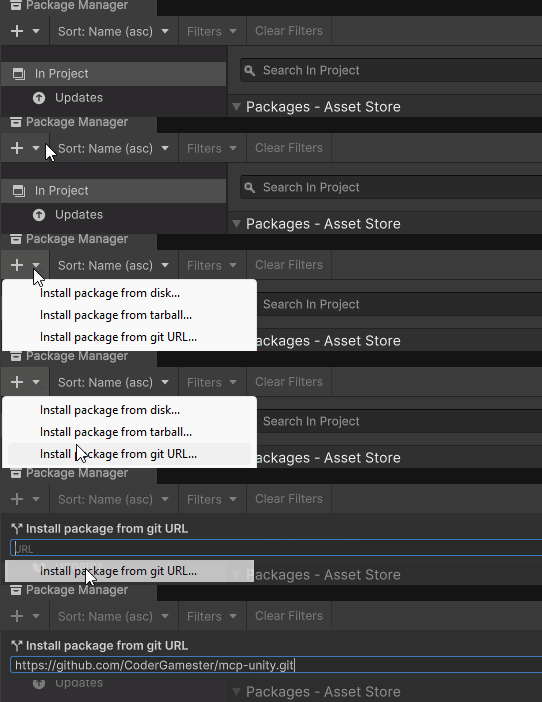
Schritt 1: Installieren Sie das Unity MCP Server-Paket über den Unity Package Manager

  1. Öffnen Sie den Unity-Paketmanager (Fenster > Paketmanager).

  2. Klicken Sie oben links auf die Schaltfläche "+"

  3. Wählen Sie „Paket von Git-URL hinzufügen …“

  4. Geben Sie ein: https://github.com/CoderGamester/mcp-unity.git

  5. Klicken Sie auf „Hinzufügen“

Paketmanager

Schritt 2: Installieren Sie Node.js

Um den MCP Unity-Server auszuführen, muss Node.js 18 oder höher auf Ihrem Computer installiert sein:

  1. Besuchen Sie die Node.js-Downloadseite

  2. Laden Sie den Windows Installer (.msi) für die LTS-Version herunter (empfohlen)

  3. Führen Sie das Installationsprogramm aus und folgen Sie dem Installationsassistenten

  4. Überprüfen Sie die Installation, indem Sie PowerShell öffnen und Folgendes ausführen:

    node --version
  5. Besuchen Sie die Node.js-Downloadseite

  6. Laden Sie das macOS-Installationsprogramm (.pkg) für die LTS-Version herunter (empfohlen)

  7. Führen Sie das Installationsprogramm aus und folgen Sie dem Installationsassistenten

  8. Wenn Sie Homebrew installiert haben, können Sie alternativ Folgendes ausführen:

    brew install node@18
  9. Überprüfen Sie die Installation, indem Sie das Terminal öffnen und Folgendes ausführen:

    node --version

Schritt 3: AI LLM-Client konfigurieren

  1. Öffnen Sie den Unity-Editor

  2. Navigieren Sie zu Tools > MCP Unity > Serverfenster

  3. Klicken Sie auf die Schaltfläche "Konfigurieren" für Ihren AI LLM-Client, wie im Bild unten gezeigt

Bild

  1. Bestätigen Sie die Installation der Konfiguration mit dem angezeigten Popup
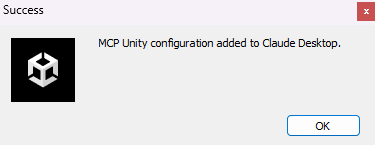
Bild

Öffnen Sie die MCP-Konfigurationsdatei Ihres AI-Clients (z. B. claude_desktop_config.json in Claude Desktop) und kopieren Sie den folgenden Text:

Ersetzen Sie ABSOLUTE/PATH/TO durch den absoluten Pfad zu Ihrer MCP Unity-Installation oder kopieren Sie einfach den Text aus dem MCP-Serverfenster des Unity Editors (Tools > MCP Unity > Serverfenster).

{
   "mcpServers": {
       "mcp-unity": {
          "command": "node",
          "args": [
             "ABSOLUTE/PATH/TO/mcp-unity/Server~/build/index.js"
          ]
       }
   }
}

Starten Sie den Unity Editor MCP-Server

  1. Öffnen Sie den Unity-Editor

  2. Navigieren Sie zu Tools > MCP Unity > Serverfenster

  3. Klicken Sie auf „Server starten“, um den WebSocket-Server zu starten

  4. Öffnen Sie Claude Desktop oder Ihre AI Coding IDE (z. B. Cursor IDE, Windsurf IDE usw.) und starten Sie die Ausführung der Unity-Tools
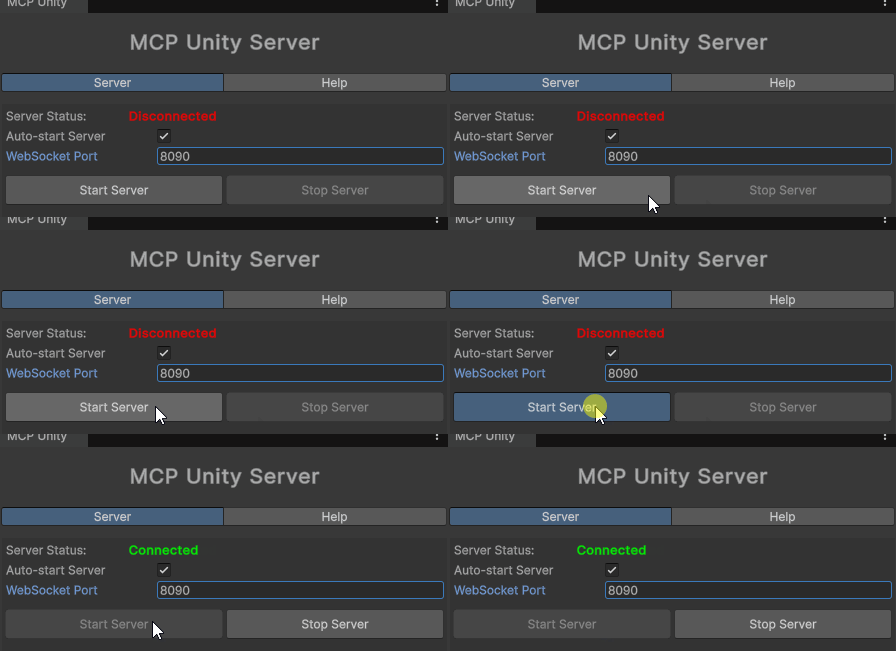
verbinden

Wenn der AI-Client eine Verbindung zum WebSocket-Server herstellt, wird er automatisch im grünen Feld im Fenster angezeigt

Optional: WebSocket-Port festlegen

Standardmäßig läuft der WebSocket-Server auf Port 8090. Sie können diesen Port auf zwei Arten ändern:

  1. Öffnen Sie den Unity-Editor

  2. Navigieren Sie zu Tools > MCP Unity > Serverfenster

  3. Ändern Sie den Wert "WebSocket Port" auf die gewünschte Portnummer

  4. Unity richtet die Systemumgebungsvariable UNITY_PORT auf die neue Portnummer ein

  5. Starten Sie den Node.js-Server neu

  6. Klicken Sie erneut auf „Server starten“, um den Unity Editor-Websocket wieder mit dem Node.js MCP-Server zu verbinden

  7. Legen Sie die Umgebungsvariable UNITY_PORT im Terminal fest

    • Powershell GXP6

    • Eingabeaufforderung/Terminal GXP7

  8. Starten Sie den Node.js-Server neu

  9. Klicken Sie erneut auf „Server starten“, um den Unity Editor-Websocket wieder mit dem Node.js MCP-Server zu verbinden

Optional: Timeout festlegen

Standardmäßig beträgt das Timeout zwischen dem MCP-Server und dem WebSocket 10 Sekunden. Sie können es je nach verwendetem Betriebssystem ändern:

  1. Öffnen Sie den Unity-Editor

  2. Navigieren Sie zu Tools > MCP Unity > Serverfenster

  3. Ändern Sie den Wert "Anforderungs-Timeout (Sekunden)" auf die gewünschten Timeout-Sekunden

  4. Unity richtet die Systemumgebungsvariable UNITY_REQUEST_TIMEOUT auf den neuen Timeout-Wert ein

  5. Starten Sie den Node.js-Server neu

  6. Klicken Sie erneut auf „Server starten“, um den Unity Editor-Websocket wieder mit dem Node.js MCP-Server zu verbinden

Für Nicht-Windows-Betriebssysteme müssen Sie zwei Stellen konfigurieren:

Im Editor-Prozess-Timeout

  1. Öffnen Sie den Unity-Editor

  2. Navigieren Sie zu Tools > MCP Unity > Serverfenster

  3. Ändern Sie den Wert "Anforderungs-Timeout (Sekunden)" auf die gewünschten Timeout-Sekunden

WebSocket-Timeout

  1. Legen Sie die Umgebungsvariable UNITY_REQUEST_TIMEOUT im Terminal fest

    • Powershell GXP8

    • Eingabeaufforderung/Terminal GXP9

  2. Starten Sie den Node.js-Server neu

  3. Klicken Sie erneut auf „Server starten“, um den Unity Editor-Websocket wieder mit dem Node.js MCP-Server zu verbinden

[!TIPP]
Das Timeout zwischen Ihrer AI Coding IDE (z. B. Claude Desktop, Cursor IDE, Windsurf IDE) und dem MCP-Server hängt von der IDE ab.

Debuggen des Servers

Der MCP Unity-Server wird mit Node.js erstellt. Dazu muss der TypeScript-Code im build -Verzeichnis in JavaScript kompiliert werden. Um den Server zu erstellen, öffnen Sie ein Terminal und:

  1. Navigieren Sie zum Serververzeichnis:

    cd ABSOLUTE/PATH/TO/mcp-unity/Server~
  2. Installieren Sie Abhängigkeiten:

    npm install
  3. Erstellen Sie den Server:

    npm run build
  4. Führen Sie den Server aus:

    node build/index.js

Debuggen Sie den Server mit @modelcontextprotocol/inspector :

  • PowerShell

npx @modelcontextprotocol/inspector node Server~/build/index.js
  • Eingabeaufforderung/Terminal

npx @modelcontextprotocol/inspector node Server~/build/index.js

Vergessen Sie nicht, den Server mit Ctrl + C herunterzufahren, bevor Sie das Terminal schließen oder es mit dem MCP Inspector debuggen.

  1. Aktivieren Sie die Protokollierung auf Ihrem Terminal oder in einer log.txt-Datei:

    • Powershell GXP16

    • Eingabeaufforderung/Terminal GXP17

Fehlerbehebung

  • Stellen Sie sicher, dass der WebSocket-Server ausgeführt wird (überprüfen Sie das Serverfenster in Unity).

  • Senden Sie eine Konsolenprotokollnachricht vom MCP-Client, um eine erneute Verbindung zwischen MCP-Client und Unity-Server zu erzwingen

  • Ändern Sie die Portnummer im MCP-Serverfenster des Unity-Editors. (Tools > MCP Unity > Serverfenster)

  • Überprüfen Sie die Unity-Konsole auf Fehlermeldungen

  • Stellen Sie sicher, dass Node.js ordnungsgemäß installiert und in Ihrem PATH zugänglich ist

  • Überprüfen Sie, ob alle Abhängigkeiten im Serververzeichnis installiert sind

Das Tool run_tests gibt die folgende Antwort zurück:

Error:
Connection failed: Unknown error

Dieser Fehler tritt auf, weil die Bridge-Verbindung verloren geht, wenn die Domäne beim Wechsel in den Wiedergabemodus neu geladen wird.
Die Problemumgehung besteht darin, „Domäne neu laden“ unter „Bearbeiten > Projekteinstellungen > Editor > „Einstellungen für den Wiedergabemodus eingeben“ zu deaktivieren.

Support und Feedback

Wenn Sie Fragen haben oder Unterstützung benötigen, öffnen Sie bitte ein Problem in diesem Repository.

Alternativ können Sie uns erreichen unter:

Beitragen

Beiträge sind willkommen! Senden Sie uns gerne einen Pull Request oder eröffnen Sie ein Issue mit Ihrer Anfrage.

Übernehmen Sie Ihre Änderungen im konventionellen Commit- Format.

Lizenz

Dieses Projekt steht unter der MIT-Lizenz

Danksagung

Available Tools

5 tools
execute_menu_itemC

Executes a Unity menu item by path

ParametersJSON Schema
NameRequiredDescriptionDefault
menuPathYesThe path to the menu item to execute (e.g. "GameObject/Create Empty")

TDQS

C2.9/5.0
Behavior2/5

Does the description disclose side effects, auth requirements, rate limits, or destructive behavior?

With no annotations provided, the description carries the full burden of behavioral disclosure. It states the action ('Executes') but doesn't clarify what 'execute' entails—whether it triggers UI changes, runs scripts, modifies project state, or has side effects like requiring specific permissions or being irreversible. This leaves significant gaps in understanding the tool's behavior.

Agents need to know what a tool does to the world before calling it. Descriptions should go beyond structured annotations to explain consequences.

Conciseness5/5

Is the description appropriately sized, front-loaded, and free of redundancy?

The description is a single, direct sentence with zero wasted words. It's front-loaded with the core action and resource, making it highly efficient and easy to parse, which is ideal for conciseness.

Shorter descriptions cost fewer tokens and are easier for agents to parse. Every sentence should earn its place.

Completeness2/5

Given the tool's complexity, does the description cover enough for an agent to succeed on first attempt?

Given the complexity of executing a Unity menu item (which could involve UI interactions, project changes, or script execution), the description is incomplete. With no annotations, no output schema, and minimal behavioral context, it fails to provide enough information for safe and effective use, especially for a tool that likely performs mutations in a development environment.

Complex tools with many parameters or behaviors need more documentation. Simple tools need less. This dimension scales expectations accordingly.

Parameters3/5

Does the description clarify parameter syntax, constraints, interactions, or defaults beyond what the schema provides?

The schema description coverage is 100%, with the single parameter 'menuPath' well-documented in the schema (including an example). The description adds no additional semantic context beyond what the schema provides, such as format constraints or common use cases, so it meets the baseline for high schema coverage.

Input schemas describe structure but not intent. Descriptions should explain non-obvious parameter relationships and valid value ranges.

Purpose4/5

Does the description clearly state what the tool does and how it differs from similar tools?

The description clearly states the action ('Executes') and the target resource ('a Unity menu item by path'), making the purpose immediately understandable. However, it doesn't differentiate this tool from its siblings (like notify_message or run_tests), which would require more specific context about Unity menu execution versus other operations.

Agents choose between tools based on descriptions. A clear purpose with a specific verb and resource helps agents select the right tool.

Usage Guidelines2/5

Does the description explain when to use this tool, when not to, or what alternatives exist?

The description provides no guidance on when to use this tool versus alternatives. It doesn't mention prerequisites (e.g., needing Unity running), exclusions, or how it relates to sibling tools like run_tests or select_object, leaving the agent to infer usage context.

Agents often have multiple tools that could apply. Explicit usage guidance like "use X instead of Y when Z" prevents misuse.

notify_messageC

Sends a message to the Unity console

ParametersJSON Schema
NameRequiredDescriptionDefault
messageYesThe message to display in the Unity console
typeNoThe type of message (info, warning, error)

TDQS

C2.9/5.0
Behavior2/5

Does the description disclose side effects, auth requirements, rate limits, or destructive behavior?

With no annotations provided, the description carries full burden but only states what the tool does without disclosing behavioral traits. It doesn't mention whether this is a read-only operation, if it requires specific permissions, how messages appear in the console, or any rate limits. The description is minimal and lacks necessary context for a mutation tool.

Agents need to know what a tool does to the world before calling it. Descriptions should go beyond structured annotations to explain consequences.

Conciseness5/5

Is the description appropriately sized, front-loaded, and free of redundancy?

The description is a single, efficient sentence with zero waste. It's appropriately sized and front-loaded, directly stating the tool's purpose without unnecessary elaboration.

Shorter descriptions cost fewer tokens and are easier for agents to parse. Every sentence should earn its place.

Completeness2/5

Given the tool's complexity, does the description cover enough for an agent to succeed on first attempt?

For a tool that sends messages (implying mutation) with no annotations and no output schema, the description is incomplete. It doesn't explain what happens after sending, return values, error conditions, or integration with Unity's console system. The minimal description leaves significant gaps in understanding the tool's behavior.

Complex tools with many parameters or behaviors need more documentation. Simple tools need less. This dimension scales expectations accordingly.

Parameters3/5

Does the description clarify parameter syntax, constraints, interactions, or defaults beyond what the schema provides?

Schema description coverage is 100%, so the schema already documents both parameters thoroughly. The description doesn't add any meaning beyond what the schema provides about message content or type options. Baseline 3 is appropriate when the schema does the heavy lifting.

Input schemas describe structure but not intent. Descriptions should explain non-obvious parameter relationships and valid value ranges.

Purpose4/5

Does the description clearly state what the tool does and how it differs from similar tools?

The description clearly states the action ('sends') and target ('message to the Unity console'), providing a specific verb+resource combination. However, it doesn't differentiate from sibling tools like 'execute_menu_item' or 'run_tests', which prevents a perfect score.

Agents choose between tools based on descriptions. A clear purpose with a specific verb and resource helps agents select the right tool.

Usage Guidelines2/5

Does the description explain when to use this tool, when not to, or what alternatives exist?

The description provides no guidance on when to use this tool versus alternatives like logging to files or using other console methods. It lacks context about appropriate scenarios or exclusions, offering only basic functional information.

Agents often have multiple tools that could apply. Explicit usage guidance like "use X instead of Y when Z" prevents misuse.

package_managerC

Manages packages in the Unity Package Manager

ParametersJSON Schema
NameRequiredDescriptionDefault
branchNoThe branch to use for GitHub packages (optional)
methodSourceYesThe method source to use (registry, github, or disk) to add the package
packageNameNoThe package name to add from Unity registry (e.g. com.unity.textmeshpro)
pathNoThe path to use (folder path for disk method or subfolder for GitHub)
repositoryUrlNoThe GitHub repository URL (e.g. https://github.com/username/repo.git)
versionNoThe version to use for registry packages (optional)

TDQS

C2.6/5.0
Behavior2/5

Does the description disclose side effects, auth requirements, rate limits, or destructive behavior?

With no annotations provided, the description carries the full burden of behavioral disclosure but only states a general purpose. It doesn't describe whether this tool performs read-only or destructive operations, what permissions are needed, how it handles errors, or what the typical output looks like, which is insufficient for a tool with multiple parameters and no output schema.

Agents need to know what a tool does to the world before calling it. Descriptions should go beyond structured annotations to explain consequences.

Conciseness4/5

Is the description appropriately sized, front-loaded, and free of redundancy?

The description is a single, efficient sentence with no wasted words, making it appropriately concise. However, it lacks front-loaded detail that could immediately clarify the tool's specific actions, slightly reducing its effectiveness despite the brevity.

Shorter descriptions cost fewer tokens and are easier for agents to parse. Every sentence should earn its place.

Completeness2/5

Given the tool's complexity, does the description cover enough for an agent to succeed on first attempt?

Given the tool's complexity with 6 parameters, no annotations, and no output schema, the description is incomplete. It fails to explain what the tool does beyond a vague purpose, leaving gaps in understanding behavioral traits, return values, and proper usage context, which is inadequate for effective agent invocation.

Complex tools with many parameters or behaviors need more documentation. Simple tools need less. This dimension scales expectations accordingly.

Parameters3/5

Does the description clarify parameter syntax, constraints, interactions, or defaults beyond what the schema provides?

The schema description coverage is 100%, so all parameters are documented in the schema itself. The description adds no additional meaning about parameters beyond the general purpose, resulting in a baseline score of 3 where the schema does the heavy lifting without enhancement from the description.

Input schemas describe structure but not intent. Descriptions should explain non-obvious parameter relationships and valid value ranges.

Purpose3/5

Does the description clearly state what the tool does and how it differs from similar tools?

The description 'Manages packages in the Unity Package Manager' states a general purpose but is vague about what specific actions are performed. It doesn't specify whether it adds, removes, updates, or lists packages, and doesn't distinguish from sibling tools like 'execute_menu_item' or 'run_tests' which are unrelated to package management.

Agents choose between tools based on descriptions. A clear purpose with a specific verb and resource helps agents select the right tool.

Usage Guidelines2/5

Does the description explain when to use this tool, when not to, or what alternatives exist?

No guidance is provided on when to use this tool versus alternatives. The description doesn't mention any prerequisites, context for package management, or exclusions, leaving the agent to infer usage from the parameters alone without explicit direction.

Agents often have multiple tools that could apply. Explicit usage guidance like "use X instead of Y when Z" prevents misuse.

run_testsC

Runs Unity's Test Runner tests

ParametersJSON Schema
NameRequiredDescriptionDefault
testFilterNoOptional test filter (e.g. specific test name or namespace)
testModeNoThe test mode to run (EditMode, PlayMode, or All)

TDQS

C2.9/5.0
Behavior2/5

Does the description disclose side effects, auth requirements, rate limits, or destructive behavior?

With no annotations provided, the description carries full burden but lacks behavioral details. It doesn't disclose whether this is a read-only or destructive operation, execution time, error handling, or output format (e.g., test results). The phrase 'Runs' implies execution but gives no further context on safety or side effects.

Agents need to know what a tool does to the world before calling it. Descriptions should go beyond structured annotations to explain consequences.

Conciseness5/5

Is the description appropriately sized, front-loaded, and free of redundancy?

The description is a single, efficient sentence with no wasted words, making it easy to parse. It's front-loaded with the core action and resource, earning full marks for conciseness and structure.

Shorter descriptions cost fewer tokens and are easier for agents to parse. Every sentence should earn its place.

Completeness2/5

Given the tool's complexity, does the description cover enough for an agent to succeed on first attempt?

Given the complexity of running tests (which involves execution and potential side effects), no annotations, and no output schema, the description is incomplete. It doesn't explain what happens during execution, what results to expect, or any constraints, leaving significant gaps for an agent to use the tool effectively.

Complex tools with many parameters or behaviors need more documentation. Simple tools need less. This dimension scales expectations accordingly.

Parameters3/5

Does the description clarify parameter syntax, constraints, interactions, or defaults beyond what the schema provides?

The input schema has 100% description coverage, documenting both parameters clearly. The description adds no additional meaning beyond what the schema provides, such as examples of test filters or implications of test modes. With high schema coverage, the baseline score of 3 is appropriate.

Input schemas describe structure but not intent. Descriptions should explain non-obvious parameter relationships and valid value ranges.

Purpose4/5

Does the description clearly state what the tool does and how it differs from similar tools?

The description clearly states the action ('Runs') and the resource ('Unity's Test Runner tests'), making the purpose immediately understandable. However, it doesn't differentiate this tool from sibling tools like 'execute_menu_item' or 'package_manager', which could also involve Unity operations, so it doesn't reach the highest score.

Agents choose between tools based on descriptions. A clear purpose with a specific verb and resource helps agents select the right tool.

Usage Guidelines2/5

Does the description explain when to use this tool, when not to, or what alternatives exist?

The description provides no guidance on when to use this tool versus alternatives. There's no mention of prerequisites, context (e.g., when in Unity's workflow), or comparisons to siblings like 'execute_menu_item' for other Unity actions, leaving the agent to infer usage.

Agents often have multiple tools that could apply. Explicit usage guidance like "use X instead of Y when Z" prevents misuse.

select_objectC

Sets the selected object in the Unity editor by path or ID

ParametersJSON Schema
NameRequiredDescriptionDefault
objectPathYesThe path or ID of the object to select (e.g. "Main Camera" or a Unity object ID)

TDQS

C2.9/5.0
Behavior2/5

Does the description disclose side effects, auth requirements, rate limits, or destructive behavior?

No annotations are provided, so the description carries the full burden of behavioral disclosure. It states the tool 'Sets the selected object' which implies a mutation (changing editor state), but doesn't disclose critical traits like whether this requires specific editor modes, if changes are undoable, potential side effects, or error handling. For a mutation tool with zero annotation coverage, this is a significant gap.

Agents need to know what a tool does to the world before calling it. Descriptions should go beyond structured annotations to explain consequences.

Conciseness5/5

Is the description appropriately sized, front-loaded, and free of redundancy?

The description is a single, efficient sentence that front-loads the core action ('Sets the selected object') with essential details ('in the Unity editor by path or ID'). Every word earns its place with no redundancy or fluff, making it highly concise and well-structured.

Shorter descriptions cost fewer tokens and are easier for agents to parse. Every sentence should earn its place.

Completeness2/5

Given the tool's complexity, does the description cover enough for an agent to succeed on first attempt?

Given the tool's complexity (a mutation in an editor environment), lack of annotations, and no output schema, the description is incomplete. It doesn't cover behavioral aspects like permissions, side effects, or return values, leaving gaps for an AI agent to understand how to invoke it correctly in context.

Complex tools with many parameters or behaviors need more documentation. Simple tools need less. This dimension scales expectations accordingly.

Parameters3/5

Does the description clarify parameter syntax, constraints, interactions, or defaults beyond what the schema provides?

The input schema has 100% description coverage, with the parameter 'objectPath' fully documented in the schema. The description adds minimal value beyond the schema by mentioning 'path or ID' and providing an example ('Main Camera'), but doesn't elaborate on syntax, format differences, or edge cases. Baseline 3 is appropriate when the schema does the heavy lifting.

Input schemas describe structure but not intent. Descriptions should explain non-obvious parameter relationships and valid value ranges.

Purpose4/5

Does the description clearly state what the tool does and how it differs from similar tools?

The description clearly states the action ('Sets the selected object') and the resource ('in the Unity editor'), with the method ('by path or ID') specified. It distinguishes from siblings like 'execute_menu_item' or 'run_tests' by focusing on object selection. However, it doesn't explicitly differentiate from all siblings (e.g., 'notify_message' is clearly different, but the distinction could be more explicit for a perfect score).

Agents choose between tools based on descriptions. A clear purpose with a specific verb and resource helps agents select the right tool.

Usage Guidelines2/5

Does the description explain when to use this tool, when not to, or what alternatives exist?

The description provides no guidance on when to use this tool versus alternatives. It doesn't mention prerequisites (e.g., needing an open Unity project), exclusions, or comparisons to sibling tools. Usage is implied through the action but lacks explicit context for selection.

Agents often have multiple tools that could apply. Explicit usage guidance like "use X instead of Y when Z" prevents misuse.

Tool Schema Changelog

Recent tool additions, removals, and schema changes observed during successful MCP inspections.

  1. 5 tool updatesv1.0.0
    • First observedexecute_menu_item
    • First observednotify_message
    • First observedpackage_manager
    • First observedrun_tests
    • First observedselect_object

TDQS

B3.2/5.0

Scored across 5 tools

Disambiguation5/5

Each tool has a clearly distinct purpose targeting different Unity Editor functionalities: executing menu items, sending console messages, managing packages, running tests, and selecting objects. There is no overlap or ambiguity in their intended uses.

Naming Consistency4/5

The tool names follow a consistent snake_case pattern with descriptive verb_noun combinations (e.g., execute_menu_item, notify_message). However, 'package_manager' deviates slightly by using a noun-only name instead of a verb_noun structure, but overall the naming is highly readable and predictable.

Tool Count5/5

With 5 tools, the server is well-scoped for its purpose of interacting with the Unity Editor. Each tool serves a specific, essential function, and there are no extraneous or redundant tools, making the count appropriate for the domain.

Completeness3/5

The toolset covers key Unity Editor operations like executing commands, messaging, package management, testing, and object selection. However, there are notable gaps for a full editor integration, such as creating or modifying assets, building projects, or accessing scene hierarchies, which limits comprehensive workflow coverage.

Maintenance

ActivitySlowing
ResponsivenessWithin a week

Related MCP Connectors

Related MCP Servers