Unity Editor MCP Server
MCP Unity エディター (ゲームエンジン)
,/(/. *(/,
*/(((((/. *((((((*.
.*((((((((((/. *((((((((((/.
./((((((((((((((/ *((((((((((((((/,
,/(((((((((((((/*. */(((((((((((((/*.
,%%#((/((((((* ,/(((((/(#&@@(
,%%##%%##((((((/*. ,/((((/(#&@@@@@@(
,%%######%%##((/(((/*. .*/(((//(%@@@@@@@@@@@(
,%%####%#(%%#%%##((/((((((((//#&@@@@@@&@@@@@@@@(
,%%####%( /#%#%%%##(//(#@@@@@@@%, #@@@@@@@(
,%%####%( *#%###%@@@@@@( #@@@@@@@(
,%%####%( #%#%@@@@, #@@@@@@@(
,%%##%%%( #%#%@@@@, #@@@@@@@(
,%%%#* #%#%@@@@, *%@@@(
., ,/##*. #%#%@@@@, ./&@#* *`
,/#%#####%%#/, #%#%@@@@, ,/&@@@@@@@@@&\.
`*#########%%%%###%@@@@@@@@@@@@@@@@@@&*´
`*%%###########%@@@@@@@@@@@@@@&*´
`*%%%######%@@@@@@@@@@&*´
`*#%%##%@@@@@&*´
`*%#%@&*´
███╗ ███╗ ██████╗██████╗ ██╗ ██╗███╗ ██╗██╗████████╗██╗ ██╗
████╗ ████║██╔════╝██╔══██╗ ██║ ██║████╗ ██║██║╚══██╔══╝╚██╗ ██╔╝
██╔████╔██║██║ ██████╔╝ ██║ ██║██╔██╗ ██║██║ ██║ ╚████╔╝
██║╚██╔╝██║██║ ██╔═══╝ ██║ ██║██║╚██╗██║██║ ██║ ╚██╔╝
██║ ╚═╝ ██║╚██████╗██║ ╚██████╔╝██║ ╚████║██║ ██║ ██║
╚═╝ ╚═╝ ╚═════╝╚═╝ ╚═════╝ ╚═╝ ╚═══╝╚═╝ ╚═╝ ╚═╝ MCP Unityは、Unityエディター向けのモデルコンテキストプロトコル(MCP)の実装であり、AIアシスタントがUnityプロジェクトと連携できるようにします。このパッケージは、UnityとMCPプロトコルを実装したNode.jsサーバー間のブリッジを提供し、Claude、Windsurf、CursorなどのAIエージェントがUnityエディター内で操作を実行できるようにします。
特徴
IDE統合 - パッケージキャッシュアクセス
MCP Unityは、Unity Library/PackedCacheフォルダをワークスペースに追加することで、VSCode系IDE(Visual Studio Code、Cursor、Windsurf)との自動統合を実現します。この機能は以下のとおりです。
Unity パッケージのコードインテリジェンスを向上
Unity パッケージの自動補完と型情報の改善
AIコーディングアシスタントがプロジェクトの依存関係を理解するのに役立ちます
MCP サーバーツール
MCP を介して Unity シーンと GameObject を操作およびクエリするには、次のツールを使用できます。
execute_menu_item: Unity メニュー項目 (MenuItem 属性でタグ付けされた関数) を実行します。プロンプトの例: 「新しい空のゲームオブジェクトを作成するには、メニュー項目「GameObject/Create Empty」を実行します。」
select_gameobject: パスまたはインスタンスIDでUnity階層内のゲームオブジェクトを選択します。プロンプトの例: 「シーン内のメインカメラオブジェクトを選択してください」
update_gameobject: ゲームオブジェクトのコアプロパティ (名前、タグ、レイヤー、アクティブ/静的状態) を更新するか、ゲームオブジェクトが存在しない場合は作成します。プロンプトの例: 「Player オブジェクトのタグを 'Enemy' に設定し、非アクティブにします」
update_component: GameObjectのコンポーネントフィールドを更新するか、コンポーネントが含まれていない場合はGameObjectに追加します。例のプロンプト: 「Player オブジェクトに Rigidbody コンポーネントを追加し、その質量を 5 に設定します」
add_package: Unity パッケージマネージャーに新しいパッケージをインストールしますプロンプトの例: 「TextMeshPro パッケージをプロジェクトに追加する」
run_tests: Unity Test Runnerを使用してテストを実行しますプロンプトの例: 「プロジェクト内のすべての EditMode テストを実行します」
send_console_log: コンソールログをUnityに送信するプロンプトの例: 「コンソールログを Unity エディターに送信する」
add_asset_to_scene: AssetDatabase から Unity シーンにアセットを追加しますプロンプトの例: 「プロジェクトから現在のシーンに Player プレハブを追加します」
MCP サーバーリソース
unity://menu-items: Unity エディターで利用可能なすべてのメニュー項目のリストを取得し、execute_menu_itemツールを実行します。プロンプトの例: 「GameObject の作成に関連する利用可能なすべてのメニュー項目を表示します」
unity://scenes-hierarchy: 現在のUnityシーン階層内のすべてのゲームオブジェクトのリストを取得しますプロンプトの例: 「現在のシーンの階層構造を表示してください」
unity://gameobject/{id}: インスタンスIDまたはシーン階層内のオブジェクトパスによって特定のゲームオブジェクトの詳細情報を取得します。これには、シリアル化されたプロパティとフィールドを持つすべてのゲームオブジェクトのコンポーネントが含まれます。プロンプトの例: 「Player GameObject の詳細情報を取得してください」
unity://logs: Unityコンソールからすべてのログのリストを取得しますプロンプトの例: 「Unity コンソールからの最近のエラー メッセージを表示してください」
unity://packages: Unity パッケージマネージャーからインストール済みおよび利用可能なパッケージに関する情報を取得します。プロンプトの例: 「Unity プロジェクトに現在インストールされているすべてのパッケージを一覧表示する」
unity://assets: Unity Asset Database内のアセットに関する情報を取得しますプロンプトの例: 「プロジェクト内のすべてのテクスチャアセットを検索する」
unity://tests/{testMode}: Unity Test Runner 内のテストに関する情報を取得します。プロンプトの例: 「Unity プロジェクトで利用可能なすべてのテストを一覧表示する」
Related MCP server: MCP For Unity
要件
Unity 2022.3以降 -サーバーをインストールする
Node.js 18以降 -サーバーを起動するため
npm 9以降 -サーバーのデバッグ
インストール
この MCP Unity サーバーのインストールは、複数のステップから成るプロセスです。
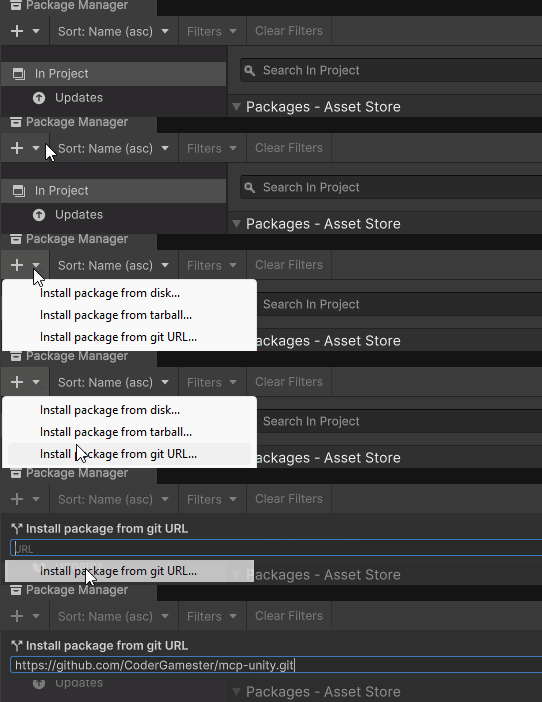
ステップ1: Unityパッケージマネージャー経由でUnity MCPサーバーパッケージをインストールする
Unity パッケージ マネージャーを開きます (ウィンドウ > パッケージ マネージャー)
左上隅の「+」ボタンをクリックします
「git URL からパッケージを追加...」を選択します
入力してください:
https://github.com/CoderGamester/mcp-unity.git「追加」をクリック
ステップ2: Node.jsをインストールする
MCP Unity サーバーを実行するには、コンピューターに Node.js 18 以降がインストールされている必要があります。
Node.jsのダウンロードページにアクセスしてください
LTS バージョンの Windows インストーラー (.msi) をダウンロードします (推奨)
インストーラーを実行し、インストールウィザードに従います。
PowerShell を開いて次のコマンドを実行し、インストールを確認します。
node --versionNode.jsのダウンロードページにアクセスしてください
LTS バージョンの macOS インストーラー (.pkg) をダウンロードします (推奨)
インストーラーを実行し、インストールウィザードに従います。
あるいは、Homebrew がインストールされている場合は、次のコマンドを実行できます。
brew install node@18ターミナルを開いて次のコマンドを実行し、インストールを確認します。
node --version
ステップ3: AI LLMクライアントを構成する
Unityエディターを開く
ツール > MCP Unity > サーバーウィンドウに移動します
下の画像に示すように、AI LLMクライアントの「構成」ボタンをクリックします。
表示されたポップアップで設定のインストールを確認します
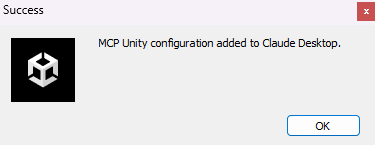
AI クライアントの MCP 構成ファイル (例: Claude Desktop の claude_desktop_config.json) を開き、次のテキストをコピーします。
ABSOLUTE/PATH/TOMCP Unity インストールへの絶対パスに置き換えるか、Unity エディターの MCP サーバー ウィンドウ ([ツール] > [MCP Unity] > [サーバー ウィンドウ]) からテキストをコピーします。
{
"mcpServers": {
"mcp-unity": {
"command": "node",
"args": [
"ABSOLUTE/PATH/TO/mcp-unity/Server~/build/index.js"
]
}
}
}UnityエディターMCPサーバーを起動する
Unityエディターを開く
ツール > MCP Unity > サーバーウィンドウに移動します
「サーバーを起動」をクリックしてWebSocketサーバーを起動します
Claude Desktop または AI コーディング IDE (例: Cursor IDE、Windsurf IDE など) を開き、Unity ツールの実行を開始します。
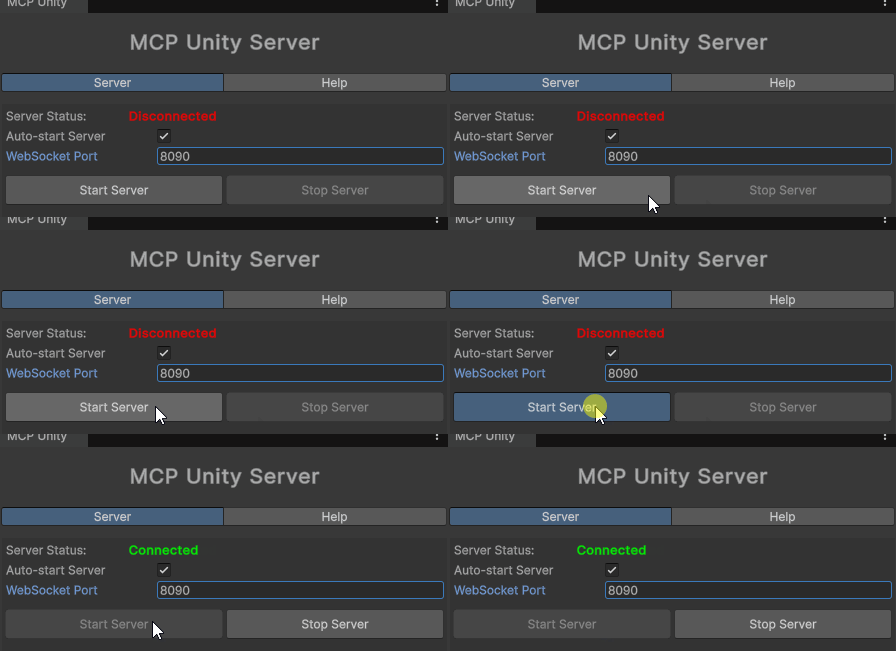
AIクライアントがWebSocketサーバーに接続すると、ウィンドウの緑色のボックスに自動的に表示されます。
オプション: WebSocketポートの設定
デフォルトでは、WebSocket サーバーはポート 8090 で実行されます。このポートは 2 つの方法で変更できます。
Unityエディターを開く
ツール > MCP Unity > サーバーウィンドウに移動します
「WebSocketポート」の値を希望のポート番号に変更します。
Unityはシステム環境変数UNITY_PORTを新しいポート番号に設定します。
Node.jsサーバーを再起動します
「Start Server」をもう一度クリックして、Unity エディターの Web ソケットを Node.js MCP サーバーに再接続します。
ターミナルでUNITY_PORT環境変数を設定する
Powershell GXP6
コマンドプロンプト/ターミナル GXP7
Node.jsサーバーを再起動します
「Start Server」をもう一度クリックして、Unity エディターの Web ソケットを Node.js MCP サーバーに再接続します。
オプション: タイムアウトを設定する
デフォルトでは、MCPサーバーとWebSocket間のタイムアウトは10秒です。使用しているOSに応じて変更できます。
Unityエディターを開く
ツール > MCP Unity > サーバーウィンドウに移動します
「リクエストタイムアウト(秒)」の値を希望のタイムアウト秒数に変更します。
Unityはシステム環境変数UNITY_REQUEST_TIMEOUTを新しいタイムアウト値に設定します。
Node.jsサーバーを再起動します
「Start Server」をもう一度クリックして、Unity エディターの Web ソケットを Node.js MCP サーバーに再接続します。
Windows 以外の OS の場合は、次の 2 か所を設定する必要があります。
エディタープロセスのタイムアウト
Unityエディターを開く
ツール > MCP Unity > サーバーウィンドウに移動します
「リクエストタイムアウト(秒)」の値を希望のタイムアウト秒数に変更します。
WebSocketタイムアウト
ターミナルでUNITY_REQUEST_TIMEOUT環境変数を設定する
Powershell GXP8
コマンドプロンプト/ターミナル GXP9
Node.jsサーバーを再起動します
「Start Server」をもう一度クリックして、Unity エディターの Web ソケットを Node.js MCP サーバーに再接続します。
[!ヒント]
AI コーディング IDE (例: Claude Desktop、Cursor IDE、Windsurf IDE) と MCP サーバー間のタイムアウトは、IDE によって異なります。
サーバーのデバッグ
MCP UnityサーバーはNode.jsを使用して構築されています。 buildディレクトリでTypeScriptコードをJavaScriptにコンパイルする必要があります。サーバーをビルドするには、ターミナルを開き、以下のコマンドを実行してください。
サーバー ディレクトリに移動します。
cd ABSOLUTE/PATH/TO/mcp-unity/Server~依存関係をインストールします:
npm installサーバーを構築します。
npm run buildサーバーを実行します。
node build/index.js
@modelcontextprotocol/inspectorを使用してサーバーをデバッグします。
パワーシェル
npx @modelcontextprotocol/inspector node Server~/build/index.jsコマンドプロンプト/ターミナル
npx @modelcontextprotocol/inspector node Server~/build/index.jsターミナルを閉じる前、またはMCP Inspectorでデバッグする前に、必ずCtrl + Cでサーバーをシャットダウンしてください。
ターミナルまたは log.txt ファイルへのログ記録を有効にします。
Powershell GXP16
コマンドプロンプト/ターミナル GXP17
トラブルシューティング
WebSocket サーバーが実行中であることを確認します (Unity のサーバー ウィンドウを確認します)
MCP クライアントからコンソール ログ メッセージを送信して、MCP クライアントと Unity サーバー間の再接続を強制します。
Unity エディターの MCP サーバー ウィンドウでポート番号を変更します。(ツール > MCP Unity > サーバー ウィンドウ)
Unityコンソールでエラーメッセージを確認してください
Node.jsが正しくインストールされ、PATHでアクセスできることを確認してください。
すべての依存関係がサーバーディレクトリにインストールされていることを確認します
run_testsツールは次の応答を返します。
Error:
Connection failed: Unknown errorこのエラーは、プレイ モードに切り替えてドメインを再読み込みするとブリッジ接続が失われるため発生します。
回避策としては、編集 > プロジェクト設定 > エディター > 「再生モード設定に入る」でドメインの再ロードをオフにします。
サポートとフィードバック
ご質問がある場合やサポートが必要な場合は、このリポジトリで問題を報告してください。
他に連絡できる方法:
リンクトイン:
不和: gamester7178
メールアドレス: game.gamester@gmail.com
貢献
貢献を歓迎します!お気軽にプルリクエストを送信したり、リクエストを添えて Issue を開いてください。
Conventional Commits形式に従って変更をコミットします。
ライセンス
このプロジェクトはMITライセンスの下にあります
謝辞
Available Tools
5 toolsnotify_messageC
Sends a message to the Unity console
| Name | Required | Description | Default |
|---|---|---|---|
| message | Yes | The message to display in the Unity console | |
| type | No | The type of message (info, warning, error) |
TDQS
Does the description disclose side effects, auth requirements, rate limits, or destructive behavior?
With no annotations provided, the description carries full burden but only states what the tool does without disclosing behavioral traits. It doesn't mention whether this is a read-only operation, if it requires specific permissions, how messages appear in the console, or any rate limits. The description is minimal and lacks necessary context for a mutation tool.
Agents need to know what a tool does to the world before calling it. Descriptions should go beyond structured annotations to explain consequences.
Is the description appropriately sized, front-loaded, and free of redundancy?
The description is a single, efficient sentence with zero waste. It's appropriately sized and front-loaded, directly stating the tool's purpose without unnecessary elaboration.
Shorter descriptions cost fewer tokens and are easier for agents to parse. Every sentence should earn its place.
Given the tool's complexity, does the description cover enough for an agent to succeed on first attempt?
For a tool that sends messages (implying mutation) with no annotations and no output schema, the description is incomplete. It doesn't explain what happens after sending, return values, error conditions, or integration with Unity's console system. The minimal description leaves significant gaps in understanding the tool's behavior.
Complex tools with many parameters or behaviors need more documentation. Simple tools need less. This dimension scales expectations accordingly.
Does the description clarify parameter syntax, constraints, interactions, or defaults beyond what the schema provides?
Schema description coverage is 100%, so the schema already documents both parameters thoroughly. The description doesn't add any meaning beyond what the schema provides about message content or type options. Baseline 3 is appropriate when the schema does the heavy lifting.
Input schemas describe structure but not intent. Descriptions should explain non-obvious parameter relationships and valid value ranges.
Does the description clearly state what the tool does and how it differs from similar tools?
The description clearly states the action ('sends') and target ('message to the Unity console'), providing a specific verb+resource combination. However, it doesn't differentiate from sibling tools like 'execute_menu_item' or 'run_tests', which prevents a perfect score.
Agents choose between tools based on descriptions. A clear purpose with a specific verb and resource helps agents select the right tool.
Does the description explain when to use this tool, when not to, or what alternatives exist?
The description provides no guidance on when to use this tool versus alternatives like logging to files or using other console methods. It lacks context about appropriate scenarios or exclusions, offering only basic functional information.
Agents often have multiple tools that could apply. Explicit usage guidance like "use X instead of Y when Z" prevents misuse.
package_managerC
Manages packages in the Unity Package Manager
| Name | Required | Description | Default |
|---|---|---|---|
| branch | No | The branch to use for GitHub packages (optional) | |
| methodSource | Yes | The method source to use (registry, github, or disk) to add the package | |
| packageName | No | The package name to add from Unity registry (e.g. com.unity.textmeshpro) | |
| path | No | The path to use (folder path for disk method or subfolder for GitHub) | |
| repositoryUrl | No | The GitHub repository URL (e.g. https://github.com/username/repo.git) | |
| version | No | The version to use for registry packages (optional) |
TDQS
Does the description disclose side effects, auth requirements, rate limits, or destructive behavior?
With no annotations provided, the description carries the full burden of behavioral disclosure but only states a general purpose. It doesn't describe whether this tool performs read-only or destructive operations, what permissions are needed, how it handles errors, or what the typical output looks like, which is insufficient for a tool with multiple parameters and no output schema.
Agents need to know what a tool does to the world before calling it. Descriptions should go beyond structured annotations to explain consequences.
Is the description appropriately sized, front-loaded, and free of redundancy?
The description is a single, efficient sentence with no wasted words, making it appropriately concise. However, it lacks front-loaded detail that could immediately clarify the tool's specific actions, slightly reducing its effectiveness despite the brevity.
Shorter descriptions cost fewer tokens and are easier for agents to parse. Every sentence should earn its place.
Given the tool's complexity, does the description cover enough for an agent to succeed on first attempt?
Given the tool's complexity with 6 parameters, no annotations, and no output schema, the description is incomplete. It fails to explain what the tool does beyond a vague purpose, leaving gaps in understanding behavioral traits, return values, and proper usage context, which is inadequate for effective agent invocation.
Complex tools with many parameters or behaviors need more documentation. Simple tools need less. This dimension scales expectations accordingly.
Does the description clarify parameter syntax, constraints, interactions, or defaults beyond what the schema provides?
The schema description coverage is 100%, so all parameters are documented in the schema itself. The description adds no additional meaning about parameters beyond the general purpose, resulting in a baseline score of 3 where the schema does the heavy lifting without enhancement from the description.
Input schemas describe structure but not intent. Descriptions should explain non-obvious parameter relationships and valid value ranges.
Does the description clearly state what the tool does and how it differs from similar tools?
The description 'Manages packages in the Unity Package Manager' states a general purpose but is vague about what specific actions are performed. It doesn't specify whether it adds, removes, updates, or lists packages, and doesn't distinguish from sibling tools like 'execute_menu_item' or 'run_tests' which are unrelated to package management.
Agents choose between tools based on descriptions. A clear purpose with a specific verb and resource helps agents select the right tool.
Does the description explain when to use this tool, when not to, or what alternatives exist?
No guidance is provided on when to use this tool versus alternatives. The description doesn't mention any prerequisites, context for package management, or exclusions, leaving the agent to infer usage from the parameters alone without explicit direction.
Agents often have multiple tools that could apply. Explicit usage guidance like "use X instead of Y when Z" prevents misuse.
run_testsC
Runs Unity's Test Runner tests
| Name | Required | Description | Default |
|---|---|---|---|
| testFilter | No | Optional test filter (e.g. specific test name or namespace) | |
| testMode | No | The test mode to run (EditMode, PlayMode, or All) |
TDQS
Does the description disclose side effects, auth requirements, rate limits, or destructive behavior?
With no annotations provided, the description carries full burden but lacks behavioral details. It doesn't disclose whether this is a read-only or destructive operation, execution time, error handling, or output format (e.g., test results). The phrase 'Runs' implies execution but gives no further context on safety or side effects.
Agents need to know what a tool does to the world before calling it. Descriptions should go beyond structured annotations to explain consequences.
Is the description appropriately sized, front-loaded, and free of redundancy?
The description is a single, efficient sentence with no wasted words, making it easy to parse. It's front-loaded with the core action and resource, earning full marks for conciseness and structure.
Shorter descriptions cost fewer tokens and are easier for agents to parse. Every sentence should earn its place.
Given the tool's complexity, does the description cover enough for an agent to succeed on first attempt?
Given the complexity of running tests (which involves execution and potential side effects), no annotations, and no output schema, the description is incomplete. It doesn't explain what happens during execution, what results to expect, or any constraints, leaving significant gaps for an agent to use the tool effectively.
Complex tools with many parameters or behaviors need more documentation. Simple tools need less. This dimension scales expectations accordingly.
Does the description clarify parameter syntax, constraints, interactions, or defaults beyond what the schema provides?
The input schema has 100% description coverage, documenting both parameters clearly. The description adds no additional meaning beyond what the schema provides, such as examples of test filters or implications of test modes. With high schema coverage, the baseline score of 3 is appropriate.
Input schemas describe structure but not intent. Descriptions should explain non-obvious parameter relationships and valid value ranges.
Does the description clearly state what the tool does and how it differs from similar tools?
The description clearly states the action ('Runs') and the resource ('Unity's Test Runner tests'), making the purpose immediately understandable. However, it doesn't differentiate this tool from sibling tools like 'execute_menu_item' or 'package_manager', which could also involve Unity operations, so it doesn't reach the highest score.
Agents choose between tools based on descriptions. A clear purpose with a specific verb and resource helps agents select the right tool.
Does the description explain when to use this tool, when not to, or what alternatives exist?
The description provides no guidance on when to use this tool versus alternatives. There's no mention of prerequisites, context (e.g., when in Unity's workflow), or comparisons to siblings like 'execute_menu_item' for other Unity actions, leaving the agent to infer usage.
Agents often have multiple tools that could apply. Explicit usage guidance like "use X instead of Y when Z" prevents misuse.
select_objectC
Sets the selected object in the Unity editor by path or ID
| Name | Required | Description | Default |
|---|---|---|---|
| objectPath | Yes | The path or ID of the object to select (e.g. "Main Camera" or a Unity object ID) |
TDQS
Does the description disclose side effects, auth requirements, rate limits, or destructive behavior?
No annotations are provided, so the description carries the full burden of behavioral disclosure. It states the tool 'Sets the selected object' which implies a mutation (changing editor state), but doesn't disclose critical traits like whether this requires specific editor modes, if changes are undoable, potential side effects, or error handling. For a mutation tool with zero annotation coverage, this is a significant gap.
Agents need to know what a tool does to the world before calling it. Descriptions should go beyond structured annotations to explain consequences.
Is the description appropriately sized, front-loaded, and free of redundancy?
The description is a single, efficient sentence that front-loads the core action ('Sets the selected object') with essential details ('in the Unity editor by path or ID'). Every word earns its place with no redundancy or fluff, making it highly concise and well-structured.
Shorter descriptions cost fewer tokens and are easier for agents to parse. Every sentence should earn its place.
Given the tool's complexity, does the description cover enough for an agent to succeed on first attempt?
Given the tool's complexity (a mutation in an editor environment), lack of annotations, and no output schema, the description is incomplete. It doesn't cover behavioral aspects like permissions, side effects, or return values, leaving gaps for an AI agent to understand how to invoke it correctly in context.
Complex tools with many parameters or behaviors need more documentation. Simple tools need less. This dimension scales expectations accordingly.
Does the description clarify parameter syntax, constraints, interactions, or defaults beyond what the schema provides?
The input schema has 100% description coverage, with the parameter 'objectPath' fully documented in the schema. The description adds minimal value beyond the schema by mentioning 'path or ID' and providing an example ('Main Camera'), but doesn't elaborate on syntax, format differences, or edge cases. Baseline 3 is appropriate when the schema does the heavy lifting.
Input schemas describe structure but not intent. Descriptions should explain non-obvious parameter relationships and valid value ranges.
Does the description clearly state what the tool does and how it differs from similar tools?
The description clearly states the action ('Sets the selected object') and the resource ('in the Unity editor'), with the method ('by path or ID') specified. It distinguishes from siblings like 'execute_menu_item' or 'run_tests' by focusing on object selection. However, it doesn't explicitly differentiate from all siblings (e.g., 'notify_message' is clearly different, but the distinction could be more explicit for a perfect score).
Agents choose between tools based on descriptions. A clear purpose with a specific verb and resource helps agents select the right tool.
Does the description explain when to use this tool, when not to, or what alternatives exist?
The description provides no guidance on when to use this tool versus alternatives. It doesn't mention prerequisites (e.g., needing an open Unity project), exclusions, or comparisons to sibling tools. Usage is implied through the action but lacks explicit context for selection.
Agents often have multiple tools that could apply. Explicit usage guidance like "use X instead of Y when Z" prevents misuse.
Tool Schema Changelog
Recent tool additions, removals, and schema changes observed during successful MCP inspections.
5 tool updates
v1.0.0- First observed
execute_menu_item - First observed
notify_message - First observed
package_manager - First observed
run_tests - First observed
select_object
TDQS
Scored across 5 tools
Each tool has a clearly distinct purpose targeting different Unity Editor functionalities: executing menu items, sending console messages, managing packages, running tests, and selecting objects. There is no overlap or ambiguity in their intended uses.
The tool names follow a consistent snake_case pattern with descriptive verb_noun combinations (e.g., execute_menu_item, notify_message). However, 'package_manager' deviates slightly by using a noun-only name instead of a verb_noun structure, but overall the naming is highly readable and predictable.
With 5 tools, the server is well-scoped for its purpose of interacting with the Unity Editor. Each tool serves a specific, essential function, and there are no extraneous or redundant tools, making the count appropriate for the domain.
The toolset covers key Unity Editor operations like executing commands, messaging, package management, testing, and object selection. However, there are notable gaps for a full editor integration, such as creating or modifying assets, building projects, or accessing scene hierarchies, which limits comprehensive workflow coverage.
Maintenance
Related MCP Connectors
A comprehensive Model Context Protocol (MCP) server that enables AI assistants to control Unreal E…
MCP server for AI dialogue using various LLM models via AceDataCloud
MCP server unifying ERPs, CRMs, APIs and knowledge base for Claude, ChatGPT and Gemini.
Nifty's MCP server — exposes tasks, projects, messages, and files as tools for AI agents.
Related MCP Servers
- AlicenseNot gradedqualityAmaintenanceSeamless automation and intelligent control over your Unity projects. By integrating with the MCP server and client, it allows AI agents or external tools to interact with your Unity environment—creating, modifying, and managing GameObjects, Components, Assets, Scenes, and more.4,386Apache 2.0
- FlicenseNot gradedqualityDmaintenanceEnables AI clients to interact with and control the Unity Editor through a Python MCP server bridge, allowing natural language-based Unity project manipulation.-
- AlicenseNot gradedqualityDmaintenanceMCP server that bridges Unity with AI agents, enabling scene inspection, C# code execution, and screenshot capture via WebSocket communication.MIT
- FlicenseNot gradedqualityDmaintenanceMCP server that lets AI agents drive the full Unity lifecycle on macOS without opening the Unity Editor.2-