

A
licenseB
qualityC
maintenanceA Model Context Protocol (MCP) server that converts Mermaid diagrams to PNG images.
1
266
234
MIT

Claude CodeでMermaidダイアグラムをレンダリングするためのMCPサーバーです。ライブリロード機能と、専門的なガイダンスを提供する組み込みスキルを備えています。
ダイアグラムを洗練させるたびに、ブラウザでリアルタイムに更新され、自動的にレンダリングされます。反復的なダイアグラム開発やドキュメント作成のワークフローに最適です。
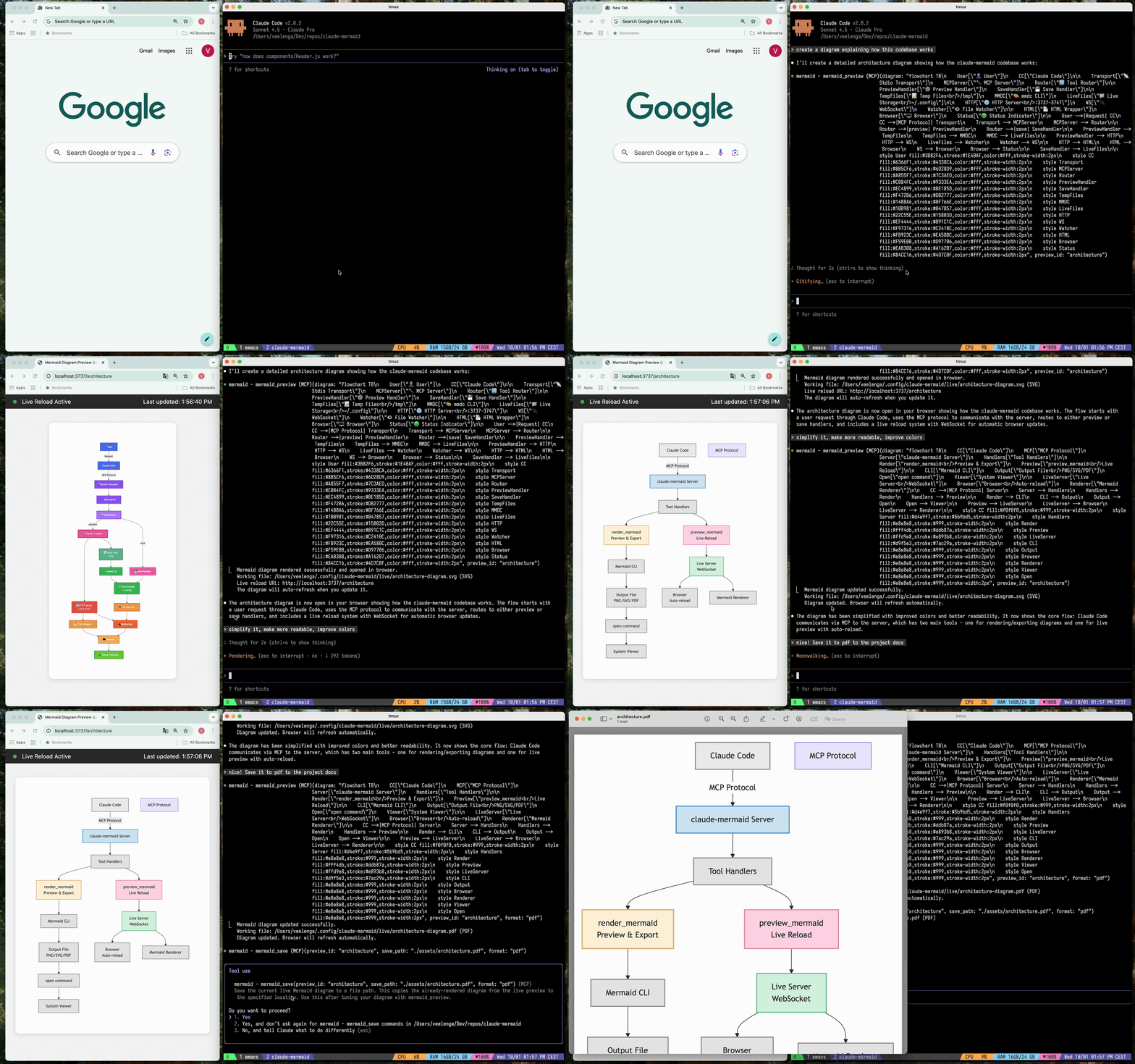
🔄 ライブリロード - 編集に合わせてブラウザ上のダイアグラムが自動更新されます
🎨 複数の保存形式 - SVG、PNG、またはPDFとしてエクスポート可能
🌈 テーマ - デフォルト、forest、dark、neutralのテーマから選択可能
📐 カスタマイズ可能 - 寸法、スケール、背景色を制御可能
🪄 インタラクティブプレビュー - ドラッグによるパン、ブラウザ操作によるズーム、ワンクリックでの位置リセットが可能
⬇️ ブラウザエクスポート - プレビューから直接SVGまたはPNGとしてダイアグラムをダウンロード可能
🗂️ 複数のプレビュー - preview_idを使用して、複数のダイアグラムを同時に作業可能
💾 永続的な作業ファイル - ライブプレビューは ~/.config/claude-mermaid/live に保存されます
🤖 組み込みスキル - ダイアグラム作成のためのベストプラクティスと専門的なガイダンスを提供するClaudeスキルが含まれています
Related MCP server: mcp-mermaid-validator
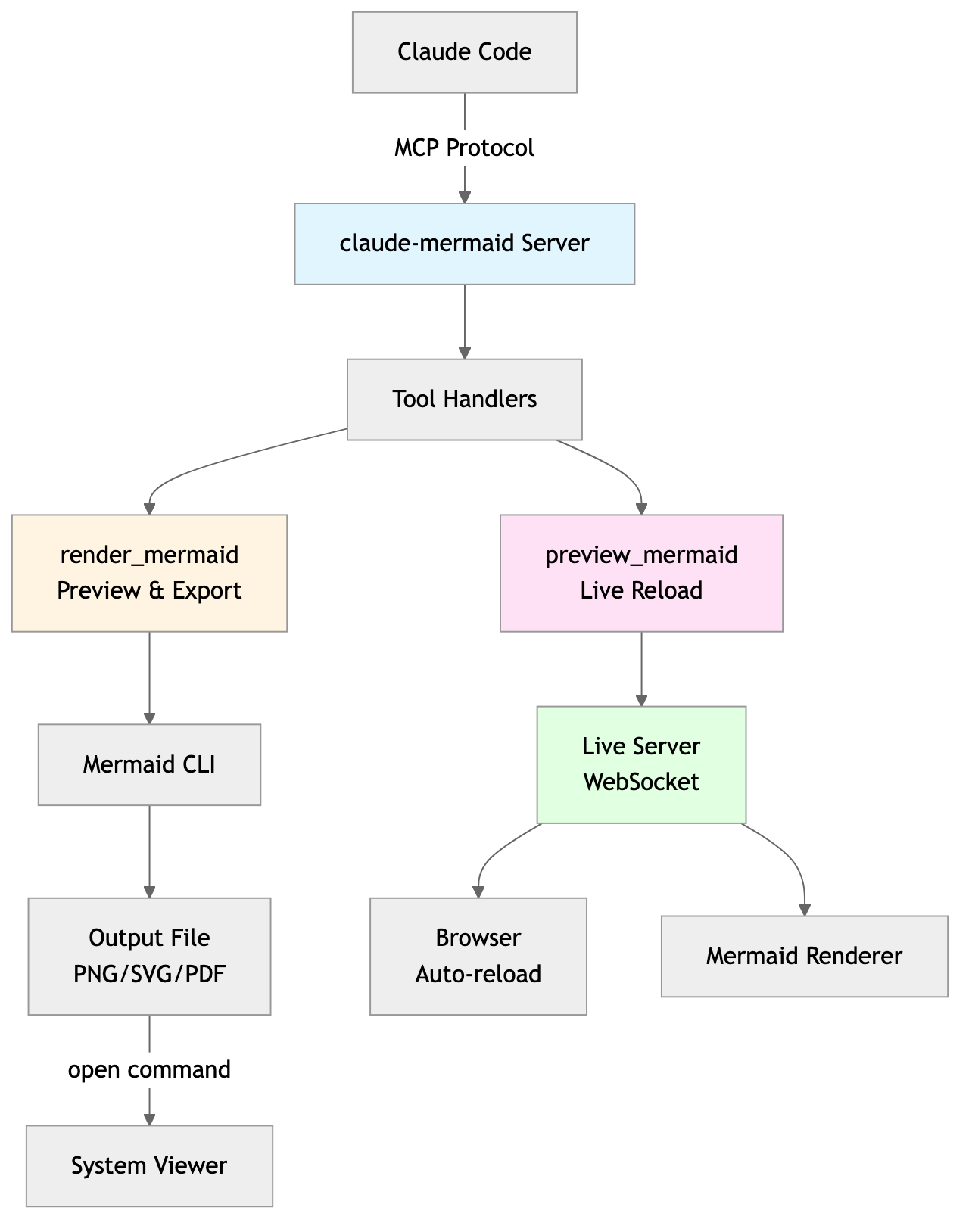
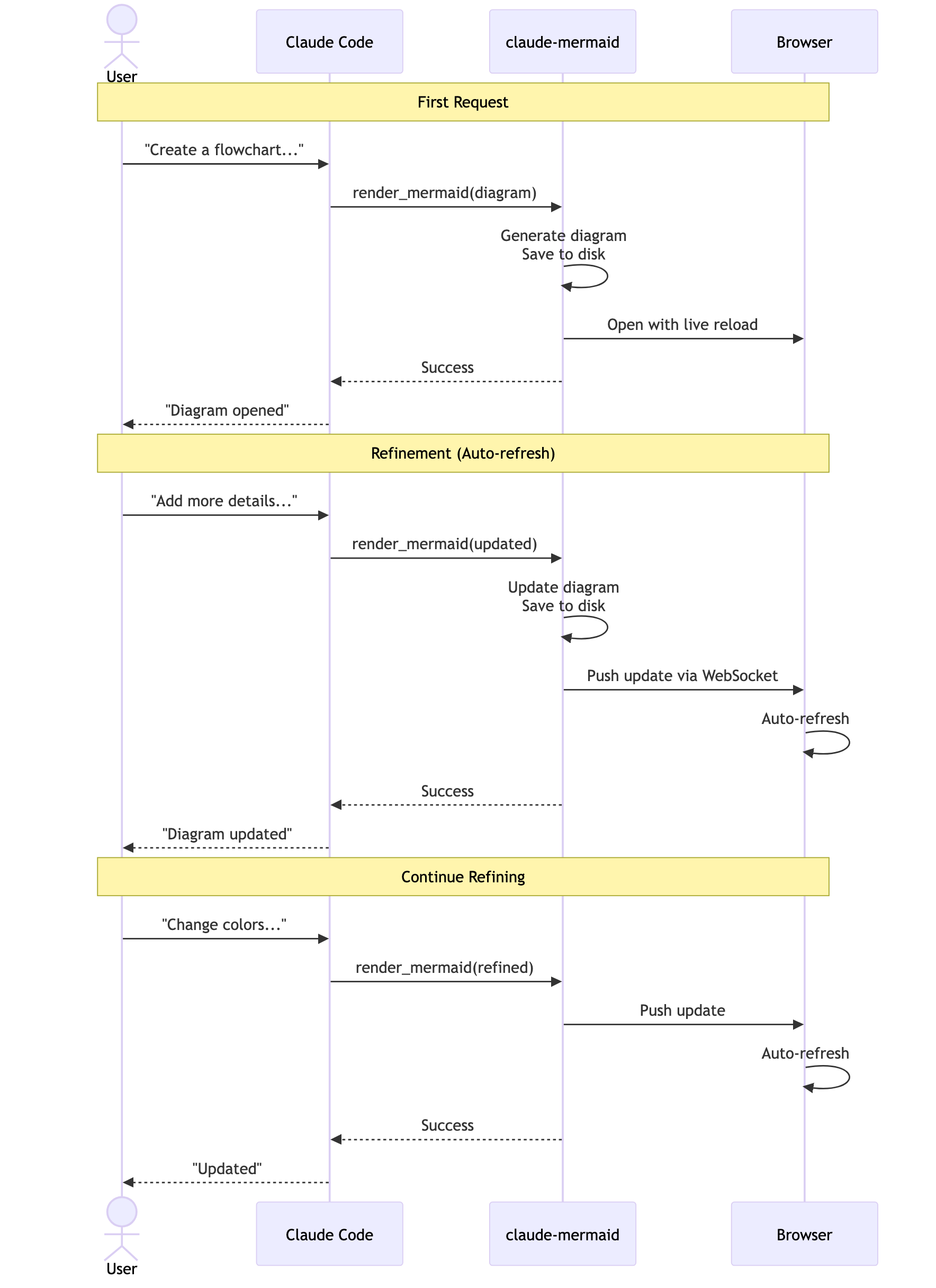
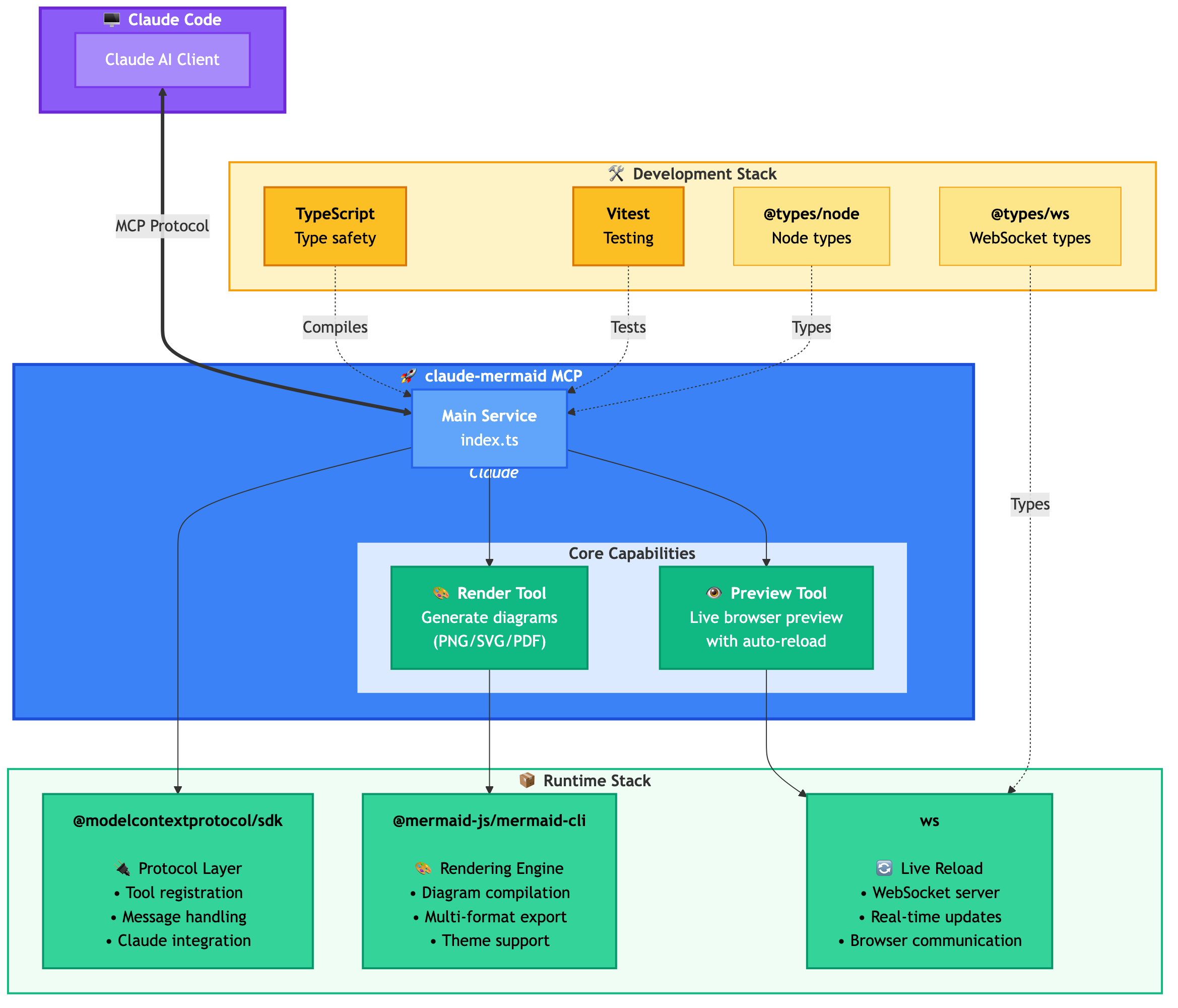
プラグインインストール(推奨)
Claude Codeでマーケットプレイスを追加し、プラグインをインストールします:
/plugin marketplace add veelenga/claude-mermaid
/plugin install claude-mermaid@claude-mermaid
その後、Claude Codeを再起動してプラグインを有効にします。
npmから:
npm install -g claude-mermaidソースから:
git clone https://github.com/veelenga/claude-mermaid.git
cd claude-mermaid
npm install && npm run build && npm install -g .プラグインインストール: MCPサーバーは自動的に設定されます。確認のみ行ってください:
/mcpMCPサーバーリストに mermaid が表示されるはずです。
npmインストール: MCPサーバーを手動で設定します:
claude mcp add --scope user mermaid claude-mermaidその後、確認します:
claude mcp listmermaid: claude-mermaid - ✓ Connected と表示されるはずです。
このサーバーはClaude Codeに最適化されていますが、MCP互換クライアントであればどれでも動作します。他の一般的なツールでの設定方法は以下の通りです:
Codex MCP設定ファイル (~/.codex/mcp_settings.json) に追加します:
{
  "mcpServers": {
    "mermaid": {
      "command": "claude-mermaid"
    }
  }
}
またはCodex CLI経由で設定します:
codex mcp add mermaid claude-mermaidCursor MCP設定ファイル (.cursor/mcp.json または設定) に追加します:
{
  "mcpServers": {
    "mermaid": {
      "command": "claude-mermaid"
    }
  }
}
またはCursorの設定UIを使用します:
Cursor設定を開く (Cmd/Ctrl + ,)
MCP Serversに移動
コマンド claude-mermaid で新しいサーバーを追加
VSCodeで Cline拡張機能 を使用している場合:
VSCode設定を開く (Cmd/Ctrl + ,)
"Cline MCP" を検索
MCP設定JSONに追加:
{
  "mcpServers": {
    "mermaid": {
      "command": "claude-mermaid"
    }
  }
}
WindsurfのMCP設定ファイルに追加します:
{
  "mcpServers": {
    "mermaid": {
      "command": "claude-mermaid"
    }
  }
}
設定ファイルの場所はプラットフォームによって異なります:
macOS: ~/Library/Application Support/Windsurf/mcp.json
Linux: ~/.config/windsurf/mcp.json
Windows: %APPDATA%\Windsurf\mcp.json
Gemini CLIのMCP設定ファイル (~/.gemini/mcp.json) に追加します:
{
  "mcpServers": {
    "mermaid": {
      "command": "claude-mermaid"
    }
  }
}
またはGemini CLIを使用して設定します:
gemini config mcp add mermaid --command claude-mermaidMCP互換クライアントであれば、標準設定を使用してください:
{
  "mcpServers": {
    "mermaid": {
      "command": "claude-mermaid"
    }
  }
}
インストール後、コマンド claude-mermaid がPATHで利用可能になっているはずです。
注意: クライアントによっては実行ファイルへのフルパスが必要な場合があります:
パスの確認: which claude-mermaid (Unix/macOS) または where claude-mermaid (Windows)
設定で絶対パスを使用: "command": "/path/to/claude-mermaid"
Claude CodeにMermaidダイアグラムを作成するよう自然に依頼してください。プラグインとしてインストールされている場合、組み込みの mermaid-diagrams スキルが専門的なガイダンス、ベストプラクティス、自動ワークフロー管理を提供します。
"Create a Mermaid diagram showing the user authentication flow"
"Draw a sequence diagram for the payment process"
"Generate a flowchart for the deployment pipeline"カスタムフォーマット:
"Create a dark theme architecture diagram with transparent background"
"Generate a forest theme flowchart and save to ./docs/flow.svg"
特定の出力フォーマット:
"Create an ER diagram and save as PDF to ./docs/schema.pdf"
"Save the flowchart as PNG to ./docs/flow.png"
注意: ブラウザはライブプレビュー用に常にSVGを表示しますが、保存は選択したフォーマットで行われます。
反復的な改善:
"Create a class diagram for the User module"
// Browser opens with live preview
"Add the Address and Order classes with relationships"
// Diagram updates automatically in browser!"Create a flowchart and save to ./docs/auth-flow.svg:
graph LR
A[User Login] --> B{Valid Credentials?}
B -->|Yes| C[Access Granted]
B -->|No| D[Access Denied]
C --> E[Dashboard]
D --> F[Try Again]
style A fill:#e1f5ff
style C fill:#d4edda
style D fill:#f8d7da
"ダイアグラムは ./docs/auth-flow.svg に保存され、ライブリロードが有効な状態でブラウザで開かれます。
MCPサーバーによって公開されているツールは2つあります:
mermaid_preview — ライブプレビューをレンダリングして開く
diagram (string, 必須) — Mermaidダイアグラムコード
preview_id (string, 必須) — このプレビューセッションの識別子。複数のダイアグラムを同時に扱う場合は異なるIDを使用してください (例: architecture, flow)。
format (string, デフォルト svg) — svg, png, pdf のいずれか。ライブプレビューは svg でのみ利用可能です。
theme (string, デフォルト default) — default, forest, dark, neutral のいずれか。
background (string, デフォルト white) — 背景色。例: transparent, white, #F0F0F0。
width (number, デフォルト 800) — ダイアグラムの幅(ピクセル単位)。
height (number, デフォルト 600) — ダイアグラムの高さ(ピクセル単位)。
scale (number, デフォルト 2) — 高品質出力のためのスケール係数。
mermaid_save — 現在のライブダイアグラムをパスに保存する
save_path (string, 必須) — 保存先パス (例: ./docs/diagram.svg)。
preview_id (string, 必須) — mermaid_preview で使用した preview_id と一致する必要があります。
format (string, デフォルト svg) — svg, png, pdf のいずれか。このフォーマットのライブ作業ファイルがまだ存在しない場合、保存前にオンデマンドでレンダリングされます。
初回レンダリング: http://localhost:3737/{preview_id} でブラウザにダイアグラムを開きます
変更: Claude Codeを通じてダイアグラムを編集します
自動更新: ブラウザがWebSocket経由で変更を検出し、リロードします
ステータスインジケーター: 緑の点 = 接続済み、赤の点 = 再接続中
ライブサーバーはポート3737-3747を使用し、利用可能なポートを自動的に検索します。
パン: ダイアグラムをクリックしてドラッグし、移動します
ズーム: ブラウザのズーム機能を使用します (Ctrl/Cmd + +/- またはトラックパッドでのピンチズーム)
位置リセット: ステータスバーの ⊙ ボタンをクリックしてダイアグラムを中央に戻します
エクスポート: ⬇ ボタンをクリックしてSVGまたはPNGとしてダウンロードします
ライブプレビューは svg フォーマットでのみ利用可能です。PNG/PDFはライブリロードなしでレンダリングされます。
シーケンス図の場合、Mermaidは sequenceDiagram 内の style ディレクティブをサポートしていません。
--serve フラグを使用して、AIエージェントなしでプレビューサーバーを起動できます:
claude-mermaid --serveこれにより、以前にレンダリングされたすべてのダイアグラムを含むダイアグラムギャラリーがブラウザで開かれます。Claude Codeセッション外でダイアグラムを閲覧・エクスポートするのに便利です。
# Install dependencies
npm install

# Build the project
npm run build

# Run tests
npm test

# Watch mode for development
npm run dev

# Start the MCP server directly
npm startエラー: Cannot find package 'puppeteer':
これは稀な環境固有の問題です。以下の解決策を試してください:
claude-mermaidをグローバルにインストール:
npm install -g claude-mermaidClaude Codeでプラグインを再インストール:
/plugin uninstall claude-mermaid
/plugin install claude-mermaid@claude-mermaid
サーバーが接続されない:
# Check if server is installed
claude-mermaid -v

# Reinstall if needed
npm install -g claude-mermaid

# Verify MCP configuration
claude mcp list
Permission deniedエラー:
# Make sure the binary is executable
chmod +x $(which claude-mermaid)
ポートが既に使用中:
サーバーはポート3737-3747を使用します
利用可能なポートを自動的に検索します
他のプロセスがこれらのポートを使用していないか確認してください: lsof -i :3737-3747
ダイアグラムがレンダリングされない、またはライブリロードが機能しない:
サーバーは ~/.config/claude-mermaid/logs/ にログを出力します:
mcp.log - ツールリクエストとダイアグラムレンダリング
web.log - HTTP/WebSocket接続とライブリロード
MCP設定でデバッグログを有効にします:
{
  "mcpServers": {
    "mermaid": {
      "command": "claude-mermaid",
      "env": {
        "CLAUDE_MERMAID_LOG_LEVEL": "DEBUG"
      }
    }
  }
}
その後、ログを確認します:
# View MCP operations
tail -f ~/.config/claude-mermaid/logs/mcp.log

# View WebSocket connections
tail -f ~/.config/claude-mermaid/logs/web.log
利用可能なログレベル: DEBUG, INFO (デフォルト), WARN, ERROR, OFF
貢献を歓迎します!お気軽にプルリクエストを送信してください。
MIT - 詳細は LICENSE ファイルを参照してください
このプロジェクトが気に入った場合は、以下も興味があるかもしれません
preview-skills — ブラウザでファイルを視覚化するためのプレビュー用スキル (markdown, csv, json, mermaidなど)
ホスト型デプロイは Fronteir AI で利用可能です。
Render a Mermaid diagram and open it in browser with live reload. Takes Mermaid diagram code as input and generates a live preview. Supports themes (default, forest, dark, neutral), custom backgrounds, dimensions, and quality scaling. The diagram will auto-refresh when updated. Use mermaid_save to save to disk. IMPORTANT: Automatically use this tool whenever you create a Mermaid diagram for the user. NOTE: Sequence diagrams do not support style directives - avoid using 'style' statements in sequenceDiagram.
| Name | Required | Description | Default |
|---|---|---|---|
| diagram | Yes | The Mermaid diagram code to render | |
| preview_id | Yes | ID for this preview session. Use different IDs for multiple diagrams (e.g., 'architecture', 'flow', 'sequence'). | |
| format | No | Output format (default: svg) | svg |
| theme | No | Theme of the chart (default: default) | default |
| background | No | Background color for pngs/svgs. Example: transparent, red, '#F0F0F0' (default: white) | white |
| width | No | Diagram width in pixels (default: 800) | |
| height | No | Diagram height in pixels (default: 600) | |
| scale | No | Scale factor for higher quality output (default: 2) |
Does the description disclose side effects, auth requirements, rate limits, or destructive behavior?
With no annotations provided, the description carries the full burden of behavioral disclosure. It effectively describes key behaviors: the tool opens a browser with live reload, auto-refreshes when updated, supports themes and customizations, and has limitations for sequence diagrams. However, it doesn't mention potential side effects like browser pop-ups or network requirements, leaving some behavioral aspects implicit.
Agents need to know what a tool does to the world before calling it. Descriptions should go beyond structured annotations to explain consequences.
Is the description appropriately sized, front-loaded, and free of redundancy?
The description is appropriately sized and front-loaded with the core purpose. Every sentence adds value: the first states the main action, the second details features, the third covers auto-refresh and sibling tool, and the last two provide critical usage notes. However, the structure could be slightly more streamlined by combining related points.
Shorter descriptions cost fewer tokens and are easier for agents to parse. Every sentence should earn its place.
Given the tool's complexity, does the description cover enough for an agent to succeed on first attempt?
Given the tool's complexity (8 parameters, live preview functionality) and lack of annotations or output schema, the description does a good job covering essential context: purpose, usage rules, key features, and limitations. It adequately guides an agent on how and when to use the tool, though it doesn't detail the preview interface or error handling, which are minor gaps.
Complex tools with many parameters or behaviors need more documentation. Simple tools need less. This dimension scales expectations accordingly.
Does the description clarify parameter syntax, constraints, interactions, or defaults beyond what the schema provides?
The schema description coverage is 100%, so the schema already documents all 8 parameters thoroughly. The description adds minimal parameter-specific information beyond the schema, mentioning themes and custom backgrounds generically. This meets the baseline of 3 since the schema does the heavy lifting, but the description doesn't significantly enhance parameter understanding.
Input schemas describe structure but not intent. Descriptions should explain non-obvious parameter relationships and valid value ranges.
Does the description clearly state what the tool does and how it differs from similar tools?
The description clearly states the specific action ('Render a Mermaid diagram and open it in browser with live reload') and distinguishes it from its sibling tool ('Use mermaid_save to save to disk'). It explicitly mentions the resource (Mermaid diagram) and the verb (render/preview), making the purpose unambiguous.
Agents choose between tools based on descriptions. A clear purpose with a specific verb and resource helps agents select the right tool.
Does the description explain when to use this tool, when not to, or what alternatives exist?
The description provides explicit guidance on when to use this tool ('Automatically use this tool whenever you create a Mermaid diagram for the user') and when not to use it for saving ('Use mermaid_save to save to disk'). It also includes a specific exclusion for sequence diagrams ('Sequence diagrams do not support style directives - avoid using 'style' statements in sequenceDiagram'), offering clear alternatives and limitations.
Agents often have multiple tools that could apply. Explicit usage guidance like "use X instead of Y when Z" prevents misuse.
Save the current live Mermaid diagram to a file path. This copies the already-rendered diagram from the live preview to the specified location. Use this after tuning your diagram with mermaid_preview.
| Name | Required | Description | Default |
|---|---|---|---|
| save_path | Yes | Path to save the diagram file (e.g., './docs/diagram.svg') | |
| preview_id | Yes | ID of the preview to save. Must match the preview_id used in mermaid_preview. | |
| format | No | Output format (default: svg). Must match the format used in mermaid_preview. | svg |
Does the description disclose side effects, auth requirements, rate limits, or destructive behavior?
With no annotations provided, the description carries the full burden of behavioral disclosure. It explains the tool copies an already-rendered diagram from the live preview, which is useful context beyond the input schema. However, it doesn't mention potential side effects (e.g., file overwriting), error conditions, or what happens if the preview_id doesn't exist, leaving some behavioral gaps.
Agents need to know what a tool does to the world before calling it. Descriptions should go beyond structured annotations to explain consequences.
Is the description appropriately sized, front-loaded, and free of redundancy?
The description is front-loaded with the core purpose in the first sentence, followed by a clear usage guideline. Both sentences earn their place by providing essential context and guidance without any redundant or verbose language.
Shorter descriptions cost fewer tokens and are easier for agents to parse. Every sentence should earn its place.
Given the tool's complexity, does the description cover enough for an agent to succeed on first attempt?
Given the tool's moderate complexity (3 parameters, no annotations, no output schema), the description is reasonably complete. It explains the tool's purpose, usage timing, and relationship to the sibling tool. However, it lacks details on output behavior (e.g., success/failure responses) and potential errors, which would be helpful given the absence of annotations and output schema.
Complex tools with many parameters or behaviors need more documentation. Simple tools need less. This dimension scales expectations accordingly.
Does the description clarify parameter syntax, constraints, interactions, or defaults beyond what the schema provides?
The schema description coverage is 100%, so the schema already documents all three parameters thoroughly. The description adds minimal value beyond the schema by mentioning the diagram is 'already-rendered' and comes from the 'live preview', which provides context but no additional parameter-specific details. This meets the baseline for high schema coverage.
Input schemas describe structure but not intent. Descriptions should explain non-obvious parameter relationships and valid value ranges.
Does the description clearly state what the tool does and how it differs from similar tools?
The description clearly states the specific action ('Save'), resource ('current live Mermaid diagram'), and destination ('to a file path'), distinguishing it from the sibling tool mermaid_preview by specifying it operates on the already-rendered diagram from the preview. This provides explicit verb+resource+scope differentiation.
Agents choose between tools based on descriptions. A clear purpose with a specific verb and resource helps agents select the right tool.
Does the description explain when to use this tool, when not to, or what alternatives exist?
The description explicitly states when to use this tool ('Use this after tuning your diagram with mermaid_preview'), providing clear sequencing guidance and linking it directly to the sibling tool. It also implies when not to use it (e.g., before previewing), though it doesn't name explicit alternatives beyond the sibling.
Agents often have multiple tools that could apply. Explicit usage guidance like "use X instead of Y when Z" prevents misuse.
The two tools have perfectly distinct purposes: mermaid_preview renders and displays a diagram in a browser with live updates, while mermaid_save saves the rendered diagram to disk. There is no overlap or ambiguity between them, as each handles a separate stage of the diagram workflow.
Both tools follow a consistent verb_noun pattern with the 'mermaid_' prefix: mermaid_preview and mermaid_save. The naming is clear, predictable, and uniform throughout the set, making it easy for an agent to understand their functions.
With only two tools, the set feels thin for a Mermaid diagram server, as it lacks operations like editing, exporting to different formats, or managing themes programmatically. However, it covers the core preview-and-save workflow, so it's borderline but not severely mismatched.
The tools provide basic functionality for previewing and saving diagrams, but there are notable gaps: no tool for creating or editing diagrams from scratch, no support for different output formats (e.g., PNG, SVG), and no way to manage themes or settings beyond the preview. This limits the server's utility for full diagram lifecycle management.
Unclaimed servers have limited discoverability.
If you are the server author, to access and configure the admin panel.
Render, verify, describe, and safely edit Mermaid diagrams through MCP.
MCP server to assist with JxBrowser development.
Collaborative whiteboard MCP server — create objects, connectors, C4 diagrams, and manage boards
MCP server for querying Forkast documentation
We provide all the information about MCP servers via our MCP API.
curl -X GET 'https://glama.ai/api/mcp/v1/servers/veelenga/claude-mermaid'
If you have feedback or need assistance with the MCP directory API, please join our Discord server