
claude-mermaid
# Claude Mermaid MCP Server
MCP server for rendering Mermaid diagrams in Claude Code with **live reload** functionality and a built-in skill for expert guidance.
Automatically renders diagrams in your browser with real-time updates as you refine them. Perfect for iterative diagram development and documentation workflows.
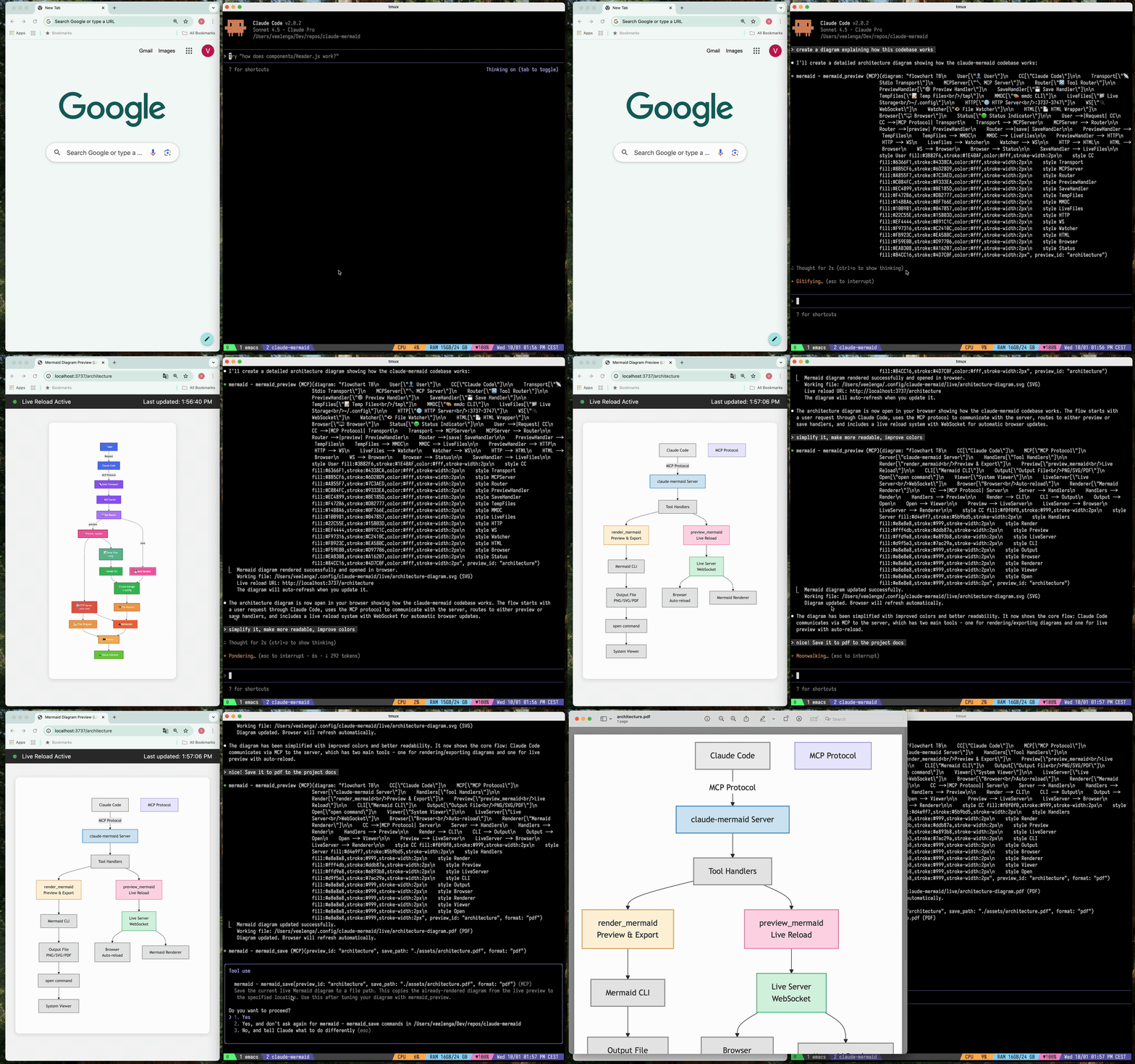
## ✨ Features
- 🔄 **Live Reload** - Diagrams auto-refresh in your browser as you edit
- 🎨 **Multiple Save Formats** - Export to SVG, PNG, or PDF
- 🌈 **Themes** - Choose from default, forest, dark, or neutral themes
- 📐 **Customizable** - Control dimensions, scale, and background colors
- 🪄 **Interactive Preview** - Pan diagrams by dragging, zoom with browser controls, reset position with one click
- ⬇️ **Browser Export** - Download diagrams as SVG or PNG directly from the preview
- 🗂️ **Multiple Previews** - Use `preview_id` to work on multiple diagrams simultaneously
- 💾 **Persistent Working Files** - Live previews are stored under `~/.config/claude-mermaid/live`
- 🤖 **Built-in Skill** - Includes a Claude skill with best practices and expert guidance for creating diagrams
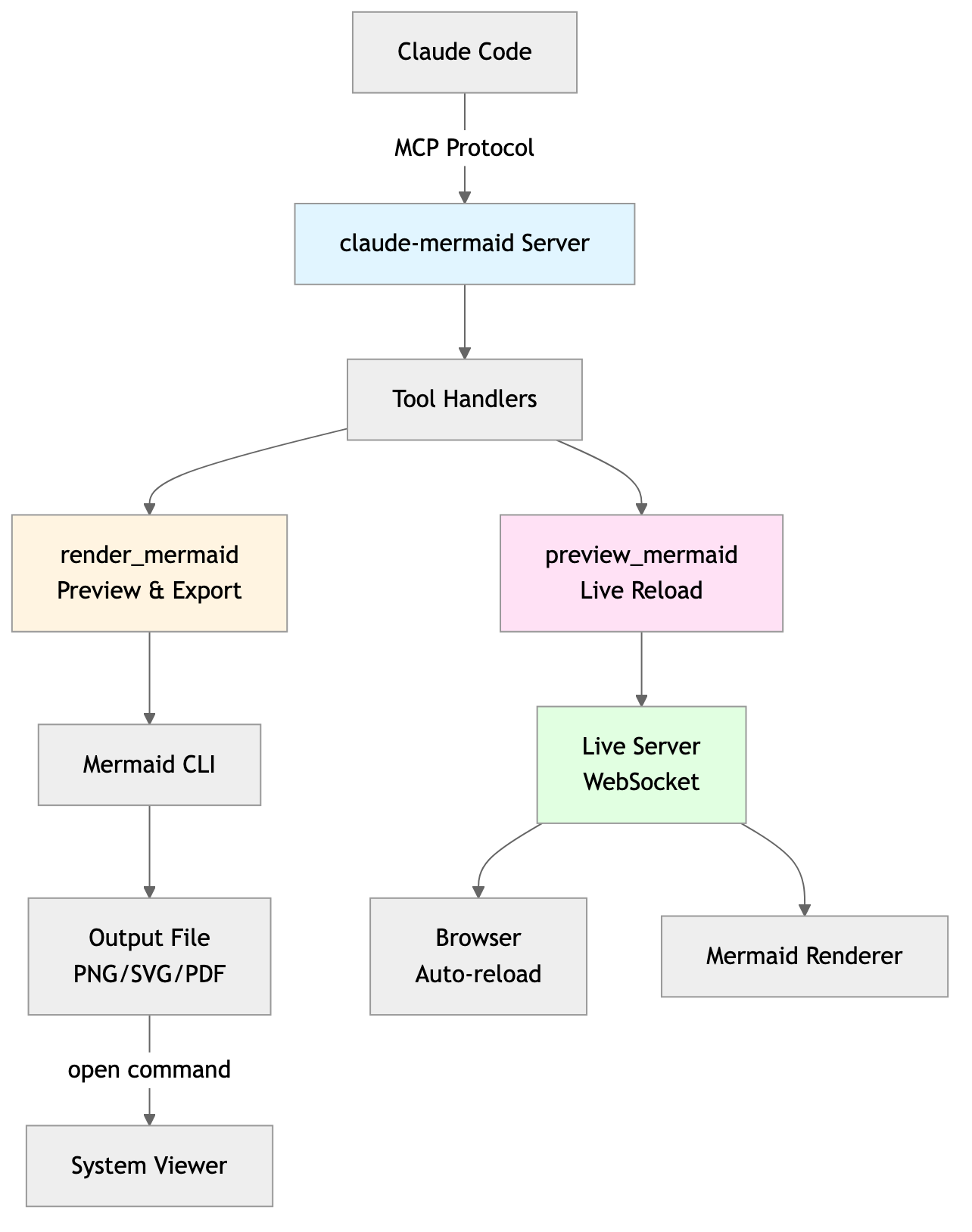
## Architecture
<details>
<summary>Project Architecture Diagram</summary>
</details>
<details>
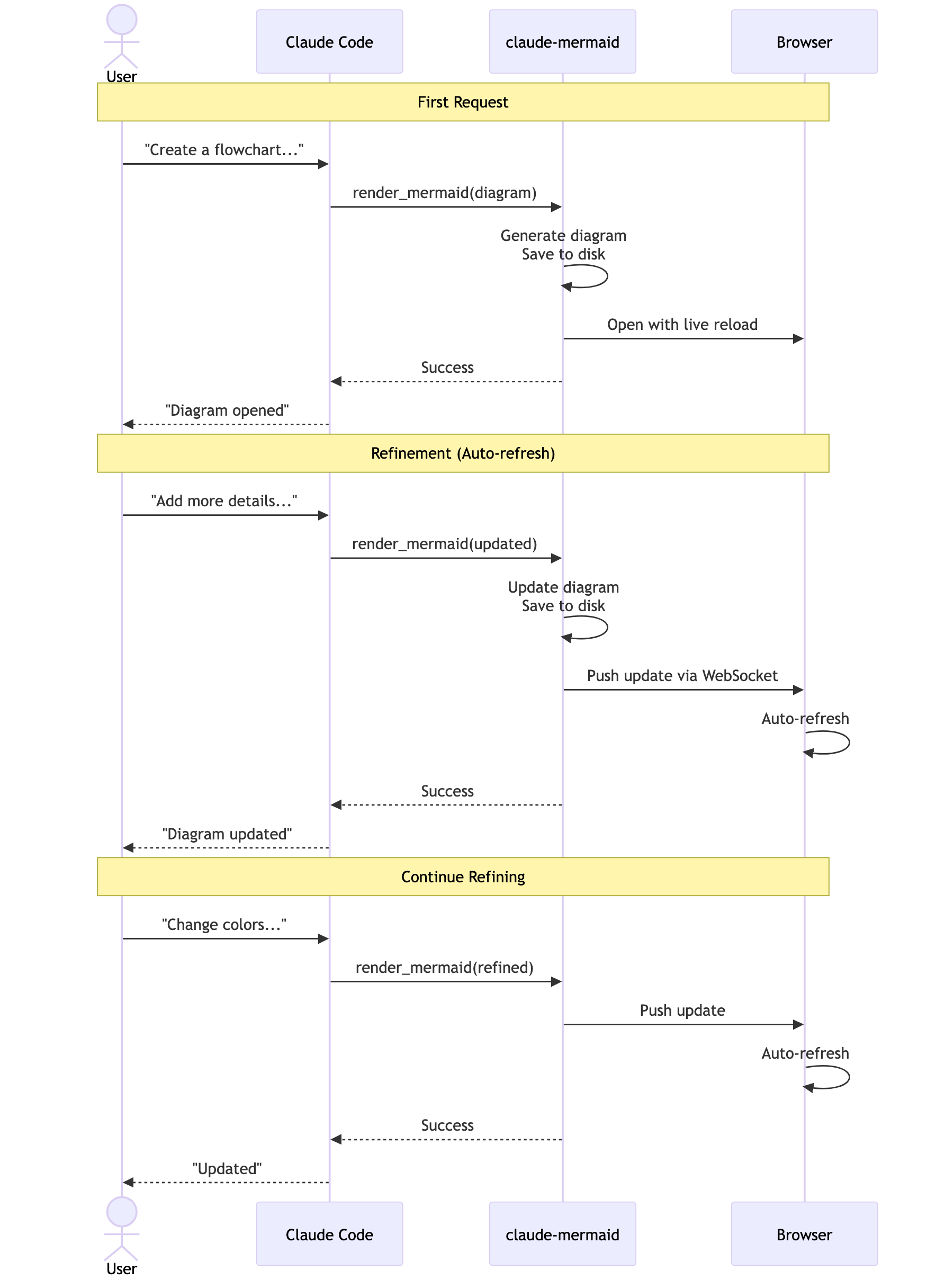
<summary>User Workflow Diagram</summary>
</details>
<details>
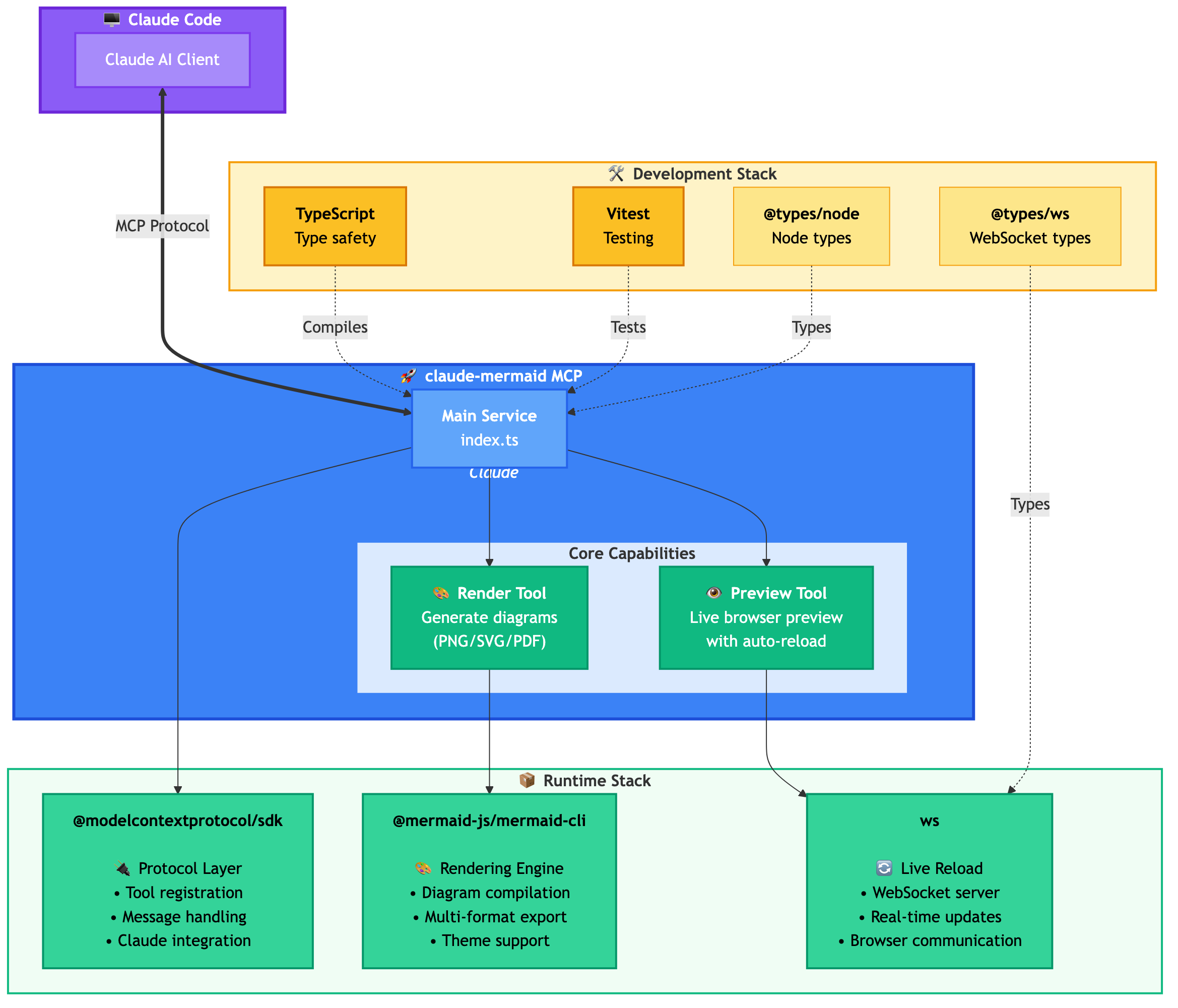
<summary>Dependencies Diagram</summary>
</details>
## 🚀 Quick Start
### 1. Install
**Plugin Install (Recommended)**
In Claude Code, add the marketplace and install the plugin:
```bash
/plugin marketplace add veelenga/claude-mermaid
/plugin install claude-mermaid@claude-mermaid
```
Then restart Claude Code to activate the plugin.
**From npm:**
```bash
npm install -g claude-mermaid
```
**From source:**
```bash
git clone https://github.com/veelenga/claude-mermaid.git
cd claude-mermaid
npm install && npm run build && npm install -g .
```
### 2. Verify Installation
**Plugin install:** The MCP server is configured automatically. Just verify:
```bash
/mcp
```
You should see `mermaid` in the MCP server list.
**npm install:** Configure the MCP server manually:
```bash
claude mcp add --scope user mermaid claude-mermaid
```
Then verify:
```bash
claude mcp list
```
You should see `mermaid: claude-mermaid - ✓ Connected`
## 🔌 Other MCP Client Configurations
While this server is optimized for Claude Code, it can work with any MCP-compatible client. Here's how to configure it for other popular tools:
<details>
<summary><strong>Codex</strong></summary>
Add to your Codex MCP settings file (`~/.codex/mcp_settings.json`):
```json
{
"mcpServers": {
"mermaid": {
"command": "claude-mermaid"
}
}
}
```
Or configure via Codex CLI:
```bash
codex mcp add mermaid claude-mermaid
```
</details>
<details>
<summary><strong>Cursor</strong></summary>
Add to your Cursor MCP config file (`.cursor/mcp.json` or settings):
```json
{
"mcpServers": {
"mermaid": {
"command": "claude-mermaid"
}
}
}
```
Or use Cursor's settings UI:
1. Open Cursor Settings (Cmd/Ctrl + ,)
2. Navigate to MCP Servers
3. Add a new server with command: `claude-mermaid`
</details>
<details>
<summary><strong>VSCode with Cline Extension</strong></summary>
If using the [Cline extension](https://github.com/cline/cline) for VSCode:
1. Open VSCode settings (Cmd/Ctrl + ,)
2. Search for "Cline MCP"
3. Add to MCP Settings JSON:
```json
{
"mcpServers": {
"mermaid": {
"command": "claude-mermaid"
}
}
}
```
</details>
<details>
<summary><strong>Windsurf</strong></summary>
Add to Windsurf's MCP configuration file:
```json
{
"mcpServers": {
"mermaid": {
"command": "claude-mermaid"
}
}
}
```
Configuration location varies by platform:
- **macOS:** `~/Library/Application Support/Windsurf/mcp.json`
- **Linux:** `~/.config/windsurf/mcp.json`
- **Windows:** `%APPDATA%\Windsurf\mcp.json`
</details>
<details>
<summary><strong>Gemini CLI</strong></summary>
Add to Gemini CLI's MCP configuration file (`~/.gemini/mcp.json`):
```json
{
"mcpServers": {
"mermaid": {
"command": "claude-mermaid"
}
}
}
```
Or use the Gemini CLI to configure:
```bash
gemini config mcp add mermaid --command claude-mermaid
```
</details>
<details>
<summary><strong>Other MCP Clients</strong></summary>
For any MCP-compatible client, use the standard configuration:
```json
{
"mcpServers": {
"mermaid": {
"command": "claude-mermaid"
}
}
}
```
The command `claude-mermaid` should be available in your PATH after installation.
**Note:** Some clients may require the full path to the executable:
- Find the path: `which claude-mermaid` (Unix/macOS) or `where claude-mermaid` (Windows)
- Use absolute path in config: `"command": "/path/to/claude-mermaid"`
</details>
## 💡 Usage
Simply ask Claude Code to create Mermaid diagrams naturally. When installed as a plugin, the built-in `mermaid-diagrams` skill provides expert guidance, best practices, and automatic workflow management.
### Basic Examples
```
"Create a Mermaid diagram showing the user authentication flow"
"Draw a sequence diagram for the payment process"
"Generate a flowchart for the deployment pipeline"
```
### Advanced Examples
**With custom formatting:**
```
"Create a dark theme architecture diagram with transparent background"
"Generate a forest theme flowchart and save to ./docs/flow.svg"
```
**With specific output format:**
```
"Create an ER diagram and save as PDF to ./docs/schema.pdf"
"Save the flowchart as PNG to ./docs/flow.png"
```
_Note: Browser always shows SVG for live preview, while saving to your chosen format._
**Iterative refinement:**
```
"Create a class diagram for the User module"
// Browser opens with live preview
"Add the Address and Order classes with relationships"
// Diagram updates automatically in browser!
```
### Complete Example
```
"Create a flowchart and save to ./docs/auth-flow.svg:
graph LR
A[User Login] --> B{Valid Credentials?}
B -->|Yes| C[Access Granted]
B -->|No| D[Access Denied]
C --> E[Dashboard]
D --> F[Try Again]
style A fill:#e1f5ff
style C fill:#d4edda
style D fill:#f8d7da
"
```
The diagram will be saved to `./docs/auth-flow.svg` and opened in your browser with live reload enabled.
## 🔧 Tools and Parameters
There are two tools exposed by the MCP server:
1. `mermaid_preview` — render and open a live preview
- `diagram` (string, required) — Mermaid diagram code
- `preview_id` (string, required) — Identifier for this preview session. Use different IDs for multiple concurrent diagrams (e.g., `architecture`, `flow`).
- `format` (string, default `svg`) — One of `svg`, `png`, `pdf`. Live preview is available only for `svg`.
- `theme` (string, default `default`) — One of `default`, `forest`, `dark`, `neutral`.
- `background` (string, default `white`) — Background color. Examples: `transparent`, `white`, `#F0F0F0`.
- `size` (number, default `800`) — Maximum diagram width or height in pixels.
- `width`, `height` (number, deprecated) — Accepted for compatibility; the larger value is used as `size`.
- `scale` (number, default `2`) — Scale factor for higher quality output.
2. `mermaid_save` — save the current live diagram to a path
- `save_path` (string, required) — Destination path (e.g., `./docs/diagram.svg`).
- `preview_id` (string, required) — Must match the `preview_id` used in `mermaid_preview`.
- `format` (string, default `svg`) — One of `svg`, `png`, `pdf`. If the live working file for this format doesn’t exist yet, it is rendered on demand before saving.
## 🎯 How Live Reload Works
1. **First render:** Opens diagram in browser at `http://localhost:3737/{preview_id}`
2. **Make changes:** Edit the diagram through Claude Code
3. **Auto-refresh:** Browser detects changes via WebSocket and reloads
4. **Status indicator:** Green dot = connected, Red dot = reconnecting
The live server uses ports 3737-3747 and automatically finds an available port.
### Live Preview Controls
- **Pan:** Click and drag the diagram to move it around
- **Zoom:** Use browser zoom (Ctrl/Cmd + +/- or pinch-to-zoom on trackpad)
- **Reset Position:** Click the ⊙ button in the status bar to recenter the diagram
- **Export:** Click the ⬇ button to download as SVG or PNG
### Notes
- Live preview is available for `svg` format only; PNG/PDF are rendered without live reload.
- For sequence diagrams, Mermaid does not support `style` directives inside `sequenceDiagram`.
## 🖥️ Standalone server
You can start the preview server without an AI agent using the `--serve` flag:
```bash
claude-mermaid --serve
```
This opens the diagram gallery in your browser with all previously rendered diagrams. Useful for browsing and exporting diagrams outside of a Claude Code session.
## 🛠️ Development
```bash
# Install dependencies
npm install
# Build the project
npm run build
# Run tests
npm test
# Watch mode for development
npm run dev
# Start the MCP server directly
npm start
```
## 📝 Troubleshooting
**Error: Cannot find package 'puppeteer':**
This is a rare environment-specific issue. Try these solutions:
1. **Install claude-mermaid globally**:
```bash
npm install -g claude-mermaid
```
2. **Reinstall the plugin** in Claude Code:
```
/plugin uninstall claude-mermaid
/plugin install claude-mermaid@claude-mermaid
```
**Server not connecting:**
```bash
# Check if server is installed
claude-mermaid -v
# Reinstall if needed
npm install -g claude-mermaid
# Verify MCP configuration
claude mcp list
```
**Permission denied error:**
```bash
# Make sure the binary is executable
chmod +x $(which claude-mermaid)
```
**Port already in use:**
- The server uses ports 3737-3747
- It will automatically find an available port
- Check if another process is using these ports: `lsof -i :3737-3747`
**Diagrams not rendering or live reload not working:**
The server logs to `~/.config/claude-mermaid/logs/`:
- `mcp.log` - Tool requests and diagram rendering
- `web.log` - HTTP/WebSocket connections and live reload
Enable debug logging in your MCP config:
```json
{
"mcpServers": {
"mermaid": {
"command": "claude-mermaid",
"env": {
"CLAUDE_MERMAID_LOG_LEVEL": "DEBUG"
}
}
}
}
```
Then check the logs:
```bash
# View MCP operations
tail -f ~/.config/claude-mermaid/logs/mcp.log
# View WebSocket connections
tail -f ~/.config/claude-mermaid/logs/web.log
```
Available log levels: `DEBUG`, `INFO` (default), `WARN`, `ERROR`, `OFF`
## 🤝 Contributing
Contributions are welcome! Please feel free to submit a Pull Request.
## 📄 License
MIT - see [LICENSE](LICENSE) file for details
## 🔗 Links
- [GitHub Repository](https://github.com/veelenga/claude-mermaid)
- [npm Package](https://www.npmjs.com/package/claude-mermaid)
- [Claude Code Documentation](https://docs.claude.com/claude-code)
- [Mermaid Documentation](https://mermaid.js.org/)
## 👀 See Also
If you like this project, you might also be interested in
- [preview-skills](https://github.com/veelenga/preview-skills) — preview skills for visualizing files in the browser (markdown, csv, json, mermaid and more)
## Hosted deployment
A hosted deployment is available on [Fronteir AI](https://fronteir.ai/mcp/veelenga-claude-mermaid).
TDQS
Scored across 2 tools
The two tools have perfectly distinct purposes: mermaid_preview renders and displays a diagram in a browser with live updates, while mermaid_save saves the rendered diagram to disk. There is no overlap or ambiguity between them, as each handles a separate stage of the diagram workflow.
Both tools follow a consistent verb_noun pattern with the 'mermaid_' prefix: mermaid_preview and mermaid_save. The naming is clear, predictable, and uniform throughout the set, making it easy for an agent to understand their functions.
With only two tools, the set feels thin for a Mermaid diagram server, as it lacks operations like editing, exporting to different formats, or managing themes programmatically. However, it covers the core preview-and-save workflow, so it's borderline but not severely mismatched.
The tools provide basic functionality for previewing and saving diagrams, but there are notable gaps: no tool for creating or editing diagrams from scratch, no support for different output formats (e.g., PNG, SVG), and no way to manage themes or settings beyond the preview. This limits the server's utility for full diagram lifecycle management.