Glama
rusiaaman
by rusiaaman

Shell and Coding agent for Claude and other mcp clients

Empowering chat applications to code, build and run on your local machine.

wcgw is an MCP server with tightly integrated shell and code editing tools.

⚠️ Warning: This MCP server provides unfiltered access to your machine's shell and files. It does not restrict LLMs from executing arbitrary commands or making unintended changes. This tool can be misused by attackers or run dangerous commands if the AI hallucinates. Run this repository only if you fully understand and accept the risks associated with running AI agents with no restrictions.

As of 2026 the reason you could use wcgw is that it provides fully interactive shell experience that you and the agent both can control (including sending key-strokes). Combined with the wcgw vscode extension that attaches the agent's shell in your editor, you can get the best agentic shell experience that is out there. The file editing tricks and the general minimalism also helps agent be more productive.

Tests Mypy strict Build codecov

Demo

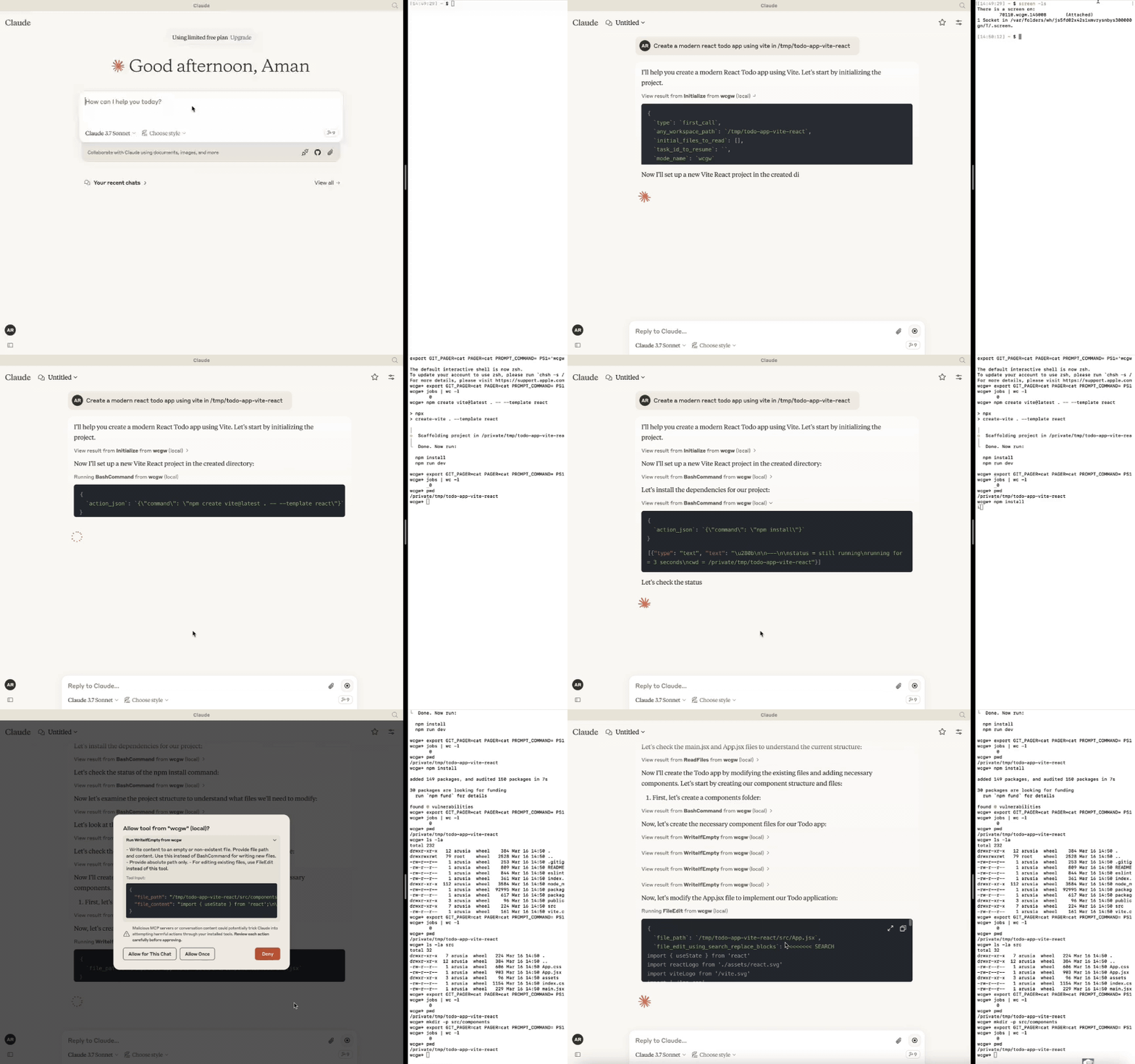
Workflow Demo

Related MCP server: Global MCP Manager

Updates

  • [6 Oct 2025] Model can now run multiple commands in background. ZSH is now a supported shell. Multiplexing improvements.

  • [27 Apr 2025] Removed support for GPTs over relay server. Only MCP server is supported in version >= 5.

  • [24 Mar 2025] Improved writing and editing experience for sonnet 3.7, CLAUDE.md gets loaded automatically.

  • [16 Feb 2025] You can now attach to the working terminal that the AI uses. See the "attach-to-terminal" section below.

  • [15 Jan 2025] Modes introduced: architect, code-writer, and all powerful wcgw mode.

  • [8 Jan 2025] Context saving tool for saving relevant file paths along with a description in a single file. Can be used as a task checkpoint or for knowledge transfer.

  • [29 Dec 2024] Syntax checking on file writing and edits is now stable. Made initialize tool call useful; sending smart repo structure to claude if any repo is referenced. Large file handling is also now improved.

  • [9 Dec 2024] Vscode extension to paste context on Claude app

🚀 Highlights

  • Create, Execute, Iterate: Ask claude to keep running compiler checks till all errors are fixed, or ask it to keep checking for the status of a long running command till it's done.

  • Large file edit: Supports large file incremental edits to avoid token limit issues. Smartly selects when to do small edits or large rewrite based on % of change needed.

  • Syntax checking on edits: Reports feedback to the LLM if its edits have any syntax errors, so that it can redo it.

  • Interactive Command Handling: Supports interactive commands using arrow keys, interrupt, and ansi escape sequences.

  • File protections:

    • The AI needs to read a file at least once before it's allowed to edit or rewrite it. This avoids accidental overwrites.

    • Avoids context filling up while reading very large files. Files get chunked based on token length.

    • On initialisation the provided workspace's directory structure is returned after selecting important files (based on .gitignore as well as a statistical approach)

    • File edit based on search-replace tries to find correct search block if it has multiple matches based on previous search blocks. Fails otherwise (for correctness).

    • File edit has spacing tolerant matching, with warning on issues like indentation mismatch. If there's no match, the closest match is returned to the AI to fix its mistakes.

    • Using Aider-like search and replace, which has better performance than tool call based search and replace.

  • Shell optimizations:

    • Current working directory is always returned after any shell command to prevent AI from getting lost.

    • Command polling exits after a quick timeout to avoid slow feedback. However, status checking has wait tolerance based on fresh output streaming from a command. Both of these approach combined provides a good shell interaction experience.

    • Supports multiple concurrent background commands alongside the main interactive shell.

  • Saving repo context in a single file: Task checkpointing using "ContextSave" tool saves detailed context in a single file. Tasks can later be resumed in a new chat asking "Resume task id". The saved file can be used to do other kinds of knowledge transfer, such as taking help from another AI.

  • Easily switch between various modes:

    • Ask it to run in 'architect' mode for planning. Inspired by adier's architect mode, work with Claude to come up with a plan first. Leads to better accuracy and prevents premature file editing.

    • Ask it to run in 'code-writer' mode for code editing and project building. You can provide specific paths with wild card support to prevent other files getting edited.

    • By default it runs in 'wcgw' mode that has no restrictions and full authorisation.

    • More details in Modes section

  • Runs in multiplex terminal Use vscode extension or run screen -x to attach to the terminal that the AI runs commands on. See history or interrupt process or interact with the same terminal that AI uses.

  • Automatically load CLAUDE.md/AGENTS.md Loads "CLAUDE.md" or "AGENTS.md" file in project root and sends as instructions during initialisation. Instructions in a global "/.wcgw/CLAUDE.md" or "/.wcgw/AGENTS.md" file are loaded and added along with project specific CLAUDE.md. The file name is case sensitive. CLAUDE.md is attached if it's present otherwise AGENTS.md is attached.

Claude setup (using mcp)

Mac and linux

First install uv using homebrew brew install uv

(Important: use homebrew to install uv. Otherwise make sure uv is present in a global location like /usr/bin/)

Then create or update claude_desktop_config.json (~/Library/Application Support/Claude/claude_desktop_config.json) with following json.

{
  "mcpServers": {
    "wcgw": {
      "command": "uvx",
      "args": ["--python", "3.12", "wcgw@latest"]
    }
  }
}

Then restart claude app.

Optional: Force a specific shell

To use a specific shell (bash or zsh), add the --shell argument:

{
  "mcpServers": {
    "wcgw": {
      "command": "uvx",
      "args": ["--python", "3.12", "wcgw@latest", "--shell", "/bin/bash"]
    }
  }
}

If there's an error in setting up

  • If there's an error like "uv ENOENT", make sure uv is installed. Then run 'which uv' in the terminal, and use its output in place of "uv" in the configuration.

  • If there's still an issue, check that uv tool run --python 3.12 wcgw runs in your terminal. It should have no output and shouldn't exit.

  • Try removing ~/.cache/uv folder

  • Try using uv version 0.6.0 for which this tool was tested.

  • Debug the mcp server using npx @modelcontextprotocol/inspector@0.1.7 uv tool run --python 3.12 wcgw

Windows on wsl

This mcp server works only on wsl on windows.

To set it up, install uv

Then add or update the claude config file %APPDATA%\Claude\claude_desktop_config.json with the following

{
  "mcpServers": {
    "wcgw": {
      "command": "wsl.exe",
      "args": ["uvx", "--python", "3.12", "wcgw@latest"]
    }
  }
}

When you encounter an error, execute the command wsl uv --python 3.12 wcgw in command prompt. If you get the error /bin/bash: line 1: uv: command not found, it means uv was not installed globally and you need to point to the correct path of uv.

  1. Find where uv is installed:

whereis uv

Example output: uv: /home/mywsl/.local/bin/uv

  1. Test the full path works:

wsl /home/mywsl/.local/bin/uv tool run --python 3.12 wcgw
  1. Update the config with the full path:

{
  "mcpServers": {
    "wcgw": {
      "command": "wsl.exe",
      "args": ["/home/mywsl/.local/bin/uv", "tool", "run", "--python", "3.12", "wcgw"]
    }
  }
}

Replace /home/mywsl/.local/bin/uv with your actual uv path from step 1.

Usage

Wait for a few seconds. You should be able to see this icon if everything goes right.

mcp icon over here

mcp icon

Then ask claude to execute shell commands, read files, edit files, run your code, etc.

Task checkpoint or knowledge transfer

  • You can do a task checkpoint or a knowledge transfer by attaching "KnowledgeTransfer" prompt using "Attach from MCP" button.

  • On running "KnowledgeTransfer" prompt, the "ContextSave" tool will be called saving the task description and all file content together in a single file. An id for the task will be generated.

  • You can in a new chat say "Resume ''", the AI should then call "Initialize" with the task id and load the context from there.

  • Or you can directly open the file generated and share it with another AI for help.

Modes

There are three built-in modes. You may ask Claude to run in one of the modes, like "Use 'architect' mode"

Mode

Description

Allows

Denies

Invoke prompt

Architect

Designed for you to work with Claude to investigate and understand your repo.

Read-only commands

FileEdit and Write tool

Run in mode='architect'

Code-writer

For code writing and development

Specified path globs for editing or writing, specified commands

FileEdit for paths not matching specified glob, Write for paths not matching specified glob

Run in code writer mode, only 'tests/**' allowed, only uv command allowed

**wcgw**

Default mode with everything allowed

Everything

Nothing

No prompt, or "Run in wcgw mode"

Note: in code-writer mode either all commands are allowed or none are allowed for now. If you give a list of allowed commands, Claude is instructed to run only those commands, but no actual check happens. (WIP)

Attach to the working terminal to investigate

NEW: the vscode extension now automatically attach the running terminal if workspace path matches.

If you've screen command installed, wcgw runs on a screen instance automatically. If you've started wcgw mcp server, you can list the screen sessions:

screen -ls

And note down the wcgw screen name which will be something like 93358.wcgw.235521 where the last number is in the hour-minute-second format.

You can then attach to the session using screen -x 93358.wcgw.235521

You may interrupt any running command safely.

You can interact with the terminal safely, for example for entering passwords, or entering some text. (Warning: If you run a new command, any new LLM command will interrupt it.)

You shouldn't exit the session using exit or Ctrl-d, instead you should use ctrl+a+d to safely detach without destroying the screen session.

Include the following in ~/.screenrc for better scrolling experience

defscrollback 10000
termcapinfo xterm* ti@:te@

[Optional] Vs code extension

https://marketplace.visualstudio.com/items?itemName=AmanRusia.wcgw

Commands:

  • Select a text and press cmd+' and then enter instructions. This will switch the app to Claude and paste a text containing your instructions, file path, workspace dir, and the selected text.

Examples

example

Using mcp server over docker

First build the docker image docker build -t wcgw https://github.com/rusiaaman/wcgw.git

Then you can update /Users/username/Library/Application Support/Claude/claude_desktop_config.json to have

{
  "mcpServers": {
    "wcgw": {
      "command": "docker",
      "args": [
        "run",
        "-i",
        "--rm",
        "--mount",
        "type=bind,src=/Users/username/Desktop,dst=/workspace/Desktop",
        "wcgw"
      ]
    }
  }
}

Tools

The server provides the following MCP tools:

Shell Operations:

  • Initialize: Reset shell and set up workspace environment

    • Parameters: any_workspace_path (string), initial_files_to_read (string[]), mode_name ("wcgw"|"architect"|"code_writer"), task_id_to_resume (string)

  • BashCommand: Execute shell commands with timeout control

    • Parameters: command (string), wait_for_seconds (int, optional)

    • Parameters: send_text (string) or send_specials (["Enter"|"Key-up"|...]) or send_ascii (int[]), wait_for_seconds (int, optional)

File Operations:

  • ReadFiles: Read content from one or more files

    • Parameters: file_paths (string[])

  • WriteIfEmpty: Create new files or write to empty files

    • Parameters: file_path (string), file_content (string)

  • FileEdit: Edit existing files using search/replace blocks

    • Parameters: file_path (string), file_edit_using_search_replace_blocks (string)

  • ReadImage: Read image files for display/processing

    • Parameters: file_path (string)

Project Management:

  • ContextSave: Save project context and files for Knowledge Transfer or saving task checkpoints to be resumed later

    • Parameters: id (string), project_root_path (string), description (string), relevant_file_globs (string[])

All tools support absolute paths and include built-in protections against common errors. See the MCP specification for detailed protocol information.

Available Tools

6 tools
BashCommandA
Destructive
  • Execute a bash command. This is stateful (beware with subsequent calls).

  • Status of the command and the current working directory will always be returned at the end.

  • The first or the last line might be (...truncated) if the output is too long.

  • Always run pwd if you get any file or directory not found error to make sure you're not lost.

  • Do not run bg commands using "&", instead use this tool.

  • You must not use echo/cat to read/write files, use ReadFiles/FileWriteOrEdit

  • In order to check status of previous command, use status_check with empty command argument.

  • Only command is allowed to run at a time. You need to wait for any previous command to finish before running a new one.

  • Programs don't hang easily, so most likely explanation for no output is usually that the program is still running, and you need to check status again.

  • Do not send Ctrl-c before checking for status till 10 minutes or whatever is appropriate for the program to finish.

  • Only run long running commands in background. Each background command is run in a new non-reusable shell.

  • On running a bg command you'll get a bg command id that you should use to get status or interact.

ParametersJSON Schema
NameRequiredDescriptionDefault
typeYestype of action.
commandNoSet only if type="command"
send_textNoSet only if type="send_text"
thread_idYes
send_asciiNoSet only if type="send_ascii"
status_checkNoSet only if type="status_check"
bg_command_idNoSet only if type!="command" and doing action on a running background command
is_backgroundNoSet only if type="command" and running the command in background
send_specialsNoSet only if type="send_specials"
wait_for_secondsNo

TDQS

A4.8/5.0
Behavior5/5

Does the description disclose side effects, auth requirements, rate limits, or destructive behavior?

Discloses statefulness, output truncation, single-command execution, need to wait for completion, and background command behavior. Adds context beyond annotations (destructiveHint, openWorldHint).

Agents need to know what a tool does to the world before calling it. Descriptions should go beyond structured annotations to explain consequences.

Conciseness4/5

Is the description appropriately sized, front-loaded, and free of redundancy?

Bullet points make it scannable. Could be slightly trimmed, but every sentence adds value. Front-loaded with purpose.

Shorter descriptions cost fewer tokens and are easier for agents to parse. Every sentence should earn its place.

Completeness5/5

Given the tool's complexity, does the description cover enough for an agent to succeed on first attempt?

For a complex tool with no output schema, it explains return values (status, working directory), truncation behavior, and how to handle long-running commands. Covers all critical aspects.

Complex tools with many parameters or behaviors need more documentation. Simple tools need less. This dimension scales expectations accordingly.

Parameters4/5

Does the description clarify parameter syntax, constraints, interactions, or defaults beyond what the schema provides?

Schema covers 80% of parameters with descriptions. Description adds no direct parameter details but supplements with usage guidance (e.g., not to send Ctrl-c prematurely) that aids parameter selection.

Input schemas describe structure but not intent. Descriptions should explain non-obvious parameter relationships and valid value ranges.

Purpose5/5

Does the description clearly state what the tool does and how it differs from similar tools?

Clearly states 'Execute a bash command' and distinguishes from sibling tools like ReadFiles and FileWriteOrEdit by explicitly forbidding their use for file operations. Also highlights statefulness.

Agents choose between tools based on descriptions. A clear purpose with a specific verb and resource helps agents select the right tool.

Usage Guidelines5/5

Does the description explain when to use this tool, when not to, or what alternatives exist?

Explicitly specifies when to use this tool (commands, background jobs) and when not to (file read/write, background with &). Provides alternatives and instructions like running pwd on errors.

Agents often have multiple tools that could apply. Explicit usage guidance like "use X instead of Y when Z" prevents misuse.

ContextSaveC
Read-only

Saves provided description and file contents of all the relevant file paths or globs in a single text file.

  • Provide random 3 word unique id or whatever user provided.

  • Leave project path as empty string if no project path

ParametersJSON Schema
NameRequiredDescriptionDefault
idYes
descriptionYes
project_root_pathYes
relevant_file_globsYes

TDQS

C2.2/5.0
Behavior1/5

Does the description disclose side effects, auth requirements, rate limits, or destructive behavior?

Annotation contradiction: description claims to save (write) but readOnlyHint=true indicates read-only. No other behavioral traits disclosed (e.g., file overwrite behavior, output). Flagged as annotation contradiction.

Agents need to know what a tool does to the world before calling it. Descriptions should go beyond structured annotations to explain consequences.

Conciseness4/5

Is the description appropriately sized, front-loaded, and free of redundancy?

Description is concise with two clear sentences, though the bullet-point style is less formal. Front-loaded with main action, but includes minor implementation details (e.g., random 3 word id).

Shorter descriptions cost fewer tokens and are easier for agents to parse. Every sentence should earn its place.

Completeness2/5

Given the tool's complexity, does the description cover enough for an agent to succeed on first attempt?

No output schema and no description of return value or behavior. Does not explain what the tool outputs or side effects. Missing key context for a complete understanding.

Complex tools with many parameters or behaviors need more documentation. Simple tools need less. This dimension scales expectations accordingly.

Parameters3/5

Does the description clarify parameter syntax, constraints, interactions, or defaults beyond what the schema provides?

Schema has 0% coverage, but description provides guidance for 'id' (random unique id) and 'project_root_path' (empty for none). However, 'description' and 'relevant_file_globs' lack explanation. Adds marginal value beyond schema.

Input schemas describe structure but not intent. Descriptions should explain non-obvious parameter relationships and valid value ranges.

Purpose2/5

Does the description clearly state what the tool does and how it differs from similar tools?

Description states it saves description and file contents to a text file, which implies a write operation. However, the readOnlyHint annotation contradicts this, making the actual purpose unclear to the agent.

Agents choose between tools based on descriptions. A clear purpose with a specific verb and resource helps agents select the right tool.

Usage Guidelines2/5

Does the description explain when to use this tool, when not to, or what alternatives exist?

No guidance on when to use this tool vs siblings like FileWriteOrEdit or Initialize. Only includes brief instructions for parameters but no usage context or alternatives.

Agents often have multiple tools that could apply. Explicit usage guidance like "use X instead of Y when Z" prevents misuse.

FileWriteOrEditA
DestructiveIdempotent
  • Writes or edits a file based on the percentage of changes.

  • Use absolute path only (~ allowed).

  • First write down percentage of lines that need to be replaced in the file (between 0-100) in percentage_to_change

  • percentage_to_change should be low if mostly new code is to be added. It should be high if a lot of things are to be replaced.

  • If percentage_to_change > 50, provide full file content in text_or_search_replace_blocks

  • If percentage_to_change <= 50, text_or_search_replace_blocks should be search/replace blocks.

Instructions for editing files.

Example

Input file

import numpy as np
from impls import impl1, impl2

def hello():
    "print a greeting"

    print("hello")

def call_hello():
    "call hello"

    hello()
    print("Called")
    impl1()
    hello()
    impl2()

Edit format on the input file

<<<<<<< SEARCH
from impls import impl1, impl2
=======
from impls import impl1, impl2
from hello import hello as hello_renamed
>>>>>>> REPLACE
<<<<<<< SEARCH
def hello():
    "print a greeting"

    print("hello")
=======
>>>>>>> REPLACE
<<<<<<< SEARCH
def call_hello():
    "call hello"

    hello()
=======
def call_hello_renamed():
    "call hello renamed"

    hello_renamed()
>>>>>>> REPLACE
<<<<<<< SEARCH
    impl1()
    hello()
    impl2()
=======
    impl1()
    hello_renamed()
    impl2()
>>>>>>> REPLACE

SEARCH/REPLACE block Rules:

Every "<<<<<<< SEARCH" section must EXACTLY MATCH the existing file content, character for character, including all comments, docstrings, whitespaces, etc.

Including multiple unique SEARCH/REPLACE blocks if needed. Include enough and only enough lines in each SEARCH section to uniquely match each set of lines that need to change.

Keep SEARCH/REPLACE blocks concise. Break large SEARCH/REPLACE blocks into a series of smaller blocks that each change a small portion of the file. Include just the changing lines, and a few surrounding lines (0-3 lines) if needed for uniqueness. Other than for uniqueness, avoid including those lines which do not change in search (and replace) blocks. Target 0-3 non trivial extra lines per block.

Preserve leading spaces and indentations in both SEARCH and REPLACE blocks.

ParametersJSON Schema
NameRequiredDescriptionDefault
file_pathYes#1: absolute file path
thread_idYes#4: thread_id
percentage_to_changeYes#2: predict this percentage, calculated as number of existing lines that will have some diff divided by total existing lines.
text_or_search_replace_blocksYes#3: content/edit blocks. Must be after #2 in the tool xml

TDQS

A4.4/5.0
Behavior4/5

Does the description disclose side effects, auth requirements, rate limits, or destructive behavior?

Annotations specify destructiveHint: true, and the description details the editing process (full content replacement or search/replace). It explains the behavior regarding percentage threshold and formatting rules. No contradiction with annotations. The description adds context beyond annotations, such as the SEARCH/REPLACE format requirements.

Agents need to know what a tool does to the world before calling it. Descriptions should go beyond structured annotations to explain consequences.

Conciseness4/5

Is the description appropriately sized, front-loaded, and free of redundancy?

The description is quite long but well-structured with bullet points, headings, and an example. It is front-loaded with the main action and then details. While every part serves a purpose, it could be slightly more concise without losing necessary detail.

Shorter descriptions cost fewer tokens and are easier for agents to parse. Every sentence should earn its place.

Completeness4/5

Given the tool's complexity, does the description cover enough for an agent to succeed on first attempt?

Given the tool's complexity (4 parameters, destructive behavior, no output schema), the description covers the editing method, percentage calculation, and formatting rules thoroughly. It lacks information on error handling, file creation behavior (if file doesn't exist), and return values, but these are minor gaps.

Complex tools with many parameters or behaviors need more documentation. Simple tools need less. This dimension scales expectations accordingly.

Parameters5/5

Does the description clarify parameter syntax, constraints, interactions, or defaults beyond what the schema provides?

Although schema descriptions cover all parameters (100% coverage), the description significantly enhances meaning by explaining how percentage_to_change is calculated, the two modes for text_or_search_replace_blocks, and providing a full example with search/replace block rules. This goes well beyond the schema's brief descriptions.

Input schemas describe structure but not intent. Descriptions should explain non-obvious parameter relationships and valid value ranges.

Purpose5/5

Does the description clearly state what the tool does and how it differs from similar tools?

The description clearly states the tool writes or edits a file, with specific instructions on using percentage-based changes. It distinguishes itself from siblings like BashCommand (shell commands) and ReadFiles/ReadImage (reading), leaving no ambiguity about its purpose.

Agents choose between tools based on descriptions. A clear purpose with a specific verb and resource helps agents select the right tool.

Usage Guidelines4/5

Does the description explain when to use this tool, when not to, or what alternatives exist?

The description provides explicit guidelines on when to use full file content vs. search/replace blocks based on percentage_to_change (>50 vs <=50). It also includes a detailed example and rules for SEARCH/REPLACE blocks. However, it does not explicitly state when to avoid using this tool in favor of siblings.

Agents often have multiple tools that could apply. Explicit usage guidance like "use X instead of Y when Z" prevents misuse.

InitializeA
Read-only
  • Always call this at the start of the conversation before using any of the shell tools from wcgw.

  • Use any_workspace_path to initialize the shell in the appropriate project directory.

  • If the user has mentioned a workspace or project root or any other file or folder use it to set any_workspace_path.

  • If user has mentioned any files use initial_files_to_read to read, use absolute paths only (~ allowed)

  • By default use mode "wcgw"

  • In "code-writer" mode, set the commands and globs which user asked to set, otherwise use 'all'.

  • Use type="first_call" if it's the first call to this tool.

  • Use type="user_asked_mode_change" if in a conversation user has asked to change mode.

  • Use type="reset_shell" if in a conversation shell is not working after multiple tries.

  • Use type="user_asked_change_workspace" if in a conversation user asked to change workspace

ParametersJSON Schema
NameRequiredDescriptionDefault
typeYes
mode_nameYes
thread_idYesUse the thread_id created in first_call, leave it as empty string if first_call
allowed_globsNoFile globs that are allowed to be edited. Set to 'all' to allow all files, or provide a list of glob patterns. Only required when mode_name is 'code_writer'.
allowed_commandsNoShell commands that are allowed to be executed. Set to 'all' to allow all commands, or provide a list of command patterns. Only required when mode_name is 'code_writer'.
task_id_to_resumeYes
any_workspace_pathYesWorkspace to initialise in. Don't use ~ by default, instead use empty string
initial_files_to_readYesArray of one or more files to read. Provide [] if no files mentioned.

TDQS

A4.2/5.0
Behavior4/5

Does the description disclose side effects, auth requirements, rate limits, or destructive behavior?

The description adds behavioral context beyond annotations by detailing the initialization steps (setting workspace, reading files, configuring mode). It does not contradict the readOnlyHint=true annotation, as no destructive actions are mentioned. The description could mention if any session state is persisted.

Agents need to know what a tool does to the world before calling it. Descriptions should go beyond structured annotations to explain consequences.

Conciseness4/5

Is the description appropriately sized, front-loaded, and free of redundancy?

The description is concise and uses a bulleted list format that is easy to scan. Each sentence carries clear instructions. It could be slightly more organized by grouping related parameters, but overall it is efficient and front-loaded.

Shorter descriptions cost fewer tokens and are easier for agents to parse. Every sentence should earn its place.

Completeness3/5

Given the tool's complexity, does the description cover enough for an agent to succeed on first attempt?

For a tool with 8 parameters, no output schema, and annotations, the description covers main usage scenarios but lacks information about what the agent receives or any side effects. It assumes prior knowledge of the wcgw shell tools. This is adequate but could be more complete.

Complex tools with many parameters or behaviors need more documentation. Simple tools need less. This dimension scales expectations accordingly.

Parameters4/5

Does the description clarify parameter syntax, constraints, interactions, or defaults beyond what the schema provides?

The description adds meaning beyond the schema for key parameters like any_workspace_path, initial_files_to_read, mode_name, and allowed_globs. It explains default values and usage context. However, task_id_to_resume and thread_id are not elaborated, but schema coverage is high enough.

Input schemas describe structure but not intent. Descriptions should explain non-obvious parameter relationships and valid value ranges.

Purpose5/5

Does the description clearly state what the tool does and how it differs from similar tools?

The description clearly states it is an initialization tool to be called at the start of the conversation before using shell tools. It specifies the resource (shell) and distinguishes from sibling tools by being a prerequisite.

Agents choose between tools based on descriptions. A clear purpose with a specific verb and resource helps agents select the right tool.

Usage Guidelines4/5

Does the description explain when to use this tool, when not to, or what alternatives exist?

The description provides explicit when-to-use guidelines for different call types (first_call, user_asked_mode_change, etc.) and explains when to set parameters like mode_name and allowed_globs. However, it does not explicitly say when not to use this tool or mention alternatives.

Agents often have multiple tools that could apply. Explicit usage guidance like "use X instead of Y when Z" prevents misuse.

ReadFilesA
Read-only
  • Read full file content of one or more files.

  • Provide absolute paths only (~ allowed)

  • Only if the task requires line numbers understanding:

    • You may extract a range of lines. E.g., /path/to/file:1-10 for lines 1-10. You can drop start or end like /path/to/file:1- or /path/to/file:-10

ParametersJSON Schema
NameRequiredDescriptionDefault
file_pathsYes

TDQS

A4.6/5.0
Behavior5/5

Does the description disclose side effects, auth requirements, rate limits, or destructive behavior?

Annotations already set readOnlyHint=true, and the description adds valuable behavioral context: absolute paths required, tilde allowed, and optional line range extraction. No contradictions.

Agents need to know what a tool does to the world before calling it. Descriptions should go beyond structured annotations to explain consequences.

Conciseness4/5

Is the description appropriately sized, front-loaded, and free of redundancy?

The description is structured as a clear bullet list, front-loading the main purpose. The third bullet about line numbers is necessary but adds some length; overall efficient.

Shorter descriptions cost fewer tokens and are easier for agents to parse. Every sentence should earn its place.

Completeness5/5

Given the tool's complexity, does the description cover enough for an agent to succeed on first attempt?

Given no output schema and a simple file reading operation, the description covers essential information: file paths input, line range option, and path conventions. No gaps for typical use.

Complex tools with many parameters or behaviors need more documentation. Simple tools need less. This dimension scales expectations accordingly.

Parameters4/5

Does the description clarify parameter syntax, constraints, interactions, or defaults beyond what the schema provides?

With 0% schema description coverage, the description compensates by explaining the 'file_paths' parameter: absolute paths only, tilde allowed, and line range syntax. It could be more explicit about the array nature of the parameter.

Input schemas describe structure but not intent. Descriptions should explain non-obvious parameter relationships and valid value ranges.

Purpose5/5

Does the description clearly state what the tool does and how it differs from similar tools?

The description clearly states 'Read full file content of one or more files.' This specifies the verb (read), resource (files), and scope (full content), making the purpose unambiguous.

Agents choose between tools based on descriptions. A clear purpose with a specific verb and resource helps agents select the right tool.

Usage Guidelines4/5

Does the description explain when to use this tool, when not to, or what alternatives exist?

The description provides explicit guidelines for when to use line number extraction ('Only if the task requires line numbers understanding') and shows the exact format. However, it does not contrast with sibling tools like BashCommand or FileWriteOrEdit, which could help an agent choose.

Agents often have multiple tools that could apply. Explicit usage guidance like "use X instead of Y when Z" prevents misuse.

ReadImageC
Read-only

Read an image from the shell.

ParametersJSON Schema
NameRequiredDescriptionDefault
file_pathYes

TDQS

C2.7/5.0
Behavior2/5

Does the description disclose side effects, auth requirements, rate limits, or destructive behavior?

Annotations already declare readOnlyHint=true, so the description adds no extra behavioral context such as what the tool returns (e.g., image format, encoding). It misses the opportunity to complement the annotations.

Agents need to know what a tool does to the world before calling it. Descriptions should go beyond structured annotations to explain consequences.

Conciseness4/5

Is the description appropriately sized, front-loaded, and free of redundancy?

The description is a single, front-loaded sentence with no wasted words. However, its extreme brevity sacrifices informational value for conciseness.

Shorter descriptions cost fewer tokens and are easier for agents to parse. Every sentence should earn its place.

Completeness2/5

Given the tool's complexity, does the description cover enough for an agent to succeed on first attempt?

Given the lack of output schema and parameter descriptions, the definition is incomplete. It does not specify the return value or any constraints, making it insufficient for an agent to use correctly.

Complex tools with many parameters or behaviors need more documentation. Simple tools need less. This dimension scales expectations accordingly.

Parameters2/5

Does the description clarify parameter syntax, constraints, interactions, or defaults beyond what the schema provides?

With 0% schema description coverage, the description does not compensate. It does not clarify what 'file_path' should be (e.g., absolute vs relative path, supported image formats). The parameter remains vague.

Input schemas describe structure but not intent. Descriptions should explain non-obvious parameter relationships and valid value ranges.

Purpose4/5

Does the description clearly state what the tool does and how it differs from similar tools?

The description 'Read an image from the shell' clearly states the tool's action (read) and resource (image), and distinguishes it from siblings like ReadFiles which likely handles text files. However, it does not elaborate on the scope or format.

Agents choose between tools based on descriptions. A clear purpose with a specific verb and resource helps agents select the right tool.

Usage Guidelines2/5

Does the description explain when to use this tool, when not to, or what alternatives exist?

No guidance is given on when to use this tool versus alternatives such as ReadFiles or FileWriteOrEdit. The description lacks context about scenarios or prerequisites.

Agents often have multiple tools that could apply. Explicit usage guidance like "use X instead of Y when Z" prevents misuse.

TDQS

A3.6/5.0
Disambiguation5/5

Each tool has a clearly distinct purpose: running commands, saving context, editing files, initializing environment, reading files, and reading images. Overlaps are avoided by explicit instructions (e.g., not using echo/cat for file operations).

Naming Consistency3/5

Names are in PascalCase but the verb/noun order varies (e.g., 'ContextSave' is noun-verb, 'ReadFiles' is verb-noun, 'Initialize' is verb-only). This mixed pattern reduces consistency.

Tool Count5/5

With 6 tools, the set is well-scoped for a development assistant. Each tool covers essential functionality without being excessive or insufficient.

Completeness5/5

The tools cover the full lifecycle: setup (Initialize), execution (BashCommand), file read/write (ReadFiles, FileWriteOrEdit), context saving (ContextSave), and specialized reading (ReadImage). No critical gaps for the intended use case.

Maintenance

ActivityMaintained
ResponsivenessResponsive

Resources

Unclaimed servers have limited discoverability.

Looking for Admin?

If you are the server author, to access and configure the admin panel.

Related MCP Connectors

Related MCP Servers

  • A
    license
    A
    quality
    A
    maintenance
    A fully featured coding agent that uses symbolic operations (enabled by language servers) and works well even in large code bases. Essentially a free to use alternative to Cursor and Windsurf Agents, Cline, Roo Code and others.
    29
    28,582
    MIT
  • F
    license
    C
    quality
    D
    maintenance
    Enables executing terminal commands and managing files across different contexts: local system, remote SSH servers, and GitHub repositories. Provides comprehensive file operations, directory navigation, and multi-environment command execution capabilities.
    12

Latest Blog Posts

MCP directory API

We provide all the information about MCP servers via our MCP API.

curl -X GET 'https://glama.ai/api/mcp/v1/servers/rusiaaman/wcgw'

If you have feedback or need assistance with the MCP directory API, please join our Discord server