-

tavily-mcp
by StevenFengLi
Click on "Deploy Server".
Wait a few minutes for the server to deploy. Once ready, it will show a "Started" state.
In the chat, type
@followed by the MCP server name and your instructions, e.g., "@tavily-mcpsearch for latest AI developments in healthcare"
That's it! The server will respond to your query, and you can continue using it as needed.
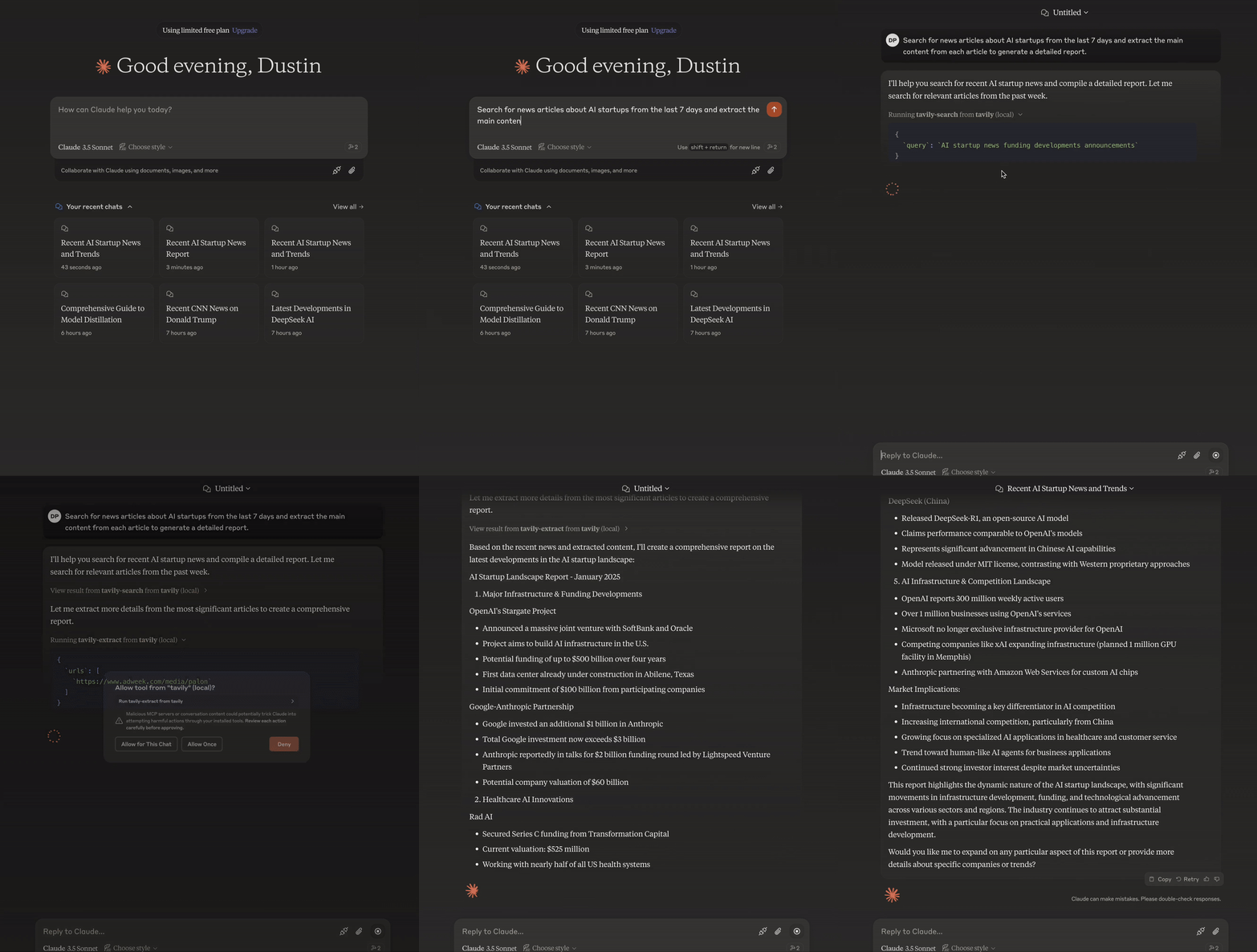
Here is a step-by-step guide with screenshots.
Tavily MCP Server 🚀
🔌 Compatible with Cline, Cursor, Claude Desktop, and any other MCP Clients!
Tavily MCP is also compatible with any MCP client
📚 tutorial on combining Tavily MCP with Neo4j MCP server!
📚 tutorial Integrating Tavily MCP with Cline in VS Code ( Demo + Example Use-Cases)
The Model Context Protocol (MCP) is an open standard that enables AI systems to interact seamlessly with various data sources and tools, facilitating secure, two-way connections.
Developed by Anthropic, the Model Context Protocol (MCP) enables AI assistants like Claude to seamlessly integrate with Tavily's advanced search and data extraction capabilities. This integration provides AI models with real-time access to web information, complete with sophisticated filtering options and domain-specific search features.
The Tavily MCP server provides:
Seamless interaction with the tavily-search and tavily-extract tools
Real-time web search capabilities through the tavily-search tool
Intelligent data extraction from web pages via the tavily-extract tool
Prerequisites 🔧
Before you begin, ensure you have:
If you don't have a Tavily API key, you can sign up for a free account here
Node.js (v20 or higher)
You can verify your Node.js installation by running:
node --version
Git installed (only needed if using Git installation method)
On macOS:
brew install gitOn Linux:
Debian/Ubuntu:
sudo apt install gitRedHat/CentOS:
sudo yum install git
On Windows: Download Git for Windows
Related MCP server: powerbi-tabular-mcp
Tavily MCP server installation ⚡
Running with NPX
npx -y tavily-mcp@0.1.4 Installing via Smithery
To install Tavily MCP Server for Claude Desktop automatically via Smithery:
npx -y @smithery/cli install @tavily-ai/tavily-mcp --client claudeAlthough you can launch a server on its own, it's not particularly helpful in isolation. Instead, you should integrate it into an MCP client. Below is an example of how to configure the Claude Desktop app to work with the tavily-mcp server.
Configuring MCP Clients ⚙️
This repository will explain how to configure both Cursor and Claude Desktop to work with the tavily-mcp server.
Configuring Cline 🤖
The easiest way to set up the Tavily MCP server in Cline is through the marketplace with a single click:
Open Cline in VS Code
Click on the Cline icon in the sidebar
Navigate to the "MCP Servers" tab ( 4 squares )
Search "Tavily" and click "install"
When prompted, enter your Tavily API key
Alternatively, you can manually set up the Tavily MCP server in Cline:
Open the Cline MCP settings file:
For macOS:
# Using Visual Studio Code
code ~/Library/Application\ Support/Code/User/globalStorage/saoudrizwan.claude-dev/settings/cline_mcp_settings.json

# Or using TextEdit
open -e ~/Library/Application\ Support/Code/User/globalStorage/saoudrizwan.claude-dev/settings/cline_mcp_settings.json
For Windows:
code %APPDATA%\Code\User\globalStorage\saoudrizwan.claude-dev\settings\cline_mcp_settings.jsonAdd the Tavily server configuration to the file:
Replace
your-api-key-herewith your actual Tavily API key.{ "mcpServers": { "tavily-mcp": { "command": "npx", "args": ["-y", "tavily-mcp@0.1.4"], "env": { "TAVILY_API_KEY": "your-api-key-here" }, "disabled": false, "autoApprove": [] } } }Save the file and restart Cline if it's already running.
When using Cline, you'll now have access to the Tavily MCP tools. You can ask Cline to use the tavily-search and tavily-extract tools directly in your conversations.
Configuring Cursor 🖥️
Note: Requires Cursor version 0.45.6 or higher
To set up the Tavily MCP server in Cursor:
Open Cursor Settings
Navigate to Features > MCP Servers
Click on the "+ Add New MCP Server" button
Fill out the following information:
Name: Enter a nickname for the server (e.g., "tavily-mcp")
Type: Select "command" as the type
Command: Enter the command to run the server:
env TAVILY_API_KEY=your-api-key npx -y tavily-mcp@0.1.4Important: Replace
your-api-keywith your Tavily API key. You can get one at app.tavily.com/home
After adding the server, it should appear in the list of MCP servers. You may need to manually press the refresh button in the top right corner of the MCP server to populate the tool list.
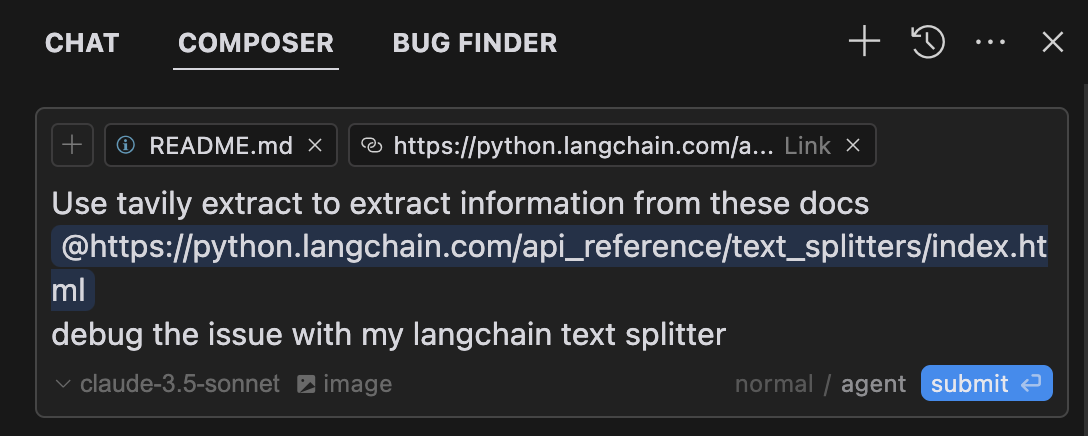
The Composer Agent will automatically use the Tavily MCP tools when relevant to your queries. It is better to explicitly request to use the tools by describing what you want to do (e.g., "User tavily-search to search the web for the latest news on AI"). On mac press command + L to open the chat, select the composer option at the top of the screen, beside the submit button select agent and submit the query when ready.
Configuring the Claude Desktop app 🖥️
For macOS:
# Create the config file if it doesn't exist
touch "$HOME/Library/Application Support/Claude/claude_desktop_config.json"

# Opens the config file in TextEdit
open -e "$HOME/Library/Application Support/Claude/claude_desktop_config.json"

# Alternative method using Visual Studio Code (requires VS Code to be installed)
code "$HOME/Library/Application Support/Claude/claude_desktop_config.json"
For Windows:
code %APPDATA%\Claude\claude_desktop_config.jsonAdd the Tavily server configuration:
Replace your-api-key-here with your actual Tavily API key.
{
  "mcpServers": {
    "tavily-mcp": {
      "command": "npx",
      "args": ["-y", "tavily-mcp@0.1.2"],
      "env": {
        "TAVILY_API_KEY": "your-api-key-here"
      }
    }
  }
}
2. Git Installation
Clone the repository:
git clone https://github.com/tavily-ai/tavily-mcp.git
cd tavily-mcp
Install dependencies:
npm installBuild the project:
npm run buildConfiguring the Claude Desktop app ⚙️
Follow the configuration steps outlined in the Configuring the Claude Desktop app section above, using the below JSON configuration.
Replace your-api-key-here with your actual Tavily API key and /path/to/tavily-mcp with the actual path where you cloned the repository on your system.
{
  "mcpServers": {
    "tavily": {
      "command": "npx",
      "args": ["/path/to/tavily-mcp/build/index.js"],
      "env": {
        "TAVILY_API_KEY": "your-api-key-here"
      }
    }
  }
}
Usage in Claude Desktop App 🎯
Once the installation is complete, and the Claude desktop app is configured, you must completely close and re-open the Claude desktop app to see the tavily-mcp server. You should see a hammer icon in the bottom left of the app, indicating available MCP tools, you can click on the hammer icon to see more detial on the tavily-search and tavily-extract tools.
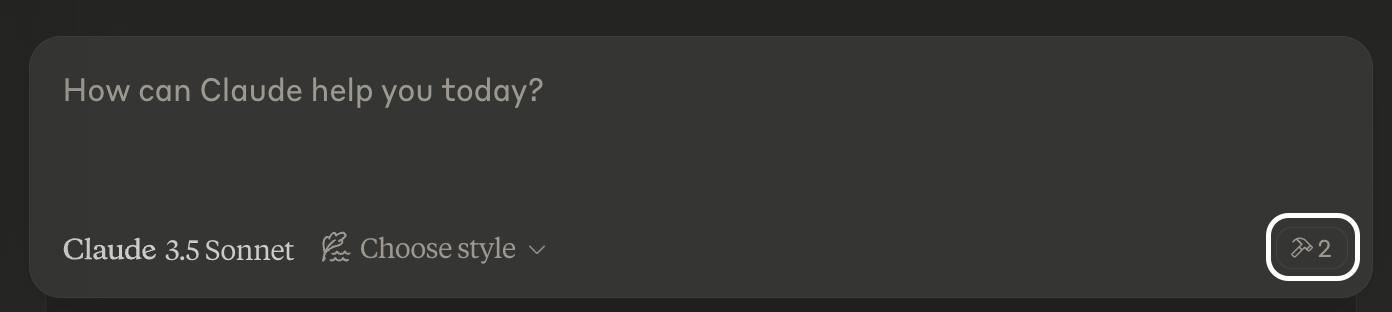
Now claude will have complete access to the tavily-mcp server, including the tavily-search and tavily-extract tools. If you insert the below examples into the Claude desktop app, you should see the tavily-mcp server tools in action.
Tavily Search Examples
General Web Search:
Can you search for recent developments in quantum computing?News Search:
Search for news articles about AI startups from the last 7 days.Domain-Specific Search:
Search for climate change research on nature.com and sciencedirect.comTavily Extract Examples
Extract Article Content:
Extract the main content from this article: https://example.com/article✨ Combine Search and Extract ✨
You can also combine the tavily-search and tavily-extract tools to perform more complex tasks.
Search for news articles about AI startups from the last 7 days and extract the main content from each article to generate a detailed report.Troubleshooting 🛠️
Common Issues
Server Not Found
Verify the npm installation by running
npm --verisonCheck Claude Desktop configuration syntax by running
code ~/Library/Application\ Support/Claude/claude_desktop_config.jsonEnsure Node.js is properly installed by running
node --version
NPX related issues
If you encounter errors related to
npx, you may need to use the full path to the npx executable instead.You can find this path by running
which npxin your terminal, then replace the"command": "npx"line with"command": "/full/path/to/npx"in your configuration.
API Key Issues
Confirm your Tavily API key is valid
Check the API key is correctly set in the config
Verify no spaces or quotes around the API key
Acknowledgments ✨
Model Context Protocol for the MCP specification
Anthropic for Claude Desktop
Available Tools
2 toolstavily-extractC
A powerful web content extraction tool that retrieves and processes raw content from specified URLs, ideal for data collection, content analysis, and research tasks.
| Name | Required | Description | Default |
|---|---|---|---|
| urls | Yes | List of URLs to extract content from | |
| extract_depth | No | Depth of extraction - 'basic' or 'advanced', if usrls are linkedin use 'advanced' or if explicitly told to use advanced | basic |
| include_images | No | Include a list of images extracted from the urls in the response |
TDQS
C2.9/5.0
Behavior2/5
Does the description disclose side effects, auth requirements, rate limits, or destructive behavior?
With no annotations provided, the description carries the full burden of behavioral disclosure. It mentions 'retrieves and processes raw content' but lacks details on rate limits, authentication needs, error handling, or what 'processes' entails (e.g., formatting, cleaning). For a web extraction tool with potential complexities, this leaves significant gaps in understanding its behavior beyond basic functionality.
Agents need to know what a tool does to the world before calling it. Descriptions should go beyond structured annotations to explain consequences.
Conciseness4/5
Is the description appropriately sized, front-loaded, and free of redundancy?
The description is a single, efficient sentence that front-loads the core purpose ('retrieves and processes raw content from specified URLs') and adds value with ideal use cases. There's no wasted wording, though it could be slightly more structured by separating functional description from usage contexts.
Shorter descriptions cost fewer tokens and are easier for agents to parse. Every sentence should earn its place.
Completeness2/5
Given the tool's complexity, does the description cover enough for an agent to succeed on first attempt?
Given the tool's complexity (web content extraction with processing), lack of annotations, and no output schema, the description is incomplete. It doesn't explain what 'processes' means, the format or structure of returned content, potential limitations (e.g., site restrictions), or how it differs from siblings. For a tool with three parameters and no structured behavioral hints, more context is needed.
Complex tools with many parameters or behaviors need more documentation. Simple tools need less. This dimension scales expectations accordingly.
Parameters3/5
Does the description clarify parameter syntax, constraints, interactions, or defaults beyond what the schema provides?
The input schema has 100% description coverage, clearly documenting all three parameters. The description adds no parameter-specific information beyond what the schema provides, such as examples or contextual usage tips. However, since the schema is comprehensive, a baseline score of 3 is appropriate as the description doesn't need to compensate for gaps.
Input schemas describe structure but not intent. Descriptions should explain non-obvious parameter relationships and valid value ranges.
Purpose4/5
Does the description clearly state what the tool does and how it differs from similar tools?
The description clearly states the tool's purpose as 'retrieves and processes raw content from specified URLs' with specific verbs and resources. It distinguishes itself from potential siblings by focusing on extraction rather than crawling, mapping, or searching, though it doesn't explicitly name alternatives. The description is specific but could be more precise about what 'processes' entails.
Agents choose between tools based on descriptions. A clear purpose with a specific verb and resource helps agents select the right tool.
Usage Guidelines2/5
Does the description explain when to use this tool, when not to, or what alternatives exist?
The description provides minimal guidance with 'ideal for data collection, content analysis, and research tasks,' but offers no explicit when-to-use rules, exclusions, or comparisons to sibling tools like tavily-crawl, tavily-map, or tavily-search. There's no mention of prerequisites, limitations, or scenarios where this tool is preferred over alternatives.
Agents often have multiple tools that could apply. Explicit usage guidance like "use X instead of Y when Z" prevents misuse.
tavily-searchA
A powerful web search tool that provides comprehensive, real-time results using Tavily's AI search engine. Returns relevant web content with customizable parameters for result count, content type, and domain filtering. Ideal for gathering current information, news, and detailed web content analysis.
| Name | Required | Description | Default |
|---|---|---|---|
| query | Yes | Search query | |
| search_depth | No | The depth of the search. It can be 'basic' or 'advanced' | basic |
| topic | No | The category of the search. This will determine which of our agents will be used for the search | general |
| days | No | The number of days back from the current date to include in the search results. This specifies the time frame of data to be retrieved. Please note that this feature is only available when using the 'news' search topic | |
| time_range | No | The time range back from the current date to include in the search results. This feature is available for both 'general' and 'news' search topics | |
| max_results | No | The maximum number of search results to return | |
| include_images | No | Include a list of query-related images in the response | |
| include_image_descriptions | No | Include a list of query-related images and their descriptions in the response | |
| include_raw_content | No | Include the cleaned and parsed HTML content of each search result | |
| include_domains | No | A list of domains to specifically include in the search results, if the user asks to search on specific sites set this to the domain of the site | |
| exclude_domains | No | List of domains to specifically exclude, if the user asks to exclude a domain set this to the domain of the site |
TDQS
A3.9/5.0
Behavior3/5
Does the description disclose side effects, auth requirements, rate limits, or destructive behavior?
With no annotations provided, the description carries the full burden of behavioral disclosure. It mentions 'real-time results' and 'customizable parameters' which are useful, but doesn't cover important aspects like rate limits, authentication requirements, error conditions, or what the response structure looks like. The description provides basic behavioral context but leaves significant gaps.
Agents need to know what a tool does to the world before calling it. Descriptions should go beyond structured annotations to explain consequences.
Conciseness5/5
Is the description appropriately sized, front-loaded, and free of redundancy?
The description is efficiently structured in two sentences that each earn their place. The first sentence establishes the core functionality and key features, while the second sentence provides usage context. There's zero wasted language or redundancy.
Shorter descriptions cost fewer tokens and are easier for agents to parse. Every sentence should earn its place.
Completeness3/5
Given the tool's complexity, does the description cover enough for an agent to succeed on first attempt?
For a complex tool with 11 parameters and no output schema, the description provides adequate but incomplete context. It covers the purpose and high-level capabilities well, but given the parameter complexity and absence of annotations, it should do more to explain behavioral aspects like response format, error handling, or performance characteristics.
Complex tools with many parameters or behaviors need more documentation. Simple tools need less. This dimension scales expectations accordingly.
Parameters3/5
Does the description clarify parameter syntax, constraints, interactions, or defaults beyond what the schema provides?
With 100% schema description coverage, the schema already documents all 11 parameters thoroughly. The description mentions 'customizable parameters for result count, content type, and domain filtering' which aligns with some parameters but doesn't add meaningful semantic context beyond what the schema provides. The baseline score of 3 is appropriate when the schema does the heavy lifting.
Input schemas describe structure but not intent. Descriptions should explain non-obvious parameter relationships and valid value ranges.
Purpose5/5
Does the description clearly state what the tool does and how it differs from similar tools?
The description clearly states the tool performs 'web search' using 'Tavily's AI search engine' and returns 'relevant web content', which is a specific verb+resource combination. It distinguishes from sibling tools by focusing on search rather than crawling, extraction, or mapping operations mentioned in the sibling list.
Agents choose between tools based on descriptions. A clear purpose with a specific verb and resource helps agents select the right tool.
Usage Guidelines4/5
Does the description explain when to use this tool, when not to, or what alternatives exist?
The description provides clear context for when to use this tool ('gathering current information, news, and detailed web content analysis'), but doesn't explicitly state when not to use it or mention alternatives like the sibling tools (tavily-crawl, tavily-extract, tavily-map). The guidance is helpful but lacks explicit exclusion criteria.
Agents often have multiple tools that could apply. Explicit usage guidance like "use X instead of Y when Z" prevents misuse.
Tool Schema Changelog
Recent tool additions, removals, and schema changes observed during successful MCP inspections.
2 tool updates
- First observed
tavily-extract - First observed
tavily-search
TDQS
A3.6/5.0
Scored across 2 tools
Disambiguation5/5
The two tools have clearly distinct purposes: tavily-extract is for extracting content from specific URLs, while tavily-search is for performing web searches with customizable parameters. There is no overlap or ambiguity between them.
Naming Consistency5/5
Both tools follow a consistent 'tavily-verb' pattern (tavily-extract and tavily-search), making them predictable and easy to identify. The naming is uniform and follows the same style throughout.
Tool Count2/5
With only 2 tools, the server feels thin for a web content and search domain. While the tools cover extraction and search, the scope suggests more operations (e.g., filtering, summarization, or advanced querying) could be included to provide a more complete surface.
Completeness3/5
The server covers basic web content retrieval (extract and search), but there are notable gaps. For example, it lacks tools for processing or analyzing the extracted content (e.g., summarization, translation, or sentiment analysis), which could limit agent workflows in research or data analysis tasks.
Maintenance
ActivityInactive
ResponsivenessNo issues
Related MCP Connectors
Related MCP Servers
- -
- MIT
- FlicenseAqualityDmaintenanceTavily MCP Server implementation that uses fastmcp and supports both sse and stdio transports. It also supports more up to date functionalities of Tavily.41-