

A
licenseB
qualityD
maintenanceA simple template for creating custom tools for Cursor IDE using Model Context Protocol, deployable via Heroku, Docker, or directly within Cursor IDE.
2
5
MIT

모델 컨텍스트 프로토콜(MCP)을 사용하여 Cursor IDE용 사용자 지정 도구를 만드는 간단한 템플릿입니다. 이 템플릿을 사용하여 자체 저장소를 만들고, 도구를 수정한 후 Cursor IDE에 연결하세요.
"Heroku에 배포" 버튼을 클릭하세요

배포 후 커서를 구성합니다.
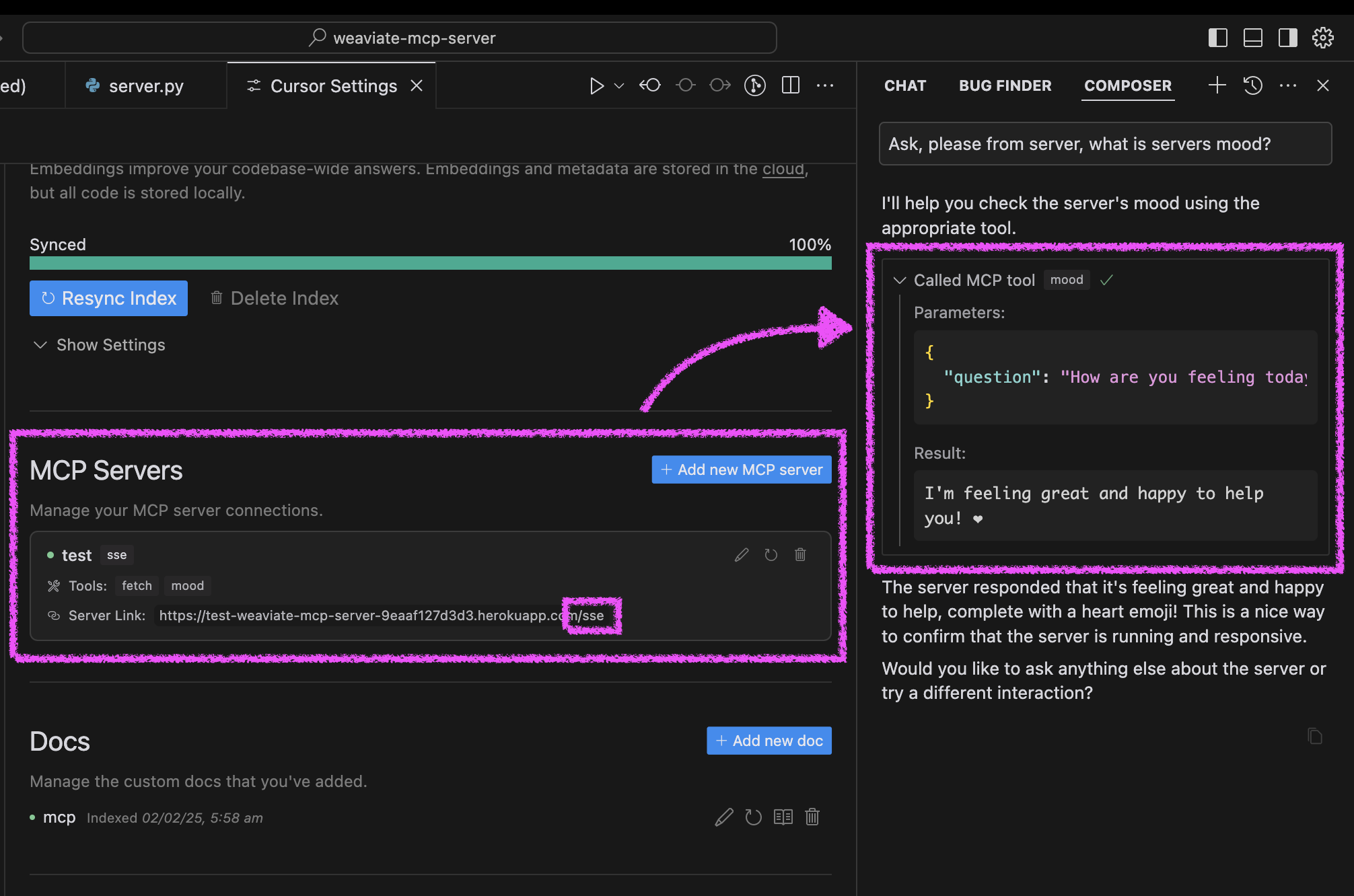
커서 설정 열기 → 기능
새로운 MCP 서버 추가
/sse 경로와 함께 Heroku URL을 사용하세요(예: https://<your-app-name>.herokuapp.com/sse )
커서에서 에이전트의 기분을 테스트하세요:
담당 직원에게 "저희 서버분 기분이 어떤지 물어보시고 알려주세요."라고 물어보세요.
서버는 즐거운 메시지와 하트로 응답할 것입니다 ❤️
Related MCP server: MCP Server Template for Cursor IDE
Docker, 기존 Python 설정 또는 Cursor IDE에서 직접 사용하는 세 가지 방법으로 서버를 실행할 수 있습니다.
이 프로젝트에는 쉬운 배포를 위한 Docker 지원이 포함되어 있습니다.
초기 설정:
지엑스피1
Docker Compose를 사용하여 빌드하고 실행하세요.
# Build and start the server
docker compose up --build -d

# View logs
docker compose logs -f

# Check server status
docker compose ps

# Stop the server
docker compose down
서버는 다음 위치에서 사용할 수 있습니다.
SSE 엔드포인트: http://localhost:8000/sse
빠른 테스트:
# Test the server endpoint
curl -i http://localhost:8000/sse
커서 IDE에 연결:
커서 설정 열기 → 기능
새로운 MCP 서버 추가
유형: "sse"를 선택하세요
URL: http://localhost:8000/sse 입력하세요
먼저, uv 패키지 관리자를 설치하세요.
# Install uv on macOS
brew install uv
# Or install via pip (any OS)
pip install uv
stdio(기본값) 또는 SSE 전송을 사용하여 서버를 시작합니다.
# Install the package with development dependencies
uv pip install -e ".[dev]"

# Using stdio transport (default)
uv run mcp-simple-tool

# Using SSE transport on custom port
uv run mcp-simple-tool --transport sse --port 8000

# Run tests
uv run pytest -v
설치 후 서버를 Cursor IDE에 직접 연결할 수 있습니다.
Cursor에서 cursor-run-mcp-server.sh 파일을 마우스 오른쪽 버튼으로 클릭합니다.
절대 경로를 복사하려면 "경로 복사"를 선택하세요.
커서 설정 열기(기어 아이콘)
기능 탭으로 이동
"MCP 서버"까지 아래로 스크롤하세요.
"새 MCP 서버 추가"를 클릭하세요.
양식을 작성하세요:
이름: 원하는 이름을 선택하세요(예: "my-mcp-server-1")
유형: "stdio"를 선택하세요(서버를 로컬로 실행하므로 "sse"가 아닙니다)
명령어: 앞서 복사한 cursor-run-mcp-server.sh 파일의 절대 경로를 붙여넣습니다. 예: /Users/kirillmarkin/weaviate-mcp-server/cursor-run-mcp-server.sh
사용 가능한 환경 변수( .env 에서 설정 가능):
MCP_SERVER_PORT (기본값: 8000) - 서버를 실행할 포트
MCP_SERVER_HOST (기본값: 0.0.0.0) - 서버를 바인딩할 호스트
DEBUG (기본값: false) - 디버그 모드 활성화
MCP_USER_AGENT - 웹사이트 가져오기를 위한 사용자 정의 사용자 에이전트
Smithery를 통해 Claude Desktop용 Cursor IDE용 MCP 서버 템플릿을 자동으로 설치하려면:
npx -y @smithery/cli install @kirill-markin/example-mcp-server --client claudeRecent tool additions, removals, and schema changes observed during successful MCP inspections.
Loading tool schema changelog…
Scored across 2 tools
The two tools have completely distinct purposes: one fetches website content, while the other returns a static mood response. There is no overlap or ambiguity between them, making it easy for an agent to select the correct tool for each task.
The tools use different naming conventions: 'mcp_fetch' follows a prefix_verb pattern, while 'mood' is a simple noun. This mixed style lacks a predictable pattern, though both names are readable and descriptive of their functions.
With only two tools, the server feels thin and under-scoped for a template intended for Cursor IDE, which typically involves more complex operations. This minimal set may not adequately cover common IDE-related tasks, suggesting a mismatch in scope.
Inferred as a template for IDE integration, the tool surface is severely incomplete. It lacks core functionalities like file manipulation, code analysis, or project management, leaving significant gaps that would hinder agent workflows in an IDE context.
Build your own tools from chat: design, test and host them on a shareable MCP server URL.
A comprehensive Model Context Protocol (MCP) server that enables AI assistants to interact with yo…
Kliv is an AI web-app builder. It hosts each app with its own database, edge functions, commerce and email. Connect Claude Code or Cursor to Kliv's MCP server, sign in with your Kliv account, and your AI tool can work on your apps with the same tools the Kliv builder uses. It can edit an app's files, change the database, write and run edge functions, set up products and subscriptions, and run your tests. Then it can build and publish the app. Other MCP clients connect the same way. Your AI tool runs on your own AI subscription, so this work doesn't use your Kliv usage. Kliv still hosts the app and everything behind it. Each person signs in as themselves and reaches only the apps they can edit. The account owner sees every connected tool and can remove one at any time. The address is https://mcp.kliv.dev/mcp for everyone. Sign-in is OAuth in your browser, with your Kliv account. There are no API keys. Setup guide: https://docs.kliv.dev/integrations/mcp
Build and publish Overskill apps from Cursor, Claude, ChatGPT, or any MCP client.