

A
licenseB
qualityD
maintenanceA simple template for creating custom tools for Cursor IDE using Model Context Protocol, deployable via Heroku, Docker, or directly within Cursor IDE.
2
5
MIT

Una plantilla sencilla para crear herramientas personalizadas para Cursor IDE mediante el Protocolo de Contexto de Modelo (MCP). Cree su propio repositorio a partir de esta plantilla, modifique las herramientas y conéctelas a su Cursor IDE.
Haga clic en el botón "Implementar en Heroku".

Después de la implementación, configure Cursor:
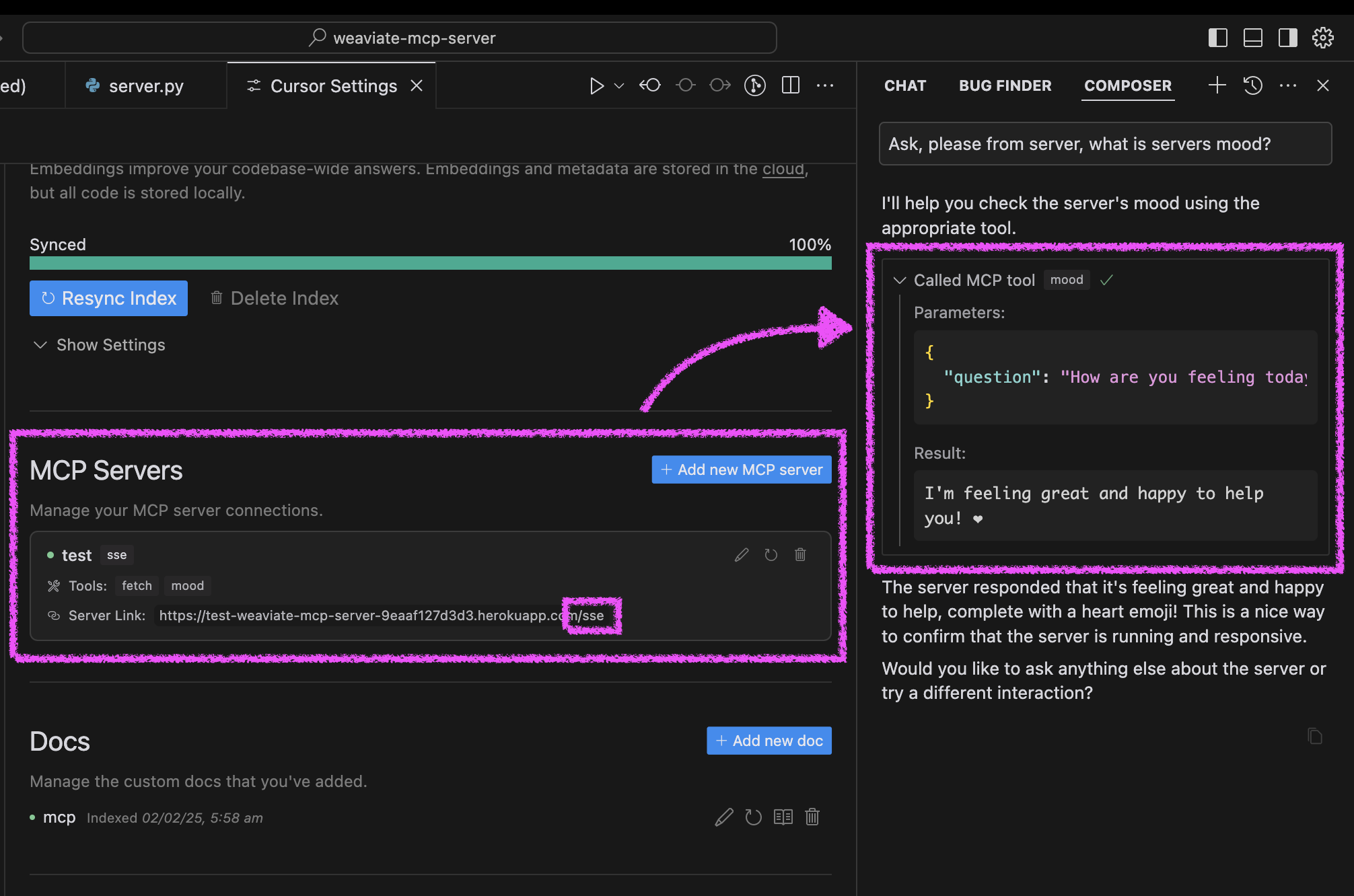
Abrir Configuración del cursor → Características
Agregar nuevo servidor MCP
Utilice su URL de Heroku con la ruta /sse (por ejemplo, https://<your-app-name>.herokuapp.com/sse )
Pon a prueba el estado de ánimo de tu agente en Cursor:
Pregúntele a su agente: "Por favor, pregunte sobre el estado de ánimo de nuestro servidor y déjeme saber cómo está".
El servidor responderá con un mensaje alegre y un corazón ❤️
Related MCP server: MCP Server Template for Cursor IDE
Puede ejecutar el servidor de tres maneras: usando Docker, la configuración tradicional de Python o directamente en Cursor IDE.
El proyecto incluye soporte para Docker para una fácil implementación:
Configuración inicial:
# Clone the repository
git clone https://github.com/kirill-markin/weaviate-mcp-server.git
cd weaviate-mcp-server

# Create environment file
cp .env.example .env
Construya y ejecute usando Docker Compose:
# Build and start the server
docker compose up --build -d

# View logs
docker compose logs -f

# Check server status
docker compose ps

# Stop the server
docker compose down
El servidor estará disponible en:
Punto final SSE: http://localhost:8000/sse
Prueba rápida:
# Test the server endpoint
curl -i http://localhost:8000/sse
Conectarse a Cursor IDE:
Abrir Configuración del cursor → Características
Agregar nuevo servidor MCP
Tipo: Seleccione "sse"
URL: Ingrese http://localhost:8000/sse
Primero, instale el administrador de paquetes uv:
# Install uv on macOS
brew install uv
# Or install via pip (any OS)
pip install uv
Inicie el servidor utilizando stdio (predeterminado) o el transporte SSE:
# Install the package with development dependencies
uv pip install -e ".[dev]"

# Using stdio transport (default)
uv run mcp-simple-tool

# Using SSE transport on custom port
uv run mcp-simple-tool --transport sse --port 8000

# Run tests
uv run pytest -v
Después de la instalación, puede conectar el servidor directamente a Cursor IDE:
Haga clic derecho en el archivo cursor-run-mcp-server.sh en Cursor
Seleccione "Copiar ruta" para copiar la ruta absoluta
Abrir la configuración del cursor (icono de engranaje)
Vaya a la pestaña Características
Desplácese hacia abajo hasta "Servidores MCP"
Haga clic en "Agregar nuevo servidor MCP"
Rellene el formulario:
Nombre: Elija cualquier nombre (por ejemplo, "mi-servidor-mcp-1")
Tipo: Seleccione "stdio" (no "sse" porque ejecutamos el servidor localmente)
Comando: Pegue la ruta absoluta de cursor-run-mcp-server.sh que copió anteriormente. Por ejemplo: /Users/kirillmarkin/weaviate-mcp-server/cursor-run-mcp-server.sh
Variables de entorno disponibles (se pueden configurar en .env ):
MCP_SERVER_PORT (predeterminado: 8000): puerto donde se ejecutará el servidor
MCP_SERVER_HOST (predeterminado: 0.0.0.0): host al que vincular el servidor
DEBUG (predeterminado: falso): habilita el modo de depuración
MCP_USER_AGENT - Agente de usuario personalizado para la obtención de sitios web
Para instalar automáticamente la plantilla de servidor MCP para Cursor IDE para Claude Desktop a través de Smithery :
npx -y @smithery/cli install @kirill-markin/example-mcp-server --client claudeRecent tool additions, removals, and schema changes observed during successful MCP inspections.
Loading tool schema changelog…
Scored across 2 tools
The two tools have completely distinct purposes: one fetches website content, while the other returns a static mood response. There is no overlap or ambiguity between them, making it easy for an agent to select the correct tool for each task.
The tools use different naming conventions: 'mcp_fetch' follows a prefix_verb pattern, while 'mood' is a simple noun. This mixed style lacks a predictable pattern, though both names are readable and descriptive of their functions.
With only two tools, the server feels thin and under-scoped for a template intended for Cursor IDE, which typically involves more complex operations. This minimal set may not adequately cover common IDE-related tasks, suggesting a mismatch in scope.
Inferred as a template for IDE integration, the tool surface is severely incomplete. It lacks core functionalities like file manipulation, code analysis, or project management, leaving significant gaps that would hinder agent workflows in an IDE context.
Build your own tools from chat: design, test and host them on a shareable MCP server URL.
A comprehensive Model Context Protocol (MCP) server that enables AI assistants to interact with yo…
Kliv is an AI web-app builder. It hosts each app with its own database, edge functions, commerce and email. Connect Claude Code or Cursor to Kliv's MCP server, sign in with your Kliv account, and your AI tool can work on your apps with the same tools the Kliv builder uses. It can edit an app's files, change the database, write and run edge functions, set up products and subscriptions, and run your tests. Then it can build and publish the app. Other MCP clients connect the same way. Your AI tool runs on your own AI subscription, so this work doesn't use your Kliv usage. Kliv still hosts the app and everything behind it. Each person signs in as themselves and reaches only the apps they can edit. The account owner sees every connected tool and can remove one at any time. The address is https://mcp.kliv.dev/mcp for everyone. Sign-in is OAuth in your browser, with your Kliv account. There are no API keys. Setup guide: https://docs.kliv.dev/integrations/mcp
Build and publish Overskill apps from Cursor, Claude, ChatGPT, or any MCP client.