

A
licenseB
qualityD
maintenanceA simple template for creating custom tools for Cursor IDE using Model Context Protocol, deployable via Heroku, Docker, or directly within Cursor IDE.
2
5
MIT

This server template for Cursor IDE provides several functionalities:
Fetch website content: Retrieve content from specified URLs
Check server mood: Get a cheerful response with a heart ❤️
Access documentation: Fetch Railway CLI documentation with customization options
Manage prompt templates for various development tasks:
Root cause analysis and issue fixing
Starting new projects
Proceeding with tasks
Handling change requests
Analyzing and fixing linter errors
Generating unit tests
Documenting system infrastructure and tool stack
Provides Docker setup and deployment options for running the MCP server with Docker Compose, including build, run, and monitoring commands.
Supports environment variable configuration through .env files for customizing server behavior and connection settings.
Enables one-click deployment of the MCP server to Heroku cloud platform, providing a hosted endpoint that can be connected to Cursor IDE.
Provides macOS-specific installation instructions using Homebrew for setting up the uv package manager.
Includes test support with pytest for verifying the functionality of the MCP server components.
Supports traditional Python setup using the uv package manager for installation and running the MCP server with various transport options.
Fetches and provides access to Railway CLI documentation through dedicated tools for retrieving and optimizing Railway documentation content.
Click on "Deploy Server".
Wait a few minutes for the server to deploy. Once ready, it will show a "Started" state.
In the chat, type @ followed by the MCP server name and your instructions, e.g., "@MCP Server Template for Cursor IDE what tools does this template provide?"
That's it! The server will respond to your query, and you can continue using it as needed.
Here is a step-by-step guide with screenshots.
A simple template for creating custom tools for Cursor IDE using Model Context Protocol (MCP). Create your own repository from this template, modify the tools, and connect them to your Cursor IDE.
Click "Deploy to Heroku" button

After deployment, configure Cursor:
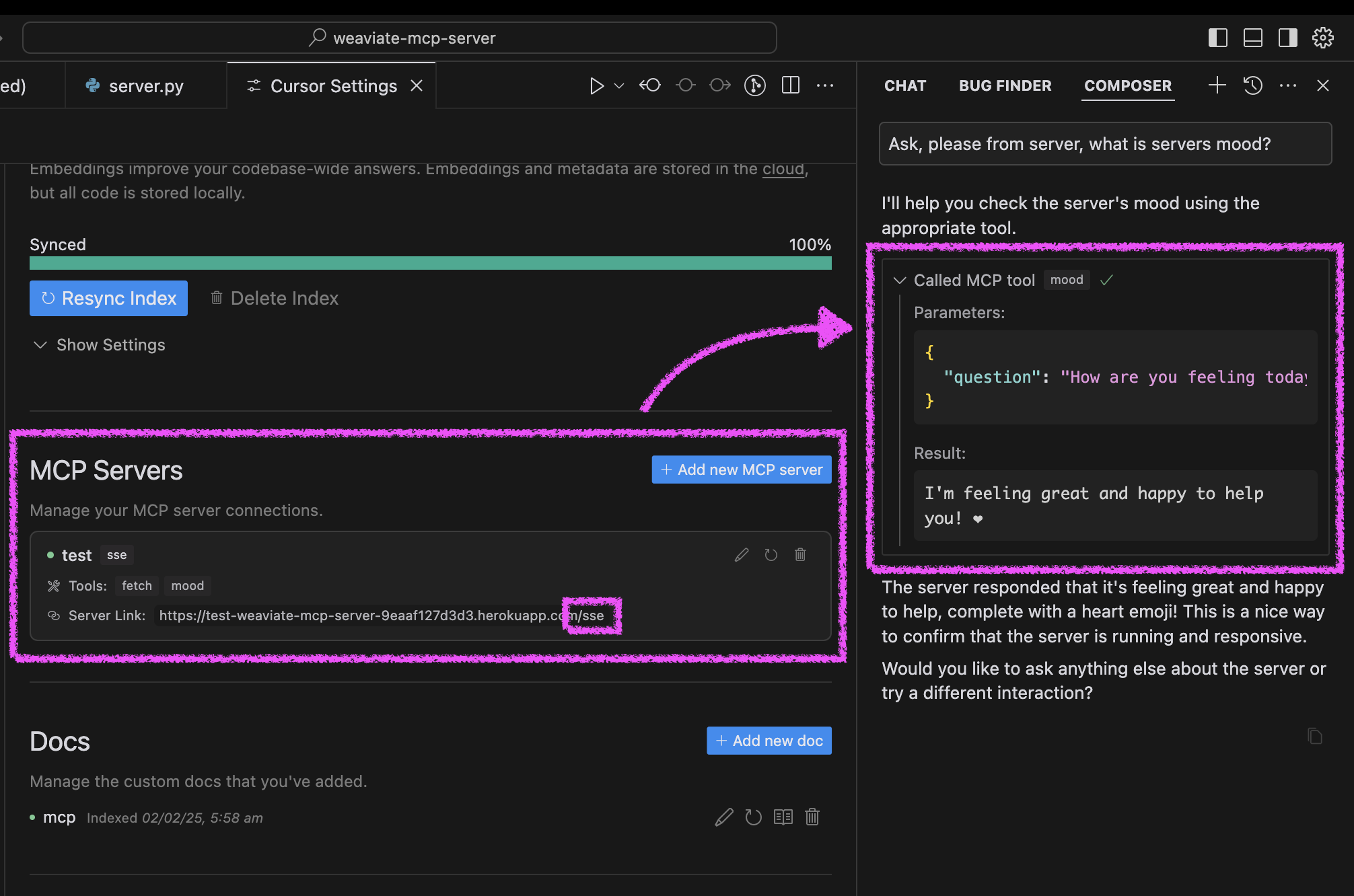
Open Cursor Settings → Features
Add new MCP server
Use your Heroku URL with /sse path (e.g., https://<your-app-name>.herokuapp.com/sse)
Test your agent's mood in Cursor:
Ask your agent "Please ask about our server mood and let me know how it is."
The server will respond with a cheerful message and a heart ❤️
Related MCP server: MCP Server Template for Cursor IDE
You can run the server in three ways: using Docker, traditional Python setup, or directly in Cursor IDE.
The project includes Docker support for easy deployment:
Initial setup:
# Clone the repository
git clone https://github.com/kirill-markin/weaviate-mcp-server.git
cd weaviate-mcp-server

# Create environment file
cp .env.example .env
Build and run using Docker Compose:
# Build and start the server
docker compose up --build -d

# View logs
docker compose logs -f

# Check server status
docker compose ps

# Stop the server
docker compose down
The server will be available at:
SSE endpoint: http://localhost:8000/sse
Quick test:
# Test the server endpoint
curl -i http://localhost:8000/sse
Connect to Cursor IDE:
Open Cursor Settings → Features
Add new MCP server
Type: Select "sse"
URL: Enter http://localhost:8000/sse
First, install the uv package manager:
# Install uv on macOS
brew install uv
# Or install via pip (any OS)
pip install uv
Start the server using either stdio (default) or SSE transport:
# Install the package with development dependencies
uv pip install -e ".[dev]"

# Using stdio transport (default)
uv run mcp-hitchcode

# Using SSE transport on custom port
uv run mcp-hitchcode --transport sse --port 8000

# Run tests
uv run pytest -v
After installation, you can connect the server directly to Cursor IDE:
Right-click on the cursor-run-mcp-server.sh file in Cursor
Select "Copy Path" to copy the absolute path
Open Cursor Settings (gear icon)
Navigate to Features tab
Scroll down to "MCP Servers"
Click "Add new MCP server"
Fill in the form:
Name: Choose any name (e.g., "my-mcp-server-1")
Type: Select "stdio" (not "sse" because we run the server locally)
Command: Paste the absolute path to cursor-run-mcp-server.sh that you copied earlier. For example: /Users/kirillmarkin/weaviate-mcp-server/cursor-run-mcp-server.sh
Available environment variables (can be set in .env):
MCP_SERVER_PORT (default: 8000) - Port to run the server on
MCP_SERVER_HOST (default: 0.0.0.0) - Host to bind the server to
DEBUG (default: false) - Enable debug mode
MCP_USER_AGENT - Custom User-Agent for website fetching
To install MCP Server Template for Cursor IDE for Claude Desktop automatically via Smithery:
npx -y @smithery/cli install @kirill-markin/example-mcp-server --client claudeProvides a prompt for systematically handling change requests
| Name | Required | Description | Default |
|---|---|---|---|
| change_request | Yes | Description of the change request to implement | |
| specific_instructions | No | Optional specific instructions to include in the prompt | |
| version | No | The version of the prompt template to use (e.g., '1.0.0', '1.1.0', or 'latest') |
Does the description disclose side effects, auth requirements, rate limits, or destructive behavior?
With no annotations provided, the description carries full burden for behavioral disclosure. It only states that the tool 'provides a prompt' without explaining what format the prompt takes, whether it's interactive, what permissions are needed, or what happens after the prompt is provided. This leaves significant behavioral gaps for a tool with 3 parameters.
Agents need to know what a tool does to the world before calling it. Descriptions should go beyond structured annotations to explain consequences.
Is the description appropriately sized, front-loaded, and free of redundancy?
The description is extremely concise at just one sentence with no wasted words. It's front-loaded with the core purpose and efficiently communicates the basic function without unnecessary elaboration.
Shorter descriptions cost fewer tokens and are easier for agents to parse. Every sentence should earn its place.
Given the tool's complexity, does the description cover enough for an agent to succeed on first attempt?
For a tool with 3 parameters, no annotations, and no output schema, the description is insufficiently complete. It doesn't explain what the tool actually produces (just 'provides a prompt'), how that prompt should be used, or what the expected outcome is. The lack of behavioral context makes it inadequate for proper tool selection.
Complex tools with many parameters or behaviors need more documentation. Simple tools need less. This dimension scales expectations accordingly.
Does the description clarify parameter syntax, constraints, interactions, or defaults beyond what the schema provides?
Schema description coverage is 100%, so the schema already documents all 3 parameters thoroughly. The description adds no additional parameter information beyond what's in the schema, maintaining the baseline score of 3 for adequate but not enhanced parameter documentation.
Input schemas describe structure but not intent. Descriptions should explain non-obvious parameter relationships and valid value ranges.
Does the description clearly state what the tool does and how it differs from similar tools?
The description states the tool 'provides a prompt for systematically handling change requests', which gives a general purpose but lacks specificity about what kind of prompt it provides or how it differs from sibling tools like apply_prompt_fix or apply_prompt_unit_tests. It doesn't clearly distinguish itself from other prompt-related tools in the server.
Agents choose between tools based on descriptions. A clear purpose with a specific verb and resource helps agents select the right tool.
Does the description explain when to use this tool, when not to, or what alternatives exist?
No guidance is provided about when to use this tool versus alternatives like apply_prompt_fix or apply_prompt_unit_tests. The description mentions 'systematically handling change requests' but doesn't specify what types of change requests or contexts it's designed for, leaving the agent with no usage context.
Agents often have multiple tools that could apply. Explicit usage guidance like "use X instead of Y when Z" prevents misuse.
Provides a prompt template for Docker container configurations and orchestration
| Name | Required | Description | Default |
|---|---|---|---|
| containerization_objective | Yes | Description of the containerization objective | |
| specific_instructions | No | Optional specific instructions about containerization requirements | |
| version | No | The version of the prompt template to use (e.g., '1.0.0', '1.1.0', or 'latest') |
Does the description disclose side effects, auth requirements, rate limits, or destructive behavior?
No annotations are provided, so the description carries the full burden of behavioral disclosure. It only states what the tool does at a high level ('provides a prompt template') without detailing how it behaves—e.g., whether it generates new content, retrieves existing templates, requires specific permissions, has side effects like saving data, or handles errors. For a tool with no annotation coverage, this is a significant gap in transparency.
Agents need to know what a tool does to the world before calling it. Descriptions should go beyond structured annotations to explain consequences.
Is the description appropriately sized, front-loaded, and free of redundancy?
The description is a single, efficient sentence that directly states the tool's purpose without unnecessary words. It's appropriately sized for a simple tool and front-loaded with the core function, making it easy to parse quickly. Every part of the sentence contributes to understanding the tool's domain and output.
Shorter descriptions cost fewer tokens and are easier for agents to parse. Every sentence should earn its place.
Given the tool's complexity, does the description cover enough for an agent to succeed on first attempt?
Given the tool has no annotations, no output schema, and the description lacks behavioral details, it's incomplete for effective use. The description covers the basic purpose but fails to address key aspects like what the tool returns (prompt templates in what format?), any dependencies, or error handling. For a 3-parameter tool in a set of similar siblings, more context is needed to guide the agent adequately.
Complex tools with many parameters or behaviors need more documentation. Simple tools need less. This dimension scales expectations accordingly.
Does the description clarify parameter syntax, constraints, interactions, or defaults beyond what the schema provides?
The description adds no parameter-specific information beyond what's in the input schema, which has 100% coverage with clear descriptions for all three parameters. The baseline is 3 because the schema adequately documents the parameters, and the description doesn't compensate or add extra meaning (e.g., explaining how 'containerization_objective' influences the template or what 'version' options imply).
Input schemas describe structure but not intent. Descriptions should explain non-obvious parameter relationships and valid value ranges.
Does the description clearly state what the tool does and how it differs from similar tools?
The description states the tool 'provides a prompt template for Docker container configurations and orchestration', which gives a general purpose but lacks specificity. It mentions the resource (prompt template) and domain (Docker), but the verb 'provides' is vague—it doesn't clarify if it generates, retrieves, or applies templates. It doesn't distinguish from siblings like 'apply_prompt_infra' or 'apply_prompt_initial', which likely serve similar prompt-related functions in different contexts.
Agents choose between tools based on descriptions. A clear purpose with a specific verb and resource helps agents select the right tool.
Does the description explain when to use this tool, when not to, or what alternatives exist?
No guidance is provided on when to use this tool versus alternatives. The description doesn't mention any prerequisites, exclusions, or specific scenarios for application. Given the sibling tools include various 'apply_prompt_' variants for different purposes (e.g., change, fix, infra), the lack of differentiation leaves the agent without clear usage cues, relying solely on the tool name for context.
Agents often have multiple tools that could apply. Explicit usage guidance like "use X instead of Y when Z" prevents misuse.
Provides a prompt for performing root cause analysis and fixing issues
| Name | Required | Description | Default |
|---|---|---|---|
| issue | Yes | A description of the issue to be analyzed and fixed | |
| specific_instructions | No | Optional specific instructions to include in the prompt | |
| version | No | The version of the prompt template to use (e.g., '1.0.0', '1.1.0', or 'latest') |
Does the description disclose side effects, auth requirements, rate limits, or destructive behavior?
With no annotations provided, the description carries the full burden of behavioral disclosure. It states the tool 'provides a prompt', implying a read-only or informational operation, but doesn't clarify if this triggers any actions, requires specific permissions, has side effects, or involves rate limits. For a tool with potential implications (given 'fixing issues'), this lack of detail on behavior is a significant gap, though it doesn't contradict any annotations.
Agents need to know what a tool does to the world before calling it. Descriptions should go beyond structured annotations to explain consequences.
Is the description appropriately sized, front-loaded, and free of redundancy?
The description is a single, efficient sentence that directly states the tool's function without unnecessary words. It's front-loaded with the core purpose, though it could be slightly more specific. There's no redundancy or fluff, making it easy to parse quickly.
Shorter descriptions cost fewer tokens and are easier for agents to parse. Every sentence should earn its place.
Given the tool's complexity, does the description cover enough for an agent to succeed on first attempt?
Given the complexity implied by 'fixing issues' and the lack of annotations and output schema, the description is incomplete. It doesn't explain what the prompt output looks like, how it's used, or any behavioral traits. For a tool with 3 parameters and no structured output information, more context is needed to guide effective use, making it inadequate for the agent's needs.
Complex tools with many parameters or behaviors need more documentation. Simple tools need less. This dimension scales expectations accordingly.
Does the description clarify parameter syntax, constraints, interactions, or defaults beyond what the schema provides?
The input schema has 100% description coverage, with clear documentation for 'issue', 'specific_instructions', and 'version'. The description adds no additional meaning beyond the schema—it doesn't explain how parameters interact (e.g., how 'specific_instructions' modifies the prompt) or provide examples. Since schema coverage is high, the baseline score of 3 is appropriate, as the description doesn't compensate but also doesn't detract.
Input schemas describe structure but not intent. Descriptions should explain non-obvious parameter relationships and valid value ranges.
Does the description clearly state what the tool does and how it differs from similar tools?
The description states the tool 'provides a prompt for performing root cause analysis and fixing issues', which gives a general purpose but lacks specificity. It mentions 'prompt' and 'root cause analysis/fixing' but doesn't clarify what kind of prompt (e.g., AI prompt, system prompt) or what domain it applies to. Compared to siblings like 'apply_prompt_change' or 'apply_prompt_unit_tests', it doesn't clearly differentiate its specific function beyond the generic 'fix' aspect.
Agents choose between tools based on descriptions. A clear purpose with a specific verb and resource helps agents select the right tool.
Does the description explain when to use this tool, when not to, or what alternatives exist?
The description offers no guidance on when to use this tool versus alternatives. It doesn't specify scenarios where this prompt is preferred over other 'apply_prompt_' siblings (e.g., 'apply_prompt_change' for modifications, 'apply_prompt_unit_tests' for testing) or other tools like 'fetch_railway_docs'. There's no mention of prerequisites, constraints, or typical use cases, leaving the agent with no contextual cues for selection.
Agents often have multiple tools that could apply. Explicit usage guidance like "use X instead of Y when Z" prevents misuse.
Provides a prompt for analyzing and fixing linter errors
| Name | Required | Description | Default |
|---|---|---|---|
| issue | Yes | A description of the linter errors to be analyzed and fixed | |
| specific_instructions | No | Optional specific instructions to include in the prompt | |
| version | No | The version of the prompt template to use (e.g., '1.0.0', '1.1.0', or 'latest') |
Does the description disclose side effects, auth requirements, rate limits, or destructive behavior?
No annotations are provided, so the description carries the full burden of behavioral disclosure. It states the tool 'provides a prompt,' implying it generates or returns text, but doesn't specify if this involves network calls, rate limits, authentication needs, or output format. For a tool with no annotation coverage, this leaves critical behavioral traits undocumented, though it doesn't contradict any annotations.
Agents need to know what a tool does to the world before calling it. Descriptions should go beyond structured annotations to explain consequences.
Is the description appropriately sized, front-loaded, and free of redundancy?
The description is a single, efficient sentence: 'Provides a prompt for analyzing and fixing linter errors.' It is front-loaded with the core purpose, avoids redundancy, and uses minimal words to convey the essential function. Every word earns its place, making it highly concise and well-structured.
Shorter descriptions cost fewer tokens and are easier for agents to parse. Every sentence should earn its place.
Given the tool's complexity, does the description cover enough for an agent to succeed on first attempt?
Given the tool's moderate complexity (3 parameters, no output schema, no annotations), the description is minimally adequate. It states what the tool does but lacks details on behavioral traits, usage context, or output expectations. Without annotations or an output schema, more completeness would be beneficial, but it meets a basic threshold for understanding the tool's purpose.
Complex tools with many parameters or behaviors need more documentation. Simple tools need less. This dimension scales expectations accordingly.
Does the description clarify parameter syntax, constraints, interactions, or defaults beyond what the schema provides?
The input schema has 100% description coverage, documenting all three parameters (issue, specific_instructions, version) clearly. The description adds no additional meaning beyond the schema, such as examples or context for parameter use. With high schema coverage, the baseline score is 3, as the description doesn't compensate but also doesn't detract from the schema's documentation.
Input schemas describe structure but not intent. Descriptions should explain non-obvious parameter relationships and valid value ranges.
Does the description clearly state what the tool does and how it differs from similar tools?
The description clearly states the tool's purpose: 'Provides a prompt for analyzing and fixing linter errors.' It specifies the verb ('provides a prompt') and resource ('analyzing and fixing linter errors'), making the intent unambiguous. However, it doesn't distinguish this tool from its siblings (e.g., apply_prompt_fix, apply_prompt_change), which share similar naming patterns but likely differ in focus, so it misses full sibling differentiation.
Agents choose between tools based on descriptions. A clear purpose with a specific verb and resource helps agents select the right tool.
Does the description explain when to use this tool, when not to, or what alternatives exist?
The description offers no guidance on when to use this tool versus alternatives. It lacks explicit instructions on context, prerequisites, or comparisons with sibling tools like apply_prompt_fix or apply_prompt_unit_tests. Without such details, users must infer usage from the name alone, which is insufficient for effective tool selection.
Agents often have multiple tools that could apply. Explicit usage guidance like "use X instead of Y when Z" prevents misuse.
Provides a prompt template for laying out system infrastructure and tool stack information
| Name | Required | Description | Default |
|---|---|---|---|
| infrastructure_info | Yes | Description of the infrastructure and tool stack | |
| specific_instructions | No | Optional specific instructions to include in the prompt | |
| version | No | The version of the prompt template to use (e.g., '1.0.0', '1.1.0', or 'latest') |
Does the description disclose side effects, auth requirements, rate limits, or destructive behavior?
No annotations are provided, so the description carries full burden. It mentions 'provides a prompt template', implying a read-only or informational operation, but doesn't disclose behavioral traits such as whether it modifies data, requires authentication, has rate limits, or what the output looks like. This leaves significant gaps in understanding how the tool behaves.
Agents need to know what a tool does to the world before calling it. Descriptions should go beyond structured annotations to explain consequences.
Is the description appropriately sized, front-loaded, and free of redundancy?
The description is a single, efficient sentence that directly states the tool's purpose without unnecessary words. It's appropriately sized and front-loaded, though it could be slightly more informative to earn a higher score.
Shorter descriptions cost fewer tokens and are easier for agents to parse. Every sentence should earn its place.
Given the tool's complexity, does the description cover enough for an agent to succeed on first attempt?
Given the tool has 3 parameters, no annotations, and no output schema, the description is incomplete. It doesn't explain what the tool returns, how the prompt template is applied, or any behavioral context, making it inadequate for a tool with this complexity and lack of structured data.
Complex tools with many parameters or behaviors need more documentation. Simple tools need less. This dimension scales expectations accordingly.
Does the description clarify parameter syntax, constraints, interactions, or defaults beyond what the schema provides?
Schema description coverage is 100%, so the schema already documents all parameters ('infrastructure_info', 'specific_instructions', 'version') with descriptions. The tool description adds no additional meaning beyond what the schema provides, such as examples or context for parameter use, resulting in a baseline score of 3.
Input schemas describe structure but not intent. Descriptions should explain non-obvious parameter relationships and valid value ranges.
Does the description clearly state what the tool does and how it differs from similar tools?
The description states the tool 'Provides a prompt template for laying out system infrastructure and tool stack information', which gives a general purpose but lacks specificity. It mentions a verb ('provides') and resource ('prompt template'), but doesn't distinguish from siblings like 'apply_prompt_docker' or 'apply_prompt_fix', making it vague about its unique function.
Agents choose between tools based on descriptions. A clear purpose with a specific verb and resource helps agents select the right tool.
Does the description explain when to use this tool, when not to, or what alternatives exist?
No guidance is provided on when to use this tool versus alternatives. The description doesn't mention any context, prerequisites, or exclusions, and with multiple sibling tools (e.g., 'apply_prompt_docker', 'apply_prompt_fix'), there's no indication of when this specific prompt template is appropriate.
Agents often have multiple tools that could apply. Explicit usage guidance like "use X instead of Y when Z" prevents misuse.
Provides an initial prompt template for starting a new project
| Name | Required | Description | Default |
|---|---|---|---|
| objective | Yes | A description of the objective of the project | |
| specific_instructions | No | Optional specific instructions to include in the prompt | |
| version | No | The version of the prompt template to use (e.g., '1.0.0', '1.1.0', or 'latest') |
Does the description disclose side effects, auth requirements, rate limits, or destructive behavior?
No annotations are provided, so the description carries the full burden of behavioral disclosure. It states the tool 'provides' a template, implying a read-only or informational operation, but doesn't clarify if this involves fetching, generating, or applying the template, nor does it mention any side effects, permissions, or response format. For a tool with no annotation coverage, this is a significant gap in transparency.
Agents need to know what a tool does to the world before calling it. Descriptions should go beyond structured annotations to explain consequences.
Is the description appropriately sized, front-loaded, and free of redundancy?
The description is a single, efficient sentence: 'Provides an initial prompt template for starting a new project.' It is front-loaded with the core purpose, has zero wasted words, and is appropriately sized for the tool's apparent complexity. Every part of the sentence contributes directly to understanding the tool's function.
Shorter descriptions cost fewer tokens and are easier for agents to parse. Every sentence should earn its place.
Given the tool's complexity, does the description cover enough for an agent to succeed on first attempt?
Given the tool's moderate complexity (3 parameters, no output schema, no annotations), the description is incomplete. It lacks behavioral context (e.g., what 'provides' entails), usage guidelines compared to siblings, and details on the output (since there's no output schema). For a tool in a family of prompt-related tools, more contextual information is needed to guide effective use.
Complex tools with many parameters or behaviors need more documentation. Simple tools need less. This dimension scales expectations accordingly.
Does the description clarify parameter syntax, constraints, interactions, or defaults beyond what the schema provides?
The input schema has 100% description coverage, with clear documentation for all three parameters (objective, specific_instructions, version). The description doesn't add any semantic details beyond what the schema provides, such as examples or constraints. With high schema coverage, the baseline score of 3 is appropriate, as the description doesn't compensate but also doesn't detract.
Input schemas describe structure but not intent. Descriptions should explain non-obvious parameter relationships and valid value ranges.
Does the description clearly state what the tool does and how it differs from similar tools?
The description clearly states the tool's purpose: 'Provides an initial prompt template for starting a new project.' It specifies the verb ('provides'), resource ('initial prompt template'), and context ('for starting a new project'). However, it doesn't explicitly differentiate from sibling tools like 'apply_prompt_change' or 'apply_prompt_proceed', which likely serve different phases or aspects of prompt application.
Agents choose between tools based on descriptions. A clear purpose with a specific verb and resource helps agents select the right tool.
Does the description explain when to use this tool, when not to, or what alternatives exist?
The description provides no guidance on when to use this tool versus alternatives. It mentions 'starting a new project' but doesn't specify prerequisites, exclusions, or compare it to sibling tools such as 'apply_prompt_change' (for modifications) or 'apply_prompt_proceed' (for continuation). This lack of context leaves the agent to infer usage scenarios.
Agents often have multiple tools that could apply. Explicit usage guidance like "use X instead of Y when Z" prevents misuse.
Provides a prompt template for proceeding with a task or project
| Name | Required | Description | Default |
|---|---|---|---|
| task | Yes | A description of the task or project to proceed with | |
| specific_instructions | No | Optional specific instructions to include in the prompt | |
| version | No | The version of the prompt template to use (e.g., '1.0.0', '1.1.0', or 'latest') |
Does the description disclose side effects, auth requirements, rate limits, or destructive behavior?
No annotations are provided, so the description carries full burden. It mentions providing a prompt template but doesn't disclose behavioral traits such as whether it generates, modifies, or retrieves templates, what the output format is, or any constraints like rate limits or permissions needed. This leaves significant gaps in understanding how the tool behaves.
Agents need to know what a tool does to the world before calling it. Descriptions should go beyond structured annotations to explain consequences.
Is the description appropriately sized, front-loaded, and free of redundancy?
The description is a single, clear sentence with no wasted words. It's appropriately sized and front-loaded, efficiently stating the tool's purpose without unnecessary elaboration, making it easy to parse quickly.
Shorter descriptions cost fewer tokens and are easier for agents to parse. Every sentence should earn its place.
Given the tool's complexity, does the description cover enough for an agent to succeed on first attempt?
Given no annotations and no output schema, the description is incomplete. It doesn't explain what the tool returns (e.g., a string template, structured data), how it should be used in workflows, or any side effects. For a tool with 3 parameters and behavioral uncertainty, more context is needed to be fully helpful.
Complex tools with many parameters or behaviors need more documentation. Simple tools need less. This dimension scales expectations accordingly.
Does the description clarify parameter syntax, constraints, interactions, or defaults beyond what the schema provides?
Schema description coverage is 100%, so the schema already documents all parameters well. The description adds no additional meaning beyond the schema, such as explaining how parameters interact or providing examples. Baseline 3 is appropriate as the schema handles parameter documentation adequately.
Input schemas describe structure but not intent. Descriptions should explain non-obvious parameter relationships and valid value ranges.
Does the description clearly state what the tool does and how it differs from similar tools?
The description states the tool 'Provides a prompt template for proceeding with a task or project', which gives a general purpose but lacks specificity. It doesn't clearly distinguish from siblings like 'apply_prompt_initial' or 'apply_prompt_change', leaving ambiguity about what 'proceeding' means versus 'initial' or 'change' prompts.
Agents choose between tools based on descriptions. A clear purpose with a specific verb and resource helps agents select the right tool.
Does the description explain when to use this tool, when not to, or what alternatives exist?
No guidance is provided on when to use this tool versus alternatives. With siblings like 'apply_prompt_initial' and 'apply_prompt_change', the description offers no context on whether this is for ongoing tasks, specific phases, or how it differs from other prompt tools, leaving usage unclear.
Agents often have multiple tools that could apply. Explicit usage guidance like "use X instead of Y when Z" prevents misuse.
Provides a prompt for generating unit tests for code
| Name | Required | Description | Default |
|---|---|---|---|
| code_to_test | Yes | The code that needs unit tests | |
| specific_instructions | No | Optional specific instructions to include in the prompt | |
| version | No | The version of the prompt template to use (e.g., '1.0.0', '1.1.0', or 'latest') |
Does the description disclose side effects, auth requirements, rate limits, or destructive behavior?
No annotations are provided, so the description carries the full burden of behavioral disclosure. It states the tool 'provides a prompt,' implying a read-only or generation operation, but doesn't clarify if it's a simple lookup, requires external resources, has rate limits, or what the output format might be. For a tool with no annotations, this is a significant gap in behavioral context.
Agents need to know what a tool does to the world before calling it. Descriptions should go beyond structured annotations to explain consequences.
Is the description appropriately sized, front-loaded, and free of redundancy?
The description is a single, efficient sentence: 'Provides a prompt for generating unit tests for code.' It's front-loaded with the core purpose, has zero wasted words, and is appropriately sized for the tool's complexity. Every part of the sentence contributes to understanding the tool's function.
Shorter descriptions cost fewer tokens and are easier for agents to parse. Every sentence should earn its place.
Given the tool's complexity, does the description cover enough for an agent to succeed on first attempt?
Given the tool's moderate complexity (3 parameters, no output schema, no annotations), the description is incomplete. It lacks behavioral details (e.g., output format, error handling), usage guidelines compared to siblings, and doesn't compensate for the absence of annotations. While concise, it fails to provide sufficient context for effective agent use.
Complex tools with many parameters or behaviors need more documentation. Simple tools need less. This dimension scales expectations accordingly.
Does the description clarify parameter syntax, constraints, interactions, or defaults beyond what the schema provides?
The description adds no parameter-specific information beyond what the input schema provides. Since schema description coverage is 100%, the schema already documents all three parameters (code_to_test, specific_instructions, version) with clear descriptions. The description doesn't elaborate on semantics, usage examples, or constraints, so it meets the baseline for high schema coverage.
Input schemas describe structure but not intent. Descriptions should explain non-obvious parameter relationships and valid value ranges.
Does the description clearly state what the tool does and how it differs from similar tools?
The description clearly states the tool's purpose: 'Provides a prompt for generating unit tests for code.' It specifies the verb ('provides a prompt') and resource ('for generating unit tests for code'), making it understandable. However, it doesn't differentiate from sibling tools like 'apply_prompt_change' or 'apply_prompt_fix', which also provide prompts but for different purposes, so it lacks explicit sibling distinction.
Agents choose between tools based on descriptions. A clear purpose with a specific verb and resource helps agents select the right tool.
Does the description explain when to use this tool, when not to, or what alternatives exist?
The description offers no guidance on when to use this tool versus alternatives. It doesn't mention sibling tools or contexts where unit test generation is preferred over other prompt types (e.g., 'apply_prompt_fix' for code fixes). There's no indication of prerequisites, exclusions, or comparative scenarios, leaving usage ambiguous.
Agents often have multiple tools that could apply. Explicit usage guidance like "use X instead of Y when Z" prevents misuse.
Fetches the most recent Railway CLI documentation. Optionally, provide a custom URL.
| Name | Required | Description | Default |
|---|---|---|---|
| url | No | Optional custom URL for fetching Railway CLI docs. |
Does the description disclose side effects, auth requirements, rate limits, or destructive behavior?
With no annotations provided, the description carries full burden for behavioral disclosure but offers minimal information. It states what the tool does but doesn't describe how it behaves: no mention of rate limits, authentication requirements, error handling, response format, or whether it caches results. The agent must infer behavior from the tool name and description alone.
Agents need to know what a tool does to the world before calling it. Descriptions should go beyond structured annotations to explain consequences.
Is the description appropriately sized, front-loaded, and free of redundancy?
The description is appropriately concise with two clear sentences that communicate the core functionality. It's front-loaded with the primary purpose and follows with the optional parameter information. There's no wasted verbiage, though it could potentially benefit from slightly more detail given the lack of annotations.
Shorter descriptions cost fewer tokens and are easier for agents to parse. Every sentence should earn its place.
Given the tool's complexity, does the description cover enough for an agent to succeed on first attempt?
Given the lack of annotations and output schema, the description is insufficiently complete. It doesn't explain what format the documentation returns (HTML, markdown, structured data?), whether there are size limitations, error conditions, or how 'most recent' is determined. For a tool that fetches external documentation, more contextual information would be helpful to the agent.
Complex tools with many parameters or behaviors need more documentation. Simple tools need less. This dimension scales expectations accordingly.
Does the description clarify parameter syntax, constraints, interactions, or defaults beyond what the schema provides?
The schema description coverage is 100%, with the single parameter 'url' clearly documented in the schema as 'Optional custom URL for fetching Railway CLI docs.' The description adds minimal value beyond this, merely restating that a custom URL can be provided. Since the schema does the heavy lifting, the baseline score of 3 is appropriate.
Input schemas describe structure but not intent. Descriptions should explain non-obvious parameter relationships and valid value ranges.
Does the description clearly state what the tool does and how it differs from similar tools?
The description clearly states the tool's purpose with a specific verb ('fetches') and resource ('most recent Railway CLI documentation'), making it immediately understandable. However, it doesn't explicitly distinguish itself from its sibling 'fetch_railway_docs_optimized', which appears to serve a similar function with potential performance differences.
Agents choose between tools based on descriptions. A clear purpose with a specific verb and resource helps agents select the right tool.
Does the description explain when to use this tool, when not to, or what alternatives exist?
The description provides minimal guidance, mentioning the optional custom URL parameter but offering no context about when to use this tool versus alternatives like 'fetch_railway_docs_optimized'. There's no mention of typical use cases, prerequisites, or scenarios where this tool would be preferred over other documentation-fetching methods.
Agents often have multiple tools that could apply. Explicit usage guidance like "use X instead of Y when Z" prevents misuse.
Fetches the most recent Railway CLI documentation. Optionally, provide a custom URL.
| Name | Required | Description | Default |
|---|---|---|---|
| url | No | Optional custom URL for fetching Railway CLI docs. |
Does the description disclose side effects, auth requirements, rate limits, or destructive behavior?
With no annotations provided, the description carries the full burden of behavioral disclosure. It states the tool fetches documentation but doesn't describe how it handles errors, rate limits, authentication needs, or what 'optimized' entails (e.g., caching, performance). This leaves significant gaps in understanding the tool's behavior beyond basic functionality.
Agents need to know what a tool does to the world before calling it. Descriptions should go beyond structured annotations to explain consequences.
Is the description appropriately sized, front-loaded, and free of redundancy?
The description is extremely concise with two sentences that directly state the tool's purpose and parameter usage. It is front-loaded with the main action and avoids any unnecessary details, making it efficient and easy to parse.
Shorter descriptions cost fewer tokens and are easier for agents to parse. Every sentence should earn its place.
Given the tool's complexity, does the description cover enough for an agent to succeed on first attempt?
Given the tool's low complexity (one optional parameter, no output schema, no annotations), the description is minimally complete but lacks depth. It covers the basic purpose and parameter but misses behavioral details like error handling or optimization specifics, which are needed for full contextual understanding despite the simple schema.
Complex tools with many parameters or behaviors need more documentation. Simple tools need less. This dimension scales expectations accordingly.
Does the description clarify parameter syntax, constraints, interactions, or defaults beyond what the schema provides?
The description adds value by explaining the optional custom URL parameter's purpose ('for fetching Railway CLI docs'), which complements the schema's 100% coverage. Since there's only one parameter and the schema already describes it well, the description provides adequate semantic context without redundancy, earning a high score.
Input schemas describe structure but not intent. Descriptions should explain non-obvious parameter relationships and valid value ranges.
Does the description clearly state what the tool does and how it differs from similar tools?
The description clearly states the tool's purpose with a specific verb ('fetches') and resource ('most recent Railway CLI documentation'), and distinguishes it from the sibling 'fetch_railway_docs' by indicating optimization. However, it doesn't fully explain how it differs beyond the optional URL parameter, keeping it from a perfect score.
Agents choose between tools based on descriptions. A clear purpose with a specific verb and resource helps agents select the right tool.
Does the description explain when to use this tool, when not to, or what alternatives exist?
The description implies usage by mentioning the optional custom URL, suggesting it's for fetching docs with potential customization. However, it lacks explicit guidance on when to use this tool versus the sibling 'fetch_railway_docs' or other tools, and doesn't specify prerequisites or exclusions, leaving usage context vague.
Agents often have multiple tools that could apply. Explicit usage guidance like "use X instead of Y when Z" prevents misuse.
Fetches a website and returns its content
| Name | Required | Description | Default |
|---|---|---|---|
| url | Yes | URL to fetch |
Does the description disclose side effects, auth requirements, rate limits, or destructive behavior?
No annotations are provided, so the description carries the full burden of behavioral disclosure. It states the tool fetches and returns content, but lacks details on error handling, rate limits, authentication needs, or response format. For a tool with no annotations, this is a significant gap in transparency about its operational behavior.
Agents need to know what a tool does to the world before calling it. Descriptions should go beyond structured annotations to explain consequences.
Is the description appropriately sized, front-loaded, and free of redundancy?
The description is extremely concise and front-loaded, consisting of a single, clear sentence: 'Fetches a website and returns its content'. Every word earns its place, with no redundant or unnecessary information, making it efficient and easy to parse.
Shorter descriptions cost fewer tokens and are easier for agents to parse. Every sentence should earn its place.
Given the tool's complexity, does the description cover enough for an agent to succeed on first attempt?
Given the tool's complexity (a fetch operation with potential behavioral nuances), lack of annotations, and no output schema, the description is incomplete. It doesn't explain what 'content' includes (e.g., HTML, text), error cases, or limitations, leaving gaps in understanding how the tool behaves in practice.
Complex tools with many parameters or behaviors need more documentation. Simple tools need less. This dimension scales expectations accordingly.
Does the description clarify parameter syntax, constraints, interactions, or defaults beyond what the schema provides?
The schema description coverage is 100%, with the parameter 'url' fully documented in the schema. The description adds no additional meaning beyond the schema, such as URL format constraints or examples. With high schema coverage, the baseline score of 3 is appropriate, as the description doesn't enhance parameter understanding.
Input schemas describe structure but not intent. Descriptions should explain non-obvious parameter relationships and valid value ranges.
Does the description clearly state what the tool does and how it differs from similar tools?
The description clearly states the action ('fetches') and resource ('a website'), specifying what the tool does. It distinguishes from most siblings (e.g., 'apply_prompt_' tools, 'mood') by focusing on web content retrieval, though it doesn't explicitly differentiate from 'fetch_railway_docs' tools. The purpose is specific but lacks sibling comparison.
Agents choose between tools based on descriptions. A clear purpose with a specific verb and resource helps agents select the right tool.
Does the description explain when to use this tool, when not to, or what alternatives exist?
The description provides no guidance on when to use this tool versus alternatives. It doesn't mention scenarios for usage, prerequisites, or exclusions, and offers no comparison to sibling tools like 'fetch_railway_docs' or 'fetch_railway_docs_optimized'. Usage is implied only by the action 'fetches', with no explicit context.
Agents often have multiple tools that could apply. Explicit usage guidance like "use X instead of Y when Z" prevents misuse.
Ask the server about its mood - it's always happy!
| Name | Required | Description | Default |
|---|---|---|---|
| question | Yes | Ask this MCP server about its mood! You can phrase your question in any way you like - 'How are you?', 'What's your mood?', or even 'Are you having a good day?'. The server will always respond with a cheerful message and a heart ❤️ |
Does the description disclose side effects, auth requirements, rate limits, or destructive behavior?
With no annotations provided, the description carries the full burden of behavioral disclosure. It effectively describes key traits: the tool queries the server's mood, the server is 'always happy', and responses include 'a cheerful message and a heart ❤️'. This covers the interactive nature and predictable output style, though it lacks details like response format or error handling. No contradiction with annotations exists.
Agents need to know what a tool does to the world before calling it. Descriptions should go beyond structured annotations to explain consequences.
Is the description appropriately sized, front-loaded, and free of redundancy?
The description is extremely concise (one sentence) and front-loaded with the core purpose. Every word earns its place: 'Ask the server about its mood' defines the action, and 'it's always happy!' adds essential behavioral context. There's zero redundancy or fluff, making it highly efficient for an agent to parse.
Shorter descriptions cost fewer tokens and are easier for agents to parse. Every sentence should earn its place.
Given the tool's complexity, does the description cover enough for an agent to succeed on first attempt?
Given the tool's low complexity (single parameter, no output schema, no annotations), the description is reasonably complete for its purpose. It explains what the tool does and the expected response behavior. However, it lacks output details (e.g., response structure) and doesn't address potential edge cases, leaving some gaps in full contextual understanding for an agent.
Complex tools with many parameters or behaviors need more documentation. Simple tools need less. This dimension scales expectations accordingly.
Does the description clarify parameter syntax, constraints, interactions, or defaults beyond what the schema provides?
The input schema has 100% description coverage, with the parameter 'question' fully documented in the schema itself (including examples like 'How are you?'). The description adds no additional parameter semantics beyond what the schema provides, such as formatting tips or constraints. According to rules, with high schema coverage (>80%), the baseline is 3 even without param info in the description.
Input schemas describe structure but not intent. Descriptions should explain non-obvious parameter relationships and valid value ranges.
Does the description clearly state what the tool does and how it differs from similar tools?
The description clearly states the tool's purpose: to ask the server about its mood, with the specific behavioral outcome that it 'always responds with a cheerful message and a heart ❤️'. It distinguishes from sibling tools (all related to prompt application or documentation fetching) by focusing on a conversational interaction rather than functional operations. However, it doesn't explicitly contrast with specific alternatives for mood-checking, keeping it at 4 rather than 5.
Agents choose between tools based on descriptions. A clear purpose with a specific verb and resource helps agents select the right tool.
Does the description explain when to use this tool, when not to, or what alternatives exist?
The description provides no guidance on when to use this tool versus alternatives. While it implies usage for checking server mood, it doesn't specify contexts (e.g., after errors, during idle time) or exclusions (e.g., not for functional queries). With sibling tools focused on practical tasks, the lack of when/when-not guidance leaves the agent guessing about appropriate use cases.
Agents often have multiple tools that could apply. Explicit usage guidance like "use X instead of Y when Z" prevents misuse.
Recent tool additions, removals, and schema changes observed during successful MCP inspections.
apply_prompt_changeapply_prompt_dockerapply_prompt_fixapply_prompt_fix_linterapply_prompt_infraapply_prompt_initialapply_prompt_proceedapply_prompt_unit_testsfetch_railway_docsfetch_railway_docs_optimizedmcp_fetchmoodScored across 12 tools
The tool set has significant ambiguity, particularly between the 'apply_prompt_*' tools which all provide prompt templates for different contexts but could easily be confused by an agent due to overlapping purposes (e.g., 'apply_prompt_fix' vs 'apply_prompt_fix_linter' for fixing issues). Additionally, 'fetch_railway_docs' and 'fetch_railway_docs_optimized' appear to do the same thing with unclear distinctions, leading to potential misselection.
Most tools follow a consistent snake_case pattern with clear verb_noun structures (e.g., 'apply_prompt_change', 'fetch_railway_docs'), which aids readability. However, there are minor deviations: 'mood' breaks the pattern by being a single noun without a verb, and the duplication in 'fetch_railway_docs' vs 'fetch_railway_docs_optimized' introduces inconsistency in naming for similar functions.
With 12 tools, the count is borderline but reasonable for a template server aimed at Cursor IDE, which might cover various development tasks. However, the set feels slightly heavy due to redundant tools like the two Railway docs fetchers and multiple similar prompt tools, suggesting some consolidation could improve coherence without losing functionality.
The server's domain appears to be development assistance with prompt templates and documentation fetching, but there are significant gaps. For example, it lacks tools for code generation, debugging, or version control integration, which are common in IDE contexts. The inclusion of a trivial 'mood' tool further detracts from covering essential workflows, making the surface incomplete for practical agent use in development tasks.
A comprehensive Model Context Protocol (MCP) server that enables AI assistants to interact with yo…
The Mercado Pago MCP Server implements the Model Context Protocol to provide AI agents and LLMs with access to Mercado Pago's APIs and tools within compatible development environments. It acts as an intermediary that translates Mercado Pago resources into executable functions (tools) that AI applications can invoke to perform actions and automate flows. The server simplifies integration, enables using documentation to implement or improve code, and optimizes operations through natural language interactions without manual implementations.
A Model Context Protocol server for Wix AI tools
The OpenRouter MCP server plugs OpenRouter into the AI tools you already use. Once connected, your assistant can pull live OpenRouter data (models, prices, your credits, rankings, and docs) and send quick test messages, all without leaving your editor.