---
title: Server Management
description: Install, configure, and manage MCP servers in McpMux. Supports stdio and HTTP transports with encrypted credential storage, environment variable overrides, and OAuth authentication.
---
MCP servers provide the tools, resources, and prompts that AI clients use through McpMux. Each server connects to an external service (GitHub, Slack, a database, etc.) or provides local capabilities (filesystem access, browser automation).
## Installing Servers
### From the Registry
The fastest way to add a server is through the [McpMux server registry](/):
1. Browse or search for the server you need
2. Click **Install** — if you have McpMux open, it installs directly via deep link
3. If the server requires credentials, the configuration dialog opens automatically
4. Fill in the required fields and click **Save**
You can also browse the registry inside the McpMux desktop app under **Discover Servers**.
### Manual Installation
For servers not in the registry, you can add them manually in McpMux by providing the server definition JSON directly.
## Transport Types
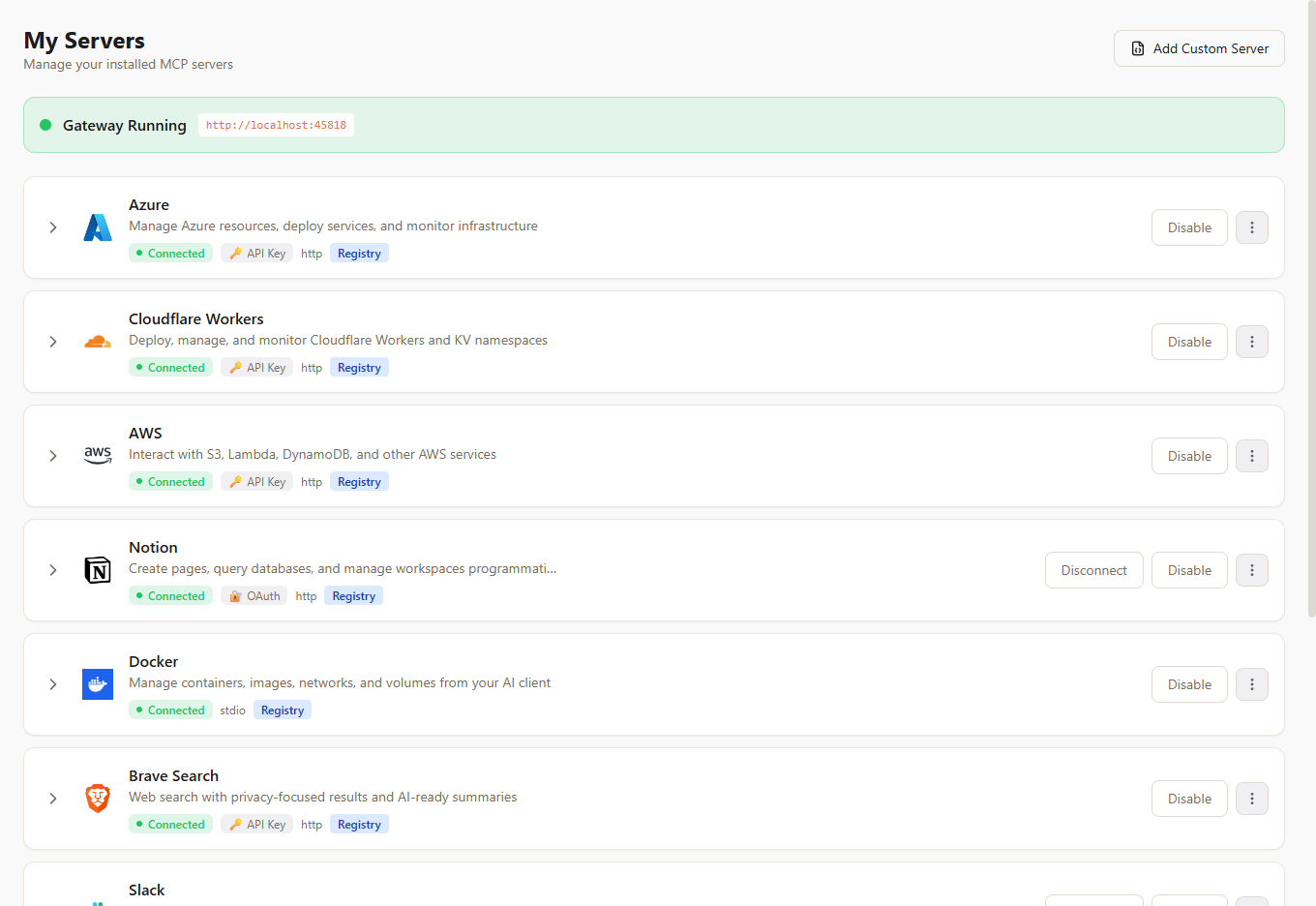
MCP servers communicate using one of two transport types:
### stdio (Local)
The server runs as a local process on your machine. McpMux launches the command and communicates over stdin/stdout.
**Common commands:**
- `npx -y @modelcontextprotocol/server-filesystem` — Node.js servers
- `uvx mcp-server-sqlite` — Python servers
- `docker run -i --rm ghcr.io/github/github-mcp-server` — Docker containers
**Best for:** Servers that need local filesystem access, are written in different languages, or require specific runtime environments.
### HTTP (Remote)
The server is hosted remotely and accessible via an HTTP endpoint. McpMux connects using the Streamable HTTP MCP transport.
**Example endpoints:**
- `https://mcp.atlassian.com/v1/mcp` — Atlassian (Jira & Confluence)
- `https://docs.mcp.cloudflare.com/mcp` — Cloudflare Docs
**Best for:** Cloud-hosted servers, SaaS integrations, and servers that require no local installation.
## Server Configuration
Each installed server can be configured per-Space with:
### Input Values
Credentials and settings required by the server. These are defined by the server definition and include:
- **API keys and tokens** — stored encrypted, never in plaintext
- **URLs** — service endpoints
- **Feature flags** — enable/disable specific behaviors
- **Paths** — file or directory locations
### Environment Variable Overrides
Override or add environment variables passed to stdio servers:
```
GITHUB_API_URL=https://github.example.com/api/v3
LOG_LEVEL=debug
```
### Additional Arguments (stdio only)
Extra command-line arguments appended to the server's command:
```
--workspace /path/to/project
--verbose
```
### HTTP Headers (HTTP only)
Custom headers sent with every request to HTTP servers:
```
Authorization: Bearer sk-xxxx
X-Custom-Header: value
```
## Enable and Disable
Each installed server has an **enabled/disabled** toggle:
- **Enabled** — the gateway connects to this server and exposes its tools
- **Disabled** — the server is installed but not running; no connection is maintained
Disabling a server immediately disconnects it and removes its tools from connected clients.
## Connection Status
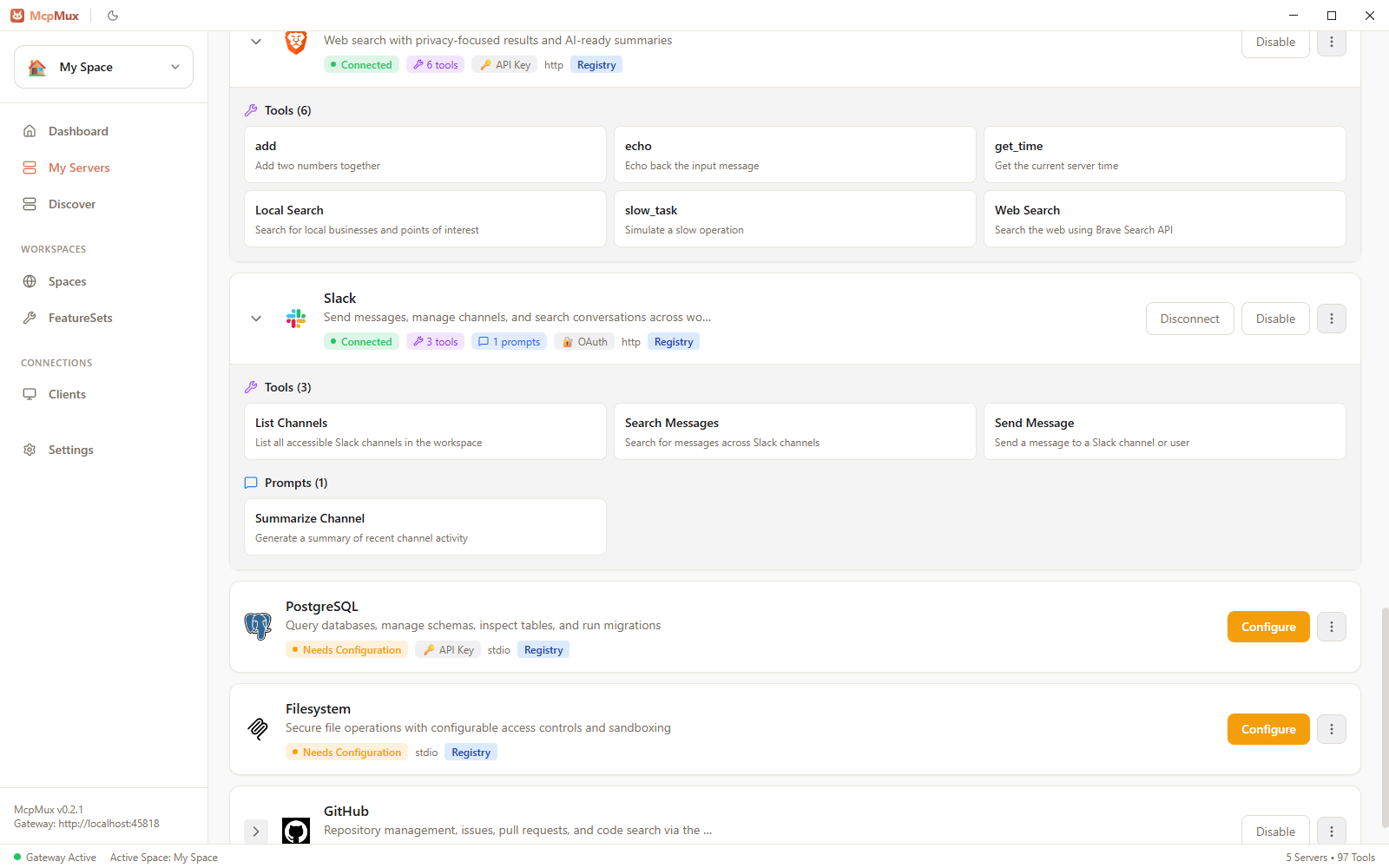
The **My Servers** page shows real-time connection status for each server:
| Status | Meaning |
|--------|---------|
| Connecting | MCP handshake in progress |
| Connected | Server is online and serving requests |
| Disconnected | Server is installed but not connected |
| Error | Connection failed — check server logs |
## Server Logs
Each server has its own log stream accessible from the **My Servers** page. Logs show:
- Connection and disconnection events
- MCP protocol messages
- Error details and stack traces
- Tool invocations and responses
Use logs to troubleshoot connection issues or understand what requests are being made.
## OAuth-Authenticated Servers
Some HTTP servers use **OAuth 2.1 + PKCE** for authentication. McpMux handles the entire OAuth flow:
1. When you enable an OAuth server, McpMux initiates the authorization flow
2. A browser window opens for you to log in and grant permissions
3. Tokens are stored encrypted and refreshed automatically
4. If a token expires, McpMux refreshes it transparently — no manual intervention
## Next Steps
- [Browse the server registry](/) to find servers for your tools
- [Learn about server definitions](/docs/server-definitions/) to contribute to the registry
- [Configure FeatureSets](/docs/feature-sets/) to control which server tools each client can access
- [Understand security](/docs/security/) and how credentials are encrypted
