---
title: Gateway — Local MCP Proxy
description: The McpMux Gateway runs on localhost:45818 and routes MCP requests from AI clients to the correct servers with automatic authentication and permission filtering.
---
The **Gateway** is the core of McpMux — a local HTTP server that acts as a single entry point for all your AI clients. Instead of configuring each client to connect to each MCP server individually, every client connects to the gateway at `http://localhost:45818/mcp`.
## How It Works
```
Cursor ──────────┐
Claude Desktop ──┤
VS Code ─────────┤──→ McpMux Gateway ──┬──→ GitHub Server
Windsurf ────────┤ (localhost:45818) ├──→ Slack Server
ChatGPT ─────────┘ ├──→ PostgreSQL Server
└──→ Filesystem Server
```
The gateway receives MCP JSON-RPC requests from clients and:
1. **Authenticates** the client using its access key
2. **Resolves** which Space the client should use (based on connection mode)
3. **Collects** the client's FeatureSet grants for that Space
4. **Filters** the available tools, resources, and prompts based on permissions
5. **Routes** each request to the correct backend MCP server
6. **Returns** the response to the client
## Request Routing
When a client calls a tool (e.g., `github_create_issue`), the gateway:
1. Looks up which server provides that tool
2. Checks that the client has permission to use it (via FeatureSets)
3. Forwards the request to the server's active connection
4. Returns the server's response to the client
Clients only see tools they have permission to use. If a FeatureSet excludes a tool, the client doesn't even know it exists — it won't appear in `tools/list` responses.
## FeatureSet Filtering
The gateway enforces permissions at the protocol level:
- **`tools/list`** — only returns tools the client is permitted to use
- **`tools/call`** — rejects calls to tools the client doesn't have access to
- **`resources/list`** — only returns permitted resources
- **`prompts/list`** — only returns permitted prompts
This means you can have multiple clients connected to the same gateway with different levels of access, all managed through FeatureSets.
## OAuth Token Management
For servers that use OAuth 2.1 + PKCE authentication, the gateway handles the full token lifecycle:
- **Initial authorization** — opens a browser for you to log in and grant permissions
- **Token storage** — tokens are encrypted and stored in the OS keychain
- **Automatic refresh** — when a token expires, the gateway refreshes it transparently
- **Re-authorization** — if a refresh fails, McpMux prompts you to re-authenticate
You never need to manually manage OAuth tokens — the gateway takes care of it.
## Connection Pooling
The gateway maintains a pool of connections to backend MCP servers:
- Each server gets a connection based on its configuration and credentials
- Connections are reused across clients (when they share the same Space and credentials)
- The pool key is computed from `server_id + sha256(final_config_with_credentials)`
- When credentials change (e.g., token refresh), a new connection is created with the updated credentials
- Idle connections are cleaned up after a configurable timeout
This means if two clients in the same Space both use the GitHub server, they share a single connection to GitHub — reducing resource usage.
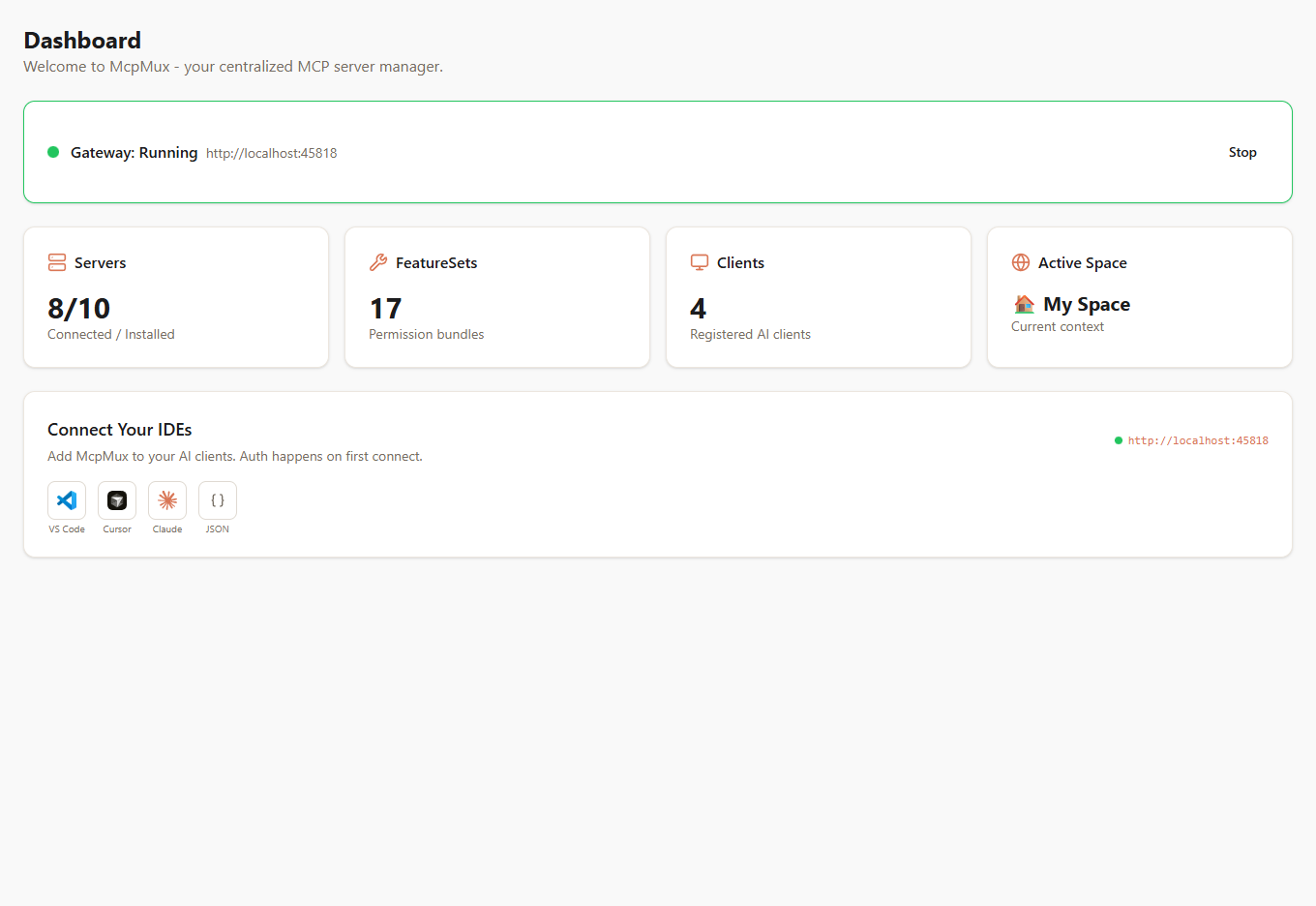
## Starting and Stopping
Control the gateway from the **Dashboard** in McpMux:
- **Start Gateway** — begins listening on `localhost:45818` and connects to enabled servers
- **Stop Gateway** — disconnects all servers and stops accepting requests
The gateway also starts automatically when McpMux launches (configurable in Settings).
## Gateway Status
The dashboard shows real-time gateway status:
- **Running** / **Stopped** — whether the gateway is accepting connections
- **Connected Servers** — count of actively connected backend servers
- **Registered Clients** — count of AI clients that have connected
## Next Steps
- [Set up Clients](/docs/clients/) to connect your AI applications
- [Configure FeatureSets](/docs/feature-sets/) to control what each client can access
- [Manage Servers](/docs/servers/) to add and configure backend MCP servers
- [Learn about Security](/docs/security/) to understand how the gateway protects your credentials
