---
title: Getting Started with McpMux
description: Download McpMux, install your first MCP server, and connect Cursor, Claude, or VS Code in under 5 minutes. Step-by-step setup guide.
---
Get McpMux running and connect your first AI client in just a few steps.
## Prerequisites
- **Operating System**: Windows 10+, macOS 12+, or Linux (Ubuntu 20.04+, Fedora 38+)
- **AI Client**: At least one MCP-compatible client installed (Cursor, Claude Desktop, VS Code, etc.)
## Step 1: Download and Install
Download McpMux for your platform from the [download page](/download/).
- **Windows**: Run the `.msi` installer
- **macOS**: Open the `.dmg` and drag McpMux to Applications
- **Linux**: Install via `.deb`, `.rpm`, or `.AppImage`
McpMux runs in the system tray — look for the McpMux icon after installation.
## Step 2: Create a Space
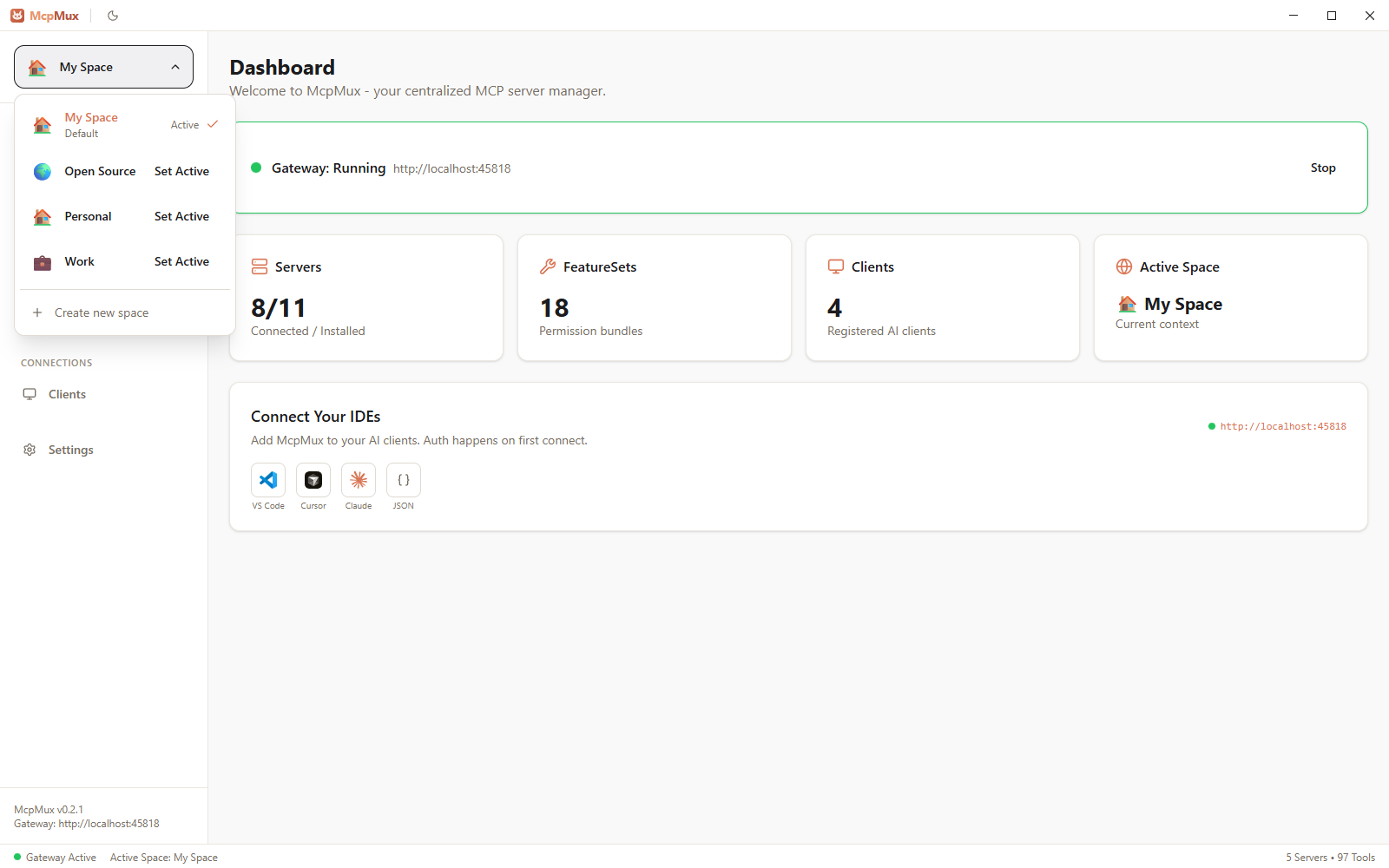
When you first open McpMux, a default Space is created for you. Spaces are isolated environments with their own server configurations and credentials.
You can create additional Spaces later for different contexts:
- **Work** — company tools with work credentials
- **Personal** — side projects with personal API keys
- **Client-A** — isolated environment for a specific client
To create a Space, go to the **Spaces** page and click **Create Space**.
## Step 3: Browse and Install a Server
Navigate to **Discover Servers** in McpMux or browse the [server registry](/) on this website. You'll find 100+ MCP servers for popular tools.
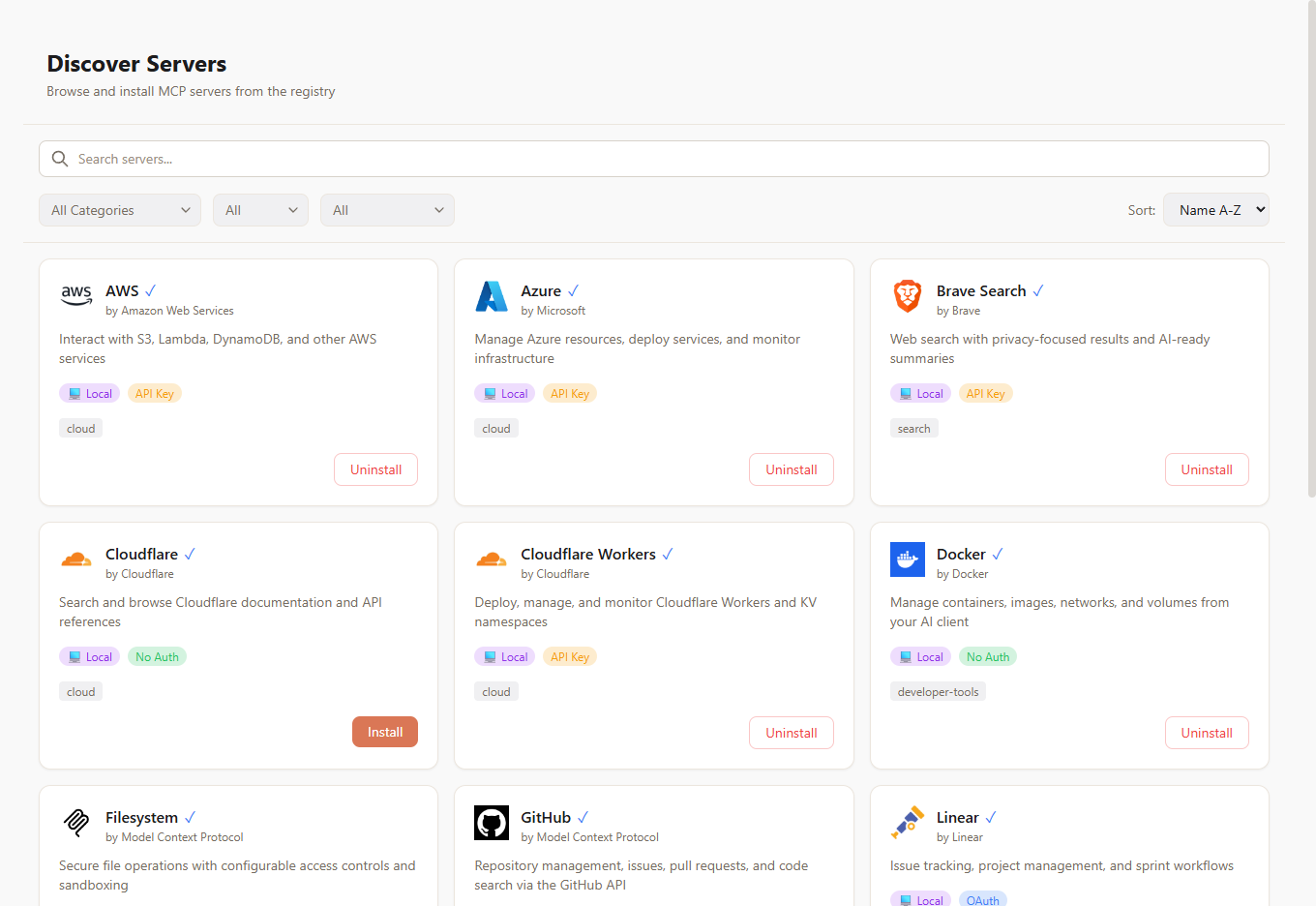
Click **Install** on any server to add it to your active Space. Popular choices to start with:
- **Filesystem** — read and write local files
- **GitHub** — interact with repositories, issues, and PRs
- **Brave Search** — web search capabilities
- **Playwright** — browser automation
## Step 4: Configure Credentials
If the server requires authentication (API keys, tokens, etc.), a configuration dialog appears automatically after installation. Fill in the required fields:
- **API keys** are stored encrypted using AES-256-GCM — they never touch disk in plaintext
- Click the **obtain** link (if provided) to go directly to the service's token creation page
- Sensitive fields are masked in the UI and stored in the OS keychain
See [Server Management](/docs/servers/) for details on all configuration options.
## Step 5: Start the Gateway
Go to the **Dashboard** and click **Start Gateway**. The gateway starts on `localhost:45818` and begins connecting to your enabled servers.
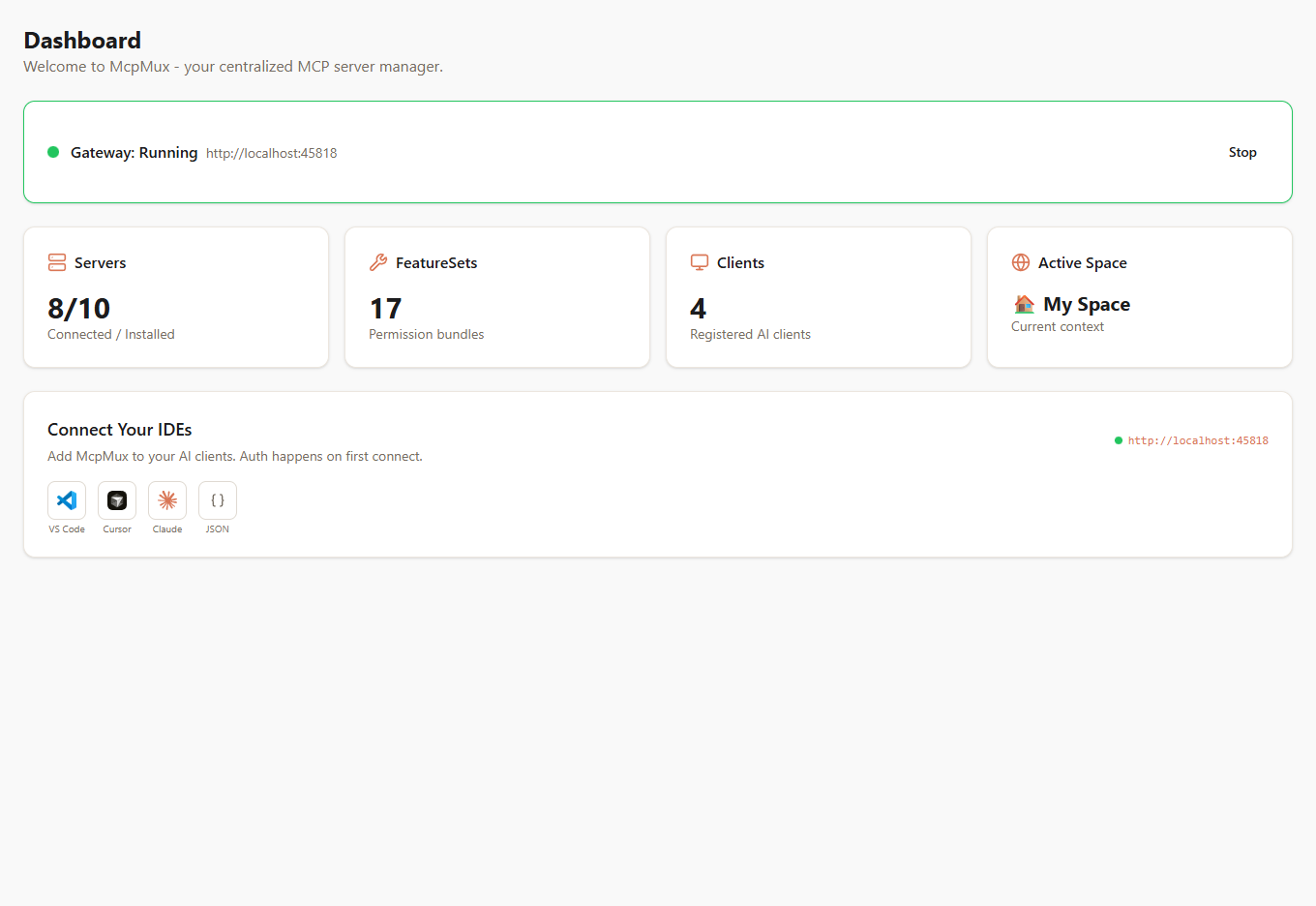
You'll see server status indicators change:
- 🟡 **Connecting** — establishing MCP handshake
- 🟢 **Connected** — ready to serve requests
- 🔴 **Error** — check server logs for details
## Step 6: Connect Your AI Client
Configure your AI client to connect to McpMux's gateway endpoint. The exact setup depends on your client:
### Cursor
Add to your Cursor MCP settings (`.cursor/mcp.json`):
```json
{
"mcpServers": {
"mcpmux": {
"url": "http://localhost:45818/mcp"
}
}
}
```
### Claude Desktop
Add to your Claude Desktop config (`claude_desktop_config.json`):
```json
{
"mcpServers": {
"mcpmux": {
"url": "http://localhost:45818/mcp"
}
}
}
```
### VS Code (Copilot)
Add to your VS Code settings (`.vscode/mcp.json`):
```json
{
"servers": {
"mcpmux": {
"url": "http://localhost:45818/mcp"
}
}
}
```
### Windsurf
Add to your Windsurf MCP configuration:
```json
{
"mcpServers": {
"mcpmux": {
"serverUrl": "http://localhost:45818/mcp"
}
}
}
```
Once connected, your AI client can access all the tools, resources, and prompts from every enabled MCP server — through the single McpMux gateway endpoint.
## Next Steps
- [Learn about Spaces](/docs/spaces/) to organize your environments
- [Configure FeatureSets](/docs/feature-sets/) to control tool permissions
- [Browse the server registry](/) to find more MCP servers
- [Understand security](/docs/security/) and how McpMux protects your credentials
