
Facilitates management of Docker infrastructure, including containers, images, and environments via the server registry.
Allows AI agents to manage repositories, issues, pull requests, and other GitHub platform features through managed MCP servers.
Enables interaction with Notion workspaces, allowing for the management of pages and databases via dedicated MCP servers.
Provides tools for database administration and executing queries on PostgreSQL databases through managed connections.
Enables interaction with Slack workspaces, providing capabilities for message management and channel operations.
McpMux


One app to manage all your MCP servers across every AI client.
Website · Download · Discover Servers · Features
The Problem
Cursor, Claude Desktop, VS Code, Windsurf — they all support MCP, but each one needs its own config file. None of them talk to each other.
Add a server? Edit four files. Rotate an API key? Edit four files. New machine? Start from scratch.
And those API keys? Sitting in plain-text JSON files anyone on your machine can read.
The Fix
McpMux is a desktop app that runs a local MCP gateway. You configure servers once — every AI client connects through a single URL.
Add a server in McpMux and every connected client picks it up instantly — no restart, no manual refresh. Remove a tool or update a prompt? Every client knows immediately.
Lightweight and cross-platform — built in Rust with Tauri 2, McpMux uses minimal CPU and memory while running quietly in your system tray on Windows, macOS, and Linux.
How It Works
1. Install servers from the built-in registry — or add your own
2. Paste one config into each AI client (the last config you'll ever need):
3. Done. Every tool from every server is available in every client, right now.
McpMux routes calls to the right server, refreshes OAuth tokens automatically, and keeps credentials encrypted in your OS keychain — you never think about it again.
Features
All Your Servers, One Place
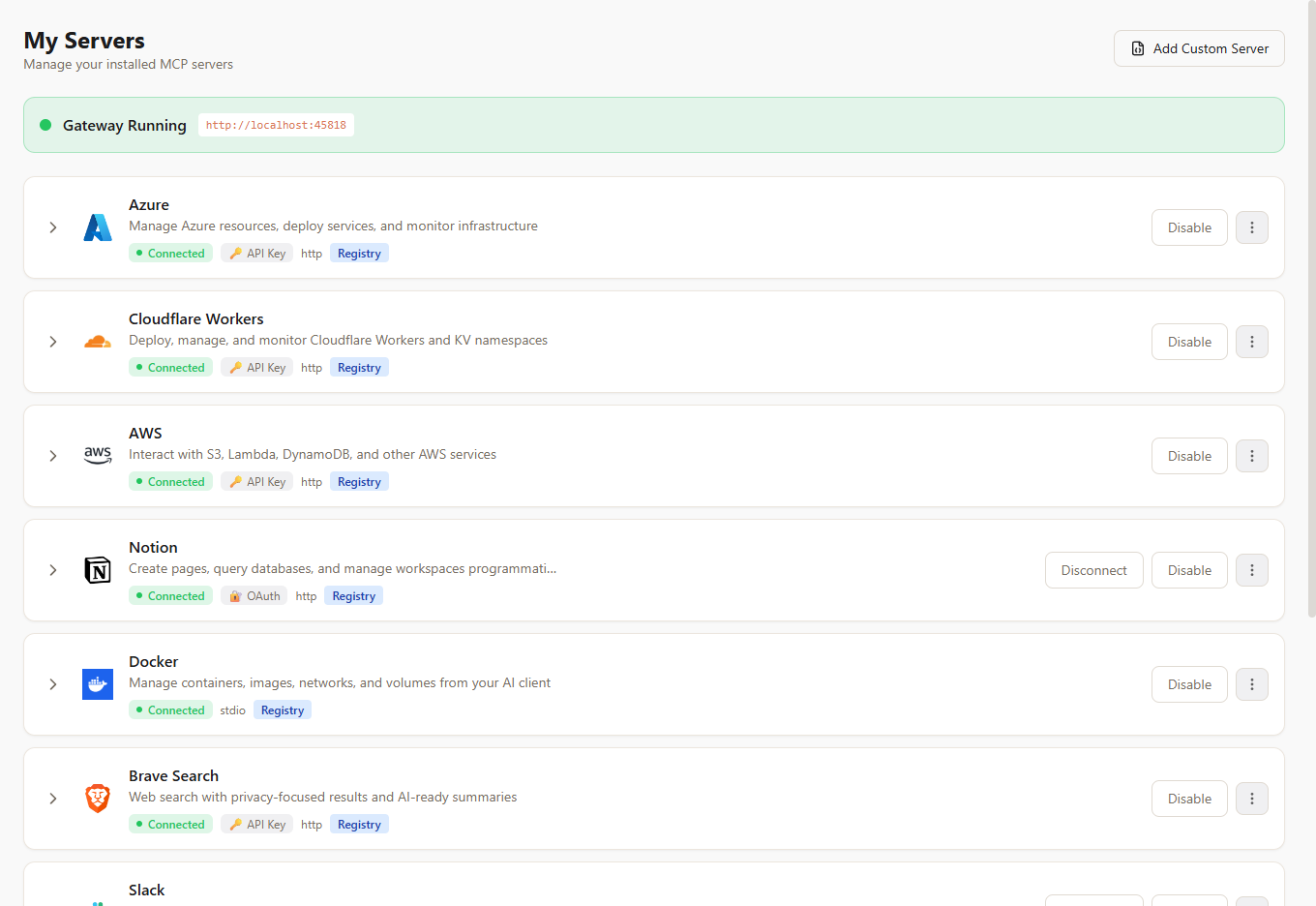
No more duplicating server configs across Cursor, Claude, VS Code, and Windsurf. Install a server in McpMux and it's immediately available everywhere. Expand any server to inspect its tools, prompts, and resources. See live connection status. OAuth tokens refresh automatically in the background.
100+ Servers, One Click
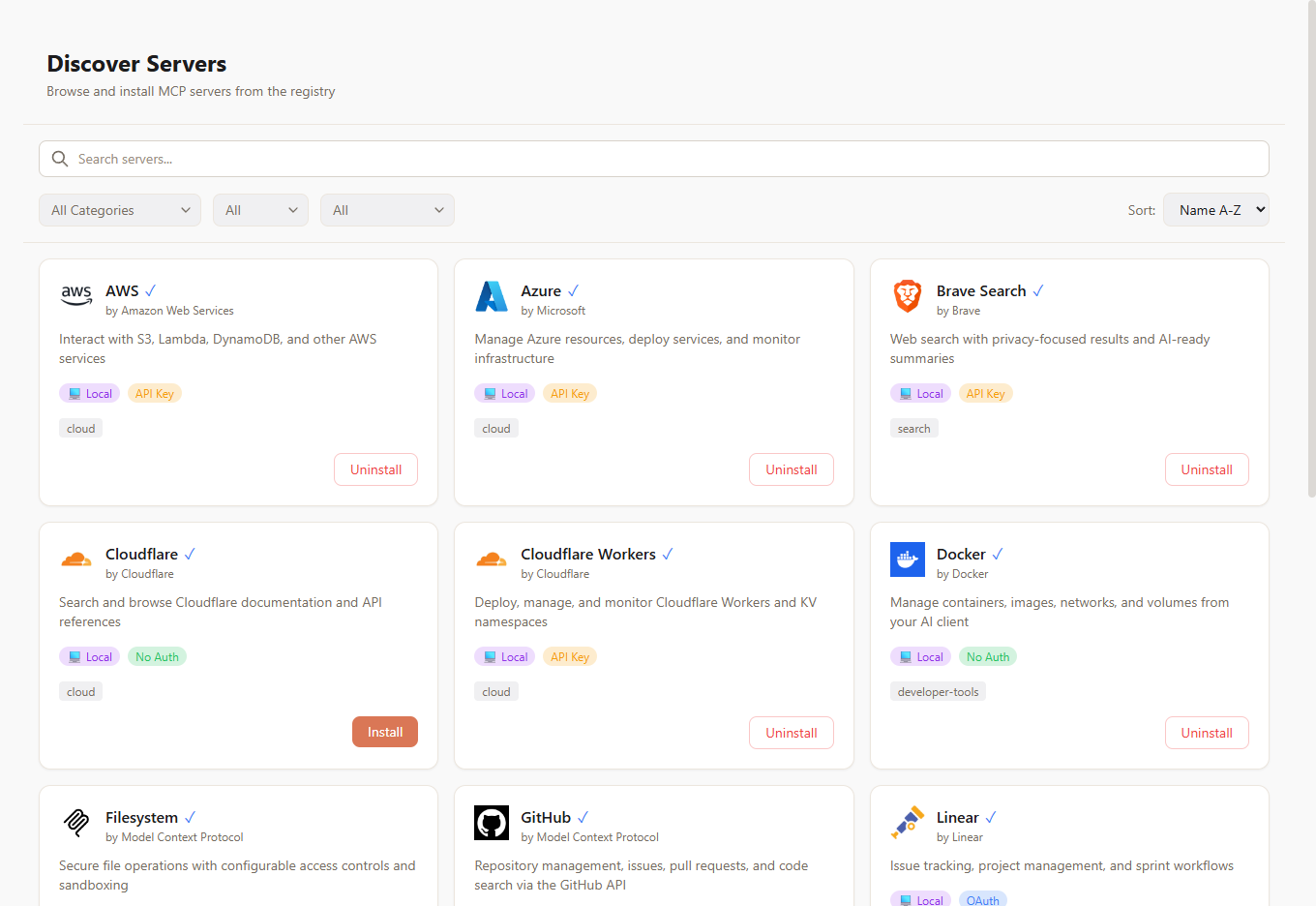
Stop hunting for MCP server repos and hand-writing transport configs. Browse a curated registry of 100+ servers — GitHub, Slack, PostgreSQL, Docker, Notion, AWS, Azure, and more. Click install, enter your credentials, and the server is live across every AI client you use. You can also browse the full registry at mcpmux.com.
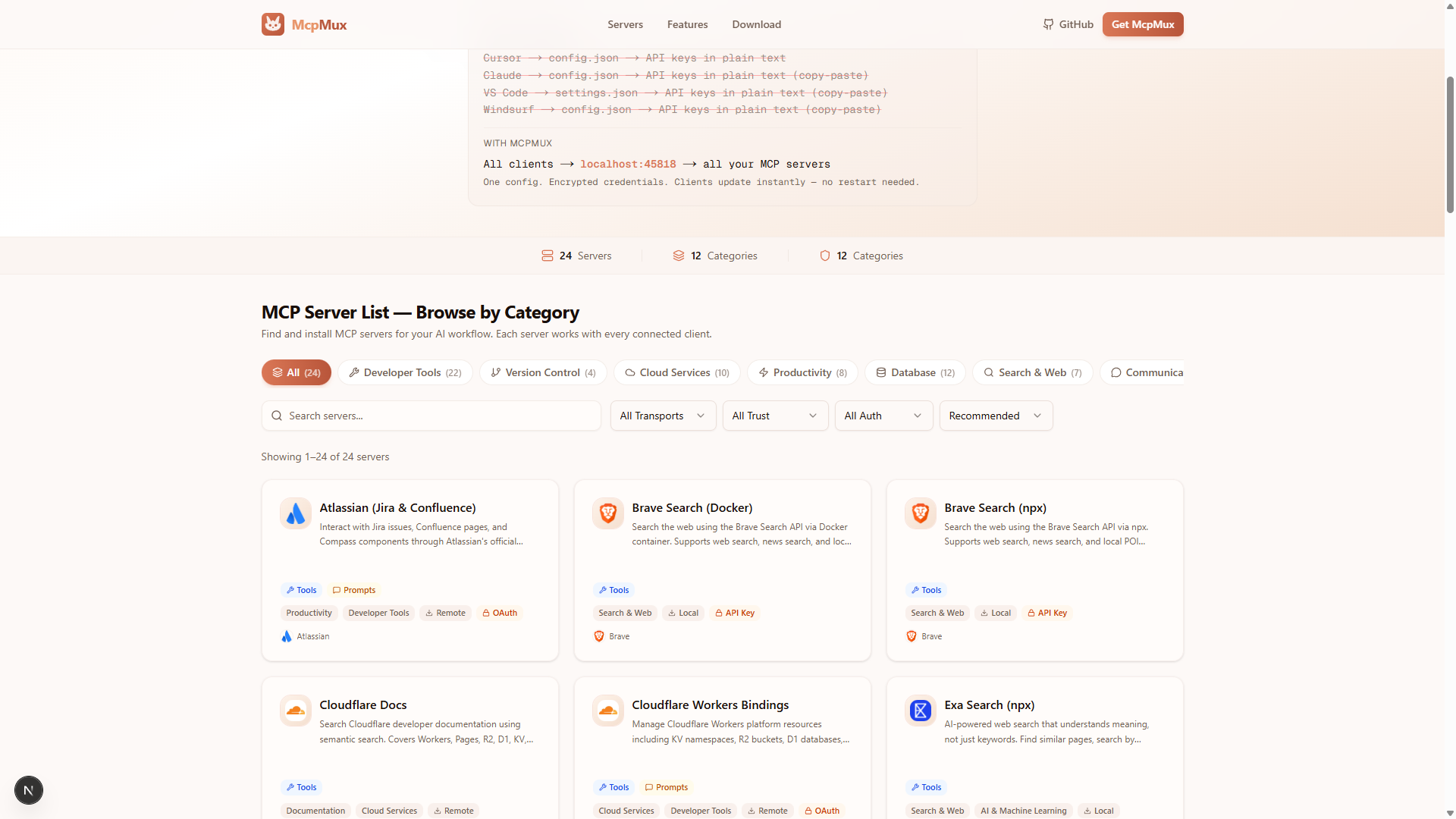
The full registry is also available on the web at mcpmux.com — with search, categories, and one-click install via deep links.
Workspaces That Keep Things Separate
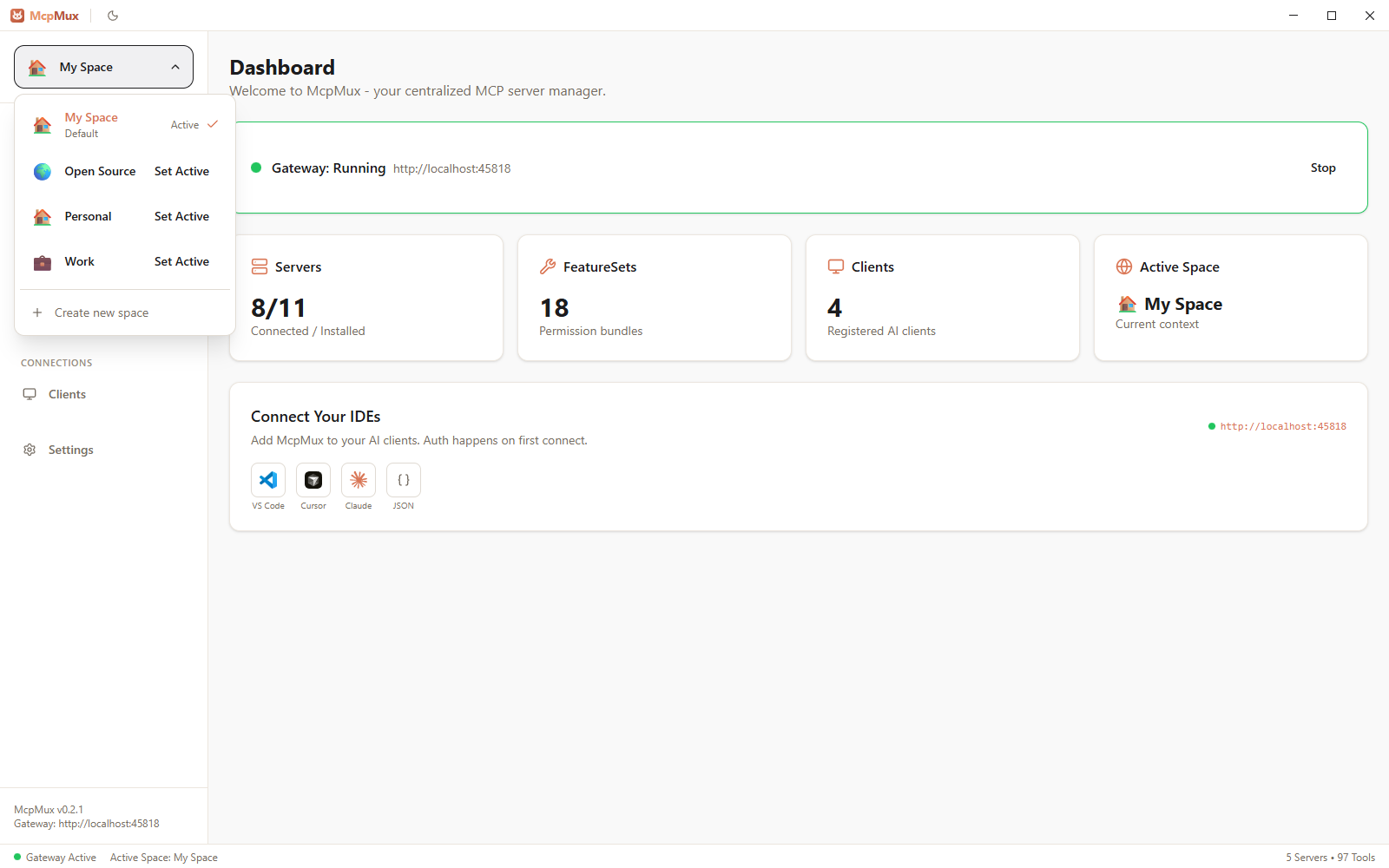
Create isolated Spaces — each with their own servers, credentials, and permissions. A "Work" space for company databases and internal APIs. A "Personal" space for side projects. Switch in one click from the sidebar and every connected AI client follows automatically. No more accidentally querying your personal database from a work project.
Control What Each Client Can Do
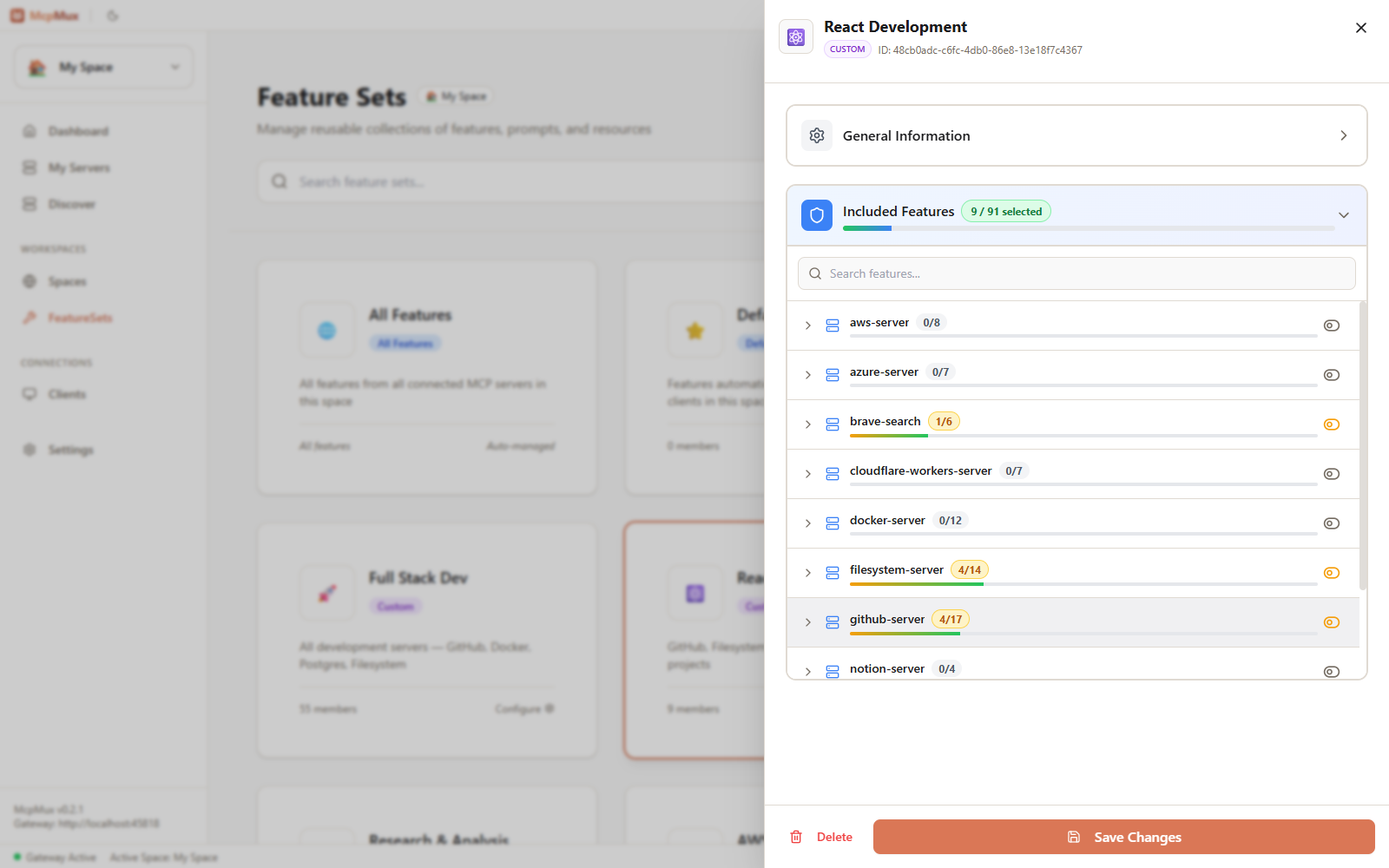
Not every AI client should have the same power. Create Feature Sets — permission bundles that control exactly which tools, prompts, and resources a client can access. Build a "Read Only" set for cautious workflows, a "React Development" set with just GitHub and Filesystem, or a "Full Stack Dev" set with everything. Assign them per-client so each tool only goes where you want it.
See and Manage Every Connected Client
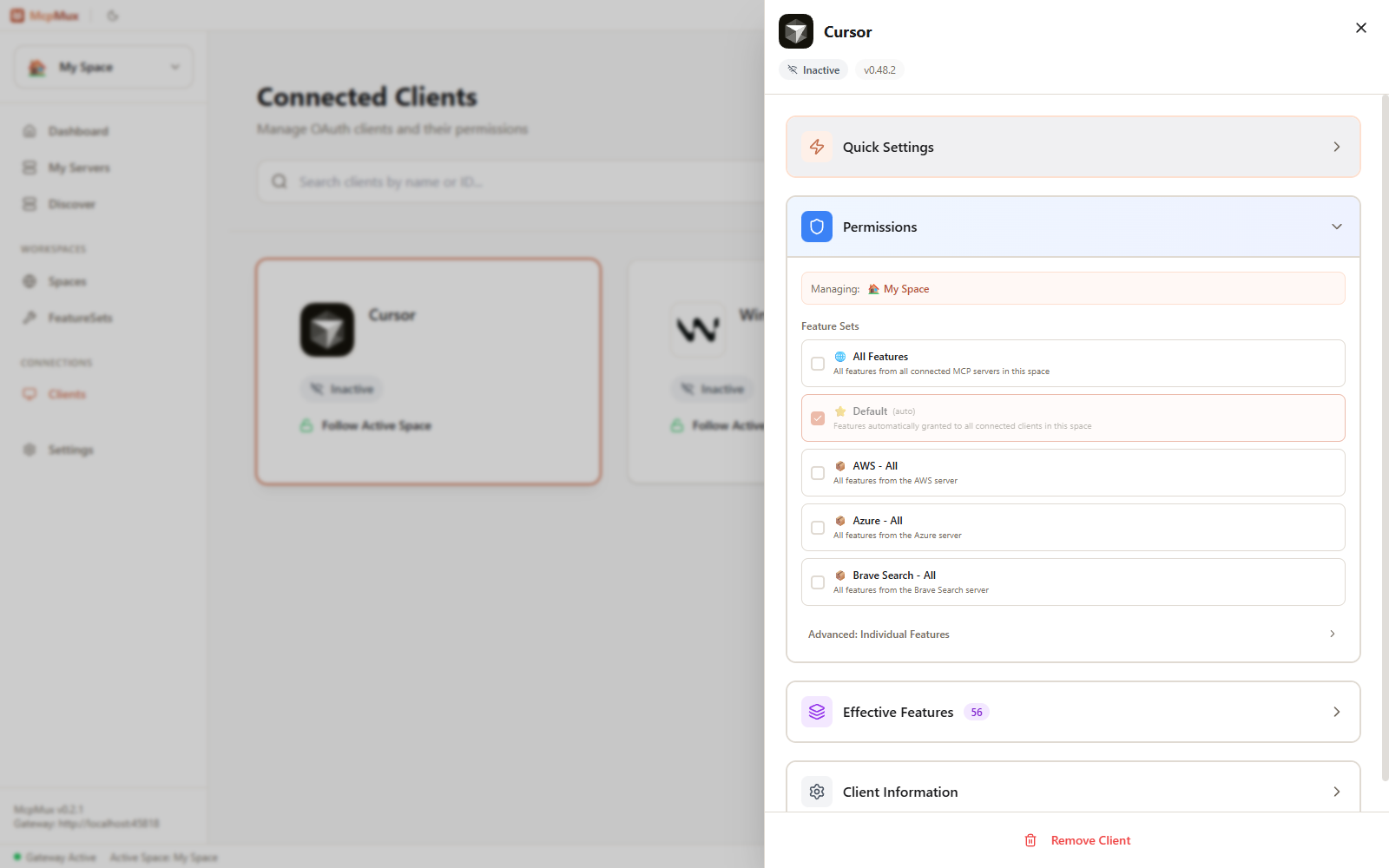
Cursor, VS Code, Windsurf, Claude Code — see every AI client connected to your gateway in real time. Click any client to manage its workspace, grant or revoke feature sets, and see exactly which tools it can access. New clients authenticate via OAuth with a one-click approval flow.
Security
MCP defaults to plain-text config files with raw API keys. McpMux replaces that with defense in depth:
OS Keychain — secrets in platform-native secure storage (DPAPI on Windows, Keychain on macOS, libsecret on Linux), never in plain-text files
AES-256-GCM — field-level database encryption for all sensitive data
OAuth 2.1 + PKCE — standard auth flow with automatic token refresh
Local-only gateway — binds to
127.0.0.1, nothing exposed to the networkPer-client access keys — each AI client authenticates independently with granular permissions
Sanitized logs — tokens and secrets never appear in log output
Memory zeroization — secrets wiped from memory after use via
zeroize
All MCP traffic stays on your machine. Cloud sync (optional, coming soon) only covers config metadata — never credentials or payloads.
Getting Started
1. — Windows, macOS, Linux
2. Add servers — use the Discover tab to browse 100+ servers, or explore servers on mcpmux.com and install with one click
3. Paste the config — copy the snippet from the Dashboard into your AI clients
That's the last config file you'll ever touch.
Linux quick install:
curl -fsSL https://install.mcpmux.com | bashmacOS via Homebrew:
brew install --cask mcpmux/tap/mcpmuxSee mcpmux.com/download for all platforms and install methods.
Install on Linux
Quick install (detects your distro automatically):
Debian / Ubuntu (APT repository for automatic updates):
Fedora / RHEL (from GitHub Releases):
Arch Linux (AUR):
AppImage (any distro):
Or download directly from GitHub Releases.
Development
Prerequisites: Rust 1.75+, Node.js 18+, pnpm 9+. Linux also needs gnome-keyring libsecret-1-dev librsvg2-dev pkg-config.
Built with Tauri 2 (Rust + React 19), Axum for the gateway, ring for encryption, rmcp for MCP.
Links
Website & Server Discovery — mcpmux.com
Download — mcpmux.com/download
Features — mcpmux.com/features
Server Definitions Repo — github.com/mcpmux/mcp-servers
Contributing
See CONTRIBUTING.md for guidelines.