

A
licenseA
qualityA
maintenanceFilesystem MCP server for AI assistants. Search, read, edit, and manage local files in directories you choose.
14
2,435 npm
26
MIT

Provides comprehensive integration with the Eagle app, enabling management of folders and items (images, documents, media) in an Eagle library. Supports creating, renaming, and updating folders; adding items from URLs and file paths; retrieving item information, thumbnails, and source files; and managing items through operations like moving to trash and updating metadata.
Supports visualization of workflows and architecture diagrams through Mermaid integration, as demonstrated in the use case diagrams showing different deployment scenarios.
This server does not currently have a deployable release on Glama. Follow the repository's setup instructions to install and configure it for your MCP client, including any required credentials and local dependencies.
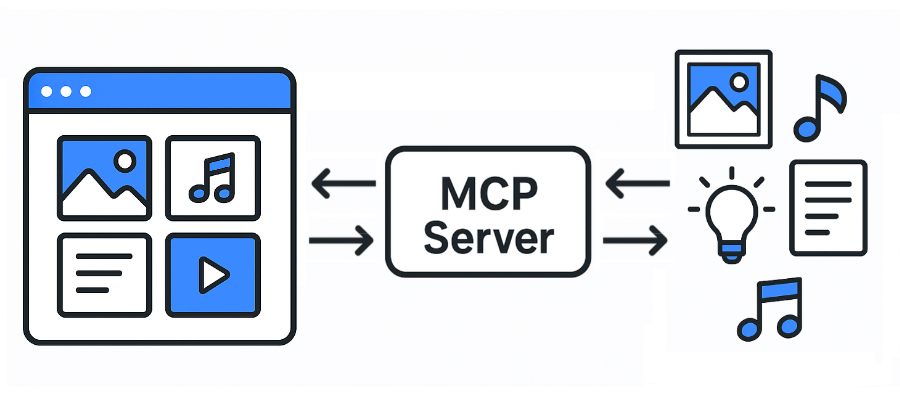
A Model Context Protocol (MCP) server for Eagle.
JPG / JPEG
PNG
PDF
SVG
MP4
MP3
FBX
OBJ
EPS
TIF / TIFF
WebP
BMP
ICO
RAW
etc
Eagle: https://eagle.cool/
Eagle API docs: https://api.eagle.cool/
Python 3.13
Related MCP server: files-mcp-ts
Install the required dependencies:
uv syncLaunch the Eagle app.
Launch this MCP server by running the following command:
uv run main.pyMCP config:
{
  "mcpServers": {
    "eagle-mcp-server": {
      "url": "http://localhost:8000/mcp"
    }
  }
}
{
"mcpServers": {
"eagle-mcp-server": {
"command": "uvx",
"args": [
"--from", "git+https://github.com/tuki0918/eagle-mcp-server@fastmcp-stdio",
"eagle-mcp-server"
]
}
}
}See #17 for more details.
Supported | Eagle API endpoint | Operation ID | Enabled (default) | Category |
✅ | - |
| MCP | |
✅ | /api/application/info |
| ⚫︎ | Application |
✅ | /api/folder/create |
| ⚫︎ | Folder |
✅ | /api/folder/rename |
| Folder | |
✅ | /api/folder/update |
| ⚫︎ | Folder |
✅ | /api/folder/list |
| ⚫︎ | Folder |
✅ | /api/folder/listRecent |
| Folder | |
✅ | /api/item/addFromURL |
| Item | |
✅ | /api/item/addFromURLs |
| Item | |
✅ | /api/item/addFromPath |
| ⚫︎ | Item |
✅ | /api/item/addFromPaths |
| Item | |
✅ | /api/item/addBookmark |
| Item | |
✅ | /api/item/info |
| ⚫︎ | Item |
✅ | - |
| ⚫︎ | Item |
✅ | /api/item/thumbnail |
| Item | |
✅ | /api/item/list |
| ⚫︎ | Item |
✅ | /api/item/moveToTrash |
| ⚫︎ | Item |
✅ | /api/item/refreshPalette |
| Item | |
✅ | /api/item/refreshThumbnail |
| Item | |
✅ | /api/item/update |
| ⚫︎ | Item |
✅ | /api/library/info |
| ⚫︎ | Library |
✅ | /api/library/history |
| Library | |
✅ | /api/library/switch |
| Library | |
✅ | /api/library/icon |
| Library |
MCP Server API docs:
Some tools are disabled by default (shown as empty cells in the "Enabled (default)" column above). To enable these disabled tools:
Locate the tool definition in the source code
Remove the tags=["Disabled"] line from the tool configuration
Restart the MCP server
This will make the previously disabled tools available for use.
flowchart LR

    subgraph 192.168.1.100
        direction LR

        subgraph FileSystem [File System]
        end
        subgraph EagleApp [Eagle App<br/>localhost:41595]
        end
        subgraph MCPServer [MCP Server<br/>localhost:8000]
        end
        subgraph MCPClient [MCP Client]
        end
    end

    EagleApp ==> MCPServer e1@==> MCPClient
    MCPClient e2@==> MCPServer ==> EagleApp
    EagleApp ==> FileSystem
    FileSystem ==> EagleApp

    e1@{ animate: true }
e2@{ animate: true }You have direct access to the filesystem.
flowchart LR

    subgraph 192.168.1.100
        subgraph FileSystem [File System]
        end
        subgraph EagleApp [Eagle App<br/>localhost:41595]
        end
        subgraph MCPServer [MCP Server<br/>localhost:8000]
        end
    end

    subgraph 192.168.1.xxx
        subgraph MCPClient [MCP Client]
        end
    end

    EagleApp ==> MCPServer e1@==> MCPClient
    MCPClient e2@==> MCPServer ==> EagleApp
    EagleApp ==> FileSystem
    FileSystem ==> EagleApp

    e1@{ animate: true }
e2@{ animate: true }You don't have access to the filesystem.
flowchart LR

    subgraph 192.168.1.100
        subgraph FileSystem [File System]
        end
        subgraph EagleApp [Eagle App<br/>localhost:41595]
        end
    end

    subgraph 192.168.1.101
        subgraph MCPServer [MCP Server<br/>localhost:8000]
        end
    end

    subgraph 192.168.1.xxx
        subgraph MCPClient [MCP Client]
        end
    end

    EagleApp ==> MCPServer e1@==> MCPClient
    MCPClient e2@==> MCPServer ==> EagleApp
    EagleApp ==> FileSystem
    FileSystem ==> EagleApp

    e1@{ animate: true }
e2@{ animate: true }You don't have access to the filesystem.
This server cannot be deployed
MCP server exposing the YourImageShare upload API (upload/list/delete) as tools for AI agents.
MCP server for Clipkit — gives AI agents a video toolbox via the Clipkit schema.
DocBase MCP server for AI agents
Agent-native MCP server over the public saagarpatel.dev corpus. Read-only, stateless.