A
licenseNot graded
qualityD
maintenanceA Model Context Protocol server that enables AI assistants to interact with iOS simulators, perform accessibility testing, manage apps, and automate complex iOS workflows.
32
Apache 2.0

This server enables programmatic control of iOS simulators through the Model Context Protocol (MCP), supporting both direct UDID-based and session-based management.
Simulator Management (Direct UDID):
List all available simulators (list-available-simulators) and booted simulators (list-booted-simulators)
Boot (boot-simulator-by-udid) or shut down (shutdown-simulator-by-udid) a simulator by UDID
Session-Based Management:
Create a new simulator session with optional device name, platform version, timeout, and autoboot settings (create-simulator-session)
List all active sessions (list-simulator-sessions)
Shut down a session's simulator (shutdown-simulator) or fully terminate a session with cleanup (terminate-simulator-session)
Application Management:
Install an app by path (install-app), launch by bundle ID (launch-app), and terminate a running app (terminate-app) — all scoped to a session
Interaction:
Tap at specified (x, y) coordinates on the simulator screen (tap)
Take screenshots of the simulator screen
Built on top of appium-ios-simulator to provide iOS simulator interaction capabilities for controlling simulator lifecycle and performing actions.
Allows programmatic control of iOS simulators, including starting, stopping, booting, installing and launching apps, taking screenshots, and performing taps on coordinates.
Interacts with Xcode's iOS simulator infrastructure to manage simulator instances and perform operations on iOS devices.
Click on "Deploy Server".
Wait a few minutes for the server to deploy. Once ready, it will show a "Started" state.
In the chat, type @ followed by the MCP server name and your instructions, e.g., "@MCP Server for iOS Simulator boot the iPhone 16 simulator on iOS 18.2"
That's it! The server will respond to your query, and you can continue using it as needed.
Here is a step-by-step guide with screenshots.
A server that implements the Model Context Protocol (MCP) for iOS simulators, built on top of appium-ios-simulator and utilizing the MCP TypeScript SDK.
This project provides a bridge between iOS simulators and the Model Context Protocol, allowing for standardized communication with iOS simulator instances. It enables programmatic control of iOS simulators while leveraging the MCP protocol for consistent interfaces across different environments. The server utilizes stdio as its transport mechanism, making it ideal for integration with Claude Desktop and other MCP-compatible clients.
Related MCP server: Simulator MCP
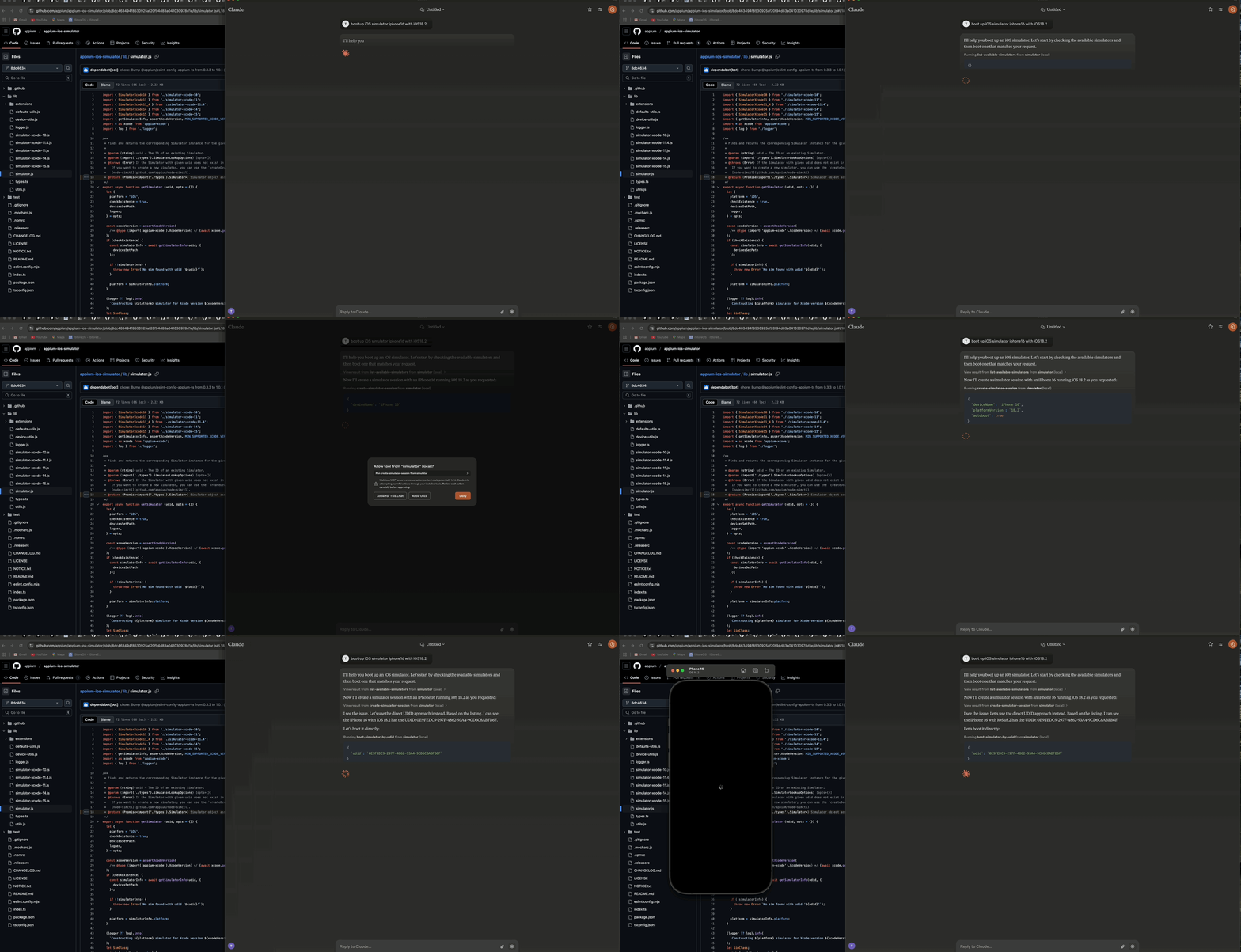
Demo showing how to boot an iOS simulator using Claude AI Desktop
The server consists of three main components:
🔄 Simulator Management Layer - Handles iOS simulator lifecycle and interactions
🔌 MCP Protocol Implementation - Implements the Model Context Protocol using the TypeScript SDK with stdio transport
📊 Logger Component - Provides file-based logging without interfering with the stdio transport
┌─────────────────┐     ┌─────────────────┐     ┌─────────────────┐
│  MCP Protocol   │     │     Stdio       │     │    Simulator    │
│  Implementation │◄────┤    Transport    │◄────┤   Management    │
│                 │     │                 │     │      Layer      │
└─────────────────┘     └─────────────────┘     └─────────────────┘
        ▲                                                ▲
        │                                                │
        ▼                                                ▼
┌─────────────────┐                             ┌─────────────────┐
│   MCP Client    │                             │  iOS Simulator  │
│  (e.g. Claude)  │                             │                 │
└─────────────────┘ └─────────────────┘🚀 Start, stop, and manage iOS simulator instances
🔌 Boot and shutdown simulators
📲 Install and launch applications on simulators
📸 Take screenshots of simulator screens
👆 Perform taps on coordinates
🔄 Support for multiple concurrent simulator sessions
📝 Comprehensive file-based logging without console output
🛡️ Error-resilient operation
🟢 Node.js (v16 or later)
🍎 macOS (required for iOS simulators)
🛠️ Xcode with iOS simulators installed
📜 TypeScript 4.5+
To install iOS Simulator Control Server for Claude Desktop automatically via Smithery:
npx -y @smithery/cli install @atom2ueki/mcp-server-ios-simulator --client claude# Clone the repository
git clone https://github.com/atom2ueki/mcp-server-ios-simulator.git
cd mcp-server-ios-simulator
# Install dependencies
npm installA Dockerfile is provided so the server can be packaged for the Glama MCP directory and other container hosts.
docker build -t mcp-server-ios-simulator .
docker run --rm -i mcp-server-ios-simulator
Note: iOS simulators only run on macOS, so a Linux container can host the MCP process and respond on stdio but cannot drive a real simulator. The container is intended for portability checks and remote MCP environments that bridge to a macOS host.
Configuration is handled through the src/config.ts file:
const config = {
  simulator: {
    defaultDevice: process.env.SIMULATOR_DEFAULT_DEVICE || 'iPhone 16',
    defaultOS: process.env.SIMULATOR_DEFAULT_OS || '18.2',
    timeout: parseInt(process.env.SIMULATOR_TIMEOUT || '30000', 10),
  }
};
You can customize these settings by setting environment variables:
SIMULATOR_DEFAULT_DEVICE=iPhone 16
SIMULATOR_DEFAULT_OS=18.2
SIMULATOR_TIMEOUT=30000# Build the project
npm run build
# Start the server
npm startThe server provides two distinct approaches for controlling iOS simulators:
These tools work directly with simulator UDIDs and don't require maintaining sessions:
📋 list-available-simulators - List all available simulators with their UDIDs
▶️ boot-simulator-by-udid - Boot a simulator directly using its UDID
⏹️ shutdown-simulator-by-udid - Shutdown a simulator directly using its UDID
📊 list-booted-simulators - List all currently booted simulators
Use this approach when: You just want to boot, use, and shut down simulators directly.
These tools use a session layer that tracks simulators with custom session IDs:
📋 list-simulator-sessions - List all active simulator sessions
➕ create-simulator-session - Create a new simulator session
❌ terminate-simulator-session - Terminate a session (shuts down simulator and cleans up)
🔄 create-and-boot-simulator - Create a new simulator session and boot it
▶️ boot-simulator - Boot a simulator for an existing session
⏹️ shutdown-simulator - Shutdown a simulator for an existing session
Use this approach when: You need to track simulator metadata, reference simulators by custom IDs, or use the more advanced management features.
📥 install-app - Install an application on a simulator
🚀 launch-app - Launch an application on a simulator
🛑 terminate-app - Terminate a running application on a simulator
📷 take-screenshot - Take a screenshot of the simulator screen
👆 tap-coordinate - Perform a tap at the specified coordinates
Configure Claude Desktop to use this server as an MCP tool:
Open Claude Desktop
Go to Settings > Advanced
Add the following configuration to the "MCP Servers" section:
{
  "mcpServers": {
    "simulator": {
      "command": "node",
      "args": [
        "/path/to/your/mcp-server-ios-simulator/dist/index.js"
      ]
    }
  }
}
Replace /path/to/your with the actual path to where you've installed this repository
Save the settings and restart Claude Desktop
Use the provided tools to control iOS simulators directly from Claude Desktop:
Direct UDID Approach (Recommended):
First, ask Claude to list available simulators:
"Show me all available iOS simulators"Then use the UDID to boot a specific simulator:
"Boot the iOS simulator with UDID 5272EA61-5796-4372-86FE-3B33831D5CC1"When finished, shut it down using the same UDID:
"Shut down the simulator with UDID 5272EA61-5796-4372-86FE-3B33831D5CC1"The direct UDID approach is simpler and more reliable for most use cases.
Session-Based Approach (Advanced): Only use this approach if you need the advanced features of session tracking:
"Create a new simulator session for iPhone 16 Pro with iOS 18.2"
"Boot the simulator for session abc-123"
"Take a screenshot of the simulator for session abc-123"
"Terminate the simulator session abc-123"src/
├── simulator/ # Simulator management layer
├── mcp/ # MCP protocol implementation
├── bridge/ # Bridge component
├── utils/ # Utility functions including logger
├── config.ts # Configuration handling
└── index.ts # Entry point# Install development dependencies
npm install
# Run TypeScript compiler
npm run buildThis project is licensed under the MIT License - see the LICENSE file for details.
📱 appium-ios-simulator for providing the iOS simulator interaction capabilities
🔌 Model Context Protocol for the protocol specification and TypeScript SDK
| Name | Required | Description | Default |
|---|---|---|---|
| udid | Yes |
Does the description disclose side effects, auth requirements, rate limits, or destructive behavior?
Tool has no description.
Agents need to know what a tool does to the world before calling it. Descriptions should go beyond structured annotations to explain consequences.
Is the description appropriately sized, front-loaded, and free of redundancy?
Tool has no description.
Shorter descriptions cost fewer tokens and are easier for agents to parse. Every sentence should earn its place.
Given the tool's complexity, does the description cover enough for an agent to succeed on first attempt?
Tool has no description.
Complex tools with many parameters or behaviors need more documentation. Simple tools need less. This dimension scales expectations accordingly.
Does the description clarify parameter syntax, constraints, interactions, or defaults beyond what the schema provides?
Tool has no description.
Input schemas describe structure but not intent. Descriptions should explain non-obvious parameter relationships and valid value ranges.
Does the description clearly state what the tool does and how it differs from similar tools?
Tool has no description.
Agents choose between tools based on descriptions. A clear purpose with a specific verb and resource helps agents select the right tool.
Does the description explain when to use this tool, when not to, or what alternatives exist?
Tool has no description.
Agents often have multiple tools that could apply. Explicit usage guidance like "use X instead of Y when Z" prevents misuse.
| Name | Required | Description | Default |
|---|---|---|---|
| autoboot | No | ||
| deviceName | No | ||
| platformVersion | No | ||
| timeout | No |
Does the description disclose side effects, auth requirements, rate limits, or destructive behavior?
Tool has no description.
Agents need to know what a tool does to the world before calling it. Descriptions should go beyond structured annotations to explain consequences.
Is the description appropriately sized, front-loaded, and free of redundancy?
Tool has no description.
Shorter descriptions cost fewer tokens and are easier for agents to parse. Every sentence should earn its place.
Given the tool's complexity, does the description cover enough for an agent to succeed on first attempt?
Tool has no description.
Complex tools with many parameters or behaviors need more documentation. Simple tools need less. This dimension scales expectations accordingly.
Does the description clarify parameter syntax, constraints, interactions, or defaults beyond what the schema provides?
Tool has no description.
Input schemas describe structure but not intent. Descriptions should explain non-obvious parameter relationships and valid value ranges.
Does the description clearly state what the tool does and how it differs from similar tools?
Tool has no description.
Agents choose between tools based on descriptions. A clear purpose with a specific verb and resource helps agents select the right tool.
Does the description explain when to use this tool, when not to, or what alternatives exist?
Tool has no description.
Agents often have multiple tools that could apply. Explicit usage guidance like "use X instead of Y when Z" prevents misuse.
| Name | Required | Description | Default |
|---|---|---|---|
| appPath | Yes | ||
| sessionId | Yes |
Does the description disclose side effects, auth requirements, rate limits, or destructive behavior?
Tool has no description.
Agents need to know what a tool does to the world before calling it. Descriptions should go beyond structured annotations to explain consequences.
Is the description appropriately sized, front-loaded, and free of redundancy?
Tool has no description.
Shorter descriptions cost fewer tokens and are easier for agents to parse. Every sentence should earn its place.
Given the tool's complexity, does the description cover enough for an agent to succeed on first attempt?
Tool has no description.
Complex tools with many parameters or behaviors need more documentation. Simple tools need less. This dimension scales expectations accordingly.
Does the description clarify parameter syntax, constraints, interactions, or defaults beyond what the schema provides?
Tool has no description.
Input schemas describe structure but not intent. Descriptions should explain non-obvious parameter relationships and valid value ranges.
Does the description clearly state what the tool does and how it differs from similar tools?
Tool has no description.
Agents choose between tools based on descriptions. A clear purpose with a specific verb and resource helps agents select the right tool.
Does the description explain when to use this tool, when not to, or what alternatives exist?
Tool has no description.
Agents often have multiple tools that could apply. Explicit usage guidance like "use X instead of Y when Z" prevents misuse.
| Name | Required | Description | Default |
|---|---|---|---|
| bundleId | Yes | ||
| sessionId | Yes |
Does the description disclose side effects, auth requirements, rate limits, or destructive behavior?
Tool has no description.
Agents need to know what a tool does to the world before calling it. Descriptions should go beyond structured annotations to explain consequences.
Is the description appropriately sized, front-loaded, and free of redundancy?
Tool has no description.
Shorter descriptions cost fewer tokens and are easier for agents to parse. Every sentence should earn its place.
Given the tool's complexity, does the description cover enough for an agent to succeed on first attempt?
Tool has no description.
Complex tools with many parameters or behaviors need more documentation. Simple tools need less. This dimension scales expectations accordingly.
Does the description clarify parameter syntax, constraints, interactions, or defaults beyond what the schema provides?
Tool has no description.
Input schemas describe structure but not intent. Descriptions should explain non-obvious parameter relationships and valid value ranges.
Does the description clearly state what the tool does and how it differs from similar tools?
Tool has no description.
Agents choose between tools based on descriptions. A clear purpose with a specific verb and resource helps agents select the right tool.
Does the description explain when to use this tool, when not to, or what alternatives exist?
Tool has no description.
Agents often have multiple tools that could apply. Explicit usage guidance like "use X instead of Y when Z" prevents misuse.
| Name | Required | Description | Default |
|---|---|---|---|
No parameters | |||
Does the description disclose side effects, auth requirements, rate limits, or destructive behavior?
Tool has no description.
Agents need to know what a tool does to the world before calling it. Descriptions should go beyond structured annotations to explain consequences.
Is the description appropriately sized, front-loaded, and free of redundancy?
Tool has no description.
Shorter descriptions cost fewer tokens and are easier for agents to parse. Every sentence should earn its place.
Given the tool's complexity, does the description cover enough for an agent to succeed on first attempt?
Tool has no description.
Complex tools with many parameters or behaviors need more documentation. Simple tools need less. This dimension scales expectations accordingly.
Does the description clarify parameter syntax, constraints, interactions, or defaults beyond what the schema provides?
Tool has no description.
Input schemas describe structure but not intent. Descriptions should explain non-obvious parameter relationships and valid value ranges.
Does the description clearly state what the tool does and how it differs from similar tools?
Tool has no description.
Agents choose between tools based on descriptions. A clear purpose with a specific verb and resource helps agents select the right tool.
Does the description explain when to use this tool, when not to, or what alternatives exist?
Tool has no description.
Agents often have multiple tools that could apply. Explicit usage guidance like "use X instead of Y when Z" prevents misuse.
| Name | Required | Description | Default |
|---|---|---|---|
No parameters | |||
Does the description disclose side effects, auth requirements, rate limits, or destructive behavior?
Tool has no description.
Agents need to know what a tool does to the world before calling it. Descriptions should go beyond structured annotations to explain consequences.
Is the description appropriately sized, front-loaded, and free of redundancy?
Tool has no description.
Shorter descriptions cost fewer tokens and are easier for agents to parse. Every sentence should earn its place.
Given the tool's complexity, does the description cover enough for an agent to succeed on first attempt?
Tool has no description.
Complex tools with many parameters or behaviors need more documentation. Simple tools need less. This dimension scales expectations accordingly.
Does the description clarify parameter syntax, constraints, interactions, or defaults beyond what the schema provides?
Tool has no description.
Input schemas describe structure but not intent. Descriptions should explain non-obvious parameter relationships and valid value ranges.
Does the description clearly state what the tool does and how it differs from similar tools?
Tool has no description.
Agents choose between tools based on descriptions. A clear purpose with a specific verb and resource helps agents select the right tool.
Does the description explain when to use this tool, when not to, or what alternatives exist?
Tool has no description.
Agents often have multiple tools that could apply. Explicit usage guidance like "use X instead of Y when Z" prevents misuse.
| Name | Required | Description | Default |
|---|---|---|---|
No parameters | |||
Does the description disclose side effects, auth requirements, rate limits, or destructive behavior?
Tool has no description.
Agents need to know what a tool does to the world before calling it. Descriptions should go beyond structured annotations to explain consequences.
Is the description appropriately sized, front-loaded, and free of redundancy?
Tool has no description.
Shorter descriptions cost fewer tokens and are easier for agents to parse. Every sentence should earn its place.
Given the tool's complexity, does the description cover enough for an agent to succeed on first attempt?
Tool has no description.
Complex tools with many parameters or behaviors need more documentation. Simple tools need less. This dimension scales expectations accordingly.
Does the description clarify parameter syntax, constraints, interactions, or defaults beyond what the schema provides?
Tool has no description.
Input schemas describe structure but not intent. Descriptions should explain non-obvious parameter relationships and valid value ranges.
Does the description clearly state what the tool does and how it differs from similar tools?
Tool has no description.
Agents choose between tools based on descriptions. A clear purpose with a specific verb and resource helps agents select the right tool.
Does the description explain when to use this tool, when not to, or what alternatives exist?
Tool has no description.
Agents often have multiple tools that could apply. Explicit usage guidance like "use X instead of Y when Z" prevents misuse.
| Name | Required | Description | Default |
|---|---|---|---|
| sessionId | Yes |
Does the description disclose side effects, auth requirements, rate limits, or destructive behavior?
Tool has no description.
Agents need to know what a tool does to the world before calling it. Descriptions should go beyond structured annotations to explain consequences.
Is the description appropriately sized, front-loaded, and free of redundancy?
Tool has no description.
Shorter descriptions cost fewer tokens and are easier for agents to parse. Every sentence should earn its place.
Given the tool's complexity, does the description cover enough for an agent to succeed on first attempt?
Tool has no description.
Complex tools with many parameters or behaviors need more documentation. Simple tools need less. This dimension scales expectations accordingly.
Does the description clarify parameter syntax, constraints, interactions, or defaults beyond what the schema provides?
Tool has no description.
Input schemas describe structure but not intent. Descriptions should explain non-obvious parameter relationships and valid value ranges.
Does the description clearly state what the tool does and how it differs from similar tools?
Tool has no description.
Agents choose between tools based on descriptions. A clear purpose with a specific verb and resource helps agents select the right tool.
Does the description explain when to use this tool, when not to, or what alternatives exist?
Tool has no description.
Agents often have multiple tools that could apply. Explicit usage guidance like "use X instead of Y when Z" prevents misuse.
| Name | Required | Description | Default |
|---|---|---|---|
| udid | Yes |
Does the description disclose side effects, auth requirements, rate limits, or destructive behavior?
Tool has no description.
Agents need to know what a tool does to the world before calling it. Descriptions should go beyond structured annotations to explain consequences.
Is the description appropriately sized, front-loaded, and free of redundancy?
Tool has no description.
Shorter descriptions cost fewer tokens and are easier for agents to parse. Every sentence should earn its place.
Given the tool's complexity, does the description cover enough for an agent to succeed on first attempt?
Tool has no description.
Complex tools with many parameters or behaviors need more documentation. Simple tools need less. This dimension scales expectations accordingly.
Does the description clarify parameter syntax, constraints, interactions, or defaults beyond what the schema provides?
Tool has no description.
Input schemas describe structure but not intent. Descriptions should explain non-obvious parameter relationships and valid value ranges.
Does the description clearly state what the tool does and how it differs from similar tools?
Tool has no description.
Agents choose between tools based on descriptions. A clear purpose with a specific verb and resource helps agents select the right tool.
Does the description explain when to use this tool, when not to, or what alternatives exist?
Tool has no description.
Agents often have multiple tools that could apply. Explicit usage guidance like "use X instead of Y when Z" prevents misuse.
| Name | Required | Description | Default |
|---|---|---|---|
| sessionId | Yes | ||
| x | Yes | ||
| y | Yes |
Does the description disclose side effects, auth requirements, rate limits, or destructive behavior?
Tool has no description.
Agents need to know what a tool does to the world before calling it. Descriptions should go beyond structured annotations to explain consequences.
Is the description appropriately sized, front-loaded, and free of redundancy?
Tool has no description.
Shorter descriptions cost fewer tokens and are easier for agents to parse. Every sentence should earn its place.
Given the tool's complexity, does the description cover enough for an agent to succeed on first attempt?
Tool has no description.
Complex tools with many parameters or behaviors need more documentation. Simple tools need less. This dimension scales expectations accordingly.
Does the description clarify parameter syntax, constraints, interactions, or defaults beyond what the schema provides?
Tool has no description.
Input schemas describe structure but not intent. Descriptions should explain non-obvious parameter relationships and valid value ranges.
Does the description clearly state what the tool does and how it differs from similar tools?
Tool has no description.
Agents choose between tools based on descriptions. A clear purpose with a specific verb and resource helps agents select the right tool.
Does the description explain when to use this tool, when not to, or what alternatives exist?
Tool has no description.
Agents often have multiple tools that could apply. Explicit usage guidance like "use X instead of Y when Z" prevents misuse.
| Name | Required | Description | Default |
|---|---|---|---|
| bundleId | Yes | ||
| sessionId | Yes |
Does the description disclose side effects, auth requirements, rate limits, or destructive behavior?
Tool has no description.
Agents need to know what a tool does to the world before calling it. Descriptions should go beyond structured annotations to explain consequences.
Is the description appropriately sized, front-loaded, and free of redundancy?
Tool has no description.
Shorter descriptions cost fewer tokens and are easier for agents to parse. Every sentence should earn its place.
Given the tool's complexity, does the description cover enough for an agent to succeed on first attempt?
Tool has no description.
Complex tools with many parameters or behaviors need more documentation. Simple tools need less. This dimension scales expectations accordingly.
Does the description clarify parameter syntax, constraints, interactions, or defaults beyond what the schema provides?
Tool has no description.
Input schemas describe structure but not intent. Descriptions should explain non-obvious parameter relationships and valid value ranges.
Does the description clearly state what the tool does and how it differs from similar tools?
Tool has no description.
Agents choose between tools based on descriptions. A clear purpose with a specific verb and resource helps agents select the right tool.
Does the description explain when to use this tool, when not to, or what alternatives exist?
Tool has no description.
Agents often have multiple tools that could apply. Explicit usage guidance like "use X instead of Y when Z" prevents misuse.
| Name | Required | Description | Default |
|---|---|---|---|
| sessionId | Yes |
Does the description disclose side effects, auth requirements, rate limits, or destructive behavior?
Tool has no description.
Agents need to know what a tool does to the world before calling it. Descriptions should go beyond structured annotations to explain consequences.
Is the description appropriately sized, front-loaded, and free of redundancy?
Tool has no description.
Shorter descriptions cost fewer tokens and are easier for agents to parse. Every sentence should earn its place.
Given the tool's complexity, does the description cover enough for an agent to succeed on first attempt?
Tool has no description.
Complex tools with many parameters or behaviors need more documentation. Simple tools need less. This dimension scales expectations accordingly.
Does the description clarify parameter syntax, constraints, interactions, or defaults beyond what the schema provides?
Tool has no description.
Input schemas describe structure but not intent. Descriptions should explain non-obvious parameter relationships and valid value ranges.
Does the description clearly state what the tool does and how it differs from similar tools?
Tool has no description.
Agents choose between tools based on descriptions. A clear purpose with a specific verb and resource helps agents select the right tool.
Does the description explain when to use this tool, when not to, or what alternatives exist?
Tool has no description.
Agents often have multiple tools that could apply. Explicit usage guidance like "use X instead of Y when Z" prevents misuse.
Recent tool additions, removals, and schema changes observed during successful MCP inspections.
v1.0.0boot-simulator-by-udidcreate-simulator-sessioninstall-applaunch-applist-available-simulatorslist-booted-simulatorslist-simulator-sessionsshutdown-simulatorshutdown-simulator-by-udidtapterminate-appterminate-simulator-sessionScored across 12 tools
Every tool has a clearly distinct purpose targeting specific simulator operations like booting, listing, installing apps, launching, tapping, and terminating. There is no ambiguity between tools - each handles a unique action on a specific resource (simulator, app, or session).
All tools follow a consistent verb_noun or verb_noun_by_udid pattern with hyphen-separated lowercase words. The naming is perfectly predictable throughout the set, making it easy to understand each tool's function at a glance.
With 12 tools, this server provides comprehensive coverage for iOS simulator management. The count is well-scoped for the domain, offering essential operations without being overwhelming or insufficient for typical automation workflows.
The toolset provides complete lifecycle coverage for iOS simulator operations: discovery (list-available/list-booted), control (boot/shutdown), app management (install/launch/terminate), session handling (create/terminate), and interaction (tap). No obvious gaps exist for the stated purpose.
A Model Context Protocol server for Wix AI tools
Model Context Protocol server for Studex tools, notifications, and profile integrations
A comprehensive Model Context Protocol (MCP) server that enables AI assistants to interact with yo…
A Model Context Protocol (MCP) application for automated GitHub PR analysis and issue management.…