
Integrates with Gausium robots through the Gausium OpenAPI, providing tools for listing robots, fetching robot status, retrieving cleaning task reports, and accessing robot maps.
Click on "Install Server".
Wait a few minutes for the server to deploy. Once ready, it will show a "Started" state.
In the chat, type
@followed by the MCP server name and your instructions, e.g., "@GS Robot MCP Servershow me the status of my cleaning robot in the lobby"
That's it! The server will respond to your query, and you can continue using it as needed.
Here is a step-by-step guide with screenshots.
🤖 Gausium OpenAPI MCP Server




🔧 A powerful MCP server bridging AI models with Gausium robots
Control and monitor Gausium cleaning robots through Claude, Cursor, and other AI assistants
🚀 Quick Start • 📖 Documentation • 🛠️ Installation • 🎯 Examples • 🇨🇳 中文文档
🌟 What is this?
This MCP (Model Control Protocol) server enables seamless interaction between AI models and Gausium cleaning robots through a standardized interface. Perfect for building intelligent automation workflows with Claude Code, Cursor, and other MCP-compatible AI tools.
🔗 Repository: https://github.com/cfrs2005/mcp-gs-robot
🎯 Key Benefits
🤖 AI-First Design: Built specifically for AI assistant integration
🔄 Real-time Control: Monitor and command robots instantly
📊 Rich Data Access: Get detailed status, maps, and task reports
🛡️ Secure: OAuth-based authentication with environment variables
🌐 Universal: Works with Claude, Cursor, and any MCP client
Related MCP server: ROS2 MCP Server
🏗️ Architecture
The server follows a layered architecture that separates concerns and promotes maintainability:

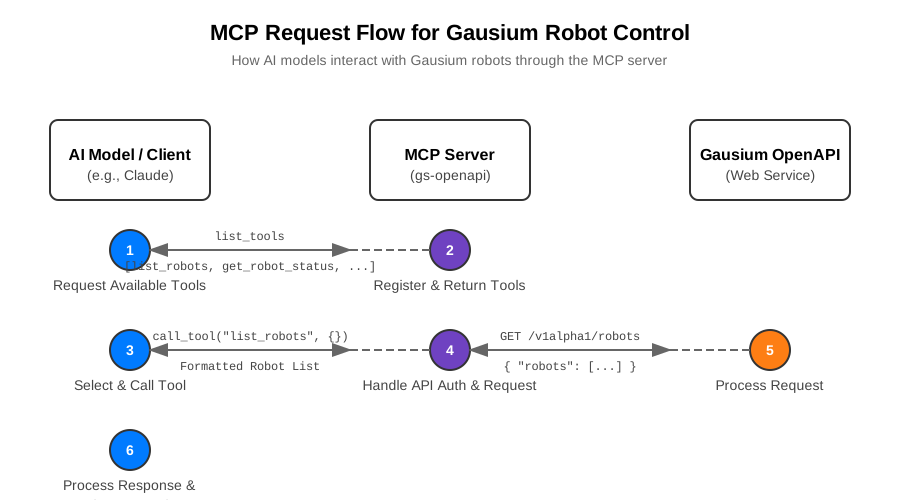
🔄 MCP Protocol Flow
The diagram below shows how AI models interact with Gausium robots through the MCP protocol:
✨ Features
🛠️ Core MCP Tools
Tool | Description | Status |
🤖 | List all accessible robots | ✅ Ready |
📊 | Get detailed robot status and position | ✅ Ready |
📋 | Retrieve cleaning task reports with filtering | ✅ Ready |
🗺️ | Get available maps for robot navigation | ✅ Ready |
🎯 | Send commands to robots (start/pause/stop) | ✅ Ready |
🏢 | Get building and floor information | ✅ Ready |
📍 | Get detailed area information for tasks | ✅ Ready |
🚀 | Submit temporary cleaning tasks | ✅ Ready |
🧠 Smart Routing Tools (Enhanced in v0.1.12)
Tool | Description | Status |
🎯 | Auto-select V1/V2 API based on robot series | ✅ Ready |
📊 | Intelligent task report API routing | ✅ Ready |
🔍 | Show supported APIs for specific robot | ✅ Ready |
🔧 Advanced Workflows
🎛️ Automated Task Execution: Complete workflows from status → task selection → execution
📈 Batch Operations: Handle multiple robots simultaneously
🗺️ Map Management: Upload, download, and manage robot maps
📊 Report Generation: Generate PNG maps from task reports
🏗️ Site-based Tasks: Advanced task creation with building/floor context
🤝 Supported Robot Lines
M-line Robots (Traditional Cleaning Robots)
OMNIE (OMNIE series) - Multi-purpose cleaning robot
Vacuum 40 (40 series) - Vacuum cleaning robot
Scrubber 50 (50 series) - Floor scrubbing robot
Scrubber 75 (75 series) - Heavy-duty floor scrubbing robot
S-line Robots (Advanced Smart Robots, including SW series)
Phantas (S series) - Phantom intelligent cleaning robot
BEETLE (SW series) - Beetle smart cleaning robot
📁 Project Structure
The project follows a structured layout optimized for MCP development:
🔍 Key Components
Component | Purpose | Icon |
config.py | Base URLs, API paths, environment variables | ⚙️ |
token_manager.py | OAuth token acquisition and refresh | 🔐 |
api/robots.py | Robot status, commands, task reports | 🤖 |
api/maps.py | Map listing, upload, download | 🗺️ |
gausium_mcp.py | MCP server integration layer | 🌉 |
task_engine.py | Automated workflow orchestration | 🎯 |
main.py | Server initialization and tool registration | 🚀 |
🚀 Quick Start
📦 Installation
Option 1: Install from PyPI (Recommended)
Option 2: Install from Source
🔧 Configuration
Set up your Gausium API credentials:
🔑 Get credentials from
🏃♂️ Running the Server
✅ Server starts using stdio transport (perfect for Claude Code)
🔌 Claude Code Integration
Method 1: Automatic installation with environment setup
Method 2: Manual configuration
Add to your claude_desktop_config.json:
Method 3: Using environment file
If you prefer to use a .env file:
💡 Note: This MCP server uses
stdiotransport (not SSE), which is perfect for Claude Code integration
🎯 Examples
📱 Claude Code Usage
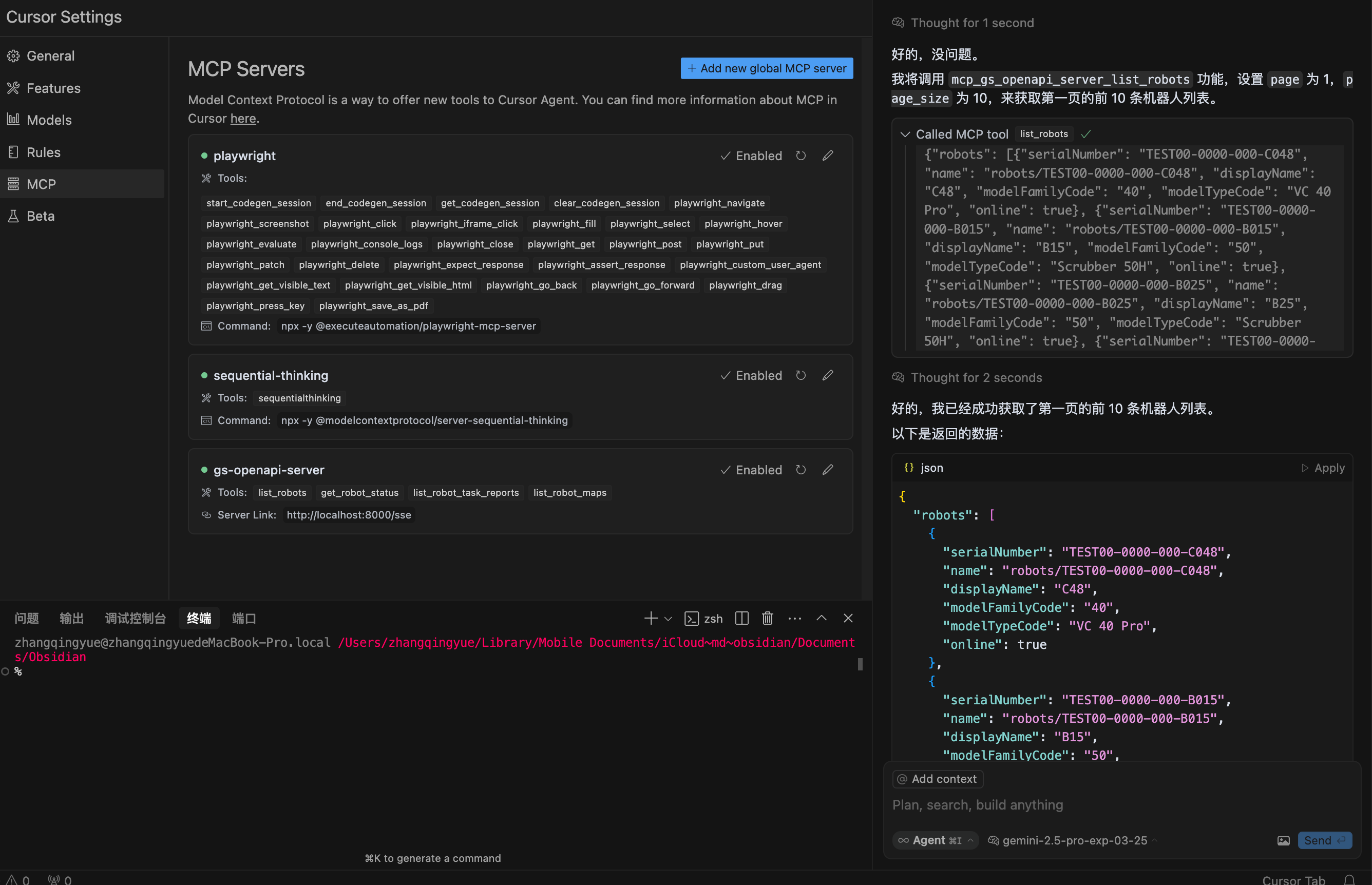
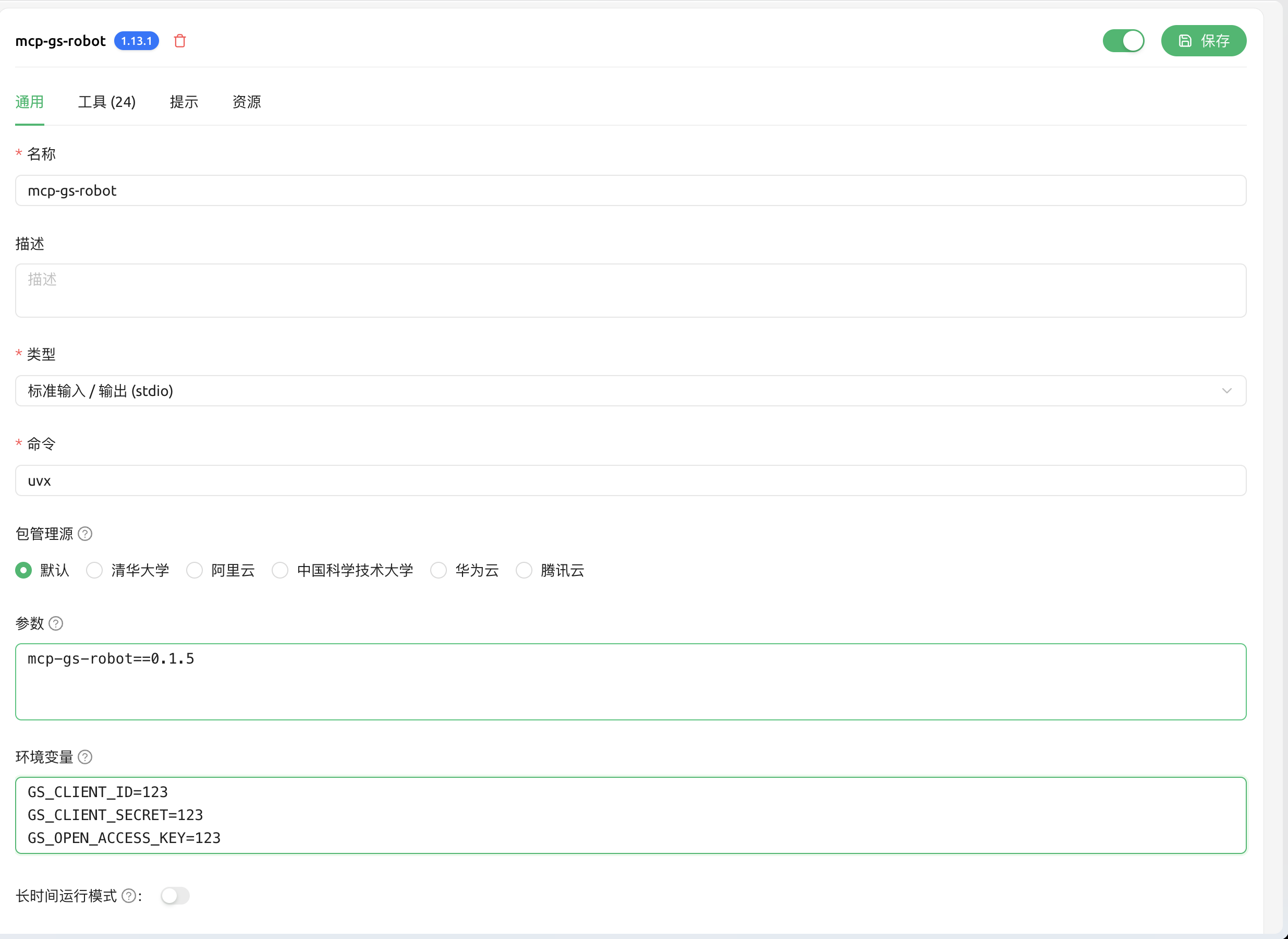
🖥️ IDE Integration
Cursor Configuration:
Cherry Studio Configuration:
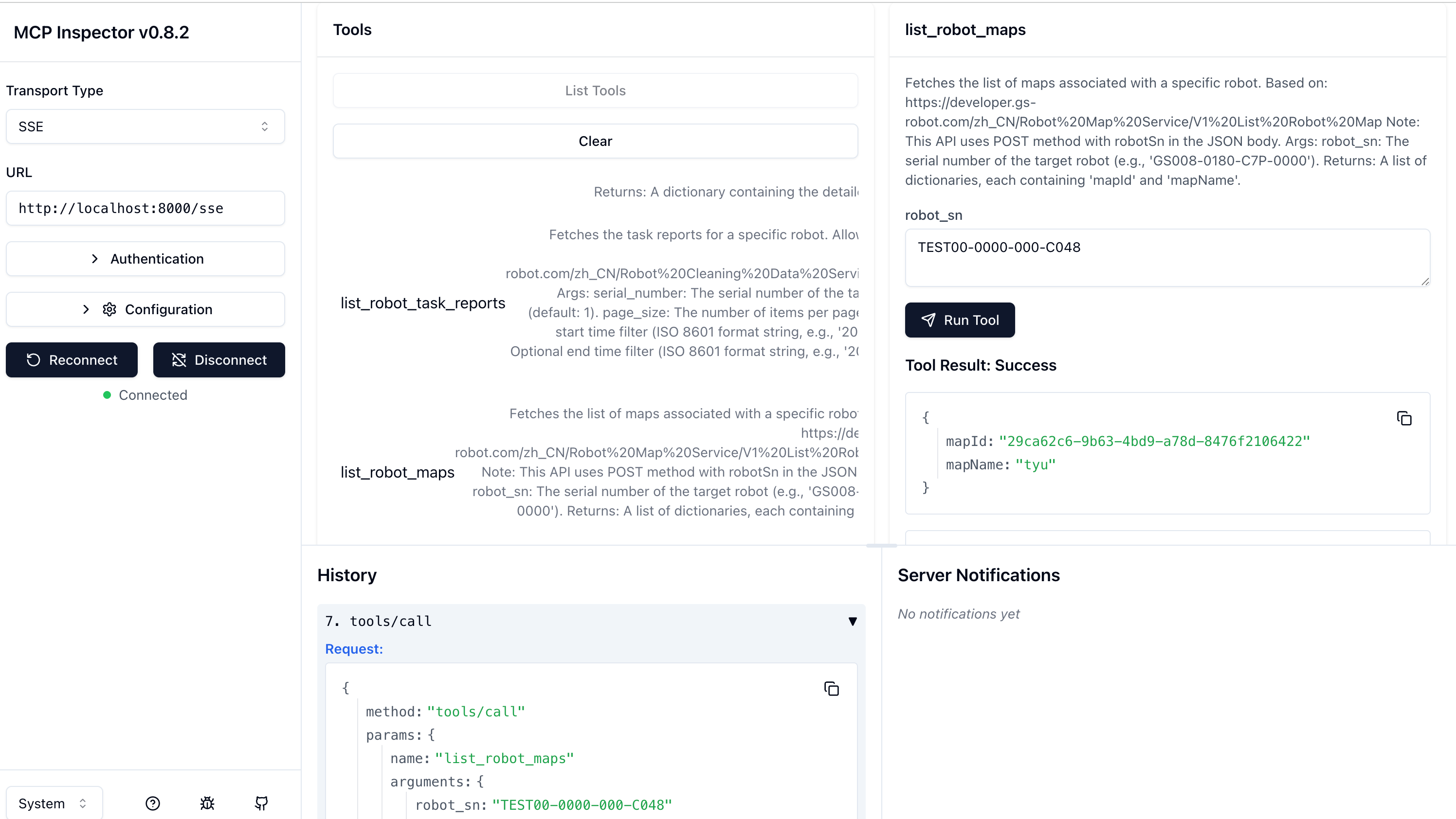
🐛 Debugging
Monitor server logs for troubleshooting:
📖 Documentation
Document | Purpose |
Complete Claude Code setup guide | |
Complete API documentation | |
How to test the MCP server | |
Detailed setup instructions |
🤝 Contributing
We welcome contributions! Please:
🍴 Fork the repository
🌿 Create a feature branch
✅ Add tests for your changes
📝 Update documentation
🔄 Submit a pull request
📄 License
MIT License - see LICENSE file for details.
🆘 Support
Made with ❤️ for the Claude Code community
Enabling AI-powered robot automation, one task at a time 🤖✨