A
licenseA
qualityB
maintenanceMCP server for querying the Shodan API and Shodan CVEDB. This server provides tools for IP lookups, device searches, DNS lookups, vulnerability queries, CPE lookups, and more.
7
192
MIT

Un servidor de Protocolo de Contexto de Modelo (MCP) que proporciona información sobre activos de red según las condiciones de consulta. Este servidor permite que los Modelos de Lenguaje Grande (LLM) obtengan información sobre activos de red consultando ZoomEye mediante dorks y otros parámetros de búsqueda.
Este servidor MCP se integra con asistentes de IA y entornos de desarrollo como Claude Desktop, Cursor, Windsurf, Cline, Continue y Zed, lo que les permite buscar y analizar dispositivos, servicios y vulnerabilidades conectados a Internet a través de interacciones de lenguaje natural.
Consultar ZoomEye para obtener información sobre activos de red mediante dorks
Mecanismo de almacenamiento en caché para mejorar el rendimiento y reducir las llamadas a la API
Mecanismo de reintento automático para solicitudes de API fallidas
Manejo y registro de errores integral
Related MCP server: Shodan-MCP-Server
zoomeye_search : obtiene información de activos de red según las condiciones de consulta.
Parámetros requeridos:
qbase64 (cadena): cadena de consulta codificada en Base64 para la búsqueda de ZoomEye
Parámetros opcionales:
page (entero): Ver número de página del activo, el valor predeterminado es 1
pagesize (entero): Número de registros por página, el valor predeterminado es 10, el máximo es 1000
fields (cadena): Los campos a devolver, separados por comas
sub_type (cadena): Tipo de dato, compatible con v4, v6 y web. El valor predeterminado es v4.
facets (cadena): elementos estadísticos, separados por comas si hay varios
ignore_cache (booleano): si se debe ignorar el caché
Una vez que el servidor esté en funcionamiento, puedes interactuar con él a través de tu asistente de IA o entorno de desarrollo. Así es como se usa:
Inicie el servidor utilizando uno de los métodos de instalación anteriores
Configura tu asistente de IA (Claude Desktop, Cursor, Windsurf, Cline, Continue, Zed, etc.) para usar el servidor
Consultar información de la red utilizando lenguaje natural
El alcance de búsqueda cubre dispositivos (IPv4, IPv6) y sitios web (dominios).
Al ingresar una cadena de búsqueda, el sistema coincidirá con palabras clave en modo "global", incluido el contenido de varios protocolos como HTTP, SSH, FTP, etc. (por ejemplo, encabezados de protocolo HTTP/HTTPS, cuerpo, SSL, título y otros banners de protocolo).
Las cadenas de búsqueda no distinguen entre mayúsculas y minúsculas y se segmentarán para su coincidencia (la página de resultados de búsqueda ofrece una función de prueba de segmentación). Al usar == para la búsqueda, se aplica una coincidencia exacta, distinguiendo entre mayúsculas y minúsculas, con una sintaxis estricta.
Utilice comillas para las cadenas de búsqueda (p. ej., "Sistema Cisco" o 'Sistema Cisco'). Si la cadena de búsqueda contiene comillas, utilice el carácter de escape, p. ej., "a" o "b". Si la cadena de búsqueda contiene paréntesis, utilice el carácter de escape, p. ej., portinfo().
Puede ver reglas de sintaxis de búsqueda más detalladas en prompts.py .
Para obtener más información sobre la API de búsqueda de ZoomEye, consulte la documentación de la API de ZoomEye v2 .
Clave API de ZoomEye
Regístrese para obtener una cuenta en ZoomEye
Obtén tu clave API desde la configuración de tu cuenta
La clave API se utilizará para autenticar sus solicitudes a la API de ZoomEye
Entorno de Python
Se requiere Python 3.10 o superior
Alternativamente, puede usar Docker para ejecutar el servidor sin instalar Python
Alternativamente, puede instalar mcp-server-zoomeye a través de pip:
pip install mcp-server-zoomeyeDespués de la instalación, puedes ejecutarlo como un script usando el siguiente comando:
python -m mcp_server_zoomeyeTambién puede ejecutar el servidor ZoomEye MCP usando Docker:
# Pull the latest image
docker pull zoomeyeteam/mcp-server-zoomeye:latest

# Run the container with your API key
docker run -i --rm -e ZOOMEYE_API_KEY=your_api_key_here zoomeyeteam/mcp-server-zoomeye:latest
Nota : Proporcionamos imágenes Docker de múltiples arquitecturas que admiten plataformas
linux/amd64ylinux/arm64y pueden ejecutarse en procesadores Intel/AMD y ARM (como Apple Silicon).
Alternativamente, puedes crear la imagen de Docker desde la fuente:
# Clone the repository
git clone https://github.com/zoomeye-ai/mcp_zoomeye.git
cd mcp_zoomeye

# Build the Docker image
docker build -t zoomeyeteam/mcp-server-zoomeye:local .

# Run the container
docker run -i --rm -e ZOOMEYE_API_KEY=your_api_key_here zoomeyeteam/mcp-server-zoomeye:local
uv es un instalador y solucionador rápido de paquetes de Python escrito en Rust. Es una alternativa moderna a pip que ofrece mejoras significativas de rendimiento.
# Install uv using curl (macOS/Linux)
curl -LsSf https://astral.sh/uv/install.sh | sh

# Or using PowerShell (Windows)
irm https://astral.sh/uv/install.ps1 | iex

# Or using Homebrew (macOS)
brew install uvNo se requiere ninguna instalación específica al utilizar uvx , lo que le permite ejecutar paquetes de Python directamente:
Alternativamente, puede instalar el paquete usando uv:
# Install in the current environment
uv pip install mcp-server-zoomeye

# Or create and install in a new virtual environment
uv venv
uv pip install mcp-server-zoomeyeEl servidor ZoomEye MCP requiere la siguiente variable de entorno:
ZOOMEYE_API_KEY : Su clave API de ZoomEye para autenticación
Puede configurar esta variable de entorno de varias maneras:
Exportar en su sesión de shell :
export ZOOMEYE_API_KEY="your_api_key_here"Pasar directamente al ejecutar el contenedor (para Docker):
docker run -i --rm -e ZOOMEYE_API_KEY=your_api_key_here zoomeyeteam/mcp-server-zoomeye:latestAgregue lo siguiente en la configuración de Claude:
"mcpServers": {
  "zoomeye": {
    "command": "uvx",
    "args": ["mcp-server-zoomeye"],
    "env": {
        "ZOOMEYE_API_KEY": "your_api_key_here"
    }
  }
}
"mcpServers": {
"zoomeye": {
"command": "docker",
"args": ["run", "-i", "--rm", "-e", "ZOOMEYE_API_KEY=your_api_key_here", "zoomeyeteam/mcp-server-zoomeye:latest"],
"env": {
"ZOOMEYE_API_KEY": "your_api_key_here"
}
}
}"mcpServers": {
"zoomeye": {
"command": "python",
"args": ["-m", "mcp_server_zoomeye"],
"env": {
"ZOOMEYE_API_KEY": "your_api_key_here"
}
}
}Agregue lo siguiente en settings.json de Zed:
"context_servers": [
  "mcp-server-zoomeye": {
    "command": "uvx",
    "args": ["mcp-server-zoomeye"],
    "env": {
        "ZOOMEYE_API_KEY": "your_api_key_here"
    }
  }
],
"context_servers": {
"mcp-server-zoomeye": {
"command": "python",
"args": ["-m", "mcp_server_zoomeye"],
"env": {
"ZOOMEYE_API_KEY": "your_api_key_here"
}
}
},{
"name": "zoomeye_search",
"arguments": {
"qbase64": "app=\"Apache Tomcat\""
}
}Respuesta:
{
  "code": 60000,
  "message": "success",
  "total": 163139107,
  "query": "title=\"cisco vpn\"",
  "data": [
    {
      "url": "https://1.1.1.1:443",
      "ssl.jarm": "29d29d15d29d29d00029d29d29d29dea0f89a2e5fb09e4d8e099befed92cfa",
      "ssl.ja3s": "45094d08156d110d8ee97b204143db14",
      "iconhash_md5": "f3418a443e7d841097c714d69ec4bcb8",
      "robots_md5": "0b5ce08db7fb8fffe4e14d05588d49d9",
      "security_md5": "0b5ce08db7fb8fffe4e14d05588d49d9",
      "ip": "1.1.1.1",
      "domain": "www.google.com",
      "hostname": "SPACEX",
      "os": "windows",
      "port": 443,
      "service": "https",
      "title": ["GoogleGoogle appsGoogle Search"],
      "version": "1.1.0",
      "device": "webcam",
      "rdns": "c01031-001.cust.wallcloud.ch",
      "product": "OpenSSD",
      "header": "HTTP/1.1 302 Found Location: https://www.google.com/?gws_rd=ssl Cache-Control: private...",
      "header_hash": "27f9973fe57298c3b63919259877a84d",
      "body": "HTTP/1.1 302 Found Location: https://www.google.com/?gws_rd=ssl Cache-Control: private...",
      "body_hash": "84a18166fde3ee7e7c974b8d1e7e21b4",
      "banner": "SSH-2.0-OpenSSH_7.6p1 Ubuntu-4ubuntu0.3",
      "update_time": "2024-07-03T14:34:10",
      "header.server.name": "nginx",
      "header.server.version": "1.8.1",
      "continent.name": "Europe",
      "country.name": "Germany",
      "province.name": "Hesse",
      "city.name": "Frankfurt",
      "lon": "118.753262",
      "lat": "32.064838",
      "isp.name": "aviel.ru",
      "organization.name": "SERVISFIRST BANK",
      "zipcode": "210003",
      "idc": 0,
      "honeypot": 0,
      "asn": 4837,
      "protocol": "tcp",
      "ssl": "SSL Certificate Version: TLS 1.2 CipherSuit: TLS_ECDHE_RSA_WITH_AES_128_GCM_SHA256...",
      "primary_industry": "Finance",
      "sub_industry": "bank",
      "rank": 60
    }
  ]
}El Inspector de Protocolo de Contexto de Modelo es una herramienta que ayuda a depurar servidores MCP mediante la simulación de interacciones con el cliente. Puede usarlo para probar su servidor MCP de ZoomEye:
# For uvx installation
npx @modelcontextprotocol/inspector uvx mcp-server-zoomeye

# If developing locally
cd path/to/servers/src/mcp_server_zoomeye
npx @modelcontextprotocol/inspector uv run mcp-server-zoomeyeErrores de autenticación
Asegúrese de que su clave API de ZoomEye sea correcta y esté configurada correctamente como variable de entorno
Comprueba que tu clave API no haya caducado ni haya sido revocada
Problemas de conexión
Verificar su conexión a Internet
Compruebe si la API de ZoomEye está experimentando un tiempo de inactividad
No hay resultados
Su consulta podría ser demasiado específica o contener errores de sintaxis.
Intente simplificar su consulta o utilizar términos de búsqueda diferentes.
Limitación de velocidad
La API de ZoomEye tiene límites de velocidad según el tipo de cuenta
Distribuya sus solicitudes o actualice su cuenta para obtener límites más altos
El servidor MCP de ZoomEye implementa el almacenamiento en caché para mejorar el rendimiento y reducir las llamadas API:
Las respuestas se almacenan en caché en función de los parámetros de consulta.
La duración del caché es configurable (predeterminado: 1 hora)
Puede omitir el caché configurando ignore_cache como true en su consulta
Puede solicitar campos específicos en los resultados de su consulta utilizando el parámetro fields :
{
  "name": "zoomeye_search",
  "arguments": {
    "qbase64": "app=\"Apache\"",
    "fields": "ip,port,domain,service,os,country,city"
  }
}Para las consultas que devuelven muchos resultados, puede paginarlos:
{
  "name": "zoomeye_search",
  "arguments": {
    "qbase64": "app=\"Apache\"",
    "page": 2,
    "pagesize": 20
  }
}Invitamos a contribuir a mcp-server-zoomeye para ampliar y mejorar su funcionalidad. Ya sea añadiendo nuevas herramientas relacionadas, mejorando funciones existentes o mejorando la documentación, su aportación es valiosa.
Para ver ejemplos de otros servidores MCP y patrones de implementación, consulte: https://github.com/modelcontextprotocol/servers
¡Aceptamos solicitudes de incorporación de cambios! Siéntete libre de contribuir con nuevas ideas, correcciones de errores o mejoras para que mcp-server-zoomeye sea más robusto y práctico.
mcp-server-zoomeye está licenciado bajo la Licencia MIT. Esto significa que usted tiene libertad de usar, modificar y distribuir el software, sujeto a los términos y condiciones de la Licencia MIT. Para más información, consulte el archivo de LICENCIA en el repositorio del proyecto.
Search Scope covers devices (IPv4, IPv6) and websites (domains).
When entering a search string, the system will match keywords in "global" mode, including content from various protocols such as HTTP, SSH, FTP, etc. (e.g., HTTP/HTTPS protocol headers, body, SSL, title, and other protocol banners).
Search strings are case-insensitive and will be segmented for matching (the search results page provides a " segmentation" test feature). When using == for search, it enforces exact case-sensitive matching with strict syntax.
Please use quotes for search strings (e.g., "Cisco System" or 'Cisco System'). If the search string contains quotes, use the escape character, e.g.,"a"b". If the search string contains parentheses, use the escape character, e.g., portinfo().
=, Search for assets containing keywords title="knownsec" Search for websites with titles containing Knownsec's assets
==, Accurate search, indicating a complete match of keywords (case sensitive), can search for data with empty values title=="knownsec" Precise search, which means exact match of keywords (case sensitive), and can search for data with empty values Search for assets with the website title "Knownsec"
||, Enter "||" in the search box to indicate the logical operation of "or" service="ssh" || service="http" Search for SSH or HTTP data
&&, Enter "&&" in the search box to indicate the logical operation of "and" device="router" && after="2020-01-01" Search for routers after Jan 1, 2020
!=, Enter "!=" in the search box to indicate the logical operation of "not" country="US" && subdivisions!="new york" Search for data in united states excluding new york
(), Enter "()" in the search box to indicate the logical operation of "priority processing" (country="US" && port!=80) || (country="US" && title!="404 Not Found") Search excluding port 80 in US or "404 not found" in the US
*,Fuzzy search, use * for search title="*google" Fuzzy search, use * to search Search for assets containing Knowsec in the website title, and the title can start with any character
country="CN" Search for country assets Input country abbreviations or names, e.g. country="china"
subdivisions="beijing" Search for assets in the specified administrative region Input in English, e.g. subdivisions="beijing"
city="changsha" Search for city assets Input in English, e.g. city="changsha"
ssl="google" Search for assets with "google" string in ssl certificate Often used to search for corresponding targets by product name and company name
ssl.cert.fingerprint="F3C98F223D82CC41CF83D94671CCC6C69873FABF" Search for certificate-related fingerprint assets
ssl.chain_count=3 Search for SSL chain count assets
ssl.cert.alg="SHA256-RSA" Search for signature algorithms supported by certificates
ssl.cert.issuer.cn="pbx.wildix.com" Search for the common domain name of the user certificate issuer
ssl.cert.pubkey.rsa.bits=2048 Search for rsa_bits certificate public key bit number
ssl.cert.pubkey.ecdsa.bits=256 Search for ecdsa_bits certificate public key bit number
ssl.cert.pubkey.type="RSA" Search for the public key type of the certificate
ssl.cert.serial="18460192207935675900910674501" Search for certificate serial number
ssl.cipher.bits="128" Search for encryption suite bit number
ssl.cipher.name="TLS_AES_128_GCM_SHA256" Search for encryption suite name
ssl.cipher.version="TLSv1.3" Search for encryption suite version
ssl.version="TLSv1.3" Search for the SSL version of the certificate
ssl.cert.subject.cn="example.com" Search for the common domain name of the user certificate holder
ssl.jarm="29d29d15d29d29d00029d29d29d29dea0f89a2e5fb09e4d8e099befed92cfa" Search for assets related to Jarm Fingerprint content
ssl.ja3s=45094d08156d110d8ee97b204143db14 Find assets related to specific JA3S fingerprints
ip="8.8.8.8" Search for assets related to the specified IPv4 address ip="2600:3c00::f03c:91ff:fefc:574a" Search for assets related to specified IPv6 address
cidr="52.2.254.36/24" Search for C-class assets of IP cidr="52.2.254.36/16"is the B class of the IP, cidr="52.2.254.36/8"is the A class of the IP, e.g. cidr="52.2.254.36/16" cidr="52.2.254.36/8"
org="Stanford University" Search for assets of related organizations Used to locate IP assets corresponding to universities, structures, and large Internet companies
isp="China Mobile" Search for assets of related network service providers Can be supplemented with org data
asn=42893 Search for IP assets related to corresponding ASN (Autonomous system number)
port=80 Search for related port assets Currently does not support simultaneous open multi-port target search
hostname="google.com" Search for assets of related IP "hostname"
domain="baidu.com" Search for domain-related assets Used to search domain and subdomain data
banner="FTP" Search by protocol messages Used for searching HTTP response header data
http.header="http" Search by HTTP response header Used for searching HTTP response header data
http.header_hash="27f9973fe57298c3b63919259877a84d" Search by the hash values calculated from HTTP header.
http.header.server="Nginx" Search by server of the HTTP header Used for searching the server data in HTTP response headers
http.header.version="1.2" Search by version number in the HTTP header
http.header.status_code="200" Search by HTTP response status code Search for assets with HTTP response status code 200 or other status codes, such as 302, 404, etc.
http.body="document" Search by HTML body
http.body_hash="84a18166fde3ee7e7c974b8d1e7e21b4" Search by hash value calculated from HTML body
app="Cisco ASA SSL VPN" Search for Cisco ASA-SSL-VPN devices For more app rules, please refer to [object Object]. Entering keywords such as "Cisco" in the search box will display related app prompts
service="ssh" Search for assets related to the specified service protocol Common service protocols include: http, ftp, ssh, telnet, etc. (other services can be found in the domain name sidebar aggregation display of search results)
device="router" Search for router-related device types Common types include router, switch, storage-misc, etc. (other types can be found in the domain name sidebar aggregation display of search results)
os="RouterOS" Search for related operating systems Common systems include Linux, Windows, RouterOS, IOS, JUNOS, etc. ( other systems can be found in the domain name sidebar aggregation display of search results)
title="Cisco" Search for data with "Cisco" in the title of the HTML content
industry="government" Search for assets related to the specified industry type Common industry types include technology, energy, finance, manufacturing, etc. (other types can be supplemented with org data)
product="Cisco" Search for assets with "Cisco" in the component information Support mainstream asset component search
protocol="TCP" Search for assets with the transmission protocol as TCP Common transmission protocols include TCP, UDP, TCP6, SCTP
is_honeypot="True" Filter for honeypot assets
after="2020-01-01" && port="50050" Search for assets with an update time after Jan 1, 2020 and a port 50050 Time filters need to be combined with other filters
before="2020-01-01" && port="50050" Search for assets with an update time before Jan 1, 2020 and a port 50050 Time filters need to be combined with other filters
dig="baidu.com 220.181.38.148" Search for assets with related dig content
iconhash="f3418a443e7d841097c714d69ec4bcb8" Analyze the target data by MD5 and search for assets with related content based on the icon Search for assets with the "google" icon
iconhash="1941681276" Analyze the target data by MMH3 and search for assets with related content based on the icon Search for assets with the "amazon" icon
filehash="0b5ce08db7fb8fffe4e14d05588d49d9" Search for assets with related content based on the parsed file data Search for assets parsed with "Gitlab"
Search for all assets of China Merchants Group in Arabic org="مكتب التجار الصيني" || ssl="مكتب التجار الصيني"
Search for Starlink devices app=Starlink || device=Starlink
Search for network devices running http service on port 80 port=80 && service="http"
Search for network devices running ssl on port 443 in Nagoya city=nagoya && port=443 && service=ssl
Search for network devices running Windows operating system in the United States country=us && os=windows
Search for devices running Microsoft NTP application app="Microsoft NTP"
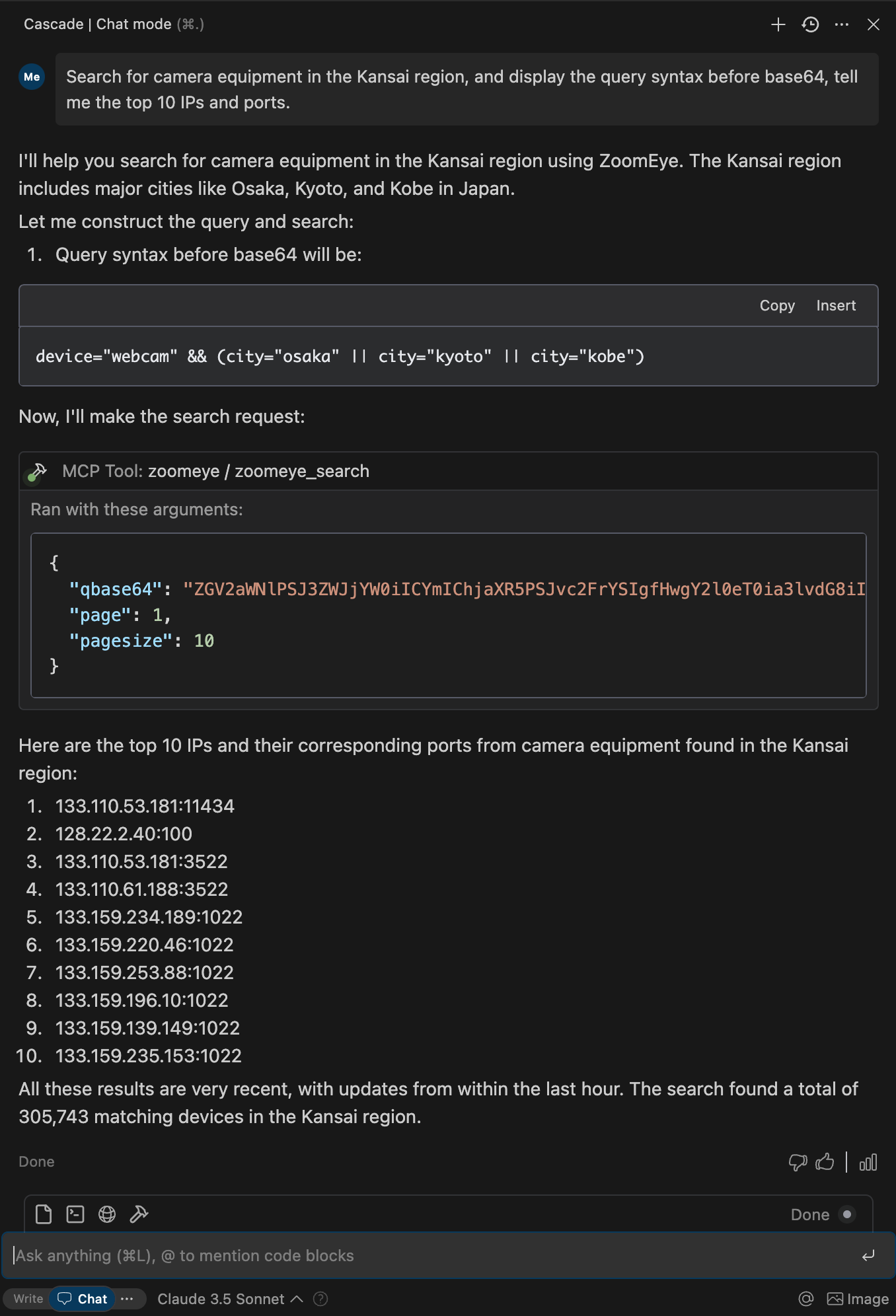
Search for webcams in Tokyo city=tokyo && device=webcam
Search for industrial control devices with component 6ES7 315-2EH14-0AB0 running on port 102 port=102 && module_id=6ES7 215-1BG40-0XB0
Search for assets indexed after 2020-01-01 with port 50050 open after="2020-01-01" && port=50050
Search for assets in Delta, Canada country=Canada && city=Delta
Search for assets in Poland with Linux system and port 22 os=linux && port=22 && country=PL
Search for FTP service with hostname example service=ftp && hostname=example
Search for IPv4 assets is_ipv4=true
Search for IPv6 assets is_ipv6=true
Search for IP assets containing "FreeBSD", including both IPv4 and IPv6 FreeBSD && (is_ipv4=true || is_ipv6=true)
Search for website assets containing FreeBSD FreeBSD && is_domain=true
Search for assets with "Knownsec" in the body http.body="Knownsec"
Search for specific Header hash http.header_hash="9763f6e29aa78e7ca2179ac82decbc25"
Inputs: qbase64 (required), page, facets, fields, +3 more.
Search for detailed vulnerability information by vulnerability ID and return formatted results.
Use this tool to retrieve comprehensive security vulnerability details from the vulnerability
database using a vulnerability identifier (CVE, CNVD, CNNVD). Results include:
Inputs: cve_id (required).
Search ZoomEye's vulnerability database for security vulnerabilities based on a specified keyword.
This function queries the ZoomEye vulnerability database to retrieve information about known security vulnerabilities associated with specific products, vendors. Results include vulnerability details such as CVE IDs, severity ratings, affected versions, and vulnerability descriptions.
Inputs: keyword (required), page_size.
Recent tool additions, removals, and schema changes observed during successful MCP inspections.
Loading tool schema changelog…
Scored across 3 tools
Each tool serves a distinct purpose: one for general asset search, one for vulnerability detail by ID, and one for vulnerability keyword search. There is no overlap in functionality.
All tools follow a consistent 'zoomeye_' prefix with snake_case naming: search, vuldb_by_id, vuldb_by_keyword. Pattern is uniform and predictable.
With 3 tools, the set is minimal but appropriate for the ZoomEye domain, covering asset search and vulnerability queries. Slightly thin but reasonable given the focused scope.
The tools cover basic search and vulnerability lookup, but lack features like retrieving detailed host info, filtering by specific fields, or obtaining result counts. Some operations are missing for full workflow coverage.
MCP server for the Vulners.com API
MCP server for Google search results via SERP API
MCP server for IPv4 geolocation lookup with Chinese output, supports batch queries.
MCP server for Riveter's enrichment, scraping, and monitoring API