
A
licenseA
qualityB
maintenanceMCP server for querying the Shodan API and Shodan CVEDB. This server provides tools for IP lookups, device searches, DNS lookups, vulnerability queries, CPE lookups, and more.
7
1,582 npm
187
MIT

Allows querying for Apache Tomcat assets across the internet, with the ability to retrieve detailed information about deployed instances.
Enables searching for Cisco VPN deployments and related network assets, providing detailed SSL, security, and configuration information.
Supports discovering NGINX web servers across the internet, retrieving server version, configuration, and deployment details.
Click on "Deploy Server".
Wait a few minutes for the server to deploy. Once ready, it will show a "Started" state.
In the chat, type @ followed by the MCP server name and your instructions, e.g., "@ZoomEye MCP Server search for Apache web servers in Germany"
That's it! The server will respond to your query, and you can continue using it as needed.
Here is a step-by-step guide with screenshots.
A Model Context Protocol (MCP) server that provides network asset information based on query conditions. This server allows Large Language Models (LLMs) to obtain network asset information by querying ZoomEye using dorks and other search parameters.
🎉 We are excited to announce the official open-source release of ZoomEye MCP Server — a powerful Model Context Protocol (MCP) server that brings real-time cyber asset intelligence to AI assistants and development environments.
🚀 Free Trial: 7-Day FREE Access to ZoomEye MCP! Experience ZoomEye MCP — the AI-powered cyberspace asset search engine — absolutely free for 7 days!
🔍 Search global internet assets, track real-time changes, and unlock AI-driven insights — all in one place.
👉 How to claim:
Follow us on Twitter: @zoomeye_team
DM us "MCP" and your MCP setup screenshot
Get instant access to your 7-day membership
🎁 Limited-time free trial — explore the power of AI asset search today!
💡 Provide insightful feedback that gets officially adopted, and you'll unlock even more rewards!
🔧 Fully compatible with leading MCP environments:
Claude Desktop
Cursor
Windsurf
Cline
Continue
Zed
Cherry Studio
Chatbox
🔗 Explore ZoomEye MCP Server on:
GitHub: zoomeye-ai/mcp_zoomeye
MCP.so: mcp.so/server/mcp_zoomeye
Cursor Directory: cursor.directory/mcp/zoomeye
Pulse MCP: pulsemcp.com/servers/zoomeye
Glama MCP: glama.ai/mcp/servers
We welcome everyone to use, explore, and contribute!
Related MCP server: Shodan-MCP-Server
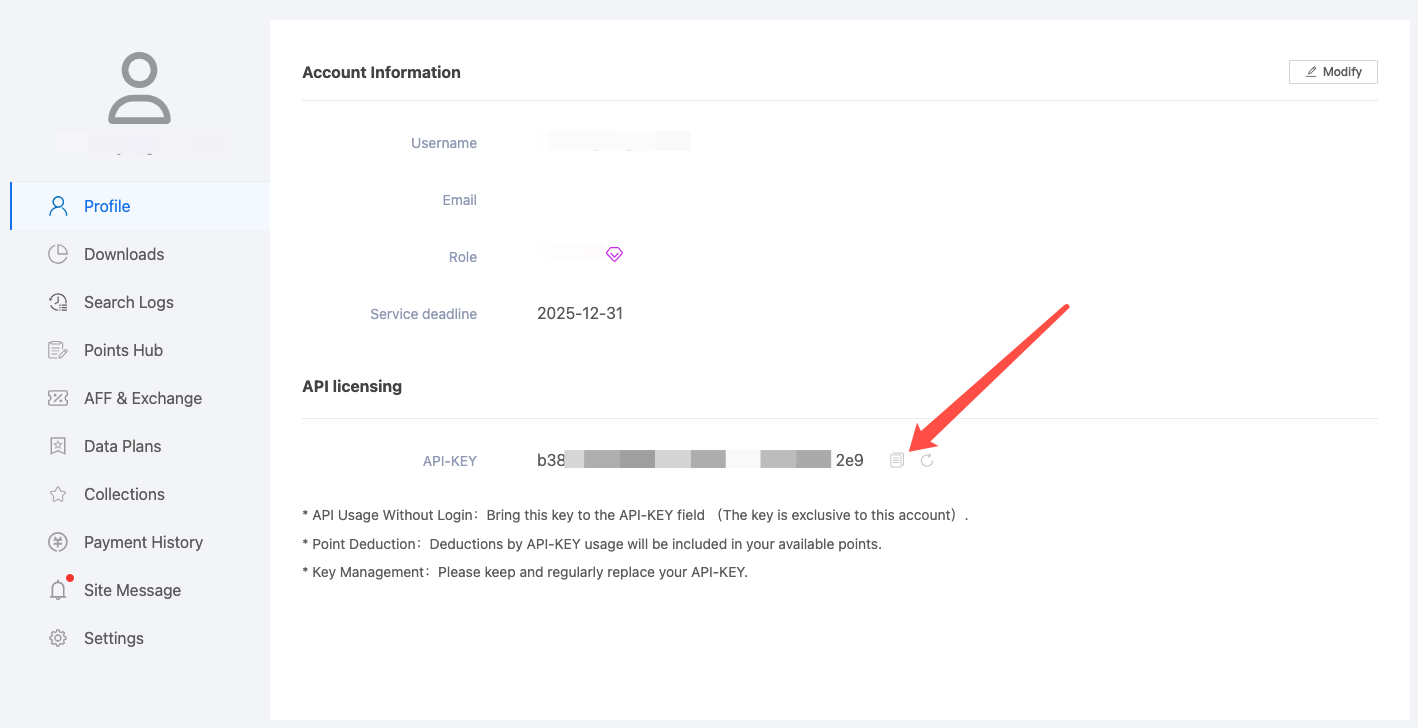
To use this MCP server, you’ll need a ZoomEye API key.
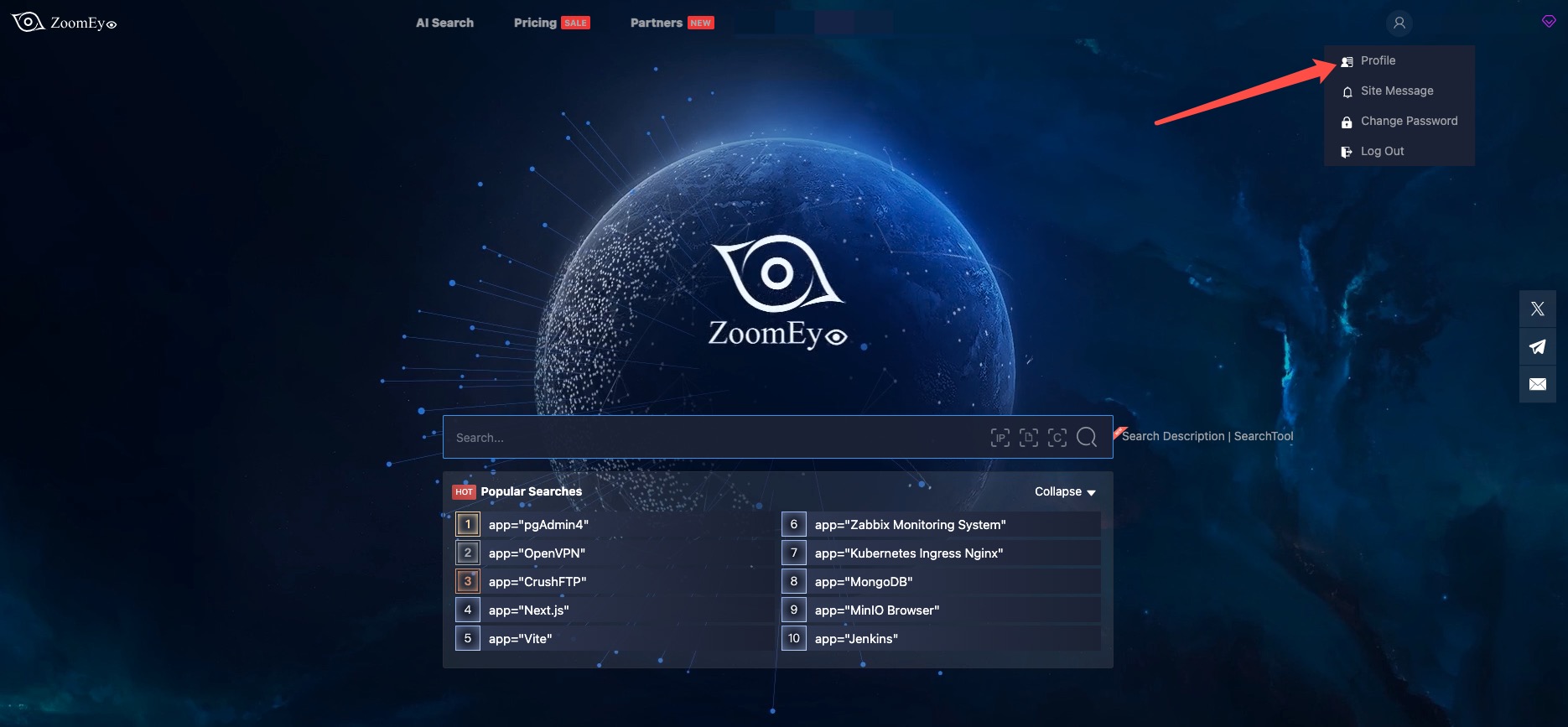
Go to https://www.zoomeye.ai
Register or log in
Click your avatar → Profile
Copy your API-KEY
Set the environment variable:
export ZOOMEYE_API_KEY="your_api_key_here"
Query ZoomEye for network asset information using dorks
Caching mechanism to improve performance and reduce API calls
Automatic retry mechanism for failed API requests
Comprehensive error handling and logging
zoomeye_search - Get network asset information based on query conditions.
Required parameters:
qbase64 (string): Base64 encoded query string for ZoomEye search
Optional parameters:
page (integer): View asset page number, default is 1
pagesize (integer): Number of records per page, default is 10, maximum is 1000
fields (string): The fields to return, separated by commas
sub_type (string): Data type, supports v4, v6, and web. Default is v4
facets (string): Statistical items, separated by commas if there are multiple
ignore_cache (boolean): Whether to ignore the cache
Once the server is running, you can interact with it through your AI assistant or development environment. Here's how to use it:
Start the server using one of the installation methods above
Configure your AI assistant (Claude Desktop, Cursor, Windsurf, Cline, Continue, Zed, etc.) to use the server
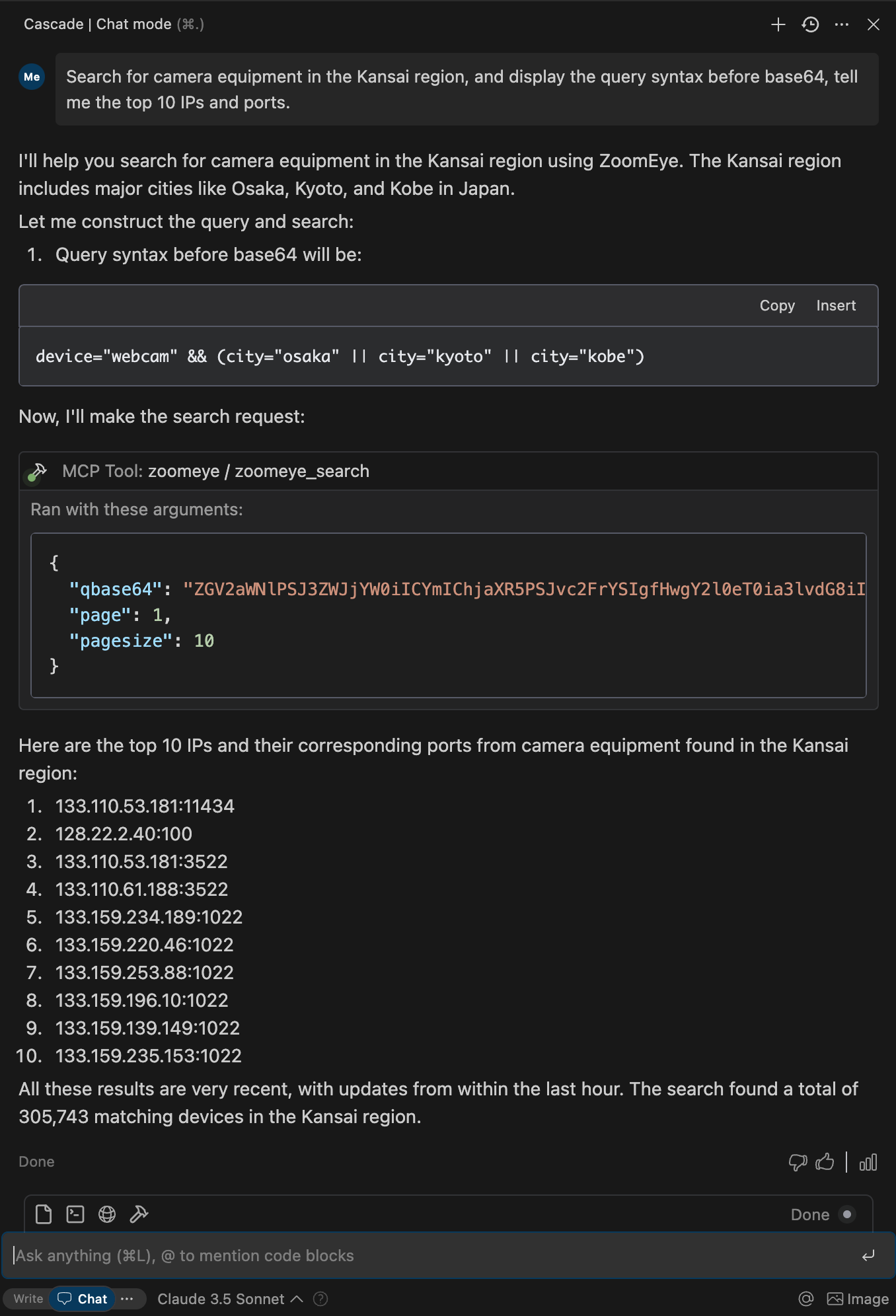
Query network information using natural language
Search Scope covers devices (IPv4, IPv6) and websites (domains).
When entering a search string, the system will match keywords in "global" mode, including content from various protocols such as HTTP, SSH, FTP, etc. (e.g., HTTP/HTTPS protocol headers, body, SSL, title, and other protocol banners).
Search strings are case-insensitive and will be segmented for matching (the search results page provides a " segmentation" test feature). When using == for search, it enforces exact case-sensitive matching with strict syntax.
Please use quotes for search strings (e.g., "Cisco System" or 'Cisco System'). If the search string contains quotes, use the escape character, e.g.,"a"b". If the search string contains parentheses, use the escape character, e.g., portinfo().
You can see more detailed search syntax rules in prompts.py.
For more information on the ZoomEye Search API, refer to the ZoomEye API v2 documentation.
ZoomEye API Key
Register for an account at ZoomEye
Obtain your API key from your account settings
The API key will be used to authenticate your requests to the ZoomEye API
Python Environment
Python 3.10 or higher is required
Alternatively, you can use Docker to run the server without installing Python
Alternatively, you can install mcp-server-zoomeye via pip:
pip install mcp-server-zoomeyeAfter installation, you can run it as a script using the following command:
python -m mcp_server_zoomeyeYou can also run the ZoomEye MCP server using Docker:
# Pull the latest image
docker pull zoomeyeteam/mcp-server-zoomeye:latest

# Run the container with your API key
docker run -i --rm -e ZOOMEYE_API_KEY=your_api_key_here zoomeyeteam/mcp-server-zoomeye:latestNote: We provide multi-architecture Docker images that support
linux/amd64andlinux/arm64platforms and can run on Intel/AMD and ARM (such as Apple Silicon) processors.
Alternatively, you can build the Docker image from source:
# Clone the repository
git clone https://github.com/zoomeye-ai/mcp_zoomeye.git
cd mcp_zoomeye

# Build the Docker image
docker build -t zoomeyeteam/mcp-server-zoomeye:local .

# Run the container
docker run -i --rm -e ZOOMEYE_API_KEY=your_api_key_here zoomeyeteam/mcp-server-zoomeye:localuv is a fast Python package installer and resolver written in Rust. It's a modern alternative to pip that offers significant performance improvements.
# Install uv using curl (macOS/Linux)
curl -LsSf https://astral.sh/uv/install.sh | sh

# Or using PowerShell (Windows)
irm https://astral.sh/uv/install.ps1 | iex

# Or using Homebrew (macOS)
brew install uvNo specific installation is required when using uvx, which allows you to run Python packages directly:
Alternatively, you can install the package using uv:
# Install in the current environment
uv pip install mcp-server-zoomeye

# Or create and install in a new virtual environment
uv venv
uv pip install mcp-server-zoomeyeThe ZoomEye MCP server requires the following environment variable:
ZOOMEYE_API_KEY: Your ZoomEye API key for authentication
You can set this environment variable in several ways:
Export in your shell session:
export ZOOMEYE_API_KEY="your_api_key_here"Pass directly when running the container (for Docker):
docker run -i --rm -e ZOOMEYE_API_KEY=your_api_key_here zoomeyeteam/mcp-server-zoomeye:latestAdd the following in Claude settings:
"mcpServers": {
  "zoomeye": {
    "command": "uvx",
    "args": ["mcp-server-zoomeye"],
    "env": {
        "ZOOMEYE_API_KEY": "your_api_key_here"
    }
  }
}
"mcpServers": {
"zoomeye": {
"command": "docker",
"args": ["run", "-i", "--rm", "-e", "ZOOMEYE_API_KEY=your_api_key_here", "zoomeyeteam/mcp-server-zoomeye:latest"],
"env": {
"ZOOMEYE_API_KEY": "your_api_key_here"
}
}
}"mcpServers": {
"zoomeye": {
"command": "python",
"args": ["-m", "mcp_server_zoomeye"],
"env": {
"ZOOMEYE_API_KEY": "your_api_key_here"
}
}
}Add the following in Zed's settings.json:
"context_servers": [
  "mcp-server-zoomeye": {
    "command": "uvx",
    "args": ["mcp-server-zoomeye"],
    "env": {
        "ZOOMEYE_API_KEY": "your_api_key_here"
    }
  }
],
"context_servers": {
"mcp-server-zoomeye": {
"command": "python",
"args": ["-m", "mcp_server_zoomeye"],
"env": {
"ZOOMEYE_API_KEY": "your_api_key_here"
}
}
},{
"name": "zoomeye_search",
"arguments": {
"qbase64": "app=\"Apache Tomcat\""
}
}Response:
{
  "code": 60000,
  "message": "success",
  "total": 163139107,
  "query": "app=\"Apache Tomcat\"",
  "data": [
    {
      "url": "https://1.1.1.1:443",
      "ssl.jarm": "29d29d15d29d29d00029d29d29d29dea0f89a2e5fb09e4d8e099befed92cfa",
      "ssl.ja3s": "45094d08156d110d8ee97b204143db14",
      "iconhash_md5": "f3418a443e7d841097c714d69ec4bcb8",
      "robots_md5": "0b5ce08db7fb8fffe4e14d05588d49d9",
      "security_md5": "0b5ce08db7fb8fffe4e14d05588d49d9",
      "ip": "1.1.1.1",
      "domain": "www.google.com",
      "hostname": "SPACEX",
      "os": "windows",
      "port": 443,
      "service": "https",
      "title": ["GoogleGoogle appsGoogle Search"],
      "version": "1.1.0",
      "device": "webcam",
      "rdns": "c01031-001.cust.wallcloud.ch",
      "product": "OpenSSD",
      "header": "HTTP/1.1 302 Found Location: https://www.google.com/?gws_rd=ssl Cache-Control: private...",
      "header_hash": "27f9973fe57298c3b63919259877a84d",
      "body": "HTTP/1.1 302 Found Location: https://www.google.com/?gws_rd=ssl Cache-Control: private...",
      "body_hash": "84a18166fde3ee7e7c974b8d1e7e21b4",
      "banner": "SSH-2.0-OpenSSH_7.6p1 Ubuntu-4ubuntu0.3",
      "update_time": "2024-07-03T14:34:10",
      "header.server.name": "nginx",
      "header.server.version": "1.8.1",
      "continent.name": "Europe",
      "country.name": "Germany",
      "province.name": "Hesse",
      "city.name": "Frankfurt",
      "lon": "118.753262",
      "lat": "32.064838",
      "isp.name": "aviel.ru",
      "organization.name": "SERVISFIRST BANK",
      "zipcode": "210003",
      "idc": 0,
      "honeypot": 0,
      "asn": 4837,
      "protocol": "tcp",
      "ssl": "SSL Certificate Version: TLS 1.2 CipherSuit: TLS_ECDHE_RSA_WITH_AES_128_GCM_SHA256...",
      "primary_industry": "Finance",
      "sub_industry": "bank",
      "rank": 60
    }
  ]
}The Model Context Protocol Inspector is a tool that helps debug MCP servers by simulating client interactions. You can use it to test your ZoomEye MCP server:
# For uvx installation
npx @modelcontextprotocol/inspector uvx mcp-server-zoomeye

# If developing locally
cd path/to/servers/src/mcp_server_zoomeye
npx @modelcontextprotocol/inspector uv run mcp-server-zoomeyeAuthentication Errors
Ensure your ZoomEye API key is correct and properly set as an environment variable
Check that your API key has not expired or been revoked
Connection Issues
Verify your internet connection
Check if the ZoomEye API is experiencing downtime
No Results
Your query might be too specific or contain syntax errors
Try simplifying your query or using different search terms
Rate Limiting
ZoomEye API has rate limits based on your account type
Space out your requests or upgrade your account for higher limits
The ZoomEye MCP server implements caching to improve performance and reduce API calls:
Responses are cached based on the query parameters
Cache duration is configurable (default: 1 hour)
You can bypass the cache by setting ignore_cache to true in your query
You can request specific fields in your query results by using the fields parameter:
{
  "name": "zoomeye_search",
  "arguments": {
    "qbase64": "app=\"Apache\"",
    "fields": "ip,port,domain,service,os,country,city"
  }
}For queries that return many results, you can paginate through them:
{
  "name": "zoomeye_search",
  "arguments": {
    "qbase64": "app=\"Apache\"",
    "page": 2,
    "pagesize": 20
  }
}We encourage contributions to mcp-server-zoomeye to help expand and improve its functionality. Whether it's adding new related tools, enhancing existing features, or improving documentation, your input is valuable.
For examples of other MCP servers and implementation patterns, see: https://github.com/modelcontextprotocol/servers
Pull requests are welcome! Feel free to contribute new ideas, bug fixes, or enhancements to make mcp-server-zoomeye more robust and practical.
mcp-server-zoomeye is licensed under the MIT License. This means you are free to use, modify, and distribute the software, subject to the terms and conditions of the MIT License. For more information, see the LICENSE file in the project repository.
Search Scope covers devices (IPv4, IPv6) and websites (domains).
When entering a search string, the system will match keywords in "global" mode, including content from various protocols such as HTTP, SSH, FTP, etc. (e.g., HTTP/HTTPS protocol headers, body, SSL, title, and other protocol banners).
Search strings are case-insensitive and will be segmented for matching (the search results page provides a " segmentation" test feature). When using == for search, it enforces exact case-sensitive matching with strict syntax.
Please use quotes for search strings (e.g., "Cisco System" or 'Cisco System'). If the search string contains quotes, use the escape character, e.g.,"a"b". If the search string contains parentheses, use the escape character, e.g., portinfo().
=, Search for assets containing keywords title="knownsec" Search for websites with titles containing Knownsec's assets
==, Accurate search, indicating a complete match of keywords (case sensitive), can search for data with empty values title=="knownsec" Precise search, which means exact match of keywords (case sensitive), and can search for data with empty values Search for assets with the website title "Knownsec"
||, Enter "||" in the search box to indicate the logical operation of "or" service="ssh" || service="http" Search for SSH or HTTP data
&&, Enter "&&" in the search box to indicate the logical operation of "and" device="router" && after="2020-01-01" Search for routers after Jan 1, 2020
!=, Enter "!=" in the search box to indicate the logical operation of "not" country="US" && subdivisions!="new york" Search for data in united states excluding new york
(), Enter "()" in the search box to indicate the logical operation of "priority processing" (country="US" && port!=80) || (country="US" && title!="404 Not Found") Search excluding port 80 in US or "404 not found" in the US
*,Fuzzy search, use * for search title="*google" Fuzzy search, use * to search Search for assets containing Knowsec in the website title, and the title can start with any character
country="CN" Search for country assets Input country abbreviations or names, e.g. country="china"
subdivisions="beijing" Search for assets in the specified administrative region Input in English, e.g. subdivisions="beijing"
city="changsha" Search for city assets Input in English, e.g. city="changsha"
ssl="google" Search for assets with "google" string in ssl certificate Often used to search for corresponding targets by product name and company name
ssl.cert.fingerprint="F3C98F223D82CC41CF83D94671CCC6C69873FABF" Search for certificate-related fingerprint assets
ssl.chain_count=3 Search for SSL chain count assets
ssl.cert.alg="SHA256-RSA" Search for signature algorithms supported by certificates
ssl.cert.issuer.cn="pbx.wildix.com" Search for the common domain name of the user certificate issuer
ssl.cert.pubkey.rsa.bits=2048 Search for rsa_bits certificate public key bit number
ssl.cert.pubkey.ecdsa.bits=256 Search for ecdsa_bits certificate public key bit number
ssl.cert.pubkey.type="RSA" Search for the public key type of the certificate
ssl.cert.serial="18460192207935675900910674501" Search for certificate serial number
ssl.cipher.bits="128" Search for encryption suite bit number
ssl.cipher.name="TLS_AES_128_GCM_SHA256" Search for encryption suite name
ssl.cipher.version="TLSv1.3" Search for encryption suite version
ssl.version="TLSv1.3" Search for the SSL version of the certificate
ssl.cert.subject.cn="example.com" Search for the common domain name of the user certificate holder
ssl.jarm="29d29d15d29d29d00029d29d29d29dea0f89a2e5fb09e4d8e099befed92cfa" Search for assets related to Jarm Fingerprint content
ssl.ja3s=45094d08156d110d8ee97b204143db14 Find assets related to specific JA3S fingerprints
ip="8.8.8.8" Search for assets related to the specified IPv4 address ip="2600:3c00::f03c:91ff:fefc:574a" Search for assets related to specified IPv6 address
cidr="52.2.254.36/24" Search for C-class assets of IP cidr="52.2.254.36/16"is the B class of the IP, cidr="52.2.254.36/8"is the A class of the IP, e.g. cidr="52.2.254.36/16" cidr="52.2.254.36/8"
org="Stanford University" Search for assets of related organizations Used to locate IP assets corresponding to universities, structures, and large Internet companies
isp="China Mobile" Search for assets of related network service providers Can be supplemented with org data
asn=42893 Search for IP assets related to corresponding ASN (Autonomous system number)
port=80 Search for related port assets Currently does not support simultaneous open multi-port target search
hostname="google.com" Search for assets of related IP "hostname"
domain="baidu.com" Search for domain-related assets Used to search domain and subdomain data
banner="FTP" Search by protocol messages Used for searching HTTP response header data
http.header="http" Search by HTTP response header Used for searching HTTP response header data
http.header_hash="27f9973fe57298c3b63919259877a84d" Search by the hash values calculated from HTTP header.
http.header.server="Nginx" Search by server of the HTTP header Used for searching the server data in HTTP response headers
http.header.version="1.2" Search by version number in the HTTP header
http.header.status_code="200" Search by HTTP response status code Search for assets with HTTP response status code 200 or other status codes, such as 302, 404, etc.
http.body="document" Search by HTML body
http.body_hash="84a18166fde3ee7e7c974b8d1e7e21b4" Search by hash value calculated from HTML body
app="Cisco ASA SSL VPN" Search for Cisco ASA-SSL-VPN devices For more app rules, please refer to [object Object]. Entering keywords such as "Cisco" in the search box will display related app prompts
service="ssh" Search for assets related to the specified service protocol Common service protocols include: http, ftp, ssh, telnet, etc. (other services can be found in the domain name sidebar aggregation display of search results)
device="router" Search for router-related device types Common types include router, switch, storage-misc, etc. (other types can be found in the domain name sidebar aggregation display of search results)
os="RouterOS" Search for related operating systems Common systems include Linux, Windows, RouterOS, IOS, JUNOS, etc. ( other systems can be found in the domain name sidebar aggregation display of search results)
title="Cisco" Search for data with "Cisco" in the title of the HTML content
industry="government" Search for assets related to the specified industry type Common industry types include technology, energy, finance, manufacturing, etc. (other types can be supplemented with org data)
product="Cisco" Search for assets with "Cisco" in the component information Support mainstream asset component search
protocol="TCP" Search for assets with the transmission protocol as TCP Common transmission protocols include TCP, UDP, TCP6, SCTP
is_honeypot="True" Filter for honeypot assets
after="2020-01-01" && port="50050" Search for assets with an update time after Jan 1, 2020 and a port 50050 Time filters need to be combined with other filters
before="2020-01-01" && port="50050" Search for assets with an update time before Jan 1, 2020 and a port 50050 Time filters need to be combined with other filters
dig="baidu.com 220.181.38.148" Search for assets with related dig content
iconhash="f3418a443e7d841097c714d69ec4bcb8" Analyze the target data by MD5 and search for assets with related content based on the icon Search for assets with the "google" icon
iconhash="1941681276" Analyze the target data by MMH3 and search for assets with related content based on the icon Search for assets with the "amazon" icon
filehash="0b5ce08db7fb8fffe4e14d05588d49d9" Search for assets with related content based on the parsed file data Search for assets parsed with "Gitlab"
Search for all assets of China Merchants Group in Arabic org="مكتب التجار الصيني" || ssl="مكتب التجار الصيني"
Search for Starlink devices app=Starlink || device=Starlink
Search for network devices running http service on port 80 port=80 && service="http"
Search for network devices running ssl on port 443 in Nagoya city=nagoya && port=443 && service=ssl
Search for network devices running Windows operating system in the United States country=us && os=windows
Search for devices running Microsoft NTP application app="Microsoft NTP"
Search for webcams in Tokyo city=tokyo && device=webcam
Search for industrial control devices with component 6ES7 315-2EH14-0AB0 running on port 102 port=102 && module_id=6ES7 215-1BG40-0XB0
Search for assets indexed after 2020-01-01 with port 50050 open after="2020-01-01" && port=50050
Search for assets in Delta, Canada country=Canada && city=Delta
Search for assets in Poland with Linux system and port 22 os=linux && port=22 && country=PL
Search for FTP service with hostname example service=ftp && hostname=example
Search for IPv4 assets is_ipv4=true
Search for IPv6 assets is_ipv6=true
Search for IP assets containing "FreeBSD", including both IPv4 and IPv6 FreeBSD && (is_ipv4=true || is_ipv6=true)
Search for website assets containing FreeBSD FreeBSD && is_domain=true
Search for assets with "Knownsec" in the body http.body="Knownsec"
Search for specific Header hash http.header_hash="9763f6e29aa78e7ca2179ac82decbc25"
| Name | Required | Description | Default |
|---|---|---|---|
| page | No | View asset page number, default is 1 | |
| facets | No | Statistical items, separated by commas if there are multiple. Supports country, subdivisions, city, product, service, device, OS, and port | |
| fields | No | The fields to return, separated by commas. Default: ip, port, domain, update_time | |
| qbase64 | Yes | Base64 encoded query string for ZoomEye search | |
| pagesize | No | Number of records per page, default is 10, maximum is 1000 | |
| sub_type | No | Data type, supports v4, v6, and web. Default is v4 | |
| ignore_cache | No | Whether to ignore the cache. Supported by Business plan and above |
Does the description disclose side effects, auth requirements, rate limits, or destructive behavior?
With no annotations, the description carries full burden. It thoroughly explains search behavior (case-insensitivity, exact matching, operators, scopes), but omits details on rate limits, authentication, or side effects. For a read-like search tool, it is largely transparent.
Agents need to know what a tool does to the world before calling it. Descriptions should go beyond structured annotations to explain consequences.
Is the description appropriately sized, front-loaded, and free of redundancy?
The description is extremely long (multiple paragraphs of syntax manual), which is not concise. It lacks front-loading of key information and would overwhelm an AI agent.
Shorter descriptions cost fewer tokens and are easier for agents to parse. Every sentence should earn its place.
Given the tool's complexity, does the description cover enough for an agent to succeed on first attempt?
Despite detailed search syntax, the description lacks information on return format, pagination behavior beyond parameters, error handling, and output interpretation. With a complex tool and no output schema, more context is needed.
Complex tools with many parameters or behaviors need more documentation. Simple tools need less. This dimension scales expectations accordingly.
Does the description clarify parameter syntax, constraints, interactions, or defaults beyond what the schema provides?
Schema description coverage is 100%, so the baseline is 3. The description adds search syntax knowledge but does not provide additional meaning for the parameters themselves (e.g., how to construct qbase64 or interpret fields).
Input schemas describe structure but not intent. Descriptions should explain non-obvious parameter relationships and valid value ranges.
Does the description clearly state what the tool does and how it differs from similar tools?
The description clearly states that the tool searches for devices and websites on ZoomEye, and provides extensive search syntax. It distinguishes itself from sibling tools (vuldb tools) by focusing on asset search.
Agents choose between tools based on descriptions. A clear purpose with a specific verb and resource helps agents select the right tool.
Does the description explain when to use this tool, when not to, or what alternatives exist?
The description includes many search examples and syntax rules, implying usage scenarios, but it does not explicitly state when to use this tool versus alternatives, nor does it mention any prerequisites or exclusions.
Agents often have multiple tools that could apply. Explicit usage guidance like "use X instead of Y when Z" prevents misuse.
Search for detailed vulnerability information by vulnerability ID and return formatted results.
Use this tool to retrieve comprehensive security vulnerability details from the vulnerability
database using a vulnerability identifier (CVE, CNVD, CNNVD). Results include:| Name | Required | Description | Default |
|---|---|---|---|
| cve_id | Yes | A valid vulnerability identifier, eg: CVE-XXXX-XXXX,CNVD-XXXX-XXXX,CNNVD-XXXX-XXXX |
Does the description disclose side effects, auth requirements, rate limits, or destructive behavior?
With no annotations provided, the description must fully disclose behavioral traits. It indicates a read-only operation (search/retrieve), but fails to describe output format, pagination, rate limits, or any side effects. The abrupt end ('Results include:') leaves the agent guessing what the tool returns, which is a significant gap for transparency.
Agents need to know what a tool does to the world before calling it. Descriptions should go beyond structured annotations to explain consequences.
Is the description appropriately sized, front-loaded, and free of redundancy?
The description is short, but it is incomplete, ending with 'Results include:' without any continuation. This disrupts the structure and leaves the description unfinished. Every sentence should be complete and purposeful, and this one fails to deliver its intended content.
Shorter descriptions cost fewer tokens and are easier for agents to parse. Every sentence should earn its place.
Given the tool's complexity, does the description cover enough for an agent to succeed on first attempt?
Given no output schema, the description should explain the return values comprehensively. It starts listing results but cuts off, providing zero information about what the formatted results contain. This is a major omission for a tool that only has one parameter and no other documentation.
Complex tools with many parameters or behaviors need more documentation. Simple tools need less. This dimension scales expectations accordingly.
Does the description clarify parameter syntax, constraints, interactions, or defaults beyond what the schema provides?
The input schema has 100% coverage, with the parameter 'cve_id' described and examples given. The description repeats this information without adding substantial new meaning. Baseline is 3, and since no extra semantics are provided, the score remains at 3.
Input schemas describe structure but not intent. Descriptions should explain non-obvious parameter relationships and valid value ranges.
Does the description clearly state what the tool does and how it differs from similar tools?
The description clearly states 'Search for detailed vulnerability information by vulnerability ID', specifying the verb and resource. It lists the accepted ID formats (CVE, CNVD, CNNVD), which helps the agent understand the tool's scope. However, it does not differentiate from sibling tools like 'zoomeye_search' or 'zoomeye_vuldb_by_keyword', and the incomplete sentence 'Results include:' slightly reduces clarity.
Agents choose between tools based on descriptions. A clear purpose with a specific verb and resource helps agents select the right tool.
Does the description explain when to use this tool, when not to, or what alternatives exist?
The description says 'Use this tool to retrieve...' but provides no guidance on when to use it versus alternatives, such as the sibling tool 'zoomeye_vuldb_by_keyword'. There is no mention of prerequisites, limitations, or exclusions, leaving the agent to infer usage context without explicit advice.
Agents often have multiple tools that could apply. Explicit usage guidance like "use X instead of Y when Z" prevents misuse.
Search ZoomEye's vulnerability database for security vulnerabilities based on a specified keyword.
This function queries the ZoomEye vulnerability database to retrieve information about known security vulnerabilities associated with specific products, vendors. Results include vulnerability details such as CVE IDs, severity ratings, affected versions, and vulnerability descriptions.
| Name | Required | Description | Default |
|---|---|---|---|
| keyword | Yes | Search term to query the vulnerability database. This can be a product name, vendor name (e.g., "nginx", "mysql", "tomcat", "WordPress", "hikvision", "huawei"). | |
| page_size | No | Number of records per page, default is 10, maximum is 100. |
Does the description disclose side effects, auth requirements, rate limits, or destructive behavior?
No annotations are provided, but the description only lists output fields without behavioral disclosures like read-only guarantee, rate limits, or authentication needs.
Agents need to know what a tool does to the world before calling it. Descriptions should go beyond structured annotations to explain consequences.
Is the description appropriately sized, front-loaded, and free of redundancy?
The description is concise and front-loaded, though the second paragraph could be shortened without losing value.
Shorter descriptions cost fewer tokens and are easier for agents to parse. Every sentence should earn its place.
Given the tool's complexity, does the description cover enough for an agent to succeed on first attempt?
Given no output schema, the description reasonably explains return fields (CVE, severity, etc.) and implies pagination via page_size, though total count is omitted.
Complex tools with many parameters or behaviors need more documentation. Simple tools need less. This dimension scales expectations accordingly.
Does the description clarify parameter syntax, constraints, interactions, or defaults beyond what the schema provides?
Schema coverage is 100%, and the description enhances understanding by providing examples for keyword and clarifying page_size defaults/maximum.
Input schemas describe structure but not intent. Descriptions should explain non-obvious parameter relationships and valid value ranges.
Does the description clearly state what the tool does and how it differs from similar tools?
The description clearly states the tool searches ZoomEye's vulnerability database by keyword, and implicitly distinguishes it from siblings (search vs. by ID).
Agents choose between tools based on descriptions. A clear purpose with a specific verb and resource helps agents select the right tool.
Does the description explain when to use this tool, when not to, or what alternatives exist?
The description explains it retrieves vulnerability info for products/vendors but does not explicitly compare with zoomeye_search or zoomeye_vuldb_by_id.
Agents often have multiple tools that could apply. Explicit usage guidance like "use X instead of Y when Z" prevents misuse.
Recent tool additions, removals, and schema changes observed during successful MCP inspections.
v1.0.0zoomeye_searchzoomeye_vuldb_by_idzoomeye_vuldb_by_keywordScored across 3 tools
Each tool serves a distinct purpose: one for general asset search, one for vulnerability detail by ID, and one for vulnerability keyword search. There is no overlap in functionality.
All tools follow a consistent 'zoomeye_' prefix with snake_case naming: search, vuldb_by_id, vuldb_by_keyword. Pattern is uniform and predictable.
With 3 tools, the set is minimal but appropriate for the ZoomEye domain, covering asset search and vulnerability queries. Slightly thin but reasonable given the focused scope.
The tools cover basic search and vulnerability lookup, but lack features like retrieving detailed host info, filtering by specific fields, or obtaining result counts. Some operations are missing for full workflow coverage.
MCP server for the Vulners.com API
MCP server for Google search results via SERP API
MCP server for Riveter's enrichment, scraping, and monitoring API
An MCP server that exposes functionalities to use Zomato's services.