A
licenseB
qualityD
maintenanceA universal MCP server for document processing, conversion, and automation. Handle PDF, DOCX, HTML, Markdown, and more through a unified API and toolset.
13
56 npm
140
MIT

正式纳入模型上下文协议服务器开源项目。🎉
使用pandoc进行文档格式转换的模型上下文协议服务器。该服务器提供在不同文档格式之间转换内容的工具,同时保留格式和结构。
请注意,mcp-pandoc 目前处于早期开发阶段。PDF 支持正在开发中,随着我们不断改进服务器,其功能和可用工具可能会有所变更和扩展。
来源:该项目使用Pandoc Python 包进行文档转换,为该项目奠定了基础。
Related MCP server: md2pdf-mcp
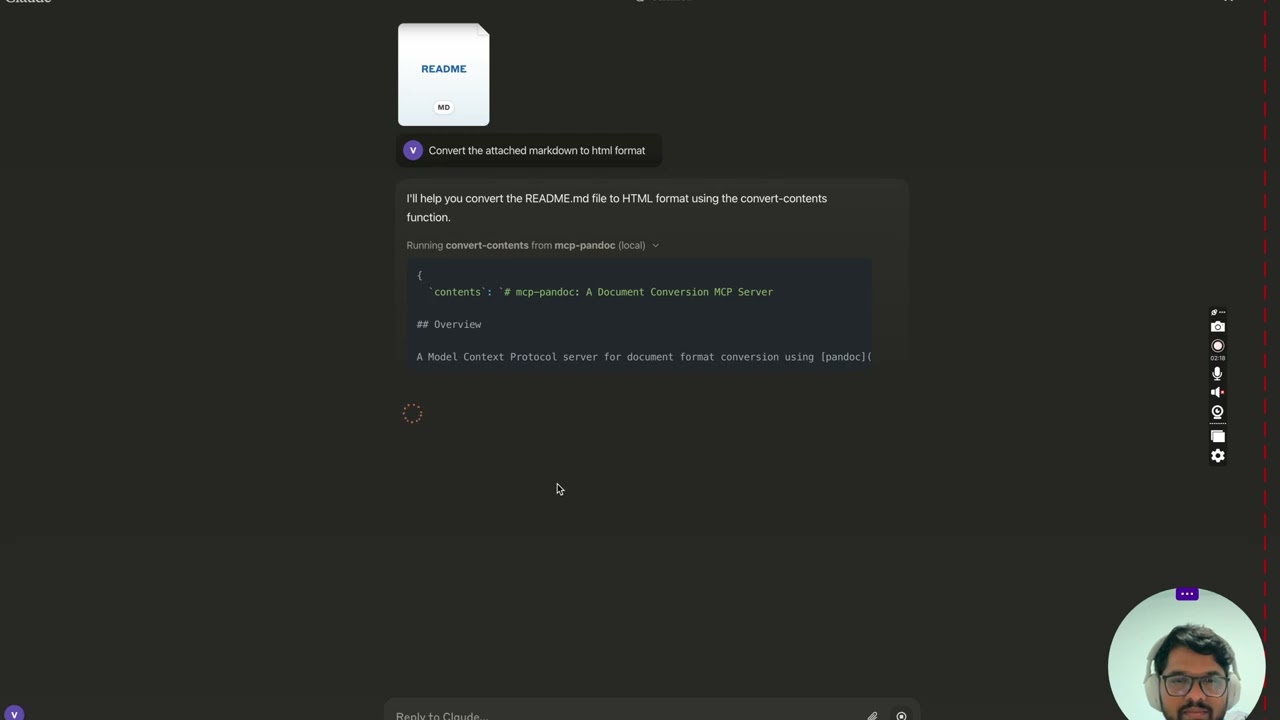
更多内容即将推出...
convert-contents
在支持的格式之间转换内容
输入:
contents (字符串):要转换的源内容(如果未提供 input_file,则需要)
input_file (字符串):输入文件的完整路径(如果未提供内容则需要)
input_format (字符串):内容的源格式(默认为 markdown)
output_format (字符串):目标格式(默认为 markdown)
output_file (字符串):输出文件的完整路径(pdf、docx、rst、latex、epub 格式必需)
支持的输入/输出格式:
降价
html
docx
第一
乳胶
电子书
TXT
注意:对于高级格式(pdf、docx、rst、latex、epub),需要 output_file 路径
目前支持的格式:
基本格式(直接转换):
纯文本(.txt)
Markdown(.md)
HTML(.html)
高级格式(需要完整的文件路径):
PDF(.pdf)- 需要安装 TeX Live
DOCX(.docx)
RST(.rst)
LaTeX(.tex)
EPUB(.epub)
注意:对于高级格式:
需要包含文件名和扩展名的完整文件路径
PDF 转换需要安装 TeX Live (请参阅关键要求部分 -> 对于 macOS: brew install texlive )
当未指定输出路径时:
基本格式:在聊天中显示转换后的内容
高级格式:可以保存在系统临时目录中(Unix 系统上为 /tmp/)
使用已发布的
{
  "mcpServers": {
    "mcp-pandoc": {
      "command": "uvx",
      "args": ["mcp-pandoc"]
    }
  }
}PDF 转换前提条件
尝试 PDF 转换之前必须安装 TeX Live
安装命令:
# Ubuntu/Debian
sudo apt-get install texlive-xetex

# macOS
brew install texlive

# Windows
# Install MiKTeX or TeX Live from:
# https://miktex.org/ or https://tug.org/texlive/
文件路径要求
保存或转换文件时,必须提供完整的文件路径,包括文件名和扩展名
该工具不会自动生成文件名或扩展名
✅正确用法:
# Converting content to PDF
"Convert this text to PDF and save as /path/to/document.pdf"

# Converting between file formats
"Convert /path/to/input.md to PDF and save as /path/to/output.pdf"
❌ 错误用法:
# Missing filename and extension
"Save this as PDF in /documents/"

# Missing complete path
"Convert this to PDF"

# Missing extension
"Save as /documents/story"PDF转换失败
错误:“未找到 xelatex”
解决方案:首先安装 TeX Live(参见上面的安装命令)
文件转换失败
错误:“文件路径无效”
解决方案:提供包括文件名和扩展名的完整路径
例如: /path/to/document.pdf而不仅仅是/path/to/
格式转换失败
错误:“不支持的格式”
解决方案:仅使用支持的格式:
基础:txt、html、markdown
高级:pdf、docx、rst、latex、epub
在 MacOS 上: open ~/Library/Application\ Support/Claude/claude_desktop_config.json
在 Windows 上: %APPDATA%/Claude/claude_desktop_config.json
ℹ️ 替换为你本地克隆的项目路径
"mcpServers": {
  "mcp-pandoc": {
    "command": "uv",
    "args": [
      "--directory",
      "<DIRECTORY>/mcp-pandoc",
      "run",
      "mcp-pandoc"
    ]
  }
}
"mcpServers": {
"mcp-pandoc": {
"command": "uvx",
"args": [
"mcp-pandoc"
]
}
}运行以下 bash 命令通过Smithery自动为 Claude Desktop 安装已发布的mcp-pandoc pypi :
npx -y @smithery/cli install mcp-pandoc --client claude注意:要使用本地配置的 mcp-pandoc,请按照上面的“开发/未发布的服务器配置”步骤进行操作。
准备分发包:
同步依赖项并更新锁文件:
uv sync构建软件包分发版:
uv build这将在dist/目录中创建源和轮子分布。
发布到 PyPI:
uv publish注意:您需要通过环境变量或命令标志设置 PyPI 凭据:
令牌: --token或UV_PUBLISH_TOKEN
或用户名/密码: --username / UV_PUBLISH_USERNAME和--password / UV_PUBLISH_PASSWORD
由于 MCP 服务器通过 stdio 运行,调试起来可能比较困难。为了获得最佳调试体验,我们强烈建议使用MCP Inspector 。
您可以使用以下命令通过npm启动 MCP Inspector:
npx @modelcontextprotocol/inspector uv --directory /Users/vivekvells/Desktop/code/ai/mcp-pandoc run mcp-pandoc启动后,检查器将显示一个 URL,您可以在浏览器中访问该 URL 以开始调试。
欢迎为 mcp-pandoc 的改进做出贡献!您可以按照以下方式参与:
报告问题:发现错误或有功能请求?请在我们的GitHub 问题页面上提交问题。
提交拉取请求:通过创建拉取请求来改进代码库或添加功能。
Converts content between different formats. Transforms input content from any supported format into the specified output format.
🚨 CRITICAL REQUIREMENTS - PLEASE READ:
PDF Conversion:
You MUST install TeX Live BEFORE attempting PDF conversion:
Ubuntu/Debian: sudo apt-get install texlive-xetex
macOS: brew install texlive
Windows: Install MiKTeX or TeX Live from https://miktex.org/ or https://tug.org/texlive/
PDF conversion will FAIL without this installation
File Paths - EXPLICIT REQUIREMENTS:
When asked to save or convert to a file, you MUST provide:
Complete directory path
Filename
File extension
Example request: 'Write a story and save as PDF'
You MUST specify: '/path/to/story.pdf' or 'C:\Documents\story.pdf'
The tool will NOT automatically generate filenames or extensions
File Location After Conversion:
After successful conversion, the tool will display the exact path where the file is saved
Look for message: 'Content successfully converted and saved to: [file_path]'
You can find your converted file at the specified location
If no path is specified, files may be saved in system temp directory (/tmp/ on Unix systems)
For better control, always provide explicit output file paths
Supported formats:
Basic (returned inline): txt, html, markdown, ipynb
Advanced (REQUIRE complete file paths): pdf, docx, rst, latex, epub, odt, pptx
pptx is WRITE-ONLY: it can be produced, but not used as an input format ✅ CORRECT Usage Examples:
'Convert this text to HTML' (basic conversion)
Tool will show converted content
'Save this text as PDF at /documents/story.pdf'
Correct: specifies path + filename + extension
Tool will show: 'Content successfully converted and saved to: /documents/story.pdf'
❌ INCORRECT Usage Examples:
'Save this as PDF in /documents/'
Missing filename and extension
'Convert to PDF'
Missing complete file path
When requesting conversion, ALWAYS specify:
The content or input file
The desired output format
For advanced formats: complete output path + filename + extension Example: 'Convert this markdown to PDF and save as /path/to/output.pdf'
🎨 DOCX, ODT & PPTX STYLING: 4. Custom Styling with Reference Documents:
Use reference_doc parameter to apply professional styling to DOCX, ODT and PPTX output
The reference document MUST match the output format: .docx for docx, .odt for odt, .pptx for pptx
Create custom templates with your branding, fonts, and formatting
Perfect for corporate reports, academic papers, and professional documents
Example: 'Convert this report to DOCX using /templates/corporate-style.docx as reference and save as /reports/Q4-report.docx'
🎯 PANDOC FILTERS (NEW FEATURE): 5. Pandoc Filter Support:
Use filters parameter to apply custom Pandoc filters during conversion
Filters are Python scripts that modify document content during processing
Perfect for Mermaid diagram conversion, custom styling, and content transformation
Example: 'Convert this markdown with mermaid diagrams to DOCX using filters=["./filters/mermaid-to-png-vibrant.py"] and save as /reports/diagram-report.docx'
📋 Creating Reference Documents:
Generate template: pandoc -o template.docx --print-default-data-file reference.docx
Customize in Word/LibreOffice: fonts, colors, headers, margins
Use for consistent branding across all documents
📋 Filter Requirements:
Filters must be executable Python scripts
Use absolute paths or paths relative to current working directory
Filters are applied in the order specified
Common filters: mermaid conversion, color processing, table formatting
📄 Defaults File Support (NEW FEATURE): 7. Pandoc Defaults File Support:
Use defaults_file parameter to specify a YAML configuration file
Similar to using pandoc -d option in the command line
Allows setting multiple options in a single file
Options in the defaults file can include filters, reference-doc, and other Pandoc options
Example: 'Convert this markdown to DOCX using defaults_file="/path/to/defaults.yaml" and save as /reports/report.docx'
Note: After conversion, always check the success message for the exact file location.
| Name | Required | Description | Default |
|---|---|---|---|
| filters | No | List of Pandoc filter paths to apply during conversion. Filters are applied in the order specified. | |
| contents | No | The content to be converted (required if input_file not provided) | |
| input_file | No | Complete path to input file including filename and extension (e.g., '/path/to/input.md') | |
| output_file | No | Complete path where to save the output including filename and extension (required for pdf, docx, rst, latex, epub, odt, pptx formats) | |
| input_format | No | Source format of the content (defaults to markdown) | markdown |
| defaults_file | No | Path to a Pandoc defaults file (YAML) containing conversion options. Similar to using pandoc -d option. | |
| output_format | No | Desired output format (defaults to markdown). Note pptx is write-only: it can be produced but not read. | markdown |
| reference_doc | No | Path to a reference document to use for styling. Supported for docx, odt and pptx output. The file must match the output format: a .docx reference for docx output, .odt for odt, .pptx for pptx. |
Does the description disclose side effects, auth requirements, rate limits, or destructive behavior?
With no annotations provided, the description carries the full burden of behavioral disclosure. It does well by explaining that PDF conversion requires TeX Live, that filenames won't be auto-generated, that files may be saved to temp directory if no path is given, and that pptx is write-only. It also mentions the success message that reveals the saved location. The only minor gap is not explicitly stating whether operations are reversible or if any destructive actions occur, but for a conversion tool, this is less critical.
Agents need to know what a tool does to the world before calling it. Descriptions should go beyond structured annotations to explain consequences.
Is the description appropriately sized, front-loaded, and free of redundancy?
The description is excessively long and repetitive. Key information about file paths is repeated multiple times (e.g., in the critical requirements, incorrect usage examples, and the final note). The use of emojis, many sections, and multiple examples makes it hard to scan quickly. While it is front-loaded with the main purpose, the sheer volume undermines conciseness.
Shorter descriptions cost fewer tokens and are easier for agents to parse. Every sentence should earn its place.
Given the tool's complexity, does the description cover enough for an agent to succeed on first attempt?
The description is highly complete given the tool's complexity. It covers all major usage scenarios, including basic conversions, advanced format path requirements, styling with reference documents, Pandoc filters, and defaults files. It even explains output location and success messages, which is valuable since there is no output schema. The description leaves little room for user confusion about how to proceed.
Complex tools with many parameters or behaviors need more documentation. Simple tools need less. This dimension scales expectations accordingly.
Does the description clarify parameter syntax, constraints, interactions, or defaults beyond what the schema provides?
Although the schema already provides descriptions for all 8 parameters, the tool description significantly enriches parameter understanding. It explains the purpose and usage of `reference_doc`, `filters`, `defaults_file`, and clarifies the importance of `output_file` for advanced formats. For example, it gives a specific example for using filters with Mermaid diagrams and explains that reference documents must match output format. This adds substantial value beyond the schema.
Input schemas describe structure but not intent. Descriptions should explain non-obvious parameter relationships and valid value ranges.
Does the description clearly state what the tool does and how it differs from similar tools?
The first sentence clearly states the tool's function: 'Converts content between different formats.' This is a specific verb+resource description that distinguishes it from potential alternative tools. The rest of the description reinforces this with supported formats and examples. However, the purpose is somewhat diluted by the extensive additional requirements and feature explanations.
Agents choose between tools based on descriptions. A clear purpose with a specific verb and resource helps agents select the right tool.
Does the description explain when to use this tool, when not to, or what alternatives exist?
The description provides explicit, actionable guidance on when and how to use the tool, including correct and incorrect usage examples, requirements for PDF conversion, and file path specifications. It clearly delineates basic vs. advanced formats and instructs users to always specify content, output format, and complete file paths for advanced formats. This goes beyond mere context to offer concrete usage rules.
Agents often have multiple tools that could apply. Explicit usage guidance like "use X instead of Y when Z" prevents misuse.
Recent tool additions, removals, and schema changes observed during successful MCP inspections.
v0.11.1convert-contents4 fields changedInput schema / properties / output_file / descriptionPrevious value: -"Complete path where to save the output including filename and extension (required for pdf, docx, rst, latex, epub formats)"New value: +"Complete path where to save the output including filename and extension (required for pdf, docx, rst, latex, epub, odt, pptx formats)"Input schema / properties / output_format / descriptionPrevious value: -"Desired output format (defaults to markdown)"New value: +"Desired output format (defaults to markdown). Note pptx is write-only: it can be produced but not read."Input schema / properties / output_format / enumPrevious value: -[
- "markdown",
- "html",
- "pdf",
- "docx",
- "rst",
- "latex",
- "epub",
- "txt",
- "ipynb",
- "odt"
-]New value: +[
+ "markdown",
+ "html",
+ "pdf",
+ "docx",
+ "rst",
+ "latex",
+ "epub",
+ "txt",
+ "ipynb",
+ "odt",
+ "pptx"
+]Input schema / properties / reference_doc / descriptionPrevious value: -"Path to a reference document to use for styling (supported for docx output format)"New value: +"Path to a reference document to use for styling. Supported for docx, odt and pptx output. The file must match the output format: a .docx reference for docx output, .odt for odt, .pptx for pptx."v0.8.1convert-contents3 fields changedInput schema / additionalPropertiesAdded value: +falseInput schema / allOfRemoved value: -[
- {
- "if": {
- "properties": {
- "output_format": {
- "enum": [
- "pdf",
- "docx",
- "rst",
- "latex",
- "epub"
- ]
- }
- }
- },
- "then": {
- "required": [
- "output_file"
- ]
- }
- }
-]Input schema / oneOfRemoved value: -[
- {
- "required": [
- "contents"
- ]
- },
- {
- "required": [
- "input_file"
- ]
- }
-]v1.0.0convert-contentsScored across 1 tool
There is only one tool, so there is no possibility of an agent mistaking it for another. Its purpose is clearly defined as content conversion, with no overlapping tools.
Although there is only one tool, the name 'convert-contents' follows a clear verb_noun convention and is semantically appropriate. With no other tools, there are no naming conflicts or mixed conventions.
A single tool for Pandoc conversion feels minimal, though it can cover many conversions through its parameters. It is on the thin side of the acceptable range for a focused converter server.
The tool supports conversion across a wide range of formats, including inline returns and file outputs, plus advanced options like reference documents, filters, and defaults files. For a conversion-only server, this covers the domain thoroughly with no obvious operational gaps.
Document conversion MCP server: PDF to Markdown, image OCR, spreadsheet parsing.
Document-to-Markdown MCP server — convert PDF, Office and HTML into LLM-ready Markdown.
Generate PDF, Word (.docx) and PowerPoint (.pptx) documents from Markdown over MCP.
Document to Markdown MCP server: PDF, Word, PowerPoint, Excel and HTML, with OCR for large files.