A
licenseB
qualityD
maintenanceA universal MCP server for document processing, conversion, and automation. Handle PDF, DOCX, HTML, Markdown, and more through a unified API and toolset.
13
56 npm
140
MIT

モデルコンテキストプロトコルサーバーのオープンソースプロジェクトに正式に含まれます。🎉
pandocを用いたドキュメント形式変換のためのモデルコンテキストプロトコルサーバー。このサーバーは、書式と構造を維持しながら、異なるドキュメント形式間でコンテンツを変換するためのツールを提供します。
mcp-pandoc は現在開発初期段階にありますのでご注意ください。PDF サポートは現在開発中であり、機能と利用可能なツールは、サーバーの継続的な改善に伴い変更および拡張される可能性があります。
クレジット: このプロジェクトでは、ドキュメント変換にPandoc Python パッケージを使用しており、これがこのプロジェクトの基盤となっています。
Related MCP server: md2pdf-mcp
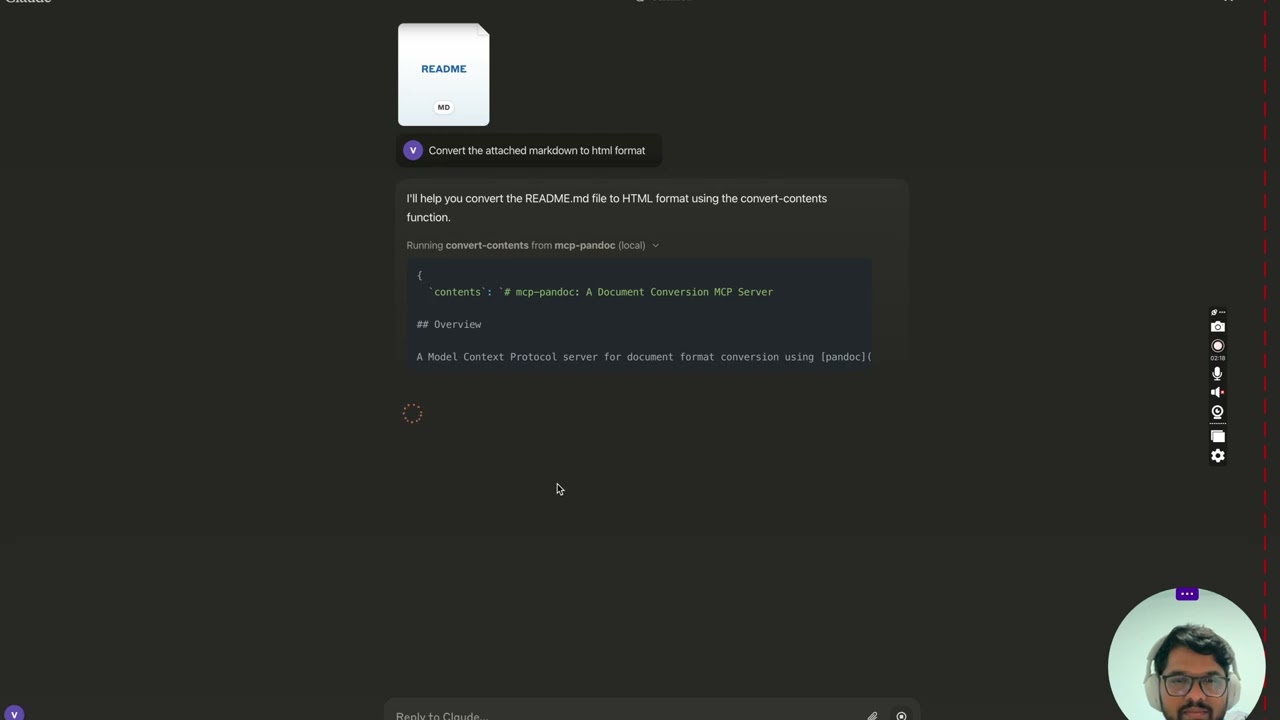
今後もさらに続きます...
convert-contents
サポートされている形式間でコンテンツを変換します
入力:
contents (文字列): 変換するソースコンテンツ (input_file が指定されていない場合は必須)
input_file (文字列): 入力ファイルへの完全なパス (内容が指定されていない場合は必須)
input_format (文字列): コンテンツのソース形式 (デフォルトはマークダウン)
output_format (文字列): ターゲット形式 (デフォルトは markdown)
output_file (文字列): 出力ファイルの完全なパス (pdf、docx、rst、latex、epub 形式では必須)
サポートされている入力/出力形式:
マークダウン
html
docx
最初
ラテックス
EPUB
TXT
注: 高度な形式 (pdf、docx、rst、latex、epub) の場合、output_file パスが必要です。
現在サポートされている形式:
基本形式(直接変換):
プレーンテキスト(.txt)
マークダウン (.md)
HTML (.html)
高度な形式 (完全なファイル パスが必要です):
PDF (.pdf) - TeX Live のインストールが必要です
DOCX (.docx)
RST (.rst)
LaTeX (.tex)
EPUB(.epub)
注: 高度な形式の場合:
ファイル名と拡張子を含む完全なファイルパスが必要です
PDF 変換には TeX Live のインストールが必要です(「重要な要件」セクションを参照 -> macOS の場合: brew install texlive )
出力パスが指定されていない場合:
基本形式: 変換されたコンテンツをチャットに表示します
高度なフォーマット: システムの一時ディレクトリ (Unix システムでは /tmp/) に保存できます
公開されたものを使用するには
{
  "mcpServers": {
    "mcp-pandoc": {
      "command": "uvx",
      "args": ["mcp-pandoc"]
    }
  }
}PDF変換の前提条件
PDF変換を行う前にTeX Liveをインストールする必要があります
インストールコマンド:
# Ubuntu/Debian
sudo apt-get install texlive-xetex

# macOS
brew install texlive

# Windows
# Install MiKTeX or TeX Live from:
# https://miktex.org/ or https://tug.org/texlive/
ファイルパスの要件
ファイルを保存または変換するときは、ファイル名と拡張子を含む完全なファイルパスを指定する必要があります。
このツールはファイル名や拡張子を自動的に生成しません
✅ 正しい使い方:
# Converting content to PDF
"Convert this text to PDF and save as /path/to/document.pdf"

# Converting between file formats
"Convert /path/to/input.md to PDF and save as /path/to/output.pdf"
❌ 誤った使用法:
# Missing filename and extension
"Save this as PDF in /documents/"

# Missing complete path
"Convert this to PDF"

# Missing extension
"Save as /documents/story"PDF変換に失敗する
エラー: 「xelatex が見つかりません」
解決策: まずTeX Liveをインストールします(上記のインストールコマンドを参照)
ファイル変換に失敗する
エラー:「無効なファイルパス」
解決策: ファイル名と拡張子を含む完全なパスを指定します
例: /path/to/document.pdfではなく/path/to/
フォーマット変換に失敗する
エラー:「サポートされていない形式です」
解決策: サポートされている形式のみを使用します。
基本: txt、html、マークダウン
上級: pdf、docx、rst、latex、epub
MacOSの場合: open ~/Library/Application\ Support/Claude/claude_desktop_config.json
Windows の場合: %APPDATA%/Claude/claude_desktop_config.json
ℹ️ ローカルにクローンしたプロジェクトパスに置き換えます
"mcpServers": {
  "mcp-pandoc": {
    "command": "uv",
    "args": [
      "--directory",
      "<DIRECTORY>/mcp-pandoc",
      "run",
      "mcp-pandoc"
    ]
  }
}
"mcpServers": {
"mcp-pandoc": {
"command": "uvx",
"args": [
"mcp-pandoc"
]
}
}次の bash コマンドを実行して、 Smithery経由で Claude Desktop 用に公開されたmcp-pandoc pypi を自動的にインストールします。
npx -y @smithery/cli install mcp-pandoc --client claude注: ローカルに構成された mcp-pandoc を使用するには、上記の「開発/非公開サーバー構成」の手順に従ってください。
配布用のパッケージを準備するには:
依存関係を同期し、ロックファイルを更新します。
uv syncパッケージディストリビューションをビルドします。
uv buildこれにより、 dist/ディレクトリにソースとホイールのディストリビューションが作成されます。
PyPI に公開:
uv publish注: 環境変数またはコマンド フラグを使用して PyPI 資格情報を設定する必要があります。
トークン: --tokenまたはUV_PUBLISH_TOKEN
またはユーザー名/パスワード: --username / UV_PUBLISH_USERNAMEおよび--password / UV_PUBLISH_PASSWORD
MCPサーバーはstdio経由で実行されるため、デバッグが困難になる場合があります。最適なデバッグ環境を実現するには、 MCP Inspectorの使用を強くお勧めします。
次のコマンドを使用して、 npm経由で MCP Inspector を起動できます。
npx @modelcontextprotocol/inspector uv --directory /Users/vivekvells/Desktop/code/ai/mcp-pandoc run mcp-pandoc起動すると、ブラウザでアクセスしてデバッグを開始できる URL がインスペクタに表示されます。
mcp-pandoc の機能強化への貢献を歓迎します。参加方法は以下の通りです。
問題を報告: バグを見つけた場合や機能のリクエストがある場合は、 GitHub の問題ページで問題を開いてください。
プル リクエストの送信: プル リクエストを作成して、コードベースを改善したり、機能を追加したりします。
Converts content between different formats. Transforms input content from any supported format into the specified output format.
🚨 CRITICAL REQUIREMENTS - PLEASE READ:
PDF Conversion:
You MUST install TeX Live BEFORE attempting PDF conversion:
Ubuntu/Debian: sudo apt-get install texlive-xetex
macOS: brew install texlive
Windows: Install MiKTeX or TeX Live from https://miktex.org/ or https://tug.org/texlive/
PDF conversion will FAIL without this installation
File Paths - EXPLICIT REQUIREMENTS:
When asked to save or convert to a file, you MUST provide:
Complete directory path
Filename
File extension
Example request: 'Write a story and save as PDF'
You MUST specify: '/path/to/story.pdf' or 'C:\Documents\story.pdf'
The tool will NOT automatically generate filenames or extensions
File Location After Conversion:
After successful conversion, the tool will display the exact path where the file is saved
Look for message: 'Content successfully converted and saved to: [file_path]'
You can find your converted file at the specified location
If no path is specified, files may be saved in system temp directory (/tmp/ on Unix systems)
For better control, always provide explicit output file paths
Supported formats:
Basic (returned inline): txt, html, markdown, ipynb
Advanced (REQUIRE complete file paths): pdf, docx, rst, latex, epub, odt, pptx
pptx is WRITE-ONLY: it can be produced, but not used as an input format ✅ CORRECT Usage Examples:
'Convert this text to HTML' (basic conversion)
Tool will show converted content
'Save this text as PDF at /documents/story.pdf'
Correct: specifies path + filename + extension
Tool will show: 'Content successfully converted and saved to: /documents/story.pdf'
❌ INCORRECT Usage Examples:
'Save this as PDF in /documents/'
Missing filename and extension
'Convert to PDF'
Missing complete file path
When requesting conversion, ALWAYS specify:
The content or input file
The desired output format
For advanced formats: complete output path + filename + extension Example: 'Convert this markdown to PDF and save as /path/to/output.pdf'
🎨 DOCX, ODT & PPTX STYLING: 4. Custom Styling with Reference Documents:
Use reference_doc parameter to apply professional styling to DOCX, ODT and PPTX output
The reference document MUST match the output format: .docx for docx, .odt for odt, .pptx for pptx
Create custom templates with your branding, fonts, and formatting
Perfect for corporate reports, academic papers, and professional documents
Example: 'Convert this report to DOCX using /templates/corporate-style.docx as reference and save as /reports/Q4-report.docx'
🎯 PANDOC FILTERS (NEW FEATURE): 5. Pandoc Filter Support:
Use filters parameter to apply custom Pandoc filters during conversion
Filters are Python scripts that modify document content during processing
Perfect for Mermaid diagram conversion, custom styling, and content transformation
Example: 'Convert this markdown with mermaid diagrams to DOCX using filters=["./filters/mermaid-to-png-vibrant.py"] and save as /reports/diagram-report.docx'
📋 Creating Reference Documents:
Generate template: pandoc -o template.docx --print-default-data-file reference.docx
Customize in Word/LibreOffice: fonts, colors, headers, margins
Use for consistent branding across all documents
📋 Filter Requirements:
Filters must be executable Python scripts
Use absolute paths or paths relative to current working directory
Filters are applied in the order specified
Common filters: mermaid conversion, color processing, table formatting
📄 Defaults File Support (NEW FEATURE): 7. Pandoc Defaults File Support:
Use defaults_file parameter to specify a YAML configuration file
Similar to using pandoc -d option in the command line
Allows setting multiple options in a single file
Options in the defaults file can include filters, reference-doc, and other Pandoc options
Example: 'Convert this markdown to DOCX using defaults_file="/path/to/defaults.yaml" and save as /reports/report.docx'
Note: After conversion, always check the success message for the exact file location.
| Name | Required | Description | Default |
|---|---|---|---|
| filters | No | List of Pandoc filter paths to apply during conversion. Filters are applied in the order specified. | |
| contents | No | The content to be converted (required if input_file not provided) | |
| input_file | No | Complete path to input file including filename and extension (e.g., '/path/to/input.md') | |
| output_file | No | Complete path where to save the output including filename and extension (required for pdf, docx, rst, latex, epub, odt, pptx formats) | |
| input_format | No | Source format of the content (defaults to markdown) | markdown |
| defaults_file | No | Path to a Pandoc defaults file (YAML) containing conversion options. Similar to using pandoc -d option. | |
| output_format | No | Desired output format (defaults to markdown). Note pptx is write-only: it can be produced but not read. | markdown |
| reference_doc | No | Path to a reference document to use for styling. Supported for docx, odt and pptx output. The file must match the output format: a .docx reference for docx output, .odt for odt, .pptx for pptx. |
Does the description disclose side effects, auth requirements, rate limits, or destructive behavior?
With no annotations provided, the description carries the full burden of behavioral disclosure. It does well by explaining that PDF conversion requires TeX Live, that filenames won't be auto-generated, that files may be saved to temp directory if no path is given, and that pptx is write-only. It also mentions the success message that reveals the saved location. The only minor gap is not explicitly stating whether operations are reversible or if any destructive actions occur, but for a conversion tool, this is less critical.
Agents need to know what a tool does to the world before calling it. Descriptions should go beyond structured annotations to explain consequences.
Is the description appropriately sized, front-loaded, and free of redundancy?
The description is excessively long and repetitive. Key information about file paths is repeated multiple times (e.g., in the critical requirements, incorrect usage examples, and the final note). The use of emojis, many sections, and multiple examples makes it hard to scan quickly. While it is front-loaded with the main purpose, the sheer volume undermines conciseness.
Shorter descriptions cost fewer tokens and are easier for agents to parse. Every sentence should earn its place.
Given the tool's complexity, does the description cover enough for an agent to succeed on first attempt?
The description is highly complete given the tool's complexity. It covers all major usage scenarios, including basic conversions, advanced format path requirements, styling with reference documents, Pandoc filters, and defaults files. It even explains output location and success messages, which is valuable since there is no output schema. The description leaves little room for user confusion about how to proceed.
Complex tools with many parameters or behaviors need more documentation. Simple tools need less. This dimension scales expectations accordingly.
Does the description clarify parameter syntax, constraints, interactions, or defaults beyond what the schema provides?
Although the schema already provides descriptions for all 8 parameters, the tool description significantly enriches parameter understanding. It explains the purpose and usage of `reference_doc`, `filters`, `defaults_file`, and clarifies the importance of `output_file` for advanced formats. For example, it gives a specific example for using filters with Mermaid diagrams and explains that reference documents must match output format. This adds substantial value beyond the schema.
Input schemas describe structure but not intent. Descriptions should explain non-obvious parameter relationships and valid value ranges.
Does the description clearly state what the tool does and how it differs from similar tools?
The first sentence clearly states the tool's function: 'Converts content between different formats.' This is a specific verb+resource description that distinguishes it from potential alternative tools. The rest of the description reinforces this with supported formats and examples. However, the purpose is somewhat diluted by the extensive additional requirements and feature explanations.
Agents choose between tools based on descriptions. A clear purpose with a specific verb and resource helps agents select the right tool.
Does the description explain when to use this tool, when not to, or what alternatives exist?
The description provides explicit, actionable guidance on when and how to use the tool, including correct and incorrect usage examples, requirements for PDF conversion, and file path specifications. It clearly delineates basic vs. advanced formats and instructs users to always specify content, output format, and complete file paths for advanced formats. This goes beyond mere context to offer concrete usage rules.
Agents often have multiple tools that could apply. Explicit usage guidance like "use X instead of Y when Z" prevents misuse.
Recent tool additions, removals, and schema changes observed during successful MCP inspections.
v0.11.1convert-contents4 fields changedInput schema / properties / output_file / descriptionPrevious value: -"Complete path where to save the output including filename and extension (required for pdf, docx, rst, latex, epub formats)"New value: +"Complete path where to save the output including filename and extension (required for pdf, docx, rst, latex, epub, odt, pptx formats)"Input schema / properties / output_format / descriptionPrevious value: -"Desired output format (defaults to markdown)"New value: +"Desired output format (defaults to markdown). Note pptx is write-only: it can be produced but not read."Input schema / properties / output_format / enumPrevious value: -[
- "markdown",
- "html",
- "pdf",
- "docx",
- "rst",
- "latex",
- "epub",
- "txt",
- "ipynb",
- "odt"
-]New value: +[
+ "markdown",
+ "html",
+ "pdf",
+ "docx",
+ "rst",
+ "latex",
+ "epub",
+ "txt",
+ "ipynb",
+ "odt",
+ "pptx"
+]Input schema / properties / reference_doc / descriptionPrevious value: -"Path to a reference document to use for styling (supported for docx output format)"New value: +"Path to a reference document to use for styling. Supported for docx, odt and pptx output. The file must match the output format: a .docx reference for docx output, .odt for odt, .pptx for pptx."v0.8.1convert-contents3 fields changedInput schema / additionalPropertiesAdded value: +falseInput schema / allOfRemoved value: -[
- {
- "if": {
- "properties": {
- "output_format": {
- "enum": [
- "pdf",
- "docx",
- "rst",
- "latex",
- "epub"
- ]
- }
- }
- },
- "then": {
- "required": [
- "output_file"
- ]
- }
- }
-]Input schema / oneOfRemoved value: -[
- {
- "required": [
- "contents"
- ]
- },
- {
- "required": [
- "input_file"
- ]
- }
-]v1.0.0convert-contentsScored across 1 tool
There is only one tool, so there is no possibility of an agent mistaking it for another. Its purpose is clearly defined as content conversion, with no overlapping tools.
Although there is only one tool, the name 'convert-contents' follows a clear verb_noun convention and is semantically appropriate. With no other tools, there are no naming conflicts or mixed conventions.
A single tool for Pandoc conversion feels minimal, though it can cover many conversions through its parameters. It is on the thin side of the acceptable range for a focused converter server.
The tool supports conversion across a wide range of formats, including inline returns and file outputs, plus advanced options like reference documents, filters, and defaults files. For a conversion-only server, this covers the domain thoroughly with no obvious operational gaps.
Document conversion MCP server: PDF to Markdown, image OCR, spreadsheet parsing.
Document-to-Markdown MCP server — convert PDF, Office and HTML into LLM-ready Markdown.
Generate PDF, Word (.docx) and PowerPoint (.pptx) documents from Markdown over MCP.
Document to Markdown MCP server: PDF, Word, PowerPoint, Excel and HTML, with OCR for large files.