A
licenseB
qualityD
maintenanceA universal MCP server for document processing, conversion, and automation. Handle PDF, DOCX, HTML, Markdown, and more through a unified API and toolset.
13
56 npm
140
MIT

Offiziell im Open-Source-Projekt der Model Context Protocol-Server enthalten. 🎉
Ein Model Context Protocol-Server zur Dokumentformatkonvertierung mit pandoc . Dieser Server bietet Tools zum Konvertieren von Inhalten zwischen verschiedenen Dokumentformaten unter Beibehaltung von Formatierung und Struktur.
Bitte beachten Sie, dass sich mcp-pandoc derzeit in der frühen Entwicklungsphase befindet. Die PDF-Unterstützung ist in der Entwicklung, und die Funktionalität und die verfügbaren Tools können sich im Zuge der kontinuierlichen Verbesserung des Servers ändern und erweitern.
Anerkennung: Dieses Projekt verwendet das Pandoc Python-Paket zur Dokumentkonvertierung, das die Grundlage für dieses Projekt bildet.
Related MCP server: md2pdf-mcp
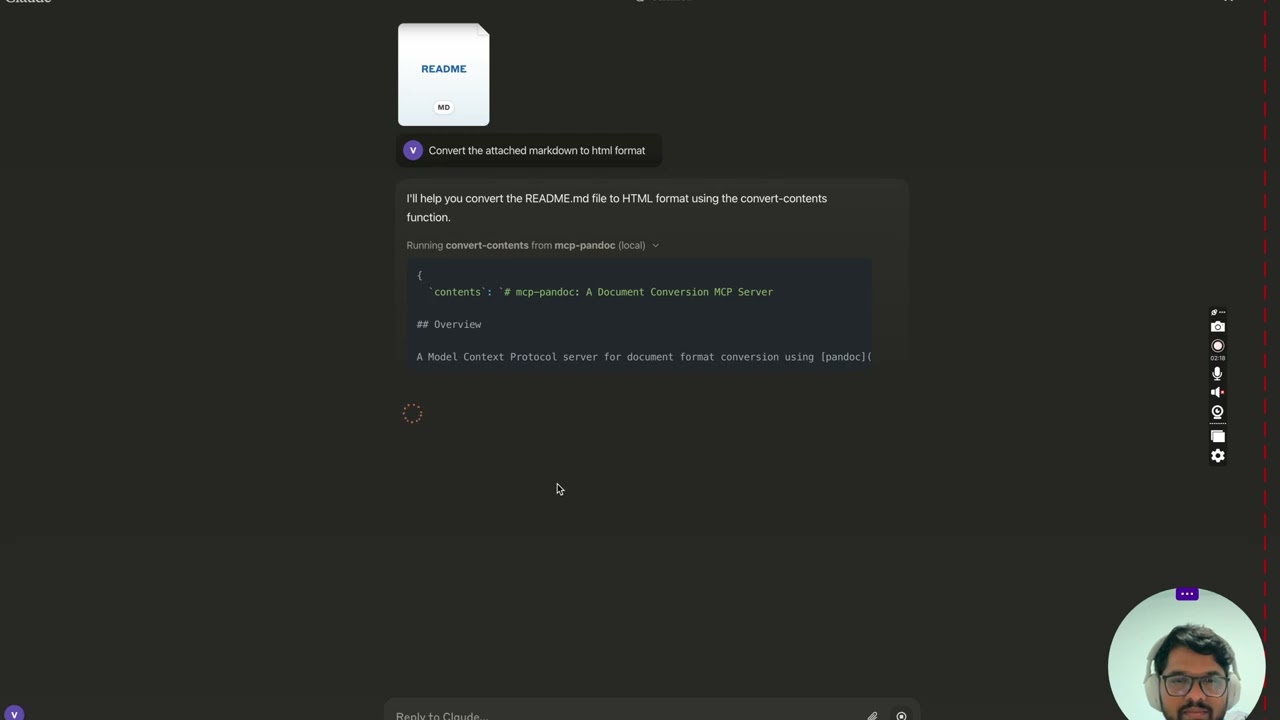
Mehr folgt ...
convert-contents
Wandelt Inhalte zwischen unterstützten Formaten um
Eingänge:
contents (Zeichenfolge): Zu konvertierender Quellinhalt (erforderlich, wenn keine Eingabedatei angegeben ist)
input_file (Zeichenfolge): Vollständiger Pfad zur Eingabedatei (erforderlich, wenn kein Inhalt angegeben ist)
input_format (Zeichenfolge): Quellformat des Inhalts (standardmäßig Markdown)
output_format (Zeichenfolge): Zielformat (standardmäßig Markdown)
output_file (Zeichenfolge): Vollständiger Pfad zur Ausgabedatei (erforderlich für die Formate pdf, docx, rst, latex, epub)
Unterstützte Eingabe-/Ausgabeformate:
Abschlag
html
docx
zuerst
Latex
epub
txt
Hinweis: Für erweiterte Formate (pdf, docx, rst, latex, epub) ist ein Ausgabedateipfad erforderlich
Derzeit unterstützte Formate:
Basisformate (direkte Konvertierung):
Nur-Text (.txt)
Markdown (.md)
HTML (.html)
Erweiterte Formate (erfordert vollständige Dateipfade):
PDF (.pdf) – erfordert die Installation von TeX Live
DOCX (.docx)
RST (.rst)
LaTeX (.tex)
EPUB (.epub)
Hinweis: Für erweiterte Formate:
Es werden vollständige Dateipfade mit Dateinamen und Erweiterung benötigt.
Für die PDF-Konvertierung ist eine Installation von TeX Live erforderlich (siehe Abschnitt „Wichtige Anforderungen“ -> Für macOS: brew install texlive )
Wenn kein Ausgabepfad angegeben ist:
Basisformate: Zeigt konvertierte Inhalte im Chat an
Erweiterte Formate: Kann im temporären Systemverzeichnis (/tmp/ auf Unix-Systemen) gespeichert werden
HINWEIS: Stellen Sie sicher, dass Sie die Installation der unten unter „Kritische Anforderungen“ aufgeführten erforderlichen Pakete abschließen.
Um die veröffentlichte zu verwenden
{
  "mcpServers": {
    "mcp-pandoc": {
      "command": "uvx",
      "args": ["mcp-pandoc"]
    }
  }
}Pandoc-Installation
Erforderlich : Installieren Sie pandoc – die zentrale Dokumentkonvertierungs-Engine
Installation:
# macOS
brew install pandoc

# Ubuntu/Debian
sudo apt-get install pandoc

# Windows
# Download installer from: https://pandoc.org/installing.html
Überprüfen : pandoc --version
Installation des UV-Pakets
Erforderlich : Installieren Sie uv Paket (beinhaltet den Befehl uvx ).
Installation:
# macOS
brew install uv

# Windows/Linux
pip install uv
Überprüfen : uvx --version
Voraussetzungen für die PDF-Konvertierung: Nur erforderlich, wenn Sie PDF konvertieren und speichern müssen
TeX Live muss vor der PDF-Konvertierung installiert sein
Installationsbefehle:
# Ubuntu/Debian
sudo apt-get install texlive-xetex

# macOS
brew install texlive

# Windows
# Install MiKTeX or TeX Live from:
# https://miktex.org/ or https://tug.org/texlive/
Anforderungen für den Dateipfad
Beim Speichern oder Konvertieren von Dateien MÜSSEN Sie vollständige Dateipfade einschließlich Dateiname und Erweiterung angeben
Das Tool generiert nicht automatisch Dateinamen oder Erweiterungen
✅ Richtige Anwendung:
# Converting content to PDF
"Convert this text to PDF and save as /path/to/document.pdf"

# Converting between file formats
"Convert /path/to/input.md to PDF and save as /path/to/output.pdf"
❌ Falsche Verwendung:
# Missing filename and extension
"Save this as PDF in /documents/"

# Missing complete path
"Convert this to PDF"

# Missing extension
"Save as /documents/story"PDF-Konvertierung schlägt fehl
Fehler: „xelatex nicht gefunden“
Lösung: Installieren Sie zuerst TeX Live (siehe Installationsbefehle oben)
Dateikonvertierung schlägt fehl
Fehler: „Ungültiger Dateipfad“
Lösung: Vollständigen Pfad inklusive Dateiname und Erweiterung angeben
Beispiel: /path/to/document.pdf statt nur /path/to/
Formatkonvertierung schlägt fehl
Fehler: „Nicht unterstütztes Format“
Lösung: Verwenden Sie nur unterstützte Formate:
Grundlegend: txt, html, Markdown
Erweitert: pdf, docx, rst, latex, epub
Unter MacOS: open ~/Library/Application\ Support/Claude/claude_desktop_config.json
Unter Windows: %APPDATA%/Claude/claude_desktop_config.json
a) Nur für die lokale Entwicklung und Beiträge zu diesem Repo
ℹ️ Ersetzen Sie durch Ihren lokal geklonten Projektpfad
"mcpServers": {
  "mcp-pandoc": {
    "command": "uv",
    "args": [
      "--directory",
      "<DIRECTORY>/mcp-pandoc",
      "run",
      "mcp-pandoc"
    ]
  }
}
b) Konfiguration der veröffentlichten Server - Verbraucher sollten diese Konfiguration verwenden
"mcpServers": {
  "mcp-pandoc": {
    "command": "uvx",
    "args": [
      "mcp-pandoc"
    ]
  }
}Führen Sie den folgenden Bash-Befehl aus, um veröffentlichtes mcp-pandoc pypi für Claude Desktop automatisch über Smithery zu installieren:
npx -y @smithery/cli install mcp-pandoc --client claudeWenn Sie auf ein Problem stoßen, verwenden Sie anstelle dieser Befehlszeilenschnittstelle direkt die oben stehende „Konfiguration veröffentlichter Server“.
Hinweis : Um lokal konfiguriertes mcp-pandoc zu verwenden, befolgen Sie den obigen Schritt „Konfiguration von Entwicklungs-/unveröffentlichten Servern“.
So bereiten Sie das Paket für die Verteilung vor:
Abhängigkeiten synchronisieren und Sperrdatei aktualisieren:
uv syncErstellen Sie Paketverteilungen:
uv buildDadurch werden Quell- und Wheel-Distributionen im Verzeichnis dist/ erstellt.
Auf PyPI veröffentlichen:
uv publishHinweis: Sie müssen PyPI-Anmeldeinformationen über Umgebungsvariablen oder Befehlsflags festlegen:
Token: --token oder UV_PUBLISH_TOKEN
Oder Benutzername/Passwort: --username / UV_PUBLISH_USERNAME und --password / UV_PUBLISH_PASSWORD
Da MCP-Server über stdio laufen, kann das Debuggen eine Herausforderung darstellen. Für ein optimales Debugging empfehlen wir dringend die Verwendung des MCP Inspector .
Sie können den MCP Inspector über npm mit diesem Befehl starten:
npx @modelcontextprotocol/inspector uv --directory /Users/vivekvells/Desktop/code/ai/mcp-pandoc run mcp-pandocBeim Start zeigt der Inspector eine URL an, auf die Sie in Ihrem Browser zugreifen können, um mit dem Debuggen zu beginnen.
Wir freuen uns über Beiträge zur Verbesserung von mcp-pandoc! So können Sie mitmachen:
Probleme melden : Haben Sie einen Fehler gefunden oder möchten Sie eine Funktion aktivieren? Melden Sie ein Problem auf unserer GitHub-Problemseite .
Pull Requests senden : Verbessern Sie die Codebasis oder fügen Sie Funktionen hinzu, indem Sie einen Pull Request erstellen.
Converts content between different formats. Transforms input content from any supported format into the specified output format.
🚨 CRITICAL REQUIREMENTS - PLEASE READ:
PDF Conversion:
You MUST install TeX Live BEFORE attempting PDF conversion:
Ubuntu/Debian: sudo apt-get install texlive-xetex
macOS: brew install texlive
Windows: Install MiKTeX or TeX Live from https://miktex.org/ or https://tug.org/texlive/
PDF conversion will FAIL without this installation
File Paths - EXPLICIT REQUIREMENTS:
When asked to save or convert to a file, you MUST provide:
Complete directory path
Filename
File extension
Example request: 'Write a story and save as PDF'
You MUST specify: '/path/to/story.pdf' or 'C:\Documents\story.pdf'
The tool will NOT automatically generate filenames or extensions
File Location After Conversion:
After successful conversion, the tool will display the exact path where the file is saved
Look for message: 'Content successfully converted and saved to: [file_path]'
You can find your converted file at the specified location
If no path is specified, files may be saved in system temp directory (/tmp/ on Unix systems)
For better control, always provide explicit output file paths
Supported formats:
Basic (returned inline): txt, html, markdown, ipynb
Advanced (REQUIRE complete file paths): pdf, docx, rst, latex, epub, odt, pptx
pptx is WRITE-ONLY: it can be produced, but not used as an input format ✅ CORRECT Usage Examples:
'Convert this text to HTML' (basic conversion)
Tool will show converted content
'Save this text as PDF at /documents/story.pdf'
Correct: specifies path + filename + extension
Tool will show: 'Content successfully converted and saved to: /documents/story.pdf'
❌ INCORRECT Usage Examples:
'Save this as PDF in /documents/'
Missing filename and extension
'Convert to PDF'
Missing complete file path
When requesting conversion, ALWAYS specify:
The content or input file
The desired output format
For advanced formats: complete output path + filename + extension Example: 'Convert this markdown to PDF and save as /path/to/output.pdf'
🎨 DOCX, ODT & PPTX STYLING: 4. Custom Styling with Reference Documents:
Use reference_doc parameter to apply professional styling to DOCX, ODT and PPTX output
The reference document MUST match the output format: .docx for docx, .odt for odt, .pptx for pptx
Create custom templates with your branding, fonts, and formatting
Perfect for corporate reports, academic papers, and professional documents
Example: 'Convert this report to DOCX using /templates/corporate-style.docx as reference and save as /reports/Q4-report.docx'
🎯 PANDOC FILTERS (NEW FEATURE): 5. Pandoc Filter Support:
Use filters parameter to apply custom Pandoc filters during conversion
Filters are Python scripts that modify document content during processing
Perfect for Mermaid diagram conversion, custom styling, and content transformation
Example: 'Convert this markdown with mermaid diagrams to DOCX using filters=["./filters/mermaid-to-png-vibrant.py"] and save as /reports/diagram-report.docx'
📋 Creating Reference Documents:
Generate template: pandoc -o template.docx --print-default-data-file reference.docx
Customize in Word/LibreOffice: fonts, colors, headers, margins
Use for consistent branding across all documents
📋 Filter Requirements:
Filters must be executable Python scripts
Use absolute paths or paths relative to current working directory
Filters are applied in the order specified
Common filters: mermaid conversion, color processing, table formatting
📄 Defaults File Support (NEW FEATURE): 7. Pandoc Defaults File Support:
Use defaults_file parameter to specify a YAML configuration file
Similar to using pandoc -d option in the command line
Allows setting multiple options in a single file
Options in the defaults file can include filters, reference-doc, and other Pandoc options
Example: 'Convert this markdown to DOCX using defaults_file="/path/to/defaults.yaml" and save as /reports/report.docx'
Note: After conversion, always check the success message for the exact file location.
| Name | Required | Description | Default |
|---|---|---|---|
| filters | No | List of Pandoc filter paths to apply during conversion. Filters are applied in the order specified. | |
| contents | No | The content to be converted (required if input_file not provided) | |
| input_file | No | Complete path to input file including filename and extension (e.g., '/path/to/input.md') | |
| output_file | No | Complete path where to save the output including filename and extension (required for pdf, docx, rst, latex, epub, odt, pptx formats) | |
| input_format | No | Source format of the content (defaults to markdown) | markdown |
| defaults_file | No | Path to a Pandoc defaults file (YAML) containing conversion options. Similar to using pandoc -d option. | |
| output_format | No | Desired output format (defaults to markdown). Note pptx is write-only: it can be produced but not read. | markdown |
| reference_doc | No | Path to a reference document to use for styling. Supported for docx, odt and pptx output. The file must match the output format: a .docx reference for docx output, .odt for odt, .pptx for pptx. |
Does the description disclose side effects, auth requirements, rate limits, or destructive behavior?
With no annotations provided, the description carries the full burden of behavioral disclosure. It does well by explaining that PDF conversion requires TeX Live, that filenames won't be auto-generated, that files may be saved to temp directory if no path is given, and that pptx is write-only. It also mentions the success message that reveals the saved location. The only minor gap is not explicitly stating whether operations are reversible or if any destructive actions occur, but for a conversion tool, this is less critical.
Agents need to know what a tool does to the world before calling it. Descriptions should go beyond structured annotations to explain consequences.
Is the description appropriately sized, front-loaded, and free of redundancy?
The description is excessively long and repetitive. Key information about file paths is repeated multiple times (e.g., in the critical requirements, incorrect usage examples, and the final note). The use of emojis, many sections, and multiple examples makes it hard to scan quickly. While it is front-loaded with the main purpose, the sheer volume undermines conciseness.
Shorter descriptions cost fewer tokens and are easier for agents to parse. Every sentence should earn its place.
Given the tool's complexity, does the description cover enough for an agent to succeed on first attempt?
The description is highly complete given the tool's complexity. It covers all major usage scenarios, including basic conversions, advanced format path requirements, styling with reference documents, Pandoc filters, and defaults files. It even explains output location and success messages, which is valuable since there is no output schema. The description leaves little room for user confusion about how to proceed.
Complex tools with many parameters or behaviors need more documentation. Simple tools need less. This dimension scales expectations accordingly.
Does the description clarify parameter syntax, constraints, interactions, or defaults beyond what the schema provides?
Although the schema already provides descriptions for all 8 parameters, the tool description significantly enriches parameter understanding. It explains the purpose and usage of `reference_doc`, `filters`, `defaults_file`, and clarifies the importance of `output_file` for advanced formats. For example, it gives a specific example for using filters with Mermaid diagrams and explains that reference documents must match output format. This adds substantial value beyond the schema.
Input schemas describe structure but not intent. Descriptions should explain non-obvious parameter relationships and valid value ranges.
Does the description clearly state what the tool does and how it differs from similar tools?
The first sentence clearly states the tool's function: 'Converts content between different formats.' This is a specific verb+resource description that distinguishes it from potential alternative tools. The rest of the description reinforces this with supported formats and examples. However, the purpose is somewhat diluted by the extensive additional requirements and feature explanations.
Agents choose between tools based on descriptions. A clear purpose with a specific verb and resource helps agents select the right tool.
Does the description explain when to use this tool, when not to, or what alternatives exist?
The description provides explicit, actionable guidance on when and how to use the tool, including correct and incorrect usage examples, requirements for PDF conversion, and file path specifications. It clearly delineates basic vs. advanced formats and instructs users to always specify content, output format, and complete file paths for advanced formats. This goes beyond mere context to offer concrete usage rules.
Agents often have multiple tools that could apply. Explicit usage guidance like "use X instead of Y when Z" prevents misuse.
Recent tool additions, removals, and schema changes observed during successful MCP inspections.
v0.11.1convert-contents4 fields changedInput schema / properties / output_file / descriptionPrevious value: -"Complete path where to save the output including filename and extension (required for pdf, docx, rst, latex, epub formats)"New value: +"Complete path where to save the output including filename and extension (required for pdf, docx, rst, latex, epub, odt, pptx formats)"Input schema / properties / output_format / descriptionPrevious value: -"Desired output format (defaults to markdown)"New value: +"Desired output format (defaults to markdown). Note pptx is write-only: it can be produced but not read."Input schema / properties / output_format / enumPrevious value: -[
- "markdown",
- "html",
- "pdf",
- "docx",
- "rst",
- "latex",
- "epub",
- "txt",
- "ipynb",
- "odt"
-]New value: +[
+ "markdown",
+ "html",
+ "pdf",
+ "docx",
+ "rst",
+ "latex",
+ "epub",
+ "txt",
+ "ipynb",
+ "odt",
+ "pptx"
+]Input schema / properties / reference_doc / descriptionPrevious value: -"Path to a reference document to use for styling (supported for docx output format)"New value: +"Path to a reference document to use for styling. Supported for docx, odt and pptx output. The file must match the output format: a .docx reference for docx output, .odt for odt, .pptx for pptx."v0.8.1convert-contents3 fields changedInput schema / additionalPropertiesAdded value: +falseInput schema / allOfRemoved value: -[
- {
- "if": {
- "properties": {
- "output_format": {
- "enum": [
- "pdf",
- "docx",
- "rst",
- "latex",
- "epub"
- ]
- }
- }
- },
- "then": {
- "required": [
- "output_file"
- ]
- }
- }
-]Input schema / oneOfRemoved value: -[
- {
- "required": [
- "contents"
- ]
- },
- {
- "required": [
- "input_file"
- ]
- }
-]v1.0.0convert-contentsScored across 1 tool
There is only one tool, so there is no possibility of an agent mistaking it for another. Its purpose is clearly defined as content conversion, with no overlapping tools.
Although there is only one tool, the name 'convert-contents' follows a clear verb_noun convention and is semantically appropriate. With no other tools, there are no naming conflicts or mixed conventions.
A single tool for Pandoc conversion feels minimal, though it can cover many conversions through its parameters. It is on the thin side of the acceptable range for a focused converter server.
The tool supports conversion across a wide range of formats, including inline returns and file outputs, plus advanced options like reference documents, filters, and defaults files. For a conversion-only server, this covers the domain thoroughly with no obvious operational gaps.
Document conversion MCP server: PDF to Markdown, image OCR, spreadsheet parsing.
Document-to-Markdown MCP server — convert PDF, Office and HTML into LLM-ready Markdown.
Generate PDF, Word (.docx) and PowerPoint (.pptx) documents from Markdown over MCP.
Document to Markdown MCP server: PDF, Word, PowerPoint, Excel and HTML, with OCR for large files.