A
licenseB
qualityD
maintenanceA universal MCP server for document processing, conversion, and automation. Handle PDF, DOCX, HTML, Markdown, and more through a unified API and toolset.
13
56 npm
140
MIT

Официально включен в проект с открытым исходным кодом серверов Model Context Protocol . 🎉
Сервер Model Context Protocol для преобразования форматов документов с использованием pandoc . Этот сервер предоставляет инструменты для преобразования содержимого между различными форматами документов с сохранением форматирования и структуры.
Обратите внимание, что mcp-pandoc в настоящее время находится на ранней стадии разработки. Поддержка PDF находится в стадии разработки, а функциональность и доступные инструменты могут быть изменены и расширены по мере того, как мы продолжаем совершенствовать сервер.
Кредит: В этом проекте для преобразования документов используется пакет Pandoc Python , который является основой этого проекта.
Related MCP server: md2pdf-mcp
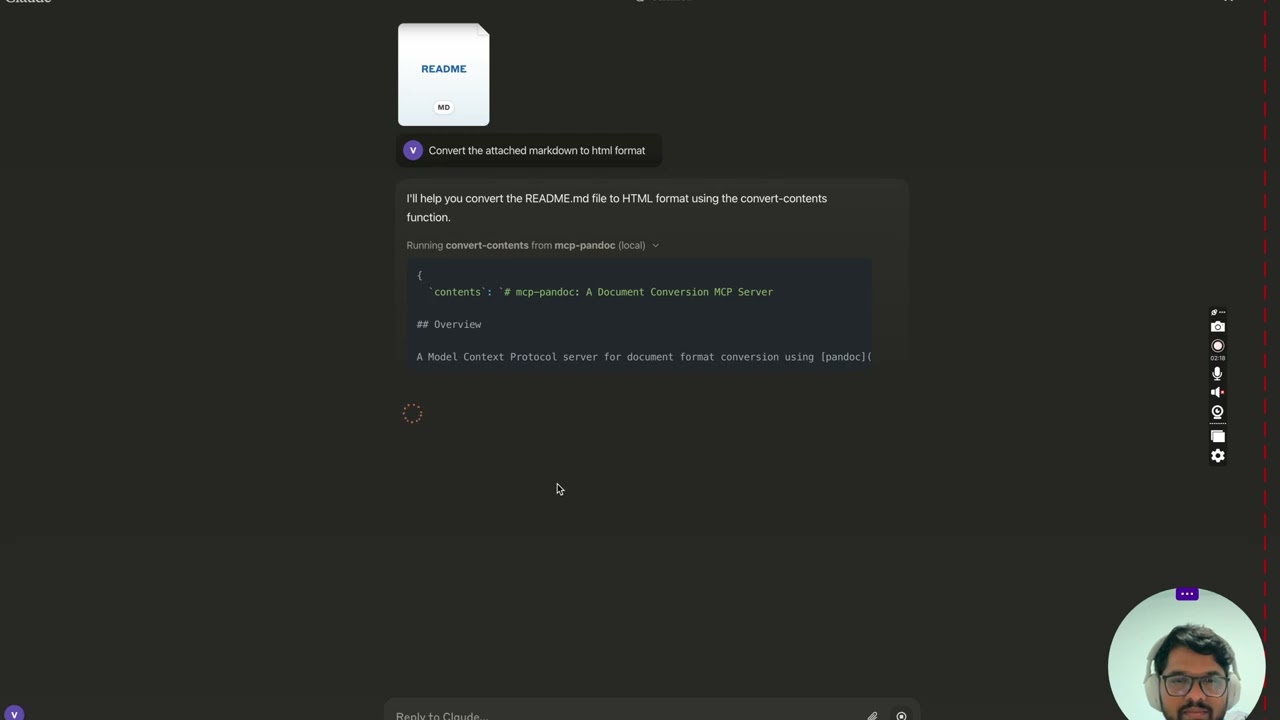
Продолжение следует...
convert-contents
Преобразует контент между поддерживаемыми форматами
Входные данные:
contents (строка): Исходное содержимое для преобразования (обязательно, если не указан input_file)
input_file (строка): Полный путь к входному файлу (обязательно, если содержимое не указано)
input_format (string): Исходный формат содержимого (по умолчанию markdown)
output_format (string): Целевой формат (по умолчанию markdown)
output_file (строка): Полный путь к выходному файлу (обязательно для форматов pdf, docx, rst, latex, epub)
Поддерживаемые форматы ввода/вывода:
уценка
html
docx
первый
латекс
epub
текст
Примечание: для расширенных форматов (pdf, docx, rst, latex, epub) требуется путь к выходному файлу.
Поддерживаемые в настоящее время форматы:
Основные форматы (прямое преобразование):
Обычный текст (.txt)
Уценка (.md)
HTML-код (.html)
Расширенные форматы (требуются полные пути к файлам):
PDF (.pdf) — требуется установка TeX Live
DOCX (.docx)
РСТ (.rst)
LaTeX (.tex)
EPUB-файл (.epub)
Примечание: для расширенных форматов:
Требуются полные пути к файлам с именем файла и расширением.
Для преобразования PDF требуется установка TeX Live (см. раздел Критические требования -> Для macOS: brew install texlive )
Если выходной путь не указан:
Базовые форматы: отображает преобразованный контент в чате.
Расширенные форматы: можно сохранять во временном каталоге системы (/tmp/ в системах Unix)
ПРИМЕЧАНИЕ. Обязательно завершите установку обязательных пакетов, указанных ниже в разделе «Критические требования».
Использовать опубликованный
{
  "mcpServers": {
    "mcp-pandoc": {
      "command": "uvx",
      "args": ["mcp-pandoc"]
    }
  }
}Установка Пандока
Требуется : установить pandoc — основной механизм конвертации документов.
Установка:
# macOS
brew install pandoc

# Ubuntu/Debian
sudo apt-get install pandoc

# Windows
# Download installer from: https://pandoc.org/installing.html
Проверьте : pandoc --version
Установка УФ-пакета
Требуется : установить пакет uv (включая команду uvx )
Установка:
# macOS
brew install uv

# Windows/Linux
pip install uv
Проверьте : uvx --version
Предварительные условия для конвертации PDF: необходимы только в том случае, если вам нужно конвертировать и сохранять PDF.
Перед попыткой конвертации PDF необходимо установить TeX Live.
Команды установки:
# Ubuntu/Debian
sudo apt-get install texlive-xetex

# macOS
brew install texlive

# Windows
# Install MiKTeX or TeX Live from:
# https://miktex.org/ or https://tug.org/texlive/
Требования к пути к файлу
При сохранении или конвертации файлов ОБЯЗАТЕЛЬНО указывайте полные пути к файлам, включая имя файла и расширение.
Инструмент не генерирует автоматически имена файлов и расширения.
✅ Правильное использование:
# Converting content to PDF
"Convert this text to PDF and save as /path/to/document.pdf"

# Converting between file formats
"Convert /path/to/input.md to PDF and save as /path/to/output.pdf"
❌ Неправильное использование:
# Missing filename and extension
"Save this as PDF in /documents/"

# Missing complete path
"Convert this to PDF"

# Missing extension
"Save as /documents/story"Конвертация PDF не удалась
Ошибка: «xelatex не найден»
Решение: Сначала установите TeX Live (см. команды установки выше)
Ошибка преобразования файла
Ошибка: «Неверный путь к файлу»
Решение: Укажите полный путь, включая имя файла и расширение.
Пример: /path/to/document.pdf вместо просто /path/to/
Не удалось преобразовать формат
Ошибка: «Неподдерживаемый формат»
Решение: Используйте только поддерживаемые форматы:
Базовые: txt, html, markdown
Расширенный: pdf, docx, rst, latex, epub
На MacOS: open ~/Library/Application\ Support/Claude/claude_desktop_config.json
В Windows: %APPDATA%/Claude/claude_desktop_config.json
а) Только для локального развития и вклада в этот репозиторий
ℹ️ Замените на путь к вашему локально клонированному проекту
"mcpServers": {
  "mcp-pandoc": {
    "command": "uv",
    "args": [
      "--directory",
      "<DIRECTORY>/mcp-pandoc",
      "run",
      "mcp-pandoc"
    ]
  }
}
б) Конфигурация опубликованных серверов — потребители должны использовать эту конфигурацию
"mcpServers": {
  "mcp-pandoc": {
    "command": "uvx",
    "args": [
      "mcp-pandoc"
    ]
  }
}Выполните следующую команду bash, чтобы автоматически установить опубликованный mcp-pandoc pypi для Claude Desktop через Smithery :
npx -y @smithery/cli install mcp-pandoc --client claudeЕсли у вас возникли какие-либо проблемы, используйте «Конфигурацию опубликованных серверов» выше, а не этот cli.
Примечание : Чтобы использовать локально настроенный mcp-pandoc, выполните шаг «Конфигурация разработки/неопубликованных серверов» выше.
Чтобы подготовить пакет к распространению:
Синхронизируем зависимости и обновляем файл блокировки:
uv syncСборка дистрибутивов пакетов:
uv buildЭто создаст исходный код и дистрибутивы wheel в каталоге dist/ .
Опубликовать в PyPI:
uv publishПримечание: вам необходимо задать учетные данные PyPI с помощью переменных среды или флагов команд:
Токен: --token или UV_PUBLISH_TOKEN
Или имя пользователя/пароль: --username / UV_PUBLISH_USERNAME и --password / UV_PUBLISH_PASSWORD
Поскольку серверы MCP работают через stdio, отладка может быть сложной. Для лучшего опыта отладки мы настоятельно рекомендуем использовать MCP Inspector .
Вы можете запустить MCP Inspector через npm с помощью этой команды:
npx @modelcontextprotocol/inspector uv --directory /Users/vivekvells/Desktop/code/ai/mcp-pandoc run mcp-pandocПосле запуска Инспектор отобразит URL-адрес, к которому вы можете перейти в своем браузере, чтобы начать отладку.
Мы приветствуем вклады в улучшение mcp-pandoc! Вот как вы можете принять участие:
Сообщить о проблемах : Нашли ошибку или хотите запросить функцию? Откройте проблему на нашей странице GitHub Issues .
Отправьте запросы на извлечение : улучшите кодовую базу или добавьте функции, создав запрос на извлечение.
Converts content between different formats. Transforms input content from any supported format into the specified output format.
🚨 CRITICAL REQUIREMENTS - PLEASE READ:
PDF Conversion:
You MUST install TeX Live BEFORE attempting PDF conversion:
Ubuntu/Debian: sudo apt-get install texlive-xetex
macOS: brew install texlive
Windows: Install MiKTeX or TeX Live from https://miktex.org/ or https://tug.org/texlive/
PDF conversion will FAIL without this installation
File Paths - EXPLICIT REQUIREMENTS:
When asked to save or convert to a file, you MUST provide:
Complete directory path
Filename
File extension
Example request: 'Write a story and save as PDF'
You MUST specify: '/path/to/story.pdf' or 'C:\Documents\story.pdf'
The tool will NOT automatically generate filenames or extensions
File Location After Conversion:
After successful conversion, the tool will display the exact path where the file is saved
Look for message: 'Content successfully converted and saved to: [file_path]'
You can find your converted file at the specified location
If no path is specified, files may be saved in system temp directory (/tmp/ on Unix systems)
For better control, always provide explicit output file paths
Supported formats:
Basic (returned inline): txt, html, markdown, ipynb
Advanced (REQUIRE complete file paths): pdf, docx, rst, latex, epub, odt, pptx
pptx is WRITE-ONLY: it can be produced, but not used as an input format ✅ CORRECT Usage Examples:
'Convert this text to HTML' (basic conversion)
Tool will show converted content
'Save this text as PDF at /documents/story.pdf'
Correct: specifies path + filename + extension
Tool will show: 'Content successfully converted and saved to: /documents/story.pdf'
❌ INCORRECT Usage Examples:
'Save this as PDF in /documents/'
Missing filename and extension
'Convert to PDF'
Missing complete file path
When requesting conversion, ALWAYS specify:
The content or input file
The desired output format
For advanced formats: complete output path + filename + extension Example: 'Convert this markdown to PDF and save as /path/to/output.pdf'
🎨 DOCX, ODT & PPTX STYLING: 4. Custom Styling with Reference Documents:
Use reference_doc parameter to apply professional styling to DOCX, ODT and PPTX output
The reference document MUST match the output format: .docx for docx, .odt for odt, .pptx for pptx
Create custom templates with your branding, fonts, and formatting
Perfect for corporate reports, academic papers, and professional documents
Example: 'Convert this report to DOCX using /templates/corporate-style.docx as reference and save as /reports/Q4-report.docx'
🎯 PANDOC FILTERS (NEW FEATURE): 5. Pandoc Filter Support:
Use filters parameter to apply custom Pandoc filters during conversion
Filters are Python scripts that modify document content during processing
Perfect for Mermaid diagram conversion, custom styling, and content transformation
Example: 'Convert this markdown with mermaid diagrams to DOCX using filters=["./filters/mermaid-to-png-vibrant.py"] and save as /reports/diagram-report.docx'
📋 Creating Reference Documents:
Generate template: pandoc -o template.docx --print-default-data-file reference.docx
Customize in Word/LibreOffice: fonts, colors, headers, margins
Use for consistent branding across all documents
📋 Filter Requirements:
Filters must be executable Python scripts
Use absolute paths or paths relative to current working directory
Filters are applied in the order specified
Common filters: mermaid conversion, color processing, table formatting
📄 Defaults File Support (NEW FEATURE): 7. Pandoc Defaults File Support:
Use defaults_file parameter to specify a YAML configuration file
Similar to using pandoc -d option in the command line
Allows setting multiple options in a single file
Options in the defaults file can include filters, reference-doc, and other Pandoc options
Example: 'Convert this markdown to DOCX using defaults_file="/path/to/defaults.yaml" and save as /reports/report.docx'
Note: After conversion, always check the success message for the exact file location.
| Name | Required | Description | Default |
|---|---|---|---|
| filters | No | List of Pandoc filter paths to apply during conversion. Filters are applied in the order specified. | |
| contents | No | The content to be converted (required if input_file not provided) | |
| input_file | No | Complete path to input file including filename and extension (e.g., '/path/to/input.md') | |
| output_file | No | Complete path where to save the output including filename and extension (required for pdf, docx, rst, latex, epub, odt, pptx formats) | |
| input_format | No | Source format of the content (defaults to markdown) | markdown |
| defaults_file | No | Path to a Pandoc defaults file (YAML) containing conversion options. Similar to using pandoc -d option. | |
| output_format | No | Desired output format (defaults to markdown). Note pptx is write-only: it can be produced but not read. | markdown |
| reference_doc | No | Path to a reference document to use for styling. Supported for docx, odt and pptx output. The file must match the output format: a .docx reference for docx output, .odt for odt, .pptx for pptx. |
Does the description disclose side effects, auth requirements, rate limits, or destructive behavior?
With no annotations provided, the description carries the full burden of behavioral disclosure. It does well by explaining that PDF conversion requires TeX Live, that filenames won't be auto-generated, that files may be saved to temp directory if no path is given, and that pptx is write-only. It also mentions the success message that reveals the saved location. The only minor gap is not explicitly stating whether operations are reversible or if any destructive actions occur, but for a conversion tool, this is less critical.
Agents need to know what a tool does to the world before calling it. Descriptions should go beyond structured annotations to explain consequences.
Is the description appropriately sized, front-loaded, and free of redundancy?
The description is excessively long and repetitive. Key information about file paths is repeated multiple times (e.g., in the critical requirements, incorrect usage examples, and the final note). The use of emojis, many sections, and multiple examples makes it hard to scan quickly. While it is front-loaded with the main purpose, the sheer volume undermines conciseness.
Shorter descriptions cost fewer tokens and are easier for agents to parse. Every sentence should earn its place.
Given the tool's complexity, does the description cover enough for an agent to succeed on first attempt?
The description is highly complete given the tool's complexity. It covers all major usage scenarios, including basic conversions, advanced format path requirements, styling with reference documents, Pandoc filters, and defaults files. It even explains output location and success messages, which is valuable since there is no output schema. The description leaves little room for user confusion about how to proceed.
Complex tools with many parameters or behaviors need more documentation. Simple tools need less. This dimension scales expectations accordingly.
Does the description clarify parameter syntax, constraints, interactions, or defaults beyond what the schema provides?
Although the schema already provides descriptions for all 8 parameters, the tool description significantly enriches parameter understanding. It explains the purpose and usage of `reference_doc`, `filters`, `defaults_file`, and clarifies the importance of `output_file` for advanced formats. For example, it gives a specific example for using filters with Mermaid diagrams and explains that reference documents must match output format. This adds substantial value beyond the schema.
Input schemas describe structure but not intent. Descriptions should explain non-obvious parameter relationships and valid value ranges.
Does the description clearly state what the tool does and how it differs from similar tools?
The first sentence clearly states the tool's function: 'Converts content between different formats.' This is a specific verb+resource description that distinguishes it from potential alternative tools. The rest of the description reinforces this with supported formats and examples. However, the purpose is somewhat diluted by the extensive additional requirements and feature explanations.
Agents choose between tools based on descriptions. A clear purpose with a specific verb and resource helps agents select the right tool.
Does the description explain when to use this tool, when not to, or what alternatives exist?
The description provides explicit, actionable guidance on when and how to use the tool, including correct and incorrect usage examples, requirements for PDF conversion, and file path specifications. It clearly delineates basic vs. advanced formats and instructs users to always specify content, output format, and complete file paths for advanced formats. This goes beyond mere context to offer concrete usage rules.
Agents often have multiple tools that could apply. Explicit usage guidance like "use X instead of Y when Z" prevents misuse.
Recent tool additions, removals, and schema changes observed during successful MCP inspections.
v0.11.1convert-contents4 fields changedInput schema / properties / output_file / descriptionPrevious value: -"Complete path where to save the output including filename and extension (required for pdf, docx, rst, latex, epub formats)"New value: +"Complete path where to save the output including filename and extension (required for pdf, docx, rst, latex, epub, odt, pptx formats)"Input schema / properties / output_format / descriptionPrevious value: -"Desired output format (defaults to markdown)"New value: +"Desired output format (defaults to markdown). Note pptx is write-only: it can be produced but not read."Input schema / properties / output_format / enumPrevious value: -[
- "markdown",
- "html",
- "pdf",
- "docx",
- "rst",
- "latex",
- "epub",
- "txt",
- "ipynb",
- "odt"
-]New value: +[
+ "markdown",
+ "html",
+ "pdf",
+ "docx",
+ "rst",
+ "latex",
+ "epub",
+ "txt",
+ "ipynb",
+ "odt",
+ "pptx"
+]Input schema / properties / reference_doc / descriptionPrevious value: -"Path to a reference document to use for styling (supported for docx output format)"New value: +"Path to a reference document to use for styling. Supported for docx, odt and pptx output. The file must match the output format: a .docx reference for docx output, .odt for odt, .pptx for pptx."v0.8.1convert-contents3 fields changedInput schema / additionalPropertiesAdded value: +falseInput schema / allOfRemoved value: -[
- {
- "if": {
- "properties": {
- "output_format": {
- "enum": [
- "pdf",
- "docx",
- "rst",
- "latex",
- "epub"
- ]
- }
- }
- },
- "then": {
- "required": [
- "output_file"
- ]
- }
- }
-]Input schema / oneOfRemoved value: -[
- {
- "required": [
- "contents"
- ]
- },
- {
- "required": [
- "input_file"
- ]
- }
-]v1.0.0convert-contentsScored across 1 tool
There is only one tool, so there is no possibility of an agent mistaking it for another. Its purpose is clearly defined as content conversion, with no overlapping tools.
Although there is only one tool, the name 'convert-contents' follows a clear verb_noun convention and is semantically appropriate. With no other tools, there are no naming conflicts or mixed conventions.
A single tool for Pandoc conversion feels minimal, though it can cover many conversions through its parameters. It is on the thin side of the acceptable range for a focused converter server.
The tool supports conversion across a wide range of formats, including inline returns and file outputs, plus advanced options like reference documents, filters, and defaults files. For a conversion-only server, this covers the domain thoroughly with no obvious operational gaps.
Document conversion MCP server: PDF to Markdown, image OCR, spreadsheet parsing.
Document-to-Markdown MCP server — convert PDF, Office and HTML into LLM-ready Markdown.
Generate PDF, Word (.docx) and PowerPoint (.pptx) documents from Markdown over MCP.
Document to Markdown MCP server: PDF, Word, PowerPoint, Excel and HTML, with OCR for large files.