

A
licenseB
qualityD
maintenanceA simple template for creating custom tools for Cursor IDE using Model Context Protocol, deployable via Heroku, Docker, or directly within Cursor IDE.
2
5
MIT

This server template for Cursor IDE provides several functionalities:
Fetch website content: Retrieve content from specified URLs
Check server mood: Get a cheerful response with a heart ❤️
Access documentation: Fetch Railway CLI documentation with customization options
Manage prompt templates for various development tasks:
Root cause analysis and issue fixing
Starting new projects
Proceeding with tasks
Handling change requests
Analyzing and fixing linter errors
Generating unit tests
Documenting system infrastructure and tool stack
Provides Docker setup and deployment options for running the MCP server with Docker Compose, including build, run, and monitoring commands.
Supports environment variable configuration through .env files for customizing server behavior and connection settings.
Enables one-click deployment of the MCP server to Heroku cloud platform, providing a hosted endpoint that can be connected to Cursor IDE.
Provides macOS-specific installation instructions using Homebrew for setting up the uv package manager.
Includes test support with pytest for verifying the functionality of the MCP server components.
Supports traditional Python setup using the uv package manager for installation and running the MCP server with various transport options.
Fetches and provides access to Railway CLI documentation through dedicated tools for retrieving and optimizing Railway documentation content.
Click on "Deploy Server".
Wait a few minutes for the server to deploy. Once ready, it will show a "Started" state.
In the chat, type @ followed by the MCP server name and your instructions, e.g., "@MCP Server Template for Cursor IDE what tools does this template provide?"
That's it! The server will respond to your query, and you can continue using it as needed.
Here is a step-by-step guide with screenshots.
A simple template for creating custom tools for Cursor IDE using Model Context Protocol (MCP). Create your own repository from this template, modify the tools, and connect them to your Cursor IDE.
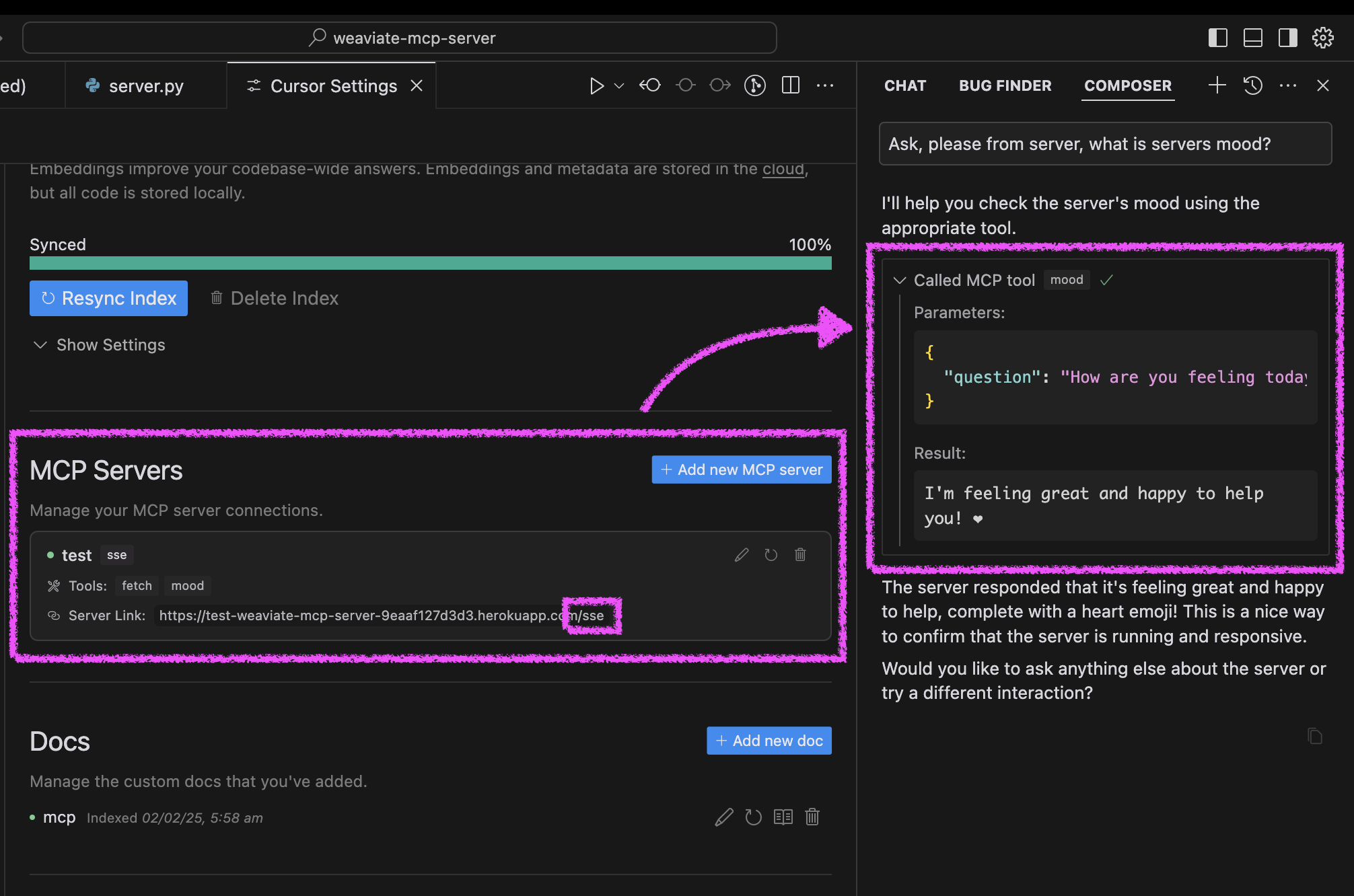
Click "Deploy to Heroku" button

After deployment, configure Cursor:
Open Cursor Settings → Features
Add new MCP server
Use your Heroku URL with /sse path (e.g., https://<your-app-name>.herokuapp.com/sse)
Test your agent's mood in Cursor:
Ask your agent "Please ask about our server mood and let me know how it is."
The server will respond with a cheerful message and a heart ❤️
Related MCP server: MCP Server Template for Cursor IDE
You can run the server in three ways: using Docker, traditional Python setup, or directly in Cursor IDE.
The project includes Docker support for easy deployment:
Initial setup:
# Clone the repository
git clone https://github.com/kirill-markin/weaviate-mcp-server.git
cd weaviate-mcp-server

# Create environment file
cp .env.example .env
Build and run using Docker Compose:
# Build and start the server
docker compose up --build -d

# View logs
docker compose logs -f

# Check server status
docker compose ps

# Stop the server
docker compose down
The server will be available at:
SSE endpoint: http://localhost:8000/sse
Quick test:
# Test the server endpoint
curl -i http://localhost:8000/sse
Connect to Cursor IDE:
Open Cursor Settings → Features
Add new MCP server
Type: Select "sse"
URL: Enter http://localhost:8000/sse
First, install the uv package manager:
# Install uv on macOS
brew install uv
# Or install via pip (any OS)
pip install uv
Start the server using either stdio (default) or SSE transport:
# Install the package with development dependencies
uv pip install -e ".[dev]"

# Using stdio transport (default)
uv run mcp-hitchcode

# Using SSE transport on custom port
uv run mcp-hitchcode --transport sse --port 8000

# Run tests
uv run pytest -v
After installation, you can connect the server directly to Cursor IDE:
Right-click on the cursor-run-mcp-server.sh file in Cursor
Select "Copy Path" to copy the absolute path
Open Cursor Settings (gear icon)
Navigate to Features tab
Scroll down to "MCP Servers"
Click "Add new MCP server"
Fill in the form:
Name: Choose any name (e.g., "my-mcp-server-1")
Type: Select "stdio" (not "sse" because we run the server locally)
Command: Paste the absolute path to cursor-run-mcp-server.sh that you copied earlier. For example: /Users/kirillmarkin/weaviate-mcp-server/cursor-run-mcp-server.sh
Available environment variables (can be set in .env):
MCP_SERVER_PORT (default: 8000) - Port to run the server on
MCP_SERVER_HOST (default: 0.0.0.0) - Host to bind the server to
DEBUG (default: false) - Enable debug mode
MCP_USER_AGENT - Custom User-Agent for website fetching
To install MCP Server Template for Cursor IDE for Claude Desktop automatically via Smithery:
npx -y @smithery/cli install @kirill-markin/example-mcp-server --client claudeProvides a prompt for systematically handling change requests
Inputs: change_request (required), specific_instructions, version.
Provides a prompt template for Docker container configurations and orchestration
Inputs: containerization_objective (required), specific_instructions, version.
Provides a prompt for performing root cause analysis and fixing issues
Inputs: issue (required), specific_instructions, version.
Provides a prompt for analyzing and fixing linter errors
Inputs: issue (required), specific_instructions, version.
Provides a prompt template for laying out system infrastructure and tool stack information
Inputs: infrastructure_info (required), specific_instructions, version.
Provides an initial prompt template for starting a new project
Inputs: objective (required), specific_instructions, version.
Provides a prompt template for proceeding with a task or project
Inputs: task (required), specific_instructions, version.
Provides a prompt for generating unit tests for code
Inputs: code_to_test (required), specific_instructions, version.
Fetches the most recent Railway CLI documentation. Optionally, provide a custom URL.
Inputs: url.
Fetches the most recent Railway CLI documentation. Optionally, provide a custom URL.
Inputs: url.
Fetches a website and returns its content
Inputs: url (required).
Ask the server about its mood - it's always happy!
Inputs: question (required).
Recent tool additions, removals, and schema changes observed during successful MCP inspections.
Loading tool schema changelog…
Scored across 12 tools
The tool set has significant ambiguity, particularly between the 'apply_prompt_*' tools which all provide prompt templates for different contexts but could easily be confused by an agent due to overlapping purposes (e.g., 'apply_prompt_fix' vs 'apply_prompt_fix_linter' for fixing issues). Additionally, 'fetch_railway_docs' and 'fetch_railway_docs_optimized' appear to do the same thing with unclear distinctions, leading to potential misselection.
Most tools follow a consistent snake_case pattern with clear verb_noun structures (e.g., 'apply_prompt_change', 'fetch_railway_docs'), which aids readability. However, there are minor deviations: 'mood' breaks the pattern by being a single noun without a verb, and the duplication in 'fetch_railway_docs' vs 'fetch_railway_docs_optimized' introduces inconsistency in naming for similar functions.
With 12 tools, the count is borderline but reasonable for a template server aimed at Cursor IDE, which might cover various development tasks. However, the set feels slightly heavy due to redundant tools like the two Railway docs fetchers and multiple similar prompt tools, suggesting some consolidation could improve coherence without losing functionality.
The server's domain appears to be development assistance with prompt templates and documentation fetching, but there are significant gaps. For example, it lacks tools for code generation, debugging, or version control integration, which are common in IDE contexts. The inclusion of a trivial 'mood' tool further detracts from covering essential workflows, making the surface incomplete for practical agent use in development tasks.
A comprehensive Model Context Protocol (MCP) server that enables AI assistants to interact with yo…
The Mercado Pago MCP Server implements the Model Context Protocol to provide AI agents and LLMs with access to Mercado Pago's APIs and tools within compatible development environments. It acts as an intermediary that translates Mercado Pago resources into executable functions (tools) that AI applications can invoke to perform actions and automate flows. The server simplifies integration, enables using documentation to implement or improve code, and optimizes operations through natural language interactions without manual implementations.
A Model Context Protocol server for Wix AI tools
The OpenRouter MCP server plugs OpenRouter into the AI tools you already use. Once connected, your assistant can pull live OpenRouter data (models, prices, your credits, rankings, and docs) and send quick test messages, all without leaving your editor.