Codex JetBrains HUD + Hooks Integration Guide
Project Background: This adaptation is based on an analysis of the leaked Claude Code v2.1.88 source code. The goal is to give Codex capabilities similar to Claude Code, allowing it to perceive the currently selected file, line numbers, and code range in JetBrains IDEs.
Author: nealzhi
This document only retains one integration path: HUD + hooks.
This repository has removed the old "local MCP server + global prompt" scheme, which is no longer recommended or supported.
1. Prerequisites
Ensure the following two conditions are met:
You are using a JetBrains IDE
Examples: IntelliJ IDEA, PyCharm, WebStorm, GoLand, Android Studio
Your IDE has the official Claude Code JetBrains plugin installed
This is a prerequisite for integration. Without this plugin, there will be no local ~/.claude/ide/*.lock files or corresponding local interfaces, and Codex will be unable to read the currently selected file and code range.
Related MCP server: Claude Code Control MCP
2. Install Dependencies
Run the following in the root directory of the repository:
cd codex-jetbrains-mcp
npm install
brew install tmux
Notes:
3. Integrate HUD
Run the following in the root directory of the repository:
chmod +x codex-jetbrains-mcp/bin/codex-jetbrains-hud
If you want to automatically run the HUD whenever you run codex, add the following line to your ~/.zshrc or ~/.bashrc:
alias codex='$(pwd)/codex-jetbrains-mcp/bin/codex-jetbrains-hud'
Reload your shell:
If you are using bash, run:
If you find that the mouse wheel cannot scroll the Codex window in the default macOS terminal or Warp terminal, you can run the following command to enable tmux mouse support:
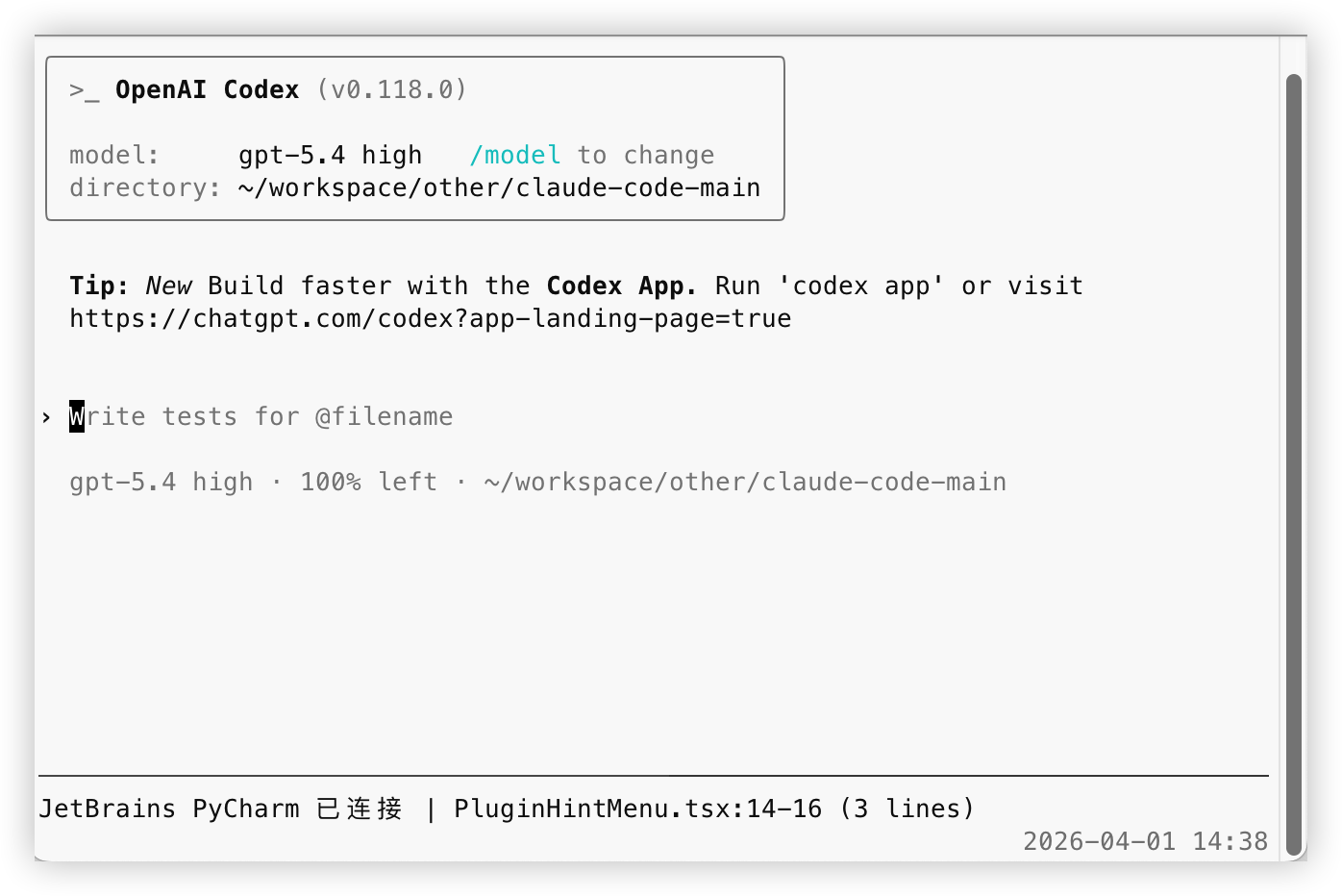
After the HUD starts, it will display a line:
JetBrains PyCharm 已连接 | test_main.py:2140-2147 (8 lines)
4. Configure Hooks
The core of this scheme is:
Start the HUD simultaneously when starting codex
The HUD automatically writes the current JetBrains file/line number to .codex/jetbrains-selection-state.json
The UserPromptSubmit hook reads this state when you send a message
When JetBrains context is available, it only injects the "file path" or "file path + line number"
It does not inject the selected text, allowing Codex to read the file as needed
4.1 Recommended Startup Method
Run the following in the root directory of the repository:
chmod +x codex-jetbrains-mcp/bin/codex-jetbrains-hud
alias codex='$(pwd)/codex-jetbrains-mcp/bin/codex-jetbrains-hud'
After that, you can run codex as usual.
Now, codex-jetbrains-hud not only displays the HUD but also automatically synchronizes the state required by the hook. This is the only recommended path; no separate synchronization process is provided or needed.
The state file will be written to:
.codex/jetbrains-selection-state.json
4.2 Configure Hooks
The repository already includes:
There are two ways to integrate:
If you start codex in this repository directory
Codex will directly read the .codex/config.toml and .codex/hooks.json in the repository, so you don't need to specify additional paths.
If you already have your own global ~/.codex/hooks.json
Do not overwrite it; just merge the UserPromptSubmit configuration from the repository into it.
If you want to copy it to ~/.codex/hooks/, please copy the entire .codex/hooks/ directory, not just the entry file.
The purpose of .codex/config.toml is to enable the hooks feature required by the official documentation:
[features]
codex_hooks = true
According to the official documentation, hooks are disabled by default and must be enabled in config.toml, or by passing codex --enable codex_hooks at startup. Additionally, the Codex configuration layer reads from both ~/.codex/config.toml and the .codex/config.toml in the repository; if the project is not marked as trusted, the repository-level .codex/config.toml will not take effect.
The configuration content included in the repository is:
{
  "hooks": {
    "UserPromptSubmit": [
      {
        "hooks": [
          {
            "type": "command",
            "command": "node \"$(git rev-parse --show-toplevel)/.codex/hooks/user-prompt-submit-jetbrains-selection.mjs\"",
            "statusMessage": "Loading JetBrains selection"
          }
        ]
      }
    ]
  }
}
This hook reads the local state file every time UserPromptSubmit is triggered:
If only a file is selected, it injects "which file is current" into Codex
If a code range is selected, it injects "current file + line number" into Codex
If there is no JetBrains context, or the state has expired, nothing is injected
It does not inject code text, only location guidance.
4.3 Clean Up Old Configurations
If you have used the old scheme before, please delete the following two items:
Delete local MCP configuration
codex mcp remove jetbrains-selection
Delete content like this from your own global prompts
每次用户请求时,先调用 MCP 工具 jetbrains-selection.jetbrains_get_selection 获取 JetBrains 当前选区
This step is essential; otherwise, the model might still try to call an MCP tool that no longer exists.
4.4 Content Actually Injected by the Hook
When only a file is selected, it injects something like:
JetBrains 当前选中文件:/path/to/file.ts
这只是文件指引,没有附带文件内容。
如果本轮问题和这个文件相关,请先自行读取该文件;如果无关,请忽略这条上下文。
When a code range is selected, it injects something like:
JetBrains 当前选中位置:/path/to/file.ts:120-146
这只是位置指引,没有附带代码内容。
如果本轮问题和这个位置相关,请先自行读取对应文件和行号;如果无关,请忽略这条上下文。
The default state validity period is 20s. While the HUD is running, it refreshes the state every 5s; if the HUD exits, the hook will quickly stop injecting the old state. You can also adjust this time via the environment variable CODEX_JB_HOOK_MAX_AGE_MS.
5. Why the Local MCP Scheme is No Longer Retained
The problems with the old scheme were mainly:
Required running codex mcp add additionally, adding installation and maintenance costs
The model usually relied on global prompts to force "calling an MCP tool every round," even if the question was unrelated to the JetBrains selection, wasting a step
Whether the selection is relevant should be determined by the current question; putting it in global prompts makes the behavior too mechanical
The local MCP server was just a relay layer; it still had to connect to the Claude Code JetBrains plugin. Keeping this layer separately provides little benefit and increases complexity
Old configurations were not easy to clean up, and invalid tool names or old prompts were easily left behind after migration
After switching to HUD + hooks, the benefits are more direct:
Local state is only read when sending a message, no extra MCP call per round
Injected content only contains file paths or line numbers, keeping the information cleaner and letting the model decide whether to read the file itself
State files are isolated by project root; each project writes its own .codex/jetbrains-selection-state.json
The HUD refreshes the heartbeat while alive, and old states automatically expire after the HUD stops
The integration path is more unified; users only need to maintain the HUD and hooks, not MCP configurations
6. How This Scheme Works Now
The data link is as follows:
The official Claude Code JetBrains plugin exposes local connection information and selection events
The HUD matches the correct JetBrains project window based on the current working directory
After receiving a selection change, the HUD writes the file path, line number, and heartbeat time to the current project's .codex/jetbrains-selection-state.json
The UserPromptSubmit hook reads this state when you send a message
If the state is valid, it injects a lightweight prompt of "current file" or "current file + line number" into Codex
There is no local MCP server in this link, and no additional global prompts are required.
7. Verification
After completing the steps above:
Open JetBrains IDE
Start codex
If you used the HUD wrapper to start, the HUD will automatically synchronize the hook state
Return to the JetBrains IDE with the official Claude Code plugin installed and select a file or a piece of code
Confirm that the HUD displays the current file and line number
Ask questions in Codex as usual
If the HUD does not refresh, the most reliable approach is:
Under normal circumstances:
When only a file is selected, Codex will receive file path guidance
When a code range is selected, Codex will receive file path and line number guidance
When there is no JetBrains context, no JetBrains prompts will be injected
