
A
licenseNot graded
qualityC
maintenanceA Model Context Protocol server that enables AI assistants like Claude to perform Python development tasks through file operations, code analysis, project management, and safe code execution.
9
MIT

임시 Daytona 샌드박스에서 Python 코드 실행 기능을 제공하는 모델 컨텍스트 프로토콜 서버입니다.
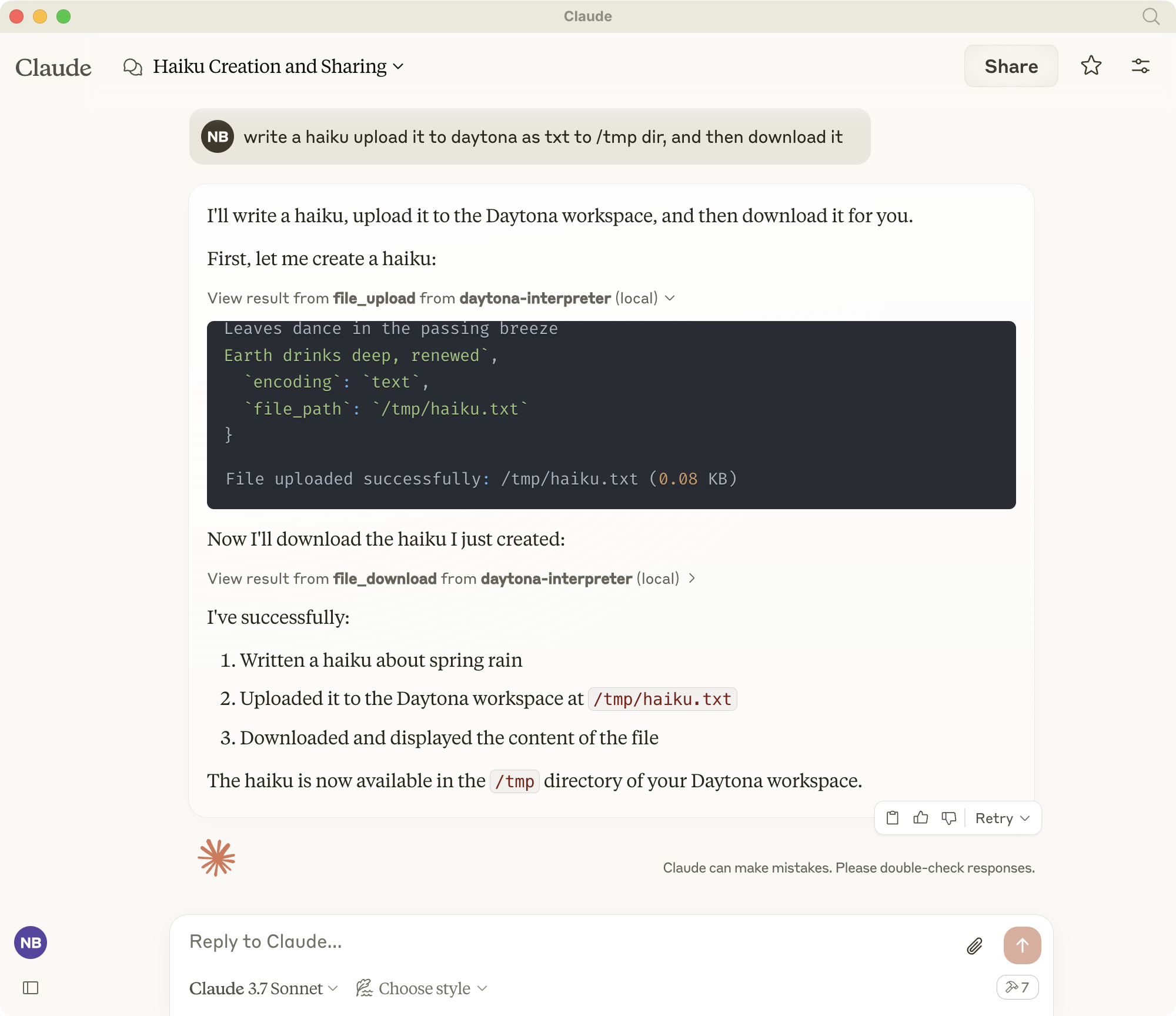
Daytona MCP Interpreter는 Claude와 같은 AI 비서가 안전하고 격리된 환경에서 Python 코드와 셸 명령을 실행할 수 있도록 지원합니다. Model Context Protocol(MCP) 표준을 구현하여 다음과 같은 도구를 제공합니다.
샌드박스 환경에서의 Python 코드 실행
쉘 명령 실행
파일 관리(업로드/다운로드)
Git 저장소 복제
실행 중인 서버를 위한 웹 미리보기 생성
모든 실행은 사용 후 자동으로 정리되는 임시 Daytona 작업 공간에서 이루어집니다.
Related MCP server: mcp-run-python
아직 uv를 설치하지 않았다면 설치하세요:
지엑스피1
가상 환경을 만들고 활성화합니다.
기존 env가 있는 경우 먼저 비활성화하고 제거하세요.
deactivate
rm -rf .venv
새로운 가상 환경을 만들고 활성화하세요.
uv venv
source .venv/bin/activate
(Windows의 경우: .venv\Scripts\activate )
종속성 설치:
uv add "mcp[cli]" pydantic python-dotenv "daytona-sdk>=0.10.5"참고: 이 프로젝트에는 daytona-sdk 버전 0.10.5 이상이 필요합니다. 이전 버전은 호환되지 않는 파일 시스템 API를 가지고 있습니다.
적절한 작동을 위해 다음 환경 변수를 구성하세요.
MCP_DAYTONA_API_KEY : Daytona 인증에 필요한 API 키
MCP_DAYTONA_SERVER_URL : 서버 URL(기본값: https://app.daytona.io/api )
MCP_DAYTONA_TIMEOUT : 요청 시간 초과(초) (기본값: 180.0)
MCP_DAYTONA_TARGET : 대상 지역(기본값: eu)
MCP_VERIFY_SSL : SSL 검증 활성화(기본값: false)
서버를 직접 실행합니다.
uv run src/daytona_mcp_interpreter/server.py또는 uv가 경로에 없는 경우:
/Users/USER/.local/bin/uv run ~LOCATION/daytona-mcp-interpreter/src/daytona_mcp_interpreter/server.pyMCP Inspector를 사용하여 서버를 테스트하세요.
npx @modelcontextprotocol/inspector \
  uv \
  --directory . \
  run \
  src/daytona_mcp_interpreter/server.py
로그 보기:
tail -f /tmp/daytona-interpreter.log
Claude Desktop(또는 다른 MCP 호환 클라이언트)에서 구성:
MacOS에서는 다음을 편집합니다. ~/Library/Application Support/Claude/claude_desktop_config.json Windows에서는 다음을 편집합니다. %APPDATA%\Claude\claude_desktop_config.json
{
    "mcpServers": {
        "daytona-interpreter": {
            "command": "/Users/USER/.local/bin/uv",
            "args": [
                "--directory",
                "/Users/USER/dev/daytona-mcp-interpreter",
                "run",
                "src/daytona_mcp_interpreter/server.py"
            ],
            "env": {
                "PYTHONUNBUFFERED": "1",
                "MCP_DAYTONA_API_KEY": "api_key",
                "MCP_DAYTONA_SERVER_URL": "api_server_url",
                "MCP_DAYTONA_TIMEOUT": "30.0",
                "MCP_VERIFY_SSL": "false",
                "PATH": "/usr/local/bin:/usr/bin:/bin:/usr/sbin:/sbin"
            }
        }
    }
}
Claude Desktop을 다시 시작하세요
Daytona Python 인터프리터 도구는 Claude에서 사용할 수 있습니다.
Daytona 작업 공간에서 셸 명령을 실행합니다.
# Example: List files
ls -la

# Example: Install a package
pip install pandas대용량 파일을 스마트하게 처리하여 Daytona 작업 공간에서 파일을 다운로드합니다.
기본 사용법:
file_download(file_path="/path/to/file.txt")고급 사용법:
# Set custom file size limit
file_download(file_path="/path/to/large_file.csv", max_size_mb=10.0)

# Download partial content for large files
file_download(file_path="/path/to/large_file.csv", download_option="download_partial", chunk_size_kb=200)

# Convert large file to text
file_download(file_path="/path/to/large_file.pdf", download_option="convert_to_text")

# Compress file before downloading
file_download(file_path="/path/to/large_file.bin", download_option="compress_file")

# Force download despite size
file_download(file_path="/path/to/large_file.zip", download_option="force_download")Daytona 작업 공간에 파일을 업로드합니다. 텍스트 파일과 바이너리 파일을 모두 지원합니다.
기본 사용법:
# Upload a text file
file_upload(file_path="/workspace/example.txt", content="Hello, World!")
고급 사용법:
# Upload a text file with specific path
file_upload(
    file_path="/workspace/data/config.json",
    content='{"setting": "value", "enabled": true}'
)

# Upload a binary file using base64 encoding
import base64
with open("local_image.png", "rb") as f:
    base64_content = base64.b64encode(f.read()).decode('utf-8')

file_upload(
    file_path="/workspace/images/uploaded.png",
    content=base64_content,
    encoding="base64"
)

# Upload without overwriting existing files
file_upload(
    file_path="/workspace/important.txt",
    content="New content",
    overwrite=False
)분석 및 코드 실행을 위해 Git 저장소를 Daytona 작업 공간에 복제합니다.
기본 사용법:
git_clone(repo_url="https://github.com/username/repository.git")고급 사용법:
# Clone a specific branch
git_clone(
    repo_url="https://github.com/username/repository.git",
    branch="develop"
)

# Clone to a specific directory with full history
git_clone(
    repo_url="https://github.com/username/repository.git",
    target_path="my_project",
    depth=0  # 0 means full history
)

# Clone with Git LFS support for repositories with large files
git_clone(
    repo_url="https://github.com/username/large-files-repo.git",
    lfs=True
)Daytona 작업 공간 내에서 실행되는 웹 서버에 대한 미리보기 URL을 생성합니다.
기본 사용법:
# Generate a preview link for a web server running on port 3000
web_preview(port=3000)
고급 사용법:
# Generate a preview link with a descriptive name
web_preview(
    port=8080,
    description="React Development Server"
)

# Generate a link without checking if server is running
web_preview(
    port=5000,
    check_server=False
)
예:
# First run a simple web server using Python via the shell
shell_exec(command="python -m http.server 8000 &")

# Then generate a preview link for the server
web_preview(port=8000, description="Python HTTP Server")This server cannot be installed
Unclaimed servers have limited discoverability.
If you are the server author, to access and configure the admin panel.

A comprehensive Model Context Protocol (MCP) server that enables AI assistants to interact with yo…
A Model Context Protocol server for Wix AI tools
A comprehensive Model Context Protocol (MCP) server that enables AI assistants to control Unreal E…
We provide all the information about MCP servers via our MCP API.
curl -X GET 'https://glama.ai/api/mcp/v1/servers/nibzard/daytona-mcp-interpreter'
If you have feedback or need assistance with the MCP directory API, please join our Discord server