
A
licenseNot graded
qualityC
maintenanceA Model Context Protocol server that enables AI assistants like Claude to perform Python development tasks through file operations, code analysis, project management, and safe code execution.
9
MIT

一時的な Daytona サンドボックスで Python コード実行機能を提供するモデル コンテキスト プロトコル サーバー。
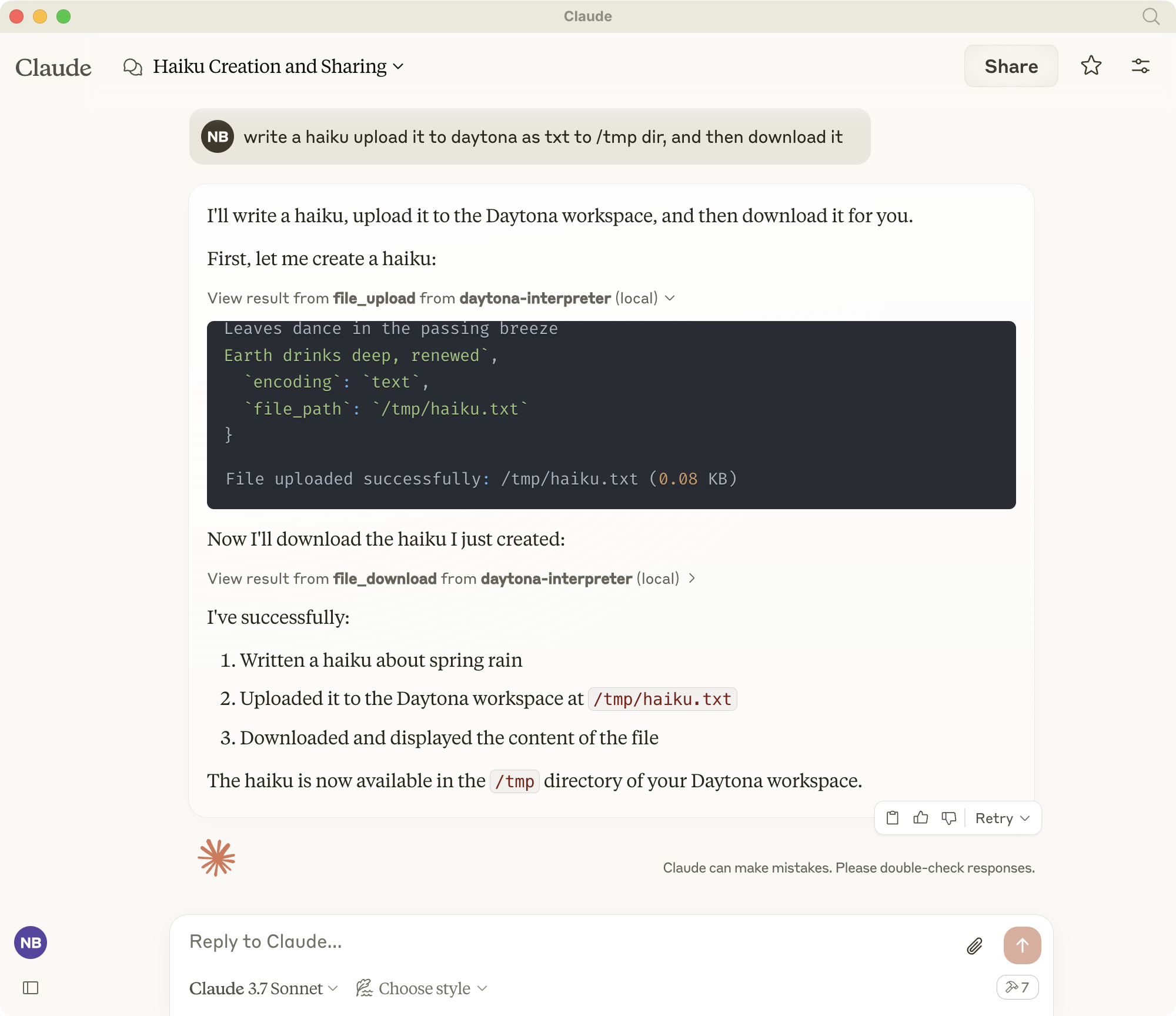
Daytona MCPインタープリターは、ClaudeのようなAIアシスタントが安全で隔離された環境でPythonコードとシェルコマンドを実行できるようにします。モデルコンテキストプロトコル(MCP)標準を実装し、以下のツールを提供します。
サンドボックス環境での Python コード実行
シェルコマンドの実行
ファイル管理(アップロード/ダウンロード)
Gitリポジトリのクローン作成
実行中のサーバーのWebプレビュー生成
すべての実行は、使用後に自動的にクリーンアップされる一時的な Daytona ワークスペースで行われます。
Related MCP server: mcp-run-python
まだインストールしていない場合は、uv をインストールします。
curl -LsSf https://astral.sh/uv/install.sh | sh仮想環境を作成してアクティブ化します。
既存の env がある場合は、まずそれを非アクティブ化して削除します。
deactivate
rm -rf .venv
新しい仮想環境を作成してアクティブ化します。
uv venv
source .venv/bin/activate
(Windows の場合: .venv\Scripts\activate )
依存関係をインストールします:
uv add "mcp[cli]" pydantic python-dotenv "daytona-sdk>=0.10.5"注意:このプロジェクトにはdaytona-sdkバージョン0.10.5以降が必要です。それ以前のバージョンではFileSystem APIとの互換性がありません。
適切に動作させるには、次の環境変数を設定します。
MCP_DAYTONA_API_KEY : Daytona認証に必要なAPIキー
MCP_DAYTONA_SERVER_URL : サーバー URL (デフォルト: https://app.daytona.io/api )
MCP_DAYTONA_TIMEOUT : リクエストタイムアウト(秒)(デフォルト: 180.0)
MCP_DAYTONA_TARGET : ターゲット地域(デフォルト: eu)
MCP_VERIFY_SSL : SSL検証を有効にする(デフォルト: false)
サーバーを直接実行します。
uv run src/daytona_mcp_interpreter/server.pyまたは、UV がパスにない場合は、次のようにします。
/Users/USER/.local/bin/uv run ~LOCATION/daytona-mcp-interpreter/src/daytona_mcp_interpreter/server.pyMCP Inspector を使用してサーバーをテストします。
npx @modelcontextprotocol/inspector \
  uv \
  --directory . \
  run \
  src/daytona_mcp_interpreter/server.py
ログを表示:
tail -f /tmp/daytona-interpreter.log
Claude Desktop (またはその他の MCP 互換クライアント) で構成します。
MacOS の場合は、次のファイルを編集します: ~/Library/Application Support/Claude/claude_desktop_config.json Windows の場合は、次のファイルを編集します: %APPDATA%\Claude\claude_desktop_config.json
{
    "mcpServers": {
        "daytona-interpreter": {
            "command": "/Users/USER/.local/bin/uv",
            "args": [
                "--directory",
                "/Users/USER/dev/daytona-mcp-interpreter",
                "run",
                "src/daytona_mcp_interpreter/server.py"
            ],
            "env": {
                "PYTHONUNBUFFERED": "1",
                "MCP_DAYTONA_API_KEY": "api_key",
                "MCP_DAYTONA_SERVER_URL": "api_server_url",
                "MCP_DAYTONA_TIMEOUT": "30.0",
                "MCP_VERIFY_SSL": "false",
                "PATH": "/usr/local/bin:/usr/bin:/bin:/usr/sbin:/sbin"
            }
        }
    }
}
Claudeデスクトップを再起動します
Daytona PythonインタープリタツールはClaudeで利用可能になります
Daytona ワークスペースでシェル コマンドを実行します。
# Example: List files
ls -la

# Example: Install a package
pip install pandas大きなファイルをスマートに処理して、Daytona ワークスペースからファイルをダウンロードします。
基本的な使用方法:
file_download(file_path="/path/to/file.txt")高度な使用法:
# Set custom file size limit
file_download(file_path="/path/to/large_file.csv", max_size_mb=10.0)

# Download partial content for large files
file_download(file_path="/path/to/large_file.csv", download_option="download_partial", chunk_size_kb=200)

# Convert large file to text
file_download(file_path="/path/to/large_file.pdf", download_option="convert_to_text")

# Compress file before downloading
file_download(file_path="/path/to/large_file.bin", download_option="compress_file")

# Force download despite size
file_download(file_path="/path/to/large_file.zip", download_option="force_download")Daytonaワークスペースにファイルをアップロードします。テキストファイルとバイナリファイルの両方をサポートします。
基本的な使用方法:
# Upload a text file
file_upload(file_path="/workspace/example.txt", content="Hello, World!")
高度な使用法:
# Upload a text file with specific path
file_upload(
    file_path="/workspace/data/config.json",
    content='{"setting": "value", "enabled": true}'
)

# Upload a binary file using base64 encoding
import base64
with open("local_image.png", "rb") as f:
    base64_content = base64.b64encode(f.read()).decode('utf-8')

file_upload(
    file_path="/workspace/images/uploaded.png",
    content=base64_content,
    encoding="base64"
)

# Upload without overwriting existing files
file_upload(
    file_path="/workspace/important.txt",
    content="New content",
    overwrite=False
)分析とコード実行のために、Git リポジトリを Daytona ワークスペースに複製します。
基本的な使用方法:
git_clone(repo_url="https://github.com/username/repository.git")高度な使用法:
# Clone a specific branch
git_clone(
    repo_url="https://github.com/username/repository.git",
    branch="develop"
)

# Clone to a specific directory with full history
git_clone(
    repo_url="https://github.com/username/repository.git",
    target_path="my_project",
    depth=0  # 0 means full history
)

# Clone with Git LFS support for repositories with large files
git_clone(
    repo_url="https://github.com/username/large-files-repo.git",
    lfs=True
)Daytona ワークスペース内で実行されている Web サーバーのプレビュー URL を生成します。
基本的な使用方法:
# Generate a preview link for a web server running on port 3000
web_preview(port=3000)
高度な使用法:
# Generate a preview link with a descriptive name
web_preview(
    port=8080,
    description="React Development Server"
)

# Generate a link without checking if server is running
web_preview(
    port=5000,
    check_server=False
)
例:
# First run a simple web server using Python via the shell
shell_exec(command="python -m http.server 8000 &")

# Then generate a preview link for the server
web_preview(port=8000, description="Python HTTP Server")This server cannot be installed
Unclaimed servers have limited discoverability.
If you are the server author, to access and configure the admin panel.

A comprehensive Model Context Protocol (MCP) server that enables AI assistants to interact with yo…
A Model Context Protocol server for Wix AI tools
A comprehensive Model Context Protocol (MCP) server that enables AI assistants to control Unreal E…
We provide all the information about MCP servers via our MCP API.
curl -X GET 'https://glama.ai/api/mcp/v1/servers/nibzard/daytona-mcp-interpreter'
If you have feedback or need assistance with the MCP directory API, please join our Discord server