ContextForge
MCP, A2A 및 REST/gRPC API를 중앙 집중식 거버넌스, 검색 및 관측 가능성과 함께 연합하는 오픈 소스 레지스트리 및 프록시입니다. 에이전트 및 도구 호출을 최적화하며 플러그인을 지원합니다.










ContextForge는 도구, 에이전트 및 API를 AI 클라이언트를 위한 하나의 깔끔한 엔드포인트로 연합하는 오픈 소스 레지스트리 및 프록시입니다. AI 인프라 전반에 걸쳐 중앙 집중식 거버넌스, 검색 및 관측 가능성을 제공합니다:
도구 게이트웨이 — MCP, REST, gRPC-to-MCP 변환 및 TOON 압축
에이전트 게이트웨이 — A2A 프로토콜, OpenAI 호환 및 Anthropic 에이전트 라우팅
API 게이트웨이 — REST 서비스를 위한 속도 제한, 인증, 재시도 및 리버스 프록시
플러그인 확장성 — 추가 전송, 프로토콜 및 통합을 위한 40개 이상의 플러그인
관측 가능성 — Phoenix, Jaeger, Zipkin 및 기타 OTLP 백엔드를 사용한 OpenTelemetry 추적
이 서비스는 완전히 호환되는 MCP 서버로 실행되며, PyPI 또는 Docker를 통해 배포할 수 있고, Redis 기반 페더레이션 및 캐싱을 통해 Kubernetes의 다중 클러스터 환경으로 확장 가능합니다.
Related MCP server: ContextForge MCP Gateway
목차
📌 빠른 링크
리소스 | 설명 |
5분 설정 | uvx, Docker, Compose 또는 로컬 개발을 통한 빠른 시작 |
도움말 | 지원 옵션, FAQ, 커뮤니티 채널 |
이슈 가이드 | 버그 신고, 기능 요청, 기여 방법 |
전체 문서 | 전체 가이드, 튜토리얼, API 참조 |
개요 및 목표
ContextForge는 모든 Model Context Protocol (MCP) 서버, A2A 서버 또는 REST/gRPC API를 연합하여 중앙 집중식 거버넌스, 검색 및 관측 가능성을 제공하는 오픈 소스 레지스트리 및 프록시입니다. 에이전트 및 도구 호출을 최적화하며 플러그인을 지원합니다. 자세한 내용은 프로젝트 로드맵을 참조하세요.
현재 지원하는 기능:
다중 MCP 및 REST 서비스 전반의 페더레이션
외부 AI 에이전트(OpenAI, Anthropic, 사용자 지정)를 위한 A2A(Agent-to-Agent) 통합
자동 리플렉션 기반 서비스 검색을 통한 gRPC-to-MCP 변환
레거시 API를 MCP 호환 도구 및 서버로 가상화
HTTP, JSON-RPC, WebSocket, SSE(구성 가능한 keepalive 포함), stdio 및 스트리밍 가능한 HTTP를 통한 전송
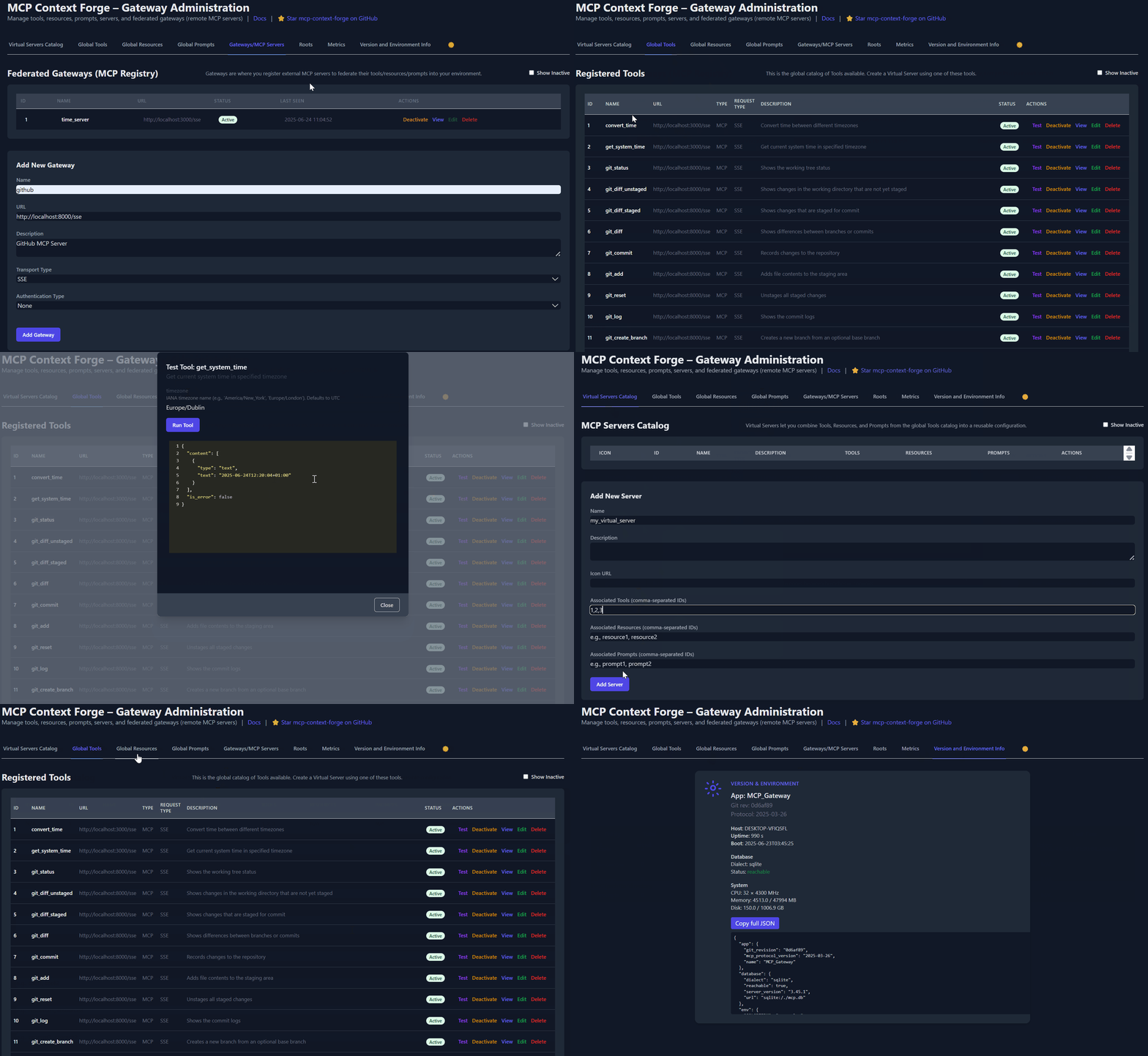
실시간 관리, 구성 및 로그 모니터링을 위한 관리자 UI(에어갭 배포 지원)
사용자 범위 OAuth 토큰 및 무조건적인 X-Upstream-Authorization 헤더 지원을 통한 내장 인증, 재시도 및 속도 제한
Phoenix, Jaeger, Zipkin 및 기타 OTLP 백엔드를 사용한 OpenTelemetry 관측 가능성
Docker 또는 PyPI, Redis 기반 캐싱 및 다중 클러스터 페더레이션을 통한 확장 가능한 배포

향후 기능 목록은 ContextForge 로드맵을 확인하세요.
프롬프트: Jinja2 템플릿, 멀티모달 지원, 롤백/버전 관리
리소스: URI 기반 액세스, MIME 감지, 캐싱, SSE 업데이트
도구: 입력 유효성 검사 및 동시성 제어가 포함된 기본 또는 조정된 도구
HTMX + Alpine.js로 구축된 관리자 UI
필터링, 검색 및 내보내기 기능을 갖춘 실시간 로그 뷰어
인증: 기본, JWT 또는 사용자 지정 체계
구조화된 로그, 상태 엔드포인트, 메트릭
7,000개 이상의 테스트, Makefile 타겟, 라이브 리로드, 사전 커밋 훅
OpenTelemetry (OTLP) 프로토콜 지원을 통한 벤더 중립적 추적
다중 백엔드 지원: Phoenix(LLM 중심), Jaeger, Zipkin, Tempo, DataDog, New Relic
연합 게이트웨이 및 서비스 전반의 분산 추적
도구, 프롬프트, 리소스 및 게이트웨이 작업의 자동 계측
LLM 특정 메트릭: 토큰 사용량, 비용, 모델 성능
비활성화 시 오버헤드 제로 및 정상적인 성능 저하
Phoenix, Jaeger 및 기타 백엔드 설정 가이드는 **관측 가능성 문서**를 참조하세요.
빠른 시작 - PyPI
ContextForge는 PyPI에 mcp-contextforge-gateway로 게시되어 있습니다.
요약:
(uv를 사용하는 단일 명령)
# Quick start with environment variables
BASIC_AUTH_PASSWORD=pass \
MCPGATEWAY_UI_ENABLED=true \
MCPGATEWAY_ADMIN_API_ENABLED=true \
PLATFORM_ADMIN_EMAIL=admin@example.com \
PLATFORM_ADMIN_PASSWORD=changeme \
PLATFORM_ADMIN_FULL_NAME="Platform Administrator" \
uvx --from mcp-contextforge-gateway mcpgateway --host 0.0.0.0 --port 4444

# Or better: use the provided .env.example
cp .env.example .env
# Edit .env to customize your settings
uvx --from mcp-contextforge-gateway mcpgateway --host 0.0.0.0 --port 4444
1 - 설치 및 실행 (복사-붙여넣기 친화적)
# 1️⃣  Isolated env + install from pypi
mkdir mcpgateway && cd mcpgateway
python3 -m venv .venv && source .venv/bin/activate
pip install --upgrade pip
pip install mcp-contextforge-gateway

# 2️⃣  Copy and customize the configuration
# Download the example environment file
curl -O https://raw.githubusercontent.com/IBM/mcp-context-forge/main/.env.example
cp .env.example .env
# Edit .env to customize your settings (especially passwords!)

# Or set environment variables directly:
export MCPGATEWAY_UI_ENABLED=true
export MCPGATEWAY_ADMIN_API_ENABLED=true
export PLATFORM_ADMIN_EMAIL=admin@example.com
export PLATFORM_ADMIN_PASSWORD=changeme
export PLATFORM_ADMIN_FULL_NAME="Platform Administrator"

BASIC_AUTH_PASSWORD=pass JWT_SECRET_KEY=my-test-key-but-now-longer-than-32-bytes \
  mcpgateway --host 0.0.0.0 --port 4444 &   # admin/pass

# 3️⃣  Generate a bearer token & smoke-test the API
export MCPGATEWAY_BEARER_TOKEN=$(python3 -m mcpgateway.utils.create_jwt_token \
    --username admin@example.com --exp 10080 --secret my-test-key-but-now-longer-than-32-bytes)

curl -s -H "Authorization: Bearer $MCPGATEWAY_BEARER_TOKEN" \
     http://127.0.0.1:4444/version | jq
# 1️⃣  Isolated env + install from PyPI
mkdir mcpgateway ; cd mcpgateway
python3 -m venv .venv ; .\.venv\Scripts\Activate.ps1
pip install --upgrade pip
pip install mcp-contextforge-gateway

# 2️⃣  Copy and customize the configuration
# Download the example environment file
Invoke-WebRequest -Uri "https://raw.githubusercontent.com/IBM/mcp-context-forge/main/.env.example" -OutFile ".env.example"
Copy-Item .env.example .env
# Edit .env to customize your settings

# Or set environment variables (session-only)
$Env:MCPGATEWAY_UI_ENABLED        = "true"
$Env:MCPGATEWAY_ADMIN_API_ENABLED = "true"
# Note: Basic auth for API is disabled by default (API_ALLOW_BASIC_AUTH=false)
$Env:JWT_SECRET_KEY               = "my-test-key-but-now-longer-than-32-bytes"
$Env:PLATFORM_ADMIN_EMAIL         = "admin@example.com"
$Env:PLATFORM_ADMIN_PASSWORD      = "changeme"
$Env:PLATFORM_ADMIN_FULL_NAME     = "Platform Administrator"

# 3️⃣  Launch the gateway
mcpgateway.exe --host 0.0.0.0 --port 4444

#   Optional: background it
# Start-Process -FilePath "mcpgateway.exe" -ArgumentList "--host 0.0.0.0 --port 4444"

# 4️⃣  Bearer token and smoke-test
$Env:MCPGATEWAY_BEARER_TOKEN = python3 -m mcpgateway.utils.create_jwt_token `
    --username admin@example.com --exp 10080 --secret my-test-key-but-now-longer-than-32-bytes

curl -s -H "Authorization: Bearer $Env:MCPGATEWAY_BEARER_TOKEN" `
     http://127.0.0.1:4444/version | jq
# 1️⃣  Isolated env + install from PyPI using uv
mkdir mcpgateway ; cd mcpgateway
uv venv
.\.venv\Scripts\activate
uv pip install mcp-contextforge-gateway

# Continue with steps 2️⃣-4️⃣ above...
.env.example을 .env로 복사하고 설정을 조정하세요(또는 환경 변수로 사용).
# 1️⃣  Spin up the sample GO MCP time server using mcpgateway.translate & docker (replace docker with podman if needed)
python3 -m mcpgateway.translate \
     --stdio "docker run --rm -i ghcr.io/ibm/fast-time-server:latest -transport=stdio" \
     --expose-sse \
     --port 8003

# Or using the official mcp-server-git using uvx:
pip install uv # to install uvx, if not already installed
python3 -m mcpgateway.translate --stdio "uvx mcp-server-git" --expose-sse --port 9000

# Alternative: running the local binary
# cd mcp-servers/go/fast-time-server; make build
# python3 -m mcpgateway.translate --stdio "./dist/fast-time-server -transport=stdio" --expose-sse --port 8002

# NEW: Expose via multiple protocols simultaneously!
python3 -m mcpgateway.translate \
     --stdio "uvx mcp-server-git" \
     --expose-sse \
     --expose-streamable-http \
     --port 9000
# Now accessible via both /sse (SSE) and /mcp (streamable HTTP) endpoints

# 2️⃣  Register it with the gateway
curl -s -X POST -H "Authorization: Bearer $MCPGATEWAY_BEARER_TOKEN" \
     -H "Content-Type: application/json" \
     -d '{"name":"fast_time","url":"http://localhost:8003/sse"}' \
     http://localhost:4444/gateways

# 3️⃣  Verify tool catalog
curl -s -H "Authorization: Bearer $MCPGATEWAY_BEARER_TOKEN" http://localhost:4444/tools | jq

# 4️⃣  Create a *virtual server* bundling those tools. Use the ID of tools from the tool catalog (Step #3) and pass them in the associatedTools list.
curl -s -X POST -H "Authorization: Bearer $MCPGATEWAY_BEARER_TOKEN" \
     -H "Content-Type: application/json" \
     -d '{"server":{"name":"time_server","description":"Fast time tools","associated_tools":[<ID_OF_TOOLS>]}}' \
     http://localhost:4444/servers | jq

# Example curl
curl -s -X POST -H "Authorization: Bearer $MCPGATEWAY_BEARER_TOKEN"
     -H "Content-Type: application/json"
     -d '{"server":{"name":"time_server","description":"Fast time tools","associated_tools":["6018ca46d32a4ac6b4c054c13a1726a2"]}}' \
     http://localhost:4444/servers | jq

# 5️⃣  List servers (should now include the UUID of the newly created virtual server)
curl -s -H "Authorization: Bearer $MCPGATEWAY_BEARER_TOKEN" http://localhost:4444/servers | jq

# 6️⃣  Client HTTP endpoint. Inspect it interactively with the MCP Inspector CLI (or use any MCP client)
npx -y @modelcontextprotocol/inspector
# Transport Type: Streamable HTTP, URL: http://localhost:4444/servers/UUID_OF_SERVER_1/mcp,  Header Name: "Authorization", Bearer Token
export MCP_AUTH="Bearer ${MCPGATEWAY_BEARER_TOKEN}"
export MCP_SERVER_URL=http://localhost:4444/servers/UUID_OF_SERVER_1/mcp
python3 -m mcpgateway.wrapper  # Ctrl-C to exit
uv를 사용하거나 Docker/Podman 내부에서 실행할 수도 있습니다. 위의 컨테이너 섹션을 참조하세요.
MCP Inspector에서 MCP_AUTH 및 MCP_SERVER_URL 환경 변수를 정의하고, 명령으로 python3를, 인수로 -m mcpgateway.wrapper를 선택하세요.
echo $PWD/.venv/bin/python3 # Using the Python3 full path ensures you have a working venv
export MCP_SERVER_URL='http://localhost:4444/servers/UUID_OF_SERVER_1/mcp'
export MCP_AUTH="Bearer ${MCPGATEWAY_BEARER_TOKEN}"
npx -y @modelcontextprotocol/inspector
또는
인수로 URL과 인증을 전달하세요(환경 변수를 설정할 필요 없음)
npx -y @modelcontextprotocol/inspector
command as `python`
Arguments as `-m mcpgateway.wrapper --url "http://localhost:4444/servers/UUID_OF_SERVER_1/mcp" --auth "Bearer <your token>"`
stdio와 함께 Claude와 같은 MCP 클라이언트를 사용할 때:
{
  "mcpServers": {
    "mcpgateway-wrapper": {
      "command": "python",
      "args": ["-m", "mcpgateway.wrapper"],
      "env": {
        "MCP_AUTH": "Bearer your-token-here",
        "MCP_SERVER_URL": "http://localhost:4444/servers/UUID_OF_SERVER_1",
        "MCP_TOOL_CALL_TIMEOUT": "120"
      }
    }
  }
}
빠른 시작 - 컨테이너
Docker 또는 Podman과 함께 GHCR의 공식 OCI 이미지를 사용하세요.
참고: 현재 arm64는 프로덕션에서 지원되지 않습니다. 예를 들어 Apple Silicon 칩(M1, M2 등)이 탑재된 MacOS에서 실행 중인 경우, Rosetta를 사용하여 컨테이너를 실행하거나 PyPi를 통해 설치할 수 있습니다.
🚀 빠른 시작 - Docker Compose
PostgreSQL 및 Redis를 사용하여 30초 이내에 전체 스택을 실행하세요:
# Clone and start the stack
git clone https://github.com/IBM/mcp-context-forge.git
cd mcp-context-forge

# Start with PostgreSQL (recommended for production)
docker compose up -d

# Check status
docker compose ps

# View logs
docker compose logs -f gateway

# Access Admin UI: http://localhost:8080/admin (login with PLATFORM_ADMIN_EMAIL/PASSWORD)
# Generate API token
docker compose exec gateway python3 -m mcpgateway.utils.create_jwt_token \
  --username admin@example.com --exp 10080 --secret my-test-key-but-now-longer-than-32-bytes
제공되는 기능:
🗄️ PostgreSQL - 55개 이상의 테이블을 갖춘 프로덕션 준비 데이터베이스
🚀 ContextForge - 관리자 UI를 갖춘 완전한 기능의 게이트웨이
📊 Redis - 고성능 캐싱 및 세션 저장소
🔧 관리 도구 - 데이터베이스 관리를 위한 pgAdmin, Redis Insight
🌐 Nginx 프록시 - 포트 8080의 캐싱 리버스 프록시
HTTPS 활성화 (선택 사항):
# Start with TLS enabled (auto-generates self-signed certs)
make compose-tls

# Access via HTTPS: https://localhost:8443/admin

# Or bring your own certificates:
# Unencrypted key:
mkdir -p certs
cp your-cert.pem certs/cert.pem && cp your-key.pem certs/key.pem
make compose-tls

# Passphrase-protected key:
mkdir -p certs
cp your-cert.pem certs/cert.pem && cp your-encrypted-key.pem certs/key-encrypted.pem
echo "KEY_FILE_PASSWORD=your-passphrase" >> .env
make compose-tls
☸️ 빠른 시작 - Helm (Kubernetes)
엔터프라이즈급 기능을 갖춘 Kubernetes에 배포하세요:
# Add Helm repository (when available)
# helm repo add mcp-context-forge https://ibm.github.io/mcp-context-forge
# helm repo update

# For now, use local chart
git clone https://github.com/IBM/mcp-context-forge.git
cd mcp-context-forge/charts/mcp-stack

# Install with PostgreSQL (default)
helm install mcp-gateway . \
  --set mcpContextForge.secret.PLATFORM_ADMIN_EMAIL=admin@yourcompany.com \
  --set mcpContextForge.secret.PLATFORM_ADMIN_PASSWORD=changeme \
  --set mcpContextForge.secret.JWT_SECRET_KEY=your-secret-key

# Check deployment status
kubectl get pods -l app.kubernetes.io/name=mcp-context-forge

# Port forward to access Admin UI
kubectl port-forward svc/mcp-gateway-mcp-context-forge 4444:80
# Access: http://localhost:4444/admin

# Generate API token
kubectl exec deployment/mcp-gateway-mcp-context-forge -- \
  python3 -m mcpgateway.utils.create_jwt_token \
  --username admin@yourcompany.com --exp 10080 --secret your-secret-key
SSRF 참고: Helm은 기본적으로 엄격한 SSRF 설정(SSRF_ALLOW_PRIVATE_NETWORKS=false)을 사용합니다.
클러스터 내 도구 URL(예: fast-time 또는 fast-test 서비스)을 등록하는 경우,
mcpContextForge.config.SSRF_ALLOWED_NETWORKS를 통해 클러스터 CIDR만 허용하거나,
로컬 전용 벤치마크 설정의 경우 일시적으로 SSRF_ALLOW_PRIVATE_NETWORKS=true로 설정하세요.
docs/docs/manage/configuration.md#ssrf-protection 및 docs/docs/deployment/helm.md를 참조하세요.
엔터프라이즈 기능:
🔄 자동 확장 - CPU/메모리 타겟을 갖춘 HPA
🗄️ 데이터베이스 선택 - PostgreSQL(프로덕션), SQLite(개발)
📊 관측 가능성 - Prometheus 메트릭, OpenTelemetry 추적
🔒 보안 - RBAC, 네트워크 정책, 비밀 관리
🚀 고가용성 - Redis 클러스터링을 갖춘 다중 복제본 배포
📈 모니터링 - 내장 Grafana 대시보드 및 알림
🐳 Docker (단일 컨테이너)
docker run -d --name mcpgateway \
  -p 4444:4444 \
  -e MCPGATEWAY_UI_ENABLED=true \
  -e MCPGATEWAY_ADMIN_API_ENABLED=true \
  -e HOST=0.0.0.0 \
  -e JWT_SECRET_KEY=my-test-key-but-now-longer-than-32-bytes \
  -e AUTH_REQUIRED=true \
  -e PLATFORM_ADMIN_EMAIL=admin@example.com \
  -e PLATFORM_ADMIN_PASSWORD=changeme \
  -e PLATFORM_ADMIN_FULL_NAME="Platform Administrator" \
  -e DATABASE_URL=sqlite:///./mcp.db \
  -e SECURE_COOKIES=false \
  ghcr.io/ibm/mcp-context-forge:1.0.0-RC-2

# Tail logs and generate API key
docker logs -f mcpgateway
docker run --rm -it ghcr.io/ibm/mcp-context-forge:1.0.0-RC-2 \
  python3 -m mcpgateway.utils.create_jwt_token --username admin@example.com --exp 10080 --secret my-test-key-but-now-longer-than-32-bytes
**http://localhost:4444/admin**으로 이동하여 PLATFORM_ADMIN_EMAIL / PLATFORM_ADMIN_PASSWORD로 로그인하세요.
SQLite 데이터베이스 유지:
mkdir -p $(pwd)/data && touch $(pwd)/data/mcp.db && chmod 777 $(pwd)/data
docker run -d --name mcpgateway --restart unless-stopped \
  -p 4444:4444 -v $(pwd)/data:/data \
  -e DATABASE_URL=sqlite:////data/mcp.db \
  -e MCPGATEWAY_UI_ENABLED=true -e MCPGATEWAY_ADMIN_API_ENABLED=true \
  -e HOST=0.0.0.0 -e JWT_SECRET_KEY=my-test-key-but-now-longer-than-32-bytes \
  -e PLATFORM_ADMIN_EMAIL=admin@example.com -e PLATFORM_ADMIN_PASSWORD=changeme \
  ghcr.io/ibm/mcp-context-forge:1.0.0-RC-2
호스트 네트워킹 (로컬 MCP 서버 액세스):
docker run -d --name mcpgateway --network=host \
  -v $(pwd)/data:/data -e DATABASE_URL=sqlite:////data/mcp.db \
  -e MCPGATEWAY_UI_ENABLED=true -e HOST=0.0.0.0 -e PORT=4444 \
  ghcr.io/ibm/mcp-context-forge:1.0.0-RC-2
에어갭 배포 (인터넷 없음):
GXP