ContextForge
MCP、A2A、およびREST/gRPC APIを、一元化されたガバナンス、検出、および可観測性で統合するオープンソースのレジストリ兼プロキシです。エージェントおよびツールの呼び出しを最適化し、プラグインをサポートします。










ContextForgeは、ツール、エージェント、APIをAIクライアント向けに1つのクリーンなエンドポイントへ統合するオープンソースのレジストリ兼プロキシです。AIインフラストラクチャ全体にわたって、一元化されたガバナンス、検出、および可観測性を提供します:
ツールゲートウェイ — MCP、REST、gRPC-to-MCP変換、およびTOON圧縮
エージェントゲートウェイ — A2Aプロトコル、OpenAI互換およびAnthropicエージェントルーティング
APIゲートウェイ — RESTサービス向けのレート制限、認証、リトライ、およびリバースプロキシ
プラグイン拡張性 — 追加のトランスポート、プロトコル、統合のための40以上のプラグイン
可観測性 — Phoenix、Jaeger、Zipkin、およびその他のOTLPバックエンドによるOpenTelemetryトレーシング
完全に準拠したMCPサーバーとして動作し、PyPIまたはDocker経由でデプロイ可能です。また、Redisベースのフェデレーションとキャッシュにより、Kubernetes上のマルチクラスター環境にもスケールします。
Related MCP server: ContextForge MCP Gateway
目次
📌 クイックリンク
概要と目標
ContextForgeは、あらゆるModel Context Protocol (MCP) サーバー、A2Aサーバー、またはREST/gRPC APIを統合し、一元化されたガバナンス、検出、および可観測性を提供するオープンソースのレジストリ兼プロキシです。エージェントとツールの呼び出しを最適化し、プラグインをサポートします。詳細はプロジェクトロードマップを参照してください。
現在、以下をサポートしています:
複数のMCPおよびRESTサービス間でのフェデレーション
外部AIエージェント(OpenAI、Anthropic、カスタム)向けのA2A(エージェント間)統合
自動リフレクションベースのサービス検出によるgRPC-to-MCP変換
レガシーAPIのMCP準拠ツールおよびサーバーとしての仮想化
HTTP、JSON-RPC、WebSocket、SSE(設定可能なキープアライブ付き)、stdio、およびストリーム可能なHTTPによるトランスポート
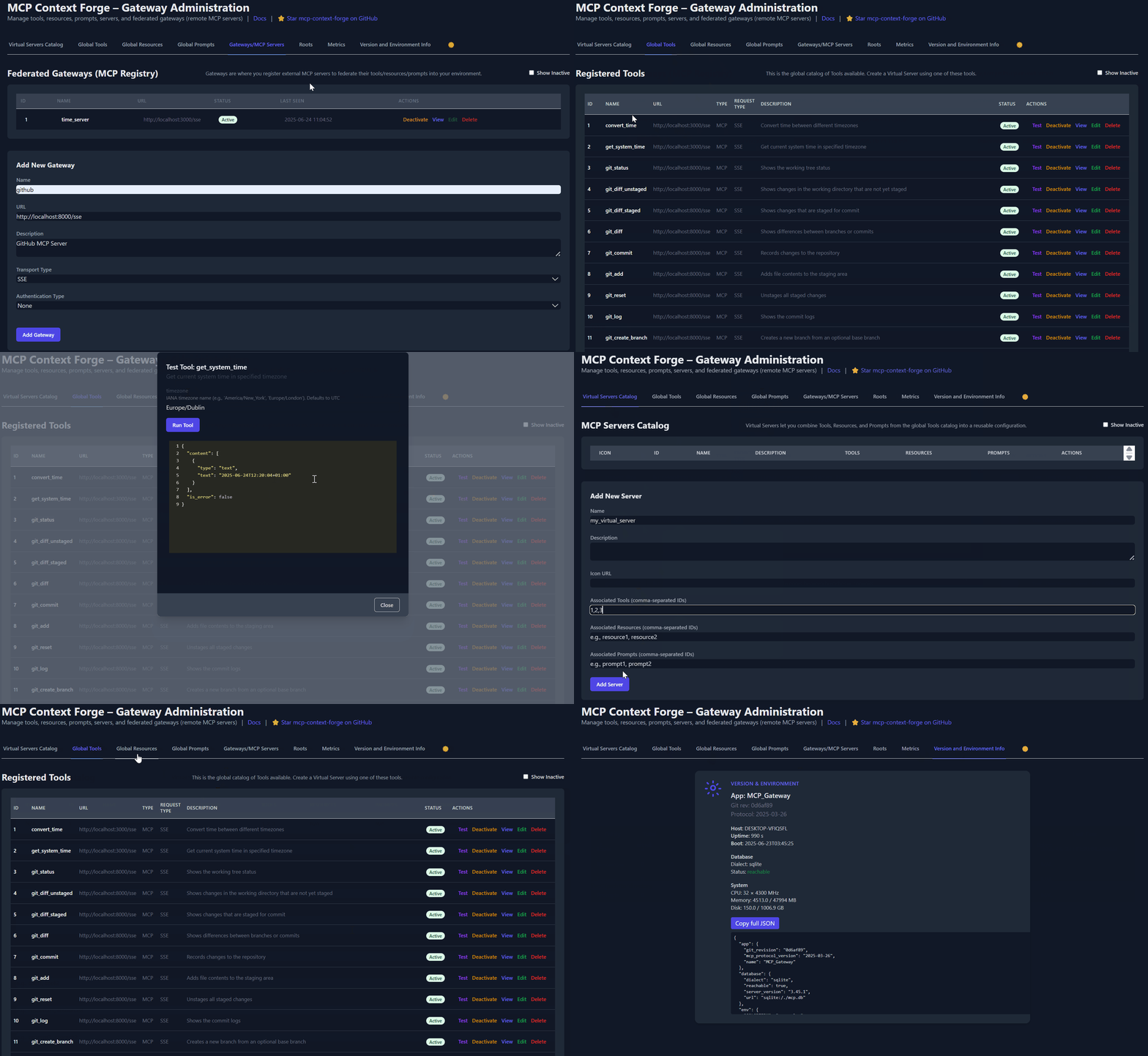
リアルタイム管理、設定、ログ監視のための管理UI(エアギャップ環境でのデプロイをサポート)
ユーザースコープのOAuthトークンと無条件の X-Upstream-Authorization ヘッダーサポートを備えた組み込みの認証、リトライ、およびレート制限
Phoenix、Jaeger、Zipkin、およびその他のOTLPバックエンドによるOpenTelemetry可観測性
DockerまたはPyPI、Redisベースのキャッシュ、およびマルチクラスターフェデレーションによるスケーラブルなデプロイ

今後の機能リストについては、ContextForgeロードマップを確認してください。
あらゆるMCPサーバーまたはREST APIをフェデレーション
MCPプロトコルバージョン(例: 2025-11-25)を選択可能
多様なバックエンドに対して単一の統合インターフェースを公開
プロンプト: Jinja2テンプレート、マルチモーダルサポート、ロールバック/バージョン管理
リソース: URIベースのアクセス、MIME検出、キャッシュ、SSE更新
ツール: 入力検証と同時実行制御を備えたネイティブまたは適応型ツール
HTMX + Alpine.jsで構築された管理UI
フィルタリング、検索、エクスポート機能を備えたリアルタイムログビューア
認証: Basic、JWT、またはカスタムスキーム
構造化ログ、ヘルスエンドポイント、メトリクス
7,000以上のテスト、Makefileターゲット、ライブリロード、プリコミットフック
OpenTelemetry (OTLP) プロトコルサポートによるベンダー非依存のトレーシング
複数のバックエンドサポート: Phoenix(LLM重視)、Jaeger、Zipkin、Tempo、DataDog、New Relic
フェデレーションゲートウェイおよびサービス全体にわたる分散トレーシング
ツール、プロンプト、リソース、ゲートウェイ操作の自動インストルメンテーション
LLM固有のメトリクス: トークン使用量、コスト、モデルパフォーマンス
無効時のオーバーヘッドゼロと正常な劣化
Phoenix、Jaeger、その他のバックエンドでのセットアップガイドについては、**可観測性ドキュメント**を参照してください。
クイックスタート - PyPI
ContextForgeはPyPIで mcp-contextforge-gateway として公開されています。
TLDR;:
(uvを使用した単一コマンド)
# Quick start with environment variables
BASIC_AUTH_PASSWORD=pass \
MCPGATEWAY_UI_ENABLED=true \
MCPGATEWAY_ADMIN_API_ENABLED=true \
PLATFORM_ADMIN_EMAIL=admin@example.com \
PLATFORM_ADMIN_PASSWORD=changeme \
PLATFORM_ADMIN_FULL_NAME="Platform Administrator" \
uvx --from mcp-contextforge-gateway mcpgateway --host 0.0.0.0 --port 4444

# Or better: use the provided .env.example
cp .env.example .env
# Edit .env to customize your settings
uvx --from mcp-contextforge-gateway mcpgateway --host 0.0.0.0 --port 4444
1 - インストールと実行(コピー&ペースト可能)
# 1️⃣  Isolated env + install from pypi
mkdir mcpgateway && cd mcpgateway
python3 -m venv .venv && source .venv/bin/activate
pip install --upgrade pip
pip install mcp-contextforge-gateway

# 2️⃣  Copy and customize the configuration
# Download the example environment file
curl -O https://raw.githubusercontent.com/IBM/mcp-context-forge/main/.env.example
cp .env.example .env
# Edit .env to customize your settings (especially passwords!)

# Or set environment variables directly:
export MCPGATEWAY_UI_ENABLED=true
export MCPGATEWAY_ADMIN_API_ENABLED=true
export PLATFORM_ADMIN_EMAIL=admin@example.com
export PLATFORM_ADMIN_PASSWORD=changeme
export PLATFORM_ADMIN_FULL_NAME="Platform Administrator"

BASIC_AUTH_PASSWORD=pass JWT_SECRET_KEY=my-test-key-but-now-longer-than-32-bytes \
  mcpgateway --host 0.0.0.0 --port 4444 &   # admin/pass

# 3️⃣  Generate a bearer token & smoke-test the API
export MCPGATEWAY_BEARER_TOKEN=$(python3 -m mcpgateway.utils.create_jwt_token \
    --username admin@example.com --exp 10080 --secret my-test-key-but-now-longer-than-32-bytes)

curl -s -H "Authorization: Bearer $MCPGATEWAY_BEARER_TOKEN" \
     http://127.0.0.1:4444/version | jq
# 1️⃣  Isolated env + install from PyPI
mkdir mcpgateway ; cd mcpgateway
python3 -m venv .venv ; .\.venv\Scripts\Activate.ps1
pip install --upgrade pip
pip install mcp-contextforge-gateway

# 2️⃣  Copy and customize the configuration
# Download the example environment file
Invoke-WebRequest -Uri "https://raw.githubusercontent.com/IBM/mcp-context-forge/main/.env.example" -OutFile ".env.example"
Copy-Item .env.example .env
# Edit .env to customize your settings

# Or set environment variables (session-only)
$Env:MCPGATEWAY_UI_ENABLED        = "true"
$Env:MCPGATEWAY_ADMIN_API_ENABLED = "true"
# Note: Basic auth for API is disabled by default (API_ALLOW_BASIC_AUTH=false)
$Env:JWT_SECRET_KEY               = "my-test-key-but-now-longer-than-32-bytes"
$Env:PLATFORM_ADMIN_EMAIL         = "admin@example.com"
$Env:PLATFORM_ADMIN_PASSWORD      = "changeme"
$Env:PLATFORM_ADMIN_FULL_NAME     = "Platform Administrator"

# 3️⃣  Launch the gateway
mcpgateway.exe --host 0.0.0.0 --port 4444

#   Optional: background it
# Start-Process -FilePath "mcpgateway.exe" -ArgumentList "--host 0.0.0.0 --port 4444"

# 4️⃣  Bearer token and smoke-test
$Env:MCPGATEWAY_BEARER_TOKEN = python3 -m mcpgateway.utils.create_jwt_token `
    --username admin@example.com --exp 10080 --secret my-test-key-but-now-longer-than-32-bytes

curl -s -H "Authorization: Bearer $Env:MCPGATEWAY_BEARER_TOKEN" `
     http://127.0.0.1:4444/version | jq
# 1️⃣  Isolated env + install from PyPI using uv
mkdir mcpgateway ; cd mcpgateway
uv venv
.\.venv\Scripts\activate
uv pip install mcp-contextforge-gateway

# Continue with steps 2️⃣-4️⃣ above...
.env.example を .env にコピーし、設定を微調整します(または環境変数として使用します)。
# 1️⃣  Spin up the sample GO MCP time server using mcpgateway.translate & docker (replace docker with podman if needed)
python3 -m mcpgateway.translate \
     --stdio "docker run --rm -i ghcr.io/ibm/fast-time-server:latest -transport=stdio" \
     --expose-sse \
     --port 8003

# Or using the official mcp-server-git using uvx:
pip install uv # to install uvx, if not already installed
python3 -m mcpgateway.translate --stdio "uvx mcp-server-git" --expose-sse --port 9000

# Alternative: running the local binary
# cd mcp-servers/go/fast-time-server; make build
# python3 -m mcpgateway.translate --stdio "./dist/fast-time-server -transport=stdio" --expose-sse --port 8002

# NEW: Expose via multiple protocols simultaneously!
python3 -m mcpgateway.translate \
     --stdio "uvx mcp-server-git" \
     --expose-sse \
     --expose-streamable-http \
     --port 9000
# Now accessible via both /sse (SSE) and /mcp (streamable HTTP) endpoints

# 2️⃣  Register it with the gateway
curl -s -X POST -H "Authorization: Bearer $MCPGATEWAY_BEARER_TOKEN" \
     -H "Content-Type: application/json" \
     -d '{"name":"fast_time","url":"http://localhost:8003/sse"}' \
     http://localhost:4444/gateways

# 3️⃣  Verify tool catalog
curl -s -H "Authorization: Bearer $MCPGATEWAY_BEARER_TOKEN" http://localhost:4444/tools | jq

# 4️⃣  Create a *virtual server* bundling those tools. Use the ID of tools from the tool catalog (Step #3) and pass them in the associatedTools list.
curl -s -X POST -H "Authorization: Bearer $MCPGATEWAY_BEARER_TOKEN" \
     -H "Content-Type: application/json" \
     -d '{"server":{"name":"time_server","description":"Fast time tools","associated_tools":[<ID_OF_TOOLS>]}}' \
     http://localhost:4444/servers | jq

# Example curl
curl -s -X POST -H "Authorization: Bearer $MCPGATEWAY_BEARER_TOKEN"
     -H "Content-Type: application/json"
     -d '{"server":{"name":"time_server","description":"Fast time tools","associated_tools":["6018ca46d32a4ac6b4c054c13a1726a2"]}}' \
     http://localhost:4444/servers | jq

# 5️⃣  List servers (should now include the UUID of the newly created virtual server)
curl -s -H "Authorization: Bearer $MCPGATEWAY_BEARER_TOKEN" http://localhost:4444/servers | jq

# 6️⃣  Client HTTP endpoint. Inspect it interactively with the MCP Inspector CLI (or use any MCP client)
npx -y @modelcontextprotocol/inspector
# Transport Type: Streamable HTTP, URL: http://localhost:4444/servers/UUID_OF_SERVER_1/mcp,  Header Name: "Authorization", Bearer Token
export MCP_AUTH="Bearer ${MCPGATEWAY_BEARER_TOKEN}"
export MCP_SERVER_URL=http://localhost:4444/servers/UUID_OF_SERVER_1/mcp
python3 -m mcpgateway.wrapper  # Ctrl-C to exit
uv を使用するか、Docker/Podman内で実行することもできます。上記のコンテナセクションを参照してください。
MCP Inspectorで MCP_AUTH および MCP_SERVER_URL 環境変数を定義し、コマンドとして python3 を、引数として -m mcpgateway.wrapper を選択します。
echo $PWD/.venv/bin/python3 # Using the Python3 full path ensures you have a working venv
export MCP_SERVER_URL='http://localhost:4444/servers/UUID_OF_SERVER_1/mcp'
export MCP_AUTH="Bearer ${MCPGATEWAY_BEARER_TOKEN}"
npx -y @modelcontextprotocol/inspector
または
URLと認証を引数として渡します(環境変数を設定する必要はありません)
npx -y @modelcontextprotocol/inspector
command as `python`
Arguments as `-m mcpgateway.wrapper --url "http://localhost:4444/servers/UUID_OF_SERVER_1/mcp" --auth "Bearer <your token>"`
stdioでClaudeのようなMCPクライアントを使用する場合:
{
  "mcpServers": {
    "mcpgateway-wrapper": {
      "command": "python",
      "args": ["-m", "mcpgateway.wrapper"],
      "env": {
        "MCP_AUTH": "Bearer your-token-here",
        "MCP_SERVER_URL": "http://localhost:4444/servers/UUID_OF_SERVER_1",
        "MCP_TOOL_CALL_TIMEOUT": "120"
      }
    }
  }
}
クイックスタート - コンテナ
Docker または Podman でGHCRの公式OCIイメージを使用します。
注意: 現在、arm64は本番環境でサポートされていません。Apple Siliconチップ(M1、M2など)を搭載したMacOSなどで実行している場合は、Rosettaを使用してコンテナを実行するか、代わりにPyPi経由でインストールしてください。
🚀 クイックスタート - Docker Compose
PostgreSQLとRedisを備えたフルスタックを30秒以内に実行します:
# Clone and start the stack
git clone https://github.com/IBM/mcp-context-forge.git
cd mcp-context-forge

# Start with PostgreSQL (recommended for production)
docker compose up -d

# Check status
docker compose ps

# View logs
docker compose logs -f gateway

# Access Admin UI: http://localhost:8080/admin (login with PLATFORM_ADMIN_EMAIL/PASSWORD)
# Generate API token
docker compose exec gateway python3 -m mcpgateway.utils.create_jwt_token \
  --username admin@example.com --exp 10080 --secret my-test-key-but-now-longer-than-32-bytes
得られるもの:
🗄️ PostgreSQL - 55以上のテーブルを備えた本番環境対応データベース
🚀 ContextForge - 管理UIを備えたフル機能のゲートウェイ
📊 Redis - 高性能キャッシュおよびセッションストレージ
🔧 管理ツール - データベース管理用のpgAdmin、Redis Insight
🌐 Nginxプロキシ - ポート8080でのキャッシュリバースプロキシ
HTTPSを有効にする(オプション):
# Start with TLS enabled (auto-generates self-signed certs)
make compose-tls

# Access via HTTPS: https://localhost:8443/admin

# Or bring your own certificates:
# Unencrypted key:
mkdir -p certs
cp your-cert.pem certs/cert.pem && cp your-key.pem certs/key.pem
make compose-tls

# Passphrase-protected key:
mkdir -p certs
cp your-cert.pem certs/cert.pem && cp your-encrypted-key.pem certs/key-encrypted.pem
echo "KEY_FILE_PASSWORD=your-passphrase" >> .env
make compose-tls
☸️ クイックスタート - Helm (Kubernetes)
エンタープライズグレードの機能を備えてKubernetesにデプロイします:
# Add Helm repository (when available)
# helm repo add mcp-context-forge https://ibm.github.io/mcp-context-forge
# helm repo update

# For now, use local chart
git clone https://github.com/IBM/mcp-context-forge.git
cd mcp-context-forge/charts/mcp-stack

# Install with PostgreSQL (default)
helm install mcp-gateway . \
  --set mcpContextForge.secret.PLATFORM_ADMIN_EMAIL=admin@yourcompany.com \
  --set mcpContextForge.secret.PLATFORM_ADMIN_PASSWORD=changeme \
  --set mcpContextForge.secret.JWT_SECRET_KEY=your-secret-key

# Check deployment status
kubectl get pods -l app.kubernetes.io/name=mcp-context-forge

# Port forward to access Admin UI
kubectl port-forward svc/mcp-gateway-mcp-context-forge 4444:80
# Access: http://localhost:4444/admin

# Generate API token
kubectl exec deployment/mcp-gateway-mcp-context-forge -- \
  python3 -m mcpgateway.utils.create_jwt_token \
  --username admin@yourcompany.com --exp 10080 --secret your-secret-key
SSRFに関する注意: Helmはデフォルトで厳格なSSRF設定 (SSRF_ALLOW_PRIVATE_NETWORKS=false) になっています。
クラスター内のツールURL(例: fast-timeやfast-testサービス)を登録する場合は、mcpContextForge.config.SSRF_ALLOWED_NETWORKS を介してクラスターのCIDRのみを許可するか、ローカルのみのベンチマーク設定の場合は一時的に SSRF_ALLOW_PRIVATE_NETWORKS=true に設定してください。
docs/docs/manage/configuration.md#ssrf-protection および docs/docs/deployment/helm.md を参照してください。
エンタープライズ機能:
🔄 オートスケーリング - CPU/メモリターゲットを備えたHPA
🗄️ データベースの選択 - PostgreSQL(本番)、SQLite(開発)
📊 可観測性 - Prometheusメトリクス、OpenTelemetryトレーシング
🔒 セキュリティ - RBAC、ネットワークポリシー、シークレット管理
🚀 高可用性 - Redisクラスタリングを備えたマルチレプリカデプロイ
📈 監視 - 組み込みのGrafanaダッシュボードとアラート
🐳 Docker (単一コンテナ)
docker run -d --name mcpgateway \
  -p 4444:4444 \
  -e MCPGATEWAY_UI_ENABLED=true \
  -e MCPGATEWAY_ADMIN_API_ENABLED=true \
  -e HOST=0.0.0.0 \
  -e JWT_SECRET_KEY=my-test-key-but-now-longer-than-32-bytes \
  -e AUTH_REQUIRED=true \
  -e PLATFORM_ADMIN_EMAIL=admin@example.com \
  -e PLATFORM_ADMIN_PASSWORD=changeme \
  -e PLATFORM_ADMIN_FULL_NAME="Platform Administrator" \
  -e DATABASE_URL=sqlite:///./mcp.db \
  -e SECURE_COOKIES=false \
  ghcr.io/ibm/mcp-context-forge:1.0.0-RC-2

# Tail logs and generate API key
docker logs -f mcpgateway
docker run --rm -it ghcr.io/ibm/mcp-context-forge:1.0.0-RC-2 \
  python3 -m mcpgateway.utils.create_jwt_token --username admin@example.com --exp 10080 --secret my-test-key-but-now-longer-than-32-bytes
http://localhost:4444/admin にアクセスし、PLATFORM_ADMIN_EMAIL / PLATFORM_ADMIN_PASSWORD でログインします。
SQLiteデータベースの永続化:
mkdir -p $(pwd)/data && touch $(pwd)/data/mcp.db && chmod 777 $(pwd)/data
docker run -d --name mcpgateway --restart unless-stopped \
  -p 4444:4444 -v $(pwd)/data:/data \
  -e DATABASE_URL=sqlite:////data/mcp.db \
  -e MCPGATEWAY_UI_ENABLED=true -e MCPGATEWAY_ADMIN_API_ENABLED=true \
  -e HOST=0.0.0.0 -e JWT_SECRET_KEY=my-test-key-but-now-longer-than-32-bytes \
  -e PLATFORM_ADMIN_EMAIL=admin@example.com -e PLATFORM_ADMIN_PASSWORD=changeme \
  ghcr.io/ibm/mcp-context-forge:1.0.0-RC-2
ホストネットワーク (ローカルMCPサーバーへのアクセス):
docker run -d --name mcpgateway --network=host \
  -v $(pwd)/data:/data -e DATABASE_URL=sqlite:////data/mcp.db \
  -e MCPGATEWAY_UI_ENABLED=true -e HOST=0.0.0.0 -e PORT=4444 \
  ghcr.io/ibm/mcp-context-forge:1.0.0-RC-2
エアギャップデプロイ (インターネットなし):
docker build -f Containerfile.lite -t mcpgateway:airgapped .
docker run -d --name mcpgateway -p 4444:4444 \
  -e MCPGATEWAY_UI_AIRGAPPED=true -e MCPGATEWAY_UI_ENABLED=true \
  -e HOST=0.0.0.0 -e JWT_SECRET_KEY=my-test-key-but-now-longer-than-32-bytes \
  mcpgateway:airgapped
🦭 Podman (rootlessフレンドリー)
podman run -d --name mcpgateway \
  -p 4444:4444 -e HOST=0.0.0.0 -e DATABASE_URL=sqlite:///./mcp.db \
  ghcr.io/ibm/mcp-context-forge:1.0.0-RC-2
SQLiteの永続化:
mkdir -p $(pwd)/data && chmod 777 $(pwd)/data
podman run -d --name mcpgateway --restart=on-failure \
  -p 4444:4444 -v $(pwd)/data:/data \
  -e DATABASE_URL=sqlite:////data/mcp.db \
  ghcr.io/ibm/mcp-context-forge:1.0.0-RC-2
ホストネットワーク:
podman run -d --name mcpgateway --network=host \
  -v $(pwd)/data:/data -e DATABASE_URL=sqlite:////data/mcp.db \
  ghcr.io/ibm/mcp-context-forge:1.0.0-RC-2