
Click on "Install Server".
Wait a few minutes for the server to deploy. Once ready, it will show a "Started" state.
In the chat, type
@followed by the MCP server name and your instructions, e.g., "@Ledger MCP Servershow me the balance for my checking account this year"
That's it! The server will respond to your query, and you can continue using it as needed.
Here is a step-by-step guide with screenshots.
ledger-service MCP server
MCP Server for accessing and managing ledger files through Claude.
Components
Tools
The server implements three tools for ledger management:
list-accounts: Lists all accounts in the ledger
Takes "year" as a required argument
Returns formatted list of all available accounts
account-balance: Gets the balance for a specific account
Takes "year" and "account" as required arguments
Returns the current balance for the specified account
account-register: Shows the transaction register for an account
Takes "year" and "account" as required arguments
Returns detailed transaction history for the specified account
Related MCP server: GOAT MCP Server
Installation
Prerequisites
Python 3.13 or higher
uvpackage managerNode.js and npm (for debugging)
Install from PyPI
Debugging
Using the inspector to debug the server:
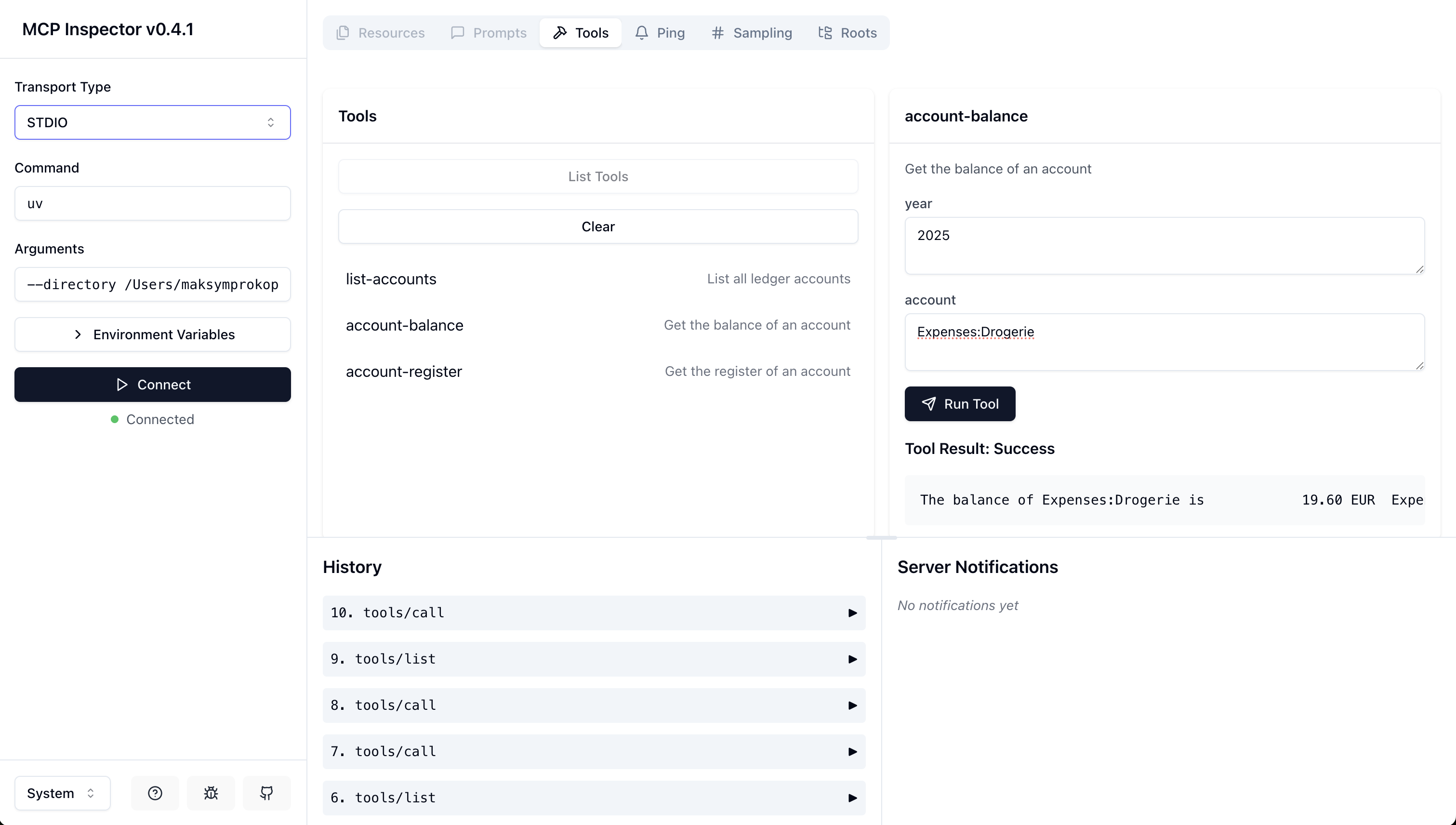
Configure Claude Desktop
Add the server configuration to Claude Desktop's config file:
On MacOS: ~/Library/Application\ Support/Claude/claude_desktop_config.json
On Windows: %APPDATA%/Claude/claude_desktop_config.json
Development
Local Setup
Clone the repository
Create and activate a virtual environment
Install dependencies:
The base path can be configured by modifying the LEDGER_BASE_PATH constant in server.py.
License
GNU GENERAL PUBLIC LICENSE Version 3, 29 June 2007
