Outlook Meetings Scheduler MCP Server
MCP Server for scheduling meetings in Microsoft Outlook using Microsoft Graph API.
This MCP server allows you to create calendar events, create events with attendees (including finding their email addresses).
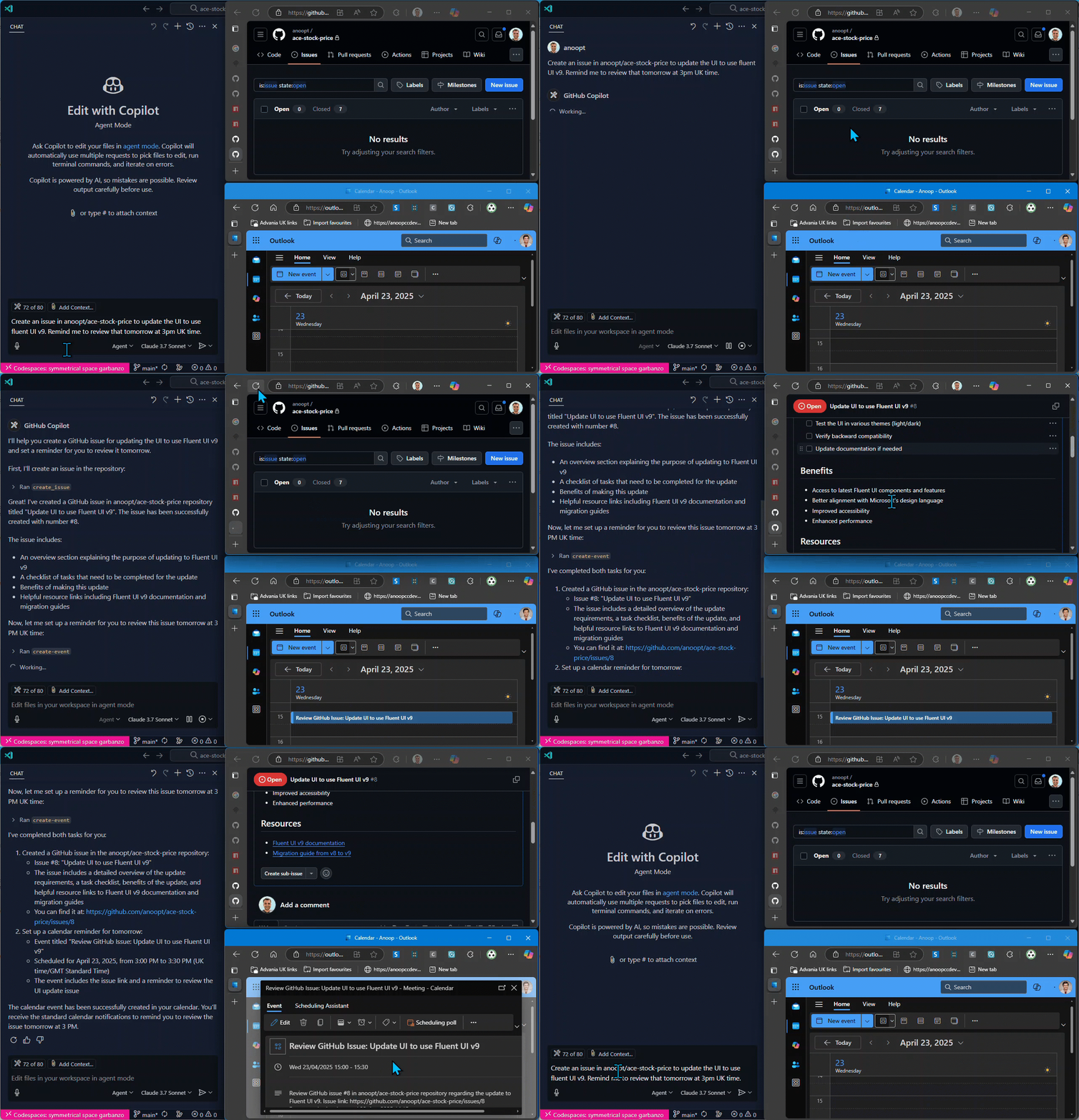
It integrates seamlessly with other MCP servers, such as the GitHub MCP server, to enhance your workflow.
Sample queries
Usage with GitHub MCP Server
Related MCP server: M365 Calendar MCP Server
Demo
Tools
find-person
create-event
create-event-with-attendees
Create a calendar event with attendees using Microsoft Graph API
Inputs:
subject (string): Subject of the calendar event
body (string): Content/body of the calendar event
start (optional): ISO format datetime (e.g., 2025-04-20T12:00:00)
end (optional): ISO format datetime (e.g., 2025-04-20T13:00:00)
timeZone (optional): Time zone for the event (default: "GMT Standard Time")
location (optional): Location of the event
attendees: Array of { email, name (optional), type (optional) }
Returns: Event details including URL, ID, and attendees list
get-event
Get details of a calendar event by its ID
Input:
Returns: Detailed event information including subject, time, attendees, and URL
list-events
delete-event
update-event
update-event-attendees
Setup
Authentication Modes
This MCP server supports three authentication modes:
1. Interactive (Delegated)
Thank you Lokka
Best for: User-impersonation scenarios, accessing user-specific data
Prompts user to login interactively
Uses delegated permissions
Authenticates as the signed-in user
2. Client Credentials (App-Only)
Best for: Server-to-server scenarios, automated processes
Uses Azure AD application credentials
Requires Application permissions
Works without user interaction
3. Client Provided Token
Best for: Custom token management, pre-acquired tokens
Microsoft Graph API Setup
For Interactive (Delegated) Mode
Register an application in the Microsoft Azure Portal (or use an existing app)
Add a redirect URI: http://localhost (Mobile and desktop applications platform)
Enable public client flows: Go to Authentication > Advanced settings > "Allow public client flows" = YES
Grant necessary Delegated permissions: Microsoft Graph API > Delegated permissions > Calendars.ReadWrite, People.Read, User.Read
Note your Client ID and Tenant ID (Client Secret not needed for interactive mode with custom app)
Note: The server uses a built-in multi-tenant app by default, so custom app setup is optional. When authentication is needed, the device code and login URL will appear directly in your MCP client chat interface.
For Client Credentials (App-Only) Mode
Register an application in the Microsoft Azure Portal
Create a client secret
Grant necessary Application permissions: Microsoft Graph API > Application permissions > Calendars.ReadWrite, People.Read.All, User.ReadBasic.All
Grant admin consent for your organization
Note your Client ID, Client Secret, and Tenant ID
Usage with VS Code
Authentication Mode Configuration
The MCP server supports different authentication modes via the AUTH_MODE environment variable:
interactive (default) - User authentication with browser or device code flow
client_credentials - App-only authentication with client secret
client_provided_token - Use a pre-acquired token
Backward Compatibility: If AUTH_MODE is not specified, the server automatically detects the mode:
Presence of CLIENT_SECRET → client_credentials mode
Presence of ACCESS_TOKEN → client_provided_token mode
Neither present → interactive mode (default)
Local Node.js
You can run the MCP server directly with Node.js from your local build:
Clone the repository and build the project:
git clone https://github.com/anoopt/outlook-meetings-scheduler-mcp-server.git
cd outlook-meetings-scheduler-mcp-server
npm install
npm run build
For manual installation, add the following JSON block to your User Settings (JSON) file in VS Code. You can do this by pressing Ctrl + Shift + P and typing Preferences: Open User Settings (JSON).
Optionally, you can add it to a file called .vscode/mcp.json in your workspace. This will allow you to share the configuration with others:
Interactive Mode (Default - Zero Configuration):
{
  "mcpServers": {
    "outlook-meetings-scheduler": {
      "command": "node",
      "args": [
        "/path/to/outlook-meetings-scheduler-mcp-server/build/index.js"
      ]
    }
  }
}
Interactive Mode with Custom App:
{
  "mcpServers": {
    "outlook-meetings-scheduler": {
      "command": "node",
      "args": [
        "/path/to/outlook-meetings-scheduler-mcp-server/build/index.js"
      ],
      "env": {
        "AUTH_MODE": "interactive",
        "CLIENT_ID": "<YOUR_CLIENT_ID>",
        "TENANT_ID": "<YOUR_TENANT_ID>"
      }
    }
  }
}
Client Credentials Mode:
{
  "mcpServers": {
    "outlook-meetings-scheduler": {
      "command": "node",
      "args": [
        "/path/to/outlook-meetings-scheduler-mcp-server/build/index.js"
      ],
      "env": {
        "AUTH_MODE": "client_credentials",
        "CLIENT_ID": "<YOUR_CLIENT_ID>",
        "CLIENT_SECRET": "<YOUR_CLIENT_SECRET>",
        "TENANT_ID": "<YOUR_TENANT_ID>",
        "USER_EMAIL": "<YOUR_EMAIL>"
      }
    }
  }
}
Client Provided Token Mode:
{
  "mcpServers": {
    "outlook-meetings-scheduler": {
      "command": "node",
      "args": [
        "/path/to/outlook-meetings-scheduler-mcp-server/build/index.js"
      ],
      "env": {
        "AUTH_MODE": "client_provided_token",
        "ACCESS_TOKEN": "<YOUR_ACCESS_TOKEN>",
        "TOKEN_EXPIRES_ON": "2025-10-03T12:00:00Z",
        "USER_EMAIL": "<YOUR_EMAIL>"
      }
    }
  }
}
Note:
Uses a built-in multi-tenant Azure AD app (works for any organization)
USER_EMAIL is automatically determined from the signed-in user
Users will see a one-time consent prompt (no admin approval needed)
Zero configuration required - works out of the box
Interactive Mode with Custom App:
{
  "mcpServers": {
    "outlook-meetings-scheduler": {
      "command": "node",
      "args": [
        "/path/to/outlook-meetings-scheduler-mcp-server/build/index.js"
      ],
      "env": {
        "AUTH_MODE": "interactive",
        "CLIENT_ID": "<YOUR_CLIENT_ID>",
        "TENANT_ID": "<YOUR_TENANT_ID>"
      }
    }
  }
}
Use a custom app if you need specific branding or tenant restrictions.
Replace /path/to/outlook-meetings-scheduler-mcp-server with the absolute path to your cloned repository.
Docker
Run the MCP server using Docker locally. Build the Docker image with the following command:
docker build -t mcp/outlook-meetings-scheduler .
For manual installation, add the following JSON block to your User Settings (JSON) file in VS Code. You can do this by pressing Ctrl + Shift + P and typing Preferences: Open User Settings (JSON).
Optionally, you can add it to a file called .vscode/mcp.json in your workspace. This will allow you to share the configuration with others.
{
     "inputs": [
      {
        "type": "promptString",
        "id": "client_secret",
        "description": "Enter the client secret",
        "password": true
      }
    ],
    "servers": {
        "outlook-meetings-scheduler": {
            "command": "docker",
            "args": [
                "run",
                "-i",
                "--rm",
                "-e",
                "CLIENT_ID",
                "-e",
                "CLIENT_SECRET",
                "-e",
                "TENANT_ID",
                "-e",
                "USER_EMAIL",
                "mcp/outlook-meetings-scheduler"
            ],
            "env": {
                "USER_EMAIL": "<YOUR_EMAIL>",
                "CLIENT_ID": "<YOUR_CLIENT_ID>",
                "CLIENT_SECRET": "${input:client_secret}",
                "TENANT_ID": "<YOUR_TENANT_ID>"
            }
        }
    }
}
NPX
Interactive Mode (Default - Zero Configuration):
{
  "mcpServers": {
    "outlook-meetings-scheduler": {
      "command": "npx",
      "args": [
        "-y",
        "outlook-meetings-scheduler"
      ]
    }
  }
}
Interactive Mode with Custom App:
{
  "mcpServers": {
    "outlook-meetings-scheduler": {
      "command": "npx",
      "args": [
        "-y",
        "outlook-meetings-scheduler"
      ],
      "env": {
        "AUTH_MODE": "interactive",
        "CLIENT_ID": "<YOUR_CLIENT_ID>",
        "TENANT_ID": "<YOUR_TENANT_ID>"
      }
    }
  }
}
Client Credentials Mode:
{
  "mcpServers": {
    "outlook-meetings-scheduler": {
      "command": "npx",
      "args": [
        "-y",
        "outlook-meetings-scheduler"
      ],
      "env": {
        "AUTH_MODE": "client_credentials",
        "CLIENT_ID": "<YOUR_CLIENT_ID>",
        "CLIENT_SECRET": "<YOUR_CLIENT_SECRET>",
        "TENANT_ID": "<YOUR_TENANT_ID>",
        "USER_EMAIL": "<YOUR_EMAIL>"
      }
    }
  }
}
Client Provided Token Mode:
{
  "mcpServers": {
    "outlook-meetings-scheduler": {
      "command": "npx",
      "args": [
        "-y",
        "outlook-meetings-scheduler"
      ],
      "env": {
        "AUTH_MODE": "client_provided_token",
        "ACCESS_TOKEN": "<YOUR_ACCESS_TOKEN>",
        "TOKEN_EXPIRES_ON": "2025-10-03T12:00:00Z",
        "USER_EMAIL": "<YOUR_EMAIL>"
      }
    }
  }
}
Usage with Claude Desktop
Docker
Run the MCP server using Docker locally. Build the Docker image with the following command:
docker build -t mcp/outlook-meetings-scheduler .
Add the following to your claude_desktop_config.json:
{
  "mcpServers": {
    "outlook-meetings-scheduler": {
      "command": "docker",
      "args": [
        "run",
        "-i",
        "--rm",
        "-e",
        "CLIENT_ID",
        "-e",
        "CLIENT_SECRET",
        "-e",
        "TENANT_ID",
        "-e",
        "USER_EMAIL",
        "mcp/outlook-meetings-scheduler"
      ],
      "env": {
        "CLIENT_ID": "<YOUR_CLIENT_ID>",
        "CLIENT_SECRET": "<YOUR_CLIENT_SECRET>",
        "TENANT_ID": "<YOUR_TENANT_ID>",
        "USER_EMAIL": "<YOUR_EMAIL>"
      }
    }
  }
}
NPX
Interactive Mode (Default - Zero Configuration):
{
  "mcpServers": {
    "outlook-meetings-scheduler": {
      "command": "npx",
      "args": [
        "-y",
        "outlook-meetings-scheduler"
      ]
    }
  }
}
Interactive Mode with Custom App:
{
  "mcpServers": {
    "outlook-meetings-scheduler": {
      "command": "npx",
      "args": [
        "-y",
        "outlook-meetings-scheduler"
      ],
      "env": {
        "AUTH_MODE": "interactive",
        "CLIENT_ID": "<YOUR_CLIENT_ID>",
        "TENANT_ID": "<YOUR_TENANT_ID>"
      }
    }
  }
}
Client Credentials Mode:
{
  "mcpServers": {
    "outlook-meetings-scheduler": {
      "command": "npx",
      "args": [
        "-y",
        "outlook-meetings-scheduler"
      ],
      "env": {
        "AUTH_MODE": "client_credentials",
        "CLIENT_ID": "<YOUR_CLIENT_ID>",
        "CLIENT_SECRET": "<YOUR_CLIENT_SECRET>",
        "TENANT_ID": "<YOUR_TENANT_ID>",
        "USER_EMAIL": "<YOUR_EMAIL>"
      }
    }
  }
}
Client Provided Token Mode:
{
  "mcpServers": {
    "outlook-meetings-scheduler": {
      "command": "npx",
      "args": [
        "-y",
        "outlook-meetings-scheduler"
      ],
      "env": {
        "AUTH_MODE": "client_provided_token",
        "ACCESS_TOKEN": "<YOUR_ACCESS_TOKEN>",
        "TOKEN_EXPIRES_ON": "2025-10-03T12:00:00Z",
        "USER_EMAIL": "<YOUR_EMAIL>"
      }
    }
  }
}
Example Scenarios
Integration with GitHub MCP Server
You can combine this MCP server with other MCP servers like the GitHub MCP server for powerful workflows.
Create an Issue and Schedule a Follow-up Review
Create an issue in the organization/repo repository titled "Fix pagination bug in user dashboard" with the description "Users report seeing duplicate entries when navigating between pages." Then schedule a calendar reminder for me to review this issue tomorrow at 3 PM.
This will:
Use the GitHub MCP server to create the issue
Use the Outlook Meetings Scheduler MCP server to create a calendar event for the review
Schedule a Code Review Meeting Based on a Pull Request
Find the open PR about the authentication feature in the organization/app-backend repository and schedule a code review meeting with the contributors for tomorrow morning.
This will:
Use GitHub MCP server to find the pull request and identify contributors
Use the Outlook Meetings Scheduler MCP server to schedule a meeting with those team members
Configuration for Multi-MCP Setup
To use both GitHub and Outlook MCP servers together :
{
  "mcpServers": {
    "outlook-meetings-scheduler": {
      "command": "npx",
      "args": [
        "-y",
        "outlook-meetings-scheduler"
      ],
      "env": {
        "CLIENT_ID": "<YOUR_CLIENT_ID>",
        "CLIENT_SECRET": "<YOUR_CLIENT_SECRET>",
        "TENANT_ID": "<YOUR_TENANT_ID>",
        "USER_EMAIL": "<YOUR_EMAIL>"
      }
    },
    "github": {
      "command": "npx",
      "args": [
        "-y",
        "@modelcontextprotocol/github-mcp"
      ],
      "env": {
        "GITHUB_TOKEN": "<YOUR_GITHUB_TOKEN>"
      }
    }
  }
}
Direct Usage
Finding a Colleague's Email
I need to schedule a meeting with John Smith. Can you find his email address?
Creating a Simple Calendar Event
Schedule a meeting titled "Weekly Team Sync" for next Monday at 10 AM with the following agenda:
- Project updates
- Resource allocation
- Questions and concerns
Scheduling a Meeting with Single Attendee
Schedule a 1:1 meeting with Sarah for tomorrow at 3 PM.
This will find Sarah's email address and create a calendar event.
To find Sarah's email address, the MCP server will use the find-person tool - which uses the Microsoft Graph API to find relevant people for USER_EMAIL or searches for the name in the organization.
Scheduling a Meeting with Multiple Attendees
Create a meeting called "Project Kickoff" for tomorrow at 2 PM.
Add sarah.jones@example.com and mike.thompson@example.com as required attendees.
The agenda is:
1. Project overview
2. Timeline discussion
3. Role assignments
4. Next steps
Environment Variables
Interactive Mode (Default)
Variable | Description | Required | Default |
AUTH_MODE
| Authentication mode | No | interactive
|
CLIENT_ID
| Azure AD Application (Client) ID | No | Built-in multi-tenant app |
TENANT_ID
| Azure AD Tenant ID | No | common (multi-tenant)
|
USER_EMAIL
| Email address of the user | No | Auto-detected from signed-in user |
REDIRECT_URI
| Custom redirect URI | No | http://localhost
|
Client Credentials Mode
Variable | Description | Required |
AUTH_MODE
| Authentication mode | Yes |
CLIENT_ID
| Azure AD Application (Client) ID | Yes |
CLIENT_SECRET
| Azure AD Application Client Secret | Yes |
TENANT_ID
| Azure AD Tenant ID | Yes |
USER_EMAIL
| Email address of the user whose calendar to access | Yes |
Client Provided Token Mode
Variable | Description | Required | Default |
AUTH_MODE
| Authentication mode | Yes | - |
ACCESS_TOKEN
| Pre-acquired access token | Yes | - |
USER_EMAIL
| Email address of the user | Yes | - |
TOKEN_EXPIRES_ON
| Token expiration date (ISO format) | No | 1 hour from start time |
How to Obtain an Access Token
You can obtain an access token through several methods:
1. Azure CLI (For Microsoft Graph - Recommended for testing):
# Login to Azure
az login

# Get token specifically for Microsoft Graph with correct scopes
az account get-access-token --resource=https://graph.microsoft.com --query accessToken --output tsv
Note: The Azure CLI token has broad permissions but may not include specific calendar scopes (Calendars.ReadWrite). For production use, consider methods 3 or 4 below with explicit scope configuration.
2. PowerShell REST API (Recommended for Windows):
# For client credentials flow (app-only) - most reliable method
$clientId = "your-client-id"
$clientSecret = "your-client-secret"
$tenantId = "your-tenant-id"

$body = @{
    grant_type = "client_credentials"
    client_id = $clientId
    client_secret = $clientSecret
    scope = "https://graph.microsoft.com/.default"
}

$response = Invoke-RestMethod -Uri "https://login.microsoftonline.com/$tenantId/oauth2/v2.0/token" -Method Post -Body $body
$token = $response.access_token
Write-Host "Access Token: $token"
3. From Your Own Application (Most Reliable):
// Using @azure/identity with specific scopes
import { ClientSecretCredential } from '@azure/identity';

const credential = new ClientSecretCredential(
  'your-tenant-id',
  'your-client-id',
  'your-client-secret'
);

// Request token with specific Microsoft Graph scopes
const token = await credential.getToken([
  'https://graph.microsoft.com/Calendars.ReadWrite',
  'https://graph.microsoft.com/People.Read',
  'https://graph.microsoft.com/User.Read'
]);

// Use token.token as your ACCESS_TOKEN
console.log(token.token);
4. Using OAuth2 Device Code Flow (Interactive):
# For personal Microsoft accounts or when you need user consent
curl -X POST \
  https://login.microsoftonline.com/common/oauth2/v2.0/devicecode \
  -H 'Content-Type: application/x-www-form-urlencoded' \
  -d 'client_id={your-client-id}&scope=https://graph.microsoft.com/Calendars.ReadWrite https://graph.microsoft.com/People.Read https://graph.microsoft.com/User.Read'

# Follow the device code instructions, then exchange for token
curl -X POST \
  https://login.microsoftonline.com/common/oauth2/v2.0/token \
  -H 'Content-Type: application/x-www-form-urlencoded' \
  -d 'grant_type=urn:ietf:params:oauth:grant-type:device_code&client_id={your-client-id}&device_code={device-code-from-step-1}'
5. Client Credentials Flow (App-Only):
curl -X POST \
  https://login.microsoftonline.com/{tenant-id}/oauth2/v2.0/token \
  -H 'Content-Type: application/x-www-form-urlencoded' \
  -d 'grant_type=client_credentials&client_id={client-id}&client_secret={client-secret}&scope=https://graph.microsoft.com/.default'
Important: Ensure your Azure AD app registration has the required delegated or application permissions:
Delegated: Calendars.ReadWrite, People.Read, User.Read
Application: Calendars.ReadWrite, People.Read.All, User.ReadBasic.All (requires admin consent)
Authentication Mode Details
client_credentials
Best for: Automated scenarios, server-to-server communication
Requires: CLIENT_ID, CLIENT_SECRET, TENANT_ID, USER_EMAIL
Permissions: Application permissions (e.g., Calendars.ReadWrite)
Note: Requires admin consent for the application
interactive (Default)
Best for: User-impersonation scenarios, delegated access (most common use case)
Setup: Zero configuration required - works out of the box
Requires: Nothing (uses built-in multi-tenant app)
Optional: CLIENT_ID and TENANT_ID for custom app
Permissions: Delegated permissions (e.g., Calendars.ReadWrite)
Authentication Flow:
Attempts browser-based interactive login first
Falls back to device code flow if browser auth fails
Device code and URL appear in MCP client chat for easy access
User will be prompted to authenticate in their browser
Note: Uses built-in multi-tenant app (works for any organization)
client_provided_token
Best for: Custom token management, integration with existing auth systems
Requires: ACCESS_TOKEN, USER_EMAIL
Optional: TOKEN_EXPIRES_ON (if not provided, assumes 1-hour validity from start time)
Token Sources: Microsoft Graph PowerShell, custom applications, OAuth2 flows, Azure CLI (with limitations)
Use Cases: Testing with specific scopes, integration with existing auth flows, CI/CD pipelines, development/debugging
Note: Token refresh must be handled externally
Build
# Install dependencies
npm install

# Build the project
npm run build

# Docker build
docker build -t mcp/outlook-meetings-scheduler .
License
This MCP server is licensed under the ISC License. For more details, please see the LICENSE file in the project repository.
Disclaimer
This MCP server is not affiliated with Microsoft or Microsoft Graph API. Use at your own risk. Ensure you comply with your organization's policies and guidelines when using this tool.

