

A
licenseA
qualityD
maintenanceAllows Claude to execute terminal commands on your computer and perform file system operations including surgical code editing with diff-based replacements.
19
705,497 npm
7
MIT


Arbeiten Sie mit Code und Text, führen Sie Prozesse aus und automatisieren Sie Aufgaben, weit über andere KI-Editoren hinaus – ohne API-Token-Kosten.
Alle Ihre KI-Entwicklungstools an einem Ort. Desktop Commander vereint alle Entwicklungstools in einem Chat. Führen Sie langwierige Terminalbefehle auf Ihrem Computer aus und verwalten Sie Prozesse über das Model Context Protocol (MCP). Basierend auf dem MCP-Dateisystemserver bietet es zusätzliche Such- und Ersetzungsfunktionen für die Dateibearbeitung.
Related MCP server: Desktop Commander MCP
Führen Sie Terminalbefehle mit Ausgabestreaming aus
Unterstützung für Befehlstimeout und Hintergrundausführung
Prozessverwaltung (Prozesse auflisten und beenden)
Sitzungsverwaltung für Befehle mit langer Ausführungszeit
Serverkonfigurationsverwaltung:
Konfigurationswerte abrufen/festlegen
Mehrere Einstellungen gleichzeitig aktualisieren
Dynamische Konfigurationsänderungen ohne Serverneustart
Vollständige Dateisystemoperationen:
Dateien lesen/schreiben
Verzeichnisse erstellen/auflisten
Dateien/Verzeichnisse verschieben
Dateien suchen
Abrufen von Dateimetadaten
Funktionen zur Codebearbeitung:
Chirurgischer Textaustausch für kleine Änderungen
Vollständiges Neuschreiben von Dateien bei größeren Änderungen
Unterstützung mehrerer Dateien
Musterbasierte Ersetzungen
vscode-ripgrep-basierte rekursive Code- oder Textsuche in Ordnern
Umfassende Audit-Protokollierung:
Alle Tool-Aufrufe werden automatisch protokolliert
Protokollrotation mit einer Größenbeschränkung von 10 MB
Detaillierte Zeitstempel und Argumente
Stellen Sie zunächst sicher, dass Sie die Claude Desktop-App heruntergeladen und installiert und npm installiert haben.
Führen Sie dies einfach im Terminal aus:
npx @wonderwhy-er/desktop-commander@latest setupFür den Debugmodus (ermöglicht die Verbindung zum Node.js-Inspector):
npx @wonderwhy-er/desktop-commander@latest setup --debugStarten Sie Claude neu, falls ausgeführt.
macOS-Benutzer können unseren automatisierten Bash-Installer verwenden, der Ihre Node.js-Version überprüft, sie bei Bedarf installiert und Desktop Commander automatisch konfiguriert:
curl -fsSL https://raw.githubusercontent.com/wonderwhy-er/DesktopCommanderMCP/refs/heads/main/install.sh | bashDieses Skript verarbeitet alle Abhängigkeiten und Konfigurationen automatisch, um eine nahtlose Einrichtung zu gewährleisten.
So installieren Sie Desktop Commander für Claude Desktop automatisch über Smithery :
npx -y @smithery/cli install @wonderwhy-er/desktop-commander --client claudeFügen Sie diesen Eintrag zu Ihrer claude_desktop_config.json hinzu:
Auf dem Mac: ~/Library/Application\ Support/Claude/claude_desktop_config.json
Unter Windows: %APPDATA%\Claude\claude_desktop_config.json
Unter Linux: ~/.config/Claude/claude_desktop_config.json
{
  "mcpServers": {
    "desktop-commander": {
      "command": "npx",
      "args": [
        "-y",
        "@wonderwhy-er/desktop-commander"
      ]
    }
  }
}
Starten Sie Claude neu, falls ausgeführt.
Klonen und erstellen:
git clone https://github.com/wonderwhy-er/DesktopCommanderMCP.git
cd DesktopCommanderMCP
npm run setup
Starten Sie Claude neu, falls ausgeführt.
Der Setup-Befehl führt Folgendes aus:
Abhängigkeiten installieren
Erstellen des Servers
Konfigurieren Sie Claudes Desktop-App
Fügen Sie bei Bedarf MCP-Server zu Claudes Konfiguration hinzu
Bei der Installation über npx (Option 1) oder Smithery (Option 3) wird Desktop Commander bei jedem Neustart von Claude automatisch auf die neueste Version aktualisiert. Ein manueller Update-Prozess ist nicht erforderlich.
Bei manuellen Installationen können Sie die Aktualisierung durchführen, indem Sie den Setup-Befehl erneut ausführen.
Der Server bietet einen umfassenden Satz von Tools, die in mehrere Kategorien unterteilt sind:
Kategorie | Werkzeug | Beschreibung |
Konfiguration |
| Holen Sie sich die komplette Serverkonfiguration als JSON (einschließlich blockedCommands, defaultShell, allowedDirectories, fileReadLineLimit, fileWriteLineLimit, telemetryEnabled) |
| Legen Sie einen bestimmten Konfigurations-Wert per Schlüssel fest. Verfügbare Einstellungen: • | |
Terminal |
| Führen Sie einen Terminalbefehl mit konfigurierbarem Timeout und Shell-Auswahl aus |
| Lesen Sie neue Ausgaben aus einer laufenden Terminalsitzung | |
| Erzwingen Sie die Beendigung einer laufenden Terminalsitzung | |
| Listen Sie alle aktiven Terminalsitzungen auf | |
| Listet alle laufenden Prozesse mit detaillierten Informationen auf | |
| Beenden Sie einen laufenden Prozess per PID | |
Dateisystem |
| Lesen Sie Inhalte aus dem lokalen Dateisystem oder von URLs mit zeilenbasierter Paginierung (unterstützt Offset- und Längenparameter) |
| Mehrere Dateien gleichzeitig lesen | |
| Schreiben Sie Dateiinhalte mit Optionen für den Umschreib- oder Anfügemodus (verwendet konfigurierbare Zeilenbegrenzungen) | |
| Erstellen Sie ein neues Verzeichnis oder stellen Sie sicher, dass es vorhanden ist | |
| Erhalten Sie eine detaillierte Liste der Dateien und Verzeichnisse | |
| Verschieben oder Umbenennen von Dateien und Verzeichnissen | |
| Suchen Sie Dateien nach Namen mithilfe der Groß- und Kleinschreibung nicht berücksichtigender Teilzeichenfolgenübereinstimmung | |
| Suchen Sie mit ripgrep nach Text-/Codemustern im Dateiinhalt | |
| Abrufen detaillierter Metadaten zu einer Datei oder einem Verzeichnis | |
Textbearbeitung |
| Wenden Sie gezielte Textersetzungen mit verbesserten Eingabeaufforderungen für kleinere Änderungen an (einschließlich Feedback zu Unterschieden auf Zeichenebene). |
Suchen/Ersetzen-Blockformat:
filepath.ext
<<<<<<< SEARCH
content to find
=======
new content
>>>>>>> REPLACE
Beispiel:
src/main.js
<<<<<<< SEARCH
console.log("old message");
=======
console.log("new message");
>>>>>>> REPLACEDas Tool edit_block enthält mehrere Verbesserungen für eine bessere Zuverlässigkeit:
Verbesserte Eingabeaufforderung : Werkzeugbeschreibungen betonen nun das Vornehmen mehrerer kleiner, fokussierter Änderungen statt einer einzigen großen Änderung
Fallback für Fuzzy-Suche : Wenn genaue Übereinstimmungen fehlschlagen, wird eine Fuzzy-Suche durchgeführt und detailliertes Feedback bereitgestellt
Unterschiede auf Zeichenebene : Zeigt genau, was anders ist, indem das Format {-removed-}{+added+} verwendet wird
Unterstützung für mehrere Vorkommen : Kann mehrere Instanzen mit dem Parameter expected_replacements ersetzen
Umfassende Protokollierung : Alle Fuzzy-Suchen werden zur Analyse und Fehlerbehebung protokolliert
Wenn eine Suche fehlschlägt, werden detaillierte Informationen zur besten Übereinstimmung angezeigt, einschließlich Ähnlichkeitsprozentsatz, Ausführungszeit und Zeichenunterschieden. Alle diese Details werden automatisch protokolliert und können später mithilfe der Fuzzy-Suchprotokoll-Tools analysiert werden.
read_file kann jetzt Inhalte sowohl aus lokalen Dateien als auch aus URLs abrufen
Beispiel: read_file mit isUrl: true -Parameter zum Lesen aus Webressourcen
Verarbeitet sowohl Text- als auch Bildinhalte aus Remotequellen
Bilder (lokal oder von URLs) werden in Claudes Benutzeroberfläche visuell angezeigt, nicht als Text
Claude kann den tatsächlichen Bildinhalt sehen und analysieren
Standardmäßiges 30-Sekunden-Timeout für URL-Anfragen
Das Fuzzy-Suchprotokollierungssystem enthält praktische NPM-Skripte zum Analysieren von Protokollen außerhalb der MCP-Umgebung:
# View recent fuzzy search logs
npm run logs:view -- --count 20

# Analyze patterns and performance
npm run logs:analyze -- --threshold 0.8

# Export logs to CSV or JSON
npm run logs:export -- --format json --output analysis.json

# Clear all logs (with confirmation)
npm run logs:clear
Eine ausführliche Dokumentation zu diesen Skripten finden Sie unter scripts/README.md .
Desktop Commander bietet eine umfassende Protokollierung für Fuzzy-Suchvorgänge im edit_block Tool. Wird keine exakte Übereinstimmung gefunden, führt das System eine Fuzzy-Suche durch und protokolliert detaillierte Informationen zur Analyse.
Jeder Fuzzy-Suchvorgang protokolliert:
Gesuchter und gefundener Text : Der gesuchte Text vs. was gefunden wurde
Ähnlichkeitsbewertung : Wie nah die Übereinstimmung ist (0-100 %)
Ausführungszeit : Wie lange die Suche gedauert hat
Charakterunterschiede : Detaillierte Unterschiede, die genau zeigen, was anders ist
Dateimetadaten : Erweiterung, gesuchte/gefundene Textlängen
Zeichencodes : Bestimmte Zeichencodes verursachen Unterschiede
Protokolle werden automatisch gespeichert an:
macOS/Linux : ~/.claude-server-commander-logs/fuzzy-search.log
Windows : %USERPROFILE%\.claude-server-commander-logs\fuzzy-search.log
Die Fuzzy-Suchprotokolle helfen Ihnen, Folgendes zu verstehen:
Warum exakte Übereinstimmungen fehlschlagen : Häufige Probleme wie Leerzeichenunterschiede, Zeilenenden oder Zeichenkodierung
Leistungsmuster : Wie sich die Suchkomplexität auf die Ausführungszeit auswirkt
Probleme mit Dateitypen : Bei welchen Dateierweiterungen treten häufig Übereinstimmungsprobleme auf?
Probleme mit der Zeichenkodierung : Bestimmte Zeichencodes, die Unterschiede verursachen
Desktop Commander enthält jetzt eine umfassende Protokollierung aller Tool-Aufrufe:
Jeder Tool-Aufruf wird mit Zeitstempel, Tool-Name und Argumenten protokolliert (aus Datenschutzgründen bereinigt).
Protokolle werden automatisch rotiert, wenn sie eine Größe von 10 MB erreichen
Protokolle werden gespeichert an:
macOS/Linux : ~/.claude-server-commander/claude_tool_call.log
Windows : %USERPROFILE%\.claude-server-commander\claude_tool_call.log
Dieser Prüfpfad hilft beim Debuggen, der Sicherheitsüberwachung und dem Verständnis, wie Claude mit Ihrem System interagiert.
Für Befehle, die eine Weile dauern können:
Ändern Sie die Konfiguration immer in einem separaten Chatfenster, unabhängig von Ihrer eigentlichen Arbeit. Claude versucht manchmal, Konfigurationseinstellungen (wie allowedDirectories ) zu ändern, wenn er auf Dateisystemzugriffsbeschränkungen stößt.
Die Einstellung allowedDirectories schränkt derzeit nur Dateisystemoperationen ein , nicht jedoch Terminalbefehle. Terminalbefehle können weiterhin auf Dateien außerhalb zulässiger Verzeichnisse zugreifen. Eine vollständige Terminal-Sandboxing-Funktion ist geplant.
Sie können die Serverkonfiguration mit den bereitgestellten Tools verwalten:
// Get the entire config
get_config({})

// Set a specific config value
set_config_value({ "key": "defaultShell", "value": "/bin/zsh" })

// Set multiple config values using separate calls
set_config_value({ "key": "defaultShell", "value": "/bin/bash" })
set_config_value({ "key": "allowedDirectories", "value": ["/Users/username/projects"] })
Die Konfiguration wird in der Datei config.json im Arbeitsverzeichnis des Servers gespeichert und bleibt zwischen Serverneustarts bestehen.
Erstellen Sie einen dedizierten Chat für Konfigurationsänderungen : Nehmen Sie alle Ihre Konfigurationsänderungen in einem Chat vor und starten Sie dann einen neuen Chat für Ihre eigentliche Arbeit.
Seien Sie vorsichtig mit leeren allowedDirectories : Wenn Sie dies auf ein leeres Array ( [] ) setzen, erhalten Sie Zugriff auf Ihr gesamtes Dateisystem für Dateivorgänge.
Verwenden Sie bestimmte Pfade : Geben Sie anstelle allgemeiner Pfade wie / die genauen Verzeichnisse an, auf die Sie zugreifen möchten.
Überprüfen Sie die Konfiguration nach Änderungen immer : Verwenden Sie get_config({}) um zu bestätigen, dass Ihre Änderungen korrekt angewendet wurden.
Sie können angeben, welche Shell für die Befehlsausführung verwendet werden soll:
// Using default shell (bash or system default)
execute_command({ "command": "echo $SHELL" })

// Using zsh specifically
execute_command({ "command": "echo $SHELL", "shell": "/bin/zsh" })

// Using bash specifically
execute_command({ "command": "echo $SHELL", "shell": "/bin/bash" })
Auf diese Weise können Sie Shell-spezifische Funktionen verwenden oder konsistente Umgebungen für alle Befehle aufrechterhalten.
execute_command kehrt nach Timeout mit der ersten Ausgabe zurück
Befehl wird im Hintergrund fortgesetzt
Verwenden Sie read_output mit PID, um eine neue Ausgabe zu erhalten
Verwenden Sie force_terminate , um bei Bedarf zu stoppen
Wenn Sie den Server debuggen müssen, können Sie ihn im Debug-Modus installieren:
# Using npx
npx @wonderwhy-er/desktop-commander@latest setup --debug

# Or if installed locally
npm run setup:debug
Dies wird:
Konfigurieren Sie Claude für die Verwendung eines separaten „Desktop-Commander“-Servers
Aktivieren Sie das Node.js-Inspector-Protokoll mit dem Flag --inspect-brk=9229
Ausführung beim Start anhalten, bis ein Debugger eine Verbindung herstellt
Aktivieren zusätzlicher Debugumgebungsvariablen
So verbinden Sie einen Debugger:
Besuchen Sie in Chrome chrome://inspect und suchen Sie nach der Node.js-Instanz
Verwenden Sie in VS Code die Debug-Konfiguration „An Knotenprozess anhängen“
Andere IDEs/Tools verfügen möglicherweise über ähnliche „Anfügen“-Optionen für das Debuggen von Node.js
Wichtige Hinweise zur Fehlerbehebung:
Der Server wird beim Start angehalten, bis ein Debugger eine Verbindung herstellt (aufgrund des Flags --inspect-brk ).
Wenn Sie während des Debuggens keine Aktivität feststellen, stellen Sie sicher, dass Sie mit dem richtigen Node.js-Prozess verbunden sind.
Möglicherweise laufen mehrere Knotenprozesse. Stellen Sie eine Verbindung zu dem Prozess auf Port 9229 her.
Der Debug-Server wird in Claudes MCP-Serverliste als "desktop-commander-debug" identifiziert
Fehlerbehebung:
Wenn Claude beim Versuch, den Debug-Server zu verwenden, eine Zeitüberschreitung feststellt, ist Ihr Debugger möglicherweise nicht richtig verbunden
Bei ordnungsgemäßer Verbindung wird der Prozess nach Erreichen des ersten Haltepunkts weiter ausgeführt
Sie können zusätzliche Haltepunkte in Ihrer IDE hinzufügen, sobald die Verbindung hergestellt ist
Dieses Projekt erweitert den MCP-Dateisystemserver, um Folgendes zu ermöglichen:
Lokale Serverunterstützung in Claude Desktop
Vollständige Systembefehlsausführung
Prozessmanagement
Dateivorgänge
Codebearbeitung mit Suchen/Ersetzen-Blöcken
Erstellt im Rahmen der Erkundung von Claude MCPs: https://youtube.com/live/TlbjFDbl5Us
20.05.2025 Version v0.1.40 - Audit-Protokollierung für alle Tool-Aufrufe hinzugefügt, zeilenbasierte Dateioperationen verbessert, edit_block mit besserer Eingabeaufforderung für kleinere Änderungen verbessert, explizite Aufforderung zum Opt-out der Telemetrie hinzugefügt
05.05.2025 Fuzzy Search Logging – Umfassendes Protokollierungssystem für Fuzzy-Suchvorgänge mit detaillierten Analysetools, Unterschieden auf Zeichenebene und Leistungsmetriken hinzugefügt, um beim Debuggen von Edit_Block-Fehlern zu helfen
29.04.2025 Telemetrie-Opt-out über die Konfiguration – Es gibt jetzt eine Einstellung zum Deaktivieren der Telemetrie in der Konfiguration, fragen Sie im Chat
23.04.2025 Erweiterte Bearbeitungsfunktionalität – Verbessertes Format, hinzugefügte Fuzzy-Suche und Ersetzungen für mehrere Vorkommen, sollte weniger fehlschlagen und den Bearbeitungsblock häufiger verwenden
16.04.2025 Bessere Konfigurationen – Verbesserte Einstellungen für zulässige Pfade, Befehle und Shell-Umgebungen
14.04.2025 Fehlerbehebungen für die Windows-Umgebung – Behebung spezifischer Probleme für Windows-Plattformen
14.04.2025 Linux-Verbesserungen – Verbesserte Kompatibilität mit verschiedenen Linux-Distributionen
12.04.2025 Bessere zulässige Verzeichnisse und blockierte Befehle – Verbesserte Sicherheit und Pfadüberprüfung für Dateilese-/-schreib- und Terminalbefehlsbeschränkungen. Das Terminal kann weiterhin auf Dateien zugreifen, wobei zulässige Verzeichnisse ignoriert werden.
11.04.2025 Shell-Konfiguration – Möglichkeit hinzugefügt, die bevorzugte Shell für die Befehlsausführung zu konfigurieren
07.04.2025 URL-Unterstützung hinzugefügt – der Befehl read_file kann jetzt Inhalte von URLs abrufen
28.03.2025 JSON-Fehler „Watching /“ behoben – Benutzerdefinierter Standardtransport implementiert, um Nicht-JSON-Nachrichten zu verarbeiten und Serverabstürze zu verhindern
25.03.2025 Bessere Codesuche ( zusammengeführt ) – Verbesserte Code-Erkundung mit kontextbezogenen Ergebnissen
Die folgenden Funktionen werden derzeit erforscht:
Unterstützung für WSL – Windows-Subsystem für Linux-Integration
Unterstützung für SSH – Remote-Server-Befehlsausführung
Bessere Dateiunterstützung für Formate wie CSV/PDF
Terminal-Sandboxing für Mac/Linux/Windows für mehr Sicherheit
Dateilesemodi - Ermöglichen Sie beispielsweise das Lesen von HTML als einfachen Text oder Markdown
Interaktive Shell-Unterstützung – SSH, Node/Python-Repl
Verbessern Sie das Lesen und Schreiben großer Dateien
Hier finden Sie unsere großzügigen Unterstützer. Vielen Dank, dass Sie dieses Projekt möglich gemacht haben!
Besuchen Sie unsere offizielle Website unter https://desktopcommander.app/ für die neuesten Informationen, Dokumentationen und Updates.
Erfahren Sie mithilfe dieser Ressourcen mehr über dieses Projekt:
Claude mit MCPs ersetzte Cursor & Windsurf. Wie kam es dazu? – Eine detaillierte Untersuchung, wie Claude mit Model Context Protocol-Funktionen die Arbeitsabläufe von Entwicklern verändert.
Video-Tutorial zum Claude Desktop Commander – Sehen Sie sich an, wie Sie den Commander effektiv einrichten und verwenden.
 Dieser Entwickler hat Windsurfen aufgegeben, Cursor verwendet Claude mit MCPs
Treten Sie unserem Discord-Server bei, um Hilfe zu erhalten, Feedback zu geben und mit anderen Benutzern in Kontakt zu treten.
 https://www.youtube.com/watch?v=ly3bed99Dy8&lc=UgyyBt6_ShdDX_rIOad4AaABAg
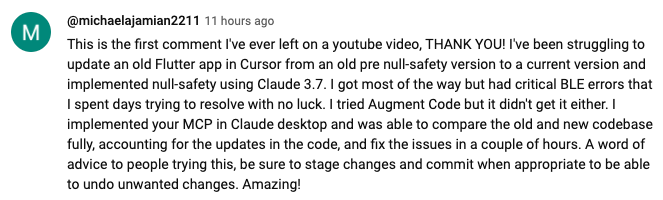 https://www.youtube.com/watch?v=ly3bed99Dy8&lc=UgztdHvDMqTb9jiqnf54AaABAg
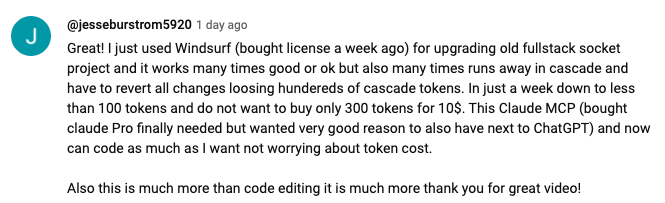 https://www.youtube.com/watch?v=ly3bed99Dy8&lc=UgyQFTmYLJ4VBwIlmql4AaABAg
 https://www.youtube.com/watch?v=ly3bed99Dy8&lc=Ugy4-exy166_Ma7TH-h4AaABAg
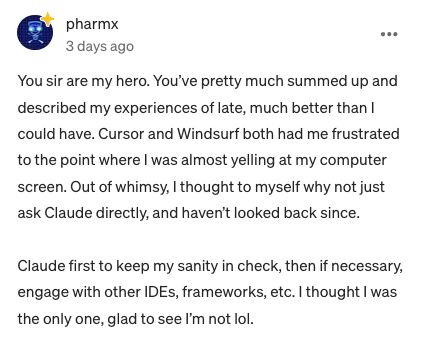 https://medium.com/@pharmx/Sie-Sir-sind-mein-Held-62cff5836a3e
Wenn Sie dieses Projekt nützlich finden, vergeben Sie ihm bitte einen ⭐ Stern auf GitHub! Dies hilft anderen, das Projekt zu entdecken und fördert die Weiterentwicklung.
Wir freuen uns über Beiträge aus der Community! Egal, ob Sie einen Fehler gefunden haben, einen Funktionswunsch haben oder Code beisteuern möchten – so können Sie helfen:
Fehler gefunden? Melden Sie ein Problem unter github.com/wonderwhy-er/DesktopCommanderMCP/issues
Haben Sie eine Idee für eine Funktion? Senden Sie eine Funktionsanfrage im Bereich „Probleme“
Möchten Sie Code beitragen? Forken Sie das Repository, erstellen Sie einen Zweig und senden Sie einen Pull Request.
Fragen oder Diskussionen? Starten Sie eine Diskussion im GitHub-Tab „Diskussionen“
Alle Beiträge, ob groß oder klein, werden sehr geschätzt!
Wenn Sie dieses Tool für Ihren Arbeitsablauf wertvoll finden, ziehen Sie bitte in Erwägung, das Projekt zu unterstützen .
Hier finden Sie Antworten auf einige häufig gestellte Fragen. Ausführlichere FAQs finden Sie in unserem ausführlichen FAQ-Dokument .
Es handelt sich um ein MCP-Tool, das Claude Desktop den Zugriff auf Ihr Dateisystem und Terminal ermöglicht und Claude so zu einem vielseitigen Assistenten für Codierung, Automatisierung, Codebase-Erkundung und mehr macht.
Im Gegensatz zu IDE-orientierten Tools bietet Claude Desktop Commander einen lösungsorientierten Ansatz, der mit Ihrem gesamten Betriebssystem funktioniert, nicht nur innerhalb einer Programmierumgebung. Claude liest Dateien vollständig, anstatt sie in Blöcke aufzuteilen, kann an mehreren Projekten gleichzeitig arbeiten und führt Änderungen in einem Durchgang aus, ohne dass eine ständige Überprüfung erforderlich ist.
Nein. Dieses Tool funktioniert mit dem Standard-Pro-Abonnement von Claude Desktop (20 $/Monat), nicht mit API-Aufrufen. Daher entstehen Ihnen über die Abonnementgebühr hinaus keine zusätzlichen Kosten.
Ja, bei der Installation über npx oder Smithery wird Desktop Commander beim Neustart von Claude automatisch auf die neueste Version aktualisiert. Ein manueller Update-Prozess ist nicht erforderlich.
Komplexe Codebasen erkunden und verstehen
Erstellen von Diagrammen und Dokumentationen
Automatisieren Sie Aufgaben in Ihrem gesamten System
Gleichzeitiges Arbeiten an mehreren Projekten
Präzise gesteuerte Änderungen am chirurgischen Code
Treten Sie unserem Discord-Server für Community-Support bei, informieren Sie sich über bekannte Probleme in den GitHub-Problemen oder lesen Sie die vollständigen FAQs für Tipps zur Fehlerbehebung. Für eine benutzerfreundlichere Bedienung können Sie auch den FAQ-Bereich unserer Website besuchen. Wenn Sie auf ein neues Problem stoßen, eröffnen Sie bitte ein GitHub-Problem mit Details zu Ihrem Problem.
Desktop Commander sammelt begrenzte anonyme Telemetriedaten, um das Tool zu verbessern. Es werden keine persönlichen Informationen, Dateiinhalte, Dateipfade oder Befehlsargumente erfasst.
Telemetrie ist standardmäßig aktiviert. So deaktivieren Sie die Telemetrie:
Öffnen Sie den Chat und fragen Sie einfach: „Telemetrie deaktivieren“
Der Chatbot aktualisiert Ihre Einstellungen automatisch.
Ausführliche Informationen zur Datenerfassung finden Sie in unserer Datenschutzrichtlinie .
MIT
                    Create a new directory or ensure a directory exists.

                    Can create multiple nested directories in one operation.
                    Only works within allowed directories.

                    Absolute paths are the most reliable because they do not depend on the current working directory. Paths are automatically normalized regardless of slash direction. Relative paths depend on the current working directory, and tilde paths (~/...) may not resolve in every context. Absolute paths are generally the most reliable.
This command can be referenced as "DC: ..." or "use Desktop Commander to ..." in your instructions.| Name | Required | Description | Default |
|---|---|---|---|
| path | Yes |
Does the description disclose side effects, auth requirements, rate limits, or destructive behavior?
Annotations already establish readOnlyHint=false and destructiveHint=false; the description goes further by disclosing recursive creation ('multiple nested directories in one operation'), the sandbox boundary, and automatic path normalization. It still omits what happens on failure or what the call returns, keeping it short of a 5.
Agents need to know what a tool does to the world before calling it. Descriptions should go beyond structured annotations to explain consequences.
Is the description appropriately sized, front-loaded, and free of redundancy?
The core statements are front-loaded and clear, but the path paragraph is redundant — it asserts 'Absolute paths are the most reliable' and then repeats 'Absolute paths are generally the most reliable' a few lines later. The trailing 'DC: ...' branding sentence consumes space without adding selection or invocation value.
Shorter descriptions cost fewer tokens and are easier for agents to parse. Every sentence should earn its place.
Given the tool's complexity, does the description cover enough for an agent to succeed on first attempt?
For a one-parameter mutation tool with no output schema, the description covers the essentials: recursion behavior, sandbox restriction, and path handling. The absence of any statement about the return value or error behavior is a minor gap given there is no output schema.
Complex tools with many parameters or behaviors need more documentation. Simple tools need less. This dimension scales expectations accordingly.
Does the description clarify parameter syntax, constraints, interactions, or defaults beyond what the schema provides?
The single path parameter has 0% schema description coverage, so the description must compensate, and it does: absolute vs relative behavior, tilde-path caveats, slash-direction normalization, and cwd dependence. The only gap is that it never says whether the path is a file or directory target beyond the tool's own purpose.
Input schemas describe structure but not intent. Descriptions should explain non-obvious parameter relationships and valid value ranges.
Does the description clearly state what the tool does and how it differs from similar tools?
States a specific verb and resource ('Create a new directory') and adds a meaningful nuance ('or ensure a directory exists') that signals idempotent behavior. It does not name any sibling, but unlike list_directory or move_file the action is unambiguous from the text alone.
Agents choose between tools based on descriptions. A clear purpose with a specific verb and resource helps agents select the right tool.
Does the description explain when to use this tool, when not to, or what alternatives exist?
It gives a real constraint ('Only works within allowed directories') and path-format advice, which implies suitable contexts, but it never states when to prefer this tool over alternatives such as write_file creating parent paths, nor does it name any sibling. Usage is inferable rather than explicit.
Agents often have multiple tools that could apply. Explicit usage guidance like "use X instead of Y when Z" prevents misuse.
                    Apply surgical edits to files.

                    Small, focused edits are easier to verify than large multi-purpose replacements.
                    old_string can include enough surrounding context to uniquely identify the intended text.

                    FORMAT HANDLING (by extension):

                    EXCEL FILES (.xlsx, .xls, .xlsm) - Range Update mode:
                    Takes:
                    - file_path: Path to the Excel file
                    - range uses FROM:TO format - "SheetName!A1:C10" or "SheetName!C1:C1"
                    - content: 2D array, e.g., [["H1","H2"],["R1","R2"]]

                    TEXT FILES - Find/Replace mode:
                    Takes:
                    - file_path: Path to the file to edit
                    - old_string: Text to replace
                    - new_string: Replacement text
                    - expected_replacements: Optional number of replacements (default: 1)

                    DOCX FILES (.docx) - XML Find/Replace mode:
                    Takes same parameters as text files (old_string, new_string, expected_replacements).
                    Operates on the pretty-printed XML inside the DOCX — the same XML you see from
                    read_file with offset/length. Copy XML fragments from read output as old_string.
                    After editing, the XML is repacked into a valid DOCX.
                    Also searches headers/footers if not found in document body.
                    Examples:
                    - Replace text: old_string="<w:t>Old Text</w:t>" new_string="<w:t>New Text</w:t>"
                    - Change style: old_string='<w:pStyle w:val="Normal"/>' new_string='<w:pStyle w:val="Heading1"/>'
                    - Add content: include surrounding XML context in old_string, add new elements in new_string

                    By default, replaces only ONE occurrence of the search text.
                    To replace multiple occurrences, provide expected_replacements with
                    the exact number of matches expected.

                    UNIQUENESS REQUIREMENT: When expected_replacements=1 (default), include the minimal
                    amount of context necessary (typically 1-3 lines) before and after the change point,
                    with exact whitespace and indentation.

                    When editing multiple sections, make separate edit_block calls for each distinct change
                    rather than one large replacement.

                    When a close but non-exact match is found, a character-level diff is shown in the format:
                    common_prefix{-removed-}{+added+}common_suffix to help you identify what's different.

                    Similar to write_file, there is a configurable line limit (fileWriteLineLimit) that warns
                    if the edited file exceeds this limit. If this happens, consider breaking your edits into
                    smaller, more focused changes.

                    Absolute paths are the most reliable because they do not depend on the current working directory. Paths are automatically normalized regardless of slash direction. Relative paths depend on the current working directory, and tilde paths (~/...) may not resolve in every context. Absolute paths are generally the most reliable.
This command can be referenced as "DC: ..." or "use Desktop Commander to ..." in your instructions.| Name | Required | Description | Default |
|---|---|---|---|
| range | No | ||
| origin | No | ||
| content | No | ||
| options | No | ||
| file_path | Yes | ||
| new_string | No | ||
| old_string | No | ||
| expected_replacements | No |
Does the description disclose side effects, auth requirements, rate limits, or destructive behavior?
Annotations already declare destructiveHint=true and readOnlyHint=false, but the description adds substantial context beyond that: default single-occurrence replacement, expected_replacements semantics, the uniqueness requirement for matching, a character-level diff on near-matches, the configurable fileWriteLineLimit warning, and DOCX XML repacking behavior. This is rich behavioral disclosure that annotations alone cannot convey.
Agents need to know what a tool does to the world before calling it. Descriptions should go beyond structured annotations to explain consequences.
Is the description appropriately sized, front-loaded, and free of redundancy?
The purpose and core editing rules are front-loaded, and the format-handling sections are genuinely useful for a polymorphic tool. However, it is verbose and contains redundancy, notably restating absolute-path reliability twice and repeating the single-replacement default in two places, which dilutes an otherwise well-structured description.
Shorter descriptions cost fewer tokens and are easier for agents to parse. Every sentence should earn its place.
Given the tool's complexity, does the description cover enough for an agent to succeed on first attempt?
For a complex 8-parameter tool with no output schema and 0% schema coverage, the description is substantially complete: it explains the three editing modes, the uniqueness/replacement model, failure feedback, and path handling. The main gap is the undocumented 'origin' enum and 'options' object, which an agent cannot interpret from any source.
Complex tools with many parameters or behaviors need more documentation. Simple tools need less. This dimension scales expectations accordingly.
Does the description clarify parameter syntax, constraints, interactions, or defaults beyond what the schema provides?
Schema description coverage is 0%, so the description must carry the burden, and it does for most parameters: file_path, old_string, new_string, expected_replacements (with default 1), range (with FROM:TO format and examples), and content (2D array format). It leaves 'origin' (the one enum) and 'options' (nested object) undocumented, so it falls short of full coverage despite strong compensation.
Input schemas describe structure but not intent. Descriptions should explain non-obvious parameter relationships and valid value ranges.
Does the description clearly state what the tool does and how it differs from similar tools?
States a specific verb+resource ('Apply surgical edits to files') and immediately differentiates from the sibling write_file by contrasting small focused edits against 'large multi-purpose replacements.' It further distinguishes itself as a polymorphic editor by enumerating the file types it handles (Excel, text, DOCX), so an agent can identify it without opening the schema.
Agents choose between tools based on descriptions. A clear purpose with a specific verb and resource helps agents select the right tool.
Does the description explain when to use this tool, when not to, or what alternatives exist?
Gives concrete usage context: prefer small focused edits, use separate edit_block calls for multiple sections, include minimal surrounding context, and route by extension to the correct parameter mode. It does not explicitly state when to choose a sibling like write_file instead, but the implied split (surgical edits vs. full-file write) is clear.
Agents often have multiple tools that could apply. Explicit usage guidance like "use X instead of Y when Z" prevents misuse.
                    Force terminate a running terminal session.

This command can be referenced as "DC: ..." or "use Desktop Commander to ..." in your instructions.| Name | Required | Description | Default |
|---|---|---|---|
| pid | Yes |
Does the description disclose side effects, auth requirements, rate limits, or destructive behavior?
The description identifies the tool as destructive, matching annotations, and specifies it targets a 'terminal session'. However, it does not disclose required permissions, potential side effects, or how termination is performed.
Agents need to know what a tool does to the world before calling it. Descriptions should go beyond structured annotations to explain consequences.
Is the description appropriately sized, front-loaded, and free of redundancy?
Two sentences, no redundancy. The second sentence about referencing is marginally useful but still concise.
Shorter descriptions cost fewer tokens and are easier for agents to parse. Every sentence should earn its place.
Given the tool's complexity, does the description cover enough for an agent to succeed on first attempt?
Lacks explanation of what constitutes a terminal session, how to obtain a PID, and how this tool differs from the similar 'kill_process'. The presence of siblings demands more context.
Complex tools with many parameters or behaviors need more documentation. Simple tools need less. This dimension scales expectations accordingly.
Does the description clarify parameter syntax, constraints, interactions, or defaults beyond what the schema provides?
The description does not mention the 'pid' parameter or how it identifies the session. With 0% schema coverage, the description fails to clarify the parameter's meaning or format.
Input schemas describe structure but not intent. Descriptions should explain non-obvious parameter relationships and valid value ranges.
Does the description clearly state what the tool does and how it differs from similar tools?
The description clearly states it force terminates a running terminal session, but it does not differentiate from the sibling tool 'kill_process', which likely has similar functionality.
Agents choose between tools based on descriptions. A clear purpose with a specific verb and resource helps agents select the right tool.
Does the description explain when to use this tool, when not to, or what alternatives exist?
No guidance on when to use this tool versus alternatives like 'kill_process' or 'interact_with_process'. The only additional note is about referencing the command, not usage context.
Agents often have multiple tools that could apply. Explicit usage guidance like "use X instead of Y when Z" prevents misuse.
                    Get the complete server configuration as JSON. Config includes fields for:
                    - blockedCommands (array of blocked shell commands)
                    - defaultShell (shell to use for commands)
                    - allowedDirectories (paths the server can access)
                    - fileReadLineLimit (max lines for read_file, default 1000)
                    - fileWriteLineLimit (max lines per write_file call, default 50)
                    - telemetryEnabled (boolean for telemetry opt-in/out)
                    - currentClient (information about the currently connected MCP client)
                    - clientHistory (history of all clients that have connected)
                    - version (version of the DesktopCommander)
                    - systemInfo (operating system and environment details)
This command can be referenced as "DC: ..." or "use Desktop Commander to ..." in your instructions.| Name | Required | Description | Default |
|---|---|---|---|
| origin | No |
Does the description disclose side effects, auth requirements, rate limits, or destructive behavior?
Annotations already declare readOnlyHint=true, destructiveHint=false, and openWorldHint=false, so the safety profile is covered structurally. The description adds that the payload includes clientHistory, systemInfo, and allowedDirectories, hinting at potentially sensitive content, but says nothing about permissions, redaction, or side effects beyond that. With annotations carrying the safety burden, this is adequate but not rich.
Agents need to know what a tool does to the world before calling it. Descriptions should go beyond structured annotations to explain consequences.
Is the description appropriately sized, front-loaded, and free of redundancy?
The main statement is front-loaded and the bulleted field list is an efficient way to enumerate a return shape that has no output schema. The closing sentence about 'DC: ...' / 'use Desktop Commander to ...' is orientation fluff that does not help an agent invoke this tool.
Shorter descriptions cost fewer tokens and are easier for agents to parse. Every sentence should earn its place.
Given the tool's complexity, does the description cover enough for an agent to succeed on first attempt?
With no output schema, the enumerated config fields are the only documentation of the return value, and they cover all ten fields plus two defaults (1000 and 50), which is genuinely useful. The gaps are the undocumented `origin` parameter and no note on how often config changes or whether the read is cached.
Complex tools with many parameters or behaviors need more documentation. Simple tools need less. This dimension scales expectations accordingly.
Does the description clarify parameter syntax, constraints, interactions, or defaults beyond what the schema provides?
Schema description coverage is 0% and the description never mentions the single `origin` parameter or its `ui`/`llm` enum. The schema must carry that burden entirely, and while the enum values are fairly self-explanatory, the description does nothing to explain what difference the origin makes.
Input schemas describe structure but not intent. Descriptions should explain non-obvious parameter relationships and valid value ranges.
Does the description clearly state what the tool does and how it differs from similar tools?
The description opens with a specific verb and resource ('Get the complete server configuration as JSON') and enumerates exactly what the configuration contains, so an agent knows precisely what this returns. It never differentiates itself from the obvious sibling set_config_value, whose job is the inverse (writing config), so it stops short of a 5.
Agents choose between tools based on descriptions. A clear purpose with a specific verb and resource helps agents select the right tool.
Does the description explain when to use this tool, when not to, or what alternatives exist?
There is no statement of when to call this versus alternatives such as get_usage_stats or get_recent_tool_calls, and no mention of set_config_value as the mutating counterpart. The trailing note about 'DC: ...' phrasing is about how to reference Desktop Commander in instructions, not about when this tool is appropriate.
Agents often have multiple tools that could apply. Explicit usage guidance like "use X instead of Y when Z" prevents misuse.
                    Retrieve detailed metadata about a file or directory including:
                    - size
                    - creation time
                    - last modified time
                    - permissions
                    - type
                    - lineCount (for text files)
                    - lastLine (zero-indexed number of last line, for text files)
                    - appendPosition (line number for appending, for text files)
                    - sheets (for Excel files - array of {name, rowCount, colCount})

                    Only works within allowed directories.

                    Absolute paths are the most reliable because they do not depend on the current working directory. Paths are automatically normalized regardless of slash direction. Relative paths depend on the current working directory, and tilde paths (~/...) may not resolve in every context. Absolute paths are generally the most reliable.
This command can be referenced as "DC: ..." or "use Desktop Commander to ..." in your instructions.| Name | Required | Description | Default |
|---|---|---|---|
| path | Yes |
Does the description disclose side effects, auth requirements, rate limits, or destructive behavior?
Annotations already establish readOnlyHint=true, destructiveHint=false and openWorldHint=false, so the safety profile is covered. The description usefully adds the sandbox constraint ('Only works within allowed directories') and path-normalization behavior, though it says nothing about error behavior for missing files.
Agents need to know what a tool does to the world before calling it. Descriptions should go beyond structured annotations to explain consequences.
Is the description appropriately sized, front-loaded, and free of redundancy?
The field list is front-loaded and scannable, but the path guidance is padded — 'Absolute paths are the most reliable' appears twice in different words, and the 'DC: ...' / 'use Desktop Commander to ...' line is boilerplate that does not help tool selection.
Shorter descriptions cost fewer tokens and are easier for agents to parse. Every sentence should earn its place.
Given the tool's complexity, does the description cover enough for an agent to succeed on first attempt?
With no output schema and zero schema description coverage, the description carries the load well by enumerating every returned field (including file-type-specific ones like sheets and appendPosition) and covering path-format caveats. The main remaining gap is failure behavior inside the allowed-directories constraint.
Complex tools with many parameters or behaviors need more documentation. Simple tools need less. This dimension scales expectations accordingly.
Does the description clarify parameter syntax, constraints, interactions, or defaults beyond what the schema provides?
Schema coverage is 0% — the single 'path' parameter has no description in the schema — but the description compensates with substantive guidance: absolute paths are most reliable, paths are normalized regardless of slash direction, relative paths depend on cwd, and tilde paths may not resolve. Format details (e.g., whether paths must exist, directory vs file handling) are still absent.
Input schemas describe structure but not intent. Descriptions should explain non-obvious parameter relationships and valid value ranges.
Does the description clearly state what the tool does and how it differs from similar tools?
Opens with a specific verb+resource ('Retrieve detailed metadata about a file or directory') and enumerates the exact fields returned, so an agent can distinguish it from read_file or list_directory without opening the schema.
Agents choose between tools based on descriptions. A clear purpose with a specific verb and resource helps agents select the right tool.
Does the description explain when to use this tool, when not to, or what alternatives exist?
States a constraint ('Only works within allowed directories') but never says when to choose this over siblings like read_file or list_directory, nor when it is the wrong tool. Usage is implied rather than specified.
Agents often have multiple tools that could apply. Explicit usage guidance like "use X instead of Y when Z" prevents misuse.
                    Get more results from an active search with offset-based pagination.

                    Supports partial result reading with:
                    - 'offset' (start result index, default: 0)
                      * Positive: Start from result N (0-based indexing)
                      * Negative: Read last N results from end (tail behavior)
                    - 'length' (max results to read, default: 100)
                      * Used with positive offsets for range reading
                      * Ignored when offset is negative (reads all requested tail results)

                    Examples:
                    - offset: 0, length: 100     → First 100 results
                    - offset: 200, length: 50    → Results 200-249
                    - offset: -20                → Last 20 results
                    - offset: -5, length: 10     → Last 5 results (length ignored)

                    Returns only results in the specified range, along with search status.
                    Works like read_process_output - call this repeatedly to get progressive
                    results from a search started with start_search.

This command can be referenced as "DC: ..." or "use Desktop Commander to ..." in your instructions.| Name | Required | Description | Default |
|---|---|---|---|
| length | No | ||
| offset | No | ||
| sessionId | Yes |
Does the description disclose side effects, auth requirements, rate limits, or destructive behavior?
Annotations already cover the safety profile (readOnlyHint, destructiveHint=false), so the bar is lower. The description adds real behavioral detail beyond that: tail behavior for negative offsets, that length is ignored in that case, and that it returns only the specified range plus search status.
Agents need to know what a tool does to the world before calling it. Descriptions should go beyond structured annotations to explain consequences.
Is the description appropriately sized, front-loaded, and free of redundancy?
Purpose is front-loaded and the examples genuinely earn their place by disambiguating offset/length interactions. There is minor waste in the heavy indentation and the trailing boilerplate about 'DC: ...' referencing.
Shorter descriptions cost fewer tokens and are easier for agents to parse. Every sentence should earn its place.
Given the tool's complexity, does the description cover enough for an agent to succeed on first attempt?
With no output schema, the description usefully states what is returned (the range plus search status). Pagination semantics are fully covered; the only gap is where sessionId originates and what the search status values mean.
Complex tools with many parameters or behaviors need more documentation. Simple tools need less. This dimension scales expectations accordingly.
Does the description clarify parameter syntax, constraints, interactions, or defaults beyond what the schema provides?
Schema coverage is 0%, so the description must carry parameter meaning, and it does so thoroughly for offset and length with four concrete examples including negative-offset edge cases. The required sessionId parameter, however, is never explained (presumably from start_search).
Input schemas describe structure but not intent. Descriptions should explain non-obvious parameter relationships and valid value ranges.
Does the description clearly state what the tool does and how it differs from similar tools?
States a specific verb and resource ('Get more results from an active search') and scopes it to pagination continuation. It is clearly distinguishable from start_search (which initiates) and from read_process_output (which it explicitly compares itself to).
Agents choose between tools based on descriptions. A clear purpose with a specific verb and resource helps agents select the right tool.
Does the description explain when to use this tool, when not to, or what alternatives exist?
Explicitly describes the workflow: 'call this repeatedly to get progressive results from a search started with start_search.' It gives clear context for when to invoke it but does not state when not to use it (e.g., vs. list_searches or stop_search).
Agents often have multiple tools that could apply. Explicit usage guidance like "use X instead of Y when Z" prevents misuse.
                    Get recent local tool call history with arguments and outputs.
                    Returns a chronological list of recent calls loaded from the local history file.

                    Useful for:
                    - Onboarding new chats about work already done
                    - Recovering context after chat history loss
                    - Debugging tool call sequences

                    Note: Does not track its own calls or track_ui_event.
                    History is persisted locally in tool-history.jsonl, keeps up to the last 1000
                    calls in memory, and trims older on-disk history. Stored outputs over 4 KiB
                    are replaced with an omission marker.

This command can be referenced as "DC: ..." or "use Desktop Commander to ..." in your instructions.| Name | Required | Description | Default |
|---|---|---|---|
| since | No | ||
| toolName | No | ||
| maxResults | No |
Does the description disclose side effects, auth requirements, rate limits, or destructive behavior?
Annotations already declare readOnly/openWorld=false/destructive=false, yet the description adds substantial behavior beyond them: it excludes its own calls and track_ui_event, names the persistence file, states the 1000-call in-memory cap, notes disk trimming, and discloses the 4 KiB output omission marker. That is exactly the kind of context annotations cannot carry.
Agents need to know what a tool does to the world before calling it. Descriptions should go beyond structured annotations to explain consequences.
Is the description appropriately sized, front-loaded, and free of redundancy?
Front-loads the core behavior, then structures the rest into a short bullet list and a compact behavior note. The trailing line about being referenced as 'DC: ...' is meta rather than functional for selection, but overall it is tight and every functional sentence earns its place.
Shorter descriptions cost fewer tokens and are easier for agents to parse. Every sentence should earn its place.
Given the tool's complexity, does the description cover enough for an agent to succeed on first attempt?
For a read-only history reader with no output schema and no siblings to distinguish, the description covers what it returns (chronological argument/output list), storage lifetime, size limits, and self-exclusion. The only real gap is parameter meaning, which is a separate dimension.
Complex tools with many parameters or behaviors need more documentation. Simple tools need less. This dimension scales expectations accordingly.
Does the description clarify parameter syntax, constraints, interactions, or defaults beyond what the schema provides?
Schema description coverage is 0% and none of the three parameters (since, toolName, maxResults) are mentioned in the description. The phrase 'recent' vaguely hints at date ordering, but there is no explanation of filtering by tool name, the date format, or the result cap, so the description does not compensate for the coverage gap.
Input schemas describe structure but not intent. Descriptions should explain non-obvious parameter relationships and valid value ranges.
Does the description clearly state what the tool does and how it differs from similar tools?
States a specific verb+resource ('Get recent local tool call history with arguments and outputs') and clarifies returns a chronological list from a local history file. No sibling covers call history, so there is no overlap to disambiguate, but it also does not explicitly contrast with any sibling.
Agents choose between tools based on descriptions. A clear purpose with a specific verb and resource helps agents select the right tool.
Does the description explain when to use this tool, when not to, or what alternatives exist?
The 'Useful for' bullets give concrete contexts (onboarding chats, recovering context after history loss, debugging tool call sequences), which is clear usage guidance. It lacks an explicit when-not-to-use or alternative-tool clause, so it stops short of a 5.
Agents often have multiple tools that could apply. Explicit usage guidance like "use X instead of Y when Z" prevents misuse.
                    Get usage statistics for debugging and analysis.

                    Returns summary of tool usage, success/failure rates, and performance metrics.

This command can be referenced as "DC: ..." or "use Desktop Commander to ..." in your instructions.| Name | Required | Description | Default |
|---|---|---|---|
No parameters | |||
Does the description disclose side effects, auth requirements, rate limits, or destructive behavior?
Annotations already declare readOnlyHint=true, destructiveHint=false, and openWorldHint=false, so the safety profile is covered. The description adds value by disclosing the return content (usage summary, success/failure rates, performance metrics) — useful since no output schema exists — but it says nothing about scope limits or time windows.
Agents need to know what a tool does to the world before calling it. Descriptions should go beyond structured annotations to explain consequences.
Is the description appropriately sized, front-loaded, and free of redundancy?
The first two sentences are efficient and front-loaded, but the third sentence about 'DC: ...' / 'use Desktop Commander to ...' referencing is boilerplate meta-instruction that adds no selection or invocation value.
Shorter descriptions cost fewer tokens and are easier for agents to parse. Every sentence should earn its place.
Given the tool's complexity, does the description cover enough for an agent to succeed on first attempt?
For a zero-parameter, read-only, closed-world tool with no output schema, the description covers purpose, return content, and use context adequately. Only the lack of any scoping details (time range, filters) leaves a minor gap.
Complex tools with many parameters or behaviors need more documentation. Simple tools need less. This dimension scales expectations accordingly.
Does the description clarify parameter syntax, constraints, interactions, or defaults beyond what the schema provides?
The tool takes zero parameters, so the baseline of 4 applies; there is nothing for the description to clarify beyond what the empty schema already conveys.
Input schemas describe structure but not intent. Descriptions should explain non-obvious parameter relationships and valid value ranges.
Does the description clearly state what the tool does and how it differs from similar tools?
States a specific verb+resource ('Get usage statistics') and enumerates what is included (tool usage, success/failure rates, performance metrics), distinguishing it from the similar get_recent_tool_calls sibling. However, it never names that sibling or explicitly delineates the boundary, so it falls short of a 5.
Agents choose between tools based on descriptions. A clear purpose with a specific verb and resource helps agents select the right tool.
Does the description explain when to use this tool, when not to, or what alternatives exist?
The phrase 'for debugging and analysis' implies a usage context but gives no when-to-use, when-not-to-use, or alternative-tool guidance against siblings like get_recent_tool_calls. Usage is only weakly implied.
Agents often have multiple tools that could apply. Explicit usage guidance like "use X instead of Y when Z" prevents misuse.
                    Open feedback form in browser to provide feedback about Desktop Commander.

                    The form itself collects survey answers; this tool does not accept survey responses or
                    pre-fill them. It automatically includes basic usage metadata:
                    - tool_call_count: Number of commands made
                    - days_using: Number of days Desktop Commander has been used
                    - platform: Operating system (Mac/Windows/Linux)
                    - client_id: Analytics identifier

                    No input parameters are required.

This command can be referenced as "DC: ..." or "use Desktop Commander to ..." in your instructions.| Name | Required | Description | Default |
|---|---|---|---|
No parameters | |||
Does the description disclose side effects, auth requirements, rate limits, or destructive behavior?
Beyond the annotations (readOnlyHint=false, openWorldHint=true), the description discloses that a browser is launched and that usage metadata is automatically attached to the submission (tool_call_count, days_using, platform, client_id) — privacy-relevant behavior an agent could not infer from structured fields. This is exactly the added context the dimension rewards.
Agents need to know what a tool does to the world before calling it. Descriptions should go beyond structured annotations to explain consequences.
Is the description appropriately sized, front-loaded, and free of redundancy?
The core purpose and the metadata disclosure are front-loaded and each sentence carries information. The trailing note about 'DC: ...' invocation phrasing is marginally useful for agent behavior but is the one element that reads as boilerplate rather than necessary content.
Shorter descriptions cost fewer tokens and are easier for agents to parse. Every sentence should earn its place.
Given the tool's complexity, does the description cover enough for an agent to succeed on first attempt?
For a zero-parameter, no-output-schema tool whose side effect is launching an external browser, the description covers everything an agent needs: what it opens, that it takes no arguments, what data is transmitted, and that responses cannot be supplied. Nothing material is missing.
Complex tools with many parameters or behaviors need more documentation. Simple tools need less. This dimension scales expectations accordingly.
Does the description clarify parameter syntax, constraints, interactions, or defaults beyond what the schema provides?
With zero parameters, the baseline is 4, and the description reinforces the schema by stating 'No input parameters are required,' which matches the empty properties object with additionalProperties=false. There is no syntax or format to add.
Input schemas describe structure but not intent. Descriptions should explain non-obvious parameter relationships and valid value ranges.
Does the description clearly state what the tool does and how it differs from similar tools?
The description states a specific verb and resource ('Open feedback form in browser to provide feedback about Desktop Commander') and is unmistakable against every sibling, none of which relate to feedback collection. It also draws a clear boundary by noting the tool does not accept or pre-fill survey responses.
Agents choose between tools based on descriptions. A clear purpose with a specific verb and resource helps agents select the right tool.
Does the description explain when to use this tool, when not to, or what alternatives exist?
The usage context is clear and self-selecting: this is the tool to call when the user wants to give feedback. The description explicitly rules out one wrong expectation (that you can pass survey answers through this tool), but it names no alternatives or conditions for when not to call it, which keeps it below a 5.
Agents often have multiple tools that could apply. Explicit usage guidance like "use X instead of Y when Z" prevents misuse.
                    Send input to an existing terminal or REPL process and return newly available output.

                    Useful for interactive shells, Python/Node/R/Julia REPLs, database consoles,
                    and long-running commands started with start_process().

                    Examples:
                    - Interactive Python REPL sessions can be started with `python3 -i`.
                    - Existing interactive sessions accept additional input such as imports or analysis commands.
                    - Interactive sessions can return newly available output while they remain active.

                    SMART DETECTION:
                    - Automatically waits for a recognized prompt when requested
                    - Detects errors and completion states
                    - Early exit prevents unnecessary waiting
                    - Cleans common REPL prompt text from returned output

                    PARAMETERS:
                    - pid: Process ID returned by start_process
                    - input: Text or command to send to the process
                    - timeout_ms: Maximum wait time (default: 8000ms)
                    - wait_for_prompt: Whether to wait for a prompt before returning (default: true)
                    - verbose_timing: Include detailed timing telemetry (default: false)

                    Returns execution result with status indicators.

                    PERFORMANCE DEBUGGING (verbose_timing parameter):
                    When enabled, detailed timing includes:
                    - Exit reason
                    - Total duration and time to first output
                    - Timeline of output events

This command can be referenced as "DC: ..." or "use Desktop Commander to ..." in your instructions.| Name | Required | Description | Default |
|---|---|---|---|
| pid | Yes | ||
| input | Yes | ||
| timeout_ms | No | ||
| verbose_timing | No | ||
| wait_for_prompt | No |
Does the description disclose side effects, auth requirements, rate limits, or destructive behavior?
Annotations already declare destructiveHint=true and openWorldHint=true, so the safety profile is covered. The description adds substantial behavioral context beyond that: smart prompt-waiting, error/completion detection, early exit, prompt-text cleaning, and verbose timing telemetry. It does not itself warn that arbitrary input can be destructive, but the annotation carries that.
Agents need to know what a tool does to the world before calling it. Descriptions should go beyond structured annotations to explain consequences.
Is the description appropriately sized, front-loaded, and free of redundancy?
Front-loaded with purpose, then organized under SMART DETECTION, PARAMETERS, and PERFORMANCE DEBUGGING headers, which is easy to scan. Minor waste exists: the example bullets partly restate the 'useful for' sentence, and the trailing 'DC: ...' branding line adds no invocation value.
Shorter descriptions cost fewer tokens and are easier for agents to parse. Every sentence should earn its place.
Given the tool's complexity, does the description cover enough for an agent to succeed on first attempt?
No output schema exists, and the return description ('execution result with status indicators') is thin, but the smart-detection section compensates by explaining cleaned output, error detection, and early exit. For a 5-param interactive mutation tool with annotations covering safety, this is close to complete.
Complex tools with many parameters or behaviors need more documentation. Simple tools need less. This dimension scales expectations accordingly.
Does the description clarify parameter syntax, constraints, interactions, or defaults beyond what the schema provides?
Schema description coverage is 0%, so the description must carry the load, and it does: it documents all five parameters (pid, input, timeout_ms, wait_for_prompt, verbose_timing) and gives defaults (8000ms, true, false) plus semantics for each. The pid is tied back to start_process, which adds real meaning.
Input schemas describe structure but not intent. Descriptions should explain non-obvious parameter relationships and valid value ranges.
Does the description clearly state what the tool does and how it differs from similar tools?
States a specific verb and resource ('Send input to an existing terminal or REPL process and return newly available output') and distinguishes itself from the sibling start_process() it depends on. An agent can tell it apart from read_process_output and start_process without opening any schema.
Agents choose between tools based on descriptions. A clear purpose with a specific verb and resource helps agents select the right tool.
Does the description explain when to use this tool, when not to, or what alternatives exist?
Gives clear context for when to use it: interactive shells, Python/Node/R/Julia REPLs, database consoles, and long-running commands started with start_process(). It names the prerequisite (start_process) but offers no explicit when-not guidance or alternatives (e.g., read_process_output for passive reading).
Agents often have multiple tools that could apply. Explicit usage guidance like "use X instead of Y when Z" prevents misuse.
                    Terminate a running process by PID.

                    Use with caution as this will forcefully terminate the specified process.

This command can be referenced as "DC: ..." or "use Desktop Commander to ..." in your instructions.| Name | Required | Description | Default |
|---|---|---|---|
| pid | Yes |
Does the description disclose side effects, auth requirements, rate limits, or destructive behavior?
Annotations already set destructiveHint=true, so the description's 'forcefully terminate' adds some context but does not disclose additional behaviors like potential data loss or irreversibility. It aligns with annotations but adds little extra.
Agents need to know what a tool does to the world before calling it. Descriptions should go beyond structured annotations to explain consequences.
Is the description appropriately sized, front-loaded, and free of redundancy?
Three sentences, mostly concise. The third sentence about referencing as 'DC: ...' is tangential and adds length without aiding tool invocation.
Shorter descriptions cost fewer tokens and are easier for agents to parse. Every sentence should earn its place.
Given the tool's complexity, does the description cover enough for an agent to succeed on first attempt?
For a simple tool with one parameter and no output schema, the description covers purpose and caution adequately. However, it could include a brief note on prerequisites (e.g., PID must exist) for completeness.
Complex tools with many parameters or behaviors need more documentation. Simple tools need less. This dimension scales expectations accordingly.
Does the description clarify parameter syntax, constraints, interactions, or defaults beyond what the schema provides?
Schema has 0% description coverage; the description only mentions 'by PID' without explaining what PID means or how to obtain it. This adds minimal value beyond the parameter name.
Input schemas describe structure but not intent. Descriptions should explain non-obvious parameter relationships and valid value ranges.
Does the description clearly state what the tool does and how it differs from similar tools?
The description clearly states 'Terminate a running process by PID.' This is a specific verb-resource pairing that distinguishes the tool from siblings like 'interact_with_process' or 'force_terminate'.
Agents choose between tools based on descriptions. A clear purpose with a specific verb and resource helps agents select the right tool.
Does the description explain when to use this tool, when not to, or what alternatives exist?
While the description warns 'Use with caution', it does not specify when to use this tool versus alternatives (e.g., 'interact_with_process' for graceful termination) or when not to use it. No explicit context or exclusions provided.
Agents often have multiple tools that could apply. Explicit usage guidance like "use X instead of Y when Z" prevents misuse.
                    Get a detailed listing of all files and directories in a specified path.

                    Returns a structured directory listing without starting a shell command.
                    Results distinguish between files and directories with [FILE] and [DIR] prefixes.

                    Supports recursive listing with the 'depth' parameter (default: 2):
                    - depth=1: Only direct contents of the directory
                    - depth=2: Contents plus one level of subdirectories
                    - depth=3+: Multiple levels deep

                    CONTEXT OVERFLOW PROTECTION:
                    - Top-level directory shows ALL items
                    - Nested directories are limited to 100 items maximum per directory
                    - When a nested directory has more than 100 items, you'll see a warning like:
                      [WARNING] node_modules: 500 items hidden (showing first 100 of 600 total)
                    - This prevents overwhelming the context with large directories like node_modules

                    Results show full relative paths from the root directory being listed.
                    Example output with depth=2:
                    [DIR] src
                    [FILE] src/index.ts
                    [DIR] src/tools
                    [FILE] src/tools/filesystem.ts

                    If a directory cannot be accessed, it will show [DENIED] instead.
                    If a path does not exist, it will show [NOT_FOUND] instead.
                    Only works within allowed directories.

                    Absolute paths are the most reliable because they do not depend on the current working directory. Paths are automatically normalized regardless of slash direction. Relative paths depend on the current working directory, and tilde paths (~/...) may not resolve in every context. Absolute paths are generally the most reliable.
This command can be referenced as "DC: ..." or "use Desktop Commander to ..." in your instructions.| Name | Required | Description | Default |
|---|---|---|---|
| path | Yes | ||
| depth | No | ||
| origin | No |
Does the description disclose side effects, auth requirements, rate limits, or destructive behavior?
Annotations already cover the safety profile (readOnlyHint=true, destructiveHint=false, openWorldHint=false), and the description goes well beyond them: it discloses context-overflow protection with the 100-item nested cap, the [WARNING]/[DENIED]/[NOT_FOUND] markers, depth-controlled recursion, and path normalization behavior. This is exactly the extra runtime context an agent needs.
Agents need to know what a tool does to the world before calling it. Descriptions should go beyond structured annotations to explain consequences.
Is the description appropriately sized, front-loaded, and free of redundancy?
Front-loads purpose, then behavior, examples, and constraints in a scannable order. It is somewhat long, and the closing paragraph repeats the 'absolute paths are most reliable' point twice and appends a promotional 'DC: ...' reference line that does not earn its place, but the bulk of the text is substantive.
Shorter descriptions cost fewer tokens and are easier for agents to parse. Every sentence should earn its place.
Given the tool's complexity, does the description cover enough for an agent to succeed on first attempt?
There is no output schema, so the description must explain the return format, and it does so thoroughly with a worked depth=2 example plus status markers. Combined with depth and path semantics, an agent has everything required to call it correctly within allowed directories.
Complex tools with many parameters or behaviors need more documentation. Simple tools need less. This dimension scales expectations accordingly.
Does the description clarify parameter syntax, constraints, interactions, or defaults beyond what the schema provides?
With schema coverage at 0%, the description carries the burden and mostly succeeds: it fully explains 'depth' (default 2, with concrete 1/2/3+ semantics) and 'path' (absolute vs relative, tilde resolution, slash normalization). The 'origin' enum parameter is left unexplained, which is the one remaining gap.
Input schemas describe structure but not intent. Descriptions should explain non-obvious parameter relationships and valid value ranges.
Does the description clearly state what the tool does and how it differs from similar tools?
States a specific verb and resource ('Get a detailed listing of all files and directories in a specified path') and clarifies it operates 'without starting a shell command,' which distinguishes it from process/shell siblings. An agent can immediately tell this apart from read_file, get_file_info, or the search tools.
Agents choose between tools based on descriptions. A clear purpose with a specific verb and resource helps agents select the right tool.
Does the description explain when to use this tool, when not to, or what alternatives exist?
Usage is implied by the purpose and by the constraint 'Only works within allowed directories,' and the 'without starting a shell command' line hints at an alternative approach. However, it never explicitly states when to choose this over sibling discovery tools like start_search or read_multiple_files, nor does it give when-not guidance.
Agents often have multiple tools that could apply. Explicit usage guidance like "use X instead of Y when Z" prevents misuse.
                    List all running processes.

                    Returns process information including PID, command name, CPU usage, and memory usage.

This command can be referenced as "DC: ..." or "use Desktop Commander to ..." in your instructions.| Name | Required | Description | Default |
|---|---|---|---|
No parameters | |||
Does the description disclose side effects, auth requirements, rate limits, or destructive behavior?
Annotations already declare readOnlyHint=true, destructiveHint=false, and openWorldHint=false, so the safety profile is covered. The description adds value beyond that by enumerating the returned fields (PID, command name, CPU, memory), which matters because there is no output schema.
Agents need to know what a tool does to the world before calling it. Descriptions should go beyond structured annotations to explain consequences.
Is the description appropriately sized, front-loaded, and free of redundancy?
The core purpose and return-value sentences are front-loaded and efficient, but the trailing sentence about 'DC: ...' / 'use Desktop Commander to ...' is boilerplate that does not help an agent select or call this tool, and the block carries excess indentation and whitespace.
Shorter descriptions cost fewer tokens and are easier for agents to parse. Every sentence should earn its place.
Given the tool's complexity, does the description cover enough for an agent to succeed on first attempt?
For a no-argument, read-only listing tool with full annotation coverage, the description supplies the essentials: what it lists and what the results contain. Missing only a note on result volume or ordering, which is minor given there is no output schema.
Complex tools with many parameters or behaviors need more documentation. Simple tools need less. This dimension scales expectations accordingly.
Does the description clarify parameter syntax, constraints, interactions, or defaults beyond what the schema provides?
The tool takes zero parameters, so there is nothing for the description to disambiguate; baseline 4 applies. The absence of arguments is consistent with the empty schema and the read-only listing behavior.
Input schemas describe structure but not intent. Descriptions should explain non-obvious parameter relationships and valid value ranges.
Does the description clearly state what the tool does and how it differs from similar tools?
States a specific verb and resource ('List all running processes') and clarifies scope with 'all', which separates it from read_process_output/interact_with_process on a single process. It does not explicitly name a sibling or contrast with one, so it falls short of the top mark.
Agents choose between tools based on descriptions. A clear purpose with a specific verb and resource helps agents select the right tool.
Does the description explain when to use this tool, when not to, or what alternatives exist?
No when-to-use guidance, no prerequisites, and no routing to alternatives like list_sessions or get_usage_stats. The only hint is the meta-instruction about referring to 'Desktop Commander', which addresses invocation phrasing rather than tool selection.
Agents often have multiple tools that could apply. Explicit usage guidance like "use X instead of Y when Z" prevents misuse.
                    List all active searches.

                    Shows search IDs, search types, patterns, status, and runtime.
                    Similar to list_sessions for terminal processes. Useful for managing
                    multiple concurrent searches.

This command can be referenced as "DC: ..." or "use Desktop Commander to ..." in your instructions.| Name | Required | Description | Default |
|---|---|---|---|
No parameters | |||
Does the description disclose side effects, auth requirements, rate limits, or destructive behavior?
Annotations already declare readOnlyHint=true, destructiveHint=false, and openWorldHint=false, so the safety profile is covered. The description adds value by disclosing the returned fields and that it lists only active searches, compensating for the absence of an output schema.
Agents need to know what a tool does to the world before calling it. Descriptions should go beyond structured annotations to explain consequences.
Is the description appropriately sized, front-loaded, and free of redundancy?
Front-loads the core action and return contents efficiently. The trailing note about referencing it as 'DC: ...' is invocation boilerplate that does not help tool selection, a minor blemish on an otherwise tight description.
Shorter descriptions cost fewer tokens and are easier for agents to parse. Every sentence should earn its place.
Given the tool's complexity, does the description cover enough for an agent to succeed on first attempt?
For a zero-parameter, read-only list tool with no output schema, the description is complete: it states the action, scopes it to active searches, and enumerates the returned fields. An agent has everything it needs to call it correctly.
Complex tools with many parameters or behaviors need more documentation. Simple tools need less. This dimension scales expectations accordingly.
Does the description clarify parameter syntax, constraints, interactions, or defaults beyond what the schema provides?
The tool takes zero parameters, which sets the baseline at 4. There is nothing for the description to clarify beyond the fact that it operates on all active searches with no filtering options.
Input schemas describe structure but not intent. Descriptions should explain non-obvious parameter relationships and valid value ranges.
Does the description clearly state what the tool does and how it differs from similar tools?
States a specific verb and resource ('List all active searches') and enumerates the fields it returns (IDs, types, patterns, status, runtime). It names list_sessions as an analogous sibling but does not explicitly distinguish itself from search siblings like start_search, stop_search, or get_more_search_results.
Agents choose between tools based on descriptions. A clear purpose with a specific verb and resource helps agents select the right tool.
Does the description explain when to use this tool, when not to, or what alternatives exist?
'Useful for managing multiple concurrent searches' implies a context of use, but there is no explicit when-to-use vs. alternatives guidance (e.g., versus get_more_search_results or stop_search) and no exclusions. Usage is inferred rather than stated.
Agents often have multiple tools that could apply. Explicit usage guidance like "use X instead of Y when Z" prevents misuse.
                    List all active terminal sessions.

                    Shows session status including:
                    - PID: Process identifier
                    - Blocked: Whether session is waiting for input
                    - Runtime: How long the session has been running

                    DEBUGGING REPLs:
                    - "Blocked: true" often means REPL is waiting for input
                    - Use this to verify sessions are running before sending input
                    - Long runtime with blocked status may indicate stuck process

This command can be referenced as "DC: ..." or "use Desktop Commander to ..." in your instructions.| Name | Required | Description | Default |
|---|---|---|---|
No parameters | |||
Does the description disclose side effects, auth requirements, rate limits, or destructive behavior?
Annotations already declare readOnlyHint=true, destructiveHint=false, and openWorldHint=false, so the safety profile is covered. The description adds genuinely new behavioral context by explaining what each returned field means and how to interpret blocked/stuck sessions, going beyond the annotations.
Agents need to know what a tool does to the world before calling it. Descriptions should go beyond structured annotations to explain consequences.
Is the description appropriately sized, front-loaded, and free of redundancy?
Front-loads the purpose well and uses scannable bullets, but the closing line about being referenced as 'DC: ...' is instruction-level metadata that does not help an agent select or invoke this specific tool, and the field list slightly overlaps the debugging heuristics.
Shorter descriptions cost fewer tokens and are easier for agents to parse. Every sentence should earn its place.
Given the tool's complexity, does the description cover enough for an agent to succeed on first attempt?
There is no output schema, so the description rightly compensates by documenting the returned fields and their interpretation. For a parameterless read-only listing tool, nothing an agent needs in order to call it correctly appears to be missing.
Complex tools with many parameters or behaviors need more documentation. Simple tools need less. This dimension scales expectations accordingly.
Does the description clarify parameter syntax, constraints, interactions, or defaults beyond what the schema provides?
The tool takes no parameters (empty object schema, additionalProperties false), so there is nothing for the description to clarify; the baseline for a zero-parameter tool is 4.
Input schemas describe structure but not intent. Descriptions should explain non-obvious parameter relationships and valid value ranges.
Does the description clearly state what the tool does and how it differs from similar tools?
States a specific verb and resource ('List all active terminal sessions') and enumerates the returned fields (PID, Blocked, Runtime), so the agent knows exactly what this tool surfaces. It does not explicitly distinguish itself from the nearby list_processes or interact_with_process siblings, which keeps it just short of a 5.
Agents choose between tools based on descriptions. A clear purpose with a specific verb and resource helps agents select the right tool.
Does the description explain when to use this tool, when not to, or what alternatives exist?
Provides concrete when-to-use guidance: verify sessions are running before sending input, and interpret 'Blocked: true' / long runtimes as signals of a stuck REPL. It lacks an explicit 'use X instead when Y' routing statement naming an alternative, so it stops short of the top score.
Agents often have multiple tools that could apply. Explicit usage guidance like "use X instead of Y when Z" prevents misuse.
                    Move or rename files and directories.

                    Can move files between directories and rename them in a single operation.
                    Both source and destination must be within allowed directories.

                    Absolute paths are the most reliable because they do not depend on the current working directory. Paths are automatically normalized regardless of slash direction. Relative paths depend on the current working directory, and tilde paths (~/...) may not resolve in every context. Absolute paths are generally the most reliable.
This command can be referenced as "DC: ..." or "use Desktop Commander to ..." in your instructions.| Name | Required | Description | Default |
|---|---|---|---|
| source | Yes | ||
| destination | Yes |
Does the description disclose side effects, auth requirements, rate limits, or destructive behavior?
Annotations already declare destructiveHint=true and readOnlyHint=false, so the safety profile is covered. The description adds genuinely useful behavioral context: the allowed-directory restriction and path normalization/reliability quirks. It does not, however, explain whether an existing destination is overwritten or what happens on failure.
Agents need to know what a tool does to the world before calling it. Descriptions should go beyond structured annotations to explain consequences.
Is the description appropriately sized, front-loaded, and free of redundancy?
The core purpose is front-loaded and clear, but the path guidance is repetitive—'Absolute paths are the most reliable' essentially appears twice—and the 'DC: ...' / 'use Desktop Commander to ...' boilerplate adds no task value.
Shorter descriptions cost fewer tokens and are easier for agents to parse. Every sentence should earn its place.
Given the tool's complexity, does the description cover enough for an agent to succeed on first attempt?
For a destructive two-parameter operation with no output schema, the description covers path handling and scope but omits key behaviors: overwrite semantics, error/failure conditions, and permission requirements. Annotations carry the destructive signal, but more operational detail would help.
Complex tools with many parameters or behaviors need more documentation. Simple tools need less. This dimension scales expectations accordingly.
Does the description clarify parameter syntax, constraints, interactions, or defaults beyond what the schema provides?
Schema description coverage is 0%, so the description must compensate for both parameters. It does meaningfully: it explains that source and destination are paths, must reside in allowed directories, are auto-normalized, and that absolute paths are most reliable. That is solid path semantics beyond the bare 'string' types.
Input schemas describe structure but not intent. Descriptions should explain non-obvious parameter relationships and valid value ranges.
Does the description clearly state what the tool does and how it differs from similar tools?
States a specific verb (move/rename) and resource (files and directories), and clarifies the dual behavior of moving between directories and renaming in a single operation. This is unambiguous and clearly distinguishable from siblings like write_file or create_directory.
Agents choose between tools based on descriptions. A clear purpose with a specific verb and resource helps agents select the right tool.
Does the description explain when to use this tool, when not to, or what alternatives exist?
The description gives a prerequisite ('both source and destination must be within allowed directories') but never states when to prefer this over alternatives, nor names any sibling tools. Usage context is only implied.
Agents often have multiple tools that could apply. Explicit usage guidance like "use X instead of Y when Z" prevents misuse.
                    Read contents from files and URLs.
                    Read PDF files and extract content as markdown and images.

                    Suitable for reading authorized local files directly without starting a shell command.

                    Supports partial file reading with:
                    - 'offset' (start line, default: 0)
                      * Positive: Start from line N (0-based indexing)
                      * Negative: Read last N lines from end (tail behavior)
                    - 'length' (max lines to read, default: configurable via 'fileReadLineLimit' setting, initially 1000)
                      * Used with positive offsets for range reading
                      * Ignored when offset is negative (reads all requested tail lines)

                    Examples:
                    - offset: 0, length: 10     → First 10 lines
                    - offset: 100, length: 5    → Lines 100-104
                    - offset: -20               → Last 20 lines
                    - offset: -5, length: 10    → Last 5 lines (length ignored)

                    Performance optimizations:
                    - Large files with negative offsets use reverse reading for efficiency
                    - Large files with deep positive offsets use byte estimation
                    - Small files use fast readline streaming

                    When reading from the file system, only works within allowed directories.
                    Can fetch content from URLs when isUrl parameter is set to true
                    (URLs are always read in full regardless of offset/length).

                    FORMAT HANDLING (by extension):
                    - Text: Uses offset/length for line-based pagination
                    - Excel (.xlsx, .xls, .xlsm): Returns JSON 2D array
                      * sheet: "Sheet1" (name) or "0" (index as string, 0-based)
                      * range uses FROM:TO format (e.g., "A1:D100", "C1:C1", "B2:B50")
                      * offset/length work as row pagination (optional fallback)
                    - Images (PNG, JPEG, GIF, WebP): Base64 encoded viewable content
                    - PDF: Extracts text content as markdown with page structure
                      * offset/length work as page pagination (0-based)
                      * Includes embedded images when available
                    - DOCX (.docx): Two modes depending on parameters:
                      * DEFAULT (no offset/length): Returns a text-bearing outline — shows paragraphs with text,
                        tables with cell content, styles, image refs. Skips shapes/drawings/SVG noise.
                        Each element shows its body index [0], [1], etc.
                      * WITH offset/length: Returns raw pretty-printed XML with line pagination.
                        Use this to drill into specific sections or see the actual XML for editing.
                      * Raw DOCX XML output is compatible with edit_block's XML find/replace mode using
                        XML fragments copied from the read output.
                      * Raw XML mode requires a non-zero offset (offset=1 starts from line 1).
                        offset=0 returns the outline regardless of length.
                      * Bulk transformations can be performed programmatically against the DOCX archive
                        when the task requires changes across many XML text nodes.

                    Absolute paths are the most reliable because they do not depend on the current working directory. Paths are automatically normalized regardless of slash direction. Relative paths depend on the current working directory, and tilde paths (~/...) may not resolve in every context. Absolute paths are generally the most reliable.
This command can be referenced as "DC: ..." or "use Desktop Commander to ..." in your instructions.| Name | Required | Description | Default |
|---|---|---|---|
| path | Yes | ||
| isUrl | No | ||
| range | No | ||
| sheet | No | ||
| length | No | ||
| offset | No | ||
| origin | No | ||
| options | No |
Does the description disclose side effects, auth requirements, rate limits, or destructive behavior?
Beyond the readOnly/openWorld annotations, the description discloses a great deal: directory allow-listing, URL-is-read-in-full-regardless-of-pagination, reverse-read/byte-estimation performance behavior, per-format return shapes, and the DOCX mode switch keyed on offset/length. This is exactly the added context annotations cannot carry.
Agents need to know what a tool does to the world before calling it. Descriptions should go beyond structured annotations to explain consequences.
Is the description appropriately sized, front-loaded, and free of redundancy?
Front-loaded and well-organized with headers, bullets, and concrete examples that earn their space. It loses a point for redundancy: the 'absolute paths are the most reliable' point is stated twice in the closing paragraph, and the 'DC: ...' trailer is noise rather than specification.
Shorter descriptions cost fewer tokens and are easier for agents to parse. Every sentence should earn its place.
Given the tool's complexity, does the description cover enough for an agent to succeed on first attempt?
For a complex 8-parameter tool with no output schema, the description covers return shapes per format (JSON 2D array, base64, markdown, DOCX outline vs raw XML) and the pagination model thoroughly. An agent has everything it needs to invoke it correctly without a return-value schema.
Complex tools with many parameters or behaviors need more documentation. Simple tools need less. This dimension scales expectations accordingly.
Does the description clarify parameter syntax, constraints, interactions, or defaults beyond what the schema provides?
Schema coverage is 0%, so the description carries the burden and largely succeeds: offset (including negative tail semantics and the length-ignored interaction), length, isUrl, sheet, and range are all explained with worked examples. It leaves 'origin' and the 'options' object undocumented, so it is not fully compensating for all 8 parameters.
Input schemas describe structure but not intent. Descriptions should explain non-obvious parameter relationships and valid value ranges.
Does the description clearly state what the tool does and how it differs from similar tools?
The opening line states a specific verb and resource: 'Read contents from files and URLs,' and the format-handling section makes the scope (text, Excel, images, PDF, DOCX) concrete. It does not name the obvious sibling read_multiple_files to distinguish when to pick one over the other, so it stops short of a 5.
Agents choose between tools based on descriptions. A clear purpose with a specific verb and resource helps agents select the right tool.
Does the description explain when to use this tool, when not to, or what alternatives exist?
It gives clear usage context: 'Suitable for reading authorized local files directly without starting a shell command,' plus the constraint that file reads 'only works within allowed directories' and that URLs require isUrl=true. However it never states when to prefer this over read_multiple_files or list_directory, so no explicit alternative routing.
Agents often have multiple tools that could apply. Explicit usage guidance like "use X instead of Y when Z" prevents misuse.
                    Read the contents of multiple files simultaneously.

                    Each file's content is returned with its path as a reference.
                    Handles text files normally and renders images as viewable content.
                    Recognized image types: PNG, JPEG, GIF, WebP.

                    Failed reads for individual files won't stop the entire operation.
                    Only works within allowed directories.

                    Absolute paths are the most reliable because they do not depend on the current working directory. Paths are automatically normalized regardless of slash direction. Relative paths depend on the current working directory, and tilde paths (~/...) may not resolve in every context. Absolute paths are generally the most reliable.
This command can be referenced as "DC: ..." or "use Desktop Commander to ..." in your instructions.| Name | Required | Description | Default |
|---|---|---|---|
| paths | Yes |
Does the description disclose side effects, auth requirements, rate limits, or destructive behavior?
Annotations already cover the safety profile (readOnlyHint, destructiveHint=false), yet the description adds genuinely useful behavior: partial failure tolerance ('Failed reads for individual files won't stop the entire operation'), image rendering as viewable content with supported types, and directory sandboxing. These go beyond what the annotations provide.
Agents need to know what a tool does to the world before calling it. Descriptions should go beyond structured annotations to explain consequences.
Is the description appropriately sized, front-loaded, and free of redundancy?
Purpose and return behavior are front-loaded well, but the path discussion repeats itself ('Absolute paths are the most reliable because...' and later 'Absolute paths are generally the most reliable'), and the closing 'DC:' reference line is meta rather than tool-relevant information.
Shorter descriptions cost fewer tokens and are easier for agents to parse. Every sentence should earn its place.
Given the tool's complexity, does the description cover enough for an agent to succeed on first attempt?
With no output schema, the description usefully explains the return shape (each file's content paired with its path) and image rendering, plus failure and directory constraints. It is nearly complete for a read tool, missing only guidance on choosing it over single-file reads.
Complex tools with many parameters or behaviors need more documentation. Simple tools need less. This dimension scales expectations accordingly.
Does the description clarify parameter syntax, constraints, interactions, or defaults beyond what the schema provides?
Schema coverage is 0%, so the description must carry the parameter burden, and it does add real path semantics: automatic normalization regardless of slash direction, tilde caveats, and the reliability argument for absolute paths. It stops short of clarifying array behavior such as ordering, duplicates, or per-path failure reporting.
Input schemas describe structure but not intent. Descriptions should explain non-obvious parameter relationships and valid value ranges.
Does the description clearly state what the tool does and how it differs from similar tools?
The description opens with a specific verb and resource ('Read the contents of multiple files simultaneously'), and the multi-file scope naturally contrasts with the single-file sibling read_file. It is clear, but it never names read_file as the alternative for single-file reads, so differentiation is implied rather than explicit.
Agents choose between tools based on descriptions. A clear purpose with a specific verb and resource helps agents select the right tool.
Does the description explain when to use this tool, when not to, or what alternatives exist?
It gives real constraints ('Only works within allowed directories') and path guidance, but never states when to choose this over read_file or other siblings. Usage is implied by the scope rather than laid out as a selection rule.
Agents often have multiple tools that could apply. Explicit usage guidance like "use X instead of Y when Z" prevents misuse.
                    Read output from a running process with file-like pagination support.

                    Supports partial output reading with offset and length parameters (like read_file):
                    - 'offset' (start line, default: 0)
                      * offset=0: Read NEW output since last read (default, like old behavior)
                      * Positive: Read from absolute line position
                      * Negative: Read last N lines from end (tail behavior)
                    - 'length' (max lines to read, default: configurable via 'fileReadLineLimit' setting)

                    Examples:
                    - offset: 0, length: 100     → First 100 NEW lines since last read
                    - offset: 0                  → All new lines (respects config limit)
                    - offset: 500, length: 50    → Lines 500-549 (absolute position)
                    - offset: -20                → Last 20 lines (tail)
                    - offset: -50, length: 10    → Start 50 from end, read 10 lines

                    OUTPUT PROTECTION:
                    - Uses same fileReadLineLimit as read_file (default: 1000 lines)
                    - Returns status like: [Reading 100 lines from line 0 (total: 5000 lines, 4900 remaining)]
                    - Prevents context overflow from verbose processes

                    SMART FEATURES:
                    - For offset=0, waits up to timeout_ms for new output to arrive
                    - Detects REPL prompts and process completion
                    - Shows process state (waiting for input, finished, etc.)

                    DETECTION STATES:
                    Process waiting for input (ready for interact_with_process)
                    Process finished execution
                    Timeout reached (may still be running)

This command can be referenced as "DC: ..." or "use Desktop Commander to ..." in your instructions.| Name | Required | Description | Default |
|---|---|---|---|
| pid | Yes | ||
| length | No | ||
| offset | No | ||
| timeout_ms | No | ||
| verbose_timing | No |
Does the description disclose side effects, auth requirements, rate limits, or destructive behavior?
Annotations declare readOnlyHint/destructiveHint/openWorldHint, and the description goes well beyond them: it discloses the fileReadLineLimit-based output protection (default 1000 lines), the status line returned, waiting behavior up to timeout_ms for offset=0, and REPL/completion/timeout detection states. This is exactly the behavioral context the agent needs and cannot get from the annotations.
Agents need to know what a tool does to the world before calling it. Descriptions should go beyond structured annotations to explain consequences.
Is the description appropriately sized, front-loaded, and free of redundancy?
The purpose and offset semantics are front-loaded, and the examples genuinely earn their place given 0% schema coverage. There is some redundancy (the DETECTION STATES list restates the SMART FEATURES points, and some examples overlap), plus a stray 'DC: ...' line, which keeps it from a 5.
Shorter descriptions cost fewer tokens and are easier for agents to parse. Every sentence should earn its place.
Given the tool's complexity, does the description cover enough for an agent to succeed on first attempt?
For a 5-parameter tool with no output schema and 0% schema coverage, the description is largely complete: it explains pagination semantics, return status format, limits, and process states. The only shortfall is the undocumented pid and verbose_timing parameters.
Complex tools with many parameters or behaviors need more documentation. Simple tools need less. This dimension scales expectations accordingly.
Does the description clarify parameter syntax, constraints, interactions, or defaults beyond what the schema provides?
Schema coverage is 0%, so the description carries the burden. It thoroughly documents offset (with a full example table) and length, and briefly mentions timeout_ms under SMART FEATURES, but pid and verbose_timing are entirely undocumented in both the schema and the description, leaving real gaps.
Input schemas describe structure but not intent. Descriptions should explain non-obvious parameter relationships and valid value ranges.
Does the description clearly state what the tool does and how it differs from similar tools?
States a specific verb and resource ('Read output from a running process') and immediately frames it against a known sibling behavior ('file-like pagination support', 'like read_file'). An agent can distinguish it from read_file, interact_with_process, and list_processes without opening any schema.
Agents choose between tools based on descriptions. A clear purpose with a specific verb and resource helps agents select the right tool.
Does the description explain when to use this tool, when not to, or what alternatives exist?
Gives strong context for the offset modes and, via the detection states, points to interact_with_process when the process is waiting for input. It does not explicitly state when NOT to use this tool or name a full set of alternatives, so it stops short of 5.
Agents often have multiple tools that could apply. Explicit usage guidance like "use X instead of Y when Z" prevents misuse.
                    Set a specific configuration value by key.

                    Security note: configuration changes affect later file and command behavior.
                    Isolating them from untrusted file or command content reduces the chance that external content influences configuration.

                    Config keys include:
                    - blockedCommands (array)
                    - defaultShell (string)
                    - allowedDirectories (array of paths)
                    - fileReadLineLimit (number, max lines for read_file)
                    - fileWriteLineLimit (number, max lines per write_file call)
                    - telemetryEnabled (boolean)

                    IMPORTANT: Setting allowedDirectories to an empty array ([]) allows full access
                    to the entire file system, regardless of the operating system.

This command can be referenced as "DC: ..." or "use Desktop Commander to ..." in your instructions.| Name | Required | Description | Default |
|---|---|---|---|
| key | Yes | ||
| value | Yes | ||
| origin | No |
Does the description disclose side effects, auth requirements, rate limits, or destructive behavior?
Annotations already declare destructiveHint=true and readOnlyHint=false, and the description meaningfully extends this by warning that changes affect later file/command behavior and that setting allowedDirectories to [] grants full filesystem access. These are high-value behavioral specifics beyond the annotations, though reversibility and auth requirements are not addressed.
Agents need to know what a tool does to the world before calling it. Descriptions should go beyond structured annotations to explain consequences.
Is the description appropriately sized, front-loaded, and free of redundancy?
Front-loads the core purpose, then layers the security note, key list, and the critical allowedDirectories warning. Every section carries information, though the DC reference line and repeated framing add minor filler.
Shorter descriptions cost fewer tokens and are easier for agents to parse. Every sentence should earn its place.
Given the tool's complexity, does the description cover enough for an agent to succeed on first attempt?
For a destructive mutation tool with no output schema, the description covers the key inventory, value types, and the dangerous edge case. It stops short of explaining the origin parameter or whether changes are persistent/reversible, but the essentials for safe invocation are present.
Complex tools with many parameters or behaviors need more documentation. Simple tools need less. This dimension scales expectations accordingly.
Does the description clarify parameter syntax, constraints, interactions, or defaults beyond what the schema provides?
Schema coverage is 0%, so the description carries the burden. It compensates well for the 'key' parameter by listing valid keys with their value types (array, string, number, boolean), but the 'value' parameter's constraints and the 'origin' enum (ui/llm) are left entirely undocumented.
Input schemas describe structure but not intent. Descriptions should explain non-obvious parameter relationships and valid value ranges.
Does the description clearly state what the tool does and how it differs from similar tools?
States a specific verb and resource ('Set a specific configuration value by key') and enumerates the exact keys that can be set, which lets an agent distinguish it from the sibling get_config. Sibling differentiation is implicit rather than explicit, but the intent is unambiguous.
Agents choose between tools based on descriptions. A clear purpose with a specific verb and resource helps agents select the right tool.
Does the description explain when to use this tool, when not to, or what alternatives exist?
The security note gives some contextual reasoning for isolating configuration changes from untrusted content, which is implied usage guidance. However, it never states when to prefer this tool over get_config or when a change should be avoided, so there are no explicit when/when-not rules or named alternatives.
Agents often have multiple tools that could apply. Explicit usage guidance like "use X instead of Y when Z" prevents misuse.
                    Start a terminal process on the authorized device with intelligent state detection.

                    Suitable for shell commands, interactive REPL sessions, data-processing scripts,
                    programmatic file analysis, and other long-running terminal work.

                    Running on Linux (Docker). Default shell: /bin/sh.
🐳 DOCKER CONTAINER ENVIRONMENT DETECTED: This Desktop Commander instance is running inside a Docker container.
⚠️ WARNING: No mounted directories detected. Files created outside mounted volumes will be lost when the container stops. Persistent file work requires a mounted directory, available through the Docker installer or a -v mount. Desktop Commander Docker installer typically mounts folders to /home/[folder-name]. Container: 4faa167019d6
LINUX-SPECIFIC NOTES:
Package managers vary by distro: apt, yum, dnf, pacman, zypper
Python 3 might be 'python3' command, not 'python'
Standard Unix shell tools available (grep, awk, sed, etc.)
File permissions and ownership important for many operations
Systemd services common on modern distributions
                  Examples:
                  • start_process("python3 -i") → Start an interactive Python REPL
                  • start_process("node -i") → Start an interactive Node.js REPL
                  • start_process("node:local") → Run stateless Node.js code on the MCP server
                  • start_process("wc -l /path/file.csv") → Run a one-shot shell command

                  Interactive process sessions support follow-up input after they are started.
                  Long-running process sessions expose newly available output while they remain active.
                  Binary files can be processed with appropriate command-line tools or libraries available
                  in the selected process environment.

                  SMART DETECTION:
                  - Detects REPL prompts (>>>, >, $, etc.)
                  - Identifies when a process is waiting for input
                  - Recognizes process completion vs timeout
                  - Early exit prevents unnecessary waiting

                  STATES DETECTED:
                  Process waiting for input (shows prompt)
                  Process finished execution
                  Process running (use read_process_output)

                  PERFORMANCE DEBUGGING (verbose_timing parameter):
                  Set verbose_timing: true to get detailed timing information including:
                  - Exit reason (early_exit_quick_pattern, early_exit_periodic_check, process_exit, timeout)
                  - Total duration and time to first output
                  - Complete timeline of all output events with timestamps
                  - Which detection mechanism triggered early exit

                  Absolute paths are the most reliable because they do not depend on the current working directory. Paths are automatically normalized regardless of slash direction. Relative paths depend on the current working directory, and tilde paths (~/...) may not resolve in every context. Absolute paths are generally the most reliable.
This command can be referenced as "DC: ..." or "use Desktop Commander to ..." in your instructions.| Name | Required | Description | Default |
|---|---|---|---|
| shell | No | ||
| origin | No | ||
| command | Yes | ||
| timeout_ms | Yes | ||
| verbose_timing | No |
Does the description disclose side effects, auth requirements, rate limits, or destructive behavior?
Annotations already declare destructive/open-world/non-read-only behavior; the description adds meaningful context about Docker persistence risk, default /bin/sh, smart REPL/input/completion detection, early exit, and verbose_timing diagnostics. It does not contradict the annotations.
Agents need to know what a tool does to the world before calling it. Descriptions should go beyond structured annotations to explain consequences.
Is the description appropriately sized, front-loaded, and free of redundancy?
It is front-loaded with the core purpose, but then becomes bloated with Docker container boilerplate, distro notes, diagnostic detail, and a repeated absolute-path paragraph. Much of that content is environment-specific noise rather than invocation guidance.
Shorter descriptions cost fewer tokens and are easier for agents to parse. Every sentence should earn its place.
Given the tool's complexity, does the description cover enough for an agent to succeed on first attempt?
For a complex process-start tool with no output schema, it covers lifecycle states, follow-up output, and environment constraints reasonably well. It is still incomplete about timeout behavior, parameter meanings, and cleanup/termination routing to siblings.
Complex tools with many parameters or behaviors need more documentation. Simple tools need less. This dimension scales expectations accordingly.
Does the description clarify parameter syntax, constraints, interactions, or defaults beyond what the schema provides?
Schema coverage is 0% for 5 parameters, and the description compensates only partially: it explains verbose_timing and shows command examples, plus notes default shell /bin/sh. It does not document timeout_ms (required, units/default), origin enum values, or the shell parameter's override semantics, and examples omit timeout_ms despite it being required.
Input schemas describe structure but not intent. Descriptions should explain non-obvious parameter relationships and valid value ranges.
Does the description clearly state what the tool does and how it differs from similar tools?
States a specific verb and resource ('Start a terminal process') and scopes it to shell commands, interactive REPL sessions, one-shot commands, and long-running terminal work. The examples and state list make it distinguishable from sibling process tools such as read_process_output and interact_with_process.
Agents choose between tools based on descriptions. A clear purpose with a specific verb and resource helps agents select the right tool.
Does the description explain when to use this tool, when not to, or what alternatives exist?
Gives suitable use cases and examples, and explicitly directs the agent to read_process_output when a process is still running. It lacks explicit exclusions or comparisons for interact_with_process, force_terminate, or kill_process, so guidance is clear but not complete.
Agents often have multiple tools that could apply. Explicit usage guidance like "use X instead of Y when Z" prevents misuse.
                    Start a streaming search that can return results progressively.

                    SEARCH STRATEGY GUIDE:
                    Choose the right search type based on what the user is looking for:

                    USE searchType="files" WHEN:
                    - User asks for specific files: "find package.json", "locate config files"
                    - Pattern looks like a filename: "*.js", "README.md", "test-*.tsx"
                    - User wants to find files by name/extension: "all TypeScript files", "Python scripts"
                    - Looking for configuration/setup files: ".env", "dockerfile", "tsconfig.json"

                    USE searchType="content" WHEN:
                    - User asks about code/logic: "authentication logic", "error handling", "API calls"
                    - Looking for functions/variables: "getUserData function", "useState hook"
                    - Searching for text/comments: "TODO items", "FIXME comments", "documentation"
                    - Finding patterns in code: "console.log statements", "import statements"
                    - User describes functionality: "components that handle login", "files with database queries"

                    AMBIGUOUS SEARCHES:
                    Queries that could refer to either filenames or file contents can be covered with two
                    searches: one with searchType="files" and one with searchType="content".
                    Example: "find authentication stuff" can pair a filename search for "auth" with a
                    content search for "authentication".

                    SEARCH TYPES:
                    - searchType="files": Find files by name (pattern matches file names)
                    - searchType="content": Search inside files for text patterns

                    PATTERN MATCHING MODES:
                    - Default (literalSearch=false): Patterns are treated as regular expressions
                    - Literal (literalSearch=true): Patterns are treated as exact strings

                    literalSearch=true is useful for code patterns with special characters:
                    - Function calls with parentheses and quotes
                    - Array access with brackets
                    - Object methods with dots and parentheses
                    - File paths with backslashes
                    - Any pattern containing: . * + ? ^ $ { } [ ] | \ ( )

                    IMPORTANT PARAMETERS:
                    - pattern: What to search for (file names OR content text)
                    - literalSearch: Use exact string matching instead of regex (default: false)
                    - filePattern: Optional filter to limit search to specific file types (e.g., "*.js", "package.json")
                    - ignoreCase: Case-insensitive search (default: true). Works for both file names and content.
                    - earlyTermination: Stop search early when exact filename match is found (optional: defaults to true for file searches, false for content searches)

                    DECISION EXAMPLES:
                    - "find package.json" → searchType="files", pattern="package.json" (specific file)
                    - "find authentication components" → searchType="content", pattern="authentication" (looking for functionality)
                    - "locate all React components" → searchType="files", pattern="*.tsx" or "*.jsx" (file pattern)
                    - "find TODO comments" → searchType="content", pattern="TODO" (text in files)
                    - "show me login files" → AMBIGUOUS → run both: files with "login" AND content with "login"
                    - "find config" → AMBIGUOUS → run both: config files AND files containing config code

                    COMPREHENSIVE SEARCH EXAMPLES:
                    - Find package.json files: searchType="files", pattern="package.json"
                    - Find all JS files: searchType="files", pattern="*.js"
                    - Search for TODO in code: searchType="content", pattern="TODO", filePattern="*.js|*.ts"
                    - Search for exact code: searchType="content", pattern="toast.error('test')", literalSearch=true
                    - Ambiguous request "find auth stuff": Run two searches:
                      1. searchType="files", pattern="auth"
                      2. searchType="content", pattern="authentication"

                    Ambiguous requests can combine file-name and content searches for broader coverage.

                    This tool starts a background search process and returns immediately with a session ID.
                    Results are available through get_more_search_results, and stop_search can end the search early.

                    Perfect for large directories where you want to see results immediately and
                    have the option to cancel if the search takes too long or you find what you need.

                    Absolute paths are the most reliable because they do not depend on the current working directory. Paths are automatically normalized regardless of slash direction. Relative paths depend on the current working directory, and tilde paths (~/...) may not resolve in every context. Absolute paths are generally the most reliable.
This command can be referenced as "DC: ..." or "use Desktop Commander to ..." in your instructions.| Name | Required | Description | Default |
|---|---|---|---|
| path | Yes | ||
| origin | No | ||
| pattern | Yes | ||
| ignoreCase | No | ||
| maxResults | No | ||
| searchType | No | files | |
| timeout_ms | No | ||
| filePattern | No | ||
| contextLines | No | ||
| includeHidden | No | ||
| literalSearch | No | ||
| earlyTermination | No |
Does the description disclose side effects, auth requirements, rate limits, or destructive behavior?
Annotations already declare readOnly/non-destructive/closed-world, so the safety bar is covered. The description adds genuine lifecycle context: it starts a background process, returns immediately with a session ID, results flow through a sibling, and it can be cancelled. Path normalization/tilde-resolution caveats are also disclosed. It does not state timeout or maxResults behavior, keeping it below 5.
Agents need to know what a tool does to the world before calling it. Descriptions should go beyond structured annotations to explain consequences.
Is the description appropriately sized, front-loaded, and free of redundancy?
The purpose is front-loaded, but the body is heavily redundant: 'DECISION EXAMPLES', 'COMPREHENSIVE SEARCH EXAMPLES', and the closing paragraphs repeat the same file/content selection rules several times. A large fraction of the text does not earn its place against what a shorter guide would convey.
Shorter descriptions cost fewer tokens and are easier for agents to parse. Every sentence should earn its place.
Given the tool's complexity, does the description cover enough for an agent to succeed on first attempt?
For a session-based streaming tool with no output schema, the description adequately explains the async lifecycle, where results appear, and how to cancel. It is complete enough to invoke correctly; only the unmentioned tuning parameters (timeout_ms, maxResults) leave minor gaps.
Complex tools with many parameters or behaviors need more documentation. Simple tools need less. This dimension scales expectations accordingly.
Does the description clarify parameter syntax, constraints, interactions, or defaults beyond what the schema provides?
Schema coverage is 0%, so the description carries the full burden, and it meaningfully documents the core params: pattern, searchType, literalSearch, filePattern, ignoreCase, earlyTermination, plus path reliability. However several params (maxResults, timeout_ms, contextLines, includeHidden, origin) receive no explanation, leaving real gaps.
Input schemas describe structure but not intent. Descriptions should explain non-obvious parameter relationships and valid value ranges.
Does the description clearly state what the tool does and how it differs from similar tools?
States a specific verb+resource (start a streaming search returning results progressively), and explicitly names the sibling tools that continue/cancel it (get_more_search_results, stop_search). An agent can tell it apart from list_searches and other siblings without opening any schema.
Agents choose between tools based on descriptions. A clear purpose with a specific verb and resource helps agents select the right tool.
Does the description explain when to use this tool, when not to, or what alternatives exist?
Provides an exhaustive when-to-use guide: explicit rules for choosing searchType='files' vs 'content', an ambiguity protocol (run both), and worked decision examples. This is far beyond typical routing guidance.
Agents often have multiple tools that could apply. Explicit usage guidance like "use X instead of Y when Z" prevents misuse.
                    Stop an active search.

                    Stops the background search process gracefully. Use this when you've found
                    what you need or if a search is taking too long. Similar to force_terminate
                    for terminal processes.

                    The search will still be available for reading final results until it's
                    automatically cleaned up after 5 minutes.

This command can be referenced as "DC: ..." or "use Desktop Commander to ..." in your instructions.| Name | Required | Description | Default |
|---|---|---|---|
| sessionId | Yes |
Does the description disclose side effects, auth requirements, rate limits, or destructive behavior?
Annotations already declare destructiveHint=false; the description goes beyond them by disclosing that shutdown is 'graceful' and that the search remains readable until cleanup after 5 minutes. That post-condition is exactly the kind of context annotations cannot carry. It does not describe error behavior if the sessionId is invalid, keeping it short of a 5.
Agents need to know what a tool does to the world before calling it. Descriptions should go beyond structured annotations to explain consequences.
Is the description appropriately sized, front-loaded, and free of redundancy?
Purpose is front-loaded in the first sentence and the operative guidance follows immediately. The closing boilerplate about referring to the tool as 'DC: ...' consumes space without helping tool selection, a minor waste.
Shorter descriptions cost fewer tokens and are easier for agents to parse. Every sentence should earn its place.
Given the tool's complexity, does the description cover enough for an agent to succeed on first attempt?
For a one-parameter action tool with no output schema, the definition covers purpose, when to invoke it, and what happens to the search afterward. The only real gap is that the sessionId parameter is left entirely to the schema.
Complex tools with many parameters or behaviors need more documentation. Simple tools need less. This dimension scales expectations accordingly.
Does the description clarify parameter syntax, constraints, interactions, or defaults beyond what the schema provides?
Schema description coverage is 0% for the single sessionId parameter, and the description never mentions it or explains which session it targets. The name is largely self-explanatory and the context implies it acts on an active search, so this is adequate rather than compensating for the coverage gap.
Input schemas describe structure but not intent. Descriptions should explain non-obvious parameter relationships and valid value ranges.
Does the description clearly state what the tool does and how it differs from similar tools?
States a specific verb and resource ('Stop an active search') and explicitly distinguishes itself from the closest sibling by noting it is 'Similar to force_terminate for terminal processes.' An agent can tell it apart from start_search, list_searches, and force_terminate without opening any schema.
Agents choose between tools based on descriptions. A clear purpose with a specific verb and resource helps agents select the right tool.
Does the description explain when to use this tool, when not to, or what alternatives exist?
Gives a clear trigger condition: 'Use this when you've found what you need or if a search is taking too long,' and names force_terminate as the analogous tool for terminal processes. It stops short of an explicit when-not (e.g., when to prefer letting a search finish or how it differs from kill_process), so it is strong but not exhaustive.
Agents often have multiple tools that could apply. Explicit usage guidance like "use X instead of Y when Z" prevents misuse.
                    Write or append to file contents.

                    PDF creation is handled by the dedicated write_pdf tool.
                    Existing DOCX content can be edited with edit_block. New DOCX files can be created here; markdown headings (#, ##, ###) are converted to styled DOCX paragraphs.

                    CHUNKED WRITES:
                    - Repeated calls with mode='rewrite' followed by mode='append' are supported for longer files.
                    - Chunks of roughly 25-30 lines minimize latency when writing long text, multiple files, documentation, code, or configuration files.
                    - Files over 50 lines are still written successfully but may generate performance notes.
                    - For continuation after a partial write, the existing file state can be inspected before appending the remaining content.

                    FORMAT HANDLING (by extension):
                    - Text files: String content
                    - Excel (.xlsx, .xls, .xlsm): JSON 2D array or {"SheetName": [[...]]}
                      Example: '[["Name","Age"],["Alice",30]]'

                    Only works within allowed directories.

                    Absolute paths are the most reliable because they do not depend on the current working directory. Paths are automatically normalized regardless of slash direction. Relative paths depend on the current working directory, and tilde paths (~/...) may not resolve in every context. Absolute paths are generally the most reliable.
This command can be referenced as "DC: ..." or "use Desktop Commander to ..." in your instructions.| Name | Required | Description | Default |
|---|---|---|---|
| mode | No | rewrite | |
| path | Yes | ||
| origin | No | ||
| content | Yes |
Does the description disclose side effects, auth requirements, rate limits, or destructive behavior?
Annotations already declare readOnlyHint=false, destructiveHint=true, and openWorldHint=false, so the mutation/overwrite risk is covered. The description adds genuinely useful context: performance notes for files over 50 lines, the allowed-directory constraint, path normalization behavior, and per-extension format rules. It never explicitly states that mode='rewrite' destroys prior contents, which is the one behavioral gap.
Agents need to know what a tool does to the world before calling it. Descriptions should go beyond structured annotations to explain consequences.
Is the description appropriately sized, front-loaded, and free of redundancy?
The header-based structure is scannable and the purpose is front-loaded, but it wastes space: the absolute-path advice is stated twice in near-identical sentences, and the trailing 'DC: ...' / 'use Desktop Commander to ...' marketing line adds nothing to tool selection.
Shorter descriptions cost fewer tokens and are easier for agents to parse. Every sentence should earn its place.
Given the tool's complexity, does the description cover enough for an agent to succeed on first attempt?
For a mutation tool with no output schema, the description covers formats, chunking strategy, path resolution, and the sandboxing constraint, which is close to what an agent needs. It leaves return-value expectations and failure behavior unstated, but annotations already carry the destructive safety profile.
Complex tools with many parameters or behaviors need more documentation. Simple tools need less. This dimension scales expectations accordingly.
Does the description clarify parameter syntax, constraints, interactions, or defaults beyond what the schema provides?
Schema description coverage is 0%, so the description must compensate and it only partly does. It explains mode well (rewrite vs append with chunk continuation), content format for text and Excel, and path semantics (absolute vs relative vs tilde, slash normalization) — but the 'origin' enum parameter is never mentioned anywhere, leaving one of four parameters undocumented in both schema and description.
Input schemas describe structure but not intent. Descriptions should explain non-obvious parameter relationships and valid value ranges.
Does the description clearly state what the tool does and how it differs from similar tools?
States a specific verb+resource ('Write or append to file contents') and immediately routes away from siblings: PDF goes to write_pdf, existing DOCX editing goes to edit_block. An agent can distinguish this from read_file, edit_block, and write_pdf without opening any schema.
Agents choose between tools based on descriptions. A clear purpose with a specific verb and resource helps agents select the right tool.
Does the description explain when to use this tool, when not to, or what alternatives exist?
Names alternatives with the condition that selects them (write_pdf for PDFs, edit_block for existing DOCX) and gives concrete guidance on chunked writes with mode='rewrite' followed by mode='append' and a 25-30 line chunk recommendation. It lacks any general when-not-to-use guidance (e.g. binary files, read-only directories), so it stops short of a 5.
Agents often have multiple tools that could apply. Explicit usage guidance like "use X instead of Y when Z" prevents misuse.
Create a new PDF file or modify an existing one.
Dedicated PDF creation and modification tool.
OUTPUT FILES:
- Creating a PDF requires 'outputPath' with a new filename (e.g., "result_01.pdf", "analysis_2025_01.pdf", etc.).
MODES:
1. CREATE NEW PDF:
- Pass a markdown string as 'content'.
write_pdf(path="doc.pdf", content="# Title\n\nBody text...")
2. MODIFY EXISTING PDF:
- Pass array of operations as 'content'.
- Modifications preserve the original PDF and require a different filename in 'outputPath'.
- The result includes the original and output paths for reference.
write_pdf(path="doc.pdf", content=[
{ type: "delete", pageIndexes: [0, 2] },
{ type: "insert", pageIndex: 1, markdown: "# New Page" }
])
OPERATIONS:
- delete: Remove pages by 0-based index.
{ type: "delete", pageIndexes: [0, 1, 5] }
- insert: Add pages at a specific 0-based index.
{ type: "insert", pageIndex: 0, markdown: "..." }
{ type: "insert", pageIndex: 5, sourcePdfPath: "/path/to/source.pdf" }
PAGE BREAKS:
To force a page break, use this HTML element:
<div style="page-break-before: always;"></div>
Example:
"# Page 1\n\n<div style=\"page-break-before: always;\"></div>\n\n# Page 2"
ADVANCED STYLING:
HTML/CSS and inline SVG are supported for:
- Text styling: colors, sizes, alignment, highlights
- Boxes: borders, backgrounds, padding, rounded corners
- SVG graphics: charts, diagrams, icons, shapes
- Images: <img src="/absolute/path/image.jpg" width="300" /> or 
Supports standard markdown features including headers, lists, code blocks, tables, and basic formatting.
Only works within allowed directories.
Absolute paths are the most reliable because they do not depend on the current working directory. Paths are automatically normalized regardless of slash direction. Relative paths depend on the current working directory, and tilde paths (~/...) may not resolve in every context. Absolute paths are generally the most reliable.
This command can be referenced as "DC: ..." or "use Desktop Commander to ..." in your instructions.| Name | Required | Description | Default |
|---|---|---|---|
| path | Yes | ||
| content | Yes | ||
| options | No | ||
| outputPath | No |
Does the description disclose side effects, auth requirements, rate limits, or destructive behavior?
Annotations already declare destructiveHint=true, readOnlyHint=false, openWorldHint=false. The description adds meaningful context beyond them: modifications preserve the original PDF and require a distinct output filename, the result returns both original and output paths, and access is restricted to allowed directories. This is solid behavioral disclosure, though it doesn't clarify overwrite behavior at outputPath.
Agents need to know what a tool does to the world before calling it. Descriptions should go beyond structured annotations to explain consequences.
Is the description appropriately sized, front-loaded, and free of redundancy?
The sectioning (MODES, OPERATIONS, PAGE BREAKS, ADVANCED STYLING) is well organized and front-loaded. However it is bloated: the final paragraph restates 'Absolute paths are the most reliable' twice, and the trailing 'DC: ...' boilerplate adds no invocation value. Wasteful repetition holds it to a 3.
Shorter descriptions cost fewer tokens and are easier for agents to parse. Every sentence should earn its place.
Given the tool's complexity, does the description cover enough for an agent to succeed on first attempt?
For a tool with no output schema and a nested anyOf parameter, the description supplies the essential operational detail: mode selection, both content shapes, operation syntax, page-break mechanism, and file path requirements. Only the unexplained 'options' parameter and overwrite semantics leave minor gaps.
Complex tools with many parameters or behaviors need more documentation. Simple tools need less. This dimension scales expectations accordingly.
Does the description clarify parameter syntax, constraints, interactions, or defaults beyond what the schema provides?
Schema description coverage is 0%, so the description must compensate, and it largely does: 'content' is fully explained (markdown string for create, operations array for modify), 'path' vs 'outputPath' roles are spelled out, and the insert/delete operation shapes are documented with examples. The 'options' and 'pdfOptions' parameters remain entirely unexplained, keeping this from a 5.
Input schemas describe structure but not intent. Descriptions should explain non-obvious parameter relationships and valid value ranges.
Does the description clearly state what the tool does and how it differs from similar tools?
The description opens with a specific verb+resource ('Create a new PDF file or modify an existing one') and reinforces it with 'Dedicated PDF creation and modification tool.' This is clearly distinguished from generic file tools in concept, but it never explicitly names or contrasts with the sibling write_file, so it earns a 4 rather than a 5.
Agents choose between tools based on descriptions. A clear purpose with a specific verb and resource helps agents select the right tool.
Does the description explain when to use this tool, when not to, or what alternatives exist?
It clearly separates the two modes (CREATE NEW vs MODIFY EXISTING) and gives the condition selecting each, plus concrete invocation examples. What's missing is any explicit when-not guidance or reference to alternative tools (e.g., write_file for non-PDF output), so it stops short of the 5 level.
Agents often have multiple tools that could apply. Explicit usage guidance like "use X instead of Y when Z" prevents misuse.
Recent tool additions, removals, and schema changes observed during successful MCP inspections.
v0.3.0get_more_search_results3 fields changedInput schema / properties / length / minimumAdded value: +1Input schema / properties / length / typePrevious value: -"number"New value: +"integer"Input schema / properties / offset / typePrevious value: -"number"New value: +"integer"get_promptsstart_search6 fields changedInput schema / properties / contextLines / minimumAdded value: +0Input schema / properties / contextLines / typePrevious value: -"number"New value: +"integer"Input schema / properties / maxResults / minimumAdded value: +0Input schema / properties / maxResults / typePrevious value: -"number"New value: +"integer"Input schema / properties / timeout_ms / minimumAdded value: +0Input schema / properties / timeout_ms / typePrevious value: -"number"New value: +"integer"v0.2.44get_config1 field changedInput schema / properties / originAdded value: +{
+ "enum": [
+ "ui",
+ "llm"
+ ],
+ "type": "string"
+}start_process1 field changedInput schema / properties / originAdded value: +{
+ "enum": [
+ "ui",
+ "llm"
+ ],
+ "type": "string"
+}start_search1 field changedInput schema / properties / originAdded value: +{
+ "enum": [
+ "ui",
+ "llm"
+ ],
+ "type": "string"
+}v0.2.43edit_block1 field changedInput schema / properties / originAdded value: +{
+ "enum": [
+ "ui",
+ "llm"
+ ],
+ "type": "string"
+}list_directory1 field changedInput schema / properties / originAdded value: +{
+ "enum": [
+ "ui",
+ "llm"
+ ],
+ "type": "string"
+}read_file1 field changedInput schema / properties / originAdded value: +{
+ "enum": [
+ "ui",
+ "llm"
+ ],
+ "type": "string"
+}write_file1 field changedInput schema / properties / originAdded value: +{
+ "enum": [
+ "ui",
+ "llm"
+ ],
+ "type": "string"
+}v0.2.17edit_block4 fields changedInput schema / properties / contentAdded value: +{}Input schema / properties / optionsAdded value: +{
+ "additionalProperties": {},
+ "type": "object"
+}Input schema / properties / rangeAdded value: +{
+ "type": "string"
+}Input schema / requiredPrevious value: -[
- "file_path",
- "old_string",
- "new_string"
-]New value: +[
+ "file_path"
+]get_more_search_resultsget_promptsget_recent_tool_callsinteract_with_process1 field changedInput schema / properties / verbose_timingAdded value: +{
+ "type": "boolean"
+}list_directory1 field changedInput schema / properties / depthAdded value: +{
+ "default": 2,
+ "type": "number"
+}list_searchesread_file3 fields changedInput schema / properties / optionsAdded value: +{
+ "additionalProperties": {},
+ "type": "object"
+}Input schema / properties / rangeAdded value: +{
+ "type": "string"
+}Input schema / properties / sheetAdded value: +{
+ "type": "string"
+}read_process_output3 fields changedInput schema / properties / lengthAdded value: +{
+ "type": "number"
+}Input schema / properties / offsetAdded value: +{
+ "type": "number"
+}Input schema / properties / verbose_timingAdded value: +{
+ "type": "boolean"
+}search_codesearch_filesset_config_value3 fields changedInput schema / properties / originAdded value: +{
+ "enum": [
+ "ui",
+ "llm"
+ ],
+ "type": "string"
+}Input schema / properties / value / anyOfAdded value: +[
+ {
+ "type": "string"
+ },
+ {
+ "type": "number"
+ },
+ {
+ "type": "boolean"
+ },
+ {
+ "items": {
+ "type": "string"
+ },
+ "type": "array"
+ },
+ {
+ "type": "null"
+ }
+]Input schema / requiredPrevious value: -[
- "key"
-]New value: +[
+ "key",
+ "value"
+]start_process1 field changedInput schema / properties / verbose_timingAdded value: +{
+ "type": "boolean"
+}start_searchstop_searchwrite_pdfv1.0.0create_directoryedit_blockforce_terminateget_configget_file_infoget_usage_statsgive_feedback_to_desktop_commanderinteract_with_processkill_processlist_directorylist_processeslist_sessionsmove_fileread_fileread_multiple_filesread_process_outputsearch_codesearch_filesset_config_valuestart_processwrite_fileScored across 25 tools
Most tools target a distinct resource+action (read_file, write_file, list_directory, start_process, etc.) and are easy to tell apart. The main overlap is between force_terminate (ends terminal sessions from start_process) and kill_process (kills any PID), plus list_sessions vs list_processes; descriptions clarify but an agent could still hesitate.
Nearly all tools follow a verb_noun snake_case pattern (read_file, create_directory, get_config, list_searches, stop_search). Minor deviations like force_terminate (no noun), edit_block (verb+noun but semantically a find/replace), and the unusually long give_feedback_to_desktop_commander break the pattern slightly.
At 25 tools this is heavy for a filesystem/process toolset; it covers files, processes, searches, config, stats and feedback. The surface is broad and each area is justified, but the count sits at the upper edge where it starts to feel sprawling for agents to navigate.
File reading/writing/editing/moving, directory listing/creation, searches, process lifecycle, and config are all well covered. However there is no dedicated delete-file tool (deletion requires a shell command) and no explicit copy operation, which are noticeable gaps for a 'desktop commander' filesystem.
Connect ChatGPT and Claude to your Mac, Windows or Linux with secure MCP remote access.
Use your Mac, Windows or Linux computer from ChatGPT, Claude or Codex: files, commands, documents.
Work on your own computers from Claude or ChatGPT: run commands, edit and search files.
Shared memory MCP server for Claude Code, Codex, Gemini CLI and Cursor. Cited, editable.