

A
licenseA
qualityD
maintenanceAllows Claude to execute terminal commands on your computer and perform file system operations including surgical code editing with diff-based replacements.
19
207,385 npm
7
MIT

This server provides comprehensive filesystem, document, search, and terminal/process management capabilities for an AI assistant.
Filesystem operations: Read, write, edit, move, create/list directories, get file metadata, recursive listings, and multi-file reads (with symlink protection).
Document support: Read/write/edit Excel (.xlsx, .xls, .xlsm), PDFs (create/modify/insert/delete pages), and DOCX (outline, XML editing, markdown-to-DOCX conversion).
Search: Start and manage file-name or content searches with regex/literal matching, pagination, cancellation, and multiple concurrent searches.
Terminal & processes: Run commands interactively, start REPLs (Python, Node, R, shell, databases), stream output, manage sessions, list/kill processes, and read output with pagination.
Surgical text editing: Find/replace with fuzzy match fallback, character-level diffs, and multiple-replacement support.
Configuration management: Get/update settings like blocked commands, default shell, allowed directories, line limits, and telemetry.
Analytics & history: View usage stats, recent tool call history, and give feedback via browser form.
Onboarding: Retrieve guided prompts for common tasks like organizing downloads, explaining codebases, analyzing data, and system health checks.
Click on "Deploy Server".
Wait a few minutes for the server to deploy. Once ready, it will show a "Started" state.
In the chat, type @ followed by the MCP server name and your instructions, e.g., "@Claude Desktop Commander MCP show me the last 10 lines of my application.log file"
That's it! The server will respond to your query, and you can continue using it as needed.
Here is a step-by-step guide with screenshots.

Work with code and text, run processes, and automate tasks, going far beyond other AI editors - while using host client subscriptions instead of API token costs.
All of your AI development tools in one place. Desktop Commander puts all dev tools in one chat. Execute long-running terminal commands on your computer and manage processes through Model Context Protocol (MCP). Built on top of MCP Filesystem Server to provide additional search and replace file editing capabilities.
Related MCP server: Desktop Commander MCP
Remote AI Control - Use Desktop Commander from ChatGPT, Claude web, and other AI services via Remote MCP
File Preview UI - Visual file previews in Claude Desktop with rendered markdown, inline images, expandable content, built-in markdown editor, and quick "Open in folder" access
Enhanced terminal commands with interactive process control
Execute code in memory (Python, Node.js, R) without saving files
Instant data analysis - just ask to analyze CSV/JSON/Excel files
Native Excel file support - Read, write, edit, and search Excel files (.xlsx, .xls, .xlsm) without external tools
PDF support - Read PDFs with text extraction, create new PDFs from markdown, modify existing PDFs
DOCX support - Read, create, edit, and search Word documents (.docx) with surgical XML editing and markdown-to-DOCX conversion
Interact with running processes (SSH, databases, development servers)
Execute terminal commands with output streaming
Command timeout and background execution support
Process management (list and kill processes)
Session management for long-running commands
Process output pagination - Read terminal output with offset/length controls to prevent context overflow
Server configuration management:
Get/set configuration values
Update multiple settings at once
Dynamic configuration changes without server restart
Full filesystem operations:
Read/write files (text, Excel, PDF, DOCX)
Create/list directories
Recursive directory listing with configurable depth and context overflow protection for large folders
Move files/directories
Search files and content (including Excel content)
Get file metadata
Negative offset file reading: Read from end of files using negative offset values (like Unix tail)
Code editing capabilities:
Surgical text replacements for small changes
Full file rewrites for major changes
Multiple file support
Pattern-based replacements
vscode-ripgrep based recursive code or text search in folders
Local tool-call history and audit logs:
Tool calls and arguments are recorded locally on the machine running Desktop Commander
Recent call history with bounded output previews is available through get_recent_tool_calls
Size-based rotation/trimming keeps the active history files bounded
Safety guardrails (not a sandbox — see SECURITY.md):
Symlink traversal prevention on file operations
Command blocklist for accidental execution
Docker isolation for complete isolation
Desktop Commander offers multiple installation methods for Claude Desktop.
📋 Update & Uninstall Information: Options 1, 2, 3, 4, and 6 have automatic updates. Option 5 requires manual updates. See below for details.
Just run this in terminal:
npx @wonderwhy-er/desktop-commander@latest setupFor debugging mode (allows Node.js inspector connection):
npx @wonderwhy-er/desktop-commander@latest setup --debugCommand line options during setup:
--debug: Enable debugging mode for Node.js inspector
--no-onboarding: Disable onboarding prompts for new users
Restart Claude if running.
✅ Auto-Updates: Yes - automatically updates when you restart Claude
🔄 Manual Update: Run the setup command again
🗑️ Uninstall: Run npx @wonderwhy-er/desktop-commander@latest remove
curl -fsSL https://raw.githubusercontent.com/wonderwhy-er/DesktopCommanderMCP/refs/heads/main/install.sh | bashThis script handles all dependencies and configuration automatically.
✅ Auto-Updates: Yes
🔄 Manual Update: Re-run the bash installer command above
🗑️ Uninstall: Run npx @wonderwhy-er/desktop-commander@latest remove
Visit: https://smithery.ai/server/@wonderwhy-er/desktop-commander
Login to Smithery if you haven't already
Select your client (Claude Desktop) on the right side
Install with the provided key that appears after selecting your client
Restart Claude Desktop
✅ Auto-Updates: Yes - automatically updates when you restart Claude
🔄 Manual Update: Visit the Smithery page and reinstall
Add this entry to your claude_desktop_config.json:
On Mac: ~/Library/Application Support/Claude/claude_desktop_config.json
On Windows: %APPDATA%\Claude\claude_desktop_config.json
On Linux: ~/.config/Claude/claude_desktop_config.json
{
  "mcpServers": {
    "desktop-commander": {
      "command": "npx",
      "args": [
        "-y",
        "@wonderwhy-er/desktop-commander@latest"
      ]
    }
  }
}
Restart Claude if running.
✅ Auto-Updates: Yes - automatically updates when you restart Claude
🔄 Manual Update: Run the setup command again
🗑️ Uninstall: Run npx @wonderwhy-er/desktop-commander@latest remove or remove the entry from your claude_desktop_config.json
git clone https://github.com/wonderwhy-er/DesktopCommanderMCP.git
cd DesktopCommanderMCP
npm run setup
Restart Claude if running.
The setup command will install dependencies, build the server, and configure Claude's desktop app.
❌ Auto-Updates: No - requires manual git updates
🔄 Manual Update: cd DesktopCommanderMCP && git pull && npm run setup
🗑️ Uninstall: Run npx @wonderwhy-er/desktop-commander@latest remove or remove the cloned directory and MCP server entry from Claude config
Perfect for users who want isolation or don't have Node.js installed. Runs in a sandboxed Docker container with a persistent work environment.
Prerequisites: Docker Desktop installed and running, Claude Desktop app installed.
macOS/Linux:
bash <(curl -fsSL https://raw.githubusercontent.com/wonderwhy-er/DesktopCommanderMCP/refs/heads/main/install-docker.sh)Windows PowerShell:
iex ((New-Object System.Net.WebClient).DownloadString('https://raw.githubusercontent.com/wonderwhy-er/DesktopCommanderMCP/refs/heads/main/install-docker.ps1'))The installer will check Docker, pull the image, prompt for folder mounting, and configure Claude Desktop.
Docker persistence: Your tools, configs, work files, and package caches all survive restarts.
Basic setup (no file access):
{
  "mcpServers": {
    "desktop-commander-in-docker": {
      "command": "docker",
      "args": ["run", "-i", "--rm", "mcp/desktop-commander:latest"]
    }
  }
}
With folder mounting:
{
  "mcpServers": {
    "desktop-commander-in-docker": {
      "command": "docker",
      "args": [
        "run", "-i", "--rm",
        "-v", "/Users/username/Desktop:/mnt/desktop",
        "-v", "/Users/username/Documents:/mnt/documents",
        "mcp/desktop-commander:latest"
      ]
    }
  }
}
Advanced folder mounting:
{
  "mcpServers": {
    "desktop-commander-in-docker": {
      "command": "docker",
      "args": [
        "run", "-i", "--rm",
        "-v", "dc-system:/usr",
        "-v", "dc-home:/root",
        "-v", "dc-workspace:/workspace",
        "-v", "dc-packages:/var",
        "-v", "/Users/username/Projects:/mnt/Projects",
        "-v", "/Users/username/Downloads:/mnt/Downloads",
        "mcp/desktop-commander:latest"
      ]
    }
  }
}
macOS/Linux:
# Check status
bash <(curl -fsSL https://raw.githubusercontent.com/wonderwhy-er/DesktopCommanderMCP/refs/heads/main/install-docker.sh) --status

# Reset all persistent data
bash <(curl -fsSL https://raw.githubusercontent.com/wonderwhy-er/DesktopCommanderMCP/refs/heads/main/install-docker.sh) --reset
Windows PowerShell:
# Check status
$script = (New-Object System.Net.WebClient).DownloadString('https://raw.githubusercontent.com/wonderwhy-er/DesktopCommanderMCP/refs/heads/main/install-docker.ps1'); & ([ScriptBlock]::Create("$script")) -Status

# Reset all data
$script = (New-Object System.Net.WebClient).DownloadString('https://raw.githubusercontent.com/wonderwhy-er/DesktopCommanderMCP/refs/heads/main/install-docker.ps1'); & ([ScriptBlock]::Create("$script")) -Reset

# Show help
$script = (New-Object System.Net.WebClient).DownloadString('https://raw.githubusercontent.com/wonderwhy-er/DesktopCommanderMCP/refs/heads/main/install-docker.ps1'); & ([ScriptBlock]::Create("$script")) -Help
Troubleshooting: Reset and reinstall from scratch:
bash <(curl -fsSL https://raw.githubusercontent.com/wonderwhy-er/DesktopCommanderMCP/refs/heads/main/install-docker.sh) --reset && bash <(curl -fsSL https://raw.githubusercontent.com/wonderwhy-er/DesktopCommanderMCP/refs/heads/main/install-docker.sh)✅ Auto-Updates: Yes - latest tag automatically gets newer versions
🔄 Manual Update: docker pull mcp/desktop-commander:latest then restart Claude
Desktop Commander works with any MCP-compatible client. The standard JSON configuration is:
{
  "mcpServers": {
    "desktop-commander": {
      "command": "npx",
      "args": ["-y", "@wonderwhy-er/desktop-commander@latest"]
    }
  }
}
Add this to your client's MCP configuration file at the locations below:

Or add manually to ~/.cursor/mcp.json (global) or .cursor/mcp.json in your project folder (project-specific).
See Cursor MCP docs for more info.
Add to ~/.codeium/windsurf/mcp_config.json. See Windsurf MCP docs for more info.
Add to .vscode/mcp.json in your project or VS Code User Settings (JSON). Make sure MCP is enabled under Chat > MCP. Works in Agent mode.
See VS Code MCP docs for more info.
Configure through the Cline extension settings in VS Code. Open the Cline sidebar, click the MCP Servers icon, and add the JSON configuration above. See Cline MCP docs for more info.
Add to your Roo Code MCP configuration file. See Roo Code MCP docs for more info.
claude mcp add --scope user desktop-commander -- npx -y @wonderwhy-er/desktop-commander@latestRemove --scope user to install for the current project only. See Claude Code MCP docs for more info.
Use the "Add manually" feature and paste the JSON configuration above. See Trae MCP docs for more info.
Navigate to Kiro > MCP Servers, click + Add, and paste the JSON configuration above. See Kiro MCP docs for more info.
Codex uses TOML configuration. Run this command to add Desktop Commander:
codex mcp add desktop-commander -- npx -y @wonderwhy-er/desktop-commander@latestOr manually add to ~/.codex/config.toml:
[mcp_servers.desktop-commander]
command = "npx"
args = ["-y", "@wonderwhy-er/desktop-commander@latest"]
See Codex MCP docs for more info.
In JetBrains IDEs, go to Settings → Tools → AI Assistant → Model Context Protocol (MCP), click + Add, select As JSON, and paste the JSON configuration above. See JetBrains MCP docs for more info.
Add to ~/.gemini/settings.json:
{
  "mcpServers": {
    "desktop-commander": {
      "command": "npx",
      "args": ["-y", "@wonderwhy-er/desktop-commander@latest"]
    }
  }
}
See Gemini CLI docs for more info.
Press Cmd/Ctrl+Shift+P, open the Augment panel, and add a new MCP server named desktop-commander with the JSON configuration above. See Augment Code MCP docs for more info.
Run this command to add Desktop Commander:
qwen mcp add desktop-commander -- npx -y @wonderwhy-er/desktop-commander@latestOr add to .qwen/settings.json (project) or ~/.qwen/settings.json (global). See Qwen Code MCP docs for more info.
Use Desktop Commander from ChatGPT, Claude web, and other AI services while commands still execute on your computer.
Start the Remote Device:
npx @wonderwhy-er/desktop-commander@latest remoteOn first run, complete browser authentication, then connect your AI at mcp.desktopcommander.app.
Stop the local device temporarily with Ctrl+C
See available CLI options with npx @wonderwhy-er/desktop-commander@latest remote --help
See Remote MCP setup, logout/revocation, CLI reference, and troubleshooting
✅ The Remote Device only accepts commands while it is running
✅ Commands execute locally under your user permissions
✅ Secure OAuth authentication and encrypted communication channel
Options 1 (npx), Option 2 (bash installer), 3 (Smithery), 4 (manual config), and 6 (Docker) automatically update to the latest version whenever you restart Claude. No manual intervention needed.
Option 5 (local checkout): cd DesktopCommanderMCP && git pull && npm run setup
The easiest way to completely remove Desktop Commander:
npx @wonderwhy-er/desktop-commander@latest removeThis automatic uninstaller will:
✅ Remove Desktop Commander from Claude's MCP server configuration
✅ Create a backup of your Claude config before making changes
✅ Provide guidance for complete package removal
✅ Restore from backup if anything goes wrong
If the automatic uninstaller doesn't work or you prefer manual removal:
Locate your Claude Desktop config file:
macOS: ~/Library/Application Support/Claude/claude_desktop_config.json
Windows: %APPDATA%\Claude\claude_desktop_config.json
Linux: ~/.config/Claude/claude_desktop_config.json
Edit the config file:
Open the file in a text editor
Find and remove the "desktop-commander" entry from the "mcpServers" section
Save the file
Example - Remove this section:
{
    "desktop-commander": {
      "command": "npx",
      "args": ["@wonderwhy-er/desktop-commander@latest"]
    }
}
Close and restart Claude Desktop to complete the removal.
If automatic uninstallation fails:
Use manual uninstallation as a fallback
If Claude won't start after uninstalling:
Restore the backup config file created by the uninstaller
Or manually fix the JSON syntax in your claude_desktop_config.json
Need help?
Join our Discord community: https://discord.com/invite/kQ27sNnZr7
Once Desktop Commander is installed and Claude Desktop is restarted, you're ready to supercharge your Claude experience!
Desktop Commander includes intelligent onboarding to help you discover what's possible:
For New Users: When you're just getting started (fewer than 10 successful commands), Claude will automatically offer helpful getting-started guidance and practical tutorials after you use Desktop Commander successfully.
Request Help Anytime: You can ask for onboarding assistance at any time by simply saying:
"Help me get started with Desktop Commander"
"Show me Desktop Commander examples"
"What can I do with Desktop Commander?"
Claude will then show you beginner-friendly tutorials and examples, including:
📁 Organizing your Downloads folder automatically
📊 Analyzing CSV/Excel files with Python
⚙️ Setting up GitHub Actions CI/CD
🔍 Exploring and understanding codebases
🤖 Running interactive development environments
The server provides a comprehensive set of tools organized into several categories:
Category | Tool | Description |
Configuration |
| Get the complete server configuration as JSON (includes blockedCommands, defaultShell, allowedDirectories, fileReadLineLimit, fileWriteLineLimit, telemetryEnabled) |
| Set a specific configuration value by key. Available settings: • | |
Terminal |
| Start programs with smart detection of when they're ready for input |
| Send commands to running programs and get responses | |
| Read output from running processes | |
| Force terminate a running terminal session | |
| List all active terminal sessions | |
| List all running processes with detailed information | |
| Terminate a running process by PID | |
Filesystem |
| Read contents from local filesystem, URLs, Excel files (.xlsx, .xls, .xlsm), and PDFs with line/page-based pagination |
| Read multiple files simultaneously | |
| Write file contents with options for rewrite or append mode. Supports Excel files (JSON 2D array format). For PDFs, use | |
| Create new PDF files from markdown or modify existing PDFs (insert/delete pages). Supports HTML/CSS styling and SVG graphics | |
| Create a new directory or ensure it exists | |
| Get detailed recursive listing of files and directories (supports depth parameter, default depth=2) | |
| Move or rename files and directories | |
| Start streaming search for files by name or content patterns (searches text files and Excel content) | |
| Get paginated results from active search with offset support | |
| Stop an active search gracefully | |
| List all active search sessions | |
| Retrieve detailed metadata about a file or directory (includes sheet info for Excel files) | |
Text Editing |
| Apply targeted text replacements for text files, or range-based cell updates for Excel files |
Analytics |
| Get usage statistics for your own insight |
| Get recent tool call history with arguments and outputs for debugging and context recovery | |
| Open feedback form in browser to provide feedback to Desktop Commander Team |
Data Analysis:
"Analyze sales.csv and show top customers" → Claude runs Python code in memoryRemote Access:
"SSH to my server and check disk space" → Claude maintains SSH sessionDevelopment:
"Start Node.js and test this API" → Claude runs interactive Node sessionSearch/Replace Block Format:
filepath.ext
<<<<<<< SEARCH
content to find
=======
new content
>>>>>>> REPLACE
Example:
src/main.js
<<<<<<< SEARCH
console.log("old message");
=======
console.log("new message");
>>>>>>> REPLACEThe edit_block tool includes several enhancements for better reliability:
Improved Prompting: Tool descriptions now emphasize making multiple small, focused edits rather than one large change
Fuzzy Search Fallback: When exact matches fail, it performs fuzzy search and provides detailed feedback
Character-level Diffs: Shows exactly what's different using {-removed-}{+added+} format
Multiple Occurrence Support: Can replace multiple instances with expected_replacements parameter
Comprehensive Logging: All fuzzy searches are logged for analysis and debugging
When a search fails, you'll see detailed information about the closest match found, including similarity percentage, execution time, and character differences. All these details are automatically logged for later analysis using the fuzzy search log tools.
Desktop Commander can be run in Docker containers for complete isolation from your host system, providing zero risk to your computer. This is perfect for testing, development, or when you want complete sandboxing.
Install Docker for Windows/Mac
Download and install Docker Desktop from docker.com
Get Desktop Commander Docker Configuration
Visit: https://hub.docker.com/mcp/server/desktop-commander/manual
Option A: Use the provided terminal command for automated setup
Option B: Click "Standalone" to get the config JSON and add it manually to your Claude Desktop config
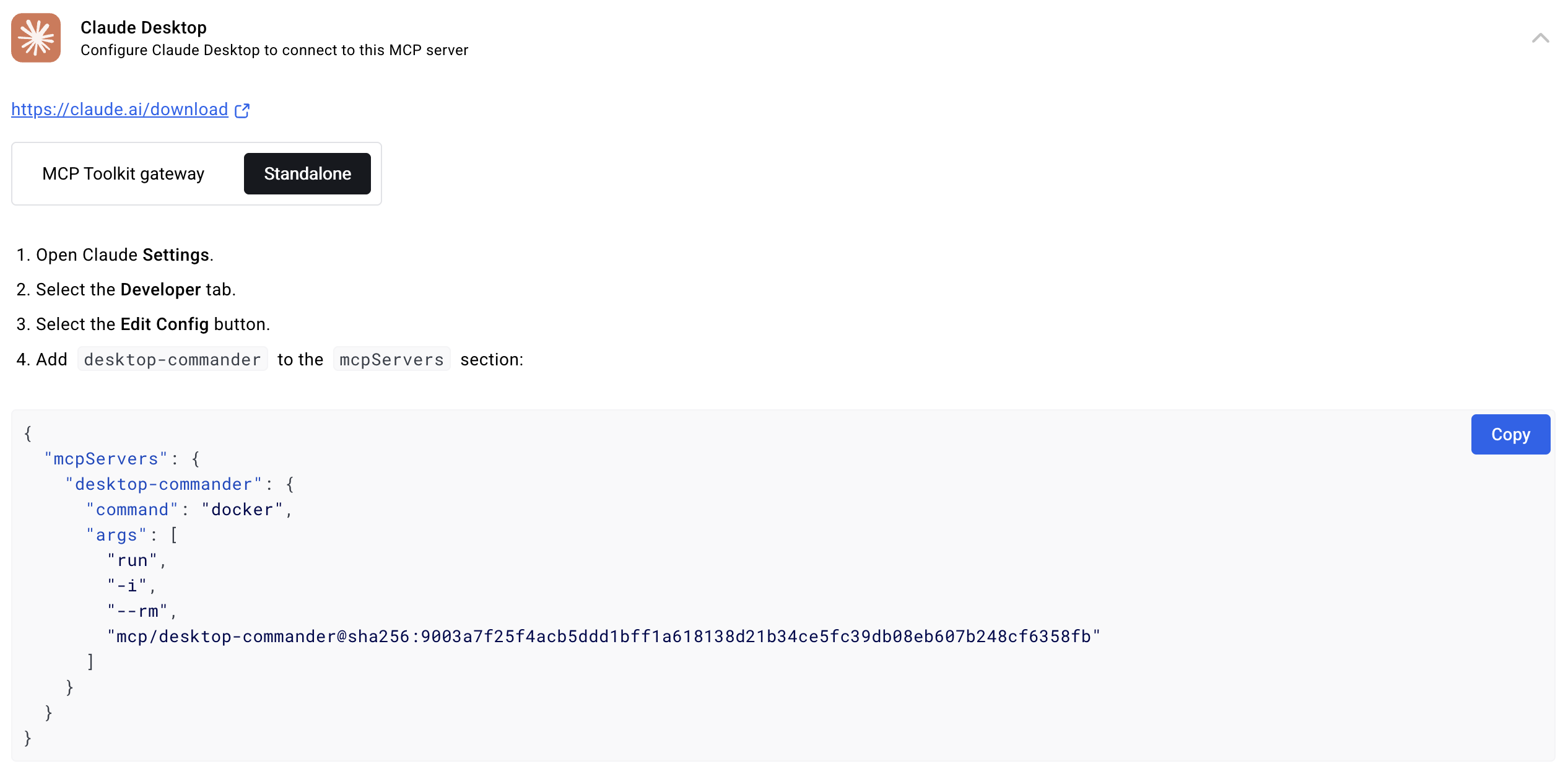
Mount Your Machine Folders (Coming Soon)
Instructions on how to mount your local directories into the Docker container will be provided soon
This will allow you to work with your files while maintaining complete isolation
Complete isolation from your host system
Consistent environment across different machines
Easy cleanup - just remove the container when done
Perfect for testing new features or configurations
read_file can now fetch content from both local files and URLs
Example: read_file with isUrl: true parameter to read from web resources
Handles both text and image content from remote sources
Images (local or from URLs) are displayed visually in Claude's interface, not as text
Claude can see and analyze the actual image content
Default 30-second timeout for URL requests
Desktop Commander includes a rich file preview widget in Claude Desktop that renders files visually as AI works with them.
Markdown — rendered preview with a built-in editor
Images — inline display (PNG, JPEG, GIF, WebP, etc.)
Code files — syntax-highlighted source view
HTML — rendered preview with toggle to source view
Directories — interactive tree with expand/collapse and lazy loading
PDF, Excel, DOCX — native content extraction and display
When viewing a .md file in Claude Desktop, you can edit it directly inside the preview panel — no need to open a separate app.
How to use:
Ask Claude to read or create a markdown file
Expand the file preview to fullscreen using the ⤢ Expand button
The editor activates automatically in fullscreen mode
Edit your content with a live preview toggle, copy, undo, and save controls
Changes are saved back to disk; collapse to return to inline view
Editor features:
Live edit / preview toggle — switch between raw markdown and rendered output
Auto-save to disk with save status indicator
Undo support to revert unsaved changes
Copy button to grab the full markdown source
Open in editor — launch your default markdown app directly from the panel
Partial-file awareness — loads and merges surrounding lines when the file was only partially read
Text selection context — select text in preview mode and the AI can reference your selection
When Claude runs list_directory, the result opens as an interactive file tree inside the preview panel — not just raw text output.
Features:
Expandable tree — folders expand and collapse on click; top-level contents shown immediately
Lazy loading — subfolders load on demand to keep the initial view fast
Large directory handling — directories with many items show a ⚠ click to load all button instead of overwhelming the view
Open in Finder/Explorer — each folder has a quick-open button to reveal it in your file manager
Click to preview — clicking any file in the tree opens it in the file preview panel directly
Back navigation — after opening a file from the tree, a ← Back button returns you to the directory view
Expand / collapse — toggle between compact summary row and full panel
Open in folder — reveal the file in Finder/Explorer with one click
Load more lines — incrementally load content above or below a partial read window
Text selection — highlight text in any preview; the AI can see and reference your selection
The fuzzy search logging system includes convenient npm scripts for analyzing logs outside of the MCP environment:
# View recent fuzzy search logs
npm run logs:view -- --count 20

# Analyze patterns and performance
npm run logs:analyze -- --threshold 0.8

# Export logs to CSV or JSON
npm run logs:export -- --format json --output analysis.json

# Clear all logs (with confirmation)
npm run logs:clear
For detailed documentation on these scripts, see scripts/README.md.
Desktop Commander includes comprehensive logging for fuzzy search operations in the edit_block tool. When an exact match isn't found, the system performs a fuzzy search and logs detailed information for analysis.
Every fuzzy search operation logs:
Search and found text: The text you're looking for vs. what was found
Similarity score: How close the match is (0-100%)
Execution time: How long the search took
Character differences: Detailed diff showing exactly what's different
File metadata: Extension, search/found text lengths
Character codes: Specific character codes causing differences
Logs are automatically saved to:
macOS/Linux: ~/.claude-server-commander-logs/fuzzy-search.log
Windows: %USERPROFILE%\.claude-server-commander-logs\fuzzy-search.log
The fuzzy search logs help you understand:
Why exact matches fail: Common issues like whitespace differences, line endings, or character encoding
Performance patterns: How search complexity affects execution time
File type issues: Which file extensions commonly have matching problems
Character encoding problems: Specific character codes that cause diffs
Desktop Commander keeps tool-call records locally on the machine running the MCP server. These local files are separate from optional telemetry and are not a server-side historical audit log.
claude_tool_call.log — local argument logEvery tool call handled by the local MCP server is appended as a text line containing an ISO timestamp, the tool name, and the JSON-serialized arguments. Arguments are not redacted or sanitized before being written to this local file, so it may contain command text, file paths, or other sensitive values passed to tools. Tool outputs are not written to this file.
The active file rotates when it reaches 10 MB. The previous file is renamed using a timestamp, for example claude_tool_call_2026-09-07_14-32-10.log, and a new claude_tool_call.log is created. Rotated files are not automatically deleted by the logger.
Locations:
macOS/Linux: ~/.claude-server-commander/claude_tool_call.log
Windows: %USERPROFILE%\.claude-server-commander\claude_tool_call.log
tool-history.jsonl — recent tool-call historyDesktop Commander also keeps a JSON Lines history used by get_recent_tool_calls. Each record contains the timestamp, tool name, arguments, duration, and the returned result. This history is loaded from disk on startup, so recent history can survive an MCP server restart.
To keep this history bounded:
At most the most recent 1,000 calls are kept in memory.
Stored output is capped at 4 KiB per record; larger outputs are replaced with an omission marker.
The on-disk file is trimmed when it grows beyond 5 MiB, keeping roughly the newest 4 MiB.
On startup, a history with more than 2,000 records is rewritten to the most recent 1,000 records.
get_recent_tool_calls and track_ui_event are excluded from this JSONL history.
Locations:
macOS/Linux: ~/.claude-server-commander/tool-history.jsonl
Windows: %USERPROFILE%\.claude-server-commander\tool-history.jsonl
Calls executed through Remote Desktop Commander are still handled by the local MCP server and use the same local history files above. The Remote Desktop Commander service temporarily stores tool arguments and results in mcp_remote_calls so calls can be routed and completed. Terminal rows are automatically swept shortly after completion (eligible for deletion after one minute, with a one-hour creation-time backstop), so they are not kept as a long-term historical server-side audit trail.
These local history files are also separate from Desktop Commander's optional telemetry. The files themselves are not uploaded as telemetry. See Data Collection & Privacy and PRIVACY.md for telemetry details.
For commands that may take a while:
For comprehensive security information and vulnerability reporting: See SECURITY.md
Known security limitations: Directory restrictions and command blocking can be bypassed through various methods including symlinks, command substitution, and absolute paths or code execution
Always change configuration in a separate chat window from where you're doing your actual work. Claude may sometimes attempt to modify configuration settings (like allowedDirectories) if it encounters filesystem access restrictions.
The allowedDirectories setting currently only restricts filesystem operations, not terminal commands. Terminal commands can still access files outside allowed directories.
For production security: Use the Docker installation which provides complete isolation from your host system.
You can manage server configuration using the provided tools:
// Get the entire config
get_config({})

// Set a specific config value
set_config_value({ "key": "defaultShell", "value": "/bin/zsh" })

// Set multiple config values using separate calls
set_config_value({ "key": "defaultShell", "value": "/bin/bash" })
set_config_value({ "key": "allowedDirectories", "value": ["/Users/username/projects"] })
The configuration is saved to config.json in the server's working directory and persists between server restarts.
The fileWriteLineLimit setting controls how many lines can be written in a single write_file operation (default: 50 lines). This limit exists for several important reasons:
Why the limit exists:
AIs are wasteful with tokens: Instead of doing two small edits in a file, AIs may decide to rewrite the whole thing. We're trying to force AIs to do things in smaller changes as it saves time and tokens
Claude UX message limits: There are limits within one message and hitting "Continue" does not really work. What we're trying here is to make AI work in smaller chunks so when you hit that limit, multiple chunks have succeeded and that work is not lost - it just needs to restart from the last chunk
Setting the limit:
// You can set it to thousands if you want
set_config_value({ "key": "fileWriteLineLimit", "value": 1000 })

// Or keep it smaller to force more efficient behavior
set_config_value({ "key": "fileWriteLineLimit", "value": 25 })
Maximum value: You can set it to thousands if you want - there's no technical restriction.
Best practices:
Keep the default (50) to encourage efficient AI behavior and avoid token waste
The system automatically suggests chunking when limits are exceeded
Smaller chunks mean less work lost when Claude hits message limits
Create a dedicated chat for configuration changes: Make all your config changes in one chat, then start a new chat for your actual work.
Be careful with empty allowedDirectories: Setting this to an empty array ([]) grants access to your entire filesystem for file operations.
Use specific paths: Instead of using broad paths like /, specify exact directories you want to access.
Always verify configuration after changes: Use get_config({}) to confirm your changes were applied correctly.
Desktop Commander supports several command line options for customizing behavior:
By default, Desktop Commander shows helpful onboarding prompts to new users (those with fewer than 10 tool calls). You can disable this behavior:
# Disable onboarding for this session
node dist/index.js --no-onboarding

# Or if using npm scripts
npm run start:no-onboarding

# For npx installations, modify your claude_desktop_config.json:
{
  "mcpServers": {
    "desktop-commander": {
      "command": "npx",
      "args": [
        "-y",
        "@wonderwhy-er/desktop-commander@latest",
        "--no-onboarding"
      ]
    }
  }
}
When onboarding is automatically disabled:
When the MCP client name is set to "desktop-commander"
When using the --no-onboarding flag
After users have used onboarding prompts or made 10+ tool calls
Debug information:
The server will log when onboarding is disabled: "Onboarding disabled via --no-onboarding flag"
You can specify which shell to use for command execution:
// Using default shell (bash or system default)
execute_command({ "command": "echo $SHELL" })

// Using zsh specifically
execute_command({ "command": "echo $SHELL", "shell": "/bin/zsh" })

// Using bash specifically
execute_command({ "command": "echo $SHELL", "shell": "/bin/bash" })
This allows you to use shell-specific features or maintain consistent environments across commands.
execute_command returns after timeout with initial output
Command continues in background
Use read_output with PID to get new output
Use force_terminate to stop if needed
If you need to debug the server, you can install it in debug mode:
# Using npx
npx @wonderwhy-er/desktop-commander@latest setup --debug

# Or if installed locally
npm run setup:debug
This will:
Configure Claude to use a separate "desktop-commander" server
Enable Node.js inspector protocol with --inspect-brk=9229 flag
Pause execution at the start until a debugger connects
Enable additional debugging environment variables
To connect a debugger:
In Chrome, visit chrome://inspect and look for the Node.js instance
In VS Code, use the "Attach to Node Process" debug configuration
Other IDEs/tools may have similar "attach" options for Node.js debugging
Important debugging notes:
The server will pause on startup until a debugger connects (due to the --inspect-brk flag)
If you don't see activity during debugging, ensure you're connected to the correct Node.js process
Multiple Node processes may be running; connect to the one on port 9229
The debug server is identified as "desktop-commander-debug" in Claude's MCP server list
Troubleshooting:
If Claude times out while trying to use the debug server, your debugger might not be properly connected
When properly connected, the process will continue execution after hitting the first breakpoint
You can add additional breakpoints in your IDE once connected
This project extends the MCP Filesystem Server to enable:
Local server support in Claude Desktop
Full system command execution
Process management
File operations
Code editing with search/replace blocks
Created as part of exploring Claude MCPs: https://youtube.com/live/TlbjFDbl5Us
Generous supporters are featured here. Thank you for helping make this project possible!
Visit our official website at https://desktopcommander.app/ for the latest information, documentation, and updates.
Learn more about this project through these resources:
Claude with MCPs replaced Cursor & Windsurf. How did that happen? - A detailed exploration of how Claude with Model Context Protocol capabilities is changing developer workflows.
Claude Desktop Commander Video Tutorial - Watch how to set up and use the Commander effectively.
 This Developer Ditched Windsurf, Cursor Using Claude with MCPs
Join our Discord server to get help, share feedback, and connect with other users.
 https://www.youtube.com/watch?v=ly3bed99Dy8&lc=UgyyBt6_ShdDX_rIOad4AaABAg
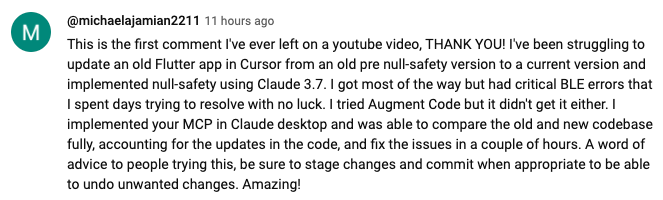 https://www.youtube.com/watch?v=ly3bed99Dy8&lc=UgztdHvDMqTb9jiqnf54AaABAg
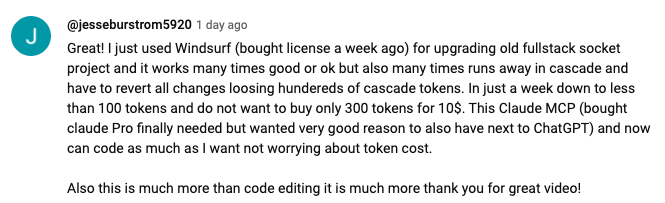 https://www.youtube.com/watch?v=ly3bed99Dy8&lc=UgyQFTmYLJ4VBwIlmql4AaABAg
 https://www.youtube.com/watch?v=ly3bed99Dy8&lc=Ugy4-exy166_Ma7TH-h4AaABAg
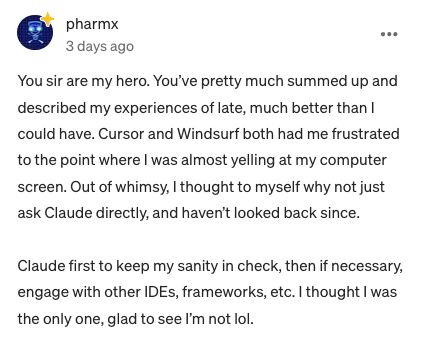 https://medium.com/@pharmx/you-sir-are-my-hero-62cff5836a3e
If you find this project useful, please consider giving it a ⭐ star on GitHub! This helps others discover the project and encourages further development.
We welcome contributions from the community! Whether you've found a bug, have a feature request, or want to contribute code, here's how you can help:
Found a bug? Open an issue at github.com/wonderwhy-er/DesktopCommanderMCP/issues
Have a feature idea? Submit a feature request in the issues section
Want to contribute code? Fork the repository, create a branch, and submit a pull request
Questions or discussions? Start a discussion in the GitHub Discussions tab
All contributions, big or small, are greatly appreciated!
If you find this tool valuable for your workflow, please consider supporting the project.
Here are answers to some common questions. For a more comprehensive FAQ, see our detailed FAQ document.
It's an MCP tool that enables Claude Desktop to access your file system and terminal, turning Claude into a versatile assistant for coding, automation, codebase exploration, and more.
Unlike IDE-focused tools, Claude Desktop Commander provides a solution-centric approach that works with your entire OS, not just within a coding environment. Claude reads files in full rather than chunking them, can work across multiple projects simultaneously, and executes changes in one go rather than requiring constant review.
No. This tool works with Claude Desktop's standard Pro subscription ($20/month), not with API calls, so you won't incur additional costs beyond the subscription fee.
Yes, when installed through npx or Smithery, Desktop Commander automatically updates to the latest version when you restart Claude. No manual update process is needed.
Exploring and understanding complex codebases
Generating diagrams and documentation
Automating tasks across your system
Working with multiple projects simultaneously
Making surgical code changes with precise control
Join our Discord server for community support, check the GitHub issues for known problems, or review the full FAQ for troubleshooting tips. You can also visit our website FAQ section for a more user-friendly experience. If you encounter a new issue, please consider opening a GitHub issue with details about your problem.
Please create a GitHub Issue with detailed information about any security vulnerabilities you discover. See our Security Policy for complete guidelines on responsible disclosure.
Desktop Commander collects limited, pseudonymous telemetry to improve the tool. We do not collect file contents, file paths, or command arguments as telemetry.
This is separate from the local tool history and audit logs, which stay on the machine running Desktop Commander and may contain tool arguments and bounded result previews.
Opt-out: Ask Claude to "disable Desktop Commander telemetry" or set "telemetryEnabled": false in your config.
For complete details, see our Privacy Policy.
MIT
                    Create a new directory or ensure a directory exists.

                    Can create multiple nested directories in one operation.
                    Only works within allowed directories.

                    Absolute paths are the most reliable because they do not depend on the current working directory. Paths are automatically normalized regardless of slash direction. Relative paths depend on the current working directory, and tilde paths (~/...) may not resolve in every context. Absolute paths are generally the most reliable.
This command can be referenced as "DC: ..." or "use Desktop Commander to ..." in your instructions.| Name | Required | Description | Default |
|---|---|---|---|
| path | Yes |
Does the description disclose side effects, auth requirements, rate limits, or destructive behavior?
Annotations already establish readOnlyHint=false and destructiveHint=false; the description goes further by disclosing recursive creation ('multiple nested directories in one operation'), the sandbox boundary, and automatic path normalization. It still omits what happens on failure or what the call returns, keeping it short of a 5.
Agents need to know what a tool does to the world before calling it. Descriptions should go beyond structured annotations to explain consequences.
Is the description appropriately sized, front-loaded, and free of redundancy?
The core statements are front-loaded and clear, but the path paragraph is redundant — it asserts 'Absolute paths are the most reliable' and then repeats 'Absolute paths are generally the most reliable' a few lines later. The trailing 'DC: ...' branding sentence consumes space without adding selection or invocation value.
Shorter descriptions cost fewer tokens and are easier for agents to parse. Every sentence should earn its place.
Given the tool's complexity, does the description cover enough for an agent to succeed on first attempt?
For a one-parameter mutation tool with no output schema, the description covers the essentials: recursion behavior, sandbox restriction, and path handling. The absence of any statement about the return value or error behavior is a minor gap given there is no output schema.
Complex tools with many parameters or behaviors need more documentation. Simple tools need less. This dimension scales expectations accordingly.
Does the description clarify parameter syntax, constraints, interactions, or defaults beyond what the schema provides?
The single path parameter has 0% schema description coverage, so the description must compensate, and it does: absolute vs relative behavior, tilde-path caveats, slash-direction normalization, and cwd dependence. The only gap is that it never says whether the path is a file or directory target beyond the tool's own purpose.
Input schemas describe structure but not intent. Descriptions should explain non-obvious parameter relationships and valid value ranges.
Does the description clearly state what the tool does and how it differs from similar tools?
States a specific verb and resource ('Create a new directory') and adds a meaningful nuance ('or ensure a directory exists') that signals idempotent behavior. It does not name any sibling, but unlike list_directory or move_file the action is unambiguous from the text alone.
Agents choose between tools based on descriptions. A clear purpose with a specific verb and resource helps agents select the right tool.
Does the description explain when to use this tool, when not to, or what alternatives exist?
It gives a real constraint ('Only works within allowed directories') and path-format advice, which implies suitable contexts, but it never states when to prefer this tool over alternatives such as write_file creating parent paths, nor does it name any sibling. Usage is inferable rather than explicit.
Agents often have multiple tools that could apply. Explicit usage guidance like "use X instead of Y when Z" prevents misuse.
                    Apply surgical edits to files.

                    Small, focused edits are easier to verify than large multi-purpose replacements.
                    old_string can include enough surrounding context to uniquely identify the intended text.

                    FORMAT HANDLING (by extension):

                    EXCEL FILES (.xlsx, .xls, .xlsm) - Range Update mode:
                    Takes:
                    - file_path: Path to the Excel file
                    - range uses FROM:TO format - "SheetName!A1:C10" or "SheetName!C1:C1"
                    - content: 2D array, e.g., [["H1","H2"],["R1","R2"]]

                    TEXT FILES - Find/Replace mode:
                    Takes:
                    - file_path: Path to the file to edit
                    - old_string: Text to replace
                    - new_string: Replacement text
                    - expected_replacements: Optional number of replacements (default: 1)

                    DOCX FILES (.docx) - XML Find/Replace mode:
                    Takes same parameters as text files (old_string, new_string, expected_replacements).
                    Operates on the pretty-printed XML inside the DOCX — the same XML you see from
                    read_file with offset/length. Copy XML fragments from read output as old_string.
                    After editing, the XML is repacked into a valid DOCX.
                    Also searches headers/footers if not found in document body.
                    Examples:
                    - Replace text: old_string="<w:t>Old Text</w:t>" new_string="<w:t>New Text</w:t>"
                    - Change style: old_string='<w:pStyle w:val="Normal"/>' new_string='<w:pStyle w:val="Heading1"/>'
                    - Add content: include surrounding XML context in old_string, add new elements in new_string

                    By default, replaces only ONE occurrence of the search text.
                    To replace multiple occurrences, provide expected_replacements with
                    the exact number of matches expected.

                    UNIQUENESS REQUIREMENT: When expected_replacements=1 (default), include the minimal
                    amount of context necessary (typically 1-3 lines) before and after the change point,
                    with exact whitespace and indentation.

                    When editing multiple sections, make separate edit_block calls for each distinct change
                    rather than one large replacement.

                    When a close but non-exact match is found, a character-level diff is shown in the format:
                    common_prefix{-removed-}{+added+}common_suffix to help you identify what's different.

                    Similar to write_file, there is a configurable line limit (fileWriteLineLimit) that warns
                    if the edited file exceeds this limit. If this happens, consider breaking your edits into
                    smaller, more focused changes.

                    Absolute paths are the most reliable because they do not depend on the current working directory. Paths are automatically normalized regardless of slash direction. Relative paths depend on the current working directory, and tilde paths (~/...) may not resolve in every context. Absolute paths are generally the most reliable.
This command can be referenced as "DC: ..." or "use Desktop Commander to ..." in your instructions.| Name | Required | Description | Default |
|---|---|---|---|
| range | No | ||
| origin | No | ||
| content | No | ||
| options | No | ||
| file_path | Yes | ||
| new_string | No | ||
| old_string | No | ||
| expected_replacements | No |
Does the description disclose side effects, auth requirements, rate limits, or destructive behavior?
Annotations already declare destructiveHint=true and readOnlyHint=false, but the description adds substantial context beyond that: default single-occurrence replacement, expected_replacements semantics, the uniqueness requirement for matching, a character-level diff on near-matches, the configurable fileWriteLineLimit warning, and DOCX XML repacking behavior. This is rich behavioral disclosure that annotations alone cannot convey.
Agents need to know what a tool does to the world before calling it. Descriptions should go beyond structured annotations to explain consequences.
Is the description appropriately sized, front-loaded, and free of redundancy?
The purpose and core editing rules are front-loaded, and the format-handling sections are genuinely useful for a polymorphic tool. However, it is verbose and contains redundancy, notably restating absolute-path reliability twice and repeating the single-replacement default in two places, which dilutes an otherwise well-structured description.
Shorter descriptions cost fewer tokens and are easier for agents to parse. Every sentence should earn its place.
Given the tool's complexity, does the description cover enough for an agent to succeed on first attempt?
For a complex 8-parameter tool with no output schema and 0% schema coverage, the description is substantially complete: it explains the three editing modes, the uniqueness/replacement model, failure feedback, and path handling. The main gap is the undocumented 'origin' enum and 'options' object, which an agent cannot interpret from any source.
Complex tools with many parameters or behaviors need more documentation. Simple tools need less. This dimension scales expectations accordingly.
Does the description clarify parameter syntax, constraints, interactions, or defaults beyond what the schema provides?
Schema description coverage is 0%, so the description must carry the burden, and it does for most parameters: file_path, old_string, new_string, expected_replacements (with default 1), range (with FROM:TO format and examples), and content (2D array format). It leaves 'origin' (the one enum) and 'options' (nested object) undocumented, so it falls short of full coverage despite strong compensation.
Input schemas describe structure but not intent. Descriptions should explain non-obvious parameter relationships and valid value ranges.
Does the description clearly state what the tool does and how it differs from similar tools?
States a specific verb+resource ('Apply surgical edits to files') and immediately differentiates from the sibling write_file by contrasting small focused edits against 'large multi-purpose replacements.' It further distinguishes itself as a polymorphic editor by enumerating the file types it handles (Excel, text, DOCX), so an agent can identify it without opening the schema.
Agents choose between tools based on descriptions. A clear purpose with a specific verb and resource helps agents select the right tool.
Does the description explain when to use this tool, when not to, or what alternatives exist?
Gives concrete usage context: prefer small focused edits, use separate edit_block calls for multiple sections, include minimal surrounding context, and route by extension to the correct parameter mode. It does not explicitly state when to choose a sibling like write_file instead, but the implied split (surgical edits vs. full-file write) is clear.
Agents often have multiple tools that could apply. Explicit usage guidance like "use X instead of Y when Z" prevents misuse.
                    Force terminate a running terminal session.

This command can be referenced as "DC: ..." or "use Desktop Commander to ..." in your instructions.| Name | Required | Description | Default |
|---|---|---|---|
| pid | Yes |
Does the description disclose side effects, auth requirements, rate limits, or destructive behavior?
The description identifies the tool as destructive, matching annotations, and specifies it targets a 'terminal session'. However, it does not disclose required permissions, potential side effects, or how termination is performed.
Agents need to know what a tool does to the world before calling it. Descriptions should go beyond structured annotations to explain consequences.
Is the description appropriately sized, front-loaded, and free of redundancy?
Two sentences, no redundancy. The second sentence about referencing is marginally useful but still concise.
Shorter descriptions cost fewer tokens and are easier for agents to parse. Every sentence should earn its place.
Given the tool's complexity, does the description cover enough for an agent to succeed on first attempt?
Lacks explanation of what constitutes a terminal session, how to obtain a PID, and how this tool differs from the similar 'kill_process'. The presence of siblings demands more context.
Complex tools with many parameters or behaviors need more documentation. Simple tools need less. This dimension scales expectations accordingly.
Does the description clarify parameter syntax, constraints, interactions, or defaults beyond what the schema provides?
The description does not mention the 'pid' parameter or how it identifies the session. With 0% schema coverage, the description fails to clarify the parameter's meaning or format.
Input schemas describe structure but not intent. Descriptions should explain non-obvious parameter relationships and valid value ranges.
Does the description clearly state what the tool does and how it differs from similar tools?
The description clearly states it force terminates a running terminal session, but it does not differentiate from the sibling tool 'kill_process', which likely has similar functionality.
Agents choose between tools based on descriptions. A clear purpose with a specific verb and resource helps agents select the right tool.
Does the description explain when to use this tool, when not to, or what alternatives exist?
No guidance on when to use this tool versus alternatives like 'kill_process' or 'interact_with_process'. The only additional note is about referencing the command, not usage context.
Agents often have multiple tools that could apply. Explicit usage guidance like "use X instead of Y when Z" prevents misuse.
                    Get the complete server configuration as JSON. Config includes fields for:
                    - blockedCommands (array of blocked shell commands)
                    - defaultShell (shell to use for commands)
                    - allowedDirectories (paths the server can access)
                    - fileReadLineLimit (max lines for read_file, default 1000)
                    - fileWriteLineLimit (max lines per write_file call, default 50)
                    - telemetryEnabled (boolean for telemetry opt-in/out)
                    - currentClient (information about the currently connected MCP client)
                    - clientHistory (history of all clients that have connected)
                    - version (version of the DesktopCommander)
                    - systemInfo (operating system and environment details)
This command can be referenced as "DC: ..." or "use Desktop Commander to ..." in your instructions.| Name | Required | Description | Default |
|---|---|---|---|
| origin | No |
Does the description disclose side effects, auth requirements, rate limits, or destructive behavior?
Annotations already declare readOnlyHint=true, destructiveHint=false, and openWorldHint=false, so the safety profile is covered structurally. The description adds that the payload includes clientHistory, systemInfo, and allowedDirectories, hinting at potentially sensitive content, but says nothing about permissions, redaction, or side effects beyond that. With annotations carrying the safety burden, this is adequate but not rich.
Agents need to know what a tool does to the world before calling it. Descriptions should go beyond structured annotations to explain consequences.
Is the description appropriately sized, front-loaded, and free of redundancy?
The main statement is front-loaded and the bulleted field list is an efficient way to enumerate a return shape that has no output schema. The closing sentence about 'DC: ...' / 'use Desktop Commander to ...' is orientation fluff that does not help an agent invoke this tool.
Shorter descriptions cost fewer tokens and are easier for agents to parse. Every sentence should earn its place.
Given the tool's complexity, does the description cover enough for an agent to succeed on first attempt?
With no output schema, the enumerated config fields are the only documentation of the return value, and they cover all ten fields plus two defaults (1000 and 50), which is genuinely useful. The gaps are the undocumented `origin` parameter and no note on how often config changes or whether the read is cached.
Complex tools with many parameters or behaviors need more documentation. Simple tools need less. This dimension scales expectations accordingly.
Does the description clarify parameter syntax, constraints, interactions, or defaults beyond what the schema provides?
Schema description coverage is 0% and the description never mentions the single `origin` parameter or its `ui`/`llm` enum. The schema must carry that burden entirely, and while the enum values are fairly self-explanatory, the description does nothing to explain what difference the origin makes.
Input schemas describe structure but not intent. Descriptions should explain non-obvious parameter relationships and valid value ranges.
Does the description clearly state what the tool does and how it differs from similar tools?
The description opens with a specific verb and resource ('Get the complete server configuration as JSON') and enumerates exactly what the configuration contains, so an agent knows precisely what this returns. It never differentiates itself from the obvious sibling set_config_value, whose job is the inverse (writing config), so it stops short of a 5.
Agents choose between tools based on descriptions. A clear purpose with a specific verb and resource helps agents select the right tool.
Does the description explain when to use this tool, when not to, or what alternatives exist?
There is no statement of when to call this versus alternatives such as get_usage_stats or get_recent_tool_calls, and no mention of set_config_value as the mutating counterpart. The trailing note about 'DC: ...' phrasing is about how to reference Desktop Commander in instructions, not about when this tool is appropriate.
Agents often have multiple tools that could apply. Explicit usage guidance like "use X instead of Y when Z" prevents misuse.
                    Retrieve detailed metadata about a file or directory including:
                    - size
                    - creation time
                    - last modified time
                    - permissions
                    - type
                    - lineCount (for text files)
                    - lastLine (zero-indexed number of last line, for text files)
                    - appendPosition (line number for appending, for text files)
                    - sheets (for Excel files - array of {name, rowCount, colCount})

                    Only works within allowed directories.

                    Absolute paths are the most reliable because they do not depend on the current working directory. Paths are automatically normalized regardless of slash direction. Relative paths depend on the current working directory, and tilde paths (~/...) may not resolve in every context. Absolute paths are generally the most reliable.
This command can be referenced as "DC: ..." or "use Desktop Commander to ..." in your instructions.| Name | Required | Description | Default |
|---|---|---|---|
| path | Yes |
Does the description disclose side effects, auth requirements, rate limits, or destructive behavior?
Annotations already establish readOnlyHint=true, destructiveHint=false and openWorldHint=false, so the safety profile is covered. The description usefully adds the sandbox constraint ('Only works within allowed directories') and path-normalization behavior, though it says nothing about error behavior for missing files.
Agents need to know what a tool does to the world before calling it. Descriptions should go beyond structured annotations to explain consequences.
Is the description appropriately sized, front-loaded, and free of redundancy?
The field list is front-loaded and scannable, but the path guidance is padded — 'Absolute paths are the most reliable' appears twice in different words, and the 'DC: ...' / 'use Desktop Commander to ...' line is boilerplate that does not help tool selection.
Shorter descriptions cost fewer tokens and are easier for agents to parse. Every sentence should earn its place.
Given the tool's complexity, does the description cover enough for an agent to succeed on first attempt?
With no output schema and zero schema description coverage, the description carries the load well by enumerating every returned field (including file-type-specific ones like sheets and appendPosition) and covering path-format caveats. The main remaining gap is failure behavior inside the allowed-directories constraint.
Complex tools with many parameters or behaviors need more documentation. Simple tools need less. This dimension scales expectations accordingly.
Does the description clarify parameter syntax, constraints, interactions, or defaults beyond what the schema provides?
Schema coverage is 0% — the single 'path' parameter has no description in the schema — but the description compensates with substantive guidance: absolute paths are most reliable, paths are normalized regardless of slash direction, relative paths depend on cwd, and tilde paths may not resolve. Format details (e.g., whether paths must exist, directory vs file handling) are still absent.
Input schemas describe structure but not intent. Descriptions should explain non-obvious parameter relationships and valid value ranges.
Does the description clearly state what the tool does and how it differs from similar tools?
Opens with a specific verb+resource ('Retrieve detailed metadata about a file or directory') and enumerates the exact fields returned, so an agent can distinguish it from read_file or list_directory without opening the schema.
Agents choose between tools based on descriptions. A clear purpose with a specific verb and resource helps agents select the right tool.
Does the description explain when to use this tool, when not to, or what alternatives exist?
States a constraint ('Only works within allowed directories') but never says when to choose this over siblings like read_file or list_directory, nor when it is the wrong tool. Usage is implied rather than specified.
Agents often have multiple tools that could apply. Explicit usage guidance like "use X instead of Y when Z" prevents misuse.
                    Get more results from an active search with offset-based pagination.

                    Supports partial result reading with:
                    - 'offset' (start result index, default: 0)
                      * Positive: Start from result N (0-based indexing)
                      * Negative: Read last N results from end (tail behavior)
                    - 'length' (max results to read, default: 100)
                      * Used with positive offsets for range reading
                      * Ignored when offset is negative (reads all requested tail results)

                    Examples:
                    - offset: 0, length: 100     → First 100 results
                    - offset: 200, length: 50    → Results 200-249
                    - offset: -20                → Last 20 results
                    - offset: -5, length: 10     → Last 5 results (length ignored)

                    Returns only results in the specified range, along with search status.
                    Works like read_process_output - call this repeatedly to get progressive
                    results from a search started with start_search.

This command can be referenced as "DC: ..." or "use Desktop Commander to ..." in your instructions.| Name | Required | Description | Default |
|---|---|---|---|
| length | No | ||
| offset | No | ||
| sessionId | Yes |
Does the description disclose side effects, auth requirements, rate limits, or destructive behavior?
Annotations already cover the safety profile (readOnlyHint, destructiveHint=false), so the bar is lower. The description adds real behavioral detail beyond that: tail behavior for negative offsets, that length is ignored in that case, and that it returns only the specified range plus search status.
Agents need to know what a tool does to the world before calling it. Descriptions should go beyond structured annotations to explain consequences.
Is the description appropriately sized, front-loaded, and free of redundancy?
Purpose is front-loaded and the examples genuinely earn their place by disambiguating offset/length interactions. There is minor waste in the heavy indentation and the trailing boilerplate about 'DC: ...' referencing.
Shorter descriptions cost fewer tokens and are easier for agents to parse. Every sentence should earn its place.
Given the tool's complexity, does the description cover enough for an agent to succeed on first attempt?
With no output schema, the description usefully states what is returned (the range plus search status). Pagination semantics are fully covered; the only gap is where sessionId originates and what the search status values mean.
Complex tools with many parameters or behaviors need more documentation. Simple tools need less. This dimension scales expectations accordingly.
Does the description clarify parameter syntax, constraints, interactions, or defaults beyond what the schema provides?
Schema coverage is 0%, so the description must carry parameter meaning, and it does so thoroughly for offset and length with four concrete examples including negative-offset edge cases. The required sessionId parameter, however, is never explained (presumably from start_search).
Input schemas describe structure but not intent. Descriptions should explain non-obvious parameter relationships and valid value ranges.
Does the description clearly state what the tool does and how it differs from similar tools?
States a specific verb and resource ('Get more results from an active search') and scopes it to pagination continuation. It is clearly distinguishable from start_search (which initiates) and from read_process_output (which it explicitly compares itself to).
Agents choose between tools based on descriptions. A clear purpose with a specific verb and resource helps agents select the right tool.
Does the description explain when to use this tool, when not to, or what alternatives exist?
Explicitly describes the workflow: 'call this repeatedly to get progressive results from a search started with start_search.' It gives clear context for when to invoke it but does not state when not to use it (e.g., vs. list_searches or stop_search).
Agents often have multiple tools that could apply. Explicit usage guidance like "use X instead of Y when Z" prevents misuse.
                    Get recent local tool call history with arguments and outputs.
                    Returns a chronological list of recent calls loaded from the local history file.

                    Useful for:
                    - Onboarding new chats about work already done
                    - Recovering context after chat history loss
                    - Debugging tool call sequences

                    Note: Does not track its own calls or track_ui_event.
                    History is persisted locally in tool-history.jsonl, keeps up to the last 1000
                    calls in memory, and trims older on-disk history. Stored outputs over 4 KiB
                    are replaced with an omission marker.

This command can be referenced as "DC: ..." or "use Desktop Commander to ..." in your instructions.| Name | Required | Description | Default |
|---|---|---|---|
| since | No | ||
| toolName | No | ||
| maxResults | No |
Does the description disclose side effects, auth requirements, rate limits, or destructive behavior?
Annotations already declare readOnly/openWorld=false/destructive=false, yet the description adds substantial behavior beyond them: it excludes its own calls and track_ui_event, names the persistence file, states the 1000-call in-memory cap, notes disk trimming, and discloses the 4 KiB output omission marker. That is exactly the kind of context annotations cannot carry.
Agents need to know what a tool does to the world before calling it. Descriptions should go beyond structured annotations to explain consequences.
Is the description appropriately sized, front-loaded, and free of redundancy?
Front-loads the core behavior, then structures the rest into a short bullet list and a compact behavior note. The trailing line about being referenced as 'DC: ...' is meta rather than functional for selection, but overall it is tight and every functional sentence earns its place.
Shorter descriptions cost fewer tokens and are easier for agents to parse. Every sentence should earn its place.
Given the tool's complexity, does the description cover enough for an agent to succeed on first attempt?
For a read-only history reader with no output schema and no siblings to distinguish, the description covers what it returns (chronological argument/output list), storage lifetime, size limits, and self-exclusion. The only real gap is parameter meaning, which is a separate dimension.
Complex tools with many parameters or behaviors need more documentation. Simple tools need less. This dimension scales expectations accordingly.
Does the description clarify parameter syntax, constraints, interactions, or defaults beyond what the schema provides?
Schema description coverage is 0% and none of the three parameters (since, toolName, maxResults) are mentioned in the description. The phrase 'recent' vaguely hints at date ordering, but there is no explanation of filtering by tool name, the date format, or the result cap, so the description does not compensate for the coverage gap.
Input schemas describe structure but not intent. Descriptions should explain non-obvious parameter relationships and valid value ranges.
Does the description clearly state what the tool does and how it differs from similar tools?
States a specific verb+resource ('Get recent local tool call history with arguments and outputs') and clarifies returns a chronological list from a local history file. No sibling covers call history, so there is no overlap to disambiguate, but it also does not explicitly contrast with any sibling.
Agents choose between tools based on descriptions. A clear purpose with a specific verb and resource helps agents select the right tool.
Does the description explain when to use this tool, when not to, or what alternatives exist?
The 'Useful for' bullets give concrete contexts (onboarding chats, recovering context after history loss, debugging tool call sequences), which is clear usage guidance. It lacks an explicit when-not-to-use or alternative-tool clause, so it stops short of a 5.
Agents often have multiple tools that could apply. Explicit usage guidance like "use X instead of Y when Z" prevents misuse.
                    Get usage statistics for debugging and analysis.

                    Returns summary of tool usage, success/failure rates, and performance metrics.

This command can be referenced as "DC: ..." or "use Desktop Commander to ..." in your instructions.| Name | Required | Description | Default |
|---|---|---|---|
No parameters | |||
Does the description disclose side effects, auth requirements, rate limits, or destructive behavior?
Annotations already declare readOnlyHint=true, destructiveHint=false, and openWorldHint=false, so the safety profile is covered. The description adds value by disclosing the return content (usage summary, success/failure rates, performance metrics) — useful since no output schema exists — but it says nothing about scope limits or time windows.
Agents need to know what a tool does to the world before calling it. Descriptions should go beyond structured annotations to explain consequences.
Is the description appropriately sized, front-loaded, and free of redundancy?
The first two sentences are efficient and front-loaded, but the third sentence about 'DC: ...' / 'use Desktop Commander to ...' referencing is boilerplate meta-instruction that adds no selection or invocation value.
Shorter descriptions cost fewer tokens and are easier for agents to parse. Every sentence should earn its place.
Given the tool's complexity, does the description cover enough for an agent to succeed on first attempt?
For a zero-parameter, read-only, closed-world tool with no output schema, the description covers purpose, return content, and use context adequately. Only the lack of any scoping details (time range, filters) leaves a minor gap.
Complex tools with many parameters or behaviors need more documentation. Simple tools need less. This dimension scales expectations accordingly.
Does the description clarify parameter syntax, constraints, interactions, or defaults beyond what the schema provides?
The tool takes zero parameters, so the baseline of 4 applies; there is nothing for the description to clarify beyond what the empty schema already conveys.
Input schemas describe structure but not intent. Descriptions should explain non-obvious parameter relationships and valid value ranges.
Does the description clearly state what the tool does and how it differs from similar tools?
States a specific verb+resource ('Get usage statistics') and enumerates what is included (tool usage, success/failure rates, performance metrics), distinguishing it from the similar get_recent_tool_calls sibling. However, it never names that sibling or explicitly delineates the boundary, so it falls short of a 5.
Agents choose between tools based on descriptions. A clear purpose with a specific verb and resource helps agents select the right tool.
Does the description explain when to use this tool, when not to, or what alternatives exist?
The phrase 'for debugging and analysis' implies a usage context but gives no when-to-use, when-not-to-use, or alternative-tool guidance against siblings like get_recent_tool_calls. Usage is only weakly implied.
Agents often have multiple tools that could apply. Explicit usage guidance like "use X instead of Y when Z" prevents misuse.
                    Open feedback form in browser to provide feedback about Desktop Commander.

                    The form itself collects survey answers; this tool does not accept survey responses or
                    pre-fill them. It automatically includes basic usage metadata:
                    - tool_call_count: Number of commands made
                    - days_using: Number of days Desktop Commander has been used
                    - platform: Operating system (Mac/Windows/Linux)
                    - client_id: Analytics identifier

                    No input parameters are required.

This command can be referenced as "DC: ..." or "use Desktop Commander to ..." in your instructions.| Name | Required | Description | Default |
|---|---|---|---|
No parameters | |||
Does the description disclose side effects, auth requirements, rate limits, or destructive behavior?
Beyond the annotations (readOnlyHint=false, openWorldHint=true), the description discloses that a browser is launched and that usage metadata is automatically attached to the submission (tool_call_count, days_using, platform, client_id) — privacy-relevant behavior an agent could not infer from structured fields. This is exactly the added context the dimension rewards.
Agents need to know what a tool does to the world before calling it. Descriptions should go beyond structured annotations to explain consequences.
Is the description appropriately sized, front-loaded, and free of redundancy?
The core purpose and the metadata disclosure are front-loaded and each sentence carries information. The trailing note about 'DC: ...' invocation phrasing is marginally useful for agent behavior but is the one element that reads as boilerplate rather than necessary content.
Shorter descriptions cost fewer tokens and are easier for agents to parse. Every sentence should earn its place.
Given the tool's complexity, does the description cover enough for an agent to succeed on first attempt?
For a zero-parameter, no-output-schema tool whose side effect is launching an external browser, the description covers everything an agent needs: what it opens, that it takes no arguments, what data is transmitted, and that responses cannot be supplied. Nothing material is missing.
Complex tools with many parameters or behaviors need more documentation. Simple tools need less. This dimension scales expectations accordingly.
Does the description clarify parameter syntax, constraints, interactions, or defaults beyond what the schema provides?
With zero parameters, the baseline is 4, and the description reinforces the schema by stating 'No input parameters are required,' which matches the empty properties object with additionalProperties=false. There is no syntax or format to add.
Input schemas describe structure but not intent. Descriptions should explain non-obvious parameter relationships and valid value ranges.
Does the description clearly state what the tool does and how it differs from similar tools?
The description states a specific verb and resource ('Open feedback form in browser to provide feedback about Desktop Commander') and is unmistakable against every sibling, none of which relate to feedback collection. It also draws a clear boundary by noting the tool does not accept or pre-fill survey responses.
Agents choose between tools based on descriptions. A clear purpose with a specific verb and resource helps agents select the right tool.
Does the description explain when to use this tool, when not to, or what alternatives exist?
The usage context is clear and self-selecting: this is the tool to call when the user wants to give feedback. The description explicitly rules out one wrong expectation (that you can pass survey answers through this tool), but it names no alternatives or conditions for when not to call it, which keeps it below a 5.
Agents often have multiple tools that could apply. Explicit usage guidance like "use X instead of Y when Z" prevents misuse.
                    Send input to an existing terminal or REPL process and return newly available output.

                    Useful for interactive shells, Python/Node/R/Julia REPLs, database consoles,
                    and long-running commands started with start_process().

                    Examples:
                    - Interactive Python REPL sessions can be started with `python3 -i`.
                    - Existing interactive sessions accept additional input such as imports or analysis commands.
                    - Interactive sessions can return newly available output while they remain active.

                    SMART DETECTION:
                    - Automatically waits for a recognized prompt when requested
                    - Detects errors and completion states
                    - Early exit prevents unnecessary waiting
                    - Cleans common REPL prompt text from returned output

                    PARAMETERS:
                    - pid: Process ID returned by start_process
                    - input: Text or command to send to the process
                    - timeout_ms: Maximum wait time (default: 8000ms)
                    - wait_for_prompt: Whether to wait for a prompt before returning (default: true)
                    - verbose_timing: Include detailed timing telemetry (default: false)

                    Returns execution result with status indicators.

                    PERFORMANCE DEBUGGING (verbose_timing parameter):
                    When enabled, detailed timing includes:
                    - Exit reason
                    - Total duration and time to first output
                    - Timeline of output events

This command can be referenced as "DC: ..." or "use Desktop Commander to ..." in your instructions.| Name | Required | Description | Default |
|---|---|---|---|
| pid | Yes | ||
| input | Yes | ||
| timeout_ms | No | ||
| verbose_timing | No | ||
| wait_for_prompt | No |
Does the description disclose side effects, auth requirements, rate limits, or destructive behavior?
Annotations already declare destructiveHint=true and openWorldHint=true, so the safety profile is covered. The description adds substantial behavioral context beyond that: smart prompt-waiting, error/completion detection, early exit, prompt-text cleaning, and verbose timing telemetry. It does not itself warn that arbitrary input can be destructive, but the annotation carries that.
Agents need to know what a tool does to the world before calling it. Descriptions should go beyond structured annotations to explain consequences.
Is the description appropriately sized, front-loaded, and free of redundancy?
Front-loaded with purpose, then organized under SMART DETECTION, PARAMETERS, and PERFORMANCE DEBUGGING headers, which is easy to scan. Minor waste exists: the example bullets partly restate the 'useful for' sentence, and the trailing 'DC: ...' branding line adds no invocation value.
Shorter descriptions cost fewer tokens and are easier for agents to parse. Every sentence should earn its place.
Given the tool's complexity, does the description cover enough for an agent to succeed on first attempt?
No output schema exists, and the return description ('execution result with status indicators') is thin, but the smart-detection section compensates by explaining cleaned output, error detection, and early exit. For a 5-param interactive mutation tool with annotations covering safety, this is close to complete.
Complex tools with many parameters or behaviors need more documentation. Simple tools need less. This dimension scales expectations accordingly.
Does the description clarify parameter syntax, constraints, interactions, or defaults beyond what the schema provides?
Schema description coverage is 0%, so the description must carry the load, and it does: it documents all five parameters (pid, input, timeout_ms, wait_for_prompt, verbose_timing) and gives defaults (8000ms, true, false) plus semantics for each. The pid is tied back to start_process, which adds real meaning.
Input schemas describe structure but not intent. Descriptions should explain non-obvious parameter relationships and valid value ranges.
Does the description clearly state what the tool does and how it differs from similar tools?
States a specific verb and resource ('Send input to an existing terminal or REPL process and return newly available output') and distinguishes itself from the sibling start_process() it depends on. An agent can tell it apart from read_process_output and start_process without opening any schema.
Agents choose between tools based on descriptions. A clear purpose with a specific verb and resource helps agents select the right tool.
Does the description explain when to use this tool, when not to, or what alternatives exist?
Gives clear context for when to use it: interactive shells, Python/Node/R/Julia REPLs, database consoles, and long-running commands started with start_process(). It names the prerequisite (start_process) but offers no explicit when-not guidance or alternatives (e.g., read_process_output for passive reading).
Agents often have multiple tools that could apply. Explicit usage guidance like "use X instead of Y when Z" prevents misuse.
                    Terminate a running process by PID.

                    Use with caution as this will forcefully terminate the specified process.

This command can be referenced as "DC: ..." or "use Desktop Commander to ..." in your instructions.| Name | Required | Description | Default |
|---|---|---|---|
| pid | Yes |
Does the description disclose side effects, auth requirements, rate limits, or destructive behavior?
Annotations already set destructiveHint=true, so the description's 'forcefully terminate' adds some context but does not disclose additional behaviors like potential data loss or irreversibility. It aligns with annotations but adds little extra.
Agents need to know what a tool does to the world before calling it. Descriptions should go beyond structured annotations to explain consequences.
Is the description appropriately sized, front-loaded, and free of redundancy?
Three sentences, mostly concise. The third sentence about referencing as 'DC: ...' is tangential and adds length without aiding tool invocation.
Shorter descriptions cost fewer tokens and are easier for agents to parse. Every sentence should earn its place.
Given the tool's complexity, does the description cover enough for an agent to succeed on first attempt?
For a simple tool with one parameter and no output schema, the description covers purpose and caution adequately. However, it could include a brief note on prerequisites (e.g., PID must exist) for completeness.
Complex tools with many parameters or behaviors need more documentation. Simple tools need less. This dimension scales expectations accordingly.
Does the description clarify parameter syntax, constraints, interactions, or defaults beyond what the schema provides?
Schema has 0% description coverage; the description only mentions 'by PID' without explaining what PID means or how to obtain it. This adds minimal value beyond the parameter name.
Input schemas describe structure but not intent. Descriptions should explain non-obvious parameter relationships and valid value ranges.
Does the description clearly state what the tool does and how it differs from similar tools?
The description clearly states 'Terminate a running process by PID.' This is a specific verb-resource pairing that distinguishes the tool from siblings like 'interact_with_process' or 'force_terminate'.
Agents choose between tools based on descriptions. A clear purpose with a specific verb and resource helps agents select the right tool.
Does the description explain when to use this tool, when not to, or what alternatives exist?
While the description warns 'Use with caution', it does not specify when to use this tool versus alternatives (e.g., 'interact_with_process' for graceful termination) or when not to use it. No explicit context or exclusions provided.
Agents often have multiple tools that could apply. Explicit usage guidance like "use X instead of Y when Z" prevents misuse.
                    Get a detailed listing of all files and directories in a specified path.

                    Returns a structured directory listing without starting a shell command.
                    Results distinguish between files and directories with [FILE] and [DIR] prefixes.

                    Supports recursive listing with the 'depth' parameter (default: 2):
                    - depth=1: Only direct contents of the directory
                    - depth=2: Contents plus one level of subdirectories
                    - depth=3+: Multiple levels deep

                    CONTEXT OVERFLOW PROTECTION:
                    - Top-level directory shows ALL items
                    - Nested directories are limited to 100 items maximum per directory
                    - When a nested directory has more than 100 items, you'll see a warning like:
                      [WARNING] node_modules: 500 items hidden (showing first 100 of 600 total)
                    - This prevents overwhelming the context with large directories like node_modules

                    Results show full relative paths from the root directory being listed.
                    Example output with depth=2:
                    [DIR] src
                    [FILE] src/index.ts
                    [DIR] src/tools
                    [FILE] src/tools/filesystem.ts

                    If a directory cannot be accessed, it will show [DENIED] instead.
                    If a path does not exist, it will show [NOT_FOUND] instead.
                    Only works within allowed directories.

                    Absolute paths are the most reliable because they do not depend on the current working directory. Paths are automatically normalized regardless of slash direction. Relative paths depend on the current working directory, and tilde paths (~/...) may not resolve in every context. Absolute paths are generally the most reliable.
This command can be referenced as "DC: ..." or "use Desktop Commander to ..." in your instructions.| Name | Required | Description | Default |
|---|---|---|---|
| path | Yes | ||
| depth | No | ||
| origin | No |
Does the description disclose side effects, auth requirements, rate limits, or destructive behavior?
Annotations already cover the safety profile (readOnlyHint=true, destructiveHint=false, openWorldHint=false), and the description goes well beyond them: it discloses context-overflow protection with the 100-item nested cap, the [WARNING]/[DENIED]/[NOT_FOUND] markers, depth-controlled recursion, and path normalization behavior. This is exactly the extra runtime context an agent needs.
Agents need to know what a tool does to the world before calling it. Descriptions should go beyond structured annotations to explain consequences.
Is the description appropriately sized, front-loaded, and free of redundancy?
Front-loads purpose, then behavior, examples, and constraints in a scannable order. It is somewhat long, and the closing paragraph repeats the 'absolute paths are most reliable' point twice and appends a promotional 'DC: ...' reference line that does not earn its place, but the bulk of the text is substantive.
Shorter descriptions cost fewer tokens and are easier for agents to parse. Every sentence should earn its place.
Given the tool's complexity, does the description cover enough for an agent to succeed on first attempt?
There is no output schema, so the description must explain the return format, and it does so thoroughly with a worked depth=2 example plus status markers. Combined with depth and path semantics, an agent has everything required to call it correctly within allowed directories.
Complex tools with many parameters or behaviors need more documentation. Simple tools need less. This dimension scales expectations accordingly.
Does the description clarify parameter syntax, constraints, interactions, or defaults beyond what the schema provides?
With schema coverage at 0%, the description carries the burden and mostly succeeds: it fully explains 'depth' (default 2, with concrete 1/2/3+ semantics) and 'path' (absolute vs relative, tilde resolution, slash normalization). The 'origin' enum parameter is left unexplained, which is the one remaining gap.
Input schemas describe structure but not intent. Descriptions should explain non-obvious parameter relationships and valid value ranges.
Does the description clearly state what the tool does and how it differs from similar tools?
States a specific verb and resource ('Get a detailed listing of all files and directories in a specified path') and clarifies it operates 'without starting a shell command,' which distinguishes it from process/shell siblings. An agent can immediately tell this apart from read_file, get_file_info, or the search tools.
Agents choose between tools based on descriptions. A clear purpose with a specific verb and resource helps agents select the right tool.
Does the description explain when to use this tool, when not to, or what alternatives exist?
Usage is implied by the purpose and by the constraint 'Only works within allowed directories,' and the 'without starting a shell command' line hints at an alternative approach. However, it never explicitly states when to choose this over sibling discovery tools like start_search or read_multiple_files, nor does it give when-not guidance.
Agents often have multiple tools that could apply. Explicit usage guidance like "use X instead of Y when Z" prevents misuse.
                    List all running processes.

                    Returns process information including PID, command name, CPU usage, and memory usage.

This command can be referenced as "DC: ..." or "use Desktop Commander to ..." in your instructions.| Name | Required | Description | Default |
|---|---|---|---|
No parameters | |||
Does the description disclose side effects, auth requirements, rate limits, or destructive behavior?
Annotations already declare readOnlyHint=true, destructiveHint=false, and openWorldHint=false, so the safety profile is covered. The description adds value beyond that by enumerating the returned fields (PID, command name, CPU, memory), which matters because there is no output schema.
Agents need to know what a tool does to the world before calling it. Descriptions should go beyond structured annotations to explain consequences.
Is the description appropriately sized, front-loaded, and free of redundancy?
The core purpose and return-value sentences are front-loaded and efficient, but the trailing sentence about 'DC: ...' / 'use Desktop Commander to ...' is boilerplate that does not help an agent select or call this tool, and the block carries excess indentation and whitespace.
Shorter descriptions cost fewer tokens and are easier for agents to parse. Every sentence should earn its place.
Given the tool's complexity, does the description cover enough for an agent to succeed on first attempt?
For a no-argument, read-only listing tool with full annotation coverage, the description supplies the essentials: what it lists and what the results contain. Missing only a note on result volume or ordering, which is minor given there is no output schema.
Complex tools with many parameters or behaviors need more documentation. Simple tools need less. This dimension scales expectations accordingly.
Does the description clarify parameter syntax, constraints, interactions, or defaults beyond what the schema provides?
The tool takes zero parameters, so there is nothing for the description to disambiguate; baseline 4 applies. The absence of arguments is consistent with the empty schema and the read-only listing behavior.
Input schemas describe structure but not intent. Descriptions should explain non-obvious parameter relationships and valid value ranges.
Does the description clearly state what the tool does and how it differs from similar tools?
States a specific verb and resource ('List all running processes') and clarifies scope with 'all', which separates it from read_process_output/interact_with_process on a single process. It does not explicitly name a sibling or contrast with one, so it falls short of the top mark.
Agents choose between tools based on descriptions. A clear purpose with a specific verb and resource helps agents select the right tool.
Does the description explain when to use this tool, when not to, or what alternatives exist?
No when-to-use guidance, no prerequisites, and no routing to alternatives like list_sessions or get_usage_stats. The only hint is the meta-instruction about referring to 'Desktop Commander', which addresses invocation phrasing rather than tool selection.
Agents often have multiple tools that could apply. Explicit usage guidance like "use X instead of Y when Z" prevents misuse.
                    List all active searches.

                    Shows search IDs, search types, patterns, status, and runtime.
                    Similar to list_sessions for terminal processes. Useful for managing
                    multiple concurrent searches.

This command can be referenced as "DC: ..." or "use Desktop Commander to ..." in your instructions.| Name | Required | Description | Default |
|---|---|---|---|
No parameters | |||
Does the description disclose side effects, auth requirements, rate limits, or destructive behavior?
Annotations already declare readOnlyHint=true, destructiveHint=false, and openWorldHint=false, so the safety profile is covered. The description adds value by disclosing the returned fields and that it lists only active searches, compensating for the absence of an output schema.
Agents need to know what a tool does to the world before calling it. Descriptions should go beyond structured annotations to explain consequences.
Is the description appropriately sized, front-loaded, and free of redundancy?
Front-loads the core action and return contents efficiently. The trailing note about referencing it as 'DC: ...' is invocation boilerplate that does not help tool selection, a minor blemish on an otherwise tight description.
Shorter descriptions cost fewer tokens and are easier for agents to parse. Every sentence should earn its place.
Given the tool's complexity, does the description cover enough for an agent to succeed on first attempt?
For a zero-parameter, read-only list tool with no output schema, the description is complete: it states the action, scopes it to active searches, and enumerates the returned fields. An agent has everything it needs to call it correctly.
Complex tools with many parameters or behaviors need more documentation. Simple tools need less. This dimension scales expectations accordingly.
Does the description clarify parameter syntax, constraints, interactions, or defaults beyond what the schema provides?
The tool takes zero parameters, which sets the baseline at 4. There is nothing for the description to clarify beyond the fact that it operates on all active searches with no filtering options.
Input schemas describe structure but not intent. Descriptions should explain non-obvious parameter relationships and valid value ranges.
Does the description clearly state what the tool does and how it differs from similar tools?
States a specific verb and resource ('List all active searches') and enumerates the fields it returns (IDs, types, patterns, status, runtime). It names list_sessions as an analogous sibling but does not explicitly distinguish itself from search siblings like start_search, stop_search, or get_more_search_results.
Agents choose between tools based on descriptions. A clear purpose with a specific verb and resource helps agents select the right tool.
Does the description explain when to use this tool, when not to, or what alternatives exist?
'Useful for managing multiple concurrent searches' implies a context of use, but there is no explicit when-to-use vs. alternatives guidance (e.g., versus get_more_search_results or stop_search) and no exclusions. Usage is inferred rather than stated.
Agents often have multiple tools that could apply. Explicit usage guidance like "use X instead of Y when Z" prevents misuse.
                    List all active terminal sessions.

                    Shows session status including:
                    - PID: Process identifier
                    - Blocked: Whether session is waiting for input
                    - Runtime: How long the session has been running

                    DEBUGGING REPLs:
                    - "Blocked: true" often means REPL is waiting for input
                    - Use this to verify sessions are running before sending input
                    - Long runtime with blocked status may indicate stuck process

This command can be referenced as "DC: ..." or "use Desktop Commander to ..." in your instructions.| Name | Required | Description | Default |
|---|---|---|---|
No parameters | |||
Does the description disclose side effects, auth requirements, rate limits, or destructive behavior?
Annotations already declare readOnlyHint=true, destructiveHint=false, and openWorldHint=false, so the safety profile is covered. The description adds genuinely new behavioral context by explaining what each returned field means and how to interpret blocked/stuck sessions, going beyond the annotations.
Agents need to know what a tool does to the world before calling it. Descriptions should go beyond structured annotations to explain consequences.
Is the description appropriately sized, front-loaded, and free of redundancy?
Front-loads the purpose well and uses scannable bullets, but the closing line about being referenced as 'DC: ...' is instruction-level metadata that does not help an agent select or invoke this specific tool, and the field list slightly overlaps the debugging heuristics.
Shorter descriptions cost fewer tokens and are easier for agents to parse. Every sentence should earn its place.
Given the tool's complexity, does the description cover enough for an agent to succeed on first attempt?
There is no output schema, so the description rightly compensates by documenting the returned fields and their interpretation. For a parameterless read-only listing tool, nothing an agent needs in order to call it correctly appears to be missing.
Complex tools with many parameters or behaviors need more documentation. Simple tools need less. This dimension scales expectations accordingly.
Does the description clarify parameter syntax, constraints, interactions, or defaults beyond what the schema provides?
The tool takes no parameters (empty object schema, additionalProperties false), so there is nothing for the description to clarify; the baseline for a zero-parameter tool is 4.
Input schemas describe structure but not intent. Descriptions should explain non-obvious parameter relationships and valid value ranges.
Does the description clearly state what the tool does and how it differs from similar tools?
States a specific verb and resource ('List all active terminal sessions') and enumerates the returned fields (PID, Blocked, Runtime), so the agent knows exactly what this tool surfaces. It does not explicitly distinguish itself from the nearby list_processes or interact_with_process siblings, which keeps it just short of a 5.
Agents choose between tools based on descriptions. A clear purpose with a specific verb and resource helps agents select the right tool.
Does the description explain when to use this tool, when not to, or what alternatives exist?
Provides concrete when-to-use guidance: verify sessions are running before sending input, and interpret 'Blocked: true' / long runtimes as signals of a stuck REPL. It lacks an explicit 'use X instead when Y' routing statement naming an alternative, so it stops short of the top score.
Agents often have multiple tools that could apply. Explicit usage guidance like "use X instead of Y when Z" prevents misuse.
                    Move or rename files and directories.

                    Can move files between directories and rename them in a single operation.
                    Both source and destination must be within allowed directories.

                    Absolute paths are the most reliable because they do not depend on the current working directory. Paths are automatically normalized regardless of slash direction. Relative paths depend on the current working directory, and tilde paths (~/...) may not resolve in every context. Absolute paths are generally the most reliable.
This command can be referenced as "DC: ..." or "use Desktop Commander to ..." in your instructions.| Name | Required | Description | Default |
|---|---|---|---|
| source | Yes | ||
| destination | Yes |
Does the description disclose side effects, auth requirements, rate limits, or destructive behavior?
Annotations already declare destructiveHint=true and readOnlyHint=false, so the safety profile is covered. The description adds genuinely useful behavioral context: the allowed-directory restriction and path normalization/reliability quirks. It does not, however, explain whether an existing destination is overwritten or what happens on failure.
Agents need to know what a tool does to the world before calling it. Descriptions should go beyond structured annotations to explain consequences.
Is the description appropriately sized, front-loaded, and free of redundancy?
The core purpose is front-loaded and clear, but the path guidance is repetitive—'Absolute paths are the most reliable' essentially appears twice—and the 'DC: ...' / 'use Desktop Commander to ...' boilerplate adds no task value.
Shorter descriptions cost fewer tokens and are easier for agents to parse. Every sentence should earn its place.
Given the tool's complexity, does the description cover enough for an agent to succeed on first attempt?
For a destructive two-parameter operation with no output schema, the description covers path handling and scope but omits key behaviors: overwrite semantics, error/failure conditions, and permission requirements. Annotations carry the destructive signal, but more operational detail would help.
Complex tools with many parameters or behaviors need more documentation. Simple tools need less. This dimension scales expectations accordingly.
Does the description clarify parameter syntax, constraints, interactions, or defaults beyond what the schema provides?
Schema description coverage is 0%, so the description must compensate for both parameters. It does meaningfully: it explains that source and destination are paths, must reside in allowed directories, are auto-normalized, and that absolute paths are most reliable. That is solid path semantics beyond the bare 'string' types.
Input schemas describe structure but not intent. Descriptions should explain non-obvious parameter relationships and valid value ranges.
Does the description clearly state what the tool does and how it differs from similar tools?
States a specific verb (move/rename) and resource (files and directories), and clarifies the dual behavior of moving between directories and renaming in a single operation. This is unambiguous and clearly distinguishable from siblings like write_file or create_directory.
Agents choose between tools based on descriptions. A clear purpose with a specific verb and resource helps agents select the right tool.
Does the description explain when to use this tool, when not to, or what alternatives exist?
The description gives a prerequisite ('both source and destination must be within allowed directories') but never states when to prefer this over alternatives, nor names any sibling tools. Usage context is only implied.
Agents often have multiple tools that could apply. Explicit usage guidance like "use X instead of Y when Z" prevents misuse.
                    Read contents from files and URLs.
                    Read PDF files and extract content as markdown and images.

                    Suitable for reading authorized local files directly without starting a shell command.

                    Supports partial file reading with:
                    - 'offset' (start line, default: 0)
                      * Positive: Start from line N (0-based indexing)
                      * Negative: Read last N lines from end (tail behavior)
                    - 'length' (max lines to read, default: configurable via 'fileReadLineLimit' setting, initially 1000)
                      * Used with positive offsets for range reading
                      * Ignored when offset is negative (reads all requested tail lines)

                    Examples:
                    - offset: 0, length: 10     → First 10 lines
                    - offset: 100, length: 5    → Lines 100-104
                    - offset: -20               → Last 20 lines
                    - offset: -5, length: 10    → Last 5 lines (length ignored)

                    Performance optimizations:
                    - Large files with negative offsets use reverse reading for efficiency
                    - Large files with deep positive offsets use byte estimation
                    - Small files use fast readline streaming

                    When reading from the file system, only works within allowed directories.
                    Can fetch content from URLs when isUrl parameter is set to true
                    (URLs are always read in full regardless of offset/length).

                    FORMAT HANDLING (by extension):
                    - Text: Uses offset/length for line-based pagination
                    - Excel (.xlsx, .xls, .xlsm): Returns JSON 2D array
                      * sheet: "Sheet1" (name) or "0" (index as string, 0-based)
                      * range uses FROM:TO format (e.g., "A1:D100", "C1:C1", "B2:B50")
                      * offset/length work as row pagination (optional fallback)
                    - Images (PNG, JPEG, GIF, WebP): Base64 encoded viewable content
                    - PDF: Extracts text content as markdown with page structure
                      * offset/length work as page pagination (0-based)
                      * Includes embedded images when available
                    - DOCX (.docx): Two modes depending on parameters:
                      * DEFAULT (no offset/length): Returns a text-bearing outline — shows paragraphs with text,
                        tables with cell content, styles, image refs. Skips shapes/drawings/SVG noise.
                        Each element shows its body index [0], [1], etc.
                      * WITH offset/length: Returns raw pretty-printed XML with line pagination.
                        Use this to drill into specific sections or see the actual XML for editing.
                      * Raw DOCX XML output is compatible with edit_block's XML find/replace mode using
                        XML fragments copied from the read output.
                      * Raw XML mode requires a non-zero offset (offset=1 starts from line 1).
                        offset=0 returns the outline regardless of length.
                      * Bulk transformations can be performed programmatically against the DOCX archive
                        when the task requires changes across many XML text nodes.

                    Absolute paths are the most reliable because they do not depend on the current working directory. Paths are automatically normalized regardless of slash direction. Relative paths depend on the current working directory, and tilde paths (~/...) may not resolve in every context. Absolute paths are generally the most reliable.
This command can be referenced as "DC: ..." or "use Desktop Commander to ..." in your instructions.| Name | Required | Description | Default |
|---|---|---|---|
| path | Yes | ||
| isUrl | No | ||
| range | No | ||
| sheet | No | ||
| length | No | ||
| offset | No | ||
| origin | No | ||
| options | No |
Does the description disclose side effects, auth requirements, rate limits, or destructive behavior?
Beyond the readOnly/openWorld annotations, the description discloses a great deal: directory allow-listing, URL-is-read-in-full-regardless-of-pagination, reverse-read/byte-estimation performance behavior, per-format return shapes, and the DOCX mode switch keyed on offset/length. This is exactly the added context annotations cannot carry.
Agents need to know what a tool does to the world before calling it. Descriptions should go beyond structured annotations to explain consequences.
Is the description appropriately sized, front-loaded, and free of redundancy?
Front-loaded and well-organized with headers, bullets, and concrete examples that earn their space. It loses a point for redundancy: the 'absolute paths are the most reliable' point is stated twice in the closing paragraph, and the 'DC: ...' trailer is noise rather than specification.
Shorter descriptions cost fewer tokens and are easier for agents to parse. Every sentence should earn its place.
Given the tool's complexity, does the description cover enough for an agent to succeed on first attempt?
For a complex 8-parameter tool with no output schema, the description covers return shapes per format (JSON 2D array, base64, markdown, DOCX outline vs raw XML) and the pagination model thoroughly. An agent has everything it needs to invoke it correctly without a return-value schema.
Complex tools with many parameters or behaviors need more documentation. Simple tools need less. This dimension scales expectations accordingly.
Does the description clarify parameter syntax, constraints, interactions, or defaults beyond what the schema provides?
Schema coverage is 0%, so the description carries the burden and largely succeeds: offset (including negative tail semantics and the length-ignored interaction), length, isUrl, sheet, and range are all explained with worked examples. It leaves 'origin' and the 'options' object undocumented, so it is not fully compensating for all 8 parameters.
Input schemas describe structure but not intent. Descriptions should explain non-obvious parameter relationships and valid value ranges.
Does the description clearly state what the tool does and how it differs from similar tools?
The opening line states a specific verb and resource: 'Read contents from files and URLs,' and the format-handling section makes the scope (text, Excel, images, PDF, DOCX) concrete. It does not name the obvious sibling read_multiple_files to distinguish when to pick one over the other, so it stops short of a 5.
Agents choose between tools based on descriptions. A clear purpose with a specific verb and resource helps agents select the right tool.
Does the description explain when to use this tool, when not to, or what alternatives exist?
It gives clear usage context: 'Suitable for reading authorized local files directly without starting a shell command,' plus the constraint that file reads 'only works within allowed directories' and that URLs require isUrl=true. However it never states when to prefer this over read_multiple_files or list_directory, so no explicit alternative routing.
Agents often have multiple tools that could apply. Explicit usage guidance like "use X instead of Y when Z" prevents misuse.
                    Read the contents of multiple files simultaneously.

                    Each file's content is returned with its path as a reference.
                    Handles text files normally and renders images as viewable content.
                    Recognized image types: PNG, JPEG, GIF, WebP.

                    Failed reads for individual files won't stop the entire operation.
                    Only works within allowed directories.

                    Absolute paths are the most reliable because they do not depend on the current working directory. Paths are automatically normalized regardless of slash direction. Relative paths depend on the current working directory, and tilde paths (~/...) may not resolve in every context. Absolute paths are generally the most reliable.
This command can be referenced as "DC: ..." or "use Desktop Commander to ..." in your instructions.| Name | Required | Description | Default |
|---|---|---|---|
| paths | Yes |
Does the description disclose side effects, auth requirements, rate limits, or destructive behavior?
Annotations already cover the safety profile (readOnlyHint, destructiveHint=false), yet the description adds genuinely useful behavior: partial failure tolerance ('Failed reads for individual files won't stop the entire operation'), image rendering as viewable content with supported types, and directory sandboxing. These go beyond what the annotations provide.
Agents need to know what a tool does to the world before calling it. Descriptions should go beyond structured annotations to explain consequences.
Is the description appropriately sized, front-loaded, and free of redundancy?
Purpose and return behavior are front-loaded well, but the path discussion repeats itself ('Absolute paths are the most reliable because...' and later 'Absolute paths are generally the most reliable'), and the closing 'DC:' reference line is meta rather than tool-relevant information.
Shorter descriptions cost fewer tokens and are easier for agents to parse. Every sentence should earn its place.
Given the tool's complexity, does the description cover enough for an agent to succeed on first attempt?
With no output schema, the description usefully explains the return shape (each file's content paired with its path) and image rendering, plus failure and directory constraints. It is nearly complete for a read tool, missing only guidance on choosing it over single-file reads.
Complex tools with many parameters or behaviors need more documentation. Simple tools need less. This dimension scales expectations accordingly.
Does the description clarify parameter syntax, constraints, interactions, or defaults beyond what the schema provides?
Schema coverage is 0%, so the description must carry the parameter burden, and it does add real path semantics: automatic normalization regardless of slash direction, tilde caveats, and the reliability argument for absolute paths. It stops short of clarifying array behavior such as ordering, duplicates, or per-path failure reporting.
Input schemas describe structure but not intent. Descriptions should explain non-obvious parameter relationships and valid value ranges.
Does the description clearly state what the tool does and how it differs from similar tools?
The description opens with a specific verb and resource ('Read the contents of multiple files simultaneously'), and the multi-file scope naturally contrasts with the single-file sibling read_file. It is clear, but it never names read_file as the alternative for single-file reads, so differentiation is implied rather than explicit.
Agents choose between tools based on descriptions. A clear purpose with a specific verb and resource helps agents select the right tool.
Does the description explain when to use this tool, when not to, or what alternatives exist?
It gives real constraints ('Only works within allowed directories') and path guidance, but never states when to choose this over read_file or other siblings. Usage is implied by the scope rather than laid out as a selection rule.
Agents often have multiple tools that could apply. Explicit usage guidance like "use X instead of Y when Z" prevents misuse.
                    Read output from a running process with file-like pagination support.

                    Supports partial output reading with offset and length parameters (like read_file):
                    - 'offset' (start line, default: 0)
                      * offset=0: Read NEW output since last read (default, like old behavior)
                      * Positive: Read from absolute line position
                      * Negative: Read last N lines from end (tail behavior)
                    - 'length' (max lines to read, default: configurable via 'fileReadLineLimit' setting)

                    Examples:
                    - offset: 0, length: 100     → First 100 NEW lines since last read
                    - offset: 0                  → All new lines (respects config limit)
                    - offset: 500, length: 50    → Lines 500-549 (absolute position)
                    - offset: -20                → Last 20 lines (tail)
                    - offset: -50, length: 10    → Start 50 from end, read 10 lines

                    OUTPUT PROTECTION:
                    - Uses same fileReadLineLimit as read_file (default: 1000 lines)
                    - Returns status like: [Reading 100 lines from line 0 (total: 5000 lines, 4900 remaining)]
                    - Prevents context overflow from verbose processes

                    SMART FEATURES:
                    - For offset=0, waits up to timeout_ms for new output to arrive
                    - Detects REPL prompts and process completion
                    - Shows process state (waiting for input, finished, etc.)

                    DETECTION STATES:
                    Process waiting for input (ready for interact_with_process)
                    Process finished execution
                    Timeout reached (may still be running)

This command can be referenced as "DC: ..." or "use Desktop Commander to ..." in your instructions.| Name | Required | Description | Default |
|---|---|---|---|
| pid | Yes | ||
| length | No | ||
| offset | No | ||
| timeout_ms | No | ||
| verbose_timing | No |
Does the description disclose side effects, auth requirements, rate limits, or destructive behavior?
Annotations declare readOnlyHint/destructiveHint/openWorldHint, and the description goes well beyond them: it discloses the fileReadLineLimit-based output protection (default 1000 lines), the status line returned, waiting behavior up to timeout_ms for offset=0, and REPL/completion/timeout detection states. This is exactly the behavioral context the agent needs and cannot get from the annotations.
Agents need to know what a tool does to the world before calling it. Descriptions should go beyond structured annotations to explain consequences.
Is the description appropriately sized, front-loaded, and free of redundancy?
The purpose and offset semantics are front-loaded, and the examples genuinely earn their place given 0% schema coverage. There is some redundancy (the DETECTION STATES list restates the SMART FEATURES points, and some examples overlap), plus a stray 'DC: ...' line, which keeps it from a 5.
Shorter descriptions cost fewer tokens and are easier for agents to parse. Every sentence should earn its place.
Given the tool's complexity, does the description cover enough for an agent to succeed on first attempt?
For a 5-parameter tool with no output schema and 0% schema coverage, the description is largely complete: it explains pagination semantics, return status format, limits, and process states. The only shortfall is the undocumented pid and verbose_timing parameters.
Complex tools with many parameters or behaviors need more documentation. Simple tools need less. This dimension scales expectations accordingly.
Does the description clarify parameter syntax, constraints, interactions, or defaults beyond what the schema provides?
Schema coverage is 0%, so the description carries the burden. It thoroughly documents offset (with a full example table) and length, and briefly mentions timeout_ms under SMART FEATURES, but pid and verbose_timing are entirely undocumented in both the schema and the description, leaving real gaps.
Input schemas describe structure but not intent. Descriptions should explain non-obvious parameter relationships and valid value ranges.
Does the description clearly state what the tool does and how it differs from similar tools?
States a specific verb and resource ('Read output from a running process') and immediately frames it against a known sibling behavior ('file-like pagination support', 'like read_file'). An agent can distinguish it from read_file, interact_with_process, and list_processes without opening any schema.
Agents choose between tools based on descriptions. A clear purpose with a specific verb and resource helps agents select the right tool.
Does the description explain when to use this tool, when not to, or what alternatives exist?
Gives strong context for the offset modes and, via the detection states, points to interact_with_process when the process is waiting for input. It does not explicitly state when NOT to use this tool or name a full set of alternatives, so it stops short of 5.
Agents often have multiple tools that could apply. Explicit usage guidance like "use X instead of Y when Z" prevents misuse.
                    Set a specific configuration value by key.

                    Security note: configuration changes affect later file and command behavior.
                    Isolating them from untrusted file or command content reduces the chance that external content influences configuration.

                    Config keys include:
                    - blockedCommands (array)
                    - defaultShell (string)
                    - allowedDirectories (array of paths)
                    - fileReadLineLimit (number, max lines for read_file)
                    - fileWriteLineLimit (number, max lines per write_file call)
                    - telemetryEnabled (boolean)

                    IMPORTANT: Setting allowedDirectories to an empty array ([]) allows full access
                    to the entire file system, regardless of the operating system.

This command can be referenced as "DC: ..." or "use Desktop Commander to ..." in your instructions.| Name | Required | Description | Default |
|---|---|---|---|
| key | Yes | ||
| value | Yes | ||
| origin | No |
Does the description disclose side effects, auth requirements, rate limits, or destructive behavior?
Annotations already declare destructiveHint=true and readOnlyHint=false, and the description meaningfully extends this by warning that changes affect later file/command behavior and that setting allowedDirectories to [] grants full filesystem access. These are high-value behavioral specifics beyond the annotations, though reversibility and auth requirements are not addressed.
Agents need to know what a tool does to the world before calling it. Descriptions should go beyond structured annotations to explain consequences.
Is the description appropriately sized, front-loaded, and free of redundancy?
Front-loads the core purpose, then layers the security note, key list, and the critical allowedDirectories warning. Every section carries information, though the DC reference line and repeated framing add minor filler.
Shorter descriptions cost fewer tokens and are easier for agents to parse. Every sentence should earn its place.
Given the tool's complexity, does the description cover enough for an agent to succeed on first attempt?
For a destructive mutation tool with no output schema, the description covers the key inventory, value types, and the dangerous edge case. It stops short of explaining the origin parameter or whether changes are persistent/reversible, but the essentials for safe invocation are present.
Complex tools with many parameters or behaviors need more documentation. Simple tools need less. This dimension scales expectations accordingly.
Does the description clarify parameter syntax, constraints, interactions, or defaults beyond what the schema provides?
Schema coverage is 0%, so the description carries the burden. It compensates well for the 'key' parameter by listing valid keys with their value types (array, string, number, boolean), but the 'value' parameter's constraints and the 'origin' enum (ui/llm) are left entirely undocumented.
Input schemas describe structure but not intent. Descriptions should explain non-obvious parameter relationships and valid value ranges.
Does the description clearly state what the tool does and how it differs from similar tools?
States a specific verb and resource ('Set a specific configuration value by key') and enumerates the exact keys that can be set, which lets an agent distinguish it from the sibling get_config. Sibling differentiation is implicit rather than explicit, but the intent is unambiguous.
Agents choose between tools based on descriptions. A clear purpose with a specific verb and resource helps agents select the right tool.
Does the description explain when to use this tool, when not to, or what alternatives exist?
The security note gives some contextual reasoning for isolating configuration changes from untrusted content, which is implied usage guidance. However, it never states when to prefer this tool over get_config or when a change should be avoided, so there are no explicit when/when-not rules or named alternatives.
Agents often have multiple tools that could apply. Explicit usage guidance like "use X instead of Y when Z" prevents misuse.
                    Start a terminal process on the authorized device with intelligent state detection.

                    Suitable for shell commands, interactive REPL sessions, data-processing scripts,
                    programmatic file analysis, and other long-running terminal work.

                    Running on Linux (Docker). Default shell: /bin/sh.
🐳 DOCKER CONTAINER ENVIRONMENT DETECTED: This Desktop Commander instance is running inside a Docker container.
⚠️ WARNING: No mounted directories detected. Files created outside mounted volumes will be lost when the container stops. Persistent file work requires a mounted directory, available through the Docker installer or a -v mount. Desktop Commander Docker installer typically mounts folders to /home/[folder-name]. Container: e404e2a72c27
LINUX-SPECIFIC NOTES:
Package managers vary by distro: apt, yum, dnf, pacman, zypper
Python 3 might be 'python3' command, not 'python'
Standard Unix shell tools available (grep, awk, sed, etc.)
File permissions and ownership important for many operations
Systemd services common on modern distributions
                  Examples:
                  • start_process("python3 -i") → Start an interactive Python REPL
                  • start_process("node -i") → Start an interactive Node.js REPL
                  • start_process("node:local") → Run stateless Node.js code on the MCP server
                  • start_process("wc -l /path/file.csv") → Run a one-shot shell command

                  Interactive process sessions support follow-up input after they are started.
                  Long-running process sessions expose newly available output while they remain active.
                  Binary files can be processed with appropriate command-line tools or libraries available
                  in the selected process environment.

                  SMART DETECTION:
                  - Detects REPL prompts (>>>, >, $, etc.)
                  - Identifies when a process is waiting for input
                  - Recognizes process completion vs timeout
                  - Early exit prevents unnecessary waiting

                  STATES DETECTED:
                  Process waiting for input (shows prompt)
                  Process finished execution
                  Process running (use read_process_output)

                  PERFORMANCE DEBUGGING (verbose_timing parameter):
                  Set verbose_timing: true to get detailed timing information including:
                  - Exit reason (early_exit_quick_pattern, early_exit_periodic_check, process_exit, timeout)
                  - Total duration and time to first output
                  - Complete timeline of all output events with timestamps
                  - Which detection mechanism triggered early exit

                  Absolute paths are the most reliable because they do not depend on the current working directory. Paths are automatically normalized regardless of slash direction. Relative paths depend on the current working directory, and tilde paths (~/...) may not resolve in every context. Absolute paths are generally the most reliable.
This command can be referenced as "DC: ..." or "use Desktop Commander to ..." in your instructions.| Name | Required | Description | Default |
|---|---|---|---|
| shell | No | ||
| origin | No | ||
| command | Yes | ||
| timeout_ms | Yes | ||
| verbose_timing | No |
Does the description disclose side effects, auth requirements, rate limits, or destructive behavior?
Annotations already declare destructiveHint=true and openWorldHint=true, and the description adds substantial context beyond that: files written outside mounted volumes are lost on container stop, output is surfaced incrementally for long-running sessions, and verbose_timing exposes exit-reason and timing internals. This is genuinely useful disclosure, though it doesn't state permission/auth requirements.
Agents need to know what a tool does to the world before calling it. Descriptions should go beyond structured annotations to explain consequences.
Is the description appropriately sized, front-loaded, and free of redundancy?
The core purpose and examples are front-loaded, which is good, but the definition is heavily bloated with transient runtime content (container ID e404e2a72c27, Docker-detection block, generic Linux package-manager notes) that does not describe the tool's contract and dilutes the signal.
Shorter descriptions cost fewer tokens and are easier for agents to parse. Every sentence should earn its place.
Given the tool's complexity, does the description cover enough for an agent to succeed on first attempt?
For an executing, open-world, destructive tool with no output schema, the description covers the process lifecycle well: what starts, how states are detected, when to read output, and how follow-up/interaction works. The main omission is any statement about what the initial call returns or the timeout semantics.
Complex tools with many parameters or behaviors need more documentation. Simple tools need less. This dimension scales expectations accordingly.
Does the description clarify parameter syntax, constraints, interactions, or defaults beyond what the schema provides?
Schema description coverage is 0%, so five parameters carry no structural documentation and the description must compensate. It fully explains verbose_timing and illustrates command via examples, and notes the default shell (/bin/sh), but leaves origin and timeout_ms entirely undocumented, covering only part of the gap.
Input schemas describe structure but not intent. Descriptions should explain non-obvious parameter relationships and valid value ranges.
Does the description clearly state what the tool does and how it differs from similar tools?
The opening line states a specific verb+resource ("Start a terminal process") and the concrete examples (python3 -i, node -i, wc -l) make the intended use unmistakable. It also names the sibling to use for a running process ("use read_process_output"), which aids differentiation, though it doesn't contrast against interact_with_process or kill_process.
Agents choose between tools based on descriptions. A clear purpose with a specific verb and resource helps agents select the right tool.
Does the description explain when to use this tool, when not to, or what alternatives exist?
It enumerates the intended scenarios (shell commands, interactive REPLs, data-processing scripts, long-running work) and gives four concrete invocation examples, which provide strong positive guidance. It stops short of explicit when-not-to-use guidance or direct routing away from sibling tools like interact_with_process or kill_process.
Agents often have multiple tools that could apply. Explicit usage guidance like "use X instead of Y when Z" prevents misuse.
                    Start a streaming search that can return results progressively.

                    SEARCH STRATEGY GUIDE:
                    Choose the right search type based on what the user is looking for:

                    USE searchType="files" WHEN:
                    - User asks for specific files: "find package.json", "locate config files"
                    - Pattern looks like a filename: "*.js", "README.md", "test-*.tsx"
                    - User wants to find files by name/extension: "all TypeScript files", "Python scripts"
                    - Looking for configuration/setup files: ".env", "dockerfile", "tsconfig.json"

                    USE searchType="content" WHEN:
                    - User asks about code/logic: "authentication logic", "error handling", "API calls"
                    - Looking for functions/variables: "getUserData function", "useState hook"
                    - Searching for text/comments: "TODO items", "FIXME comments", "documentation"
                    - Finding patterns in code: "console.log statements", "import statements"
                    - User describes functionality: "components that handle login", "files with database queries"

                    AMBIGUOUS SEARCHES:
                    Queries that could refer to either filenames or file contents can be covered with two
                    searches: one with searchType="files" and one with searchType="content".
                    Example: "find authentication stuff" can pair a filename search for "auth" with a
                    content search for "authentication".

                    SEARCH TYPES:
                    - searchType="files": Find files by name (pattern matches file names)
                    - searchType="content": Search inside files for text patterns

                    PATTERN MATCHING MODES:
                    - Default (literalSearch=false): Patterns are treated as regular expressions
                    - Literal (literalSearch=true): Patterns are treated as exact strings

                    literalSearch=true is useful for code patterns with special characters:
                    - Function calls with parentheses and quotes
                    - Array access with brackets
                    - Object methods with dots and parentheses
                    - File paths with backslashes
                    - Any pattern containing: . * + ? ^ $ { } [ ] | \ ( )

                    IMPORTANT PARAMETERS:
                    - pattern: What to search for (file names OR content text)
                    - literalSearch: Use exact string matching instead of regex (default: false)
                    - filePattern: Optional filter to limit search to specific file types (e.g., "*.js", "package.json")
                    - ignoreCase: Case-insensitive search (default: true). Works for both file names and content.
                    - earlyTermination: Stop search early when exact filename match is found (optional: defaults to true for file searches, false for content searches)

                    DECISION EXAMPLES:
                    - "find package.json" → searchType="files", pattern="package.json" (specific file)
                    - "find authentication components" → searchType="content", pattern="authentication" (looking for functionality)
                    - "locate all React components" → searchType="files", pattern="*.tsx" or "*.jsx" (file pattern)
                    - "find TODO comments" → searchType="content", pattern="TODO" (text in files)
                    - "show me login files" → AMBIGUOUS → run both: files with "login" AND content with "login"
                    - "find config" → AMBIGUOUS → run both: config files AND files containing config code

                    COMPREHENSIVE SEARCH EXAMPLES:
                    - Find package.json files: searchType="files", pattern="package.json"
                    - Find all JS files: searchType="files", pattern="*.js"
                    - Search for TODO in code: searchType="content", pattern="TODO", filePattern="*.js|*.ts"
                    - Search for exact code: searchType="content", pattern="toast.error('test')", literalSearch=true
                    - Ambiguous request "find auth stuff": Run two searches:
                      1. searchType="files", pattern="auth"
                      2. searchType="content", pattern="authentication"

                    Ambiguous requests can combine file-name and content searches for broader coverage.

                    This tool starts a background search process and returns immediately with a session ID.
                    Results are available through get_more_search_results, and stop_search can end the search early.

                    Perfect for large directories where you want to see results immediately and
                    have the option to cancel if the search takes too long or you find what you need.

                    Absolute paths are the most reliable because they do not depend on the current working directory. Paths are automatically normalized regardless of slash direction. Relative paths depend on the current working directory, and tilde paths (~/...) may not resolve in every context. Absolute paths are generally the most reliable.
This command can be referenced as "DC: ..." or "use Desktop Commander to ..." in your instructions.| Name | Required | Description | Default |
|---|---|---|---|
| path | Yes | ||
| origin | No | ||
| pattern | Yes | ||
| ignoreCase | No | ||
| maxResults | No | ||
| searchType | No | files | |
| timeout_ms | No | ||
| filePattern | No | ||
| contextLines | No | ||
| includeHidden | No | ||
| literalSearch | No | ||
| earlyTermination | No |
Does the description disclose side effects, auth requirements, rate limits, or destructive behavior?
Annotations already declare readOnly/non-destructive/closed-world, so the safety bar is covered. The description adds genuine lifecycle context: it starts a background process, returns immediately with a session ID, results flow through a sibling, and it can be cancelled. Path normalization/tilde-resolution caveats are also disclosed. It does not state timeout or maxResults behavior, keeping it below 5.
Agents need to know what a tool does to the world before calling it. Descriptions should go beyond structured annotations to explain consequences.
Is the description appropriately sized, front-loaded, and free of redundancy?
The purpose is front-loaded, but the body is heavily redundant: 'DECISION EXAMPLES', 'COMPREHENSIVE SEARCH EXAMPLES', and the closing paragraphs repeat the same file/content selection rules several times. A large fraction of the text does not earn its place against what a shorter guide would convey.
Shorter descriptions cost fewer tokens and are easier for agents to parse. Every sentence should earn its place.
Given the tool's complexity, does the description cover enough for an agent to succeed on first attempt?
For a session-based streaming tool with no output schema, the description adequately explains the async lifecycle, where results appear, and how to cancel. It is complete enough to invoke correctly; only the unmentioned tuning parameters (timeout_ms, maxResults) leave minor gaps.
Complex tools with many parameters or behaviors need more documentation. Simple tools need less. This dimension scales expectations accordingly.
Does the description clarify parameter syntax, constraints, interactions, or defaults beyond what the schema provides?
Schema coverage is 0%, so the description carries the full burden, and it meaningfully documents the core params: pattern, searchType, literalSearch, filePattern, ignoreCase, earlyTermination, plus path reliability. However several params (maxResults, timeout_ms, contextLines, includeHidden, origin) receive no explanation, leaving real gaps.
Input schemas describe structure but not intent. Descriptions should explain non-obvious parameter relationships and valid value ranges.
Does the description clearly state what the tool does and how it differs from similar tools?
States a specific verb+resource (start a streaming search returning results progressively), and explicitly names the sibling tools that continue/cancel it (get_more_search_results, stop_search). An agent can tell it apart from list_searches and other siblings without opening any schema.
Agents choose between tools based on descriptions. A clear purpose with a specific verb and resource helps agents select the right tool.
Does the description explain when to use this tool, when not to, or what alternatives exist?
Provides an exhaustive when-to-use guide: explicit rules for choosing searchType='files' vs 'content', an ambiguity protocol (run both), and worked decision examples. This is far beyond typical routing guidance.
Agents often have multiple tools that could apply. Explicit usage guidance like "use X instead of Y when Z" prevents misuse.
                    Stop an active search.

                    Stops the background search process gracefully. Use this when you've found
                    what you need or if a search is taking too long. Similar to force_terminate
                    for terminal processes.

                    The search will still be available for reading final results until it's
                    automatically cleaned up after 5 minutes.

This command can be referenced as "DC: ..." or "use Desktop Commander to ..." in your instructions.| Name | Required | Description | Default |
|---|---|---|---|
| sessionId | Yes |
Does the description disclose side effects, auth requirements, rate limits, or destructive behavior?
Annotations already declare destructiveHint=false; the description goes beyond them by disclosing that shutdown is 'graceful' and that the search remains readable until cleanup after 5 minutes. That post-condition is exactly the kind of context annotations cannot carry. It does not describe error behavior if the sessionId is invalid, keeping it short of a 5.
Agents need to know what a tool does to the world before calling it. Descriptions should go beyond structured annotations to explain consequences.
Is the description appropriately sized, front-loaded, and free of redundancy?
Purpose is front-loaded in the first sentence and the operative guidance follows immediately. The closing boilerplate about referring to the tool as 'DC: ...' consumes space without helping tool selection, a minor waste.
Shorter descriptions cost fewer tokens and are easier for agents to parse. Every sentence should earn its place.
Given the tool's complexity, does the description cover enough for an agent to succeed on first attempt?
For a one-parameter action tool with no output schema, the definition covers purpose, when to invoke it, and what happens to the search afterward. The only real gap is that the sessionId parameter is left entirely to the schema.
Complex tools with many parameters or behaviors need more documentation. Simple tools need less. This dimension scales expectations accordingly.
Does the description clarify parameter syntax, constraints, interactions, or defaults beyond what the schema provides?
Schema description coverage is 0% for the single sessionId parameter, and the description never mentions it or explains which session it targets. The name is largely self-explanatory and the context implies it acts on an active search, so this is adequate rather than compensating for the coverage gap.
Input schemas describe structure but not intent. Descriptions should explain non-obvious parameter relationships and valid value ranges.
Does the description clearly state what the tool does and how it differs from similar tools?
States a specific verb and resource ('Stop an active search') and explicitly distinguishes itself from the closest sibling by noting it is 'Similar to force_terminate for terminal processes.' An agent can tell it apart from start_search, list_searches, and force_terminate without opening any schema.
Agents choose between tools based on descriptions. A clear purpose with a specific verb and resource helps agents select the right tool.
Does the description explain when to use this tool, when not to, or what alternatives exist?
Gives a clear trigger condition: 'Use this when you've found what you need or if a search is taking too long,' and names force_terminate as the analogous tool for terminal processes. It stops short of an explicit when-not (e.g., when to prefer letting a search finish or how it differs from kill_process), so it is strong but not exhaustive.
Agents often have multiple tools that could apply. Explicit usage guidance like "use X instead of Y when Z" prevents misuse.
                    Write or append to file contents.

                    PDF creation is handled by the dedicated write_pdf tool.
                    Existing DOCX content can be edited with edit_block. New DOCX files can be created here; markdown headings (#, ##, ###) are converted to styled DOCX paragraphs.

                    CHUNKED WRITES:
                    - Repeated calls with mode='rewrite' followed by mode='append' are supported for longer files.
                    - Chunks of roughly 25-30 lines minimize latency when writing long text, multiple files, documentation, code, or configuration files.
                    - Files over 50 lines are still written successfully but may generate performance notes.
                    - For continuation after a partial write, the existing file state can be inspected before appending the remaining content.

                    FORMAT HANDLING (by extension):
                    - Text files: String content
                    - Excel (.xlsx, .xls, .xlsm): JSON 2D array or {"SheetName": [[...]]}
                      Example: '[["Name","Age"],["Alice",30]]'

                    Only works within allowed directories.

                    Absolute paths are the most reliable because they do not depend on the current working directory. Paths are automatically normalized regardless of slash direction. Relative paths depend on the current working directory, and tilde paths (~/...) may not resolve in every context. Absolute paths are generally the most reliable.
This command can be referenced as "DC: ..." or "use Desktop Commander to ..." in your instructions.| Name | Required | Description | Default |
|---|---|---|---|
| mode | No | rewrite | |
| path | Yes | ||
| origin | No | ||
| content | Yes |
Does the description disclose side effects, auth requirements, rate limits, or destructive behavior?
Annotations already declare readOnlyHint=false, destructiveHint=true, and openWorldHint=false, so the mutation/overwrite risk is covered. The description adds genuinely useful context: performance notes for files over 50 lines, the allowed-directory constraint, path normalization behavior, and per-extension format rules. It never explicitly states that mode='rewrite' destroys prior contents, which is the one behavioral gap.
Agents need to know what a tool does to the world before calling it. Descriptions should go beyond structured annotations to explain consequences.
Is the description appropriately sized, front-loaded, and free of redundancy?
The header-based structure is scannable and the purpose is front-loaded, but it wastes space: the absolute-path advice is stated twice in near-identical sentences, and the trailing 'DC: ...' / 'use Desktop Commander to ...' marketing line adds nothing to tool selection.
Shorter descriptions cost fewer tokens and are easier for agents to parse. Every sentence should earn its place.
Given the tool's complexity, does the description cover enough for an agent to succeed on first attempt?
For a mutation tool with no output schema, the description covers formats, chunking strategy, path resolution, and the sandboxing constraint, which is close to what an agent needs. It leaves return-value expectations and failure behavior unstated, but annotations already carry the destructive safety profile.
Complex tools with many parameters or behaviors need more documentation. Simple tools need less. This dimension scales expectations accordingly.
Does the description clarify parameter syntax, constraints, interactions, or defaults beyond what the schema provides?
Schema description coverage is 0%, so the description must compensate and it only partly does. It explains mode well (rewrite vs append with chunk continuation), content format for text and Excel, and path semantics (absolute vs relative vs tilde, slash normalization) — but the 'origin' enum parameter is never mentioned anywhere, leaving one of four parameters undocumented in both schema and description.
Input schemas describe structure but not intent. Descriptions should explain non-obvious parameter relationships and valid value ranges.
Does the description clearly state what the tool does and how it differs from similar tools?
States a specific verb+resource ('Write or append to file contents') and immediately routes away from siblings: PDF goes to write_pdf, existing DOCX editing goes to edit_block. An agent can distinguish this from read_file, edit_block, and write_pdf without opening any schema.
Agents choose between tools based on descriptions. A clear purpose with a specific verb and resource helps agents select the right tool.
Does the description explain when to use this tool, when not to, or what alternatives exist?
Names alternatives with the condition that selects them (write_pdf for PDFs, edit_block for existing DOCX) and gives concrete guidance on chunked writes with mode='rewrite' followed by mode='append' and a 25-30 line chunk recommendation. It lacks any general when-not-to-use guidance (e.g. binary files, read-only directories), so it stops short of a 5.
Agents often have multiple tools that could apply. Explicit usage guidance like "use X instead of Y when Z" prevents misuse.
Create a new PDF file or modify an existing one.
Dedicated PDF creation and modification tool.
OUTPUT FILES:
- Creating a PDF requires 'outputPath' with a new filename (e.g., "result_01.pdf", "analysis_2025_01.pdf", etc.).
MODES:
1. CREATE NEW PDF:
- Pass a markdown string as 'content'.
write_pdf(path="doc.pdf", content="# Title\n\nBody text...")
2. MODIFY EXISTING PDF:
- Pass array of operations as 'content'.
- Modifications preserve the original PDF and require a different filename in 'outputPath'.
- The result includes the original and output paths for reference.
write_pdf(path="doc.pdf", content=[
{ type: "delete", pageIndexes: [0, 2] },
{ type: "insert", pageIndex: 1, markdown: "# New Page" }
])
OPERATIONS:
- delete: Remove pages by 0-based index.
{ type: "delete", pageIndexes: [0, 1, 5] }
- insert: Add pages at a specific 0-based index.
{ type: "insert", pageIndex: 0, markdown: "..." }
{ type: "insert", pageIndex: 5, sourcePdfPath: "/path/to/source.pdf" }
PAGE BREAKS:
To force a page break, use this HTML element:
<div style="page-break-before: always;"></div>
Example:
"# Page 1\n\n<div style=\"page-break-before: always;\"></div>\n\n# Page 2"
ADVANCED STYLING:
HTML/CSS and inline SVG are supported for:
- Text styling: colors, sizes, alignment, highlights
- Boxes: borders, backgrounds, padding, rounded corners
- SVG graphics: charts, diagrams, icons, shapes
- Images: <img src="/absolute/path/image.jpg" width="300" /> or 
Supports standard markdown features including headers, lists, code blocks, tables, and basic formatting.
Only works within allowed directories.
Absolute paths are the most reliable because they do not depend on the current working directory. Paths are automatically normalized regardless of slash direction. Relative paths depend on the current working directory, and tilde paths (~/...) may not resolve in every context. Absolute paths are generally the most reliable.
This command can be referenced as "DC: ..." or "use Desktop Commander to ..." in your instructions.| Name | Required | Description | Default |
|---|---|---|---|
| path | Yes | ||
| content | Yes | ||
| options | No | ||
| outputPath | No |
Does the description disclose side effects, auth requirements, rate limits, or destructive behavior?
Annotations already declare destructiveHint=true, readOnlyHint=false, openWorldHint=false. The description adds meaningful context beyond them: modifications preserve the original PDF and require a distinct output filename, the result returns both original and output paths, and access is restricted to allowed directories. This is solid behavioral disclosure, though it doesn't clarify overwrite behavior at outputPath.
Agents need to know what a tool does to the world before calling it. Descriptions should go beyond structured annotations to explain consequences.
Is the description appropriately sized, front-loaded, and free of redundancy?
The sectioning (MODES, OPERATIONS, PAGE BREAKS, ADVANCED STYLING) is well organized and front-loaded. However it is bloated: the final paragraph restates 'Absolute paths are the most reliable' twice, and the trailing 'DC: ...' boilerplate adds no invocation value. Wasteful repetition holds it to a 3.
Shorter descriptions cost fewer tokens and are easier for agents to parse. Every sentence should earn its place.
Given the tool's complexity, does the description cover enough for an agent to succeed on first attempt?
For a tool with no output schema and a nested anyOf parameter, the description supplies the essential operational detail: mode selection, both content shapes, operation syntax, page-break mechanism, and file path requirements. Only the unexplained 'options' parameter and overwrite semantics leave minor gaps.
Complex tools with many parameters or behaviors need more documentation. Simple tools need less. This dimension scales expectations accordingly.
Does the description clarify parameter syntax, constraints, interactions, or defaults beyond what the schema provides?
Schema description coverage is 0%, so the description must compensate, and it largely does: 'content' is fully explained (markdown string for create, operations array for modify), 'path' vs 'outputPath' roles are spelled out, and the insert/delete operation shapes are documented with examples. The 'options' and 'pdfOptions' parameters remain entirely unexplained, keeping this from a 5.
Input schemas describe structure but not intent. Descriptions should explain non-obvious parameter relationships and valid value ranges.
Does the description clearly state what the tool does and how it differs from similar tools?
The description opens with a specific verb+resource ('Create a new PDF file or modify an existing one') and reinforces it with 'Dedicated PDF creation and modification tool.' This is clearly distinguished from generic file tools in concept, but it never explicitly names or contrasts with the sibling write_file, so it earns a 4 rather than a 5.
Agents choose between tools based on descriptions. A clear purpose with a specific verb and resource helps agents select the right tool.
Does the description explain when to use this tool, when not to, or what alternatives exist?
It clearly separates the two modes (CREATE NEW vs MODIFY EXISTING) and gives the condition selecting each, plus concrete invocation examples. What's missing is any explicit when-not guidance or reference to alternative tools (e.g., write_file for non-PDF output), so it stops short of the 5 level.
Agents often have multiple tools that could apply. Explicit usage guidance like "use X instead of Y when Z" prevents misuse.
Recent tool additions, removals, and schema changes observed during successful MCP inspections.
v0.3.0get_more_search_results3 fields changedInput schema / properties / length / minimumAdded value: +1Input schema / properties / length / typePrevious value: -"number"New value: +"integer"Input schema / properties / offset / typePrevious value: -"number"New value: +"integer"get_promptsstart_search6 fields changedInput schema / properties / contextLines / minimumAdded value: +0Input schema / properties / contextLines / typePrevious value: -"number"New value: +"integer"Input schema / properties / maxResults / minimumAdded value: +0Input schema / properties / maxResults / typePrevious value: -"number"New value: +"integer"Input schema / properties / timeout_ms / minimumAdded value: +0Input schema / properties / timeout_ms / typePrevious value: -"number"New value: +"integer"v0.2.44get_config1 field changedInput schema / properties / originAdded value: +{
+ "enum": [
+ "ui",
+ "llm"
+ ],
+ "type": "string"
+}start_process1 field changedInput schema / properties / originAdded value: +{
+ "enum": [
+ "ui",
+ "llm"
+ ],
+ "type": "string"
+}start_search1 field changedInput schema / properties / originAdded value: +{
+ "enum": [
+ "ui",
+ "llm"
+ ],
+ "type": "string"
+}v0.2.43edit_block1 field changedInput schema / properties / originAdded value: +{
+ "enum": [
+ "ui",
+ "llm"
+ ],
+ "type": "string"
+}list_directory1 field changedInput schema / properties / originAdded value: +{
+ "enum": [
+ "ui",
+ "llm"
+ ],
+ "type": "string"
+}read_file1 field changedInput schema / properties / originAdded value: +{
+ "enum": [
+ "ui",
+ "llm"
+ ],
+ "type": "string"
+}write_file1 field changedInput schema / properties / originAdded value: +{
+ "enum": [
+ "ui",
+ "llm"
+ ],
+ "type": "string"
+}v0.2.17edit_block4 fields changedInput schema / properties / contentAdded value: +{}Input schema / properties / optionsAdded value: +{
+ "additionalProperties": {},
+ "type": "object"
+}Input schema / properties / rangeAdded value: +{
+ "type": "string"
+}Input schema / requiredPrevious value: -[
- "file_path",
- "old_string",
- "new_string"
-]New value: +[
+ "file_path"
+]get_more_search_resultsget_promptsget_recent_tool_callsinteract_with_process1 field changedInput schema / properties / verbose_timingAdded value: +{
+ "type": "boolean"
+}list_directory1 field changedInput schema / properties / depthAdded value: +{
+ "default": 2,
+ "type": "number"
+}list_searchesread_file3 fields changedInput schema / properties / optionsAdded value: +{
+ "additionalProperties": {},
+ "type": "object"
+}Input schema / properties / rangeAdded value: +{
+ "type": "string"
+}Input schema / properties / sheetAdded value: +{
+ "type": "string"
+}read_process_output3 fields changedInput schema / properties / lengthAdded value: +{
+ "type": "number"
+}Input schema / properties / offsetAdded value: +{
+ "type": "number"
+}Input schema / properties / verbose_timingAdded value: +{
+ "type": "boolean"
+}search_codesearch_filesset_config_value3 fields changedInput schema / properties / originAdded value: +{
+ "enum": [
+ "ui",
+ "llm"
+ ],
+ "type": "string"
+}Input schema / properties / value / anyOfAdded value: +[
+ {
+ "type": "string"
+ },
+ {
+ "type": "number"
+ },
+ {
+ "type": "boolean"
+ },
+ {
+ "items": {
+ "type": "string"
+ },
+ "type": "array"
+ },
+ {
+ "type": "null"
+ }
+]Input schema / requiredPrevious value: -[
- "key"
-]New value: +[
+ "key",
+ "value"
+]start_process1 field changedInput schema / properties / verbose_timingAdded value: +{
+ "type": "boolean"
+}start_searchstop_searchwrite_pdfv1.0.0create_directoryedit_blockforce_terminateget_configget_file_infoget_usage_statsgive_feedback_to_desktop_commanderinteract_with_processkill_processlist_directorylist_processeslist_sessionsmove_fileread_fileread_multiple_filesread_process_outputsearch_codesearch_filesset_config_valuestart_processwrite_fileScored across 25 tools
Most tools target a distinct resource+action, but there are a couple of overlapping pairs: force_terminate vs kill_process (both terminate processes) and list_sessions vs list_processes (both enumerate running things). The search group (start/stop/list/get_more) is well-differentiated. Overall mostly clean, with minor boundary confusion.
Names are uniformly snake_case with a clear verb_noun pattern (read_file, write_file, create_directory, list_directory, start_process, kill_process, get_config, start_search). Even the longer names like give_feedback_to_desktop_commander and get_more_search_results follow the same convention. No mixed casing or style drift.
25 tools is on the heavy side, but the server spans several genuinely distinct subsystems (filesystem, terminal processes, search, config, PDF/DOCX/Excel, telemetry), so most tools earn their place. A few telemetry/feedback tools (get_usage_stats, give_feedback_to_desktop_commander) feel marginal and could be trimmed.
Filesystem coverage includes read, write, create_directory, list, move, edit, and info, but there is no delete_file or delete_directory tool, leaving a notable gap in CRUD/lifecycle coverage. Deletion can only be achieved indirectly via start_process, which is a workaround rather than a first-class operation. Process and search lifecycles are otherwise well covered.
Use your Mac, Windows or Linux computer from ChatGPT, Claude or Codex: files, commands, documents.
Work on your own computers from Claude or ChatGPT: run commands, edit and search files.
Shared memory and actions for Claude, Kiro, OpenAI, Cursor, and other MCP-compatible AI clients.
An agent-first office suite Claude & ChatGPT read and write over one MCP URL.