
F
licenseNot graded
qualityD
maintenanceProvides stateful, interactive terminal access for LLMs to spawn and maintain persistent processes like SSH sessions, debuggers, and REPLs with continuous input/output interaction across commands.
8
-

Supports running htop within the terminal environment, using a specialized snapshot mode to capture and return the current state of continuously updating terminal applications.
Enables the creation and management of interactive bash shell sessions on Linux platforms, maintaining state across sequential command executions.
Enables the creation and management of interactive bash shell sessions on macOS, maintaining state across sequential command executions.
Provides full terminal emulation and TTY support for interacting with the Nano text editor within managed shell sessions.
Provides full terminal emulation and TTY support for interacting with the Vim text editor within managed shell sessions.
Click on "Deploy Server".
Wait a few minutes for the server to deploy. Once ready, it will show a "Started" state.
In the chat, type @ followed by the MCP server name and your instructions, e.g., "@Interactive Shell MCP Start a new shell session and run htop to check system usage."
That's it! The server will respond to your query, and you can continue using it as needed.
Here is a step-by-step guide with screenshots.



MCP server for interactive shell sessions with TUI support. Gives AI agents persistent terminals, interactive prompt navigation, rendered screen reading, and output search.
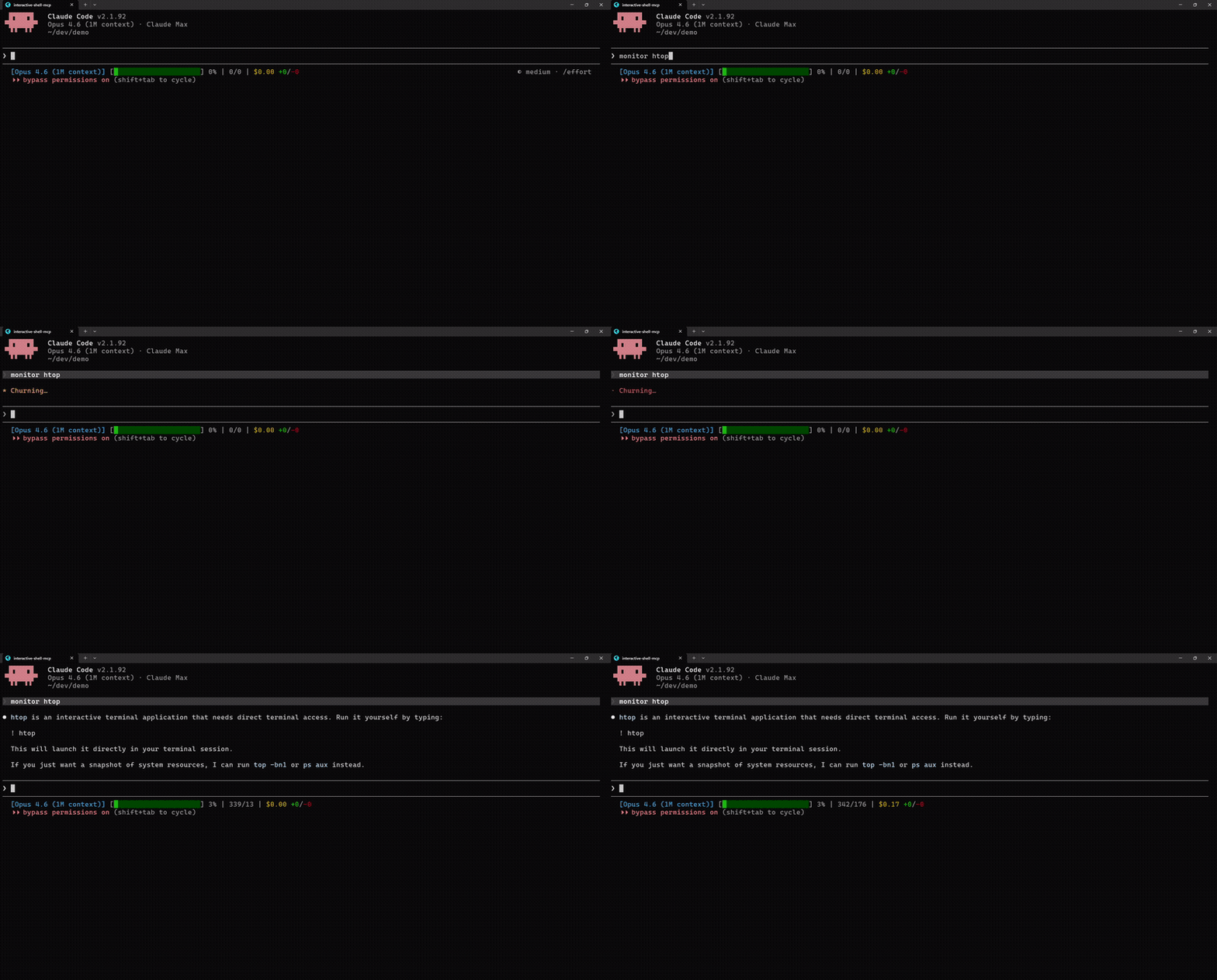
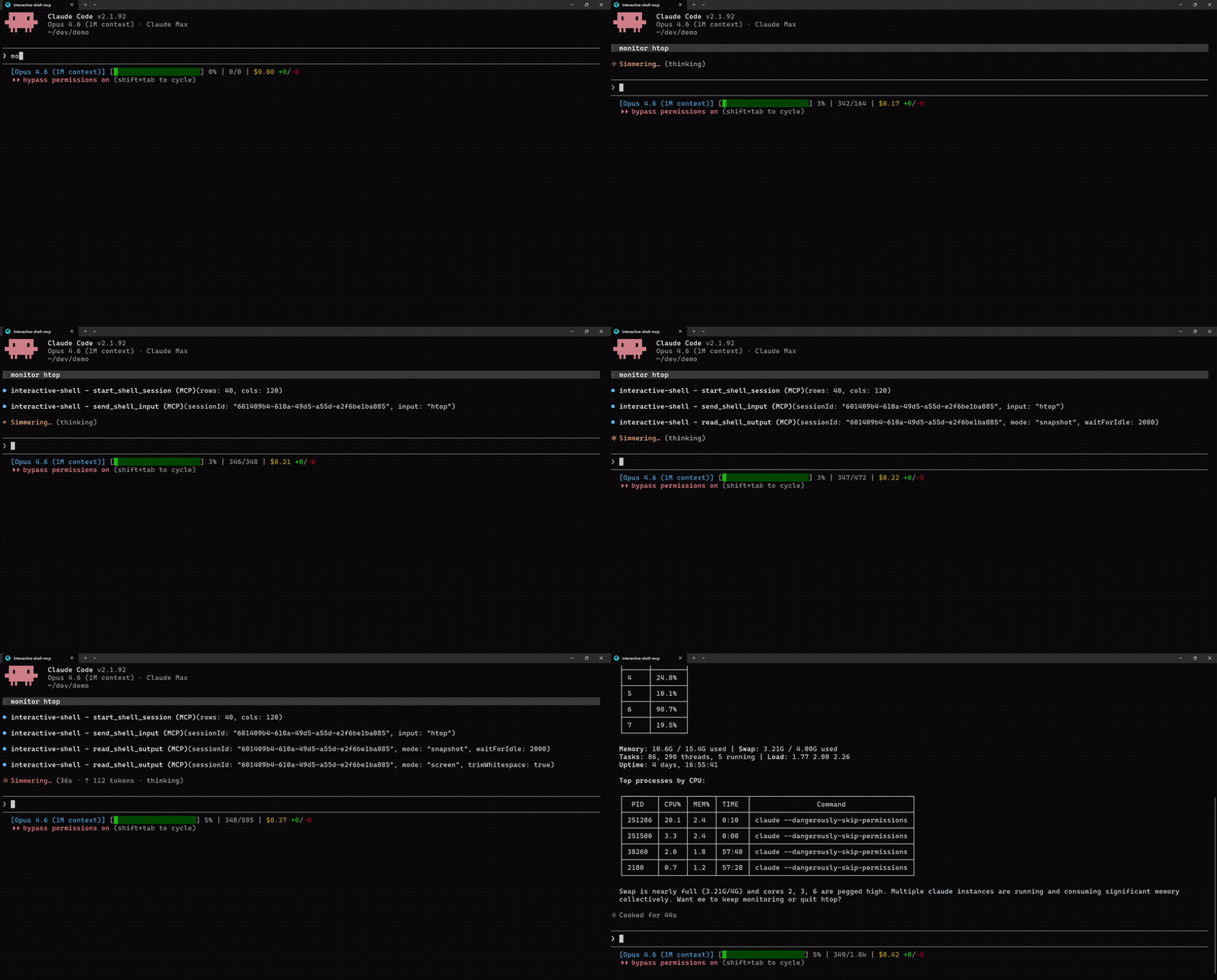
Without MCP | With MCP |
|
|
"htop is interactive and can't run" | Launches htop, reads screen, extracts process data (2x speed) |
Related MCP server: pty-mcp
Most AI coding tools run shell commands in isolation: each command starts a fresh shell, interactive prompts are impossible, and TUI apps just dump raw escape codes. This MCP server provides persistent PTY sessions with a virtual terminal emulator (@xterm/headless) so agents can maintain shell state, navigate interactive prompts with arrow keys, and read rendered terminal screens as clean text.
Three output modes:
Mode | Best for | What you get |
streaming | Regular commands (ls, git, npm) | Raw sequential output, cleared after read |
snapshot | Live-updating apps (top, htop) | Current terminal buffer tail |
screen | TUI apps, prompts, anything visual | Rendered 2D text grid (what a human sees) |
git clone https://github.com/lightos/interactive-shell-mcp.git
cd interactive-shell-mcp
npm install && npm run build
claude mcp add interactive-shell node dist/src/server.js
Then ask Claude: "monitor htop and tell me what's using the most CPU"
Rendered screen reading from TUI apps via @xterm/headless
waitForIdle across all read tools (no more guessing with sleep)
Screen search with text and regex pattern matching
Rectangular region extraction with row/col coordinates
Shell allowlist: bash, zsh, fish, sh, dash, ksh, powershell.exe, pwsh, cmd.exe
Auto-cleanup after 10min idle, exit code detection for 60s after process exit
Cross-platform: Unix/Linux/macOS + Windows
Interactive scaffolding & migrations: npx create-next-app, drizzle-kit push, prisma migrate, npm init, or any inquirer/clack-based CLI
System monitoring: htop, btop, top, iftop, duf with process search and region extraction
DevOps TUIs: lazydocker, lazygit, k9s, terraform console
Remote sessions: ssh into servers, including nested TUI apps over SSH
Database CLIs: psql, mysql, redis-cli, mongosh in interactive mode
Network tools: netcat/ncat, nmap, airodump-ng, tcpdump
REPLs & debuggers: python, node, irb, gdb/lldb
Text editors: vim, nano, emacs -nw
claude mcp add interactive-shell node /path/to/interactive-shell-mcp/dist/src/server.jsAdd to ~/Library/Application Support/Claude/claude_desktop_config.json (macOS) or %APPDATA%\Claude\claude_desktop_config.json (Windows):
{
  "mcpServers": {
    "interactive-shell": {
      "command": "node",
      "args": ["/path/to/interactive-shell-mcp/dist/src/server.js"]
    }
  }
}Add to your MCP settings (.vscode/mcp.json or ~/.cursor/mcp.json):
{
  "mcpServers": {
    "interactive-shell": {
      "command": "node",
      "args": ["/path/to/interactive-shell-mcp/dist/src/server.js"]
    }
  }
}start_shell_sessionSpawn a new PTY shell with a virtual terminal emulator.
Parameter | Type | Required | Description |
| number | no | Terminal columns (default: 120, max: 500) |
| number | no | Terminal rows (default: 40, max: 200) |
| string | no | Shell to use (default: |
| string | no | Working directory (default: server cwd) |
Returns { sessionId, cols, rows }
send_shell_inputWrite input to the PTY. Appends carriage return by default.
Parameter | Type | Required | Description |
| string | yes | Session ID |
| string | yes | Text to send. Raw mode: |
| boolean | no | Send without appending CR. Parses escape sequences. (default: false) |
read_shell_outputRead output from the PTY. Three modes: streaming (default), snapshot, screen.
Parameter | Type | Required | Description |
| string | yes | Session ID |
| string | no |
|
| number | no | Wait for N ms of silence before reading (max: 5000ms) |
| number | no | Max bytes for streaming mode (default: 100KB) |
| number | no | Snapshot buffer size (default: 50KB) |
| number | no | Screen mode: start row (0-based) |
| number | no | Screen mode: end row (exclusive) |
| boolean | no | Screen mode: include trailing empty lines (default: true) |
| boolean | no | Screen mode: trim trailing whitespace per line (default: false) |
Screen mode returns cursor position, terminal dimensions, and alternate buffer state in metadata.
get_screen_regionExtract text from a rectangular region of the screen.
Parameter | Type | Required | Description |
| string | yes | Session ID |
| number | yes | Start row (0-based, inclusive) |
| number | yes | Start column (0-based, inclusive) |
| number | yes | End row (exclusive) |
| number | yes | End column (exclusive) |
| boolean | no | Trim trailing whitespace per line (default: false) |
| number | no | Wait for N ms of silence before reading (max: 5000ms) |
get_screen_cursorGet cursor position and current line text.
Parameter | Type | Required | Description |
| string | yes | Session ID |
| number | no | Wait for N ms of silence before reading (max: 5000ms) |
Returns { cursor: { x, y }, currentLine, isAlternateBuffer }
search_screenSearch the terminal screen for text or regex. Returns up to 50 matches.
Parameter | Type | Required | Description |
| string | yes | Session ID |
| string | yes | Text or regex pattern |
| boolean | no | Treat pattern as regex (default: false) |
| number | no | Wait for N ms of silence before reading (max: 5000ms) |
Returns { results: [{ row, col, text }], count }
list_sessionsList all active sessions with metadata. No parameters.
Returns { sessions: [{ sessionId, shell, cols, rows, isAlternateBuffer, idleSeconds }] }
resize_shellResize an active session's terminal.
Parameter | Type | Required | Description |
| string | yes | Session ID |
| number | yes | New columns (1-500) |
| number | yes | New rows (1-200) |
end_shell_sessionClose the PTY and clean up resources.
Parameter | Type | Required | Description |
| string | yes | Session ID |
These show the MCP tool call patterns for developers building integrations. End users just talk to their AI agent naturally.
await send_shell_input(sessionId, "htop");
const { output, metadata } = await read_shell_output(sessionId, {
  mode: "screen",
  waitForIdle: 500
});
// output: rendered htop as clean text (CPU bars, process table, etc.)
// metadata.isAlternateBuffer: true (htop uses alternate screen)

// Extract just the process list (rows 6-30)
const processes = await get_screen_region(sessionId, {
  startRow: 6, startCol: 0, endRow: 30, endCol: 120,
  trimWhitespace: true
});// Send arrow keys and enter in raw mode
await send_shell_input(sessionId, "\\x1b[B", { raw: true }); // down arrow
await send_shell_input(sessionId, " ", { raw: true }); // space to select
await send_shell_input(sessionId, "\\r", { raw: true }); // enter to confirm
// Read what the prompt looks like now
const screen = await read_shell_output(sessionId, {
mode: "screen", waitForIdle: 300
});await send_shell_input(sessionId, "npm install");
const output = await read_shell_output(sessionId, {
waitForIdle: 1000 // wait for 1s of silence
});// Find all error lines
const errors = await search_screen(sessionId, {
pattern: "error|Error|ERROR",
regex: true,
waitForIdle: 500
});
// [{ row: 12, col: 0, text: "Error" }, ...]Auto-cleanup: Sessions idle >10 minutes are disposed automatically
Exit detection: When a shell exits, tools return "Session exited with code N" for 60 seconds instead of a generic invalid ID error
Shell allowlist: Only known shells can be spawned (bash, zsh, fish, sh, dash, ksh, powershell.exe, pwsh, cmd.exe). Unknown values fall back to platform default.
MIT
This server cannot be deployed
Operate Linux, macOS and Windows from your LLM. Every action runs through an auditable allowlist.
Persistent cloud workspaces for AI agents: run commands, edit files, use git and a browser.
Use your Mac, Windows or Linux computer from ChatGPT, Claude or Codex: files, commands, documents.
Persistent Linux computers for AI agents: desktop, signed-in browser, vault, apps and shell.