

A
licenseB
qualityD
maintenanceConnects Blender to Claude AI through the Model Context Protocol, enabling AI-assisted 3D modeling, scene creation, and manipulation through natural language commands.
17
2
MIT

BlenderMCP connects Claude AI to Blender through the Model Context Protocol, enabling AI-driven control of the 3D environment.
Core Blender Operations
Scene Inspection: Get detailed information about the current scene and specific objects
Viewport Screenshots: Capture images of the 3D viewport to visualize the current state
Code Execution: Execute arbitrary Python code in Blender for custom operations
Asset Management
Poly Haven: Browse categories, search and download HDRIs, textures, and models at various resolutions, apply textures to objects, and check integration status
Sketchfab: Search with filtering options, download and import models by identifier, and check integration status
Hyper3D Rodin: Generate 3D models from text descriptions or reference images (file paths/URLs), poll job status, import completed assets, and check integration status and mode (MAIN_SITE or FAL_AI)
Enables direct control and manipulation of Blender through socket-based communication, allowing for 3D object creation and modification, material application, scene inspection, and execution of arbitrary Python code within Blender
Provides search and download capabilities for 3D models from the Sketchfab platform
Click on "Deploy Server".
Wait a few minutes for the server to deploy. Once ready, it will show a "Started" state.
In the chat, type @ followed by the MCP server name and your instructions, e.g., "@BlenderMCP create a simple cube and apply a metallic material to it"
That's it! The server will respond to your query, and you can continue using it as needed.
Here is a step-by-step guide with screenshots.
BlenderMCP connects Blender to Claude AI through the Model Context Protocol (MCP), allowing Claude to directly interact with and control Blender. This integration enables prompt assisted 3D modeling, scene creation, and manipulation.
We have no official website. Any website you see online is unofficial and has no affiliation with this project. Use them at your own risk.
Give feedback, get inspired, and build on top of the MCP: Discord
All supporters:
View screenshots for Blender viewport to better understand the scene
Search and download Sketchfab models
Support for Poly Haven assets through their API
Support to generate 3D models using Hyper3D Rodin
For newcomers, you can go straight to Installation. For existing users, see the points below
Download the latest addon.py file and replace the older one, then add it to Blender
Delete the MCP server from Claude and add it back again, and you should be good to go!
Related MCP server: BlenderMCP
Two-way communication: Connect Claude AI to Blender through a socket-based server
Object manipulation: Create, modify, and delete 3D objects in Blender
Material control: Apply and modify materials and colors
Scene inspection: Get detailed information about the current Blender scene
Code execution: Run arbitrary Python code in Blender from Claude
The system consists of two main components:
Blender Addon (addon.py): A Blender addon that creates a socket server within Blender to receive and execute commands
MCP Server (src/blender_mcp/server.py): A Python server that implements the Model Context Protocol and connects to the Blender addon
Blender 3.0 or newer
Python 3.10 or newer
uv package manager:
If you're on Mac, please install uv as
brew install uvOn Windows
powershell -c "irm https://astral.sh/uv/install.ps1 | iex" and then
set Path=C:\Users\nntra\.local\bin;%Path%Otherwise installation instructions are on their website: Install uv
⚠️ Do not proceed before installing UV
The following environment variables can be used to configure the Blender connection:
BLENDER_HOST: Host address for Blender socket server (default: "localhost")
BLENDER_PORT: Port number for Blender socket server (default: 9876)
Example:
export BLENDER_HOST='host.docker.internal'
export BLENDER_PORT=9876Watch the setup instruction video (Assuming you have already installed uv)
Go to Claude > Settings > Developer > Edit Config > claude_desktop_config.json to include the following:
{
    "mcpServers": {
        "blender": {
            "command": "uvx",
            "args": [
                "blender-mcp"
            ]
        }
    }
}
For Mac users, go to Settings > MCP and paste the following
To use as a global server, use "add new global MCP server" button and paste
To use as a project specific server, create .cursor/mcp.json in the root of the project and paste
{
    "mcpServers": {
        "blender": {
            "command": "uvx",
            "args": [
                "blender-mcp"
            ]
        }
    }
}
For Windows users, go to Settings > MCP > Add Server, add a new server with the following settings:
{
    "mcpServers": {
        "blender": {
            "command": "cmd",
            "args": [
                "/c",
                "uvx",
                "blender-mcp"
            ]
        }
    }
}⚠️ Only run one instance of the MCP server (either on Cursor or Claude Desktop), not both
Prerequisites: Make sure you have Visual Studio Code installed before proceeding.
Download the addon.py file from this repo
Open Blender
Go to Edit > Preferences > Add-ons
Click "Install..." and select the addon.py file
Enable the addon by checking the box next to "Interface: Blender MCP"
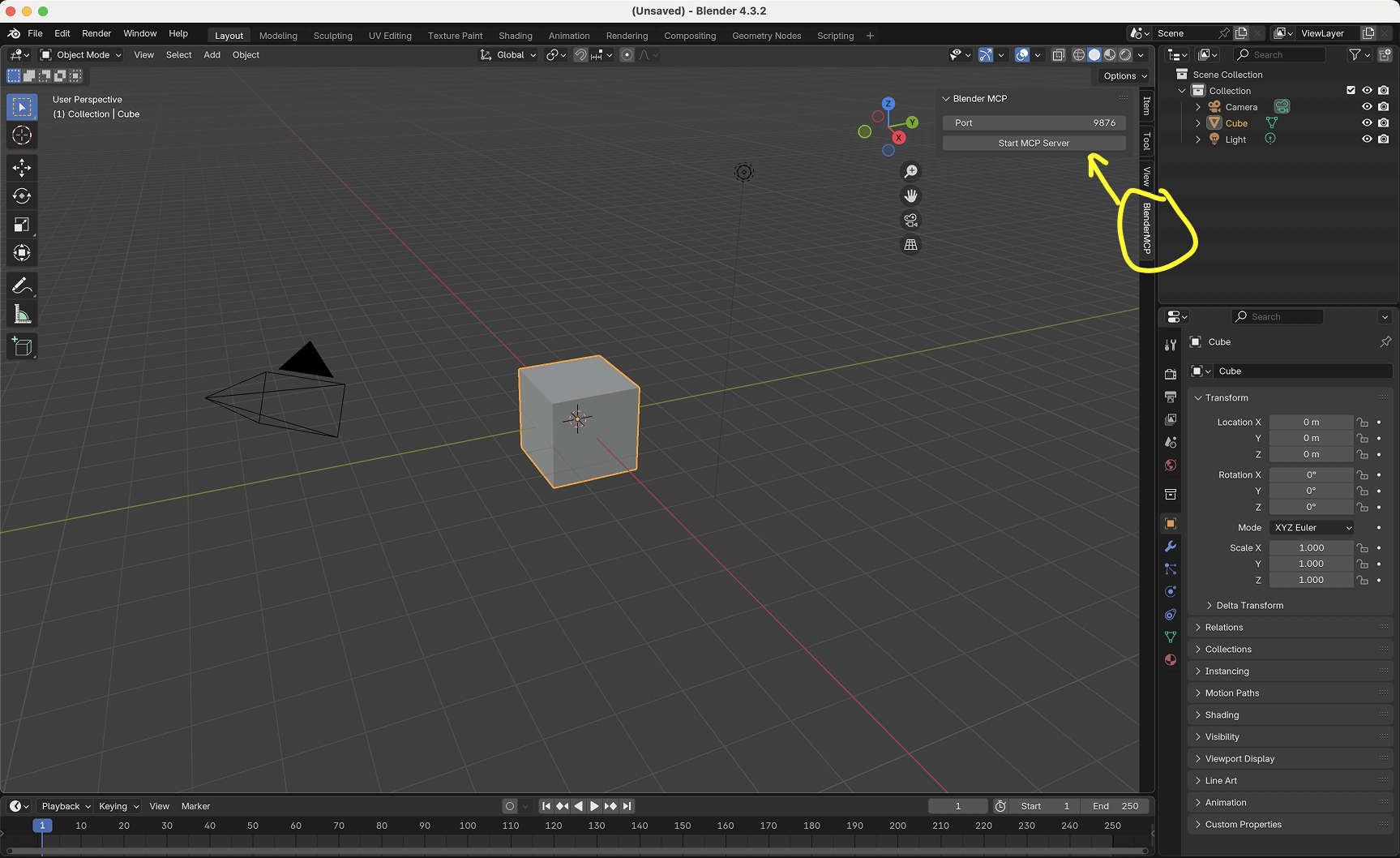
In Blender, go to the 3D View sidebar (press N if not visible)
Find the "BlenderMCP" tab
Turn on the Poly Haven checkbox if you want assets from their API (optional)
Click "Connect to Claude"
Make sure the MCP server is running in your terminal
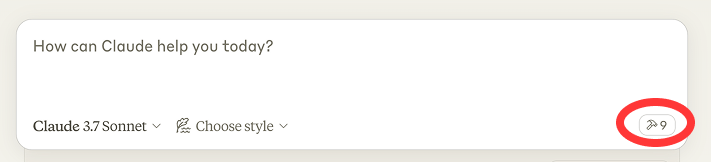
Once the config file has been set on Claude, and the addon is running on Blender, you will see a hammer icon with tools for the Blender MCP.
Get scene and object information
Create, delete and modify shapes
Apply or create materials for objects
Execute any Python code in Blender
Download the right models, assets and HDRIs through Poly Haven
AI generated 3D models through Hyper3D Rodin
Here are some examples of what you can ask Claude to do:
"Create a low poly scene in a dungeon, with a dragon guarding a pot of gold" Demo
"Create a beach vibe using HDRIs, textures, and models like rocks and vegetation from Poly Haven" Demo
Give a reference image, and create a Blender scene out of it Demo
"Generate a 3D model of a garden gnome through Hyper3D"
"Get information about the current scene, and make a threejs sketch from it" Demo
"Make this car red and metallic"
"Create a sphere and place it above the cube"
"Make the lighting like a studio"
"Point the camera at the scene, and make it isometric"
Hyper3D's free trial key allows you to generate a limited number of models per day. If the daily limit is reached, you can wait for the next day's reset or obtain your own key from hyper3d.ai and fal.ai.
Connection issues: Make sure the Blender addon server is running, and the MCP server is configured on Claude, DO NOT run the uvx command in the terminal. Sometimes, the first command won't go through but after that it starts working.
Timeout errors: Try simplifying your requests or breaking them into smaller steps
Poly Haven integration: Claude is sometimes erratic with its behaviour
Have you tried turning it off and on again?: If you're still having connection errors, try restarting both Claude and the Blender server
The system uses a simple JSON-based protocol over TCP sockets:
Commands are sent as JSON objects with a type and optional params
Responses are JSON objects with a status and result or message
The execute_blender_code tool allows running arbitrary Python code in Blender, which can be powerful but potentially dangerous. Use with caution in production environments. ALWAYS save your work before using it.
Poly Haven requires downloading models, textures, and HDRI images. If you do not want to use it, please turn it off in the checkbox in Blender.
Complex operations might need to be broken down into smaller steps
Contributions are welcome! Please feel free to submit a Pull Request.
This is a third-party integration and not made by Blender. Made by Rodingo
Download and import a Polyhaven asset into Blender.

Parameters:
- asset_id: The ID of the asset to download
- asset_type: The type of asset (hdris, textures, models)
- resolution: The resolution to download (e.g., 1k, 2k, 4k)
- file_format: Optional file format (e.g., hdr, exr for HDRIs; jpg, png for textures; gltf, fbx for models)

Returns a message indicating success or failure.
Inputs: asset_id (required), asset_type (required), resolution, file_format.
Download and import a Sketchfab model by its UID.

Parameters:
- uid: The unique identifier of the Sketchfab model

Returns a message indicating success or failure.
The model must be downloadable and you must have proper access rights.
Inputs: uid (required).
Execute arbitrary Python code in Blender. Make sure to do it step-by-step by breaking it into smaller chunks.

Parameters:
- code: The Python code to execute
Inputs: code (required).
Generate 3D asset using Hyper3D by giving images of the wanted asset, and import the generated asset into Blender.
The 3D asset has built-in materials.
The generated model has a normalized size, so re-scaling after generation can be useful.

Parameters:
- input_image_paths: The **absolute** paths of input images. Even if only one image is provided, wrap it into a list. Required if Hyper3D Rodin in MAIN_SITE mode.
- input_image_urls: The URLs of input images. Even if only one image is provided, wrap it into a list. Required if Hyper3D Rodin in FAL_AI mode.
- bbox_condition: Optional. If given, it has to be a list of ints of length 3. Controls the ratio between [Length, Width, Height] of the model.

Only one of {input_image_paths, input_image_urls} should be given at a time, depending on the Hyper3D Rodin's current mode.
Returns a message indicating success or failure.
Inputs: input_image_paths, input_image_urls, bbox_condition.
Generate 3D asset using Hyper3D by giving description of the desired asset, and import the asset into Blender.
The 3D asset has built-in materials.
The generated model has a normalized size, so re-scaling after generation can be useful.

Parameters:
- text_prompt: A short description of the desired model in **English**.
- bbox_condition: Optional. If given, it has to be a list of floats of length 3. Controls the ratio between [Length, Width, Height] of the model.

Returns a message indicating success or failure.
Inputs: text_prompt (required), bbox_condition.
Check if Hyper3D Rodin integration is enabled in Blender. Returns a message indicating whether Hyper3D Rodin features are available.
Don't emphasize the key type in the returned message, but sliently remember it.
Inputs: no named parameters.
Get detailed information about a specific object in the Blender scene.

Parameters:
- object_name: The name of the object to get information about
Inputs: object_name (required).
Get a list of categories for a specific asset type on Polyhaven.

Parameters:
- asset_type: The type of asset to get categories for (hdris, textures, models, all)
Inputs: asset_type.
Check if PolyHaven integration is enabled in Blender. Returns a message indicating whether PolyHaven features are available.
Inputs: no named parameters.
Get detailed information about the current Blender scene
Inputs: no named parameters.
Check if Sketchfab integration is enabled in Blender. Returns a message indicating whether Sketchfab features are available.
Inputs: no named parameters.
Capture a screenshot of the current Blender 3D viewport.

Parameters:
- max_size: Maximum size in pixels for the largest dimension (default: 800)

Returns the screenshot as an Image.
Inputs: max_size.
Import the asset generated by Hyper3D Rodin after the generation task is completed.

Parameters:
- name: The name of the object in scene
- task_uuid: For Hyper3D Rodin mode MAIN_SITE: The task_uuid given in the generate model step.
- request_id: For Hyper3D Rodin mode FAL_AI: The request_id given in the generate model step.

Only give one of {task_uuid, request_id} based on the Hyper3D Rodin Mode!
Return if the asset has been imported successfully.
Inputs: name (required), task_uuid, request_id.
Check if the Hyper3D Rodin generation task is completed.

For Hyper3D Rodin mode MAIN_SITE:
    Parameters:
    - subscription_key: The subscription_key given in the generate model step.

    Returns a list of status. The task is done if all status are "Done".
    If "Failed" showed up, the generating process failed.
    This is a polling API, so only proceed if the status are finally determined ("Done" or "Canceled").

For Hyper3D Rodin mode FAL_AI:
    Parameters:
    - request_id: The request_id given in the generate model step.

    Returns the generation task status. The task is done if status is "COMPLETED".
    The task is in progress if status is "IN_PROGRESS".
    If status other than "COMPLETED", "IN_PROGRESS", "IN_QUEUE" showed up, the generating process might be failed.
    This is a polling API, so only proceed if the status are finally determined ("COMPLETED" or some failed state).
Inputs: subscription_key, request_id.
Search for assets on Polyhaven with optional filtering.

Parameters:
- asset_type: Type of assets to search for (hdris, textures, models, all)
- categories: Optional comma-separated list of categories to filter by

Returns a list of matching assets with basic information.
Inputs: asset_type, categories.
Search for models on Sketchfab with optional filtering.

Parameters:
- query: Text to search for
- categories: Optional comma-separated list of categories
- count: Maximum number of results to return (default 20)
- downloadable: Whether to include only downloadable models (default True)

Returns a formatted list of matching models.
Inputs: query (required), categories, count, downloadable.
Apply a previously downloaded Polyhaven texture to an object.

Parameters:
- object_name: Name of the object to apply the texture to
- texture_id: ID of the Polyhaven texture to apply (must be downloaded first)

Returns a message indicating success or failure.
Inputs: object_name (required), texture_id (required).
Recent tool additions, removals, and schema changes observed during successful MCP inspections.
Loading tool schema changelog…
Scored across 17 tools
Most tools have distinct purposes, such as downloading assets from different sources (Polyhaven, Sketchfab), generating models via Hyper3D, and getting scene/object info. However, there is some overlap between 'generate_hyper3d_model_via_images' and 'generate_hyper3d_model_via_text' as both generate Hyper3D assets, which could cause confusion if the user is unsure which input method to use, though their descriptions clarify the difference.
All tool names follow a consistent snake_case pattern with clear verb_noun structures, such as 'download_polyhaven_asset', 'execute_blender_code', and 'get_scene_info'. There are no deviations in naming conventions, making the set predictable and easy to parse for an agent.
With 17 tools, the count is slightly high but reasonable for a Blender integration server that covers asset downloading, model generation, scene management, and status checks. It feels comprehensive without being overwhelming, though it borders on the upper limit of typical scoping (3-15 tools).
The tool surface covers key areas like asset import (Polyhaven, Sketchfab, Hyper3D), scene inspection, and basic operations (e.g., screenshot, code execution). Minor gaps exist, such as no tools for editing or deleting objects in Blender, but agents can work around this using 'execute_blender_code' for custom operations, ensuring core workflows are supported.
Use AI models for chat, image, and video generation from Claude Code and other MCP hosts.
Persistent context for Claude. Your AI always knows your projects and next actions across sessions.
Connect Claude to your Platform7n workspaces: chat, links, work and decks. One-click OAuth.
Connect Claude or any MCP client to Wireflow, the AI canvas for image, video and audio workflows. List, build, inspect and run your workflows and published apps, browse templates, check models, prices and credits, edit a video node's timeline, and plan or schedule social posts. Drafts and edits cost no credits; run tools spend the user's credits.