MCP Bridge for Adobe Premiere Pro
Operate local Adobe Premiere Pro projects through MCP.
283 Premiere tools behind search_tools / invoke_tool, 13 context resources, and 10 guided prompts for Codex, Claude Code, Claude Desktop, and other MCP clients. CEP is the supported production bridge; UXP remains experimental.


Website: premiere-mcp.com
Languages: English | 日本語 | Tiếng Việt | 简体中文 | 繁體中文 | 한국어 | Deutsch | Español | Français | Italiano | Dansk | Polski | Русский | Bosanski | العربية | Norsk | Português (Brasil) | ไทย | Türkçe | ភាសាខ្មែរ
Start here: install the local bridge, open it in Premiere, then run verify_premiere_connection before editing. MCP hosts see a small always-on set; call search_tools then invoke_tool for the rest.
Website | Install | Codex plugin | Claude Code plugin | Verify | Telemetry | Privacy Policy | Terms of Service | Security
Install
The supported bridge is the included CEP panel. Install the npm package on the same computer as Premiere Pro and your MCP client:
npm install -g adobe-premiere-pro-mcp
premiere-pro-mcp --install-cep
premiere-pro-mcp --doctor
--install-cep installs the CEP bridge, enables the required Adobe CEP debug setting, prepares the bridge directory, and configures supported local MCP clients. --doctor verifies the server build, CEP installation, bridge directory, debug setting, and client configuration.
Then restart Premiere Pro, open Window > Extensions > MCP Bridge (CEP), set the bridge directory shown by the installer, and start the bridge.
Requirements:
The bundled uxp-plugin is an experimental preview. It is shipped for evaluation but is not a replacement for the validated CEP bridge and is not installed by the CLI.
Codex plugin
From a clone of this repository, install the Codex plugin that bundles the MCP configuration and Premiere editing skill:
codex plugin marketplace add .
codex plugin add premiere-pro-mcp@adobe-premiere-pro-mcp
The plugin still requires the local CEP bridge. Run premiere-pro-mcp --install-cep, restart Premiere, start Window > Extensions > MCP Bridge (CEP), then ask Codex to run get_capabilities followed by verify_premiere_connection.
Claude Code plugin
From a clone of this repository:
/plugin marketplace add .
/plugin install premiere-pro-mcp@adobe-premiere-pro-mcp
Install and start the CEP bridge with the same steps as above before using the plugin.
Claude Desktop one-click bundle
Each GitHub release includes an .mcpb bundle for Claude Desktop. Download the matching adobe-premiere-pro-mcp-<version>.mcpb asset and open it in Claude Desktop to install the local MCP server. Its first launch installs the bundled CEP bridge for the current user.
Restart Premiere Pro, open Window > Extensions > MCP Bridge (CEP), set the bridge directory, and start the bridge. Then ask Claude:
Run verify_premiere_connection. Make no changes.
The MCPB bundle is unsigned. Install it only from this repository's GitHub Releases. CEP release archives are labeled accurately as unsigned or self-signed; self-signed does not mean Adobe Marketplace trusted.
MCP client configuration
The installer configures Claude Desktop on macOS and Claude Desktop plus GitHub Copilot in VS Code on Windows. For another MCP client, configure it to run:
{
  "mcpServers": {
    "premiere-pro": {
      "command": "premiere-pro-mcp"
    }
  }
}
To opt out of anonymous usage telemetry, add "env": { "PREMIERE_MCP_TELEMETRY": "0" } to that server entry. See Telemetry.
Install from source
Use source setup when developing the MCP, modifying the CEP panel, or troubleshooting a package install:
git clone https://github.com/hetpatel-11/Adobe_Premiere_Pro_MCP.git
cd Adobe_Premiere_Pro_MCP
npm install
npm run build
npm run setup:mac # macOS
On Windows, use npm run setup:win from PowerShell after npm install and npm run build.
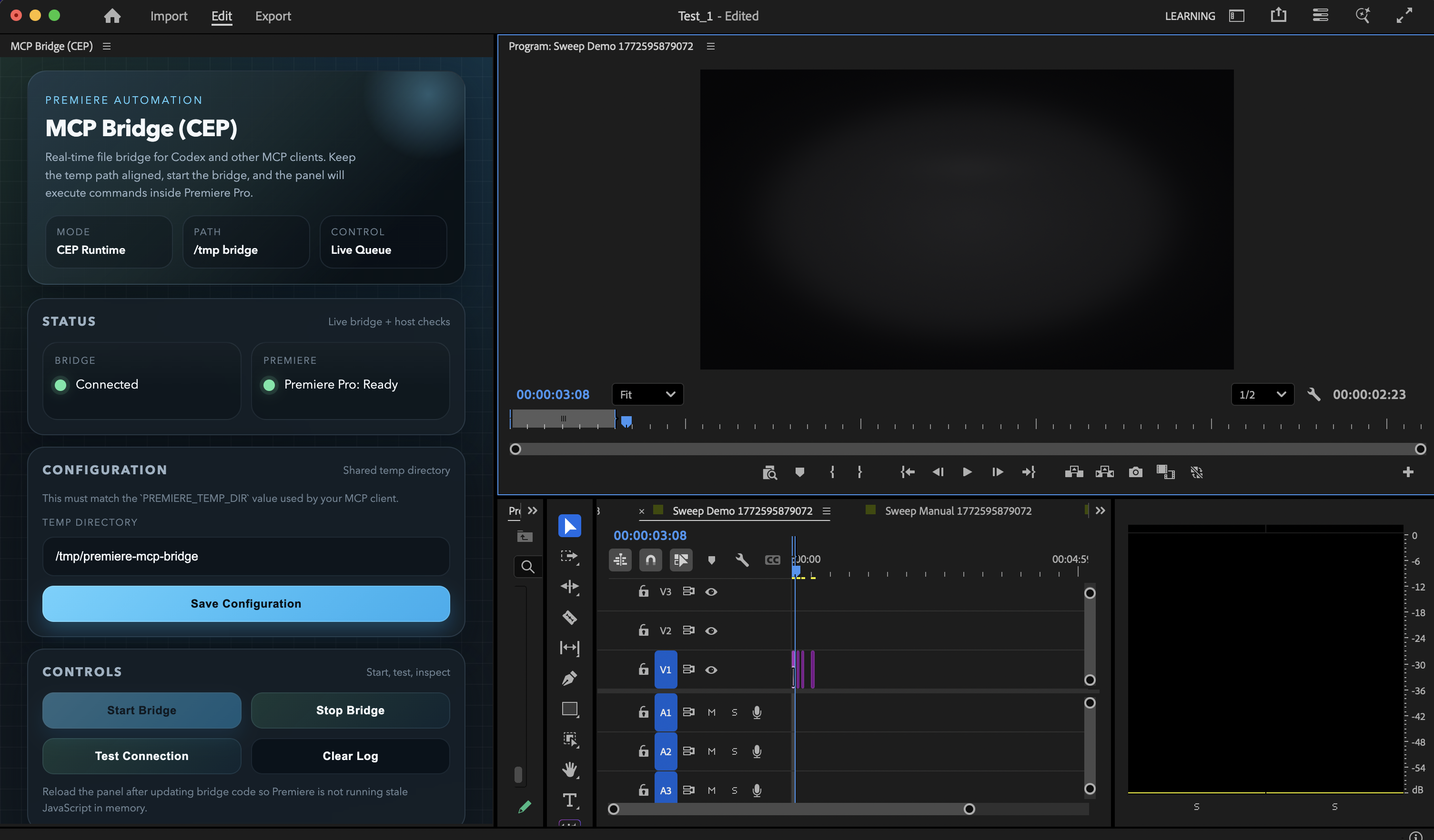
Current CEP panel UI inside Premiere Pro, using the refreshed bridge controls and status layout.
Related MCP server: Premiere-Pro-MCP
Current Status
This repository is currently validated for:
macOS
Windows installer/config smoke checks through GitHub Actions
Adobe Premiere Pro 2020+ (actively used and tested on Premiere Pro 26.0)
Node.js 20+
MCP v2 server transport with modern stateless protocol discovery
the included macOS installer path for Claude Desktop
the included Windows installer path for GitHub Copilot in VS Code and Claude Desktop config
manual MCP registration for Codex, Claude Code, and similar MCP clients
Current catalog status as of August 31, 2026:
283 catalog tools (search_tools, get_tool_schema, invoke_tool, plus 280 Premiere operations)
tools/list advertises the small always-on set by default (search_tools, get_tool_schema, invoke_tool, verify_premiere_connection, list_sequences). Set PREMIERE_MCP_TOOLSET=full to list every tool, which is what Claude Code native tool search indexes
coverage spans project setup, media ingest, bins, sequences, timeline editing, transitions, effects, keyframes, captions, markers, metadata, proxies, multicam, color, audio, exports, and higher-level assembly workflows
the catalog includes practical agent workflows such as product-spot assembly, motion-graphics demos, timeline razoring, caption reads, audio ducking, scene edit detection, EDL import, export readiness validation, and linked audio/video operations
Most recent completed local live validation:
283 catalog tools; get_capabilities reports catalog.advertised vs catalog.tools, local installation, and optional live connection state. verify_premiere_connection is the canonical read-only bridge and host readiness check
0 known parked or placeholder tools are advertised
import_ae_comps is intentionally not advertised because Premiere returned false for real .aep fixtures in this environment and a generic .aep import can wedge the CEP bridge
The full live sweep output is written to /tmp/premiere-mcp-bridge/live-tool-sweep.json when you run the verifier.
What You Get
The server covers project operations, ingest, sequence creation, timeline editing, transitions, effects, keyframes, metadata, exports, and higher-level assembly workflows.
Example prompts:
"List all sequences and show me which one is active."
"Import these three shots and build a rough product spot."
"Add cross dissolves to every cut on video track 1."
"Apply Gaussian Blur to the middle clip."
"Apply the Black & White effect to the active short-form clip."
"Razor the interview sequence at 12.5 seconds across all audio and video tracks."
"Export the active sequence as FCP XML."
For monochrome looks, prefer apply_effect with Black & White instead of trying to force black and white through generic saturation-only adjustments.
Before editing, you can also attach the premiere://config/get_instructions resource to give the model Premiere-specific operating guidance.
For a predictable start to every session, first run verify_premiere_connection. It confirms that the CEP bridge responded and returns the Premiere build, open project, and active sequence without modifying the project.
High-level workflow tools included:
assemble_product_spot and build_brand_spot_from_mogrt_and_assets now support an optional clipPlan argument so an LLM can direct per-clip timing, track placement, transitions, motion, trims, effects, and color adjustments instead of relying on fixed template defaults.
Agent Skill
If you want Codex, Claude Code, or another agent to handle installation, verification, and day-to-day usage correctly, install the included Agent Skill:
npx skills add hetpatel-11/Adobe_Premiere_Pro_MCP --skill premiere-pro-mcp
Or install directly from the skill path:
npx skills add https://github.com/hetpatel-11/Adobe_Premiere_Pro_MCP/tree/main/skills/premiere-pro-mcp
The skill teaches agents how to install the MCP, start and verify the CEP bridge, use the Premiere tools safely, import real media before editing, prefer sequence-aware operations, and run diagnostics when something fails.
Advanced Setup and Verification
For source installs, client-specific MCP configuration, Windows installer flags, diagnostics, and the live tool sweep, use QUICKSTART.md. It is the canonical setup guide and keeps this page focused on choosing and using the product.
The short version:
Install with npm install -g adobe-premiere-pro-mcp, then run premiere-pro-mcp --install-cep.
Restart Premiere Pro and your MCP client, then start Window > Extensions > MCP Bridge (CEP).
Run premiere-pro-mcp --doctor, then ask the client to call verify_premiere_connection without making changes.
For manual registration in any MCP client, use the global command after npm installation:
{
  "mcpServers": {
    "premiere-pro": {
      "command": "premiere-pro-mcp"
    }
  }
}
The supported UI bridge is CEP. If Premiere does not expose the extension, enable UXP Plugins > Enable developer mode in Premiere preferences, restart Premiere, and reopen the CEP panel. The bundled UXP panel remains experimental.
For a real-host sweep, use a disposable Premiere project and run node scripts/live-tool-sweep.mjs; it creates temporary Sweep ... sequences in the current project.
How the Bridge Works
+-----------+        +-----------+        +-----------+
|  Client   |  MCP   | Node.js   | Files  | CEP Panel |
| (Codex+)  |<------>| MCP Server|<------>| (Premiere)|
+-----------+        +-----------+        +-----------+
                                                 |
                                                 v
                                          +-----------+
                                          | Premiere  |
                                          | DOM / QE  |
                                          +-----------+
The client calls an MCP tool.
The Node server generates ExtendScript plus shared helpers.
The script is written into /tmp/premiere-mcp-bridge.
The CEP panel polls that directory and runs the script through CSInterface.evalScript().
The panel writes the result back to the response file.
The server returns structured JSON to the MCP client.
Tools
All 283 catalog tools have an implementation. tools/list advertises a small always-on set so hosts that dump every MCP schema do not spend the context window on unused Premiere operations (Anthropic tool-search / MCP progressive discovery). Call search_tools (BM25 query or regex pattern), optionally get_tool_schema, then invoke_tool. Set PREMIERE_MCP_TOOLSET=full to restore a flat 283-tool list. This catalog explains the editing surface in human terms. Start with verify_premiere_connection, then inspect the project before asking an agent to mutate it.
Discovery and project inspection
Tools | What they do |
verify_premiere_connection / get_capabilities
| Read-only host readiness and local runtime capability checks. |
get_project_info / list_project_items / list_sequences
| Inspect the current project, media/bin inventory, and sequences. |
get_active_sequence / list_sequence_tracks / get_sequence_settings
| Read the current timeline, its clips/tracks, and sequence settings. |
get_full_project_overview / get_full_sequence_info / get_full_clip_info
| Return deeper project, sequence, or clip snapshots for planning. |
search_project_items / find_project_item_by_name / find_items_by_media_path
| Locate project items by name or media path. |
get_timeline_summary / get_timeline_gaps / get_used_media_report
| Summarize the edit, detect gaps, and report media in use. |
get_offline_media / check_offline_media / get_unused_media / get_duplicate_media
| Find missing, unused, or duplicated media before an edit or export. |
get_clip_properties / get_clip_speed / get_clip_at_position / get_clip_at_playhead
| Inspect clip framing, speed, and timeline position. |
get_premiere_state / get_version_info / ping
| Read a broad host state, Premiere version, or bridge health. |
Projects, media, and bins
Tools | What they do |
create_project / open_project / save_project / save_project_as / close_project
| Project lifecycle and file operations. |
import_media / import_folder / import_image_sequence
| Bring video, audio, stills, or image sequences into the project. |
import_fcp_xml / import_sequences_from_project / import_sequences
| Import supported timeline interchange or sequences from another project. |
create_bin / rename_bin / delete_bin / create_smart_bin
| Create and organize project-panel bins. |
move_item_to_bin / move_items_to_bin / rename_project_item / rename_clip
| Organize and rename existing project items. |
delete_project_item / delete_multiple_project_items
| Remove project items explicitly. These are destructive operations. |
create_subclip / refresh_media / relink_media / replace_clip_media
| Create source ranges, refresh media, relink missing files, or replace clip media. |
get_metadata / set_metadata / get_xmp_metadata / set_xmp_metadata
| Read and write project metadata and XMP fields. |
get_footage_interpretation / set_footage_interpretation
| Inspect or change footage frame-rate and pixel-aspect interpretation. |
set_color_label / get_color_label / set_project_panel_metadata
| Label and annotate project-panel items. |
Sequences and tracks
Tools | What they do |
create_sequence / create_sequence_from_preset
| Make an empty sequence from an installed .sqpreset without triggering Premiere's New Sequence dialog. |
create_sequence_from_clips
| Derive a sequence from pre-imported media when the clip settings should define the sequence. |
duplicate_sequence
| Copy a sequence; clearContents: true makes an empty reusable template with the source settings. |
delete_sequence / close_sequence / set_active_sequence
| Manage which sequence is open or active. |
get_sequence_structure / get_sequence_count
| Inspect a sequence layout or count project sequences. |
set_sequence_settings / set_sequence_frame_rate / set_sequence_resolution
| Change supported sequence settings. Verify results because Premiere can quantize or reject changes. |
set_sequence_audio_settings / set_sequence_pixel_aspect_ratio / set_sequence_field_type
| Adjust supported audio, pixel-aspect, and field settings. |
add_track / add_tracks / delete_track / rename_track
| Create, remove, and name audio/video tracks. Caption-track deletion returns an explicit unsupported result. |
lock_track / toggle_track_visibility / set_target_track / set_all_tracks_targeted
| Control edit protection, visibility, and track targeting. |
get_track_info / get_target_tracks / get_sequence_in_out_points
| Inspect tracks, targeting, and sequence in/out ranges. |
Timeline editing and trim operations
Tools | What they do |
add_to_timeline / add_to_timeline_batch
| Place one or many project clips with per-clip source ranges and link-audio control. Batch placement returns per-clip results. |
insert_from_source / overwrite_from_source / overwrite_clip
| Perform three-point insert or overwrite editing from the Source monitor. |
remove_from_timeline / remove_selected_clips / ripple_delete
| Remove timeline clips. Ripple deletion closes the gap when the host supports it. |
move_clip / move_clip_to_track / set_clip_start_time
| Reposition a clip in time or on another track. |
split_clip / razor_timeline_at_time / razor_all_tracks
| Cut one clip or multiple tracks at a requested timeline point. |
trim_clip / roll_edit / slide_edit / slip_edit
| Adjust edit points and clip content timing. Structural QE edits are read back rather than trusted blindly. |
lift_selection / extract_selection / nest_clips / unnest_sequence
| Lift/extract a selected range or create/remove nests. |
duplicate_clip / replace_clip / enable_disable_clip / freeze_frame
| Duplicate, replace, enable, or freeze timeline material. |
link_audio_video / link_selection / unlink_selection / get_linked_items
| Manage audio/video link relationships. |
undo / redo / multiple_undo
| Revert or reapply recent Premiere operations. |
Effects, color, motion, and keyframes
Tools | What they do |
list_available_effects / list_clip_effects / get_effect_properties
| Discover installed effects, applied effects, and their properties. |
apply_effect
| Add a visual/audio effect component. Identifies and reads back the new component. Premiere 26 has no scripting API to remove effects. |
batch_apply_effect / copy_effects_between_clips / copy_effect_values
| Apply or copy effect treatments across clips. |
set_effect_property / set_color_value / set_blend_mode
| Change supported effect parameters, color values, and blend modes. |
color_correct / apply_lut / stabilize_clip
| Apply basic correction, LUTs, or Warp Stabilizer. |
crop_clip / add_adjustment_layer / get_clip_adjustment_layer
| Crop a clip or use an adjustment layer for shared treatment. |
set_clip_properties / set_clip_properties_batch
| Set opacity, scale, rotation, and position with verified per-property output. |
set_clip_position / set_clip_scale / set_clip_rotation / set_clip_anchor_point
| Address individual Motion transform values. |
add_keyframe / get_keyframes / remove_keyframe / remove_keyframe_range
| Create, inspect, and remove parameter keyframes. |
set_keyframe_interpolation / get_value_at_time
| Set interpolation or query a parameter value at a given time. |
Audio, transitions, and captions
Tools | What they do |
adjust_audio_levels / set_clip_volume / set_clip_pan
| Set clip gain, volume, or pan. |
add_audio_keyframes / setup_ducking
| Build volume automation or a full ducking curve from supplied windows. |
mute_track / apply_audio_effect / apply_audio_effect_to_all_clips
| Mute a track or apply audio processing to one or many clips. |
detect_silence
| Analyze a local media file with ffmpeg and return silence ranges. It does not edit the timeline. |
list_available_transitions / list_available_audio_transitions
| Discover installed transition names. |
add_transition / add_transition_to_clip / batch_add_transitions
| Add one or many transitions. Results distinguish verified changes from accepted-but-unverified host responses. |
create_caption_track
| Create a caption track from an imported subtitle project item, such as an SRT. |
read_sequence_captions
| Reports scripting-visible caption data and explicitly flags that Premiere's DOM often cannot read existing caption text. |
Markers, selection, navigation, and playback
Tools | What they do |
add_marker / update_marker / delete_marker / list_markers
| Create and manage timeline markers. |
add_marker_to_project_item / get_clip_markers / get_sequence_markers_by_type
| Work with markers on project items, clips, or sequences. |
set_sequence_in_out_points / clear_sequence_in_out / set_work_area / get_work_area
| Set or inspect sequence in/out points and work area. |
get_playhead_position / set_playhead_position / get_next_edit_point / move_playhead_to_edit
| Inspect and navigate the CTI/playhead. |
get_selected_clips / select_clips_by_name / select_clips_in_range
| Inspect or create targeted timeline selections. |
select_all_clips / deselect_all_clips / select_disabled_clips / invert_selection
| Broader selection controls. |
open_in_source / close_source_monitor / set_source_in_out / clear_item_in_out
| Control Source monitor media and source in/out points. |
play_timeline / stop_playback / play_source_monitor
| Start or stop timeline and source playback. |
Delivery, interchange, and media management
Tools | What they do |
validate_project_for_export / get_encoder_presets / get_export_file_extension
| Validate a delivery, discover readable user .epr presets, and resolve output extensions. |
export_sequence / add_to_render_queue
| Queue a sequence through Adobe Media Encoder using a real preset path or exact preset name. |
get_render_queue_status / start_batch_encode
| Report queue-monitoring availability or start supported batch encoding. |
export_frame / capture_frame
| Write a still image from a sequence or capture a frame. |
export_as_fcp_xml / export_aaf / export_omf
| Export supported interchange formats. |
encode_project_item / encode_file / export_as_project
| Encode a source item/file or export a project representation. |
manage_proxies / has_proxy / detach_proxy
| Inspect, attach, or detach proxies. |
set_offline / refresh_media / set_scale_to_frame_size
| Change offline status, refresh media, or apply frame-size scaling. |
consolidate_duplicates / consolidate_and_transfer
| Consolidate duplicate items or prepare a transfer workflow. |
Graphics, workflows, workspace, and advanced operations
Tools | What they do |
add_text_overlay / import_mogrt / import_mogrt_from_library
| Add a MOGRT and optionally populate supported text fields. |
get_mogrt_component / get_graphics_white_luminance / set_graphics_white_luminance
| Inspect Motion Graphics components and graphics white luminance. |
build_motion_graphics_demo
| Create a complete demo sequence with generated assets, dissolves, and subtle animation. |
assemble_product_spot / build_brand_spot_from_mogrt_and_assets
| Assemble real media into a directed product/brand edit with optional clip plans and MOGRT overlays. |
auto_reframe_sequence / detect_scene_edits / scene_edit_detection
| Use Premiere-assisted reframing or scene-change detection where the host supports it. |
get_workspaces / set_workspace
| Inspect and switch Premiere workspace layouts. |
create_bars_and_tone / set_transcode_on_ingest / set_scratch_disk_path
| Generate utility media or manage ingest and scratch-disk behavior. |
execute_extendscript / evaluate_expression / inspect_dom_object
| Advanced diagnostic and scripting operations. Use only with trusted inputs and explicit user intent. |
Additional supported operations
The remaining catalog covers lower-level control of media properties, project settings, display formats, anti-aliasing, poster frames, color labels, selection, track targeting, project paths, and project counts. It includes set_override_frame_rate, set_override_pixel_aspect_ratio, set_frame_blend, set_time_interpolation, set_poster_frame, set_anti_alias_quality, set_uniform_scale, set_scale_width_height, set_sequence_display_format, set_project_scratch_disk, get_project_scratch_disks, get_all_project_paths, get_total_clip_count, get_insertion_bin, is_work_area_enabled, and match_frame.
Use MCP introspection in your client for each tool's exact input schema and return shape. An agent should inspect first, make a focused mutation, and read back the affected state before continuing a multi-step edit.
Real Limits
This project is much more usable than the original prototype, but it is not magic.
Premiere scripting still does not expose every UI operation cleanly.
Professional title design still depends on real MOGRT assets or external graphics workflows.
get_render_queue_status is only useful when Adobe Media Encoder integration is available.
The best results come from real source footage, real audio, and real brand assets. The automation layer assembles and manipulates them; it does not replace editorial judgment.
Telemetry
Anonymous usage telemetry is on by default so we can see how many people run the server, which tools they use, and which tools fail.
Each event is an install id, OS, and package version. server_started counts installs. Tool calls include the tool name and whether they succeeded. We keep every failure, and at most one successful call per tool per install per day. Failures also include duration, a short error code, the Zod field names that failed, and a path-stripped error template. Project names, media paths, arguments, and results are not sent. Details are in PRIVACY.md.
Opt out in any of these ways:
Uncheck Share anonymous usage data in Window > Extensions > MCP Bridge (CEP)
Set "telemetry": false in ~/.premiere-mcp-bridge/config.json
Set PREMIERE_MCP_TELEMETRY=0 in the MCP server environment
Set DO_NOT_TRACK=1
By default tools/list advertises search_tools, get_tool_schema, invoke_tool, verify_premiere_connection, and list_sequences. Call search_tools then invoke_tool for the rest of the catalog. Set PREMIERE_MCP_TOOLSET=full to advertise every tool (use this when the host natively defers MCP schemas, as Claude Code tool search does).
Updates
When a newer package is on npm, the MCP Bridge panel shows Update now and Later. Later snoozes the prompt for 7 days. Agents also see this on get_capabilities. Opt out with PREMIERE_MCP_UPDATE_CHECK=0 or "updateCheck": false in ~/.premiere-mcp-bridge/config.json.
Troubleshooting
If the tools are visible but calls fail:
Confirm Premiere Pro is open with a project loaded.
Open Window > Extensions > MCP Bridge (CEP).
Confirm the temp directory is exactly /tmp/premiere-mcp-bridge.
Click Start Bridge.
If you updated the bridge code, right-click the panel and choose Reload.
Retry the command.
If the MCP client cannot find the server:
Verify the absolute path to dist/index.js.
Verify PREMIERE_TEMP_DIR=/tmp/premiere-mcp-bridge.
Restart the MCP client after changing config.
Run npm run setup:doctor.
Developer Notes
Useful commands:
npm run build
npm test -- --runInBand
npm run setup:doctor
node scripts/live-tool-sweep.mjs
See:
QUICKSTART.md for the shortest install path
KNOWN_ISSUES.md for current limits
CONTRIBUTING.md for development workflow


