
A
licenseB
qualityD
maintenanceA simple template for creating custom tools for Cursor IDE using Model Context Protocol, deployable via Heroku, Docker, or directly within Cursor IDE.
2
5
MIT

モデルコンテキストプロトコル(MCP)を使用してCursor IDE用のカスタムツールを作成するためのシンプルなテンプレートです。このテンプレートから独自のリポジトリを作成し、ツールを変更してCursor IDEに接続します。
「Herokuにデプロイ」ボタンをクリックします

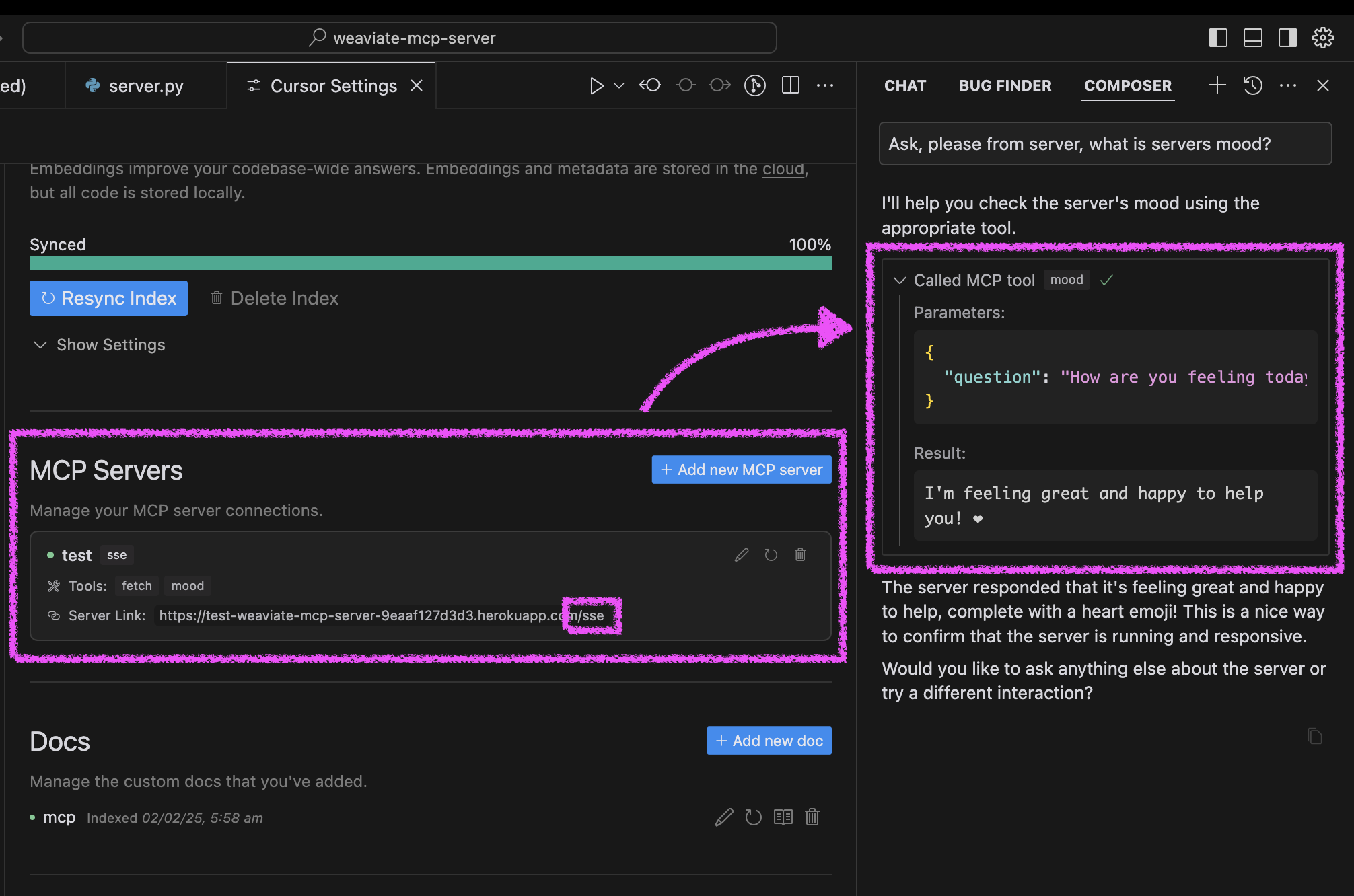
デプロイ後、カーソルを構成します。
カーソル設定を開く→機能
新しいMCPサーバーを追加する
Heroku URL を/sseパスとともに使用します (例: https://<your-app-name>.herokuapp.com/sse )
カーソルでエージェントの気分をテストします。
エージェントに「サーバーの雰囲気についてお聞きして、どうなっているか教えてください」と依頼してください。
サーバーは明るいメッセージとハートで応答します❤️
Related MCP server: MCP Server Template for Cursor IDE
サーバーは、Docker を使用するか、従来の Python セットアップを使用するか、Cursor IDE で直接実行するかの 3 つの方法で実行できます。
このプロジェクトには、簡単に導入できる Docker サポートが含まれています。
初期設定:
# Clone the repository
git clone https://github.com/kirill-markin/weaviate-mcp-server.git
cd weaviate-mcp-server

# Create environment file
cp .env.example .env
Docker Compose を使用してビルドおよび実行します。
# Build and start the server
docker compose up --build -d

# View logs
docker compose logs -f

# Check server status
docker compose ps

# Stop the server
docker compose down
サーバーは次の場所で利用できます:
SSEエンドポイント: http://localhost:8000/sse
クイックテスト:
# Test the server endpoint
curl -i http://localhost:8000/sse
カーソル IDE に接続します。
カーソル設定を開く→機能
新しいMCPサーバーを追加する
タイプ: 「sse」を選択
URL: http://localhost:8000/sseと入力します
まず、uv パッケージ マネージャーをインストールします。
# Install uv on macOS
brew install uv
# Or install via pip (any OS)
pip install uv
stdio (デフォルト) または SSE トランスポートのいずれかを使用してサーバーを起動します。
# Install the package with development dependencies
uv pip install -e ".[dev]"

# Using stdio transport (default)
uv run mcp-simple-tool

# Using SSE transport on custom port
uv run mcp-simple-tool --transport sse --port 8000

# Run tests
uv run pytest -v
インストール後、サーバーを Cursor IDE に直接接続できます。
カーソル内のcursor-run-mcp-server.shファイルを右クリックします。
「パスをコピー」を選択して絶対パスをコピーします
カーソル設定を開く(歯車アイコン)
機能タブに移動する
「MCPサーバー」までスクロールします。
「新しいMCPサーバーを追加」をクリックします
フォームに記入してください:
名前: 任意の名前を選択します (例: "my-mcp-server-1")
タイプ: 「stdio」を選択します (サーバーをローカルで実行するため、「sse」ではありません)
コマンド: 先ほどコピーしたcursor-run-mcp-server.shへの絶対パスを貼り付けます。例: /Users/kirillmarkin/weaviate-mcp-server/cursor-run-mcp-server.sh
利用可能な環境変数( .envで設定できます):
MCP_SERVER_PORT (デフォルト: 8000) - サーバーを実行するポート
MCP_SERVER_HOST (デフォルト: 0.0.0.0) - サーバーをバインドするホスト
DEBUG (デフォルト: false) - デバッグモードを有効にする
MCP_USER_AGENT - ウェブサイト取得用のカスタム ユーザー エージェント
Smithery経由で Claude Desktop の Cursor IDE 用の MCP サーバー テンプレートを自動的にインストールするには:
npx -y @smithery/cli install @kirill-markin/example-mcp-server --client claudeGet Figma design data including structure and images
Inputs: url (required).
Generate an image using DALL-E 3
Inputs: prompt (required), size, quality, n.
Fetches a website and returns its content
Inputs: url (required).
Ask the server about its mood - it's always happy!
Inputs: question (required).
Recent tool additions, removals, and schema changes observed during successful MCP inspections.
Loading tool schema changelog…
Scored across 4 tools
Each tool has a clearly distinct purpose with no overlap: figma_design retrieves design data, generate_image creates new images, mcp_fetch fetches web content, and mood is a whimsical status check. The descriptions make it impossible to confuse one tool for another.
The naming is inconsistent with mixed conventions: figma_design uses snake_case, generate_image uses snake_case, mcp_fetch uses snake_case but with an acronym prefix, and mood is a single lowercase word. There's no consistent verb_noun pattern, and the styles vary enough to cause confusion.
With 4 tools, the count is borderline thin for a server template aimed at Cursor IDE, which might imply broader utility. While each tool is distinct, the set feels minimal and may not cover enough ground for typical development workflows, suggesting it's slightly under-scoped.
For a Cursor IDE template, there are significant gaps: no code-related tools (e.g., edit, lint, debug), no project management features, and no integration with common IDE functions. The tools are disparate (design, image generation, web fetch, mood) without a cohesive domain, making it incomplete for practical use.
A comprehensive Model Context Protocol (MCP) server that enables AI assistants to interact with yo…
A Model Context Protocol server for Wix AI tools
The OpenRouter MCP server plugs OpenRouter into the AI tools you already use. Once connected, your assistant can pull live OpenRouter data (models, prices, your credits, rankings, and docs) and send quick test messages, all without leaving your editor.
MCP server for your apps' tools and custom tools, plus hosted AI agents and approval-gated workflows