
F
licenseNot graded
qualityD
maintenanceA Model Context Protocol (MCP) server that enables AI assistants and LLMs to access real-time weather data and forecasts by connecting to the OpenWeatherMap API.
-

Connects to the DeepSeek platform (which uses the OpenAI API format) to access LLM capabilities through the deepseek-chat model.
Click on "Deploy Server".
Wait a few minutes for the server to deploy. Once ready, it will show a "Started" state.
In the chat, type @ followed by the MCP server name and your instructions, e.g., "@MCP-Weather Server what's the forecast for Tokyo tomorrow?"
That's it! The server will respond to your query, and you can continue using it as needed.
Here is a step-by-step guide with screenshots.
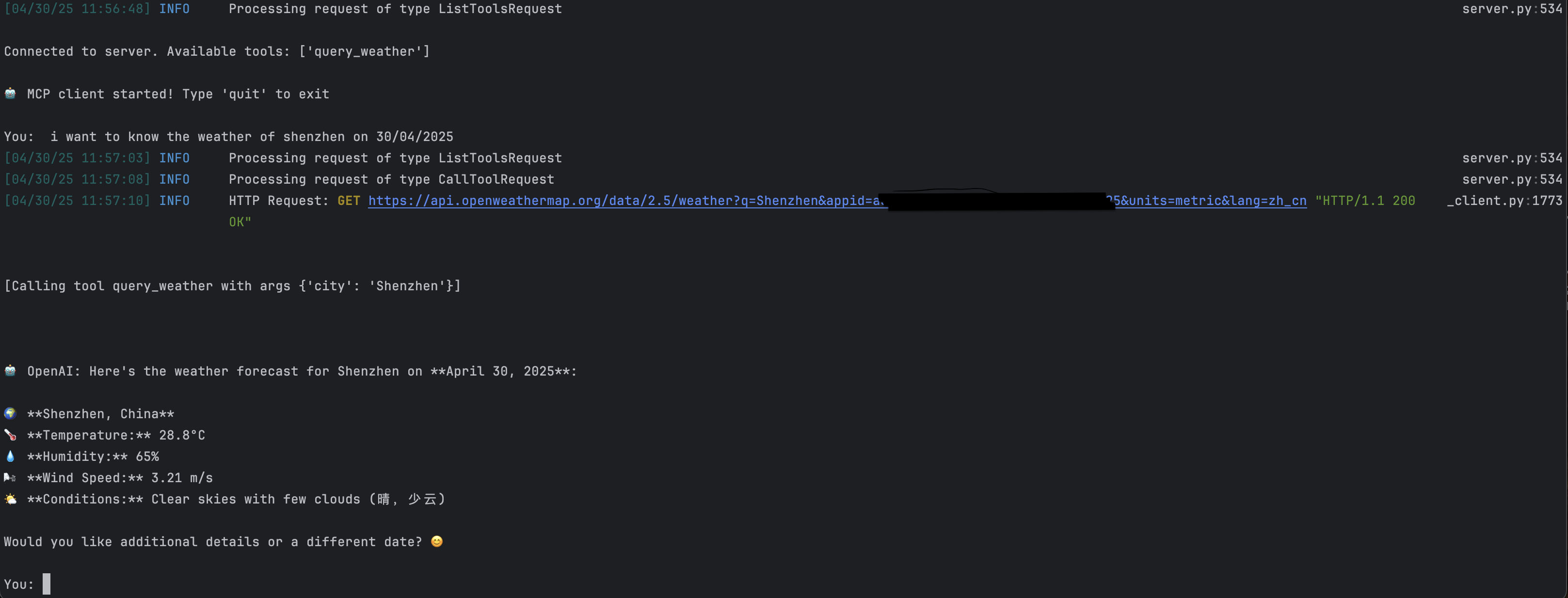
This system enhances Large Language Models (LLMs) with weather data capabilities using the Model Context Protocol (MCP) framework.
Related MCP server: mcp-weather
MCP Client: Store LLms
MCP Server: Intermediate agent connecting external tools / resources
BASE_URL=https://api.deepseek.com
MODEL=deepseek-chat
OPENAI_API_KEY=<your_api_key_here>OPENWEATHER_API_BASE=https://api.openweathermap.org/data/2.5/weather
USER_AGENT=weather-app/1.0
API_KEY=<your_openweather_api_key>Initialize project:
uv init weather_mcp
cd weather_mcp
where weather_mcp is the project file name.
Install dependencies:
uv add mcp httpxLaunch system:
cd ./utils
python client.py server.py
Note: Replace all
<your_api_key_here>placeholders with actual API keys
This server cannot be deployed
MCP server for weather with reasoning — umbrella advice, outdoor checks, city comparisons.
Hosted MCP server for Xweather weather data: conditions, forecasts, alerts, and more.
The official Model Context Protocol server for Ambee. It gives any MCP-compatible AI assistant — Claude, ChatGPT, Cursor, VS Code, Ollama, and more direct access to live air quality, pollen, and weather data. To get started, including information on signing up and obtaining your Ambee key, check out the Ambee documentation on https://docs.ambeedata.com
MCP server for building and testing AI agents with multi-model experimentation and insights.