



Zeek-MCP
This repository provides a set of utilities to build an MCP server (Model Context Protocol) that you can integrate with your conversational AI client.
Table of Contents
Related MCP server: Wireshark MCP
Prerequisites
Installation
1. Clone the repository
git clone https://github.com/Gabbo01/Zeek-MCP
cd Zeek-MCP
2. Install dependencies
It's recommended to use a virtual environment:
python -m venv venv
source venv/bin/activate    # Linux/macOS
venv\Scripts\activate     # Windows
pip install -r requirements.txt
Note: If you don’t have a requirements.txt, install directly:
Usage
The repository exposes two main MCP tools and a command-line entry point:
3. Run the MCP server
python Bridge_Zeek_MCP.py --mcp-host 127.0.0.1 --mcp-port 8081 --transport sse
--mcp-host: Host for the MCP server (default: 127.0.0.1).
--mcp-port: Port for the MCP server (default: 8081).
--transport: Transport protocol, either sse (Server-Sent Events) or stdio.

4. Use the MCP tools
You need to use an LLM that can support the MCP tools usage by calling the following tools:
execzeek(pcap_path: str) -> str
parselogs(logfile: str) -> DataFrame
You can interact with these endpoints via HTTP (if using SSE transport) or by embedding in LLM client (eg: Claude Desktop):
Claude Desktop integration:
To set up Claude Desktop as a Zeek MCP client, go to Claude -> Settings -> Developer -> Edit Config -> claude_desktop_config.json and add the following:
{
  "mcpServers": {
    "Zeek-mcp": {
      "command": "python",
      "args": [
        "/ABSOLUTE_PATH_TO/Bridge_Zeek_MCP.py",
      ]
    }
  }
}
Alternatively, edit this file directly:
/Users/YOUR_USER/Library/Application Support/Claude/claude_desktop_config.json
5ire Integration:
Another MCP client that supports multiple models on the backend is 5ire. To set up Zeek-MCP, open 5ire and go to Tools -> New and set the following configurations:
Tool Key: ZeekMCP
Name: Zeek-MCP
Command: python /ABSOLUTE_PATH_TO/Bridge_Zeek_MCP.py
Alternatively you can use Chainlit framework and follow the documentation to integrate the MCP server.
Examples
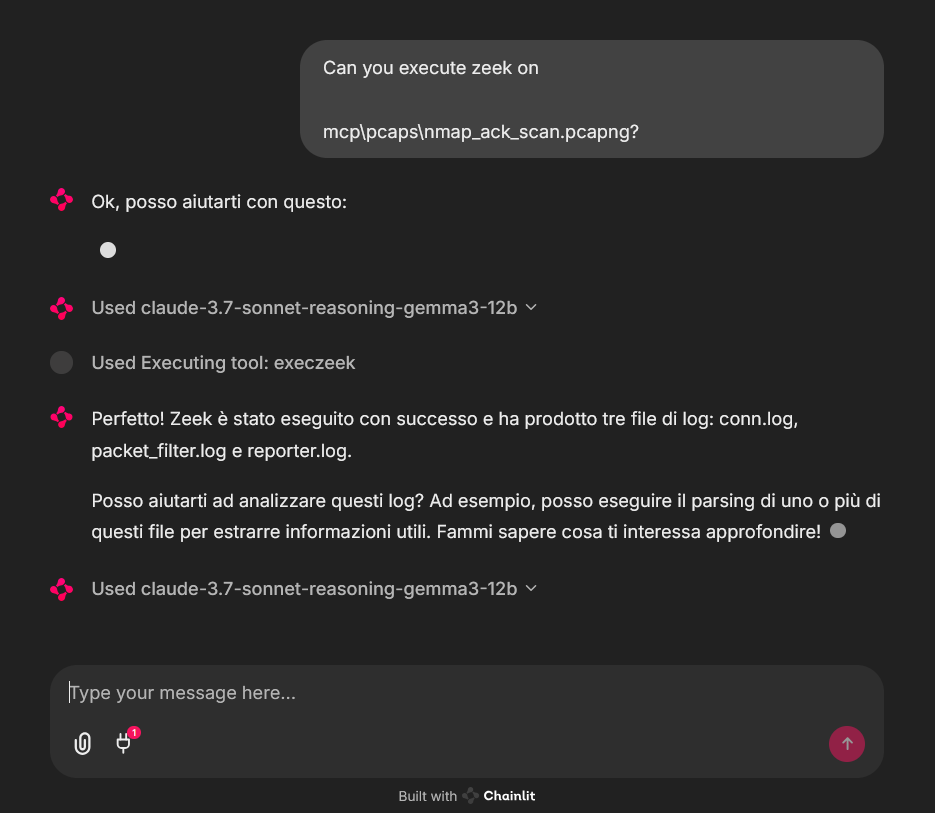
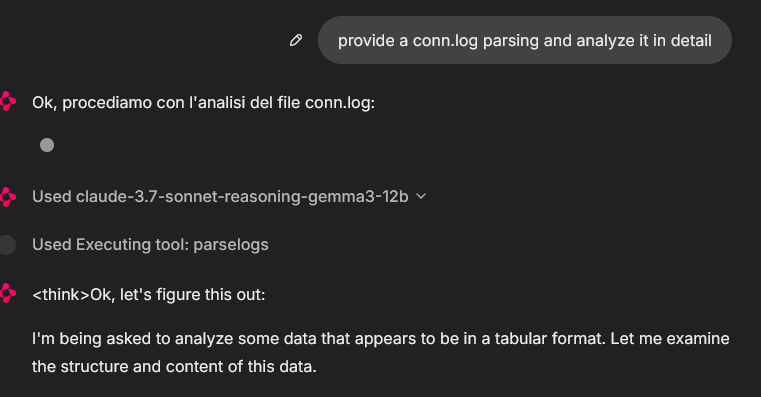
An example of MCP tools usage from a chainlit chatbot client, it was used an example pcap file (you can find fews in pcaps folder)
In that case the used model was claude-3.7-sonnet-reasoning-gemma3-12b

License
See LICENSE for more information.


