
The claude-mermaid server enables live rendering, interactive preview, and export of Mermaid diagrams in Claude Code and other MCP-compatible clients.
Core Capabilities:
Live Rendering & Preview: Creates diagrams with automatic browser preview and real-time WebSocket updates as you edit
Interactive Controls: Pan by dragging, zoom with browser controls, and reset position with one click
Multiple Sessions: Work on concurrent diagrams using unique
preview_ididentifiersTheme & Styling: Choose from 4 themes (default, forest, dark, neutral) and customize background colors, dimensions, and quality scaling
Multiple Export Formats: Save diagrams as SVG, PNG, or PDF to specified locations
Persistent Working Files: Live previews stored in
~/.config/claude-mermaid/livefor iterative developmentBuilt-in Expert Guidance: Includes Claude skill with Mermaid best practices and workflow management
Smart Infrastructure: Auto-detects available ports (3737-3747) with comprehensive debug logging
Two-Step Workflow: Use mermaid_preview to create and refine diagrams with live reload, then mermaid_save to export the final output.
Enables rendering of Mermaid diagrams with live reload functionality, allowing real-time diagram updates in the browser and export to multiple formats (SVG, PNG, PDF)
Click on "Install Server".
Wait a few minutes for the server to deploy. Once ready, it will show a "Started" state.
In the chat, type
@followed by the MCP server name and your instructions, e.g., "@claude-mermaidpreview a sequence diagram for user login flow"
That's it! The server will respond to your query, and you can continue using it as needed.
Here is a step-by-step guide with screenshots.
Claude Mermaid MCP Server
MCP server for rendering Mermaid diagrams in Claude Code with live reload functionality and a built-in skill for expert guidance.
Automatically renders diagrams in your browser with real-time updates as you refine them. Perfect for iterative diagram development and documentation workflows.
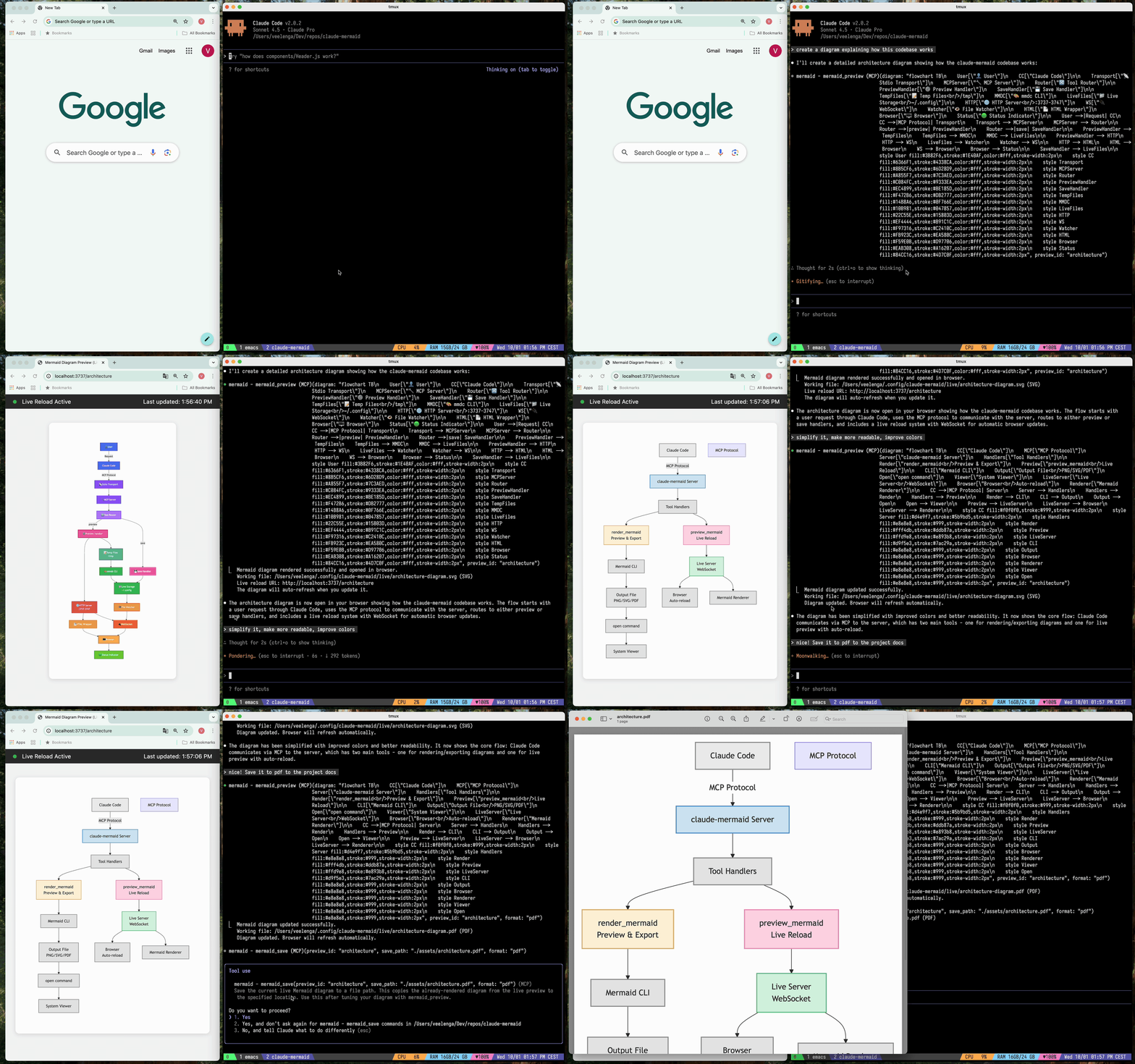
✨ Features
🔄 Live Reload - Diagrams auto-refresh in your browser as you edit
🎨 Multiple Save Formats - Export to SVG, PNG, or PDF
🌈 Themes - Choose from default, forest, dark, or neutral themes
📐 Customizable - Control dimensions, scale, and background colors
🪄 Interactive Preview - Pan diagrams by dragging, zoom with browser controls, reset position with one click
🗂️ Multiple Previews - Use
preview_idto work on multiple diagrams simultaneously💾 Persistent Working Files - Live previews are stored under
~/.config/claude-mermaid/live🤖 Built-in Skill - Includes a Claude skill with best practices and expert guidance for creating diagrams
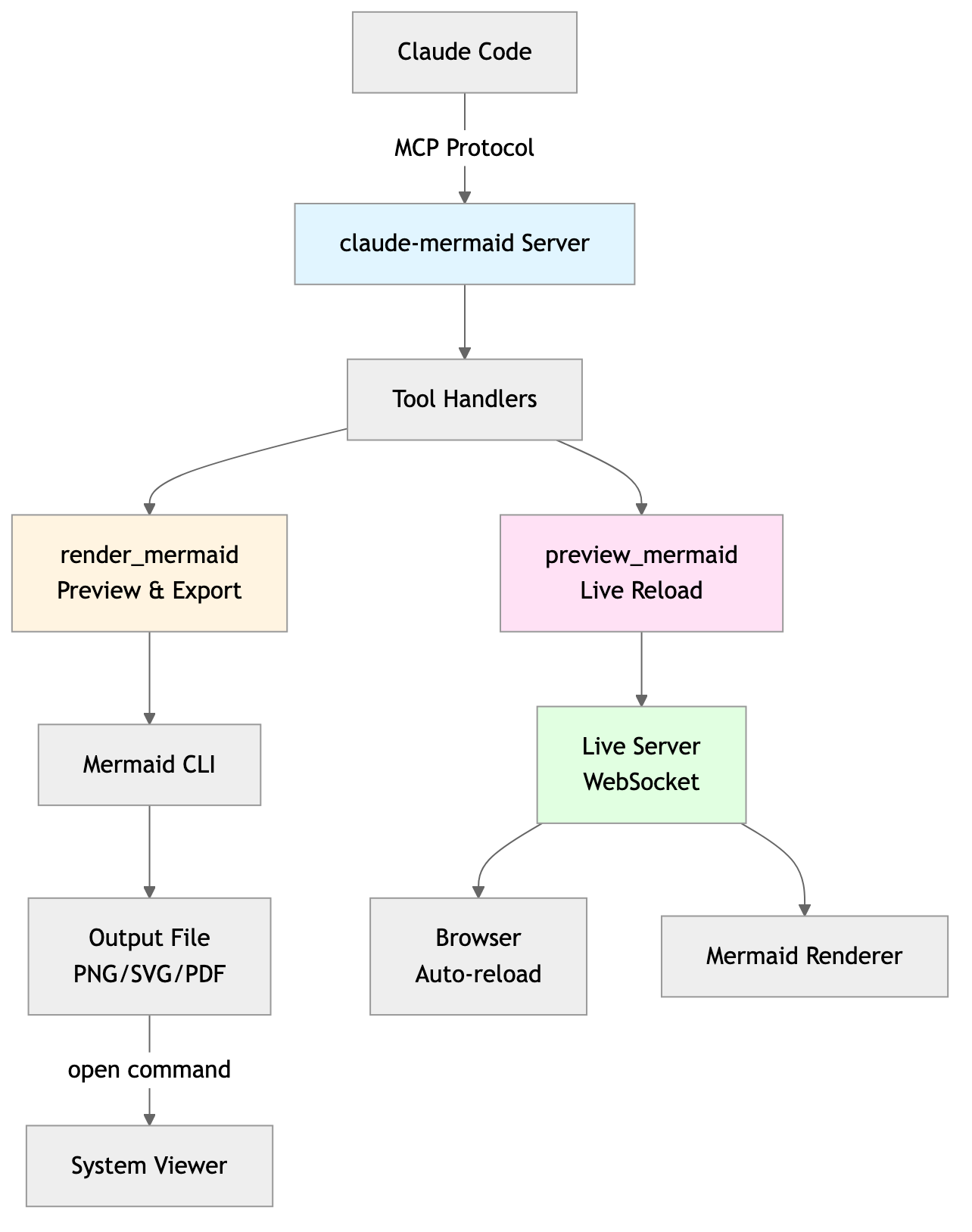
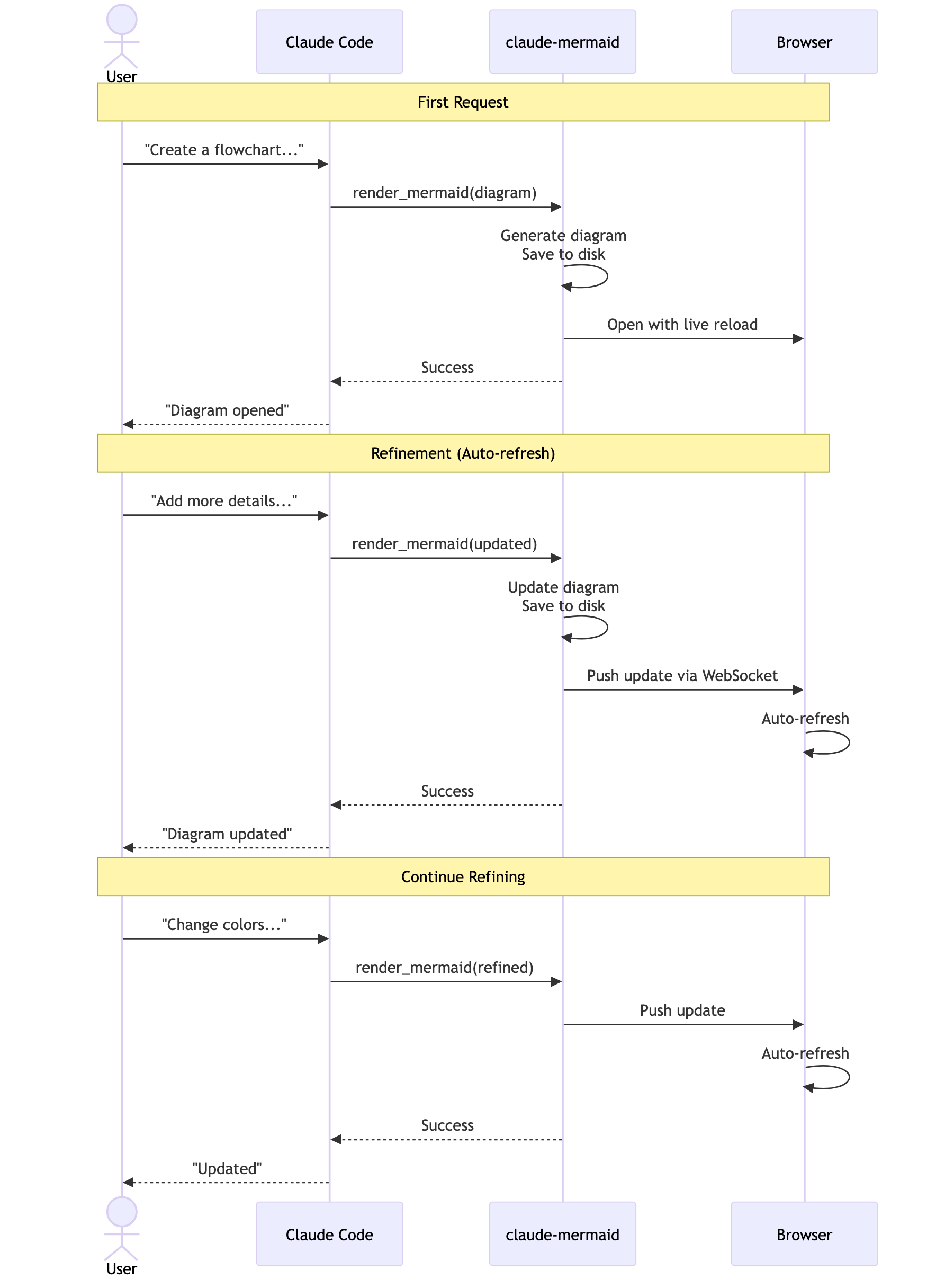
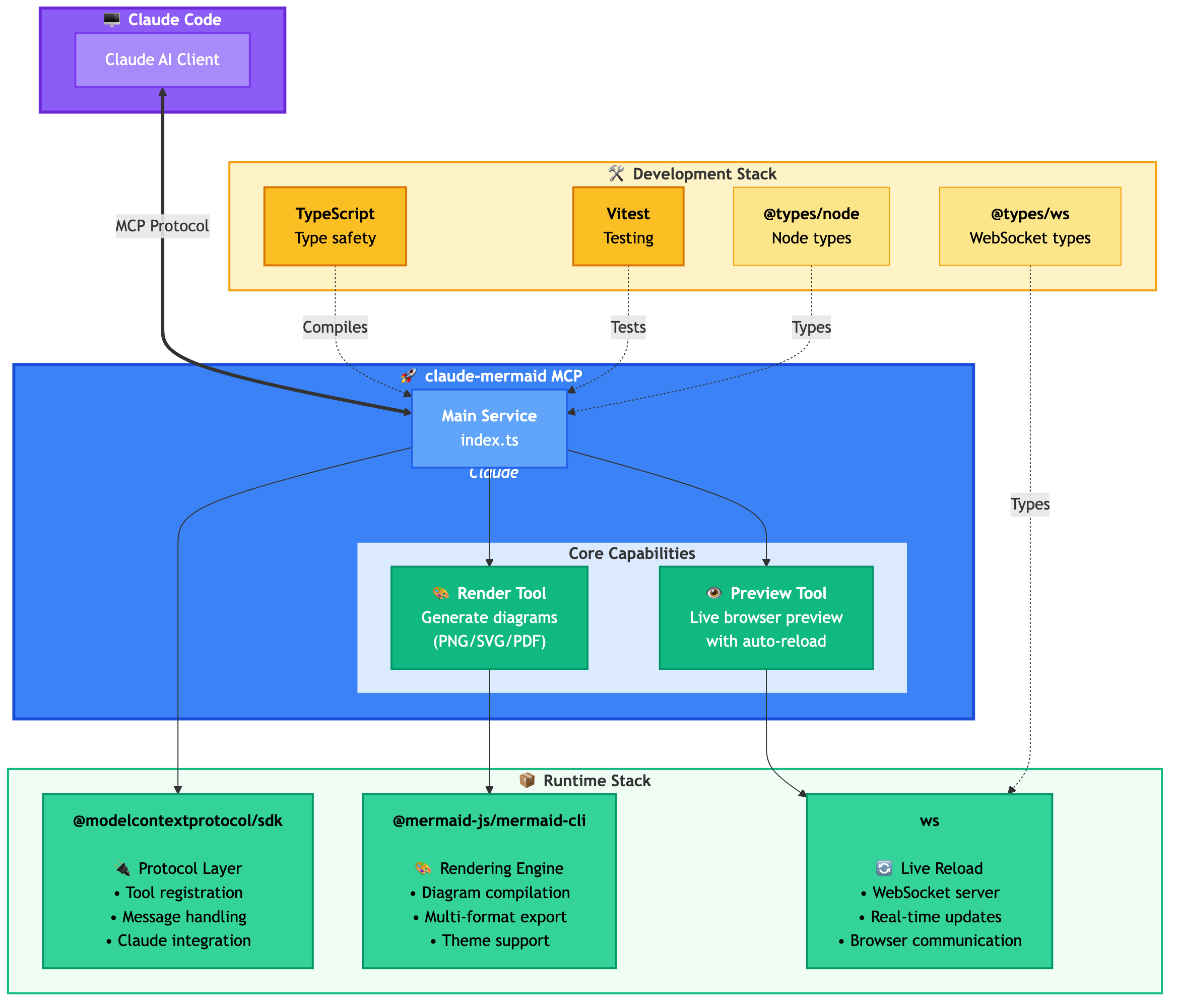
Architecture
🚀 Quick Start
1. Install
Plugin Install (Recommended)
In Claude Code, add the marketplace and install the plugin:
Then restart Claude Code to activate the plugin.
From npm:
From source:
2. Verify Installation
Plugin install: The MCP server is configured automatically. Just verify:
You should see mermaid in the MCP server list.
npm install: Configure the MCP server manually:
Then verify:
You should see mermaid: claude-mermaid - ✓ Connected
🔌 Other MCP Client Configurations
While this server is optimized for Claude Code, it can work with any MCP-compatible client. Here's how to configure it for other popular tools:
Add to your Codex MCP settings file (~/.codex/mcp_settings.json):
Or configure via Codex CLI:
Add to your Cursor MCP config file (.cursor/mcp.json or settings):
Or use Cursor's settings UI:
Open Cursor Settings (Cmd/Ctrl + ,)
Navigate to MCP Servers
Add a new server with command:
claude-mermaid
If using the Cline extension for VSCode:
Open VSCode settings (Cmd/Ctrl + ,)
Search for "Cline MCP"
Add to MCP Settings JSON:
Add to Windsurf's MCP configuration file:
Configuration location varies by platform:
macOS:
~/Library/Application Support/Windsurf/mcp.jsonLinux:
~/.config/windsurf/mcp.jsonWindows:
%APPDATA%\Windsurf\mcp.json
Add to Gemini CLI's MCP configuration file (~/.gemini/mcp.json):
Or use the Gemini CLI to configure:
For any MCP-compatible client, use the standard configuration:
The command claude-mermaid should be available in your PATH after installation.
Note: Some clients may require the full path to the executable:
Find the path:
which claude-mermaid(Unix/macOS) orwhere claude-mermaid(Windows)Use absolute path in config:
"command": "/path/to/claude-mermaid"
💡 Usage
Simply ask Claude Code to create Mermaid diagrams naturally. When installed as a plugin, the built-in mermaid-diagrams skill provides expert guidance, best practices, and automatic workflow management.
Basic Examples
Advanced Examples
With custom formatting:
With specific output format:
Note: Browser always shows SVG for live preview, while saving to your chosen format.
Iterative refinement:
Complete Example
The diagram will be saved to ./docs/auth-flow.svg and opened in your browser with live reload enabled.
🔧 Tools and Parameters
There are two tools exposed by the MCP server:
mermaid_preview— render and open a live preview
diagram(string, required) — Mermaid diagram codepreview_id(string, required) — Identifier for this preview session. Use different IDs for multiple concurrent diagrams (e.g.,architecture,flow).format(string, defaultsvg) — One ofsvg,png,pdf. Live preview is available only forsvg.theme(string, defaultdefault) — One ofdefault,forest,dark,neutral.background(string, defaultwhite) — Background color. Examples:transparent,white,#F0F0F0.width(number, default800) — Diagram width in pixels.height(number, default600) — Diagram height in pixels.scale(number, default2) — Scale factor for higher quality output.
mermaid_save— save the current live diagram to a path
save_path(string, required) — Destination path (e.g.,./docs/diagram.svg).preview_id(string, required) — Must match thepreview_idused inmermaid_preview.format(string, defaultsvg) — One ofsvg,png,pdf. If the live working file for this format doesn’t exist yet, it is rendered on demand before saving.
🎯 How Live Reload Works
First render: Opens diagram in browser at
http://localhost:3737/{preview_id}Make changes: Edit the diagram through Claude Code
Auto-refresh: Browser detects changes via WebSocket and reloads
Status indicator: Green dot = connected, Red dot = reconnecting
The live server uses ports 3737-3747 and automatically finds an available port.
Live Preview Controls
Pan: Click and drag the diagram to move it around
Zoom: Use browser zoom (Ctrl/Cmd + +/- or pinch-to-zoom on trackpad)
Reset Position: Click the ⊙ button in the status bar to recenter the diagram
Notes
Live preview is available for
svgformat only; PNG/PDF are rendered without live reload.For sequence diagrams, Mermaid does not support
styledirectives insidesequenceDiagram.
🛠️ Development
📝 Troubleshooting
Server not connecting:
Permission denied error:
Port already in use:
The server uses ports 3737-3747
It will automatically find an available port
Check if another process is using these ports:
lsof -i :3737-3747
Diagrams not rendering or live reload not working:
The server logs to ~/.config/claude-mermaid/logs/:
mcp.log- Tool requests and diagram renderingweb.log- HTTP/WebSocket connections and live reload
Enable debug logging in your MCP config:
Then check the logs:
Available log levels: DEBUG, INFO (default), WARN, ERROR, OFF
🤝 Contributing
Contributions are welcome! Please feel free to submit a Pull Request.
📄 License
MIT - see LICENSE file for details